
- HOME
- Know Your Tech
- How to create cascading dropdowns using different methods
How to create cascading dropdowns using different methods
- Last Updated : March 2, 2026
- 574 Views
- 12 Min Read
Dropdown lists help organize data—but long lists create problems. Users scroll endlessly, skip past the right option, or select something incorrectly because similar options appear together. Forms that should take minutes end up taking much longer.
Highlights
- Cascading dropdowns filter options automatically based on previous selections, showing only relevant choices at each step.
- Clean, organized data ensures dropdowns load faster and display accurate options without errors or duplicates.
- Methods for building cascading dropdowns include low-code platforms, spreadsheets, form builders, web development, and relational databases.
- Pre-filtering data and setting smart defaults improves performance and reduces the time users spend filling out forms.
- Testing regularly ensures dropdown logic stays reliable as your data grows or changes over time.
Cascading dropdowns change this by filtering each list based on what users selected before. Choose a region, and only locations in that region appear. Select a category, and only products from that category show up. Each step helps guide users to the right choice.
This blog post breaks down 5 methods for creating cascading dropdowns. You'll learn step-by-step approaches for each, so you can choose the one that best fits your needs.
What makes up a cascading dropdown?
A cascading dropdown is basically a set of connected dropdown menus that guide users step by step while filling out a form. Each time you make a selection, it automatically filters the options in the next dropdown, so you only see what’s relevant.
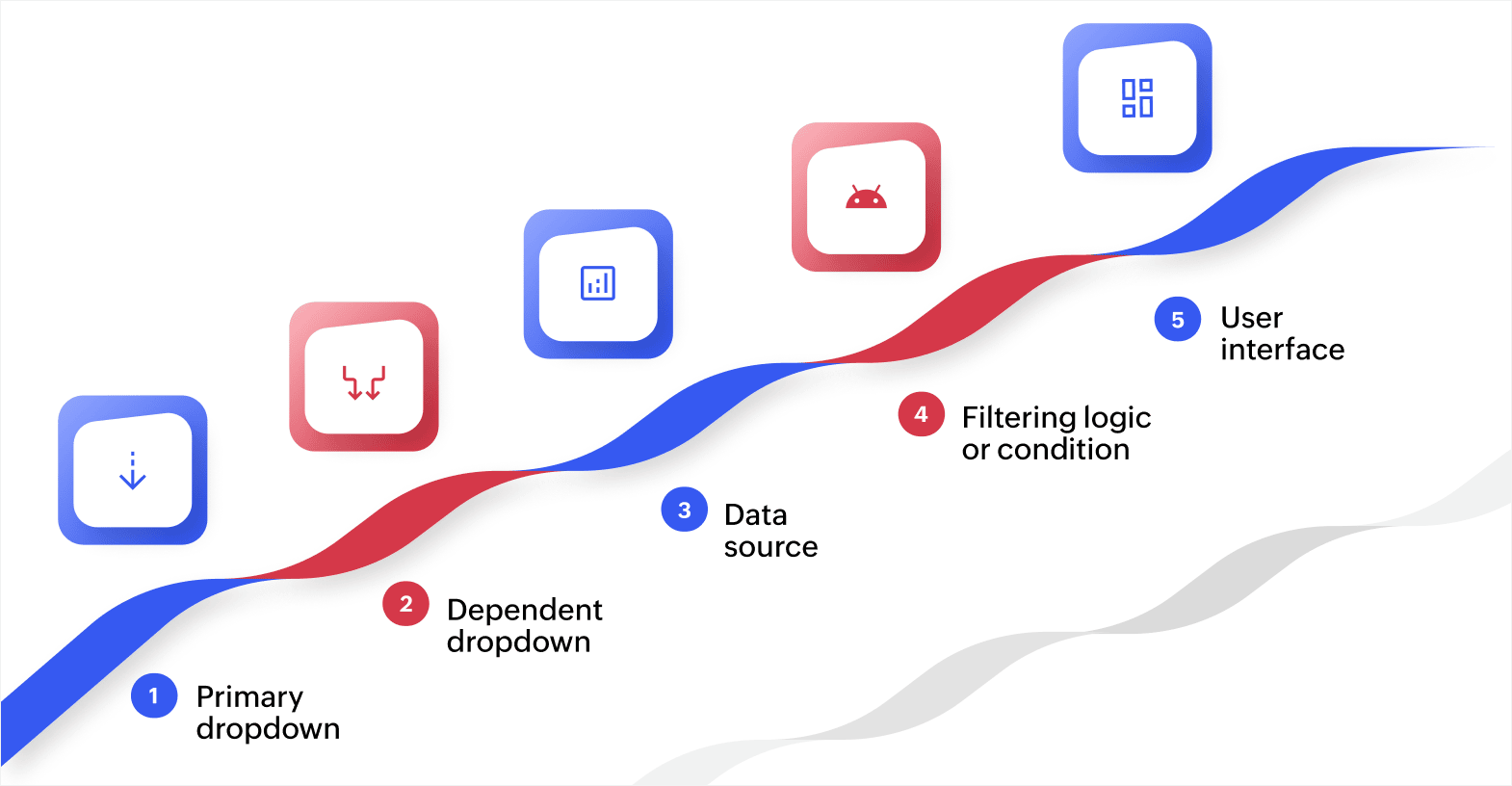
Here’s what goes into a cascading dropdown:
Primary dropdown
This is the first dropdown that users see and interact with—the one that initiates the chain. It essentially sets the tone for what comes next. For example, if someone picks a “Country” here, that choice decides which “State” or “Region” will appear in the next dropdown. Think of it as the foundation that shapes how the rest of the form behaves.
Dependent dropdown
This one changes based on what the user picked earlier. Let’s say someone chooses “California” under “State.” The next dropdown will automatically update to show only cities in California. It keeps things neat, avoids clutter, and ensures users only see options that make sense for their previous choice.
Data source
Every dropdown requires a reliable source, such as a list, table, or database from which the options are derived. The smoother and cleaner your data, the better your dropdowns work.
For instance, if your data correctly links countries to states and states to cities, the dropdowns will flow effortlessly. A well-organized dataset is what keeps everything running without hiccups.
Filtering logic or condition
This is the behind-the-scenes rule that connects one dropdown to the next. It tells the form how to react when something is selected.
For example, a rule like “Show only states where Country = USA” ensures the correct list appears when someone selects “USA.” It’s basically the invisible thread that makes cascading dropdowns function the way they should.
User interface
This is what the user actually sees and interacts with. A good interface ensures that when someone makes a selection, the next dropdown updates instantly, with no page reloads or wait time.
A clean, responsive design ensures a smooth experience, particularly for users filling out forms on their phones or browsers. It’s all about keeping things quick, simple, and easy to follow.
Once you know the components of a cascading dropdown, it’s easier to see how to build one effectively.
5 easy ways to create cascading dropdowns
You can create a cascading dropdown in many ways, but it really depends on what tools you’re using, where your data comes from, and how comfortable you are with tech.
Below are some simple, step-by-step ways to build them, whether you’re working in a basic spreadsheet or creating something more customized with code.
Using low-code platforms
AI-powered low-code platforms like Zoho Creator work well for businesses that want control over their app-building process without writing extensive code. With low-code platforms, you can link fields visually and still extend them with scripts if needed.
Here are the steps to follow:
- Model your data: Create entities for each level (like “Category” and “Product”) and define their relationships.
- Add dropdowns: Drag and drop parent and child fields into your form or app. Use clear labels and sort options logically.
- Set dependency rules: Add filters like “show products where product.category = input.category.” For three levels, chain the filters.
- Handle resets and defaults: Automatically clear child selections when the parent changes, and show defaults when only one choice is available.
- Plan for growth: Enable server-side filtering and pagination for big datasets, and always test how it performs on mobile.
- Test and go live: Try both common and edge cases, then publish once everything looks stable. Set access permissions carefully if your data is sensitive.
Using spreadsheets
This method works great for small teams and simple data. You can link lists using named ranges and formulas to create the cascading effect. Just make sure your data is neatly organized—one wrong space or blank row can cause problems.
Below are the steps to follow:
- Organize your data: Keep everything clean by putting each list on a separate tab: one for countries, another for states, and so on. Use consistent headers and avoid leaving empty rows.
- Create clear list names: Turn each list into a named range in your spreadsheet tool. Use names without spaces to keep references simple and error-free.
- Build your first dropdown: Select the cell for your main dropdown and use data validation to connect it to the parent list. This ensures users can only choose from valid options.
- Link the next list dynamically: Use formulas or functions that reference the first dropdown. For instance, when someone selects a country, a formula pulls only the states that belong to that country.
- Add more levels: Repeat the pattern for additional levels like Country → State → City. Each selection drives the next one. Keep names predictable so everything stays connected.
- Add safety checks: Protect the list tabs, lock headers, and add short notes explaining how to add or update options safely.
- Test for errors: Try changing the parent dropdown after selecting a child option. Set validation to auto-clear child cells or block invalid combinations if needed.
Using online form builders
This option is ideal when you want to launch forms quickly without touching code. You can use built-in conditional logic or dynamic select features. Just note that most tools handle two or three levels at best.
Here are the steps to follow:
- Add dropdown fields: Create fields for parent, child, and grandchild categories if needed. Keep names short and easy to read, especially on mobile devices.
- Load your options: Use the platform's table, CSV import, or integration feature to manage all your data in one place. A single, clean source ensures consistency throughout.
- Set up rules: Add logic like "If Country = USA, show only USA states." Depending on the tool, you can use show/hide rules or prefill options.
- Reset old choices: When users change the first selection, make sure the tool clears the next one automatically so no outdated information stays behind.
- Run tests: Try large lists, special characters, and blank entries. Ensure everything loads quickly on mobile devices.
- Go live with tracking: Enable submission logs and error tracking to quickly identify and fix any broken rules.
Using custom web development
This method provides you with total control, making it ideal for complex or large-scale systems. Here, the dropdowns pull fresh data from an API when users make selections.
Below are the steps to follow:
- Set up your data model and API: Create tables that connect by parent IDs, like countries linked to states. Add endpoints that accept parameters to filter the data.
- Build your HTML structure: Use proper labels and select tags with clear IDs. Include default options like "Select a state" to guide users.
- Add change listeners: Use JavaScript to listen for changes in the parent dropdown. When a selection happens, clear and refresh the child list automatically.
- Fetch and display new options: Call your API using the selected parent ID and populate the next dropdown with the results returned.
- Improve performance: Cache responses so repeated selections load faster. Use debouncing to avoid too many API calls when users change selections quickly.
- Validate selections: Double-check on submission that the chosen options still match the parent selection. Server-side validation keeps your data safe and accurate.
- Prepare for production: Add proper error handling and friendly messages for users in case something goes wrong.
Platforms like Zoho Creator provide custom web development capabilities. You can build applications with drag-and-drop form builders while still having the flexibility to extend functionality with custom code.
Using relational databases or CRMs
This approach works best if your data already lives in structured tables. You can define relationships and let your app or UI filter child lists automatically using foreign keys.
Here are the steps to follow:
- Normalize your tables: Keep things tidy: for example, Departments (id, name) and Employees (id, name, department_id).
- Set up relationships: Ensure your dropdowns only display employees linked to the selected department.
- Use database views: Create prefiltered views like employees_by_department for faster queries.
- Add more levels: For setups like Department → Team → Employee, just repeat the pattern.
- Maintain data consistency: Utilize foreign keys and cascading updates to prevent missing links and ensure data integrity.
- Watch for data drift: Run regular checks or reports to identify and address orphan rows early, before they cause dropdown errors.
Tip: Zoho Creator provides built-in relational database capabilities through features like lookup fields and a schema builder that lets you visualize and manage data relationships visually. This makes it easier to create cascading dropdowns without writing complex database queries.
Now that you know how to create them, let's look at which tools can make the process faster and more efficient.
Also read: 6 key benefits of low-code development
How do low-code platforms simplify cascading dropdown creation?
Low-code platforms make building apps simpler and faster, especially when you’re working with interactive elements like cascading dropdowns. Instead of spending hours writing complex code or juggling multiple integrations, you can use drag-and-drop tools, built-in data relationships, and visual logic to get things done quickly.
Here’s why low-code platforms are often the smartest way to build cascading dropdowns:
Minimal coding, maximum control
In traditional setups, developers must manually write scripts to connect dropdowns and filter data in real time. But low-code platforms remove that complexity. You just define rules visually and link data through intuitive interfaces.
Even if you’re not a full-time developer, you can create and control how each dropdown behaves. The level of flexibility and customization options depend on the specific platform you choose.
Built-in data relationships
Many modern low-code platforms come with ready-made relational data models. This means that one field, such as “Country,” can automatically connect to “State” and “City” fields without requiring extra database coding. The platform itself handles the connections, so your dropdowns stay consistent, accurate, and less prone to errors.
Faster testing and quick fixes
Because many elements are visual, you can instantly test how your dropdowns behave. If a filter doesn’t work as expected, you can tweak it on the spot, without redeploying or debugging code. This makes it easy for small teams to refine forms faster and keep everything running smoothly.
Efficient handling of growing data
As your data grows, modern low-code platforms manage the processing automatically. Whether you’re dealing with a few dozen or thousands of options, the system fetches and filters data efficiently. You don't need to rewrite scripts or manually adjust performance settings. The platform handles increasing data volumes in the background without requiring constant monitoring.
Smooth integration with live data
Most low-code environments connect easily with live data sources like CRMs, APIs, or spreadsheets. So if someone adds a new region or product to your main database, it instantly appears in your dropdown menus—no manual updates, no syncing issues, and everything stays up to date in real time.
Automatic device adaptation
Once your cascading dropdown is set up, it automatically adapts to desktops, tablets, and mobiles. You typically don't need to modify layouts extensively for each device type. The quality of responsive design varies, though, with more mature platforms generally offering better cross-device experiences.
Easier maintenance and governance
Low-code platforms often centralize your data rules, dropdown logic, and relationships in accessible dashboards. When your business updates categories or workflows, you can usually adjust settings without modifying underlying code. This centralization makes it easier for teams to manage and document changes, but the governance features and controls available will differ across platforms.
Now, with the right platform in place, you can focus on fine-tuning your dropdowns to ensure they perform smoothly.
8 easy tips to make your dropdowns run smoother
Cascading dropdowns work best when they load fast, stay accurate, and adapt easily as your data changes. No matter if you’re using spreadsheets, databases, or low-code platforms, a few simple habits can make a huge difference in how smoothly they perform.
1. Keep your data clean and consistent
Poor data quality costs U.S. businesses $3.1 trillion every year, which shows just how critical clean, reliable data is. This is especially true for dropdowns, which are only as effective as the data behind them.
Make sure your tables or lists don’t have duplicate entries, typos, or blank rows. Clean, well-organized data helps your dropdowns filter results faster and prevents weird or missing options from showing up.
2. Don’t overcomplicate with too many dependencies
It’s tempting to link multiple dropdowns together, but every extra level adds more filtering and slows things down. Stick to two or three levels (like Country → State → City). Anything beyond that can confuse users and hurt performance.
3. Pre-filter your data when possible
If your dataset is large, filter it before connecting it to the dropdowns. For example, instead of loading every city, show only cities that belong to the selected state. This keeps things quick and light on your system, while users enjoy faster load times.
4. Use smart defaults
If users often pick the same value, set it as a default. For instance, if most people select the same country or department, it can be prefilled automatically. It’s a small touch that saves time and makes the form feel more intuitive.
5. Check your data relationships regularly
As your database grows, some new entries may not align with your existing logic. Review dropdown dependencies periodically to ensure everything remains connected properly. Broken or outdated links are one of the biggest reasons dropdowns stop working as expected.
6. Add clear loading indicators
If your dropdown pulls live data, let users know it’s loading. A simple “Loading options…” message or spinner sets expectations and prevents users from clicking too soon, especially when the internet speed is slow.
7. Make it mobile-friendly
61% of users are unlikely to return to a site on mobile if they encounter access issues, which shows the importance of a smooth mobile experience. Dropdowns, in particular, can behave differently on smaller screens, so it’s essential to optimize them for mobile.
Keep option names short, reduce the number of levels, and add enough spacing to make tapping easy. Always test your dropdowns on mobile devices before making them live to ensure users can navigate your site smoothly and return again.
8. Keep your data up to date automatically
If your dropdowns rely on external data (like product categories or locations), set them to refresh automatically. That way, you don’t have to upload new lists manually, and your users always see the latest information.
Also read: How low-code automation can save you time and money
Create efficient forms with cascading dropdowns using Zoho Creator
Cascading dropdowns make a real difference in your forms by making data entry faster, smoother, and more accurate for everyone who uses them.
Zoho Creator is an AI-powered low-code app development platform that simplifies the process of setting up cascading dropdowns. The platform helps you create cascading dropdowns through its visual development environment. It also allows you to design data relationships, set up filtering rules, and build complete forms using drag-and-drop tools.
The platform also provides mobile apps that work across iOS and Android devices automatically. Your cascading dropdowns adapt to different screen sizes without extra configuration, ensuring users have a consistent experience whether they're filling out forms on a desktop computer, tablet, or phone.
FAQ
1. What is a cascading dropdown?
A cascading dropdown is a series of linked dropdown lists, where each choice filters the options that appear in the next one. For example, selecting a country will automatically show only the states in that country in the next dropdown.
2. Why do cascading dropdowns matter?
Cascading dropdowns make forms faster, cleaner, and much easier to use. They reduce mistakes, improve data accuracy, and save time by preventing users from scrolling through long, irrelevant lists.
3. Can cascading dropdowns work with real-time or external data sources?
Yes, you can link them to live databases or APIs, so options update automatically whenever new data comes in. This is ideal for situations where information is frequently updated, such as product catalogs or regional lists.
4. How can I handle long lists without slowing down performance?
Instead of loading every option at once, use techniques like pagination, lazy loading, or search-in-dropdown. Users can type or scroll smoothly, ensuring the dropdown remains fast and responsive, even with thousands of entries.
5. Are cascading dropdowns compatible with different user roles or permissions?
Yes, you can control what each user sees using access rules or role-based filters. For instance, a sales manager might view all regions, while a local agent only sees the territories assigned to them.
 Bharathi Monika Venkatesan
Bharathi Monika Venkatesan is a content writer at Zoho Creator. Outside of work, she enjoys exploring history, reading short novels, and cherishing moments of personal introspection.