Analyze, Act & Automate with Drill Actions
- Last Updated : July 8, 2026
- 418 Views
- 3 Min Read

Every time you spot an insight and switch apps to act on it, you lose context, time, and momentum. What if your dashboard wasn't just a window into your data, but the place where you acted on it too?
Insights create value only when they lead to action. Traditional dashboards excel at helping you understand what is happening, but acting on those insights often requires manual intervention leaving the dashboard, opening another application, finding the relevant record, and making the necessary update.
Imagine clicking a data point and having it automatically pre-fill a form, trigger a workflow, or update a database all without writing complex backend code. That's the power of drill actions.
In this solution, we’ll explore what drill actions are, how to implement them, where they add the most value in real-world scenarios.
What are Drill Actions in Zoho Analytics?
A Drill Action is an interactive link that allows users to perform context-aware actions from a report or dashboard.
Broadly, drill actions fall into two categories based on their purpose.
View - Explore & Navigate
These actions help users explore and access related information while preserving the context of the selected data. These are read-only actions and carry context without modifying any data.
Taking Action - Update & Trigger
These actions enable users to move beyond analysis and take action directly from their reports and dashboards. Instead of stopping at insights, users can initiate business processes without leaving the analytics environment.
Let's look at a few practical examples of how drill actions can be used.
Open a Filtered Report
One of the most common uses of drill actions is navigating from a report to a detailed, filtered view. Instead of manually opening another report and reapplying filters, users can click a data point and instantly access a report that is already filtered based on the selection.
For example, in a sales summary report, you can click on a specific region or product to open a detailed report filtered for that selection. The selected values are automatically passed as parameters, so users land directly on the relevant data without having to apply filters again.
Access Records in Other Business Application
While working on a report, you may need to quickly access related information. Instantly view additional context such as customer profiles, transaction details, orders, and support interactions, without leaving your workflow. Access related records by passing unique identifier as parameters.
- View Customer Records: A sales rep reviewing a specific report can instantly open the corresponding customer record in the CRM system to check contact details, purchase history, interaction logs, and account status.
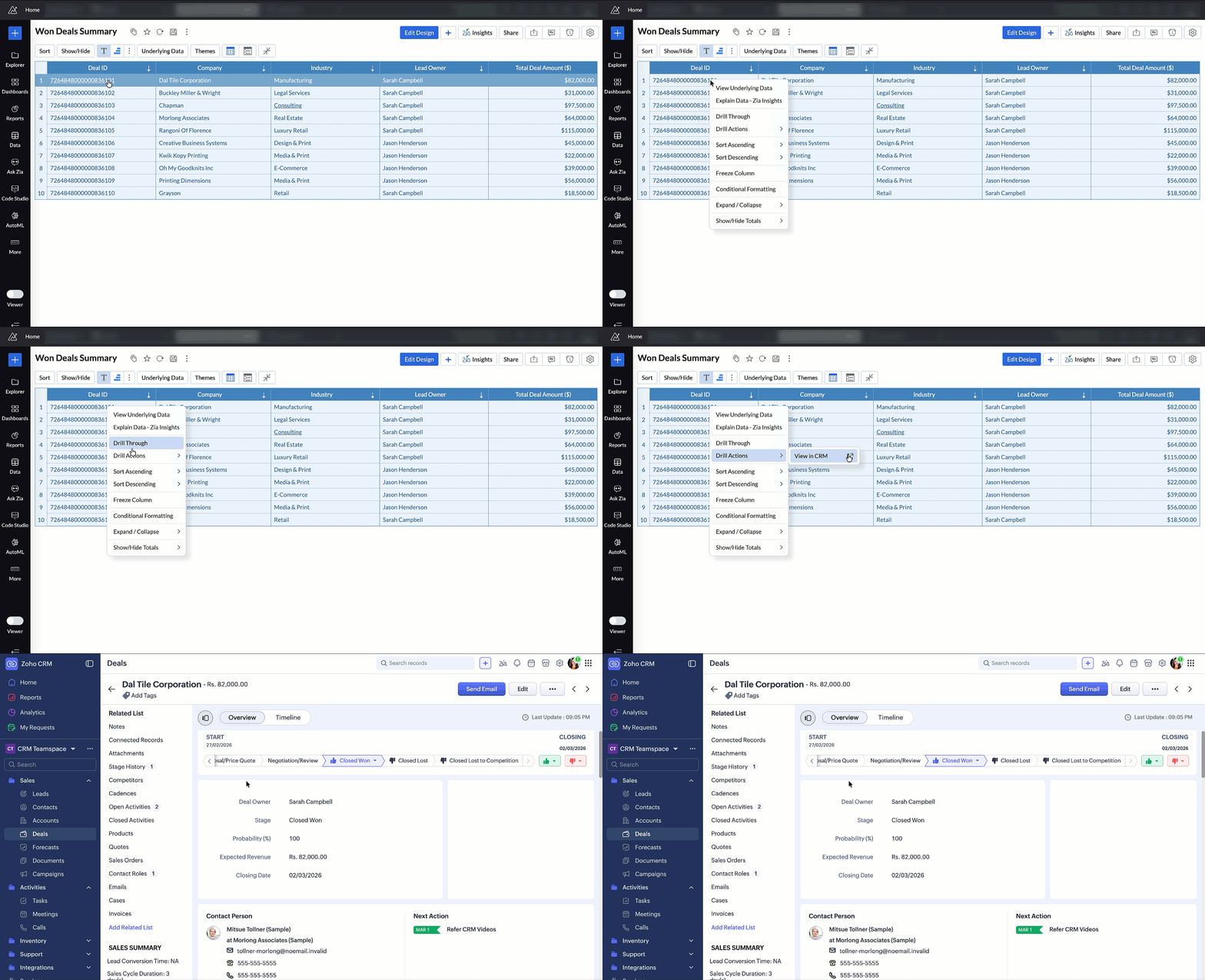
- View Transaction Records: A finance analyst reviewing revenue or outstanding payments can instantly open the transaction in the finance system to check invoice details, payment status, and due dates.
Act on Your Data with Write Back
Drill Actions become even more powerful when combined with write-back capabilities and integrated with workflow automation platforms. Together, they enable users to move beyond analyzing data to acting on it directly from their reports and dashboards, creating a seamless connection between insights and business operations.
Manage Your Data Directly from Where You Analyze It
Make changes to business data from the same interface where you monitor performance, ensuring data remains current, reliable, and seamlessly synchronized across your connected systems.
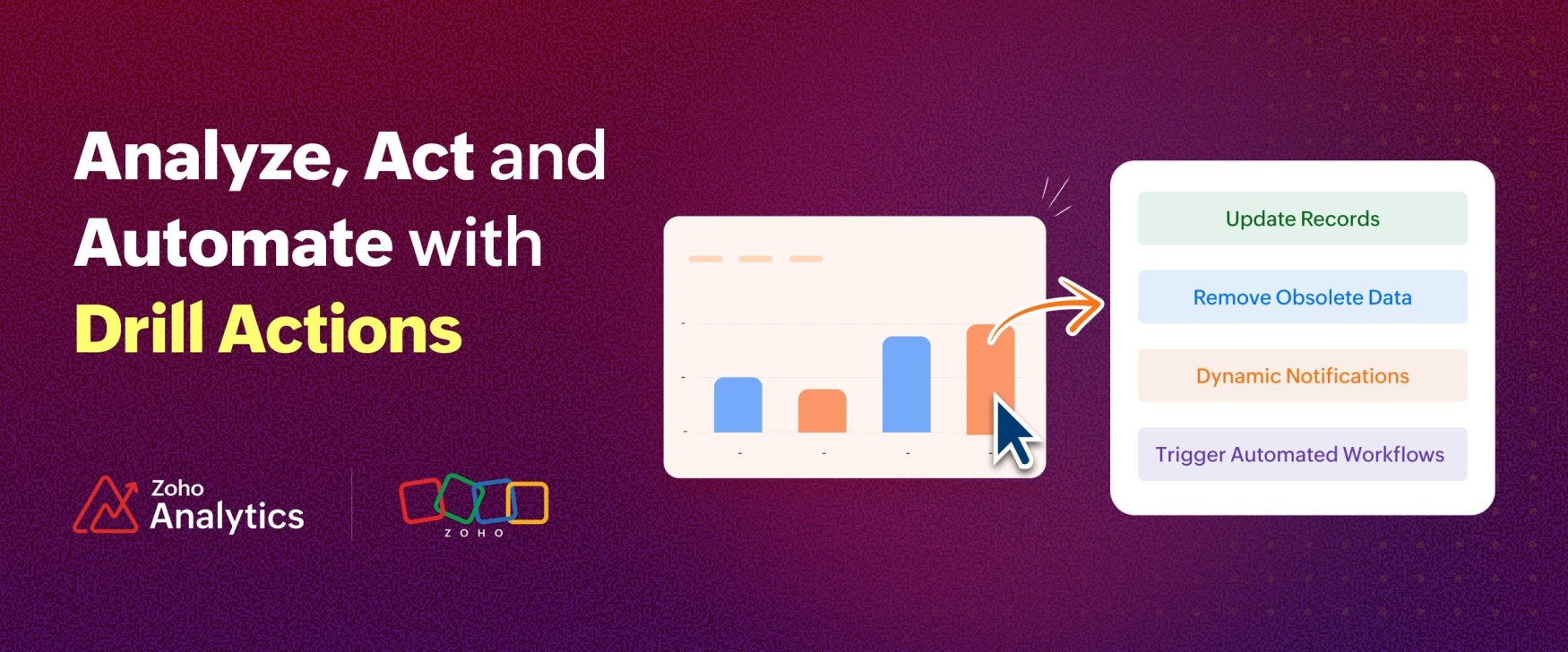
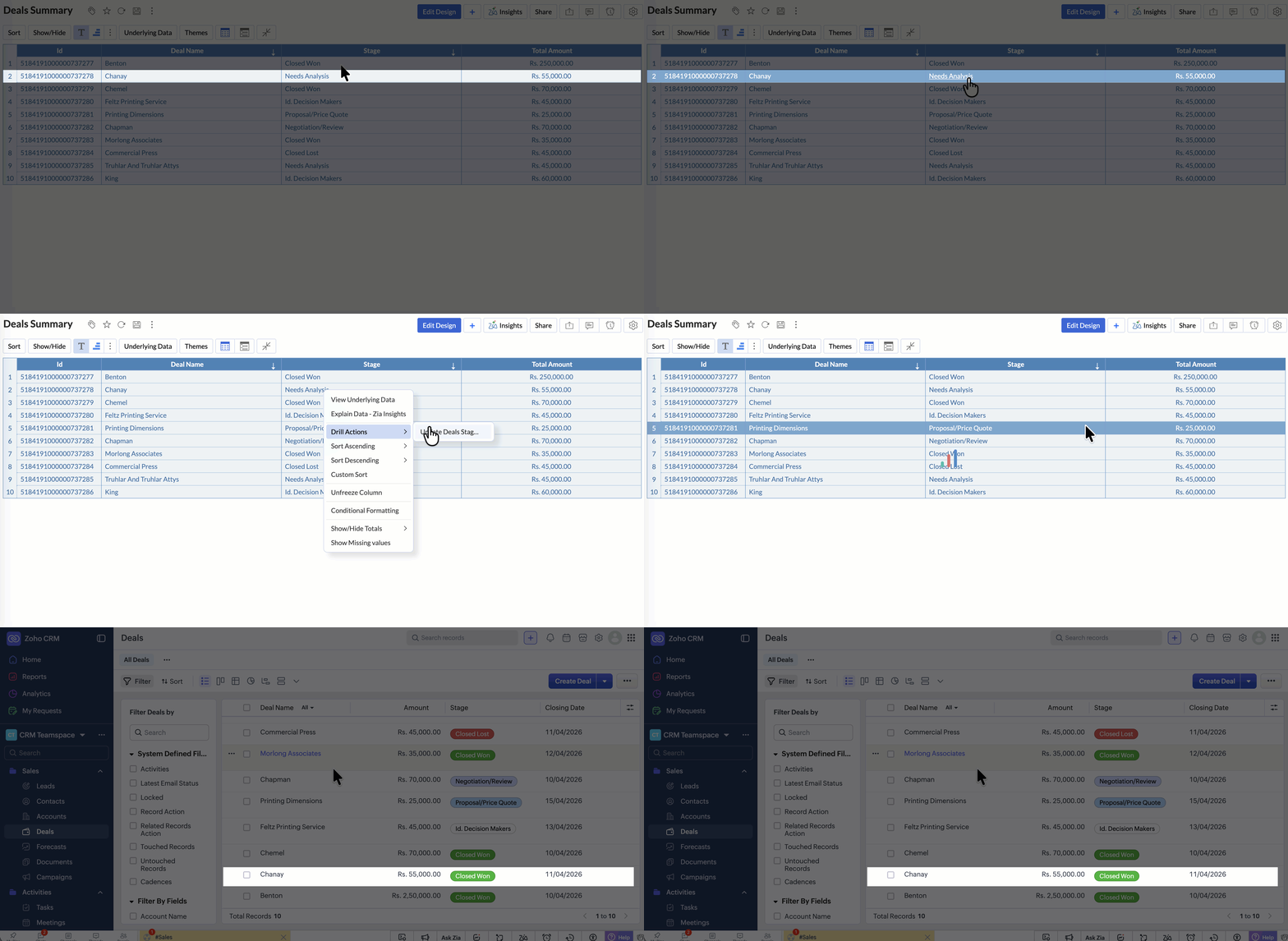
Update Records
A sales rep reviewing the pipeline report spots a deal that is closed but not updated in the source application. Instead of switching to the CRM, they can update the deal stage directly from the report ensuring the data is accurate instantly and the pipeline reflects the true status without delay.
Remove Obsolete Data
An operations analyst reviewing inventory or order reports notices outdated or irrelevant records (such as canceled orders or inactive items) still present in the data. Instead of switching to another system for cleanup, they can remove these entries directly from the report, ensuring the analysis reflects only current and relevant data.
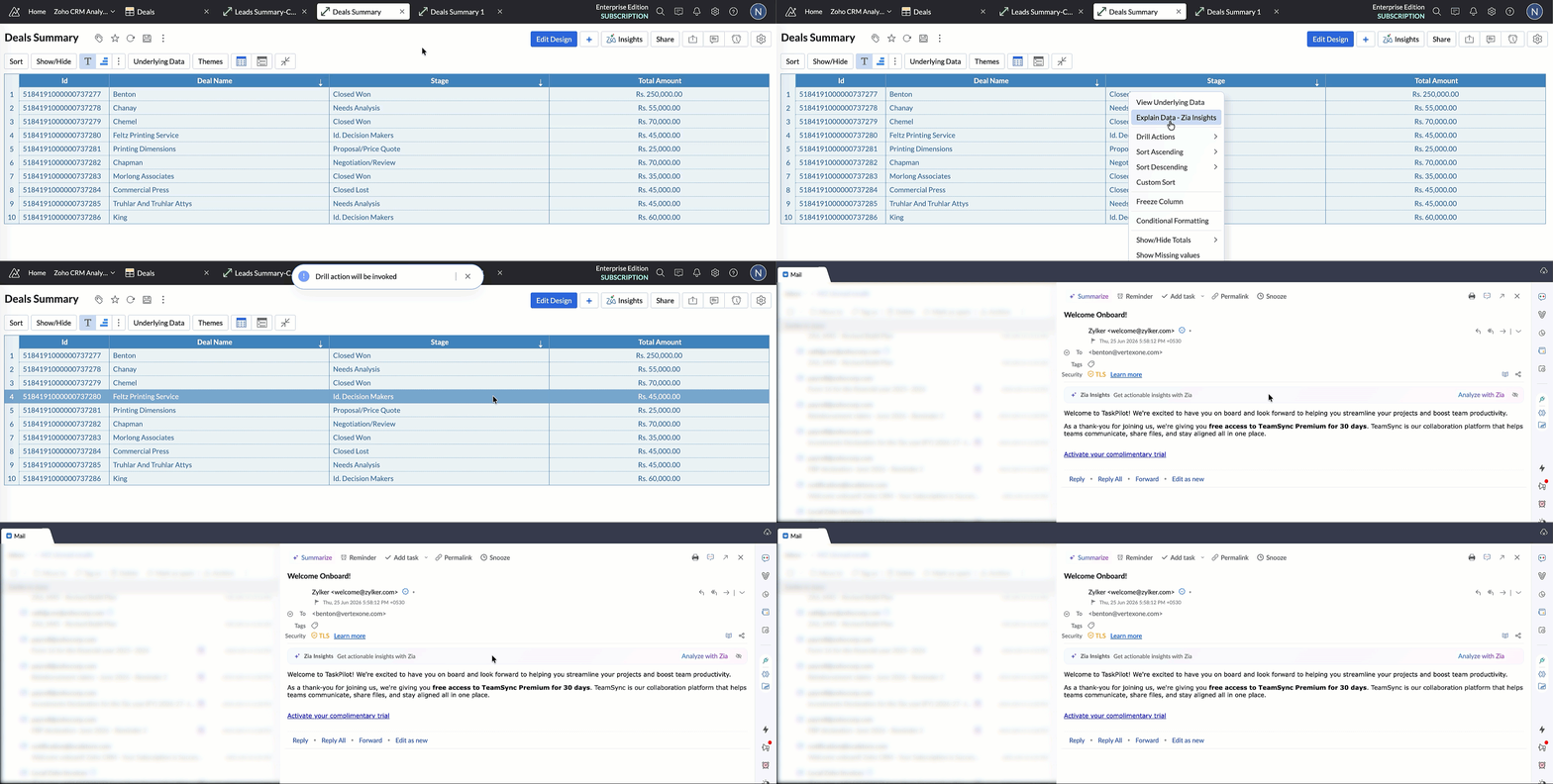
Dynamic Notifications
Send timely, personalized notifications whenever critical data changes occur. When a sales rep marks a deal as Closed Won in the pipeline report, a write-back action updates the source CRM and simultaneously can trigger an automated email to the customer, offering a free trial of a complementary product.
Trigger Automated Workflows
Connect Zoho Analytics with workflow automation platforms like Zoho Flow to automate business processes. Trigger workflows directly from your reports and dashboards to orchestrate multi-step actions across your connected business applications.
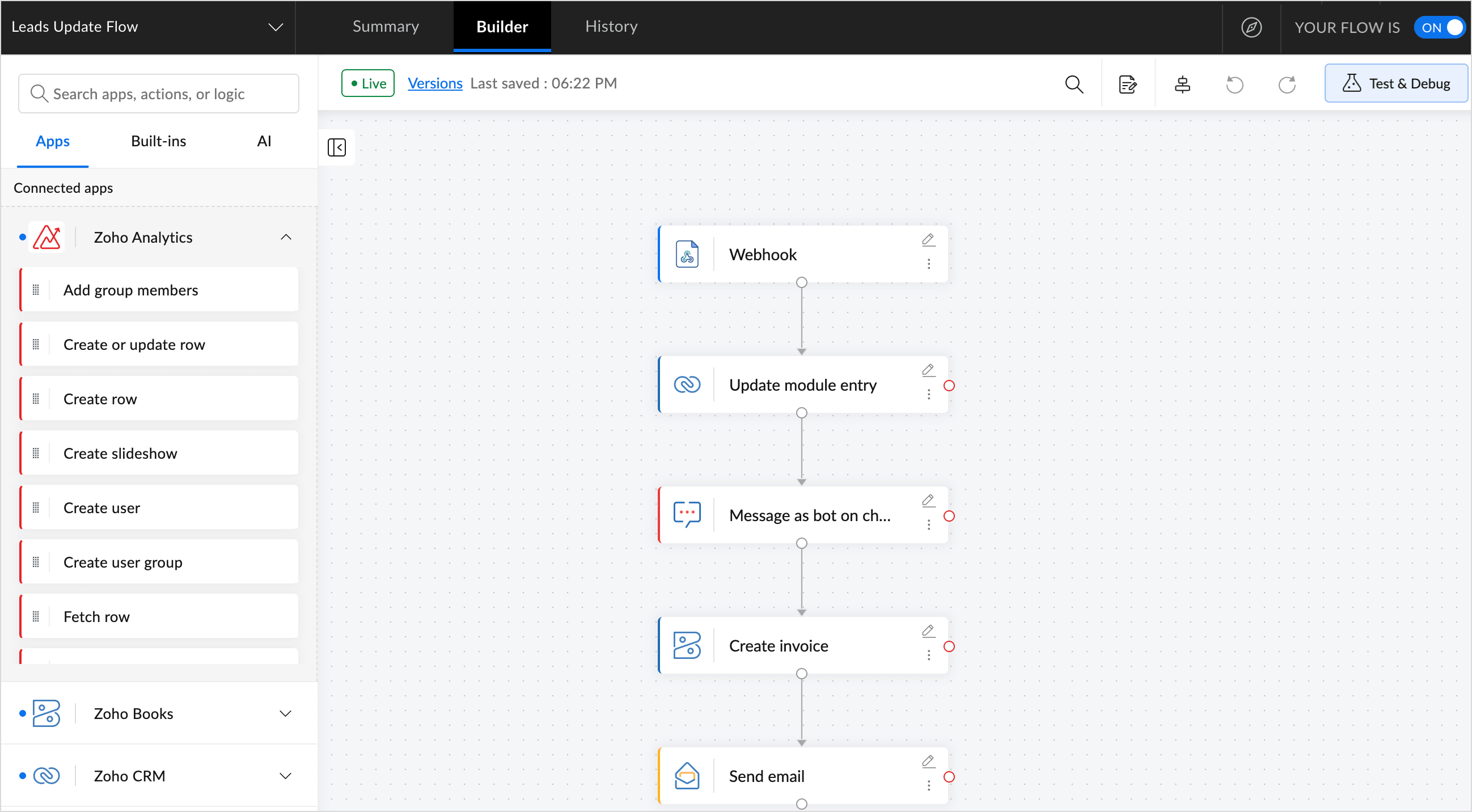
When a sales representative uses a Drill Action to update a deal's status to Closed Won directly from the report, a single click initiates a Zoho Flow workflow.
The workflow updates the CRM record, notifies the sales team in Zoho Cliq with the latest deal information and pipeline impact, creates an invoice in Zoho Books for the finance team, and sends a personalized trial offer email to the customer.
Every action automatically synchronizes with Zoho Analytics, keeping reports and dashboards updated in real time with the latest business data.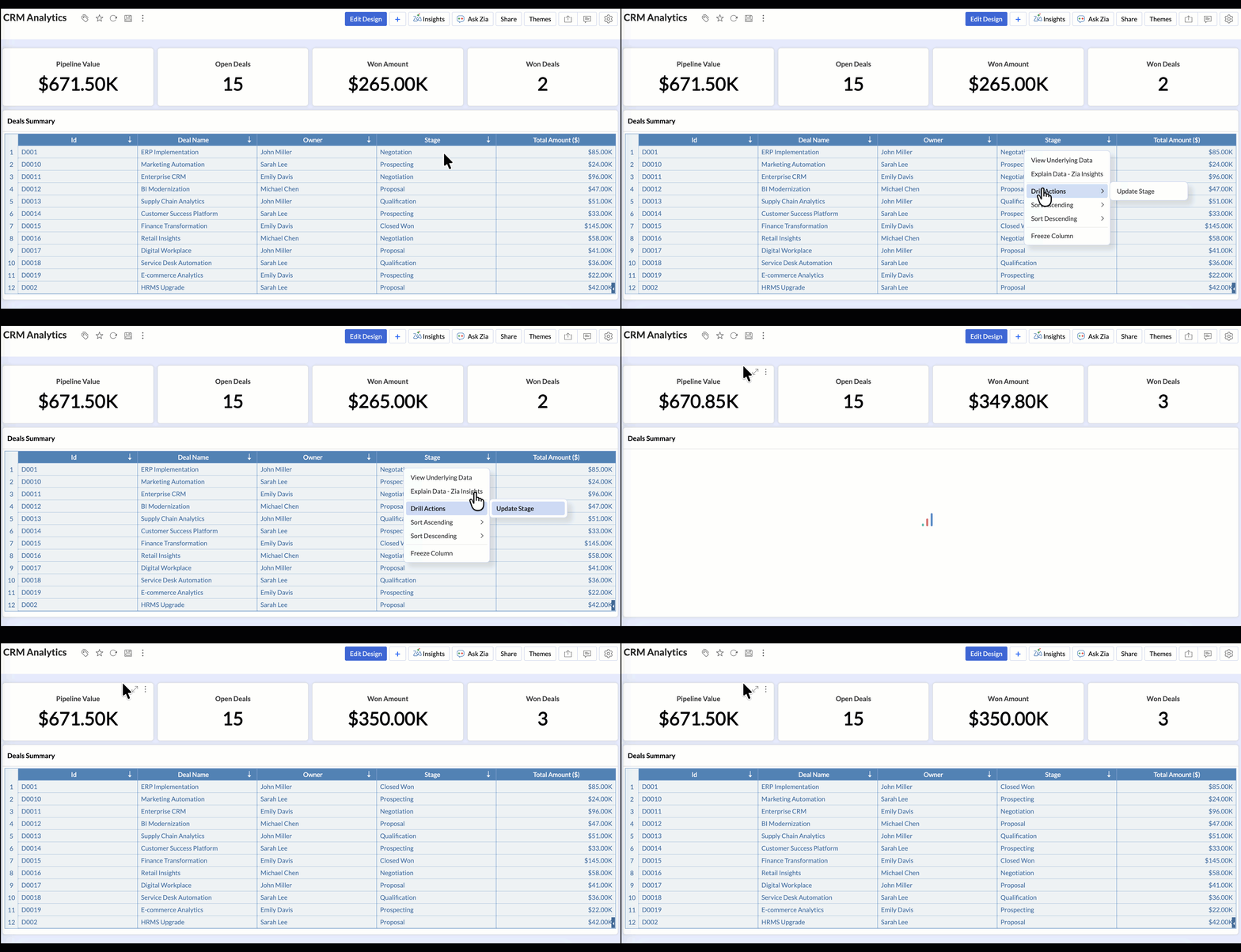
Try it out Today!
Now that you have a clear picture of what drill actions and Write-Back can do, it is time to see them in action. Stop switching tools, stop losing context, and start acting on your data right where you analyze it. Experience the difference between a dashboard that simply shows what happened and one that lets you take action.
15-day free trial. No credit card required.