Drill Actions
Drill Actions enhance interactive reporting by allowing users to move beyond analysis and directly initiate actions from within a report. While drill-down helps explore deeper layers of data, Drill Actions enable users to trigger parameterized operations such as opening records, creating entries, updating information, or initiating workflows in external applications.
Drill Action can be configured for Charts, Pivots and Summary Views.
On this Page
Configuring a Drill Action
Users with Administrator Privileges, Shared Users and Custom Role Users with permission to create views can configure drill actions.
Configuring a drill action in Zoho Analytics comprises of the following 3 steps
- Accessing Drill Actions
- Providing the URL Details
- Defining the Request Details
Accessing Drill Actions
- Access the view or the report in Edit mode.
- Click the Settings icon on the top right corner.
- Click General > Drill Actions.
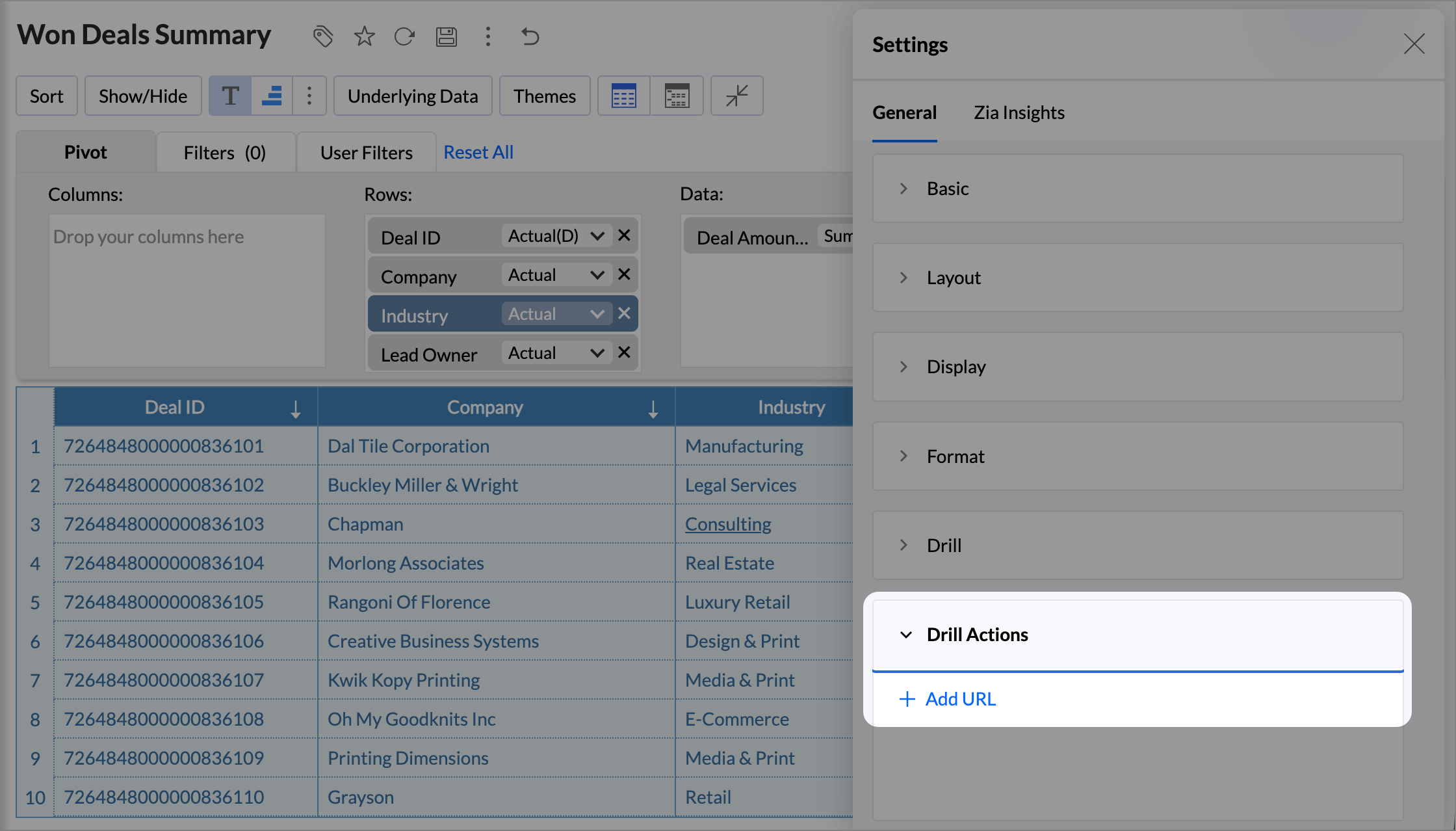
- Click Add URL to configure a drill action.
Provide URL Details
- Enter a Name: Provide a meaningful name for the Drill action so its purpose is clearly identifiable. This name will appear as the clickable action label in the report.
- Specify the Destination URL: Enter the URL that should be triggered when a user clicks a data point. You can use parameterized placeholders to dynamically pass values from the selected report row as parameters in the Drill Action request, allowing the action to operate on the specific record or context chosen by the user.
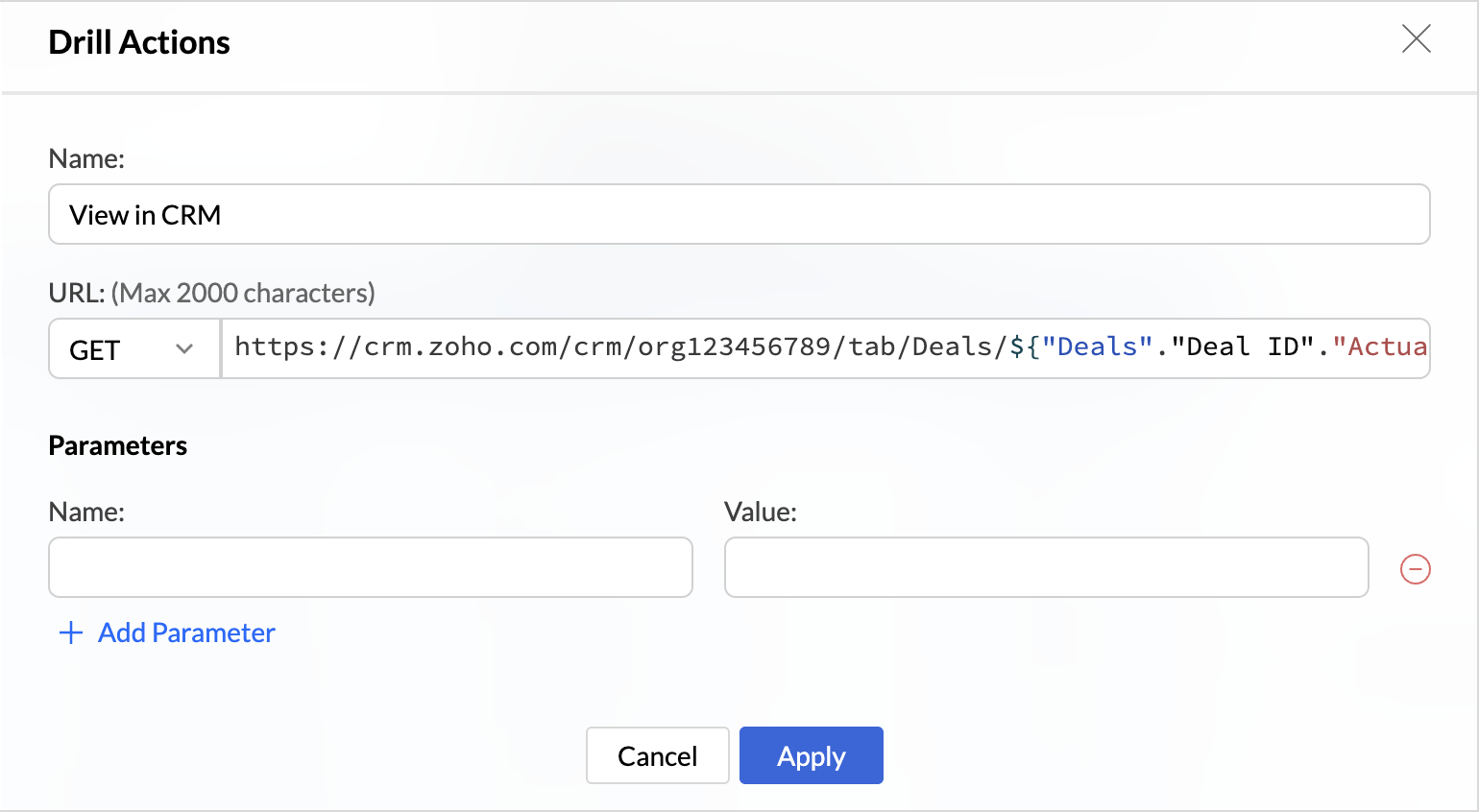
- Select the HTTP Method: Choose the appropriate method (GET, POST, PUT, PATCH, or DELETE) based on whether you want to retrieve, create, update, or delete data.You can use placeholders to dynamically pass column values from the selected row.
The GET method is used to retrieve information or navigate to a specified page without modifying any data in the target system.
Writeback to Systems is the capability that allows end users to input, edit, or submit data directly from a dashboard or analytics interface back into a connected data source with the changes reflected in real time or upon refresh across all relevant reports and visualizations. This can be performed using POST, PUT, PATCH, or DELETE methods, as these operations modify data in the target system and enable users to create, update, or delete records directly from a report or dashboard, turning insights into immediate action.
Note: Whenever a POST action is invoked, an in-app notification will be displayed indicating the outcome of the request. On success, the notification will include the action name and the timestamp of execution. On failure, the notification will display the relevant error message and error code to help identify the issue.
- Configure Request Details: Provide the required Parameters, Body, and Headers based on the selected method and the external API requirements.
- Save Configuration: Click Apply to activate the Drill Action.
Request Methods
The table below lists the supported request methods and their usage scenarios.
| Method | Purpose | Business Scenario | Example |
| GET | Navigate to a page. | Open a customer record in CRM. | https://crm.company.com/customer/${Customer ID} |
| POST | Create or add a new record in an external application. | Create a new deal from a report. | https://crm.company.com/api/deals Body:{ "customer_id": "${Customer ID}", "amount": "${Amount}" } |
| PUT | Completely update or replace an existing record. | Update a deal with new values. | https://crm.company.com/api/deals/${Deal ID} Body:{ "stage": "Closed Won", "amount": "${Amount}" } |
| PATCH | Update specific fields of an existing record without replacing the entire record. | Update only the deal stage. | https://crm.company.com/api/deals/${Deal ID} Body:{ "stage": "Negotiation" } |
| DELETE | Permanently remove an existing record from the application. | Delete a lead record. | https://crm.company.com/api/leads/${Lead ID} |
Defining the Request Details
When configuring a Drill Action, you can define how data is sent to the destination application using the following options. The below options are available based on the method chosen.
Parameters
This is used to pass requests as key-value pairs. You can also dynamically insert column values in the Value field.
Body
This is used to pass request data within the request payload commonly with POST, PUT, and PATCH methods. The body contains structured data such as JSON. You can dynamically insert report column values in the body fields to create or update records in external applications.
Headers
This is used to send additional information about the request, such as authentication details, content type, or API keys. Headers are sent as key-value pairs and are required when integrating with secure external APIs.
Drill Action Use Cases
Accessing customer records in CRM using the GET method
A sales rep reviewing a Sales Pipeline Report identifies a high-value deal and wants to quickly view the complete customer record in the CRM system without manually searching for it.This can be achieved using the GET method Drill Action configured as follows.
Name: View Customer Records in CRM URL: https://crm.zoho.com/crm/org123456789/tab/Deals/${"Deals"."Deal ID"."Actual"} |
When the user clicks on a deal in the pipeline report,
- The ${"Deals"."Deal ID"."Actual"} placeholder is dynamically replaced with the selected row’s Deal ID.
- The corresponding deal record opens instantly in the CRM system.
Since the GET method is used, the action only retrieves information and does not modify any data.
Using Drill Actions in a Report
Once a drill action is configured, end users can execute it directly from the report. Here is how:
- Click any data point in the report (e.g., a chart bar, pivot cell, or summary row).
- From the interactive options panel that appears, select Drill Action.
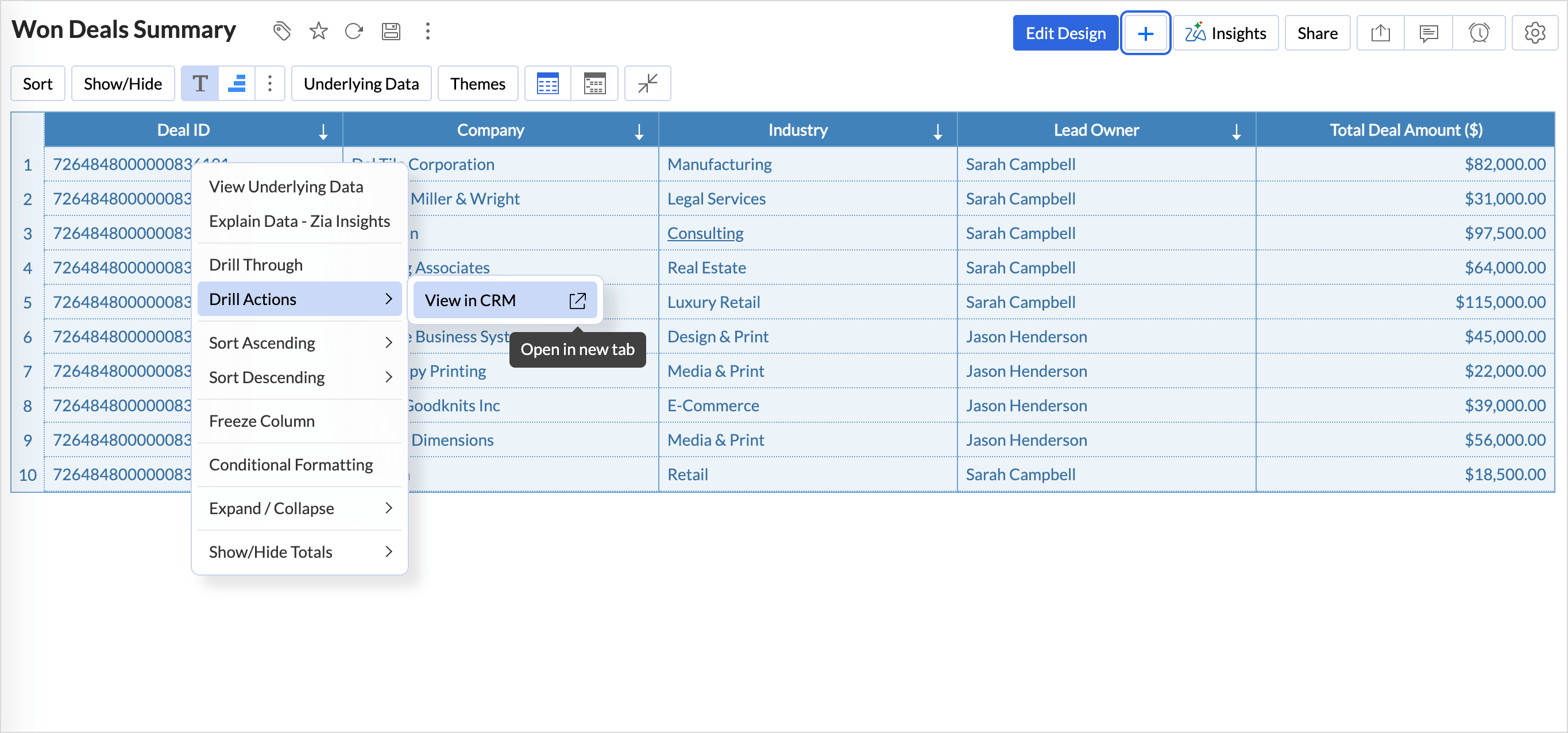
- All Drill Actions configured for the report will be listed. Click the desired action to execute it.
Note: By default, links configured using the GET method open within an iframe inside the application. To access the link in a separate browser tab, click the Open in New Tab icon while configuring the action.