- HOME
- Work Culture
- How to transfer files between computers without creating chaos
How to transfer files between computers without creating chaos
- Last Updated : June 10, 2026
- 790 Views
- 9 Min Read

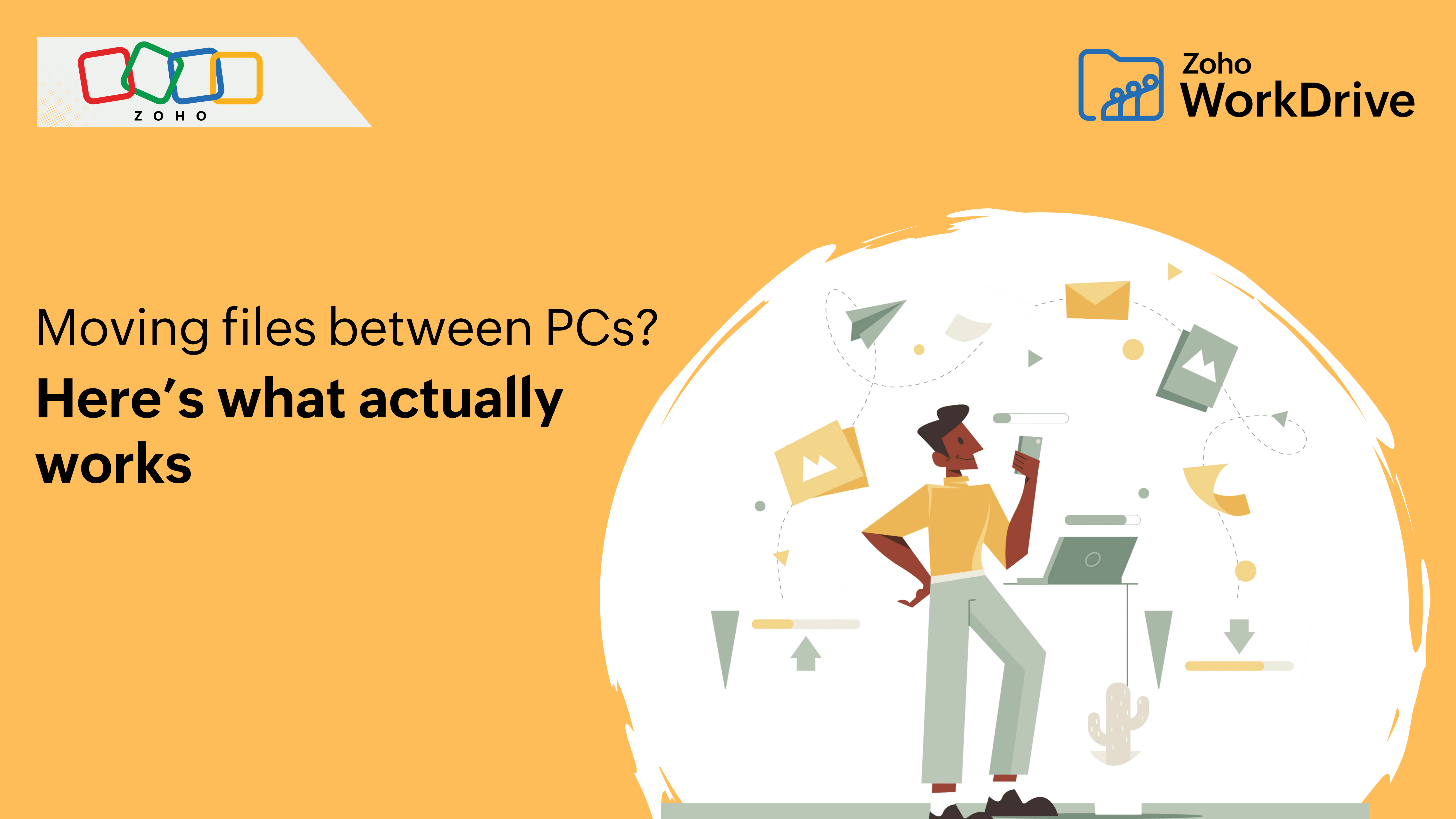
File transfer between PCs is the process of moving data from one computer system to another using a physical connection (USB drive, cable), a local network (LAN, Wi-Fi), or cloud-based storage. The method you choose affects not just the speed of the transfer but the long-term usability of those files.
That sounds like a simple technical task until the transfer becomes part of everyday work.
A designer moves a draft from a desktop to a laptop. A finance lead sends a spreadsheet from office to home. A project manager shares the same file with multiple teammates across locations. In each case, the transfer itself takes only a moment. The real friction begins after that—when versions split, access becomes inconsistent, and the same file starts behaving like multiple files. This is where file transfer stops being a one-time action and becomes a workflow problem, which is exactly the shift your content system is built to surface.
If a file needs to be sent again, the system is already inefficient.
The simplest and most scalable way to transfer files from one PC to another today is cloud storage. You upload the file once, and then you can easily access it from any device and share it instantly with a link—eliminating the repeated transfer cycle that USB drives and email create.
Most guides explain file transfer methods. But in real workflows, what matters is how these methods behave over time.
What really matters when you move files between systems
If you only look at speed, most methods seem similar. If you look at how work continues, they behave very differently.
On paper, every method looks fast. In real workflows, speed is rarely the real problem. The real difference shows up after the transfer—when files need to be reused, updated, and shared again.
USB 3.0 transfers reach 100–400 MB/s; USB 2.0 reaches 25–40 MB/s, which is fast for one-time moves, but can't keep up with ongoing work.
Gigabit LAN (1 Gbps Ethernet) sustains ~125 MB/s—fastest within a physical network.
Gmail limits attachments to 25 MB and Outlook limits to 20 MB; email simply doesn't scale for file workflows.
Windows 10/11 includes Nearby Share for local wireless transfers without external hardware.
Cloud storage removes the transfer cycle: upload once, access anywhere, no version drift.
Every way to transfer files—and what happens after
Every method solves the first transfer. Very few handle what happens after.
There are several ways to transfer files between computers. Each method works in specific situations, but not all of them scale.
Suitable for one transfer, inefficient after that
USB drive transfer is the most direct method: copy files to a USB 3.0 drive (up to 400 MB/s real-world), plug into the second PC, and paste. No internet required, no setup.
USB 3.0 specifications: up to 625 MB/s theoretical bandwidth, 100–400 MB/s in practice depending on drive type. USB 2.0: up to 60 MB/s theoretical, 25–40 MB/s in real use.
This works well when the workflow is isolated. A person setting up a new laptop, moving archived files, or copying a batch of folders for one-time use can rely on USB without much friction. In that narrow use case, the method is efficient because the task ends with the transfer.
The moment the file changes, the process needs to start all over again.
The limitation is that each transfer is manual and disconnected. If a file changes, the full process repeats. Physical drive dependency introduces loss and damage risk.
USB helps you move files once—it does not support ongoing work.
Fast inside a network, limited beyond it
Local Area Network (LAN) transfer connects two computers on the same network to share files directly. Gigabit Ethernet (1 Gbps) sustains approximately 125 MB/s throughput—the fastest option within a physical location.
This works best for office teams moving large files like video, design assets, or datasets between workstations on the same network. A media team passing footage between edit bays or an operations team moving bulk records internally can benefit from this speed because the environment is controlled and local.
The system works only as long as the environment doesn’t change.
The limitation is that it only works within the same network. It does not support remote work or distributed teams. It requires network configuration, shared folder permissions, and ongoing IT management.
LAN improves speed within a location. It does not extend the workflow beyond it.
Quick to send, hard to manage later
Email attachment transfer works for files under size limits. Gmail allows up to 25 MB per message. Outlook allows up to 20 MB.
For files under these limits, attaching and sending is quick. A short document, a small spreadsheet, or a quick internal draft can move fast enough that the method feels harmless.
The more the file is used, the harder it becomes to track.
But the limitation is that every edit creates a new version. Attachments scatter across inboxes. Searching for “the latest version” becomes a recurring problem. A file that begins as one email attachment can quickly become four different copies across sent mail, downloads, inboxes, and forwarded threads.
Email moves files but breaks continuity in how they are used.
Works well up close, falls apart at scale
Windows 10 and Windows 11 include Nearby Share: a built-in feature for transferring files wirelessly between nearby Windows PCs over Bluetooth or Wi-Fi, without a USB drive or internet connection.
How to enable: Settings → System → Shared Experiences → Nearby Share. Select “Everyone nearby” or “My devices only” for permission control.
This works best for quick one-time transfers between two Windows machines in the same room. It is useful when a user needs to pass a file between personal and work devices locally, without cables or external hardware.
It solves proximity, not continuity.
It is not designed for large files or team workflows.
Where file movement ends and real work begins
This is where file transfer stops being a task and becomes a system decision.
Cloud storage changes the file transfer model from movement-based to access-based. Instead of moving a file between systems, you upload it once and access it from any device.
Old: send → download → edit → resend
New: access → update → continue
Every time a file is copied instead of accessed, a new version management problem is created.
Cloud storage eliminates version drift: the problem where multiple people hold different versions of the same file because each transfer creates a copy. Platforms like Zoho WorkDrive provide structured workspaces with role-based permissions, version history, and real-time collaboration.
This is not just a faster method. It is a different way of working.
Transfer tools are designed to move files. Cloud systems are designed to preserve continuity. That difference matters more in real work than raw speed alone.
A sales team updating the same proposal across devices without re-sending versions before a client call, a legal team reviewing contracts across stakeholders while maintaining a single controlled version, or an operations team maintaining centralized records without fragmentation does not just need movement. They need the same file to remain current, visible, and controlled across users. That is why access-based systems become more valuable as collaboration increases.
The file doesn’t travel anymore. The work does.
This is what makes file transfer more efficient—not faster movement, but fewer movements overall.
Which method fits your situation best
Method | Best for | Transfer speed | File size limit | Works remotely |
USB 3.0 Drive | One-time moves, new PC setup | 100–400 MB/s | No limit (drive capacity) | No |
USB 2.0 Drive | Legacy hardware | 25–40 MB/s | No limit (drive capacity) | No |
LAN (Gigabit) | Large office file transfers | ~125 MB/s | No limit | No |
Small quick files | Varies | 20–25 MB | Yes | |
Windows Nearby Share | Quick local wireless transfer | Wi-Fi dependent | Varies | No |
Cloud Storage | Ongoing work, teams | Upload speed dependent | Plan-based | Yes |
The table makes the trade-off clear. Some methods are good at moving a file. Only one method is built to support what happens after the move.
Why most file transfer methods break over time
The problem is not visible in the first transfer. It appears in repetition.
USB, LAN, and email are designed for movement. Modern work requires continuous access, shared visibility, version control, and collaboration. That architectural mismatch creates compounding friction.
Method | Core Limitation | Workflow Impact |
USB | Physical dependency, manual repeat | Version drift across devices |
LAN | Network boundary | Excludes remote workers |
Size limits, inbox scatter | No version continuity | |
Windows Nearby Share | Local range only | Not suitable for team workflows |
The goal is not to transfer files faster. The goal is to stop needing to transfer them at all.
What changes when files stop moving constantly
When files live in one shared workspace, they can be accessed from any device, shared with controlled permissions, and updated in real time—no repeated transfers required.
There are no duplicate copies to track, no confusion about versions, and no repeated effort to keep files in sync.
Work no longer revolves around sending files. It flows around accessing them.
The real takeaway
File transfer between PCs is a solved technical problem. USB, LAN, Nearby Share, and cloud all move data reliably. The real challenge is what happens after: version control, access, and collaboration.
For one-time or occasional transfers, USB 3.0 or Windows Nearby Share work well. For teams and ongoing work, cloud storage platforms like Zoho WorkDrive eliminate the transfer cycle entirely.
The difference is subtle at first, but decisive over time. A transfer method answers the question, “How do I move this file?” A system answers the more important question: “How do we keep this file usable across people, devices, and time?”
Files don’t need to move anymore. Work just needs to continue.
If you regularly transfer files between computers, move to a shared workspace like Zoho WorkDrive and eliminate repeated transfers entirely.
FAQ
What is the best way to transfer files from PC to PC?
The best method depends on your use case. For one-time transfers, a USB 3.0 drive (100–400 MB/s) is fast and requires no internet. For teams or ongoing work, cloud storage is the best option: it eliminates repeated transfers by keeping files in a single accessible location. For quick local transfers between two Windows PCs, Windows Nearby Share works without cables or internet.
How do I transfer large files between computers?
For large files, use a USB 3.0 drive or Gigabit LAN transfer. USB 3.0 handles files of any size at 100–400 MB/s in real-world conditions. LAN transfer over Gigabit Ethernet sustains approximately 125 MB/s and works well for office environments. For very large files shared across a team, cloud storage with large file support like Zoho WorkDrive removes the size constraint entirely.
Can I transfer files without an internet connection?
Yes. USB drives and LAN transfer both work without internet access. Windows 10/11 also includes Nearby Share, which transfers files wirelessly between nearby Windows PCs using Bluetooth or local Wi-Fi—no internet connection required. For LAN transfer, both computers must be on the same local network.
What is the fastest file transfer method between PCs?
Gigabit LAN (Ethernet) is the fastest method at approximately 125 MB/s sustained throughput, making it the best option for large file transfers within an office. USB 3.0 reaches 100–400 MB/s depending on the drive. Wi-Fi 6 can theoretically match wired speeds but is more variable in practice. For remote locations, upload and download speeds determine cloud transfer performance.
Why is cloud storage better for file transfer?
Cloud storage changes the underlying model from transfer-based to access-based. Instead of moving a file between systems repeatedly, you upload it once and access it from any device. This eliminates version drift, removes size limits for sharing, and allows multiple people to work on the same file simultaneously. Platforms like Zoho WorkDrive add version history, permissions, and collaboration on top of storage.
How do I transfer files from PC to PC over Wi-Fi?
There are two Wi-Fi methods. First, Windows Nearby Share (Windows 10/11): go to Settings → System → Shared Experiences → Nearby Share and enable it on both PCs. This works for local wireless transfer without an internet connection. Second, cloud storage: upload from one PC and access from another over any Wi-Fi connection, including remote locations. For large teams or remote work, cloud is the more scalable option.
What are the built-in Windows tools for transferring files?
Windows includes Nearby Share (Windows 10/11) for local wireless PC-to-PC transfer over Bluetooth or Wi-Fi. For network transfers, Windows File Sharing allows shared folders between PCs on the same LAN — accessible via File Explorer → Network. Windows no longer includes Easy Transfer but supports OneDrive as a built-in cloud transfer option.
How do I transfer files without a USB drive or internet?
Use Windows Nearby Share (Windows 10/11) for local wireless transfer—it uses Bluetooth or local Wi-Fi without needing internet access. Alternatively, a direct Ethernet crossover cable can connect two PCs directly for high-speed LAN transfer without a router or internet. Both options work offline and require no physical USB storage.
Why do file transfers create so many versions?
Because each transfer creates a new copy instead of updating the same file. Over time, this leads to multiple versions across devices, making it difficult to track the latest one.