- HOME
- Product updates
- Introducing Smart Scan in Zoho Forms
Introducing Smart Scan in Zoho Forms
- Last Updated : January 12, 2026
- 2.0K Views
- 3 Min Read
You are at a conference. There is a crowd of around 200 people waiting to register. Each person has to type their name, email, phone, company, title, and more. It's taking forever and people are getting annoyed.
We have all seen this chaos. We have all been in this chaos.
We have watched millions of form submissions over the years. Filling out forms is nobody’s idea of fun and accuracy of data you collect starts to suffer quickly. People make typos in their own email addresses. And if your business collects leads every day, you already know the struggle of slow queues, mistyped emails, and that familiar moment when you ask, “Wait… Can you spell your last name again?”
So we asked ourselves: What if people didn't have to type at all?
That's how we came up with a better solution for you to collect leads at events and capture other data in the field. Whether you are at an event, doing an in-store promotion, or signing people up at your front desk, when a potential customer walks up to you, they can simply hand you their business card. You take a quick photo, and Zoho Forms instantly scans the details and uploads them to your form.
Automatically fill forms with scanned information.
Name. Email. Phone number. Company.
All captured accurately, without anyone typing a single word.
That moment where you can just upload a photo and watch the data appear like magic on your form is exactly what Smart Scan field in Zoho Forms is built for.

What Smart Scan actually does
Here is where it gets interesting. Smart Scan is not just OCR (Optical Character Recognition). Sure, it reads text from images. That's the obvious part. But this feature actually does much more than that.
The AI doesn't just extract text, it understands the image. Upload a photo with 5 objects in it, map to "Count the number of objects," and it'll tell you there are 5. Ask it what type of objects they are, and it'll identify them.
You add relevant fields to your form so every time a respondent uploads a photo of their business card, driver's license, receipt, or anything else, the AI can map each data point to the appropriate field, extract the text, and auto-fill the form.
Where is this helpful?
Does your form ask for information that already exists on a physical document? That is where Smart Scan helps.
Event registrations
If you have to spend even 2 minutes per person manually entering their information, at a 500-person event, that's almost 20 hours of pure data entry.
With Smart Scan, attendees simply photograph their business cards. Three seconds later, they are checked in with all of their information.
Healthcare intake
Patients can just scan their insurance card to automatically input details like their name, policy number, and group ID. Intake time can drop from 15 minutes to under 5.
Expense reports
If you process expense claims for your employees, each employee might need to manually type merchant names, dates, and amounts from their receipts. Smart Scan can cut those tasks down dramatically. They can just snap a picture of the receipt and watch the fields fill themselves.
How to set up the Smart Scan field
- Build your form normally
Add the fields you need: Name, Email, Phone, etc. Just like you always do. - Drop in the Smart Scan field
Drag and drop the field from the AI section into your form wherever you want people to upload their image.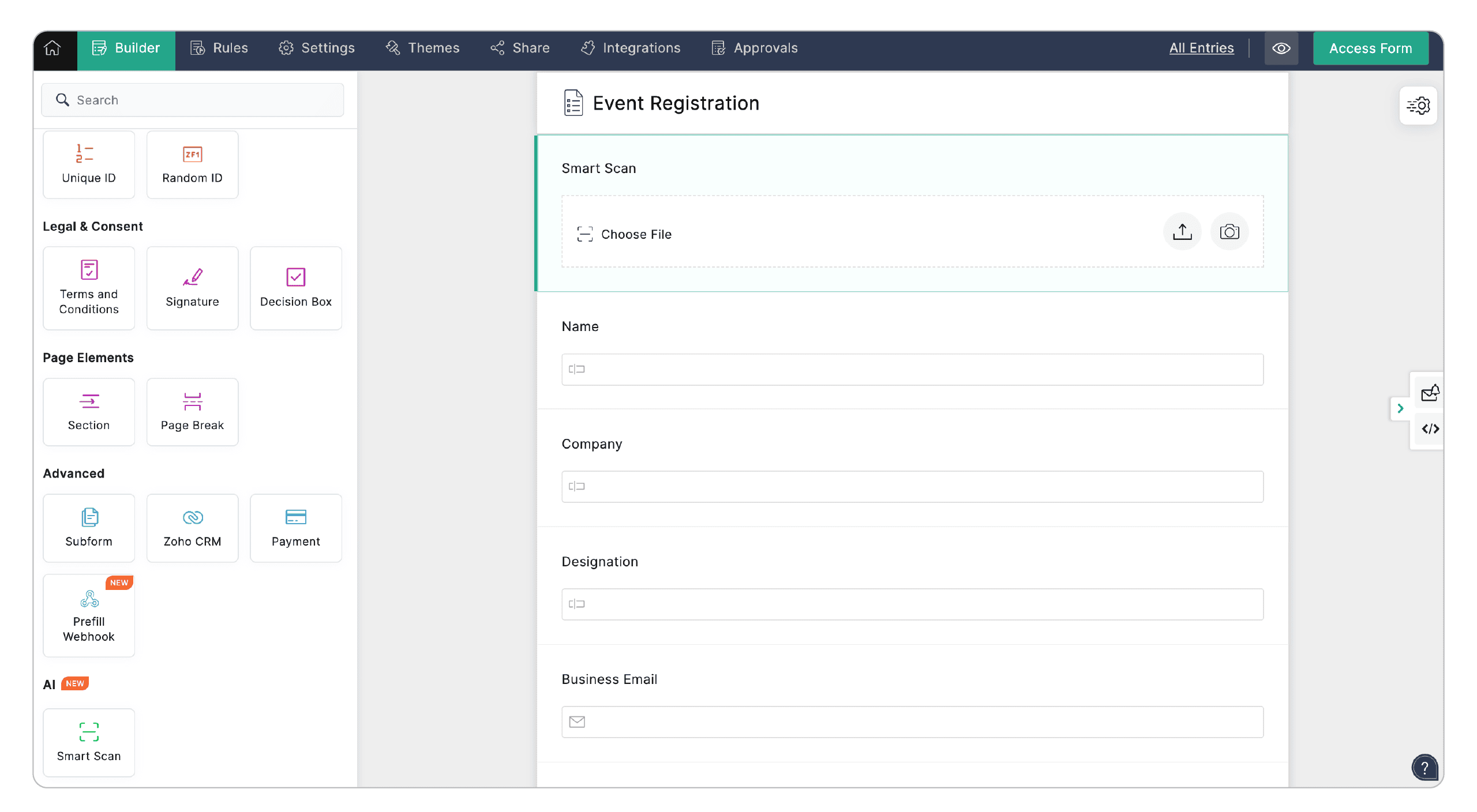
- Upload a sample image
Got a business card lying around? Upload it. Smart Scan will read it and show you all the text it found.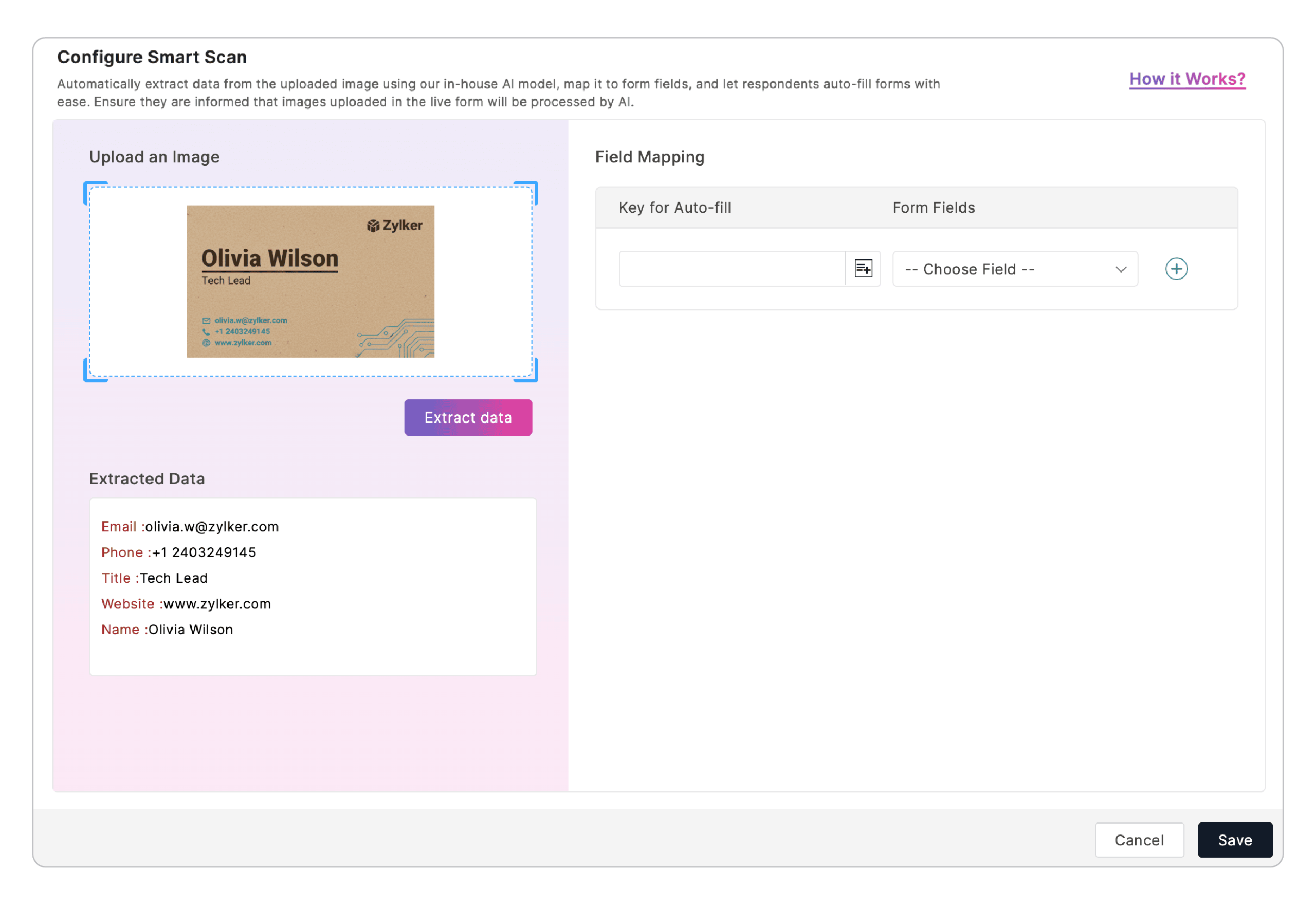
- Map the fields
Tell Smart Scan where the extracted text goes: Name, Email, etc.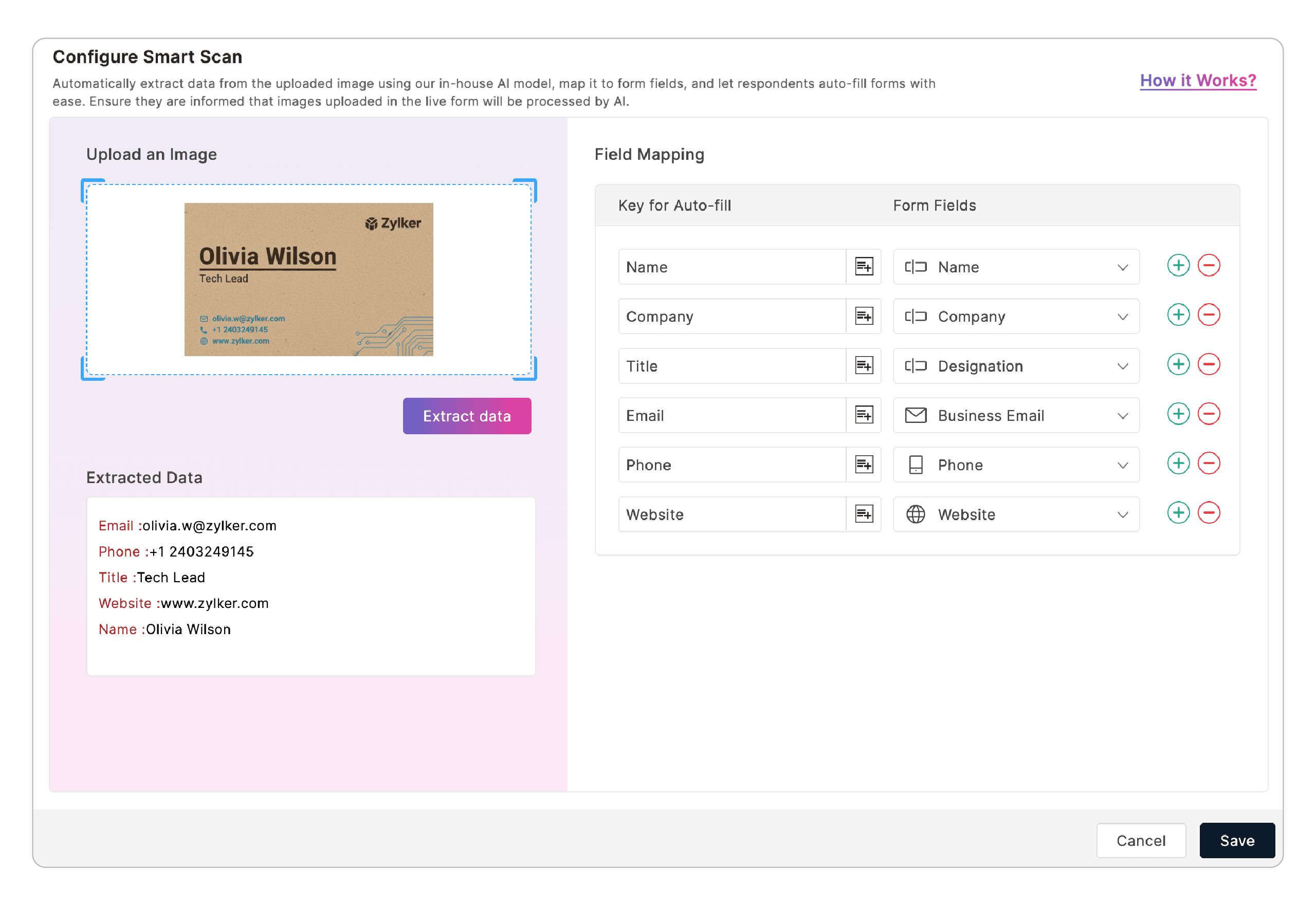
That's it. No integrations to set up. No complicated workflows.
Just drag, drop, map, and you're done.
Learn about setting up Smart Scan
For the person filling it out
- They see a field that says something like "Upload business card to auto-fill."
- They click it, upload their image, and the form fills itself in.
- Then they can review everything, fix anything that looks wrong, and submit.
If the image is blurry or Smart Scan cannot read it for any reason, they can easily fix or type in any missing details.
What can be scanned?
- Business cards
- Driver's licenses
- Receipts
- Insurance cards
- Invoices
- ID badges
Basically, Smart Scan can read anything with text on it.
We spent months getting the accuracy right, making the setup dead simple, and ensuring it works gracefully. Give it a shot.
 Samhita V
Samhita is a seasoned product expert at Zoho Forms who blends deep product expertise and user education to help businesses make sense of powerful features without the jargon. Known for her thoughtful storytelling and crisp communication, she adds a subtle creative flair to every piece she writes. With a knack for spotting real-world use cases and adding a touch of fun to her narratives, she’s on a mission to make even the most complex workflows feel approachable. Beyond the desk, she channels her creativity into dance and mural art, finding new ways to infuse her surroundings with color, rhythm, and meaning.
Comments(2)
Thank You :)
Company Name not Capturing Properly