- HOME
- Product updates
- Introducing the Map Location field in Zoho Forms
Introducing the Map Location field in Zoho Forms
- Last Updated : February 17, 2026
- 1.2K Views
- 3 Min Read
You've spent weeks planning your perfect workshop. You crafted beautiful invitations, set up a comprehensive registration form, and you're expecting a great turnout.
And then, on the big day, your phone starts buzzing.
- “Hey, I think I’m close…but I don’t see the place.”
- “Is it before the traffic signal or after it?”
- “Google Maps is showing something else.”
Half your attendees are wandering around three blocks away, while you're standing at the venue wondering how directions became the hardest part of the event. In 2026, we should be past hoping everyone knows how to find us. That's why we're introducing the Map Location field in Zoho Forms.
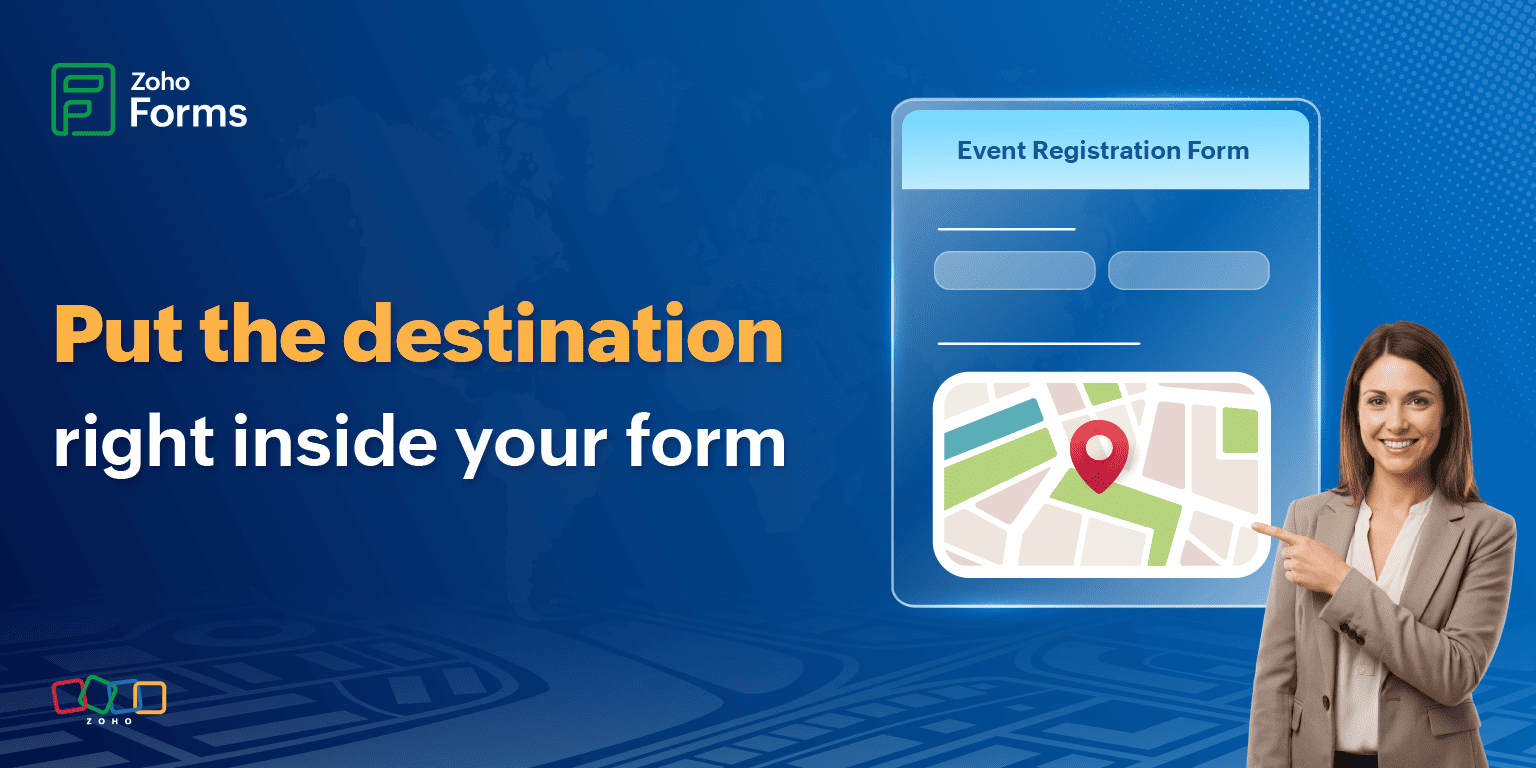
Why use a map field?
Map software has been around for years. But until now, directions have lived outside your forms.
Respondents had to:
- Copy your address.
- Open a new tab.
- Paste it into a maps app.
- Hope autocorrect didn’t “fix” anything.
Each step sounds small, but together, they create friction. There's room for typos, incorrect pins, and confusion between similarly named places.
With a map right there in your form, the entire user experience changes. Your respondents see exactly where they need to go for a familiar and reassuring journey.
Your respondents can:
- See the exact location at a glance.
- Zoom in to spot the building.
- Zoom out to understand the surrounding area.
- Pan around and check nearby landmarks.
All without leaving the form.
Adding a map to your form (it’s easier than you think)
Setting up the Map Location field is refreshingly simple.
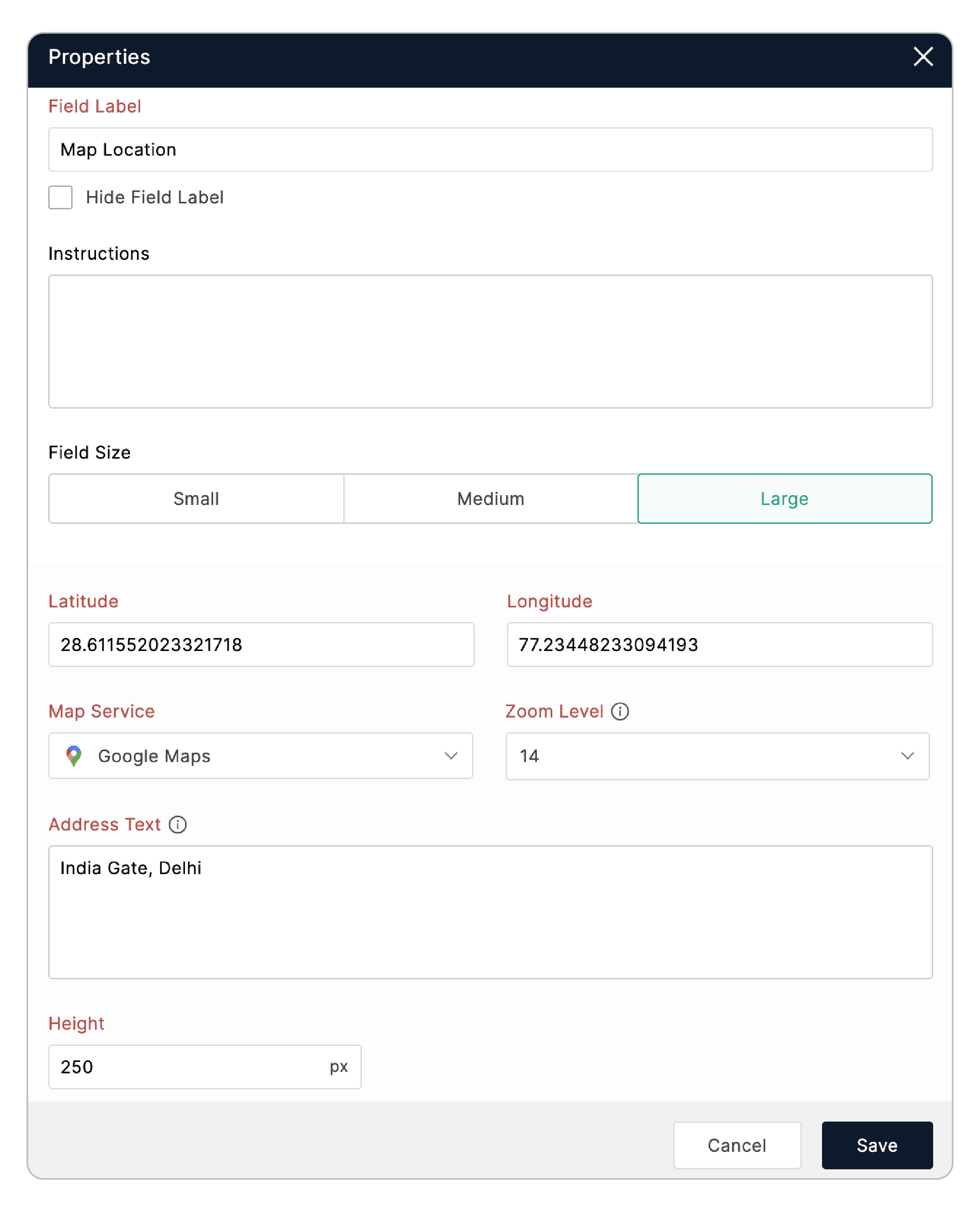
- Find the Map Location field
Head over to your form builder and spot the Map Location field. Click it or drag and drop it wherever it fits best—event details, contact information, or right before submission. - Get your location coordinates
Here's the easy way:
- Open Google Maps.
- Search for your location.
- Right-click on the exact spot.
- Click the first option in the menu.
- Choose your map service
You have two options here: Zoho Maps or Google Maps.
Zoho Maps works right out of the box, no setup required.
If you want to use Google Maps instead, you'll need to configure a connection with a valid API key. (Don't worry, it's a straightforward process.) - Set your zoom level
Need to pinpoint a specific building? Crank it up to 20 or even 22 for that ultra-close view. The closer the zoom, the fewer “I’m outside but not sure where” messages you’ll receive. - Add your address text
This is the label that appears on the map pin. Keep it clear and helpful. "Main Entrance" or "Conference Room B" works well.
Read more on configuring this field
What will your respondents see?
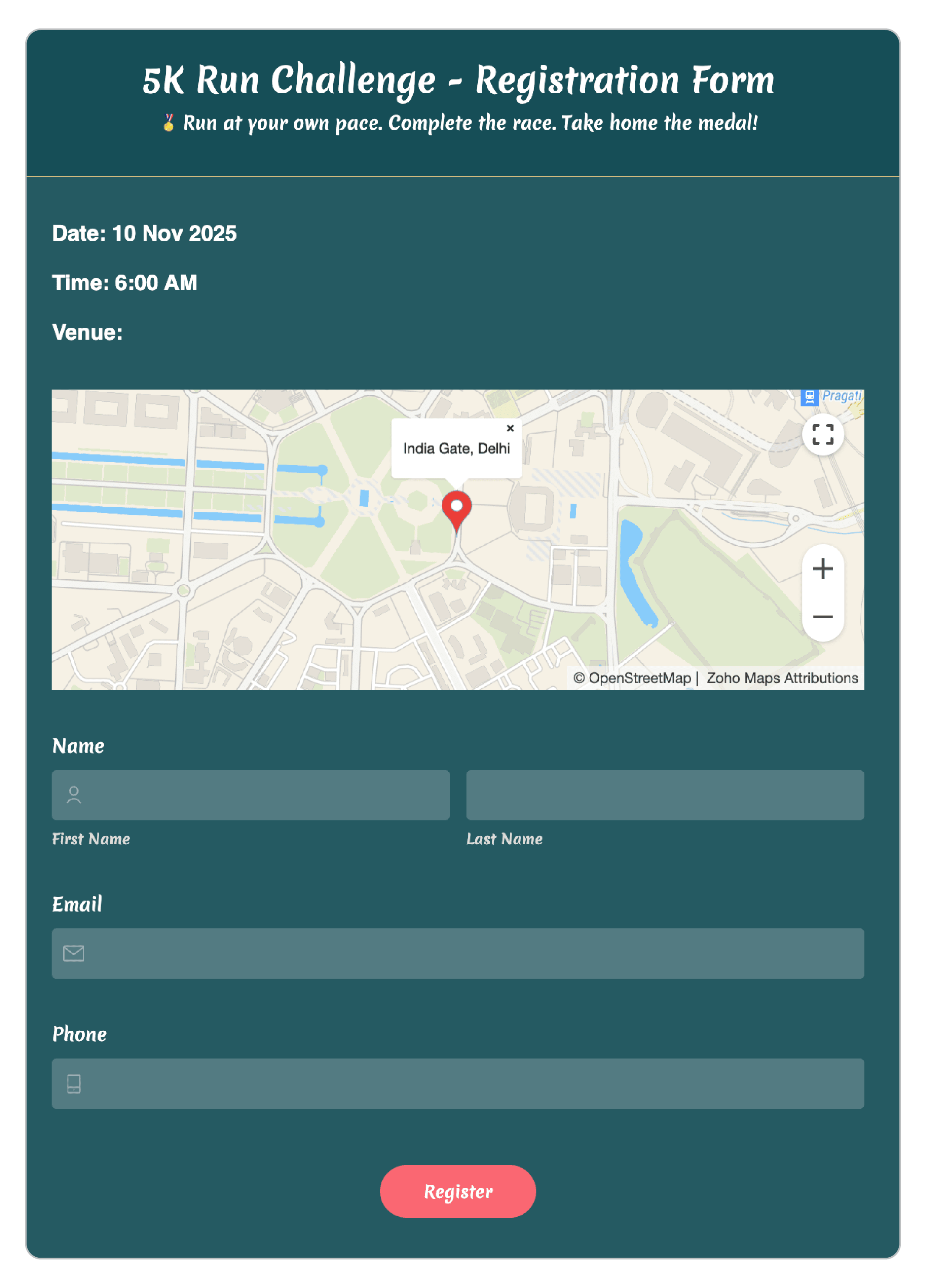
They'll see a fully interactive map, centered right on your location, with a pin marking the exact spot and your address text clearly visible. They can zoom in to see street-level details or zoom out for context. They can also pan around, explore the area, even check out nearby landmarks if they want, all without leaving your form.
When can you use this?
Okay, theory is great but let's talk practical applications.
Event registration forms
Planning a conference, workshop, wedding, or networking event? Add that map right to your registration form. Your attendees can see exactly where they need to be.
Contact forms
If you have a physical office or storefront, show people where to find you! It's especially helpful for businesses in office parks.
Delivery or service area forms
Running a food truck? Offering mobile services? Use the Map Location field to show customers exactly where you will be parked or operating on any given day. Update it as needed.
Directions should not be an afterthought
Your forms already collect information efficiently, look professional, and work beautifully across devices.
Now, they can guide people to the right place too.
With the Map Location field in Zoho Forms, you’re giving your respondents clarity and a smoother experience from the very first interaction.
And that is one less thing for you to worry about on the big day.
 Samhita V
Samhita is a seasoned product expert at Zoho Forms who blends deep product expertise and user education to help businesses make sense of powerful features without the jargon. Known for her thoughtful storytelling and crisp communication, she adds a subtle creative flair to every piece she writes. With a knack for spotting real-world use cases and adding a touch of fun to her narratives, she’s on a mission to make even the most complex workflows feel approachable. Beyond the desk, she channels her creativity into dance and mural art, finding new ways to infuse her surroundings with color, rhythm, and meaning.