- HOME
- Product updates
- Address collection just got a single-line upgrade
Address collection just got a single-line upgrade
- Last Updated : March 11, 2026
- 1.4K Views
- 3 Min Read
You can't afford to lose users mid-form at the Address field. Filling out the address has always been one of the most friction-heavy parts of any online form.
Street, city, state, ZIP code: separate inputs, lots of typing, plenty of room for error.
With the new GeoComplete field in Zoho Forms, all of that collapses into a single intelligent input that auto-completes a full, map-verified address in one step.
Whether you have an online order form or a contact form, the GeoComplete field dramatically reduces the effort for your respondents while ensuring you capture accurate, map-verified address data every time. Less typing, fewer errors, and a far smoother experience keeps completion rates high.
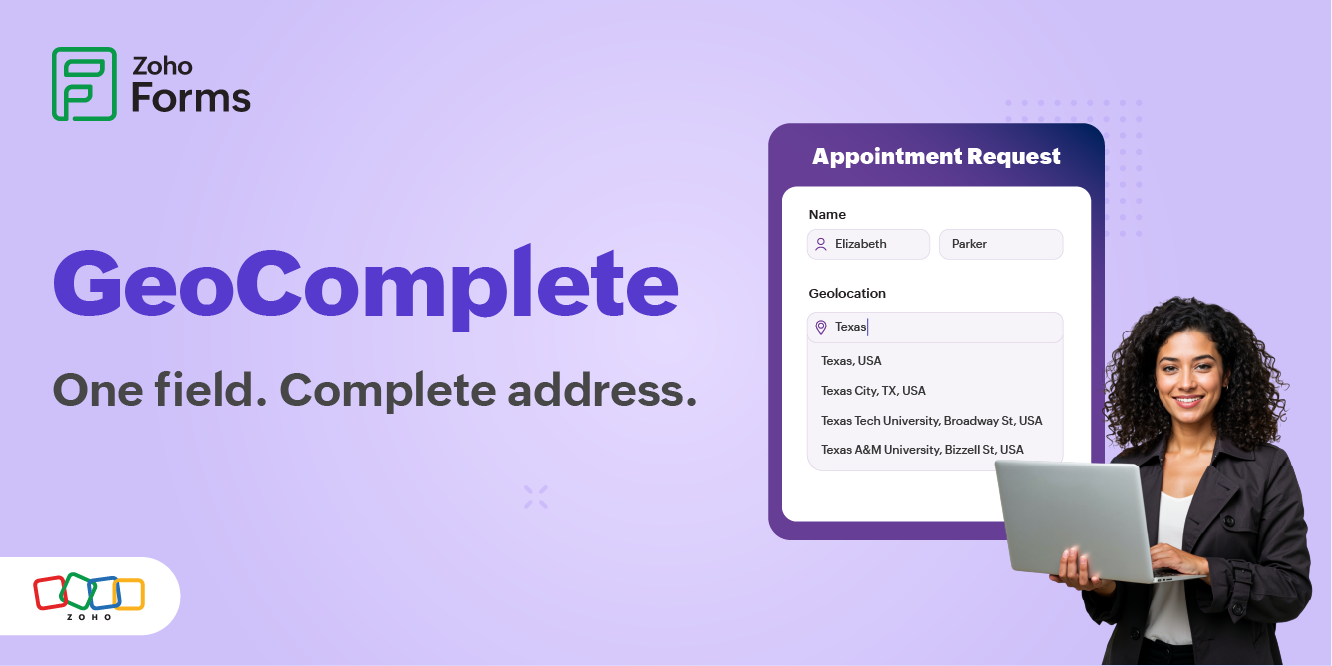
What is the GeoComplete field?
The GeoComplete field is a single-line address input powered by either Zoho Maps or Google Maps. As your respondent starts typing, it fetches real-world address suggestions and lets them pick the right one, filling the entire address automatically with a single click.
GeoComplete captures the full address as a single, unified value. This makes it perfect for scenarios where you just need the complete address string, without needing to slice and dice each component individually.
GeoComplete field vs. Auto-fill in the Address field
Both features help users fill addresses faster.
Address Auto-fill
This feature is applied to the traditional multi-part Address field. You choose which address element activates it.
The Address field watches that chosen element, whether it's Street Address, Address Line 2, or Postal/ZIP Code, and suggests complete addresses as the user types.
When a suggestion is selected, it auto-fills all individual components (street, city, state, ZIP code, country) into their respective separate fields.
Users just review and confirm, rather than typing each part.
Each component is stored independently in your form entries. This lets you filter by city or ZIP code with precision.
Postal/ZIP code validation is exclusively available here to validate if the entered code matches the selected state and country if you use Google Maps. Postal/ZIP code validation works independently of Auto-fill. You can enable ZIP code validation without enabling Auto-fill, and vice versa.
GeoComplete Field
This is a standalone, single-line address field, entirely separate from the traditional Address field.
As the user types, it suggests complete addresses and fills the entire address as one unified string into a single input. It doesn't split the address into components.
The core distinction is that Address Auto-fill works inside the traditional, multi-component Address field and gives you structured data (street, city, state, and ZIP code in separate columns). GeoComplete is a distinct field that captures everything in one string. The choice comes down to whether your backend needs individual address components or the full address as a whole.
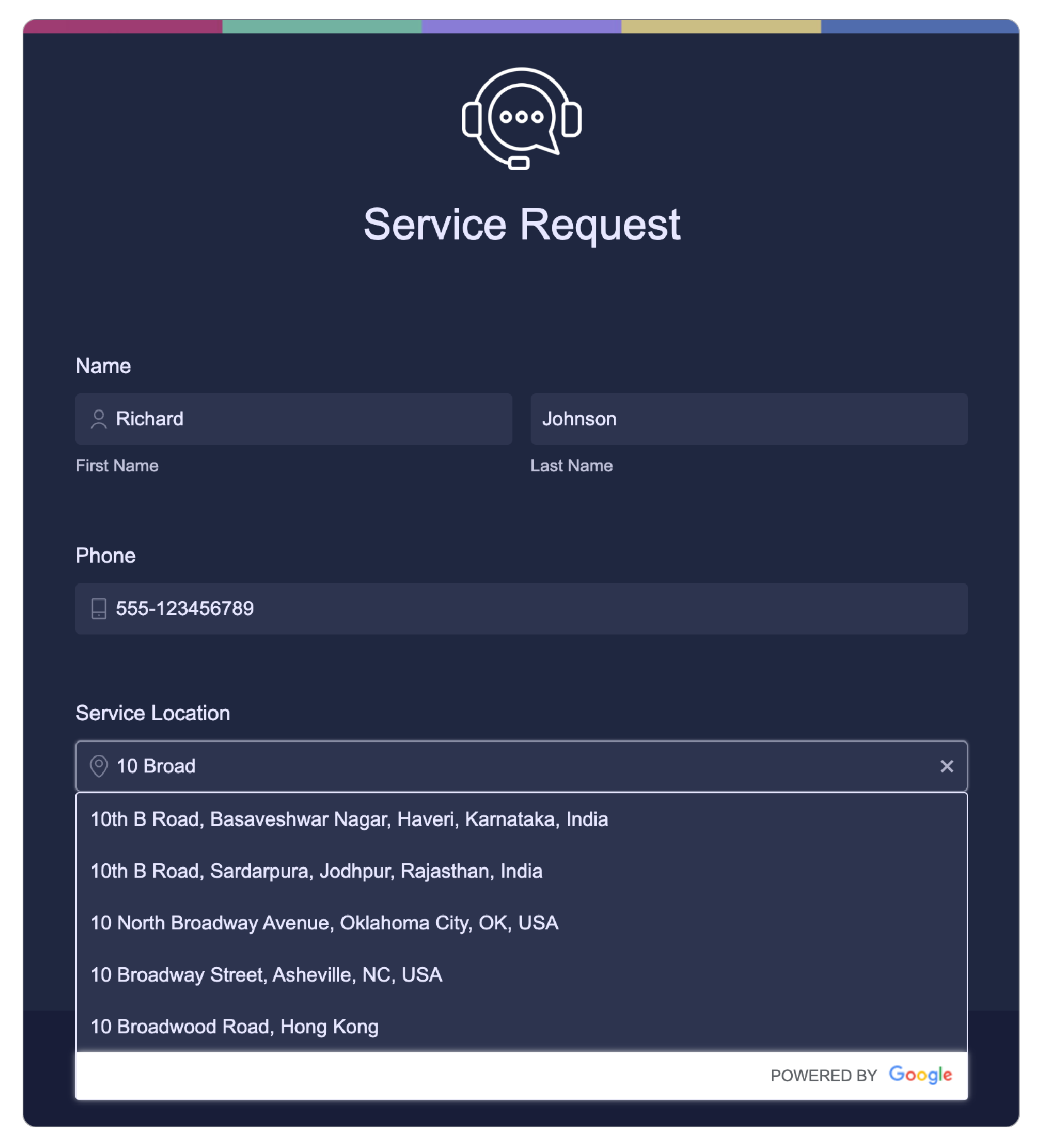
How to configure GeoComplete
Incorporating GeoComplete into your form takes less than two minutes. Here's how.
Step 1: Spot the field
Navigate to the form you're building or editing. In the field panel on the left, scroll to the Basic Information section. You'll find the GeoComplete field listed there.
Step 2: Drag and drop
Drag and drop the GeoComplete field onto the form builder wherever it fits your form layout.
Step 3: Select your map service
In the field properties, choose either Zoho Maps or Google Maps.
Zoho Maps is the default option with no extra setup required. It's powered by Zoho's own geolocation engine and works immediately after you drag and drop the field. Ideal for most general-purpose use cases, it provides reliable address suggestions across all major regions. No API key, no billing account, no third-party dependency is needed. For teams already invested in the Zoho ecosystem, this is the most friction-free choice.
To use Google Maps as your autofill engine, you'll first need to set up a Google Maps connection under the Control Panel in Zoho Forms. This involves connecting your Google API credentials. Once configured, the connection is reusable across all of your forms, no need to reconfigure per form.
Step 4: Share your form
Preview your form to see the autocomplete in action, then share it with your audience.
Your address field is now smart and your respondents will thank you for it.
But that's not all
You can even restrict address suggestions to specific countries. If your form targets users in the U.S. and Canada only, you can limit suggestions to those countries to keep results relevant and preventing users from selecting addresses in regions you don't serve.
Every extra keystroke is a chance for hesitation. Every unnecessary field is a moment of doubt. GeoComplete removes that pause, helping people move forward instead of giving up halfway through.
 Samhita V
Samhita is a seasoned product expert at Zoho Forms who blends deep product expertise and user education to help businesses make sense of powerful features without the jargon. Known for her thoughtful storytelling and crisp communication, she adds a subtle creative flair to every piece she writes. With a knack for spotting real-world use cases and adding a touch of fun to her narratives, she’s on a mission to make even the most complex workflows feel approachable. Beyond the desk, she channels her creativity into dance and mural art, finding new ways to infuse her surroundings with color, rhythm, and meaning.
Comments(6)
It's great for standalone forms but will it be able to be mapped to CRM address fields?
Yes Azlan, you can map GeoComplete field to Zoho CRM address field while mapping the integration.
Since the geocode field is one field and the address in CRM has multiple, how can we integrate it? When I try I can only map the Geocode to 1 field (street), what about the others? City, Zip code..?
Geocomplete field value cannot be mapped to different address components in Zoho CRM. If you need the individual address components (such as Street, City, State, and ZIP Code) to be mapped to their corresponding CRM address components, you can instead use the Address field with Address Auto-fill enabled in its field properties. This provides the convenience of address suggestions for respondents while ensuring each address component is mapped to the appropriate CRM field.https://help.zoho.com/portal/en/kb/forms/field-types/form-fields/basic-info/articles/address-field#Address_Auto-fill__PostalZip_Code_Validation
This is so useful in the Real Estate industry, especially in lead generation. Long awaited, thank you.
This looks brilliant. I will take a look soon.