How to track changes in Zoho Workplace
Notice how you immediately sense that something is different when the environment around you changes-perhaps a desk or chair has been moved, or new items have been added to your workspace. Even without actively looking for it, you can tell that something isn't where it originally was or that something new has appeared.
Even though changes in the physical world are prominent, it may not be the same case when working digitally. In many platforms, any new updates or modifications may not always be immediately noticeable unless you know where to look.
To help with this, Zoho Workplace provides easy ways to track changes, allowing you to quickly identify what has been modified, added, or updated so you can stay informed and keep your work organized.
Table of Contents
- How does tracking changes help in collaboration?
- Common scenarios for using track changes
- Tracking changes in Zoho Workplace products
- Best practices for using track changes
- Using track changes effectively
How does tracking changes help in collaboration?
Apart from just letting you know what changes have been made to your content, it plays an important role in improving team collaboration and coordination. By clearly highlighting updates, additions, or edits, it helps you quickly understand what has changed and how it affects your work.
With this visibility, you can better plan your next steps. For example, you can decide whether to wait for further updates, follow up with a teammate for clarification, or adjust your approach entirely based on the latest changes. This prevents any unnecessary back-and-forth conversations on every update and helps keep tasks moving forward efficiently.
Tracking changes also makes it easier to collaborate with your coworkers. It allows teams to coordinate their work, assign tasks based on recent updates, and plan the next steps together. When everyone can see what has been updated and by whom, it creates better transparency and accountability within the team. Most importantly, it helps keep everyone in the loop. Because everyone stays informed about the latest updates without having to check manually or ask for information, this reduces confusion and ensures that everyone is working on the latest updated content.
Common scenarios for using track changes
1. Sharing documents
Imagine you've shared a draft of your document with multiple members of your team for review. Everyone starts adding suggestions, making edits or comments, and all of the changes can make it difficult to identify what was originally written and what was modified by others.
In such situations, tracking changes is beneficial, allowing you to clearly see who made specific changes, what was modified, and when the change was made. This helps you review edits and decide which suggestions to accept and which to deny based on your preferences.
2. Working on a group presentation
Imagine you're collaborating on a group presentation alongside other team members who often contribute by updating slides, writing, re-writing, editing, and adding their own content. With several people working on the same presentation, it can become difficult to keep track of the content that's been updated, added, or rewritten. You may lose track of what the content even was in the first draft.
Using track changes, you can quickly identify new updates and see how the presentation has been changed. This ensures that everyone is aware of the latest updates, avoiding any overlapping work and creating more accountability for the changes they've made, which in turn improves team coordination.
3. Tracking expenses
After a team trip or project activity, expense sheets are often updated by multiple members who add or modify their expenses. When several people edit the same sheet, it can be difficult to track what changes were made and who updated what data.
With track changes, you can see the updates made to the sheet clearly, including both the newly added content and the modification of existing data. This helps you review updates and other details, and enforce transparency while managing shared expenses.
Tracking changes in Zoho Workplace products
Zoho Workplace comprises a suite of applications that bring communication and collaboration together in one platform. Platforms such as Zoho Writer, Zoho Sheet, and Zoho Show provide features that allow teams to track edits, review changes, and collaborate effectively while working on shared files.
Zoho Writer is a online word processor platform allowing you to write, edit, and collaborate with others on documents. It allows you to view changes using the Track Changes option. You can view all of the changes in your document that other collaborators have made. If this option is disabled, the changes made to your document won't show who made which changes.
Each change made by a different user will be highlighted in a different color, making it easy for you to identify who made which change. When someone makes changes to your document, you have the option to either accept or reject any of the changes at your discretion.
Once your collaborators have finished making changes in your document, you can view them by clicking on Review → Markup View from the top menu and selecting All Markup. You can then accept or reject the changes you want. Once you've switched off the collaborators button in your document, this locks the document for other users to make any other changes and avoiding any confusion. Writer provides you with three options to view changes to your content:
- All Markup: Highlights all of the new changes made to your document.
- No Markup: How your document will look with all of the changes made.
- Original: The original content without any changes made.
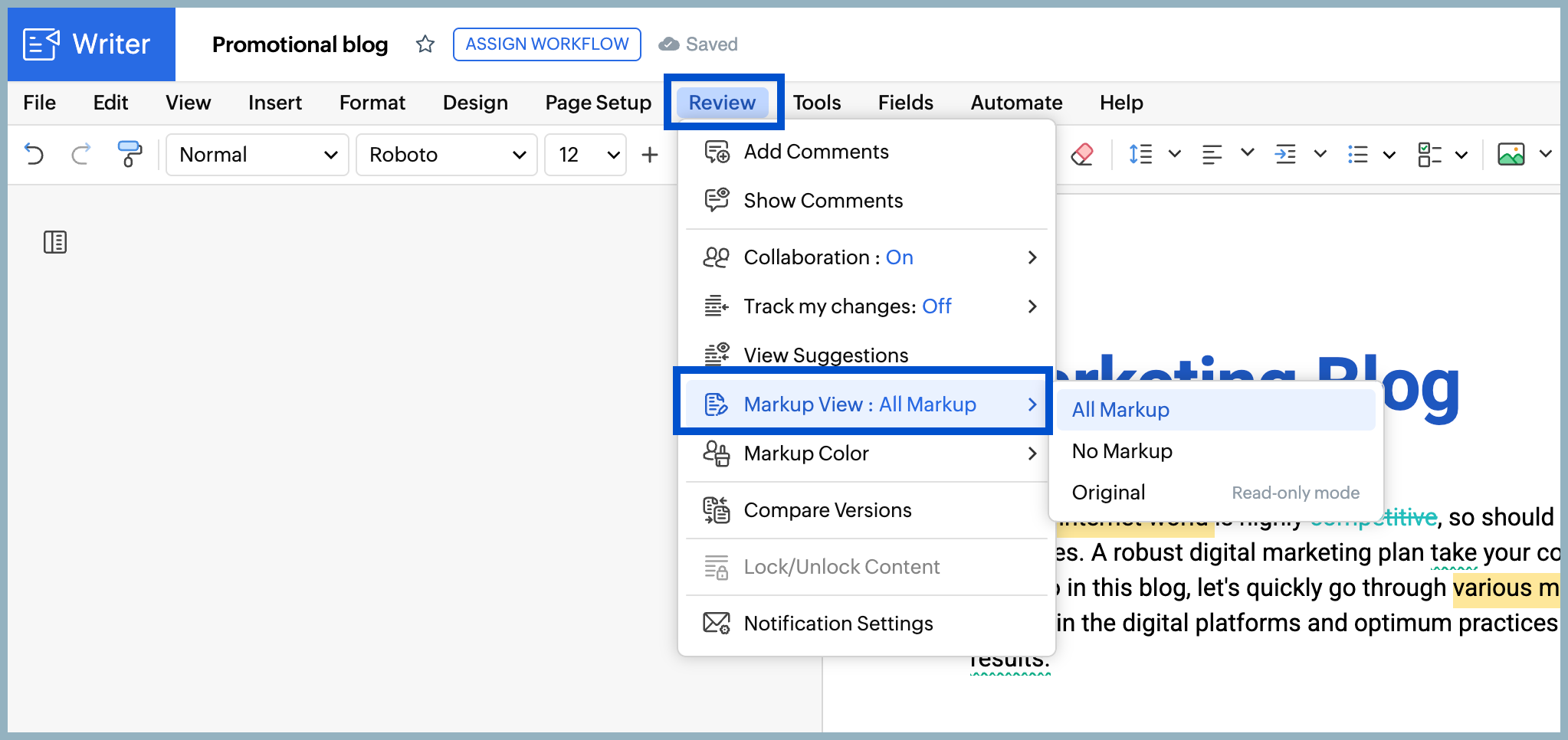
Under the Review tab in the toolbar at the top of the document, you can enable "Track Changes" by following these steps:
- Log into your Zoho Workplace account.
- Navigate to Zoho Writer from the header.
- Open the document you're actively working on, or open a new document draft.
- Click on the Review tab from the menu at the top of the document.
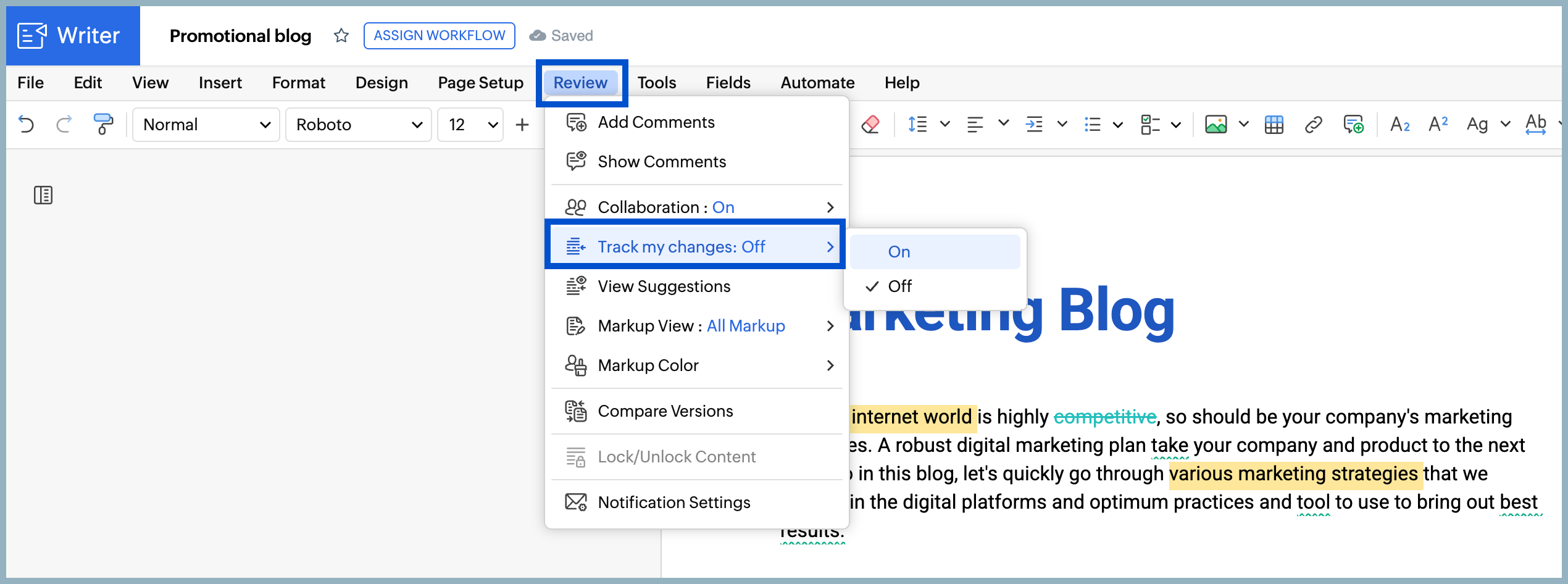
- Click Track Changes to select the ON or OFF option.
You can also toggle the Track Changes button in the bottom-right corner of the document by following these steps:
- Log into your Zoho Workplace account.
- Navigate to Zoho Writer from the header.
- Open the document you're actively working on, or open a new document draft.
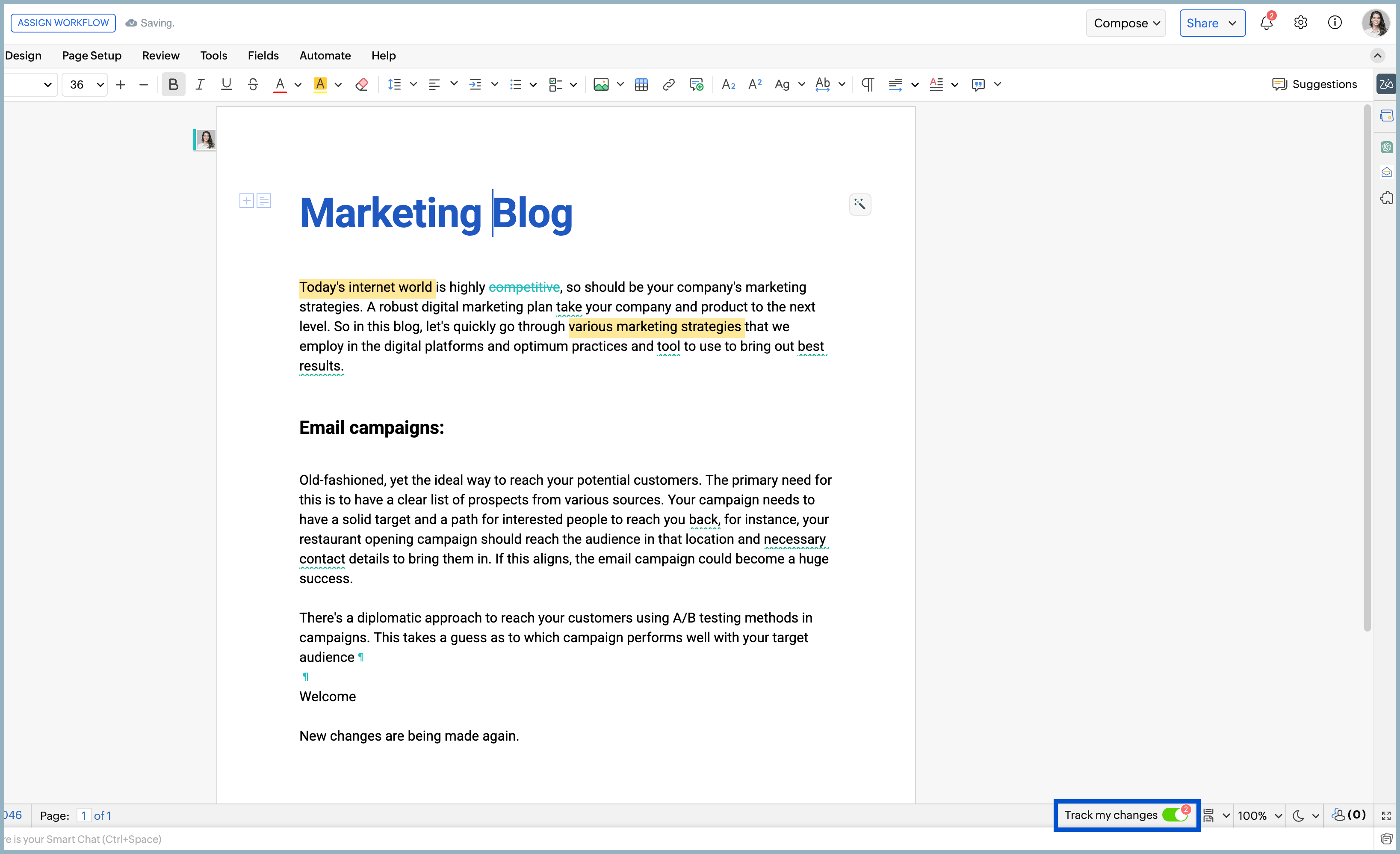
- In the bottom-right corner, click the Track Changes toggle button to enable it.
Once "Track Changes" is enabled, all changes made will be highlighted in different colors to distinguish it from the original content.
Reviewing edits and suggestions
Once all changes are made to your document, you'll be notified via the Notifications icon in Zoho Writer top-right corner. All changes made to the document will be listed under this icon. Here's how you can review edits and suggestions made to your document:
- Log into your Zoho Workplace account.
- Navigate to Zoho Writer from the header.
- Open the document you want to review the edits for.
- Click on the Compose drop-down on the top-right corner of your screen.
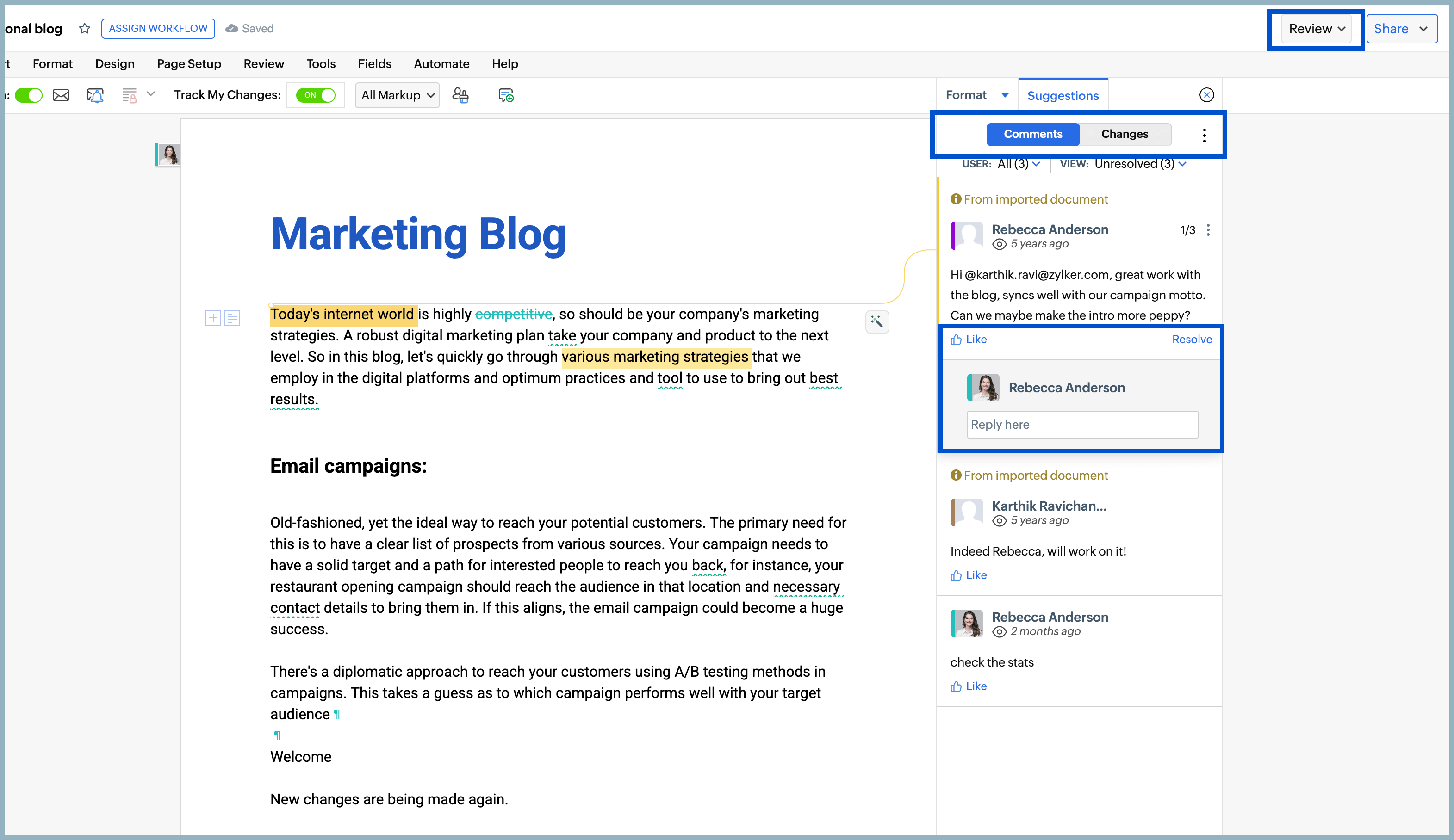
- Switch to Review mode to view track and manage changes and suggestions.
Now you can switch between the Comments tab and the Changes tab to view the comments and suggested changes made to your document which you can choose to accept or reject.
You can further Like, Resolve, and Reply to the comments that have been added. Once you mark a comment as resolved, the comment will be closed, but you can re-open it if needed.
Accepting or rejecting changes in documents
Changes to your document won't be finalized until you accept or reject the suggested changes, but accepting or rejecting changes isn't mandatory. Once you accept or reject changes, the changes in the content will be made automatically. 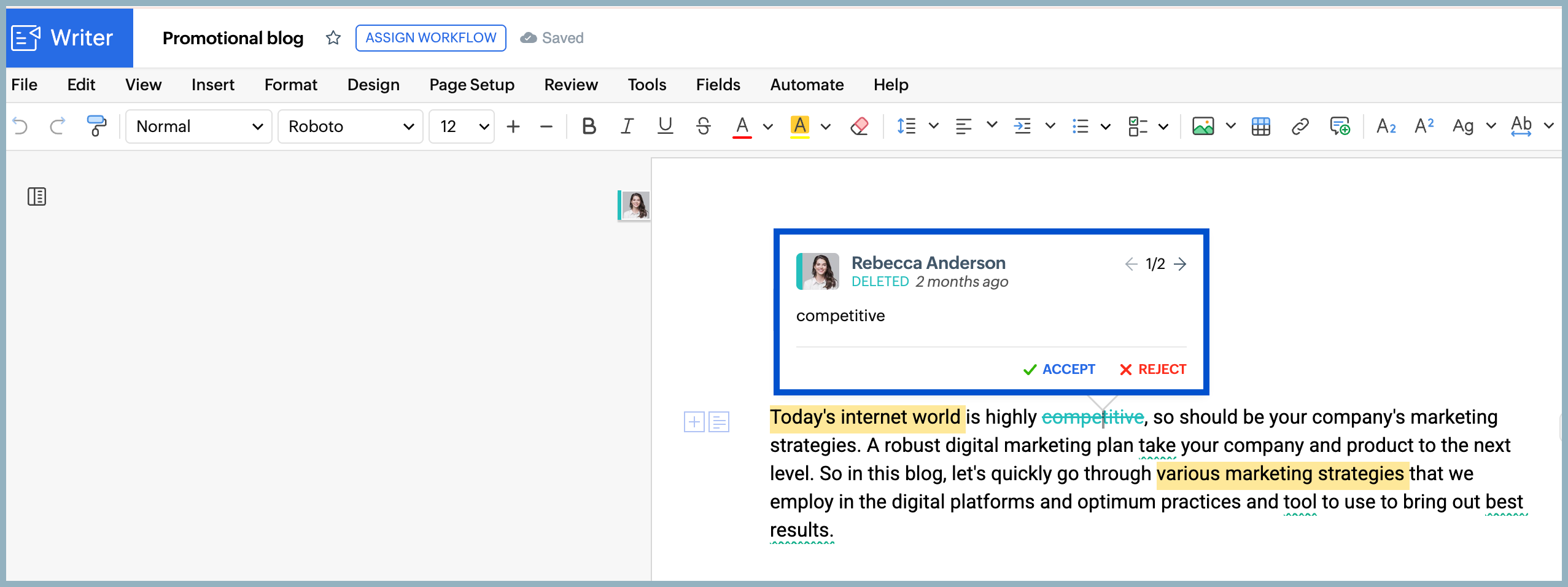
You can view changes to accept or reject either by clicking on the highlighted text and using the arrows on the comment or change to switch to the previous or next change. You can also use the Comments tab and Change tab in Review mode to view all changes and comments listed together.
Managing edits from multiple collaborators
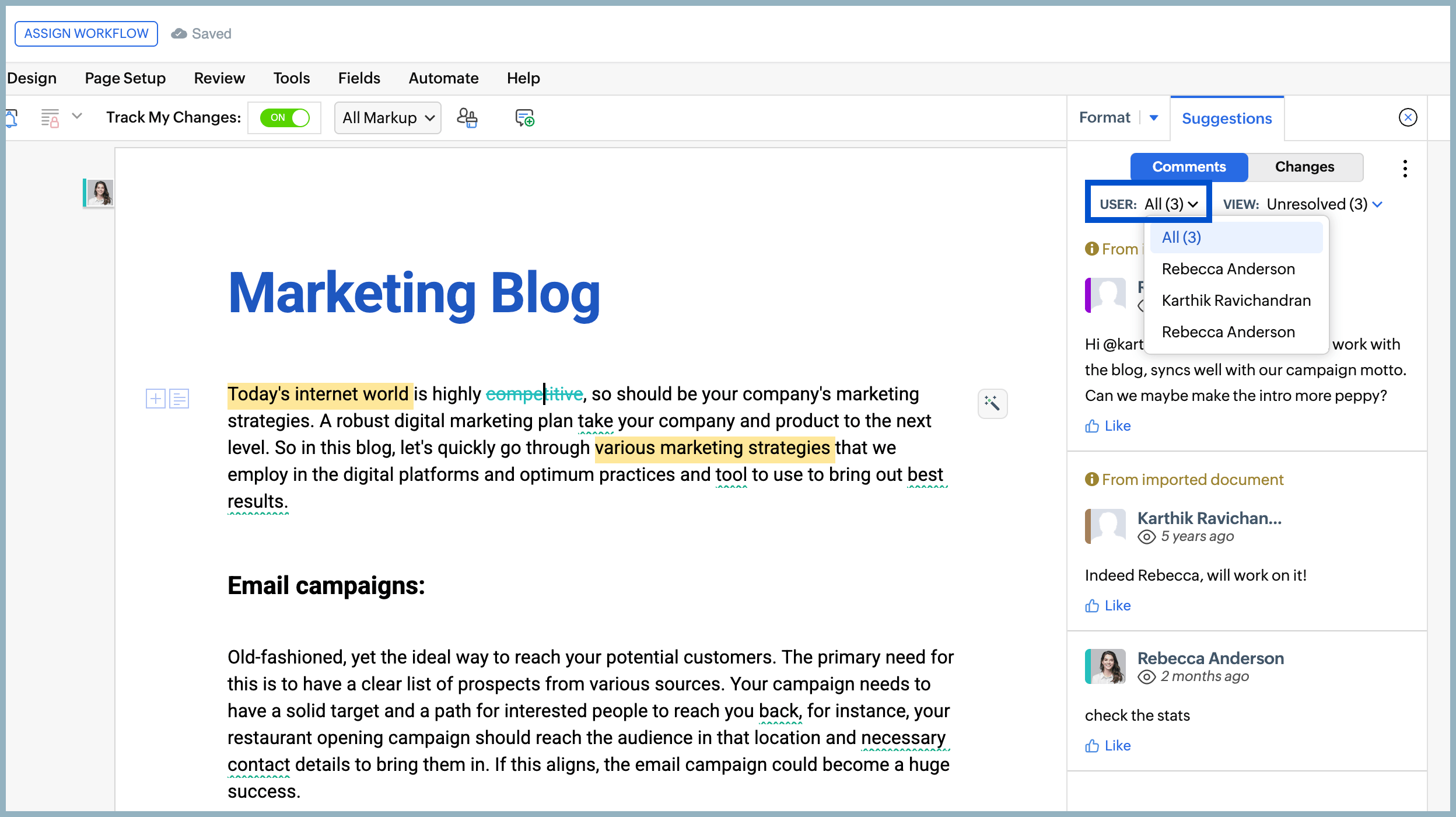
To avoid confusion, the edits made by each collaborator are highlighted using different colors. You can see the collaborators' profile icon in the Comment and Changes section. You can also view comments and changes from a specific collaborator at one time using the filter option. To filter and view changes from collaborators:
- Log into your Zoho Workplace account.
- Navigate toZoho Writer from the header.
- Open the document you want to review the edits for.
- Switch to Review mode by clicking on the Compose mode drop-down.
- In either the Comments or Changes tab, click the User drop-down to view comments or changes from the specific collaborator.
- In either the Comments or Changes tab, click the View drop-down to further narrow down and view changes or comments from collaborators that are:
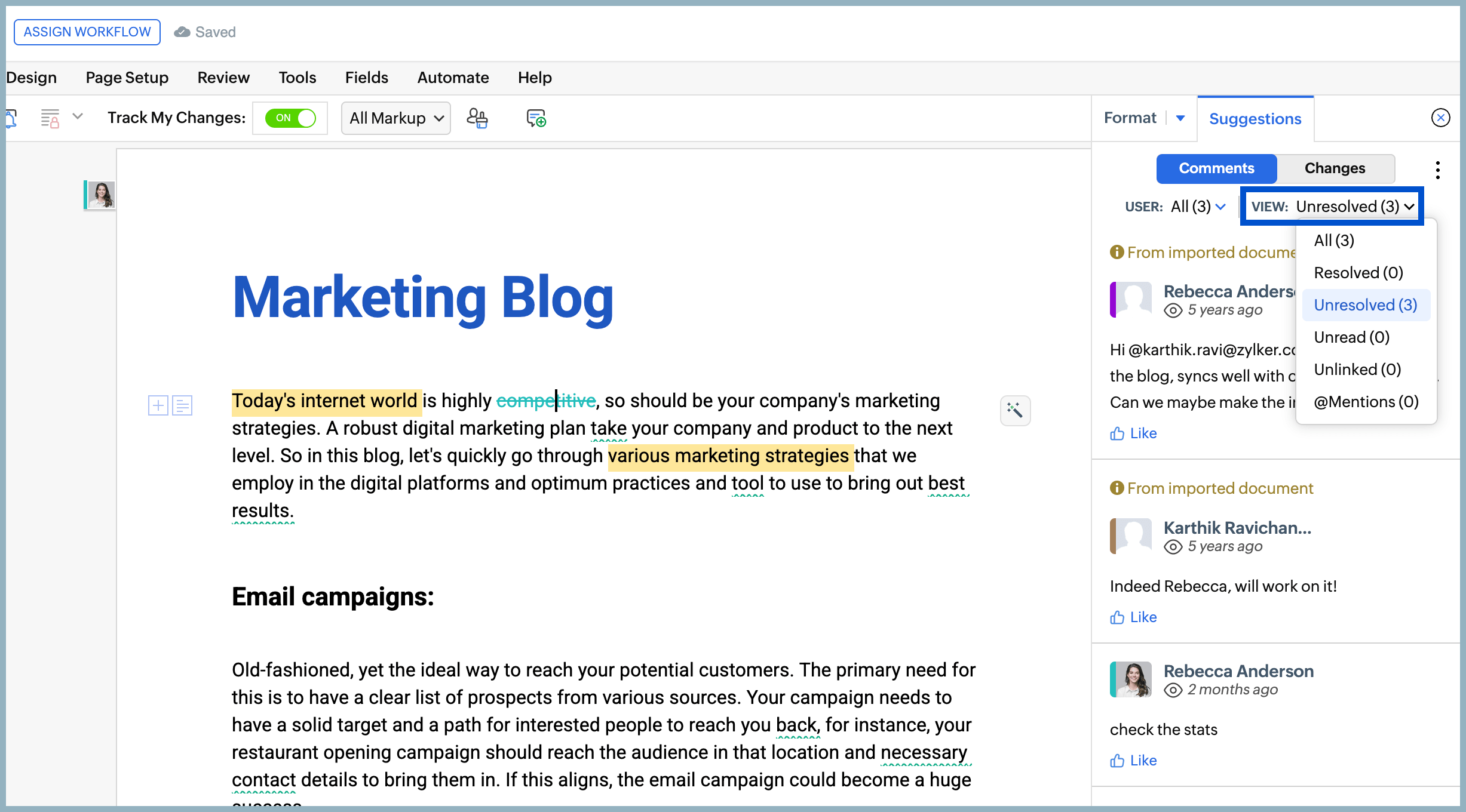
- Resolved
- Unresolved
- Unread
- Unlinked
- @Mentioned
Track Changes vs. Comments
Track Changes | Comments | |
How does it work? | Edits can be made directly to the content and are recorded as changes. | Comments allow you to add remarks or suggestions without editing the actual content. |
Content modification | Allows collaborators to modify the content by inserting, deleting, or formatting text. | Does not modify the content; it only adds notes or feedback to specific parts of the document. |
Purpose | Mainly used for reviewing and approving edits made to the document. | Mainly used for giving feedback, asking questions, or suggesting changes. |
Change visibility | All edits are highlighted within the document so they can be reviewed. | Comments appear as notes linked to highlighted text or sections. |
Action on changes | Changes can be accepted or rejected by the reviewer. | Comments can be replied to, resolved, or deleted. |
Version history in Zoho Writer
The version history saves each edit collaborators made to your document as a separate version. You can easily switch between versions to review changes and see how the document was modified. You can compare different versions, restore a previous version if needed, and ensure that no important changes are lost. This is especially useful for maintaining transparency, and it gives you full control over your document’s history. You can also manually save the version history if you need to.
To view the version history:
- Log into your Zoho Workplace account.
- Navigate to Zoho Writer from the header.
- Open the document you want to view version history for.
- Click on the File option from the top menu/header.
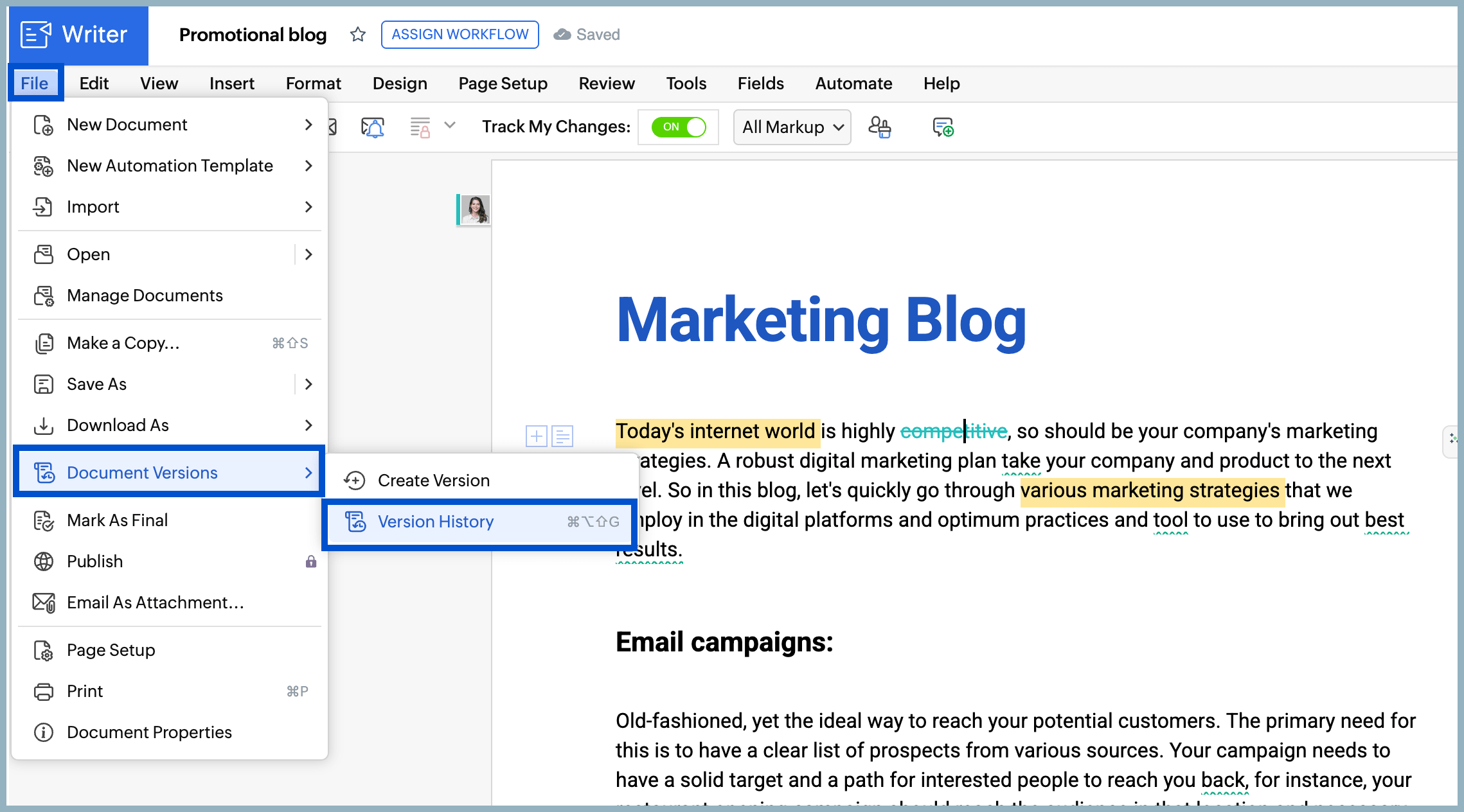
- Under Document Versions drop-down, click Version History.
- All versions along with the date and timestamp will be displayed in the right pane. Click on a version to view the changes made in that version so far.
- Click on the versions listed in the left pane to:
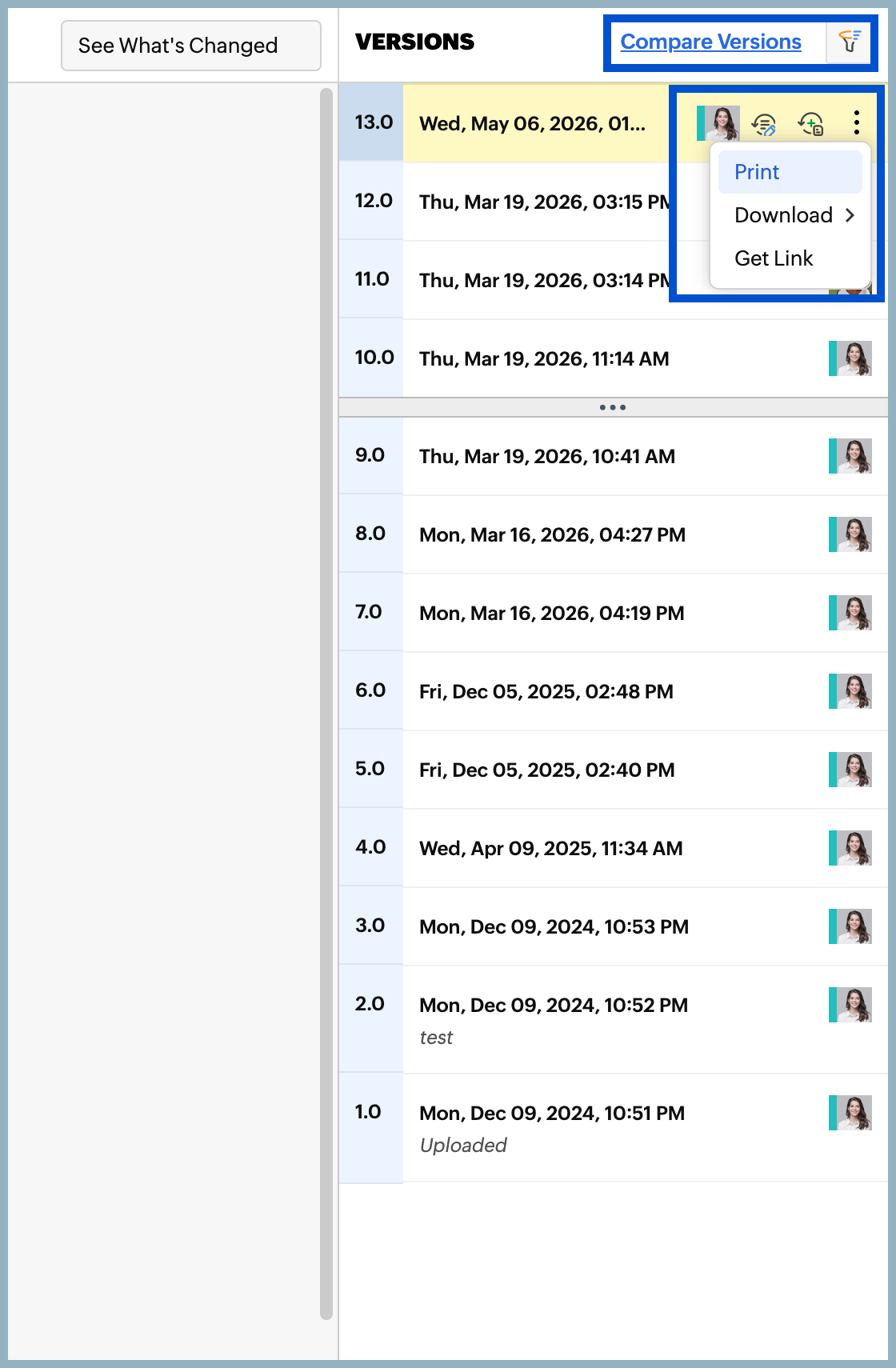
- Add a description to the created versions.
- Create a new document with the selected version.
- Use the more options (⋮) to print the version, download the version in your preferred document, or create a version link to share.
You can also compare two versions to see the different changes made using the Compare Versions option.
Track Changes vs. Versions History
Track Changes | Version History | |
Changes made | View and track all edits made to the document in one place as they happen. | View different versions of the document created after edits are saved. |
How changes are tracked | Shows who made the changes and what was modified in the document. Changes are visible within the active document view. | Each set of edits is saved as a separate version of the document, showing you who made what changes with a timestamp in the version history panel. |
Compare changes | You can view changes made alongside the original content to see how your document has evolved. | You can compare two versions to see the changes made to your document in both versions. |
Action on changes | Allows you to accept or reject individual changes if track changes is enabled. | Allows you to review, compare, or restore a previous version of the document. |
Best for | Ideal for reviewing and approving edits during collaboration. | Ideal for tracking the overall history of a document. |
Focus | Focuses on detailed content-level edits. | Focuses on document-level version changes. |
Tracking changes in Zoho Sheet
Create and share spreadsheets with your teams using Zoho Sheets for better collaboration, along with ready-to-use templates that allow you to generate professional spreadsheets quickly. Unlike Zoho Writer's Track Changes option, Zoho Sheet doesn't provide an exact option. Subtle indicators, such as highlighting cells that other collaborators are working on, helps you stay in loop with all of the changes along with the version history.
View changes using highlighted cells
When other collaborators are working in the sheet at the same time you are, any changes they make are reflected in real time in your sheet view. The cells being edited are highlighted to indicate where the changes are happening. Additionally, the collaborator’s name appears in the highlighted cell, allowing you to easily identify who's making the update and track edits as they happen.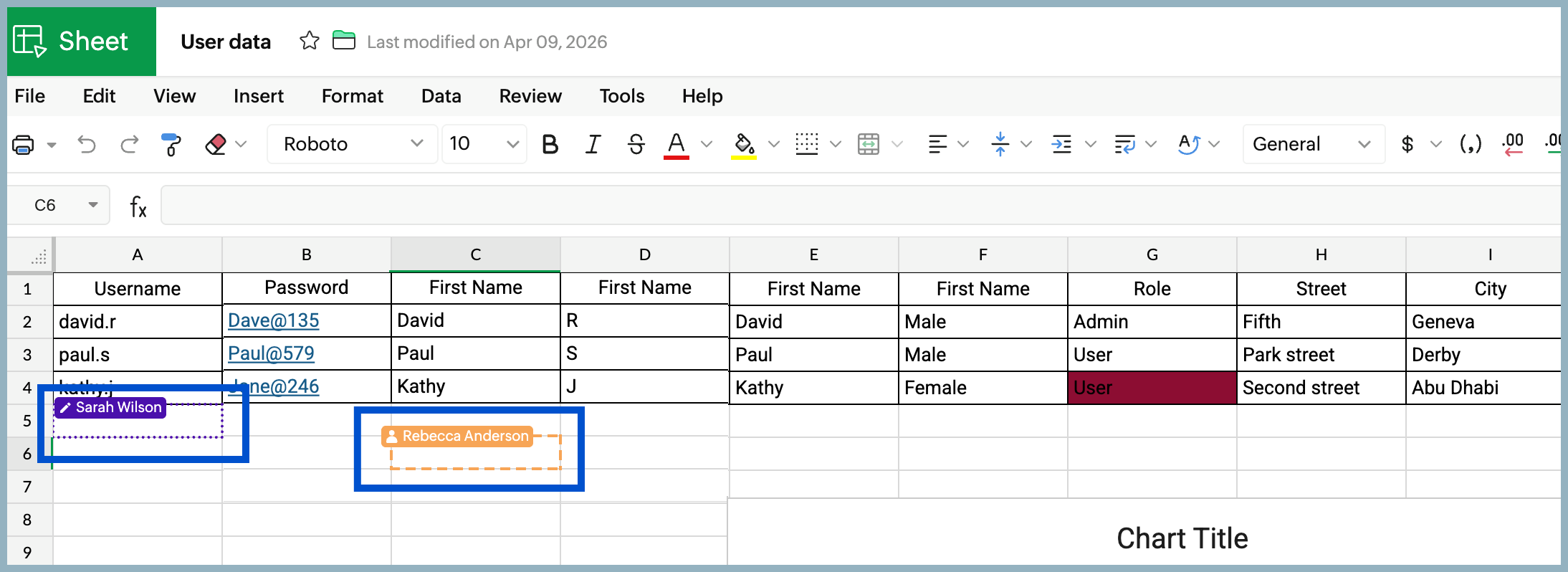
Version history in Zoho Sheet
Each edit you and your collaborators make to your sheet is saved as a separate version using Version History. This helps you view how the content of your sheet has been modified and evolved. You can always switch back and forth between versions to view changes made to your sheet. Along with viewing changes made to older versions, you can restore and switch back to previous versions if necessary. Versions are automatically saved, but you can manually save the version history if needed using the Create version option.
To view the version history:
- Log into your Zoho Workplace account.
- Navigate to Zoho Sheet from the header.
- Open the sheet you want to view the version history for.
- Click the File tab from the top menu/header.
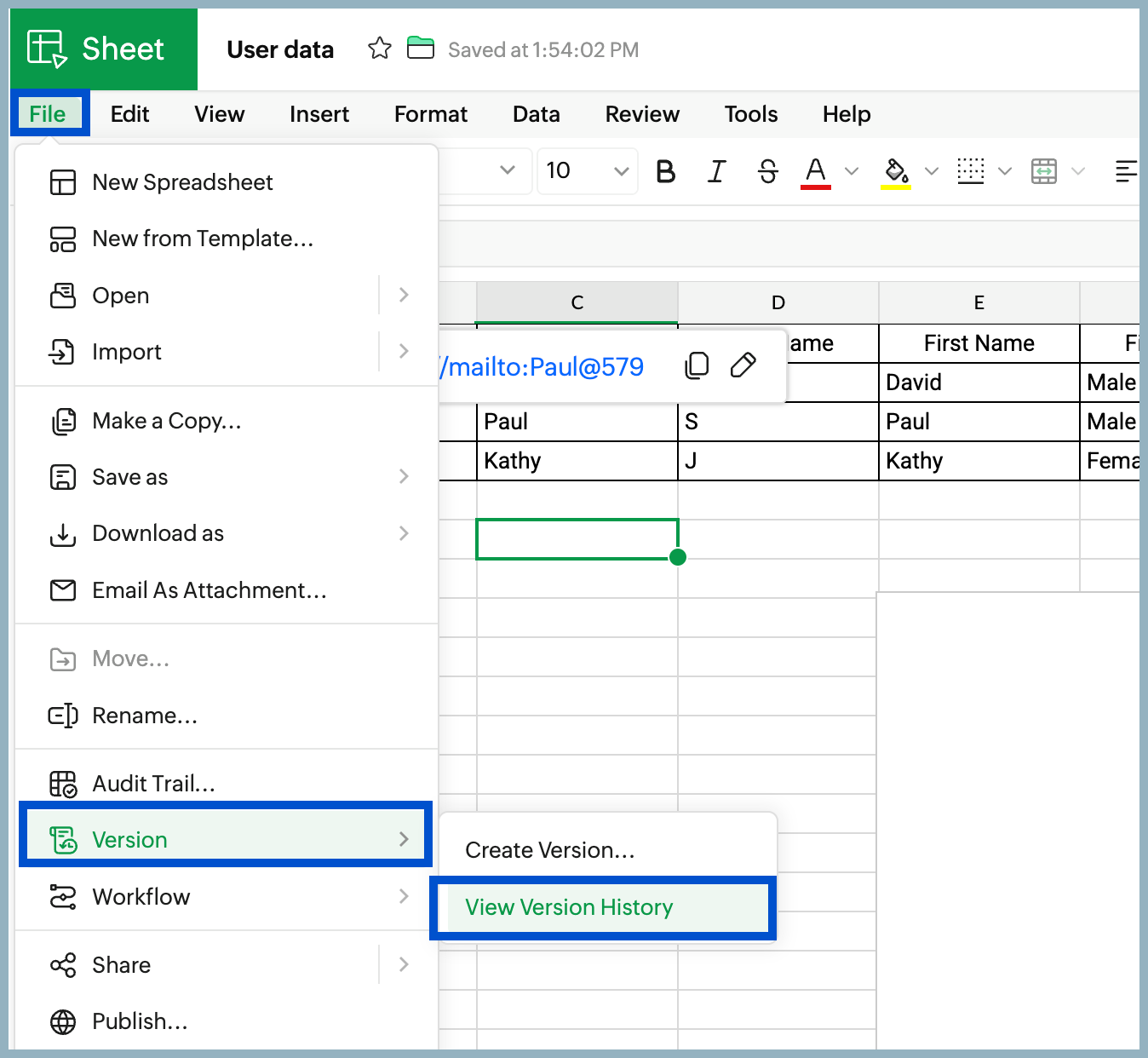
- In the Version drop-down, click View Version History. All versions, along with the date and timestamp, will be displayed in the right pane. Click on a version to view changes made in that version so far.
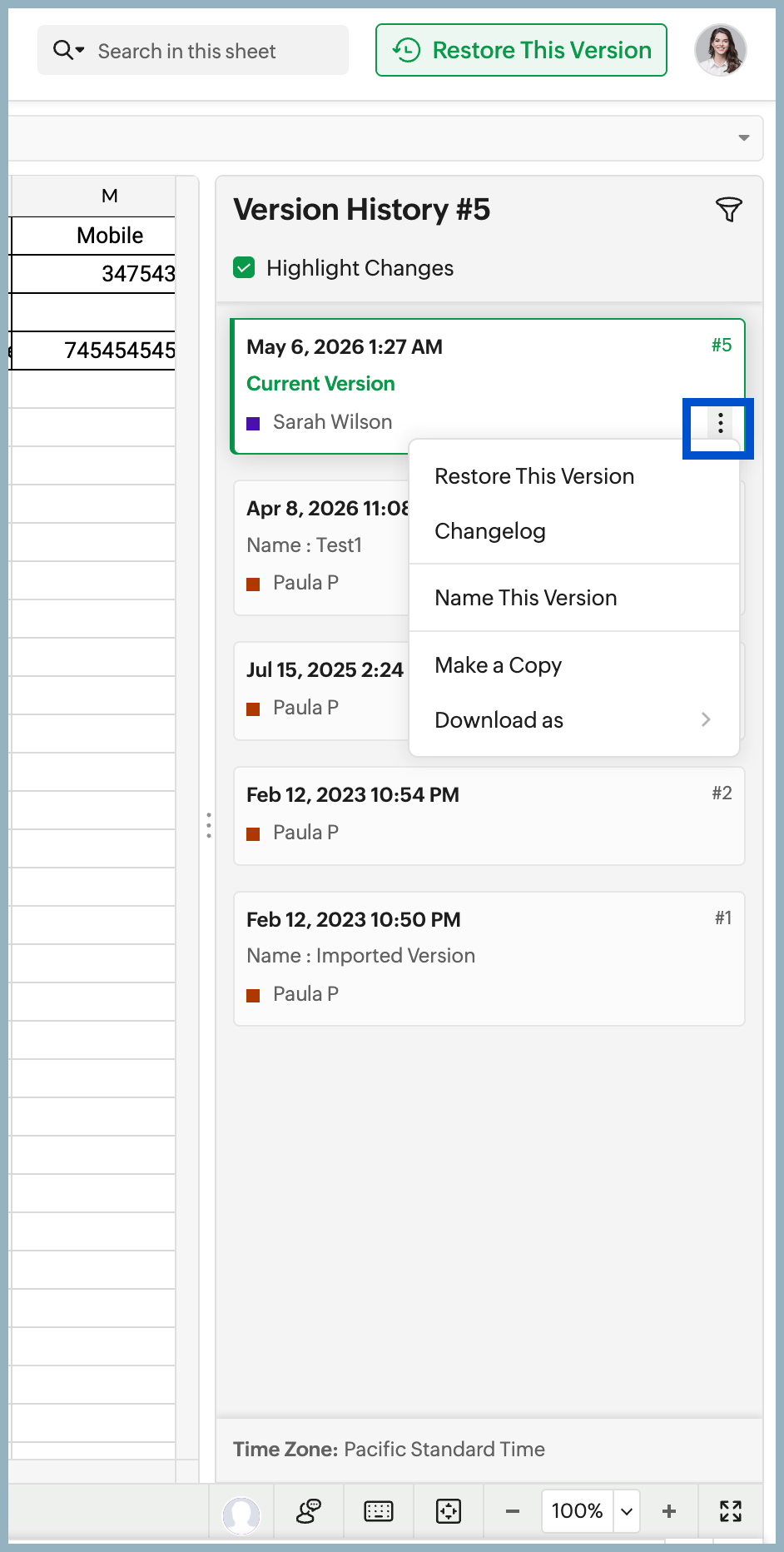
- Click on any of the versions listed in the left pane to:
- Name the version.
- Make a copy of the version for further use.
- Download the version in your preferred format.
- View the specific Changelog of the version (this is a detailed description of the changes made to a specific version).
- Click on the versions to view these options in the header or using the more options (⋮) icon available in the versions.
Tracking changes in Zoho Show
Zoho Show is a cloud-based presentation platform that allows you to create, edit, and deliver presentations directly from your browser. It provides a collection of pre-built templates to help you design professional slides quickly. Similar to Zoho Sheet, Zoho Show also provides a version history option that allows you to view different versions of your presentation and track the changes made over time. This helps you review edits, understand how the presentation has changed, and restore an earlier version if needed.
Version history in Zoho Show
Edits made to your presentation are saved as separate versions, allowing you to easily review the changes made. You can switch between different versions to see how the presentation has been updated and track contributions made by collaborators. This helps you maintain a clear record of edits, compare earlier and recent versions, and restore a previous version if needed. It's especially useful when multiple users are working on the same presentation, ensuring that important changes can always be reviewed or recovered.
To view the version history in Zoho Show:
- Log into your Zoho Workplace account.
- Navigate to Zoho Show from the header.
- Open the presentation you want to view the version history for.
- Click the File option from the top menu/header.
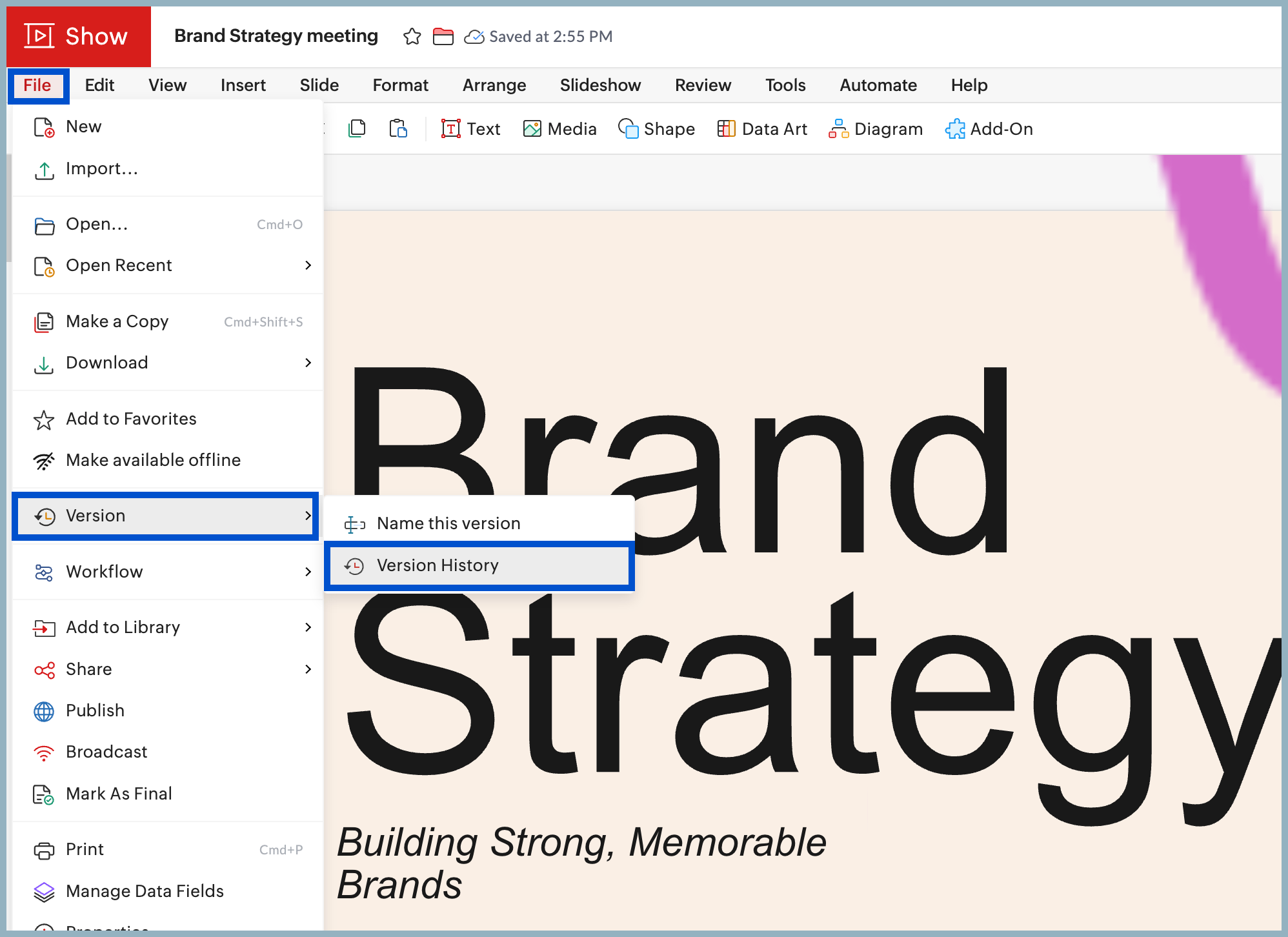
- In the Version drop-down, click Version History.
- All versions along with their date and timestamp will be displayed in the right pane. Click on the version to view changes made in the version so far.
- Click the More options icon (⋮) to revert back to a previous version or copy URL for the version.
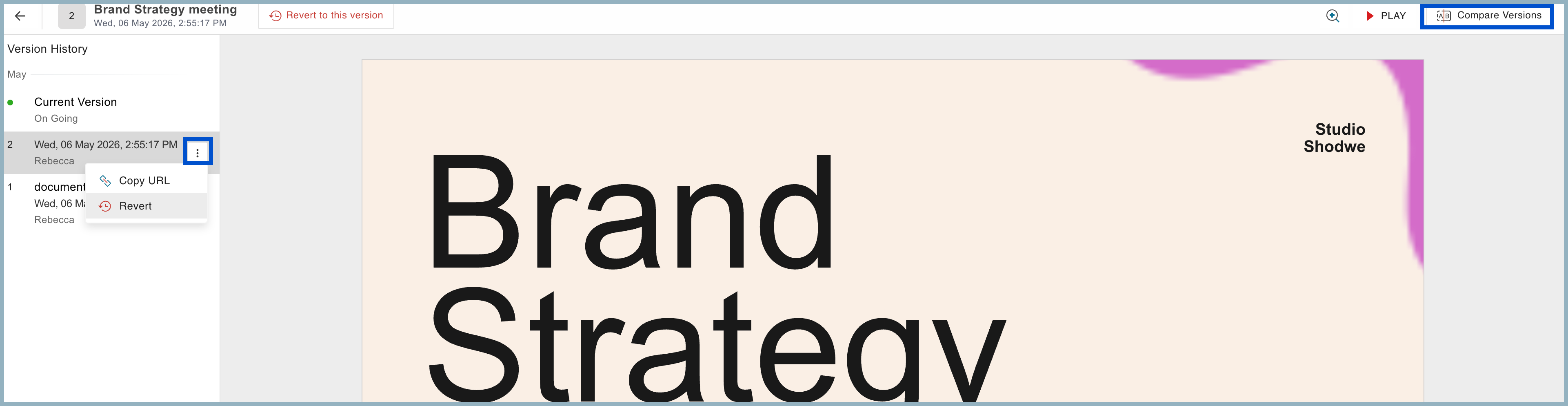
- You can click the Compare Versions button at the top-right corner to compare and view the changes between two versions.
Best practices for using track changes
Proper use of track changes allows you and other collaborators to identify edits clearly, review modifications, and manage all of the changes effectively. Here are few best practices to follow while using track changes:
- Make sure to enable Track Changes before making changes so all modifications are properly recorded.
- Add comments where necessary to explain the reason behind certain changes.
- Finalize changes by accepting or rejecting them once they're reviewed.
- Avoid making excessive edits all at once. Instead, make clear and meaningful edits so all collaborators can easily understand the modifications.
- Regularly review the tracked changes to keep the document organized and avoid confusion.
Using track changes effectively
Track changes across Zoho Workplace applications (Zoho Writer, Zoho Sheet, and Zoho Show) allow you and your team to collaborate more efficiently by providing visibility into edits and updates made to your document, spreadsheet, or presentation. Allowing you to review modifications, track collaborators' changes, or revert to previous versions if needed provides better transparency and control during collaboration. When used properly, they help you maintain clarity in the editing process and makes it easier for collaborators to review, approve, and manage changes across files.
Top Articles