How to share documents securely
Table of Contents
- Before you hit send: Secure your documents
- Why secure document sharing matters
- How to share documents securely
- Insecure document sharing practices to avoid
- Tools for secure document sharing in Zoho Workplace
- Best practices for sharing documents securely
Before you hit send: Secure your documents
In today’s digital era, document sharing has become an everyday necessity—whether you’re collaborating with colleagues, reviewing contracts with partners, or sharing reports with clients. The same convenience that makes document sharing efficient also introduces risks when security is overlooked.
Secure document sharing is no longer optional—it’s essential. It protects sensitive information from unauthorized access while preserving confidentiality, compliance, and trust.
This guide highlights the best practices for sharing documents securely across both professional and personal contexts.
Why secure document sharing matters
Documents carry far more than information—they hold legal agreements, financial data, personal records, and intellectual property. When shared without proper controls, they can expose individuals and organizations to data breaches, compliance violations, and reputational damage.
Insecure sharing may seem convenient, but it puts your documents at risk. A contract shared via an open link, a financial report sent as an unprotected attachment, or a policy document stored in an unrestricted folder—any of these can be accessed, forwarded, or exploited by unintended recipients.
Some real-world examples illustrate how exposed documents lead to serious consequences:
- In 2022, Morgan Stanley paid $35 million in SEC fines after improperly disposing of devices containing confidential customer documents, exposing sensitive financial records of approximately 15 million clients.
- In 2016, the Panama Papers leak exposed 11.5 million confidential legal and financial documents from Panamanian law firm Mossack Fonseca due to inadequate access controls and insecure document handling practices.
These incidents underline a simple truth. One improperly shared document can trigger a breach with lasting legal, financial, and reputational consequences. What feels like a convenient shortcut today can become tomorrow’s compliance crisis.
How to share documents securely
Secure document sharing is built on three core principles: controlling who can access your documents, defining what they can do with them, and monitoring how they interact with them.
- Access controls: Grant only the permissions necessary for the task—View, Comment, or Edit. Add passwords to sensitive documents, set expiration dates on shared links, and disable download or print options where appropriate.
- Authentication: Protect accounts with two-factor authentication (TFA) and strong, unique passwords to prevent unauthorized access to shared documents.
- Audit and monitoring: Track document activity through access logs. Know who opened a document, when it was accessed, and whether it was downloaded or modified.
- Awareness: Educate users to verify recipients before sharing, recognize phishing attempts targeting shared document links, and report suspicious access activity promptly.
When these practices are consistently applied, the risk of unauthorized access, accidental leaks, or data misuse is significantly reduced.
Insecure document sharing practices to avoid
To maintain control over sensitive documents, steer clear of these unsafe practices:
- Sending documents as unprotected email attachments.
- Sharing via personal messaging apps or SMS.
- Creating open, non-expiring share links.
- Uploading documents to unverified or public platforms.
- Granting permanent edit or download access without review.
- Sharing documents without tracking who has accessed them.
Every one of these methods removes your ability to monitor, restrict, or revoke access once the document is shared.
Tools for secure document sharing in Zoho Workplace
Zoho Workplace provides purpose-built tools that make secure document sharing practical without compromising collaboration:
- Zoho WorkDrive: A centralized document management platform with granular permissions, secure external share links, password protection, expiry settings, and audit trails—purpose-built for organized, controlled document sharing.
- Zoho Mail: Enables secure document distribution through password-protected emails via SecurePass and full end-to-end encryption using Pretty Good Privacy (PGP) or Secure/Multipurpose Internet Mail Extensions (S/MIME), ensuring that attachments reach only their intended recipients.
- Zoho Cliq: In-chat file sharing protected by AES-256 encryption, layered key management (KMS), and encryption in transit and at rest ensures that only authorized recipients can access shared files.
Together, these tools ensure that your documents—whether shared internally or externally—remain confidential, traceable, and fully under your control.
Zoho WorkDrive: Secure document sharing in action
Zoho WorkDrive is designed to give you both flexibility and security when sharing documents.
- Internal sharing: Assign roles (View, Edit, Share, Comment) to team members while preventing unauthorized resharing.
- External sharing: Generate password-protected links, set expiration dates, restrict downloads and printing, or require recipient details before granting access.
- Download links: Ideal for controlled, one-time, or time-bound document distribution with built-in access limits.
- Audit logs: Monitor who accessed, modified, or downloaded a document and when.
These features ensure complete visibility and control over your shared documents at every stage.
How to share documents in Zoho WorkDrive
Zoho WorkDrive provides secure options for both internal and external sharing. Here’s how to share documents safely:
- Log into your Zoho Workplace account and navigate to the document or folder you want to share.
- Click the Share button next to the document or folder.
- For internal sharing (team members):
- Assign permissions: View, Edit, Comment, or Share.
- Restrict further sharing if the document is confidential.
- For external sharing (via link):
- Generate a secure share link.
- Set password protection and an access expiration date.
- Request recipient details before granting access.
- Disable download or print options for sensitive documents.
- Track activity logs to monitor who accessed your document and when.
Sharing documents in Zoho WorkDrive: Individuals and groups
- Log into your Zoho Workplace account.
- From the top pane, open Zoho WorkDrive.
- Navigate to the document or folder you want to share.
- Click the Share button.
- Assign the required permissions:
- Share: Recipients can share, edit, and comment.
- Edit: Recipients can edit and comment.
- View and Comment: Recipients can only view and add comments.
- Edit field values: Recipients can edit fillable fields only.
- View: Recipients can only view.
- Click Share to grant access.
Additional options:
- Set expiration: Define an expiry date after which the recipient loses access automatically.
- Remove access: Revoke sharing permissions entirely for a user or group at any time.

These options give you full control over who can access your documents, what they can do with them, and for how long.
Sharing documents securely via links in Zoho WorkDrive
Zoho WorkDrive allows you to share documents through controlled links rather than exposing them as open attachments. This ensures that access is protected, traceable, and time-bound when needed.
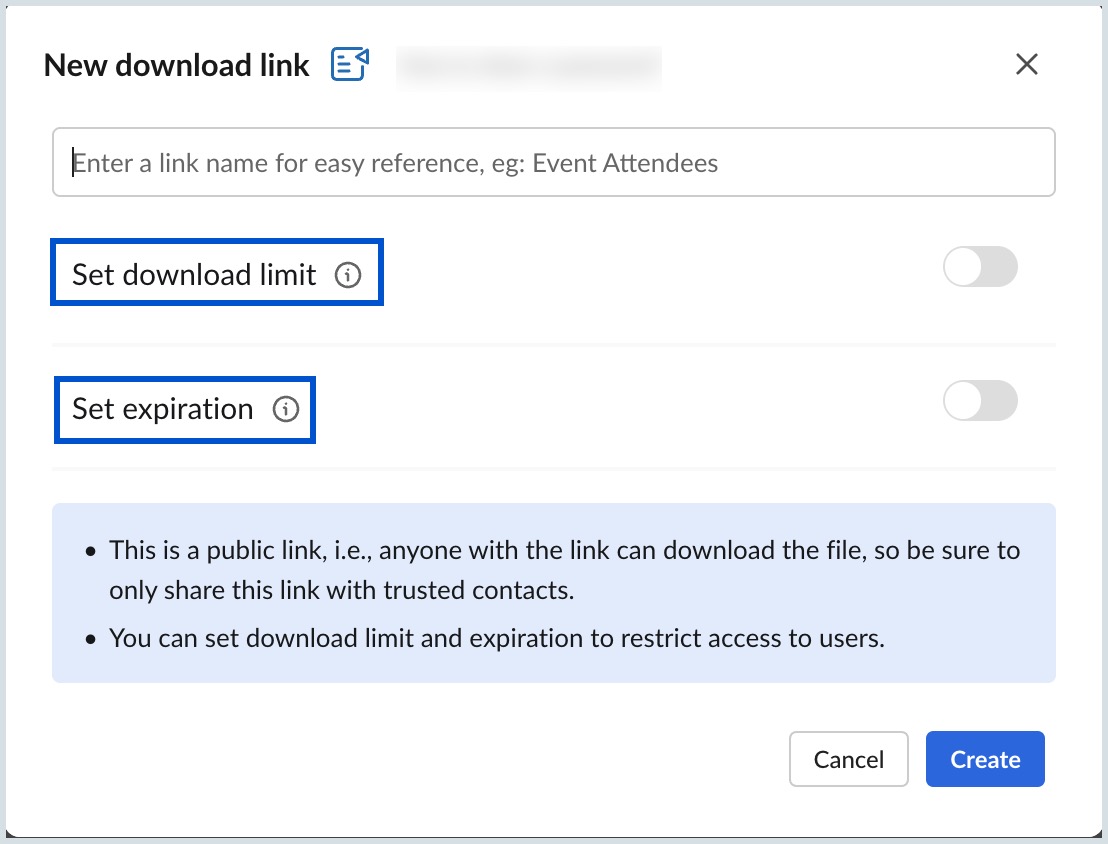
- Download link: Create a download link for recipients to access a specific version of a document. You can set a custom name for the link, use Set download limit to restrict the number of times it can be downloaded, and apply Set expiration to define how long the link remains active. This is ideal for distributing finalized documents, reports, or contracts to external stakeholders.
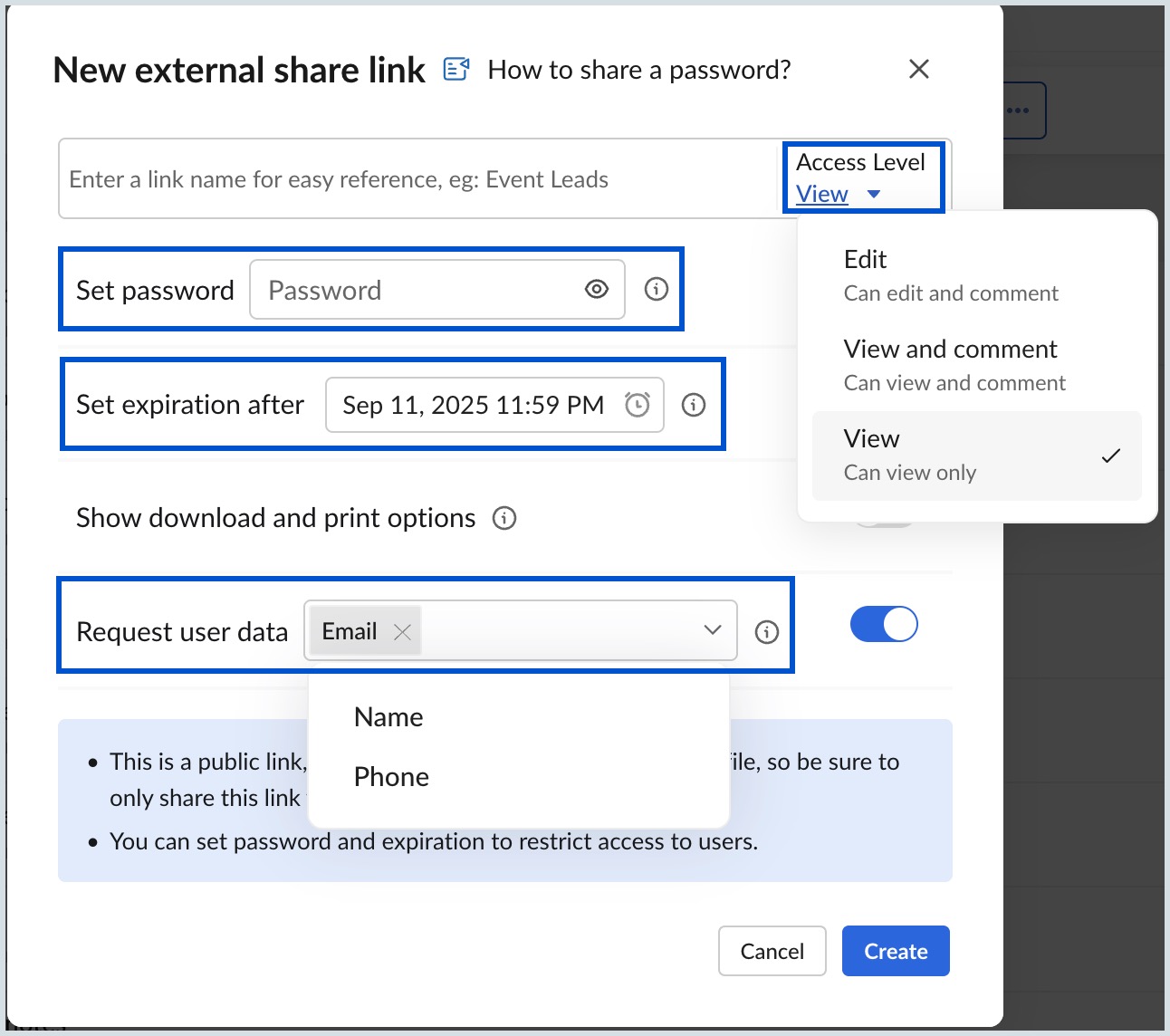
- External share link: For broader external sharing, generate a link with layered security settings: Set password to protect access, Set expiration to limit availability, Show download and print options to control document usage, and Request user data to capture recipient details before granting access. This is particularly effective for sharing proposals, agreements, or confidential reports with clients, vendors, or third parties.
To revoke or update access, return to the document’s sharing settings and modify permissions at any time.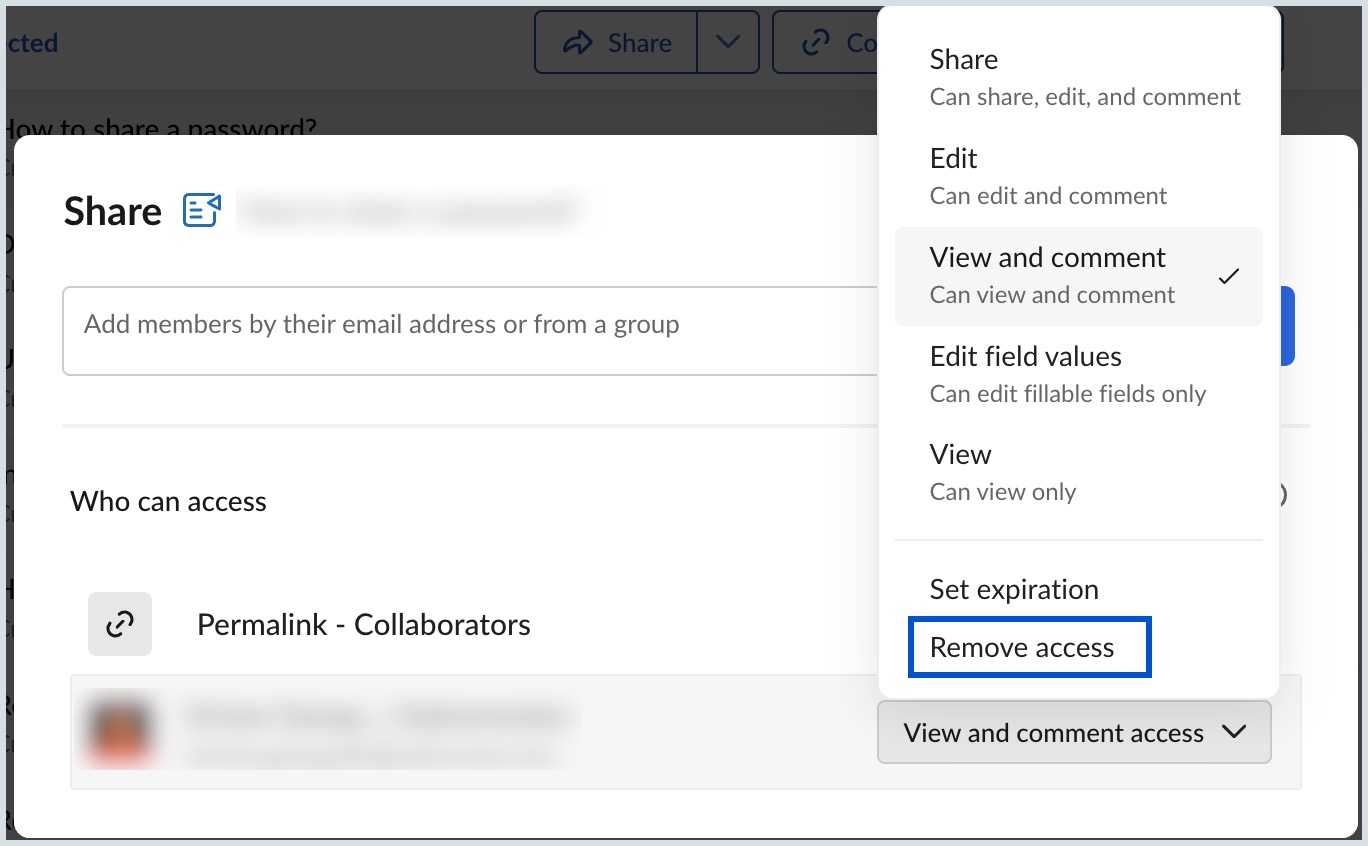
Zoho Mail: Sharing documents with encrypted attachments
When documents need to be distributed via email, Zoho Mail provides built-in options to ensure that attachments are protected both in transit and upon delivery.
Password-protecting document attachments with SecurePass
SecurePass lets you send documents as password-protected email attachments without complex configuration.
- Log into your Zoho Workplace account.
- Select Zoho Mail from the top pane.
- Click the New Mail button on the left pane.
- Click the Secure Email icon in the compose window’s top menu.
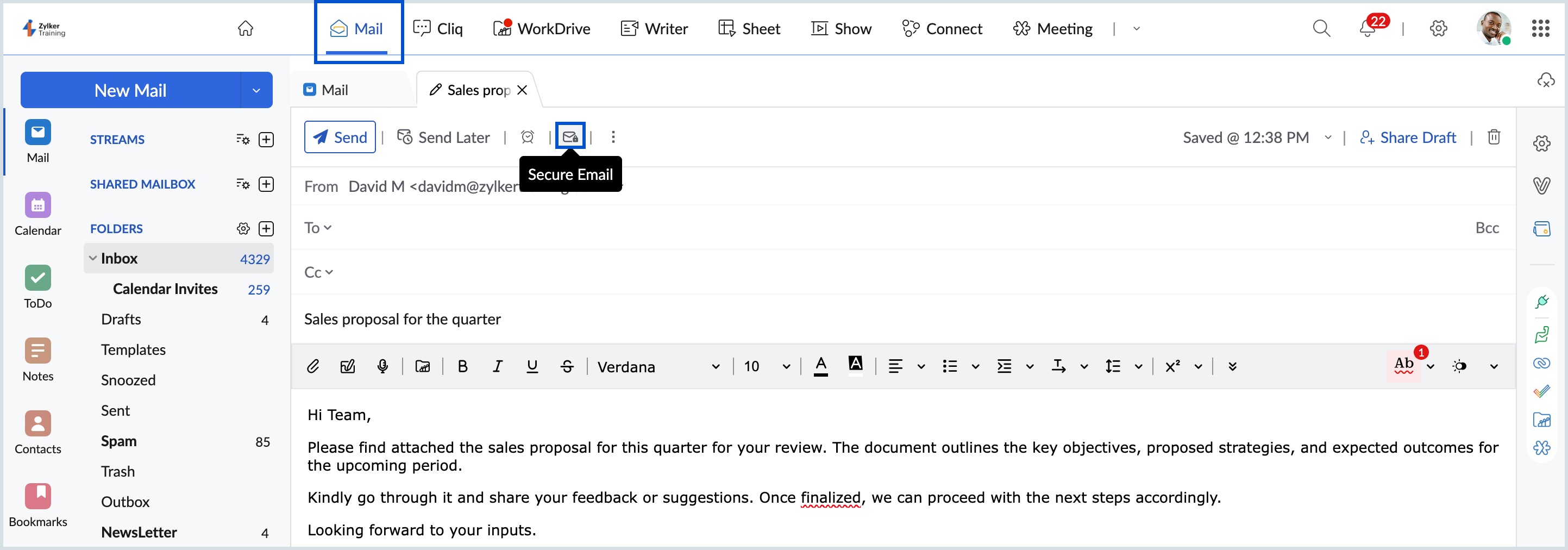
- Choose an expiration date for the email and click Apply. The email and its document attachments will be accessible only through a passcode for a limited time.
- Compose your message and click Send. The recipient receives a link to view the secure email along with a separate passcode they must enter to access the documents.
Recipients cannot forward, download, or copy the email or document attachments when SecurePass is active.
End-to-end encryption for sensitive documents with PGP or S/MIME
For highly confidential documents—such as legal agreements, financial statements, or compliance records—Zoho Mail supports end-to-end encryption through PGP and S/MIME. These standards ensure that only the intended recipient can access the document attachment.
- Enable the feature: An administrator must enable PGP or S/MIME from the Zoho Mail Admin Console.
- Configure keys or certificates:
- PGP: Generate a key pair and share your public key with the recipient.
- S/MIME: Exchange digital certificates with your recipient, obtained from a trusted third-party authority.
- Compose and send:
- Click New Mail, select the Secure Email icon, and attach your document.
- The document attachment will be encrypted using the recipient’s public key or certificate before sending.
Zoho Cliq: Secure file sharing in team communication
Zoho Cliq secures every file, message, and attachment shared on the platform with robust encryption. By combining encryption in transit, encryption at rest, and advanced key management, it ensures that only the intended recipients can access your data, keeping it safe from unauthorized access or interception.
Sharing files in Cliq: How it works
- Attach files directly in chats or channels: Files are automatically encrypted before being transmitted.
- Stored securely in Cliq: Encrypted at rest with AES-256 and safeguarded by Zoho’s Key Management Service (KMS).
- Access controlled: Only authorized users in the chat or channel can decrypt and view the file.
- Protected during integrations: When sharing files with connected apps, data remains encrypted via HTTPS and asymmetric encryption.
Steps to share files in Cliq
- Log into your Zoho Workplace account.
- Select Zoho Cliq from the top pane and open the chat or channel where you want to share the file.
- Click the Attach icon in the message box.
- Choose your file from your device, Zoho WorkDrive, or other connected apps.
- Add an optional message or context for the file.
- Send the file; Cliq automatically encrypts it during transfer and while stored on Zoho’s servers.
Best practices for sharing documents securely
Best practice | Do | Don't |
| Use secure platforms | Choose trusted, access-controlled document sharing platforms, like Zoho Workplace | Don’t upload sensitive documents to unverified or public sites. |
| Control access | Apply least privilege, set expiration dates, and use password-protected links. | Don’t grant permanent access unless absolutely required. |
| Authenticate users | Enable MFA and strong, unique passwords for all accounts. | Don’t reuse or share passwords across accounts or teams. |
| Monitor document activity | Review sharing logs and access permissions regularly. | Don’t ignore unusual or unexpected access attempts. |
| Stay updated | Keep apps, browsers, and OS updated. | Don’t delay critical security updates or patches. |
| Educate users | Train users on phishing risks and safe document-sharing practices. | Don’t assume everyone understands secure sharing protocols. |
| Personal sharing | Use private, expiring links when sharing personal or sensitive documents. | Don’t share confidential documents through open links or personal messaging apps. |
| Revoke access promptly | Remove document access when a project ends or a team member exits. | Don’t leave shared documents accessible after they’re no longer needed. |
Top Articles