- HOME
- Why people abandon your forms (and how to find the exact field causing it)
Why people abandon your forms (and how to find the exact field causing it)
- Last Updated : June 17, 2026
- 104 Views
- 7 Min Read

The problem with form abandonment data
You check your analytics. Your contact form has a 68% abandonment rate. Your sign-up form is slightly better at 54%. Both numbers feel bad. Neither tells you anything you can act on.
That is the problem with form-level data. It confirms that people are leaving. It does not tell you where, or why, or which of the dozen things you could change would actually make a difference.
Field-level form analytics answers that question. Not the overall abandonment number -- but which specific field is the last thing most people interact with before they close the tab. That field is almost always the problem. And once you know which one it is, fixing it is usually straightforward.
This guide covers how to find it, how to diagnose what type of problem it is, and what to do about it depending on what the data shows.
What form analytics actually measures
Before getting into the diagnostic process, it helps to understand what the metrics mean in practice. There are three that matter most:
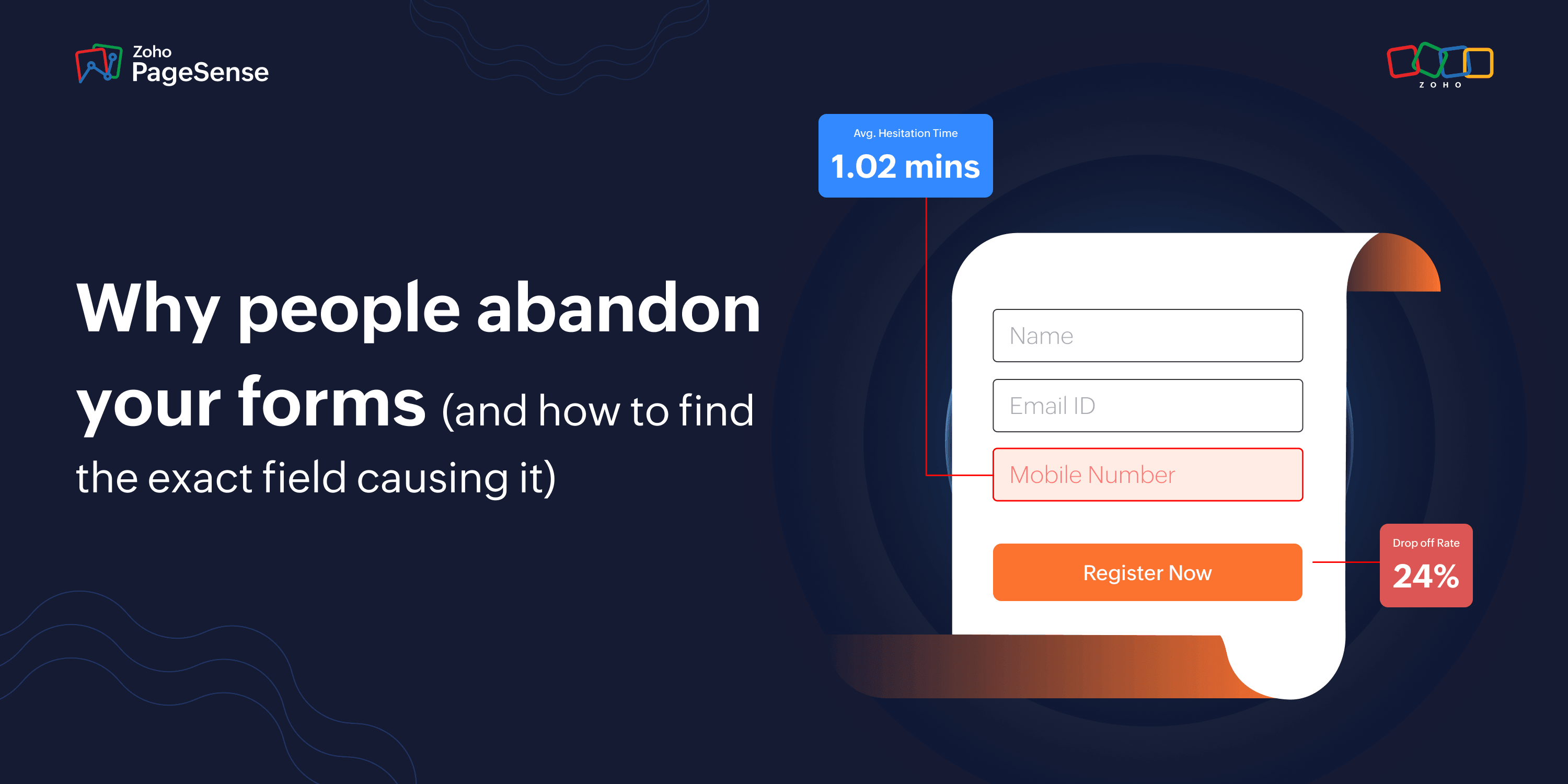
Drop-off rate per field The percentage of visitors who stop filling out the form after interacting with a specific field. A field with a 40% drop-off rate means 4 out of 10 people who reached that field never submitted the form. This is your primary signal -- the field with the highest drop-off is the one to investigate first.
Hesitation time
How long visitors pause on a field before typing anything. A name field might average 2 seconds. If your company-size dropdown averages 38 seconds, visitors are either confused about what to select, uncomfortable sharing the information, or searching for the answer somewhere else. Long hesitation on a field almost always means one of three things: the label is ambiguous, the format is unclear, or the visitor is weighing whether they want to share that information at all.
Re-fill rate
How often visitors delete what they typed and start the field again. A high re-fill rate on a specific field means visitors are attempting it, something is going wrong, and they are correcting their input -- often repeatedly. If the re-fill rate is high and drop-off is also high on the same field, visitors are trying and failing, not refusing to engage.
These three metrics together tell you something the overall abandonment rate never can: not just that people are leaving, but what kind of friction they are experiencing on the specific field where it happens.
The four types of form problems
Every form problem is one of four things. Knowing which one you have determines what you fix.
The field is confusing. Visitors do no-t understand what is being asked.
Signs: high hesitation time, high re-fill rate. The label is ambiguous, the placeholder text is unhelpful, or the format requirements are unclear.
Common examples: a company size dropdown with poorly defined ranges, a phone field with no indication of whether a country code is needed, a date field with no format guidance, a dropdown where none of the options accurately describe the visitor's situation.
The field feels intrusive. Visitors understand the question. They just do not want to answer it.
Signs: high drop-off, low hesitation time. They read the field, decided against it, and left.
Common examples: The phone number field on a lead generation form is the most common version of this -- visitors did not expect a sales call to follow and the field signals that one is coming. Annual revenue on a contact form, date of birth when it is not obviously necessary, and company name early in a personal sign-up flow all fall into this category.
The field is technically broken. Something is failing.
Signs: high re-fill rate combined with high drop-off on the same field. Visitors are trying to complete it, something is going wrong, they try again, and eventually give up.
Common causes: email validation rejecting addresses with plus signs or uncommon Top Level Domains (TLDs), password fields with unexplained requirements, postcode fields that reject valid formats, or error messages that trigger before the visitor has finished typing.
The form asks for too much. No single field is catastrophically bad. Drop-off is spread evenly across multiple fields in the second half of the form, each losing a small percentage of visitors. The cumulative effect is a low overall completion rate. This is a form length problem, not a field-specific problem, and the fix is removing fields rather than improving them. Each additional field in the second half asks the visitor to make another small decision about whether completing this is worth the effort. At some point it is not.
How to read your form analytics: a diagnostic sequence
When you open your form analytics report, do not start by looking at the overall completion rate. Start here instead:
Step 1: Find the highest drop-off field. Sort your fields by drop-off rate. The one at the top is your starting point. If it is dramatically higher than the others -- say 35% while everything else is below 10% -- that is your problem field and you can move straight to diagnosing it. If drop-off is spread fairly evenly across multiple fields, you are looking at a form length problem (see the fourth type above).
Step 2: Cross-reference with hesitation time. Look at the hesitation time for your highest drop-off field. High drop-off plus high hesitation means visitors are trying to answer but struggling — the field is confusing or technically broken. High drop-off plus low hesitation means visitors decided quickly not to answer—the field feels intrusive. These are different problems and they have different fixes.
Step 3: Check the re-fill rate. If the re-fill rate on your problem field is high, visitors are attempting the field, encountering an error or validation issue, correcting their input, and often still failing. That points to a technical or validation problem, not a copy or UX problem.
Step 4: Filter by device. Desktop completion consistently leads mobile completion across contact forms and lead generation workflows. If your problem field has dramatically worse drop-off on mobile than desktop, the issue is likely a mobile UX problem — the field is too small to tap accurately, the keyboard it triggers is wrong for the input type, or autocomplete is not working as expected. A phone field that triggers an alphabetic keyboard on iOS is a common one.
Step 5: Connect to session recordings. Filter your session recordings to visitors who abandoned on your problem field. Watch 10 to 15 of them. In most cases the issue becomes obvious within the first few sessions you will see visitors typing, seeing an error, trying again, and eventually leaving. Or you will see them hesitating, switching apps to look something up, and not coming back. The recording shows you what the data can only hint at.
The fields most likely to be your problem
Based on what form analytics consistently surfaces across different types of sites, a small number of field types cause a disproportionate share of abandonment.
Password fields cause more drop-off than almost any other field type. The reasons vary—unexplained requirements, validation that rejects inputs without telling the visitor why, or simply the friction of having to invent and remember something new. If your sign-up form has a password field and a high drop-off rate, start there. Check the re-fill rate first. If it is high, visitors are trying and failing on validation, not refusing to engage.
Address fields take longer to complete than any other common field type and generate more corrections. High hesitation on address fields is expected. High drop-off combined with high hesitation usually means autocomplete is not working, the field order is wrong (asking for city before postcode makes autocomplete harder to trigger), or visitors are on mobile without a keyboard that handles address input well.
Optional fields with very low fill rates are quiet problems. They rarely cause direct abandonment but they add to the perceived length of the form and make it look more demanding than it is. If an optional field is being ignored by the vast majority of visitors, it is adding visual friction without collecting anything useful. Remove it.
Setting up form analytics in PageSense
To start tracking form analytics in PageSense, you set up a form analytics campaign and map the fields you want to track. This takes a few minutes and gives you full control over which forms and fields are being monitored.
Once configured, what you see in the dashboard for each form:
Field-level drop-off rate, sorted so you can identify the problem field immediately. Hesitation time per field, the average pause before visitors begin typing. Re-fill rate per field, how often visitors delete and retype their input. Form completion rate over time, so you can see whether changes you make are working.
The metrics update in real time and are available for unlimited forms on the free plan.
To connect field-level data to session recordings: filter your recordings by visitors who reached a specific page and did not complete the goal associated with your form. You will see the sessions where your problem field caused the most abandonment, played back as video.
Where to go from here
Forms are one of the highest-leverage places to improve conversion on any site because the visitor has already decided they are interested. They clicked, they started filling something out. The drop-off is not a traffic problem or a messaging problem. It is friction in the final step -- and friction at that stage is almost always specific and fixable once you can see where it is.
The diagnostic sequence in this guide works in under 30 minutes. Find the highest drop-off field, cross-reference with hesitation and re-fill data, filter by device, watch the recordings. By the end you will know whether you have a confusing field, an intrusive one, a broken one, or a form that asks for too much.