- HOME
- How to diagnose a broken CTA using Heatmaps
How to diagnose a broken CTA using Heatmaps
- Last Updated : June 17, 2026
- 68 Views
- 8 Min Read

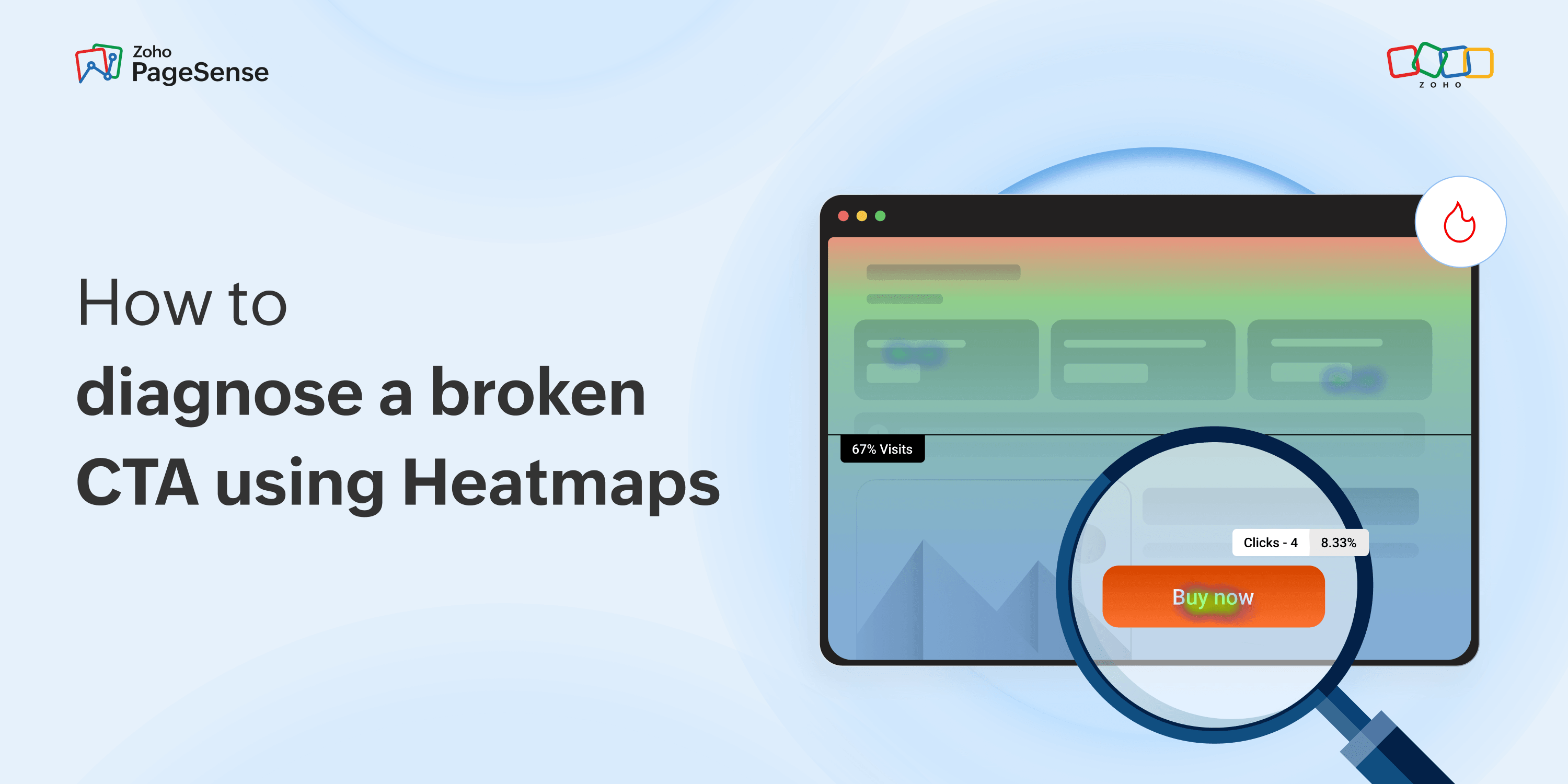
The funnel has told you the problem is on your pricing page. 67% of visitors who reach it do not go on to sign up. You look at the CTA. It's visible, above the fold, with a clear label. So why is nobody clicking it?
The answer is, the CTA is probably not the problem. Something else on the page is stopping visitors before they ever reach it or pulling their attention somewhere it was never meant to go.
Heatmaps show you what that something is. But only if you know which part of the data to look at. Most teams go straight to the red zones — the hot spots, the areas with the most clicks. That is the wrong place to start. The cold zones and the unexpected clusters are where the actual diagnosis lives.
The three types of heatmaps and what each one tells you
Zoho PageSense generates three types. Each one answers a different question.
Clickmap — what visitors expected versus what you built
A click heatmap shows every element visitors clicked on, including things that are not linked. That second part is where the useful data tends to be.
On SaaS pricing pages, a pattern that shows up repeatedly: visitors cluster clicks on a feature comparison table header — a column label, a plan name — looking for more detail that is not there. The CTA is below the fold. Visitors are trying to get their questions answered, not finding them, and leaving. The table is the problem. Not the button. You would never see that from traffic data alone.
Clicks on non-interactive elements — a product image, a testimonial, a heading — are a signal that visitors expected something to happen and it did not.
Scrollmap — where your page actually ends for most visitors
A scroll heatmap shows how far down a page the average visitor reads before stopping. Most teams design pages assuming visitors will read them. Most visitors do not.
On a typical SaaS pricing page, the majority of visitors never scroll past the first pricing tier. All the effort that went into the comparison table, the testimonials, the FAQ section — a large portion of visitors never see any of it.
The question worth asking is not how to get more people to scroll — it is what decision visitors are trying to make before they stop, and whether the page is giving them what they need to make it.
Attention map — where visitors actually spend their time
An attention map shows which parts of a page hold attention and which parts lose it. Not where they clicked. Not how far they scrolled. Specifically, where they lingered versus the sections they moved through without stopping.
A visitor can scroll past a section quickly and still click the CTA. Or they can spend 40 seconds on a single pricing tier and leave without clicking anything. The attention map shows you which scenario is playing out.
One pattern worth knowing: the F-pattern. Visitors read the first line fully, then progressively shorter horizontal passes further down the page. They are scanning, not reading. If your attention map shows this, the right-side columns are effectively invisible — pricing comparisons, feature lists, CTAs tucked to the right. Moving key information to the left-aligned start of lines puts it where the eye actually goes.
The attention map also surfaces sections with high dwell time that lead nowhere. A visitor spending a long time on your testimonials sounds good — until the attention map shows they are sitting there but not moving toward the CTA. The content landed. The page did not give them anywhere to go next.
Five patterns that explain an unclicked CTA
These are the patterns that show up most often on pages with high funnel drop-off. In order of how commonly they appear.
1. The CTA is below the scroll horizon
The scroll heatmap shows 65% of visitors stop reading at section three. The CTA is in section five. This is the most common finding on pricing and landing pages — and the most straightforward fix. Add a second CTA above the scroll drop-off point. The original does not need to be removed — a duplicate higher on the page is usually enough.
2. The page has a false bottom
A false bottom happens when the page signals to a visitor that they have reached the end, so they stop scrolling, even though the CTA is below that point.
The whitespace false bottom: a large divider or full-bleed image creates a visual ending mid-page. On a designer's screen, it reads as a section break. On a laptop with a shorter viewport, it reads as a boundary.
The mobile false bottom is different. It happens when the page has front-loaded all its persuasive content — headline, value proposition, social proof — and then continues with material that feels like supporting detail. The visitor absorbed what felt like a complete argument and left before seeing the CTA.
Fix: restructure so the CTA appears before the page feels argumentatively complete, or add a sticky mobile footer button that stays accessible regardless of scroll depth.
3. Visitors are clicking something that is not linked
The click heatmap shows a dense cluster on a feature name, a product image, or a testimonial quote. None are linked. Visitors are expected to click through to learn more. The page gave them nowhere to go. The fix is either adding a link or redesigning the element so it does not look interactive — removing the pointer cursor behaviour, softening the hover state.
4. Mobile visitors are tapping in the wrong place
Filtering the click heatmap by mobile often shows a completely different pattern from desktop. Buttons that appear tappable on desktop are slightly outside the tap target on smaller screens. Navigation elements that work on desktop obscure content on mobile. This is one of the most consistent sources of the mobile versus desktop drop-off gap — and almost never visible until you look at the device-filtered heatmap specifically.
Filter by mobile, overlay on the mobile page, and check whether tap clusters match the interactive elements. If they are off by 15 to 20 pixels, the tap target is too small — a developer fix, not a design one.
5. The content visitors care about is not where you put it
The testimonials section has very low scroll engagement. Most visitors stopped before reaching it. That is the useful finding — the decision is being made higher up the page. Adding more social proof lower down will not move the conversion rate.
So what is happening in the section where visitors are stopping? Is it raising a question that it does not resolve? Is the pricing unclear enough that visitors give up before scrolling further? The heatmap tells you where the decision is being made. Session recordings tell you why.
The workflow: funnel first, heatmap second
Do not run heatmaps on pages at random. The data is only useful when you have a specific question going in. The funnel gives you that question.
The sequence that works:
Build your funnel and identify the step with the largest proportional drop-off.
Activate a click heatmap and scroll heatmap on that page in PageSense.
Let it collect data for one to two weeks, or until you have at least 500 sessions on that page.
Read the scroll heatmap first: where does engagement drop off? Is there a false bottom? Is the CTA below that point?
Read the click heatmap next: are visitors clicking things that are not linked? Does the mobile filter show a different pattern?
If visitors are reaching the CTA but not clicking it, move to session recordings — that is a messaging or trust problem, not a placement problem.
The scroll heatmap often gives you the quickest answer. If the majority of visitors are stopping before they reach the conversion element, the fix is placement, not messaging. Recordings become valuable when visitors are reaching the CTA but not acting on it — that requires watching individual sessions to understand why.
What heatmaps are not good for
Heatmaps are an aggregate view. They show what 1,000 visitors did collectively — not what any specific visitor experienced. They are good for identifying patterns but not for explaining individual decisions.
They also do not tell you why a pattern exists. A scroll heatmap showing 70% of visitors stopping at section two looks identical, whether visitors stopped because the section answered their question, or because it raised a question it did not answer. The numbers are the same. Session recordings tell you which one it is.
If the heatmap shows a pattern you do not understand, watch ten recordings of visitors who exhibited that pattern. The reason is almost always visible within the first three or four sessions.
A note on sample size
Heatmap data needs enough sessions to be meaningful.
Under 100 sessions | not reliable | A few outlier sessions skew the whole picture. |
100–300 | directional | Enough to form a hypothesis, not enough to act on confidently. |
300–500 | good | Patterns are meaningful and safe to act on for most decisions. |
500+ | strong | Segment by device and traffic source with confidence. |
For low-traffic pages, you may need two to three weeks to reach 300 sessions. Do not make layout changes based on a heatmap with under 200 sessions unless the pattern is extremely clear and the change is low-risk.
The three tools together
Funnel analysis tells you which step in your conversion journey is losing the most visitors. Heatmaps tell you what visitors are doing on that page and why the CTA is not getting clicked. Form analytics tells you if the problem is on a form, exactly which field is causing the abandonment.
None of these is sufficient on its own. The funnel without heatmaps gives you a location without a cause. The heatmap without funnel context gives you data on pages that may not matter. Form analytics without the funnel might lead you to optimise a form that is not even where the drop-off is happening.
The problem most teams run into is that these three tools live in different places. Funnel data in one platform. Heatmaps in another. Form analytics somewhere else. By the time you have pulled the data from all three and tried to connect it, the momentum is gone. You spotted the drop-off in the funnel, opened a different tab to check the heatmap, exported something, switched back. The insight is still there but the workflow is broken.
Zoho PageSense puts all of it in one place — funnel analysis, clickmaps, scroll maps, attention maps, session recordings, and form analytics. When your funnel shows a 67% drop-off on the pricing page, the scroll heatmap for that page is three clicks away. You do not lose the thread between finding the problem and investigating it. And the free plan in PageSense gives you all of it for up to 5,000 visitors a month.