BIMI configuration in Zoho Mail
Administrators can configure BIMI (Brand Indicators for Message Identification) in Zoho Mail through the Admin Console. BIMI is an email authentication standard that displays your organization's verified logo next to your outgoing emails in the recipient's inbox, adding a visible trust signal that helps recipients identify legitimate mail and reduces phishing risk.
Note
Logo display depends on whether the recipient's email provider supports BIMI. Not all providers currently support it.
What you need before setting up BIMI
Before configuring BIMI in Zoho Mail, ensure the following are in place:
- MX, SPF, DKIM, and DMARC records configured and verified for your domain
- DMARC set to enforcement mode — p=quarantine or p=reject with pct=100
- A BIMI-compliant SVG logo in SVG Tiny 1.2 Portable/Secure format, hosted on a public HTTPS server
- A Verified Mark Certificate (VMC) from an accredited Certificate Authority, in .pem format, hosted on a public HTTPS server
Prerequisites
Set up email authentication records
Your domain must have MX, SPF, DKIM, and DMARC records configured and verified before BIMI can work.
Set DMARC to enforcement mode
BIMI requires DMARC to be set to either p=quarantine or p=reject. A p=none monitoring policy does not qualify. The policy percentage must also be set to 100% (pct=100).
Prepare your BIMI logo
Your logo must be in SVG Tiny 1.2 Portable/Secure (SVG P/S) format — not standard SVG. Use a BIMI-specific converter or prepare the file in a compatible vector editor.
The logo must meet these requirements:
- Set the baseProfile attribute to tiny-ps and version to 1.2
- Include your organization's name in the <title> element; optionally add a description in <desc>
- Use a square (1:1) aspect ratio with the image centered
- Use a solid, non-transparent background
- File size must be under 32 KB
- No external links, scripts, animations, or interactive elements
- No x= or y= attributes in the <svg> root element
Refer to the BIMI logo guidelines for the full specification. Once ready, host the logo on a public HTTPS server.
Obtain a Verified Mark Certificate (VMC)
A VMC is a digital certificate that verifies your organization's ownership of the logo. To obtain one:
- Your logo must be a registered trademark of your organization, recognized by an authorized IP office
- Obtain the VMC from a BIMI-accredited Certificate Authority (CA) such as Entrust or DigiCert
- Ensure the VMC license subscription remains active
- The VMC file must be in .pem format and hosted on a public HTTPS server
Steps to configure BIMI in Zoho Mail Admin Console
Once your authentication records, SVG logo, and VMC are ready, follow these steps to configure BIMI:
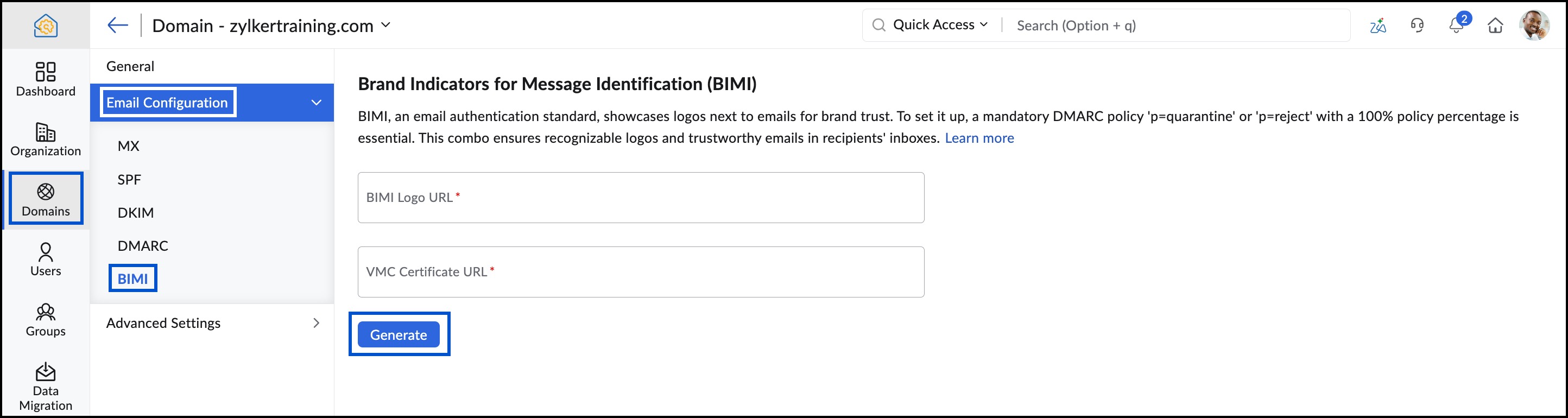
- Log in to the Zoho Mail Admin Console and select Domains on the left panel.
- Select the domain you want to configure BIMI for.
- Go to Email Configuration and select BIMI.
- Enter the BIMI Logo URL — the public HTTPS URL where your SVG logo is hosted.
- Enter the VMC URL — the public HTTPS URL of your .pem certificate file.
- Click Generate. The BIMI DNS record for your domain is displayed.
- Copy the BIMI record.
- Log in to your domain registrar or DNS provider.
- Add a new TXT record and publish the BIMI record in your DNS settings. Sample TXT value: v=BIMI1; l=[SVG URL]; a=[PEM URL]
- Return to the Zoho Mail Admin Console and click Verify BIMI record.
To see how BIMI-enabled emails appear in your users' Zoho Mail mailboxes after configuration, refer to Accessing the Control Panel.
Troubleshooting BIMI configuration in Zoho Mail
If your logo does not display after setup, check the following:
- DMARC policy — Confirm it is set to p=quarantine or p=reject with pct=100, not p=none
- SVG format — Confirm the file uses the SVG Tiny 1.2 P/S profile; standard SVG exports will not pass validation
- VMC validity — Confirm the .pem file is accessible via HTTPS and the subscription is active
- DNS propagation — Changes can take up to 48 hours to propagate; allow time before re-verifying
Frequently Asked Questions
Does BIMI improve email deliverability in Zoho Mail?
BIMI itself does not affect inbox placement. However, the DMARC enforcement required to enable BIMI contributes to stronger email authentication, which supports better deliverability overall. The logo is a visual trust signal, not a deliverability mechanism.
Can I configure BIMI for multiple domains in Zoho Mail?
Yes. Repeat the BIMI configuration process for each domain managed in your Zoho Mail Admin Console. Each domain requires its own BIMI DNS record, SVG logo URL, and VMC.
Can I configure BIMI for subdomains in Zoho Mail?
Yes. Publish a separate BIMI TXT record for each subdomain you send mail from. The authentication records — SPF, DKIM, and DMARC — must also be correctly configured for that subdomain.
Is a registered trademark required to set up BIMI?
A registered trademark is required to obtain a Verified Mark Certificate (VMC), which is needed for BIMI to function. The trademark must be recognized by an authorized IP office and must not expire within 397 days of VMC issuance.
How long does it take for BIMI to go live after configuration?
DNS changes can take up to 48 hours to propagate. Once propagation is complete, return to the Zoho Mail Admin Console and click Verify BIMI record to confirm the setup.
What happens if my VMC expires?
If the VMC subscription lapses, the certificate becomes invalid and your logo will stop displaying in supported inboxes. Ensure your VMC subscription is renewed before it expires to avoid any interruption.
Why does BIMI verification fail even after publishing the DNS record?
Verification can fail if the BIMI TXT record was not published correctly or if DNS propagation is still in progress. Double-check the record format matches the sample value generated in the Admin Console, then wait for propagation to complete before clicking Verify BIMI record again.