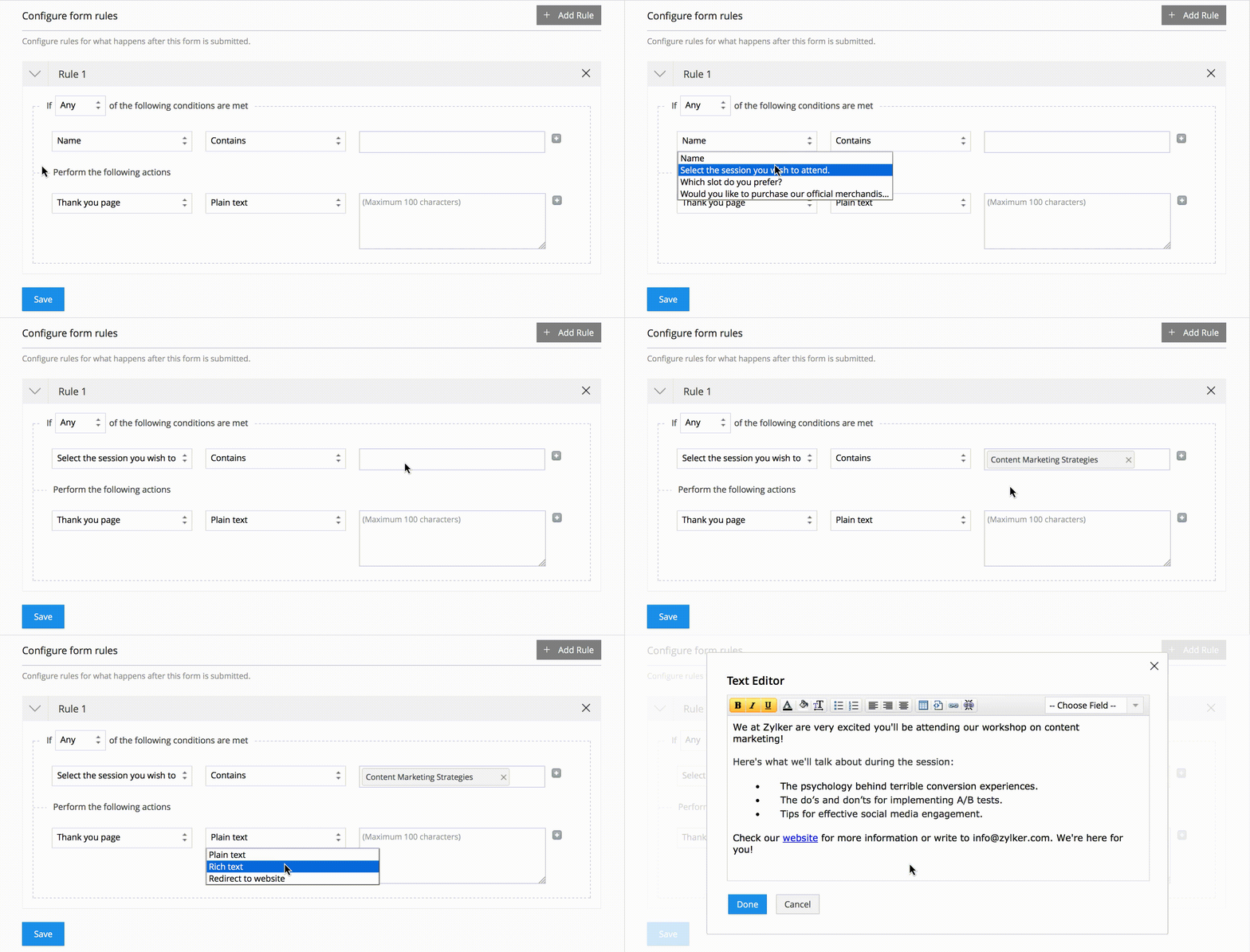
Thank You Page
Direct your respondents to the next step after they submit your form. You can choose to show them a Thank You Page or redirect them to a website.
Create a Thank You Page
Respondents land on a Thank You page once they submit a form. You can use this page to provide more information to your respondents using links, tables, etc.
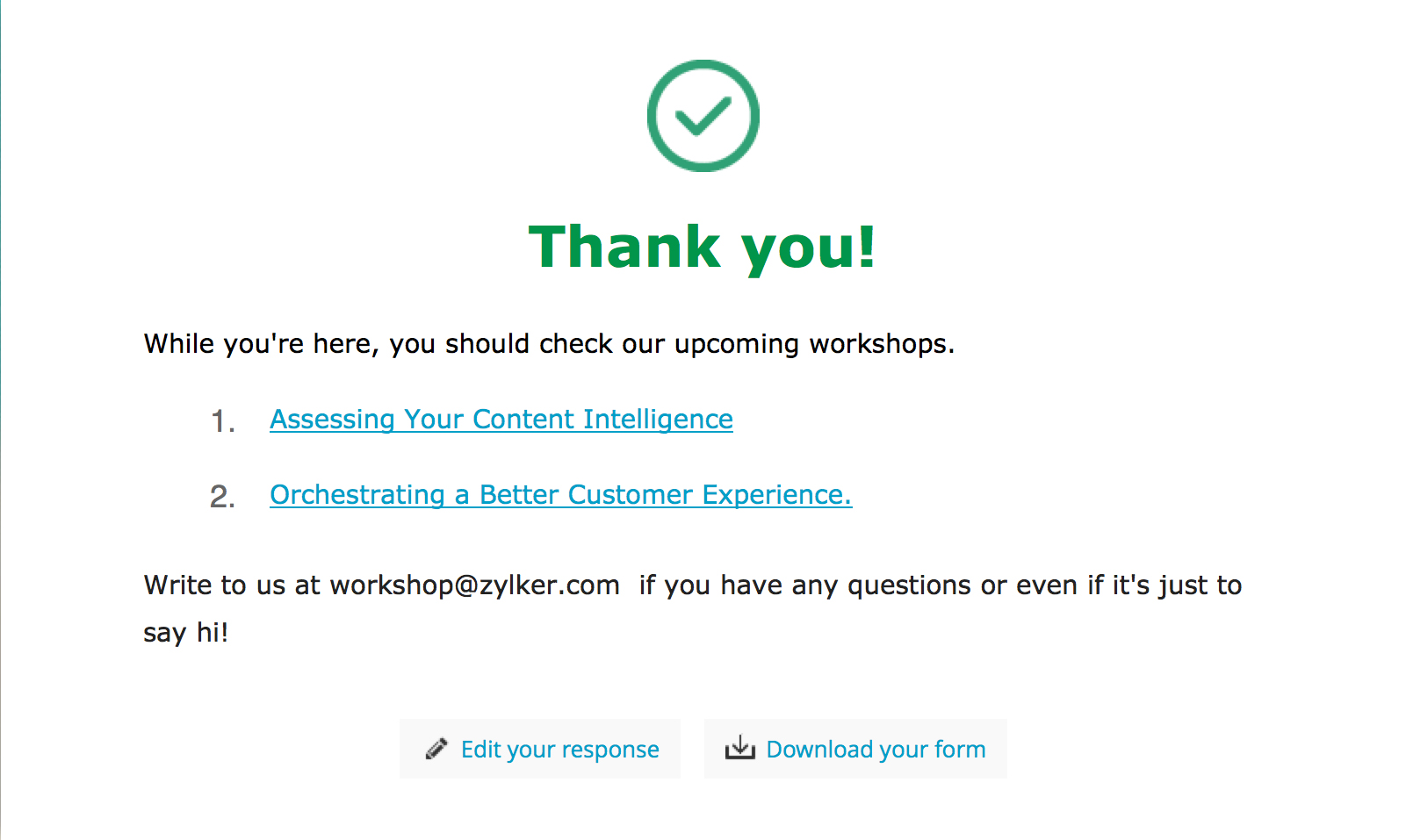
To create a Thank You page:
- Navigate to Settings >> Messages & Redirects.
- Click on the Plain Text or the Rich Text option.
Plain text: Use this option if you want a simple Thank you page with a plain message.
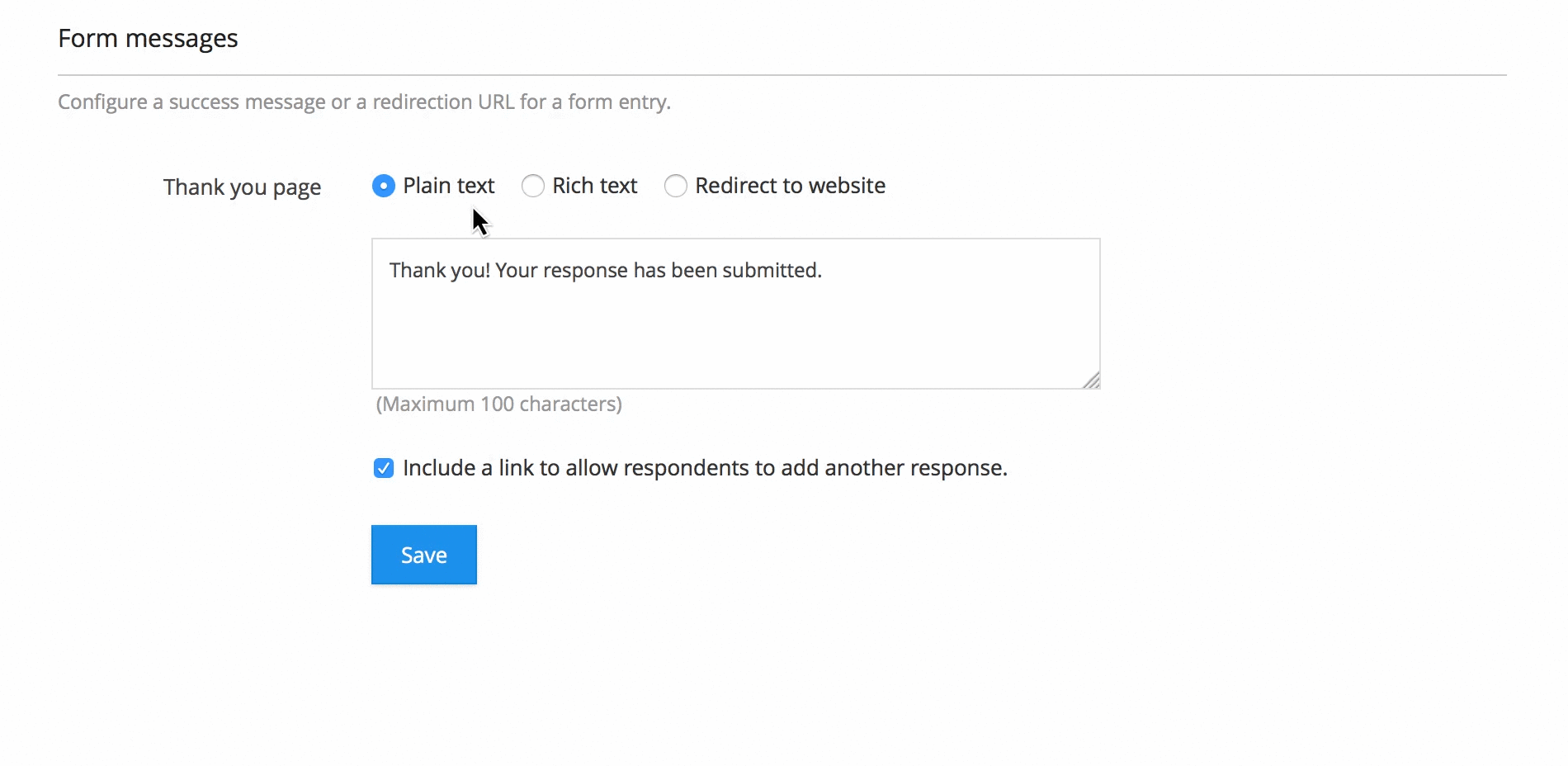
- Rich text: Use this option to provide useful links, include bullet points, create tables, and format the text message - change colors, italicize the text, etc. You can even personalize your page by using your respondent's answers to frame your message. To do so, choose the form field from the drop-down provided. The respondent's input would automatically appear in place of the form field.
Note: The Rich Text option is available only in our paid plans. Also, if you wish to remove Zoho Forms' promotions from the Thank You page, you will have to subscribe to any of our paid plans.
Redirect to Webpage
To redirect respondents to your webpage once they've submitted your form:
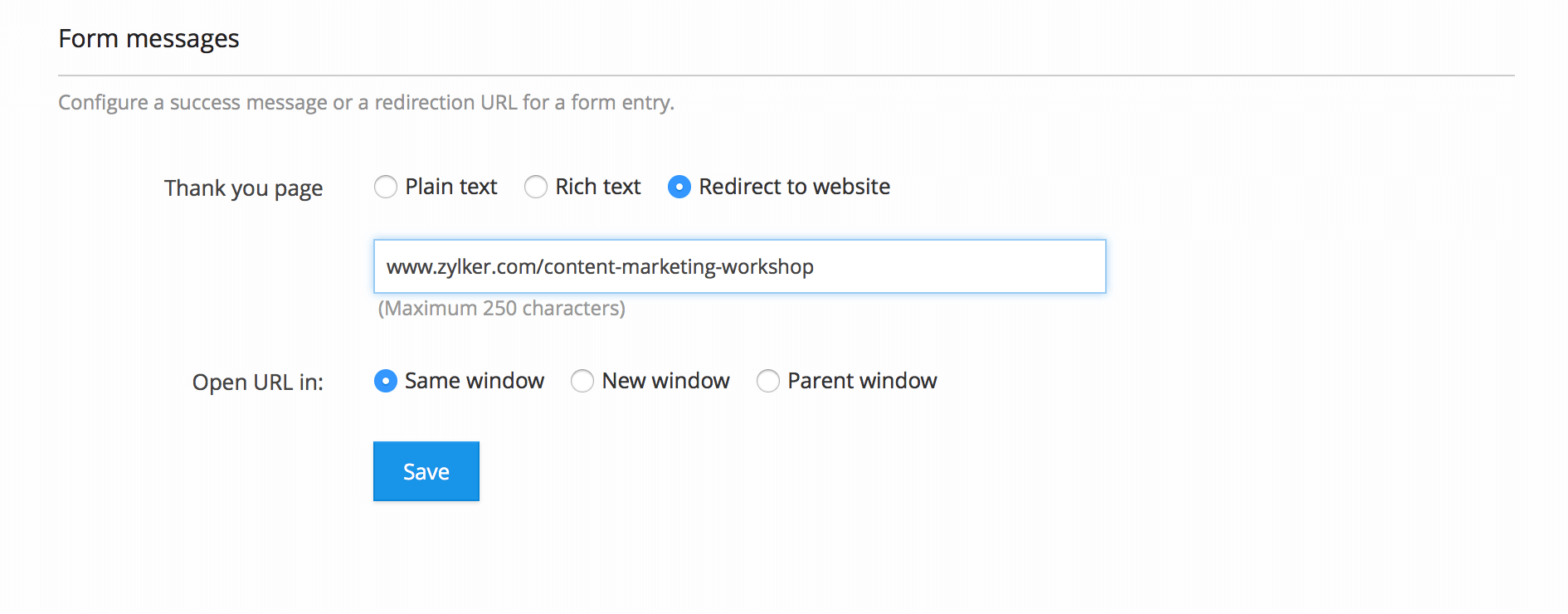
- Click on the 'Redirect to Website' option and specify the website URL in the text box provided.
- You can redirect them to a new webpage even if you've embedded your form. You can choose to have the webpage opened in:
Same Window: The webpage will open in the current tab.
New Window: The webpage will open in a new tab.
Parent Window: The URL opens up in place of the webpage in which you've embedded the form.
Use Conditional Rules
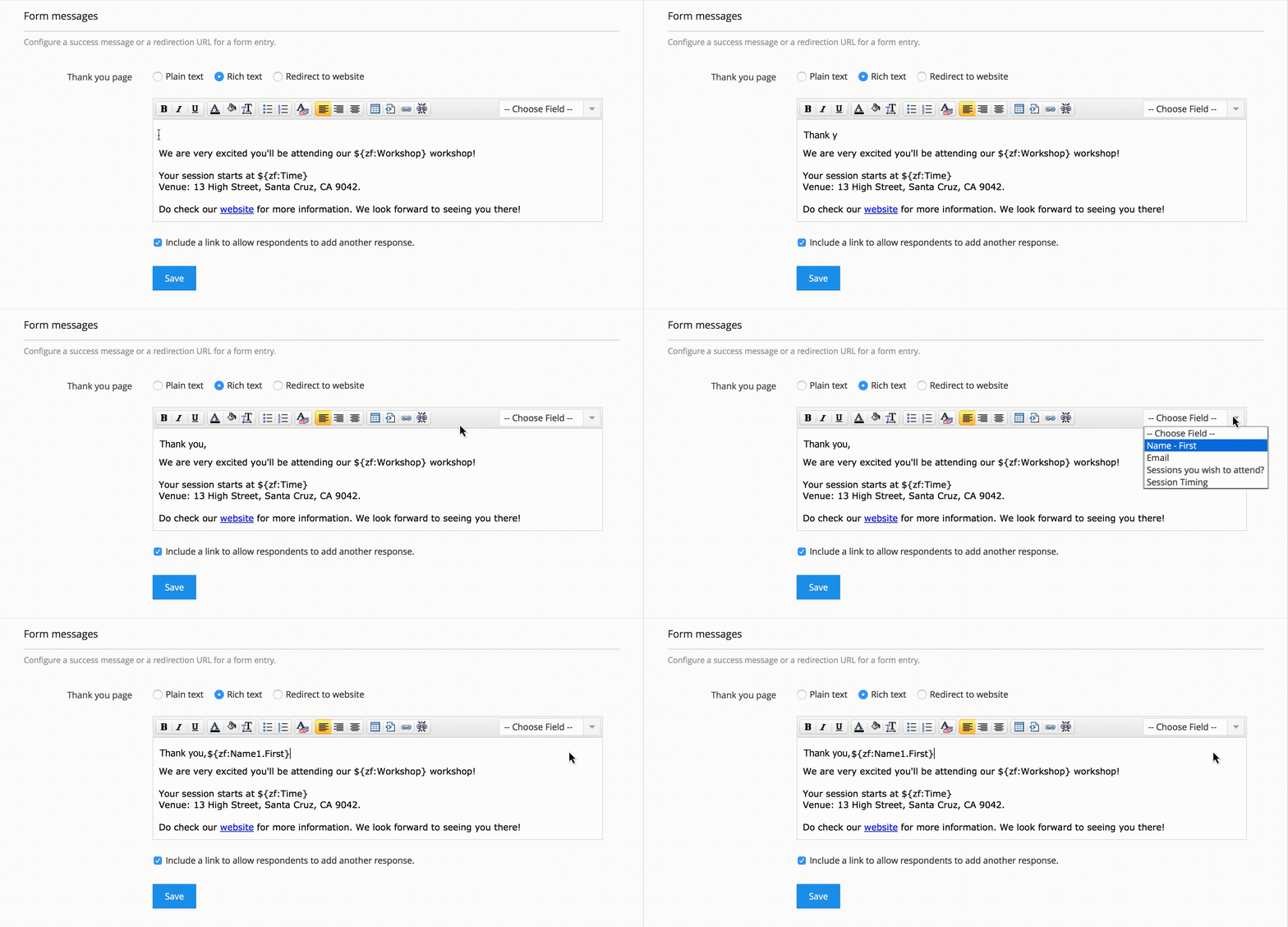
Decide on the Thank you page or the webpage that your respondents get to see based on their form answers. This way, you get to provide them with relevant information and direct them to the next step.
To do so,
- Navigate to Rules >> Form Rules and click on the Add Rule button.
- Specify the condition to be met, and under actions, choose the Thank you page option. From the next drop-down, choose one of the options: Plain text, Rich text, and Redirect to website.
- Specify the message or the URL and click Save.
You can create multiple Thank you pages this way and use your respondents' input to direct them to the most relevant page.