
How do I share and view files?
- To share files in chat:
- Click on the attachment icon in the left corner of your text box. This will open your files view.
- Choose the image or document and click on Open, the preview will appear.
- Click on the Share button.
#1. Attachment icon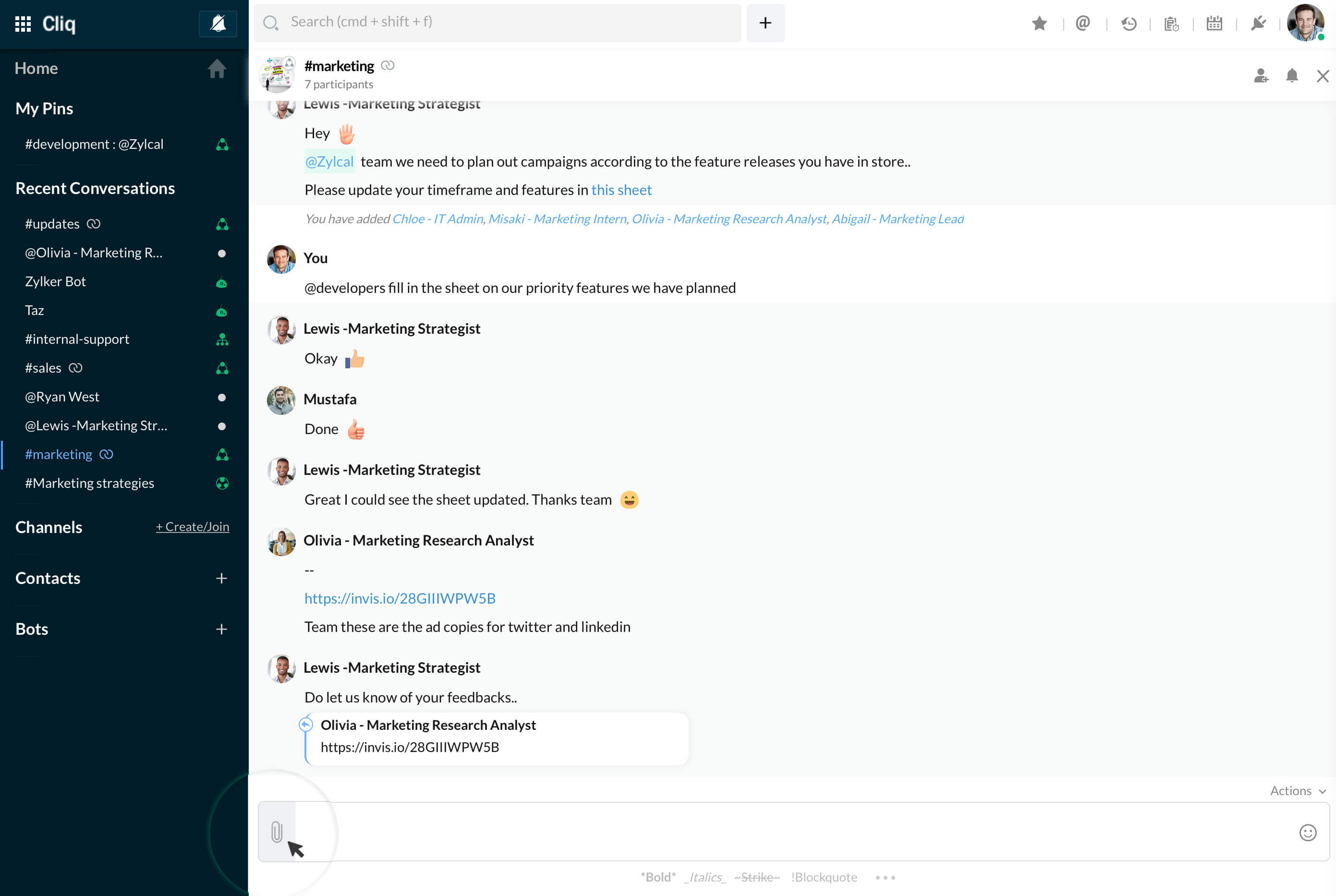
#2. Sharing a selected file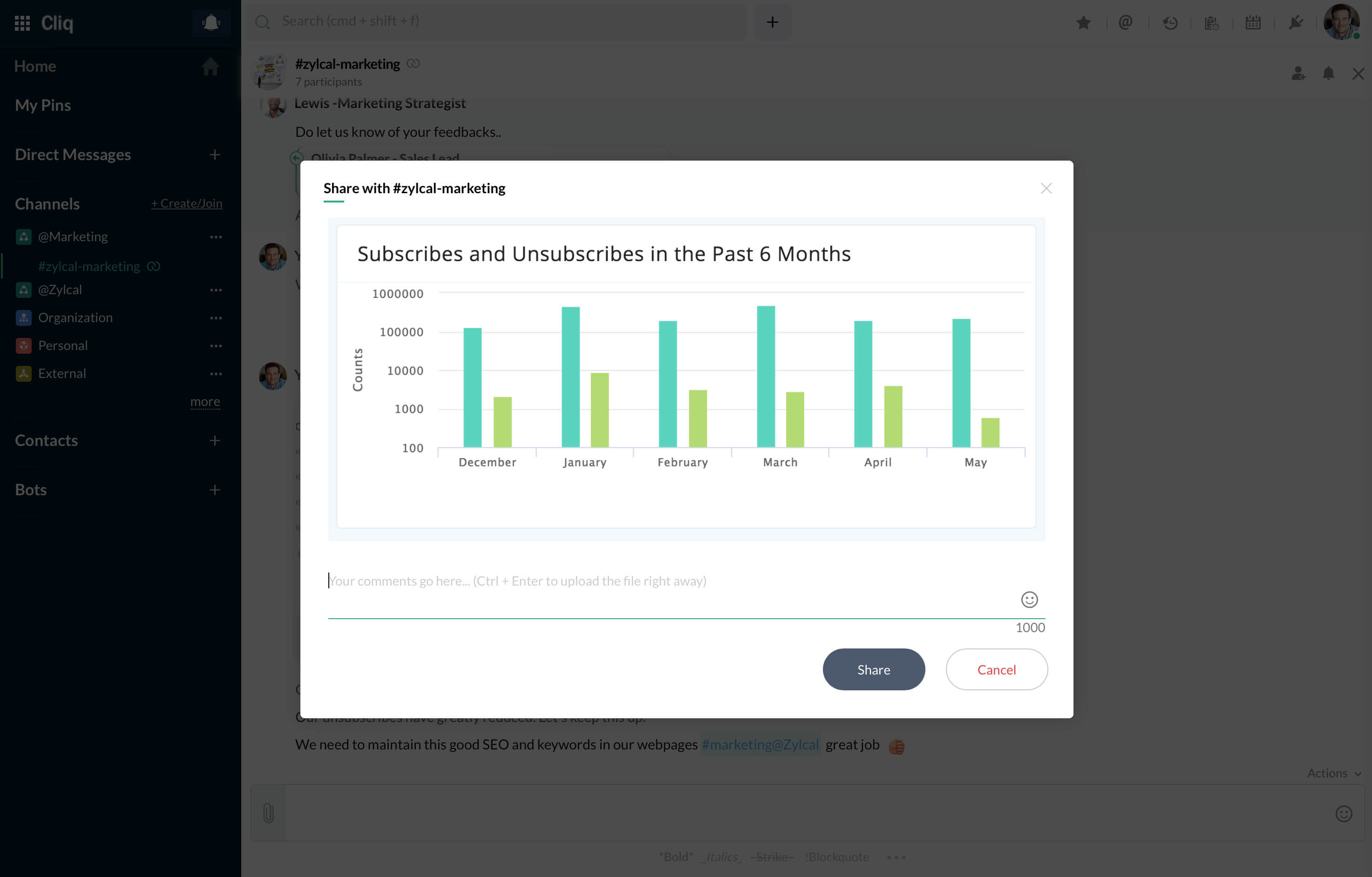
- To download the image/document from the chat window, click on the download icon below the image or document.
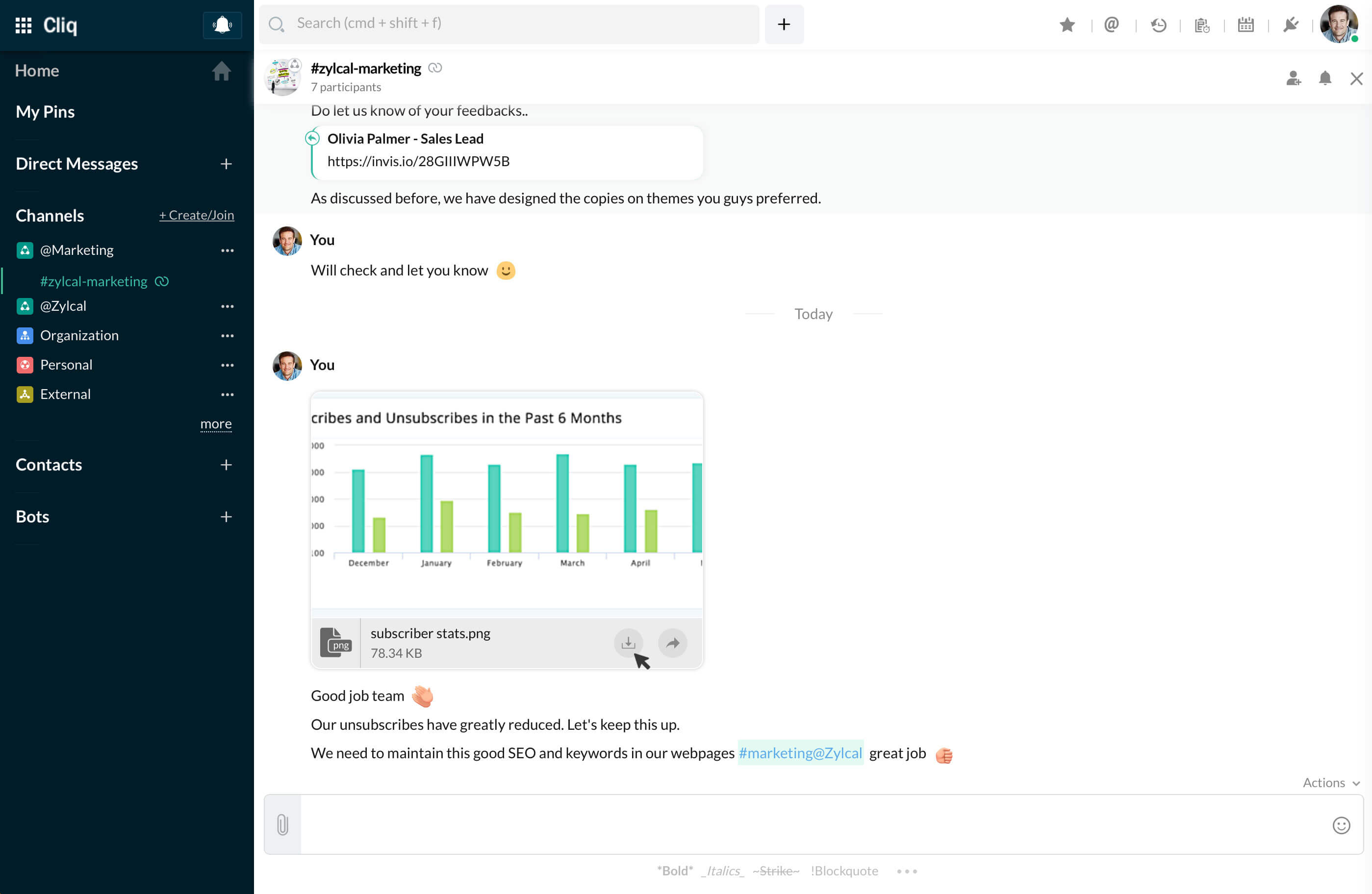
- To get a better look at an image that's been shared with you, click on the image. The image will now appear in full screen mode, and if it is big then a zoom icon will appear where you can zoom in and out by scrolling.
Tip: You can also share files, images, and links easily between chat windows on screen by just dragging and dropping them in Broadsheet view.
