
Configure the Email Address
Before we code the event function or configure the event listener, let's set up the email address from which the automated emails will be sent to users who sign up for the client application. Refer to the Mail help page for a detailed explanation.
You can configure the email address as follows:
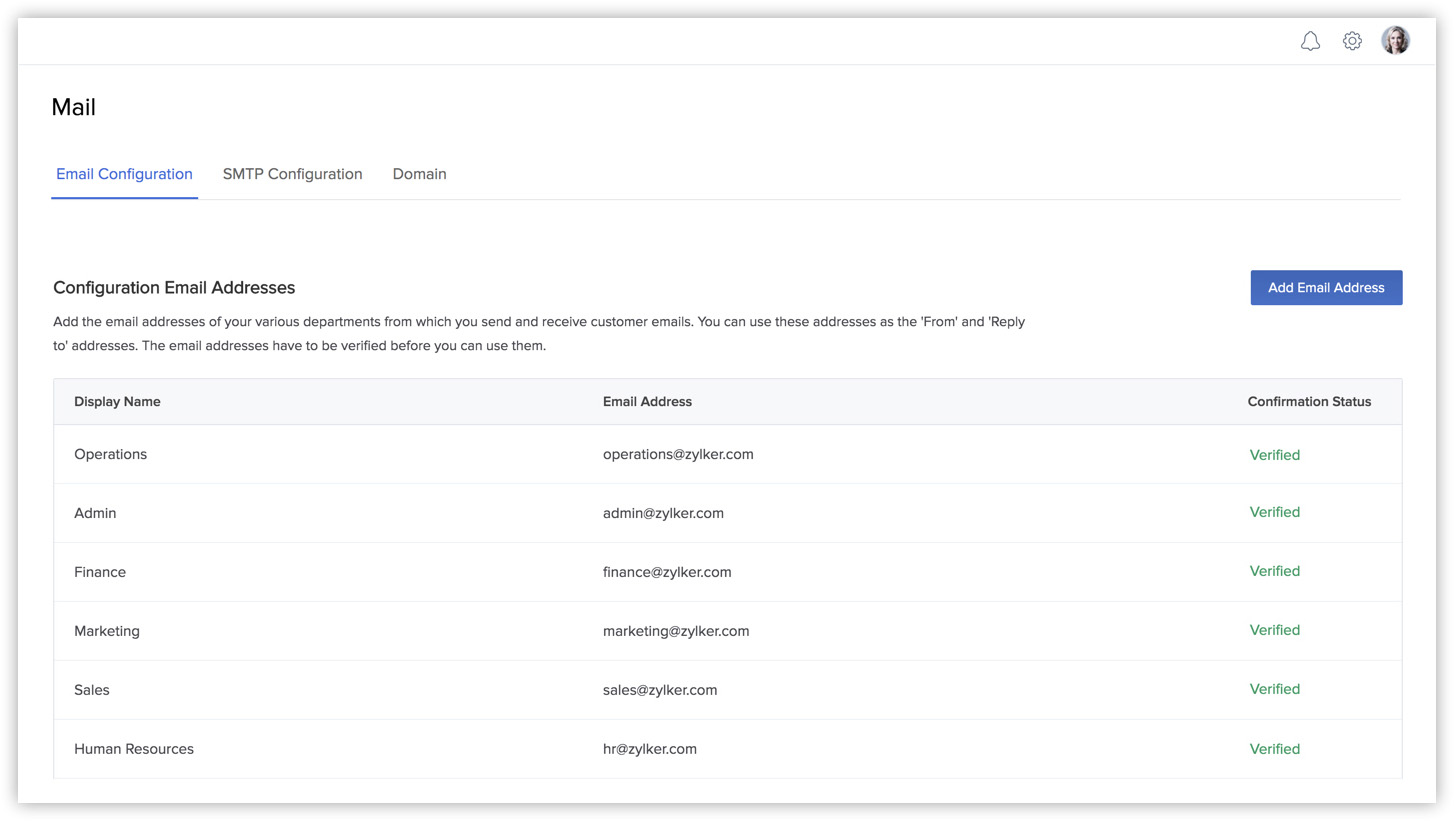
- Navigate to Amplify and then Mail from the EventApp project that you created in your Catalyst console.
- Click Add Email Address in the Email Configuration section.
- Enter the Display Name as "Onboarding" and an email address that you use in the pop-up window.
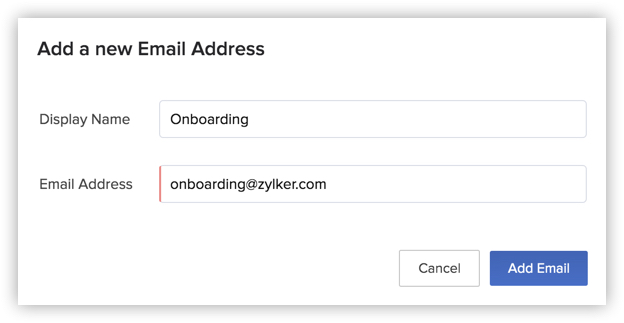
- Click Add Email.
The email address will be added and displayed in the console.

Once you add the email address, you must verify it before it can be used.
- Confirm the email address by clicking Click to confirm under the Confirmation Status column. This will automatically send an email to that address containing a confirmation code.
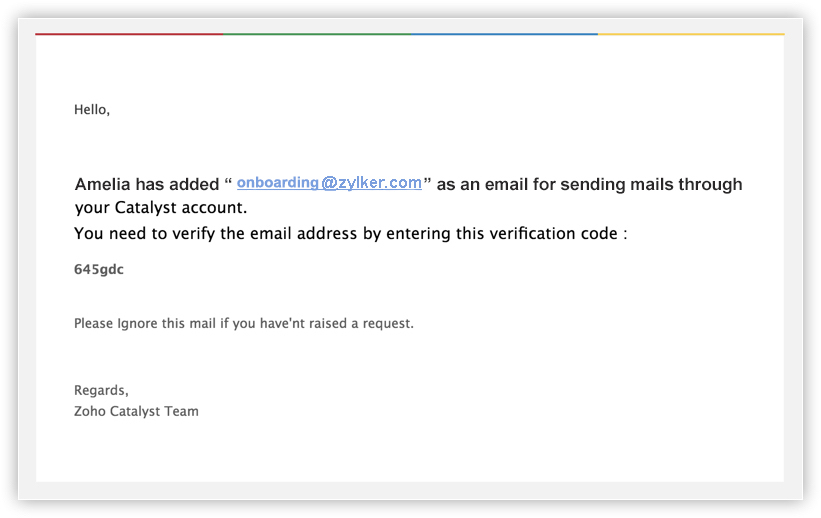
- Enter the confirmation code, that was sent to the email address, in the pop-up box and click Confirm.
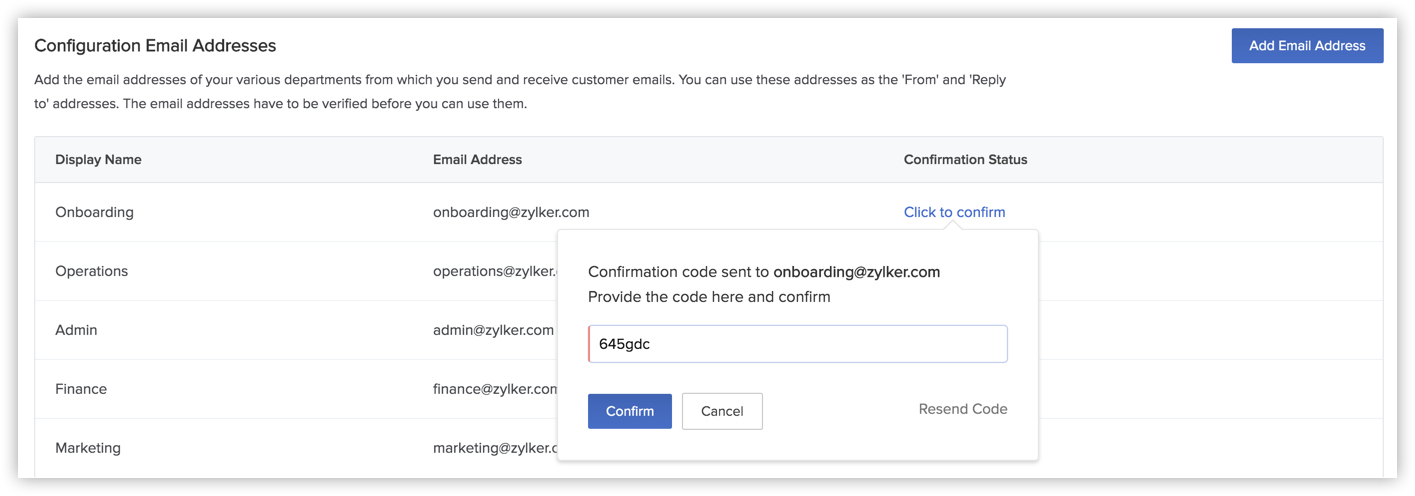
If you don't receive the email with the confirmation code, click Resend Code in the pop-up box.
Once the code has been entered and verified, the confirmation status of your email address will be changed to "Verified".

You can now use the email address to send emails from your Catalyst application.