Introducing Web Tabs in Zoho Mail: Keep the websites you need right where you work

Picture a typical workday. You’re replying to an urgent customer email when you realize you need to check your CRM.
So, you open a new tab.
Then you switch to your project management tool to verify a deadline (another tab). You open the company knowledge base for documentation (third tab), and jump to a dashboard to confirm the latest numbers (fourth tab).
Before you know it, your browser is overflowing with tabs, and your inbox is nowhere in sight.
For most of us, email isn’t just another app on our desktop; it’s where conversations start, decisions are made, and projects get approved. Yet, actually getting those tasks done usually means leaving your inbox and constantly hopping between different websites.
We knew there had to be a better way to work. That’s why we’re excited to introduce Web Tabs in Zoho Mail.
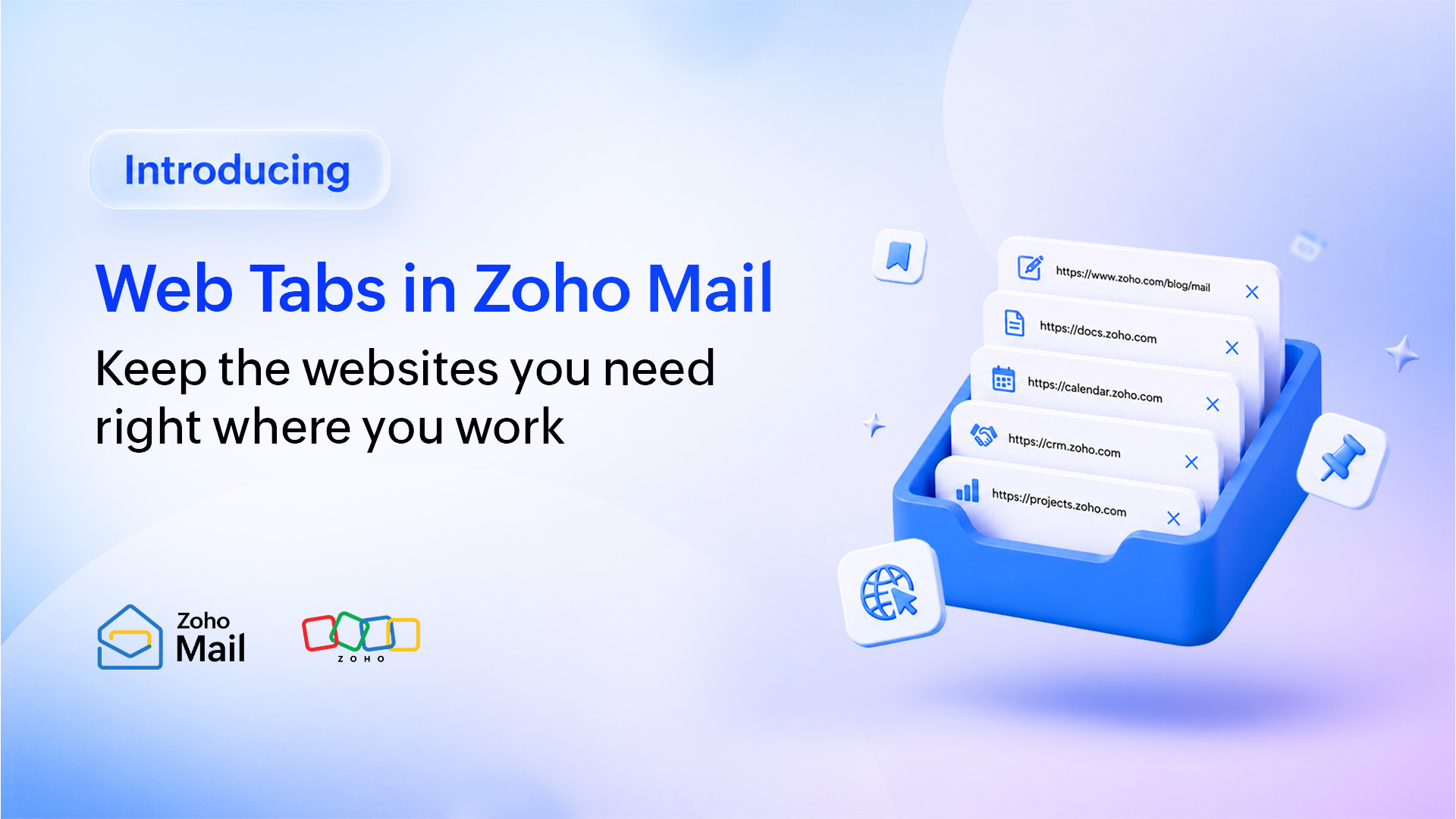
Web Tabs let you embed and open your most-used websites directly inside Zoho Mail. Whether you’re closing deals, supporting customers, or coordinating with your team, Web Tabs help you build a more connected, distraction-free, and productive workspace.
What are web tabs?
Think of the websites and tools you open first thing every morning. Now, imagine accessing them without ever leaving your email. That’s exactly what Web Tabs do.
Web Tabs allow you to add your favorite websites as dedicated tabs inside Zoho Mail. Once added, they’re readily available whenever you need them, making it easier to move between emails and the web applications you use every day.
The bottom line: If it’s a secure, HTTPS website you click on five times a day just to do your job, save your clicks and pin it as a web tab.
Rather than treating your inbox as a place to simply read and send emails, Web Tabs transform it into a workspace where communication and action happen together.
Why you’ll love web tabs:
- Always within reach: Once you add a website, it’s saved and ready. There's no need to retype URLs or dig through your browser bookmarks.
- Seamless transitions: You can slide effortlessly from reading a client’s request to updating your task board or checking a portal, all in the same window.
- A smarter workspace: By keeping your daily web applications alongside your emails, you can take immediate action on your conversations without losing your momentum.
How do Web Tabs fit into your workday?
Every job is a little different, but we all share one universal truth: Nobody gets through their workday using just email.
Whether you’re in sales, support, or management, your email is constantly interacting with other apps. Here’s a quick look at how different teams can use web tabs to cut their browser and simplify their daily work.
Customer support: Find answers without leaving the conversation
Support agents often receive emails that require checking product documentation, troubleshooting guides, or an internal knowledge base.
The setup: Keep your Help desk portal or troubleshooting guides pinned.
How it helps: When a customer sends a complex question, you can look up technical documentation or check server status pages side-by-side with their email, allowing you to reply faster and more accurately.
Sales: Keep customer information close
Sales representatives frequently move between email conversations, CRM records, pricing documents, proposal generators, and product catalogs.
The setup: Pin your CRM dashboard right next to your inbox.
How it helps: As soon as a high-value lead emails you, click over to your CRM tab to check their deal history, update their status, or log a note, without losing your draft.
Marketing: Coordinate campaigns efficiently
Marketing teams regularly access analytics dashboards, content management systems, campaign trackers, design platforms, and social media scheduling tools.
The setup: Keep your analytics dashboards or social calendars open.
How it helps: Monitor campaign performance or check content deadlines while coordinating with external partners, designers, and writers in your inbox.
Human resources: Simplify hiring and onboarding
Recruiters often review candidate emails while checking applicant profiles, interview schedules, career portals, or onboarding documentation.
The setup: Keep your Applicant Tracking System (ATS) and employee onboarding portal pinned right next to your inbox.
How it helps:
- For hiring: The moment a star candidate emails you back, click your ATS tab to review their resume, check their interview feedback, and move them to the next stage of the hiring pipeline instantly.
- For onboarding: Seamlessly send welcome emails to new hires while having your onboarding checklist open in the next tab to verify that their paperwork, background checks, and training modules are on track.
Development: Bridge the gap between bug reports and code
Engineering and technical teams routinely move between customer bug reports, sprint boards, and system status monitors.
The setup: Embed your issue-tracking boards (like Jira or Zoho Projects) and code repositories (like GitHub/GitLab) in your inbox.
How it helps: When customer support forwards an urgent bug report email, open your pinned task board tab to create or assign a ticket instantly, linking the context directly to the engineering sprint.
Compliance and Legal: Streamline policy checks and regulatory audits
Compliance and legal professionals manage endless contracts, policy guidelines, regulatory updates, and approval requests.
The setup: Embed your contract lifecycle management (CLM) software, regulatory database portals, or internal policy wikis in your inbox.
How it helps:
- For contract approvals: When a sales representative emails a customized non-disclosure agreement or vendor contract for review, switch directly to your contract portal tab to check terms and sign off, all within the same window.
- For policy cross-referencing: Keep up-to-date compliance checklists or GDPR/HIPAA regulatory portals pinned beside incoming vendor inquiries, ensuring that every communication aligns with official company policies without switching windows.
Leadership: Track high-level metrics
Executives and team leads manage high-volume email while needing constant visibility into company performance and strategic goals.
The setup: Embed your executive BI dashboards, OKR tracking software, or high-level project roadmap views in your inbox.
How it helps: When a department head emails a monthly progress update, open your live BI dashboard tab to cross-reference their reported figures against real-time company KPIs before replying.
How do you get started with Web Tabs?
Setting up web tabs only takes a few minutes.
- Open Zoho Mail.
- Add a new web tab.
- Enter the website URL you want to access.
- Give the tab a recognizable name.
- Save it.
- Start working with your favorite websites directly from Zoho Mail.
Once configured, your frequently visited websites become a natural extension of your inbox. You can even switch to another tab within the Zoho Mail interface while keeping your web tab visible, with the Picture-in-Picture option.
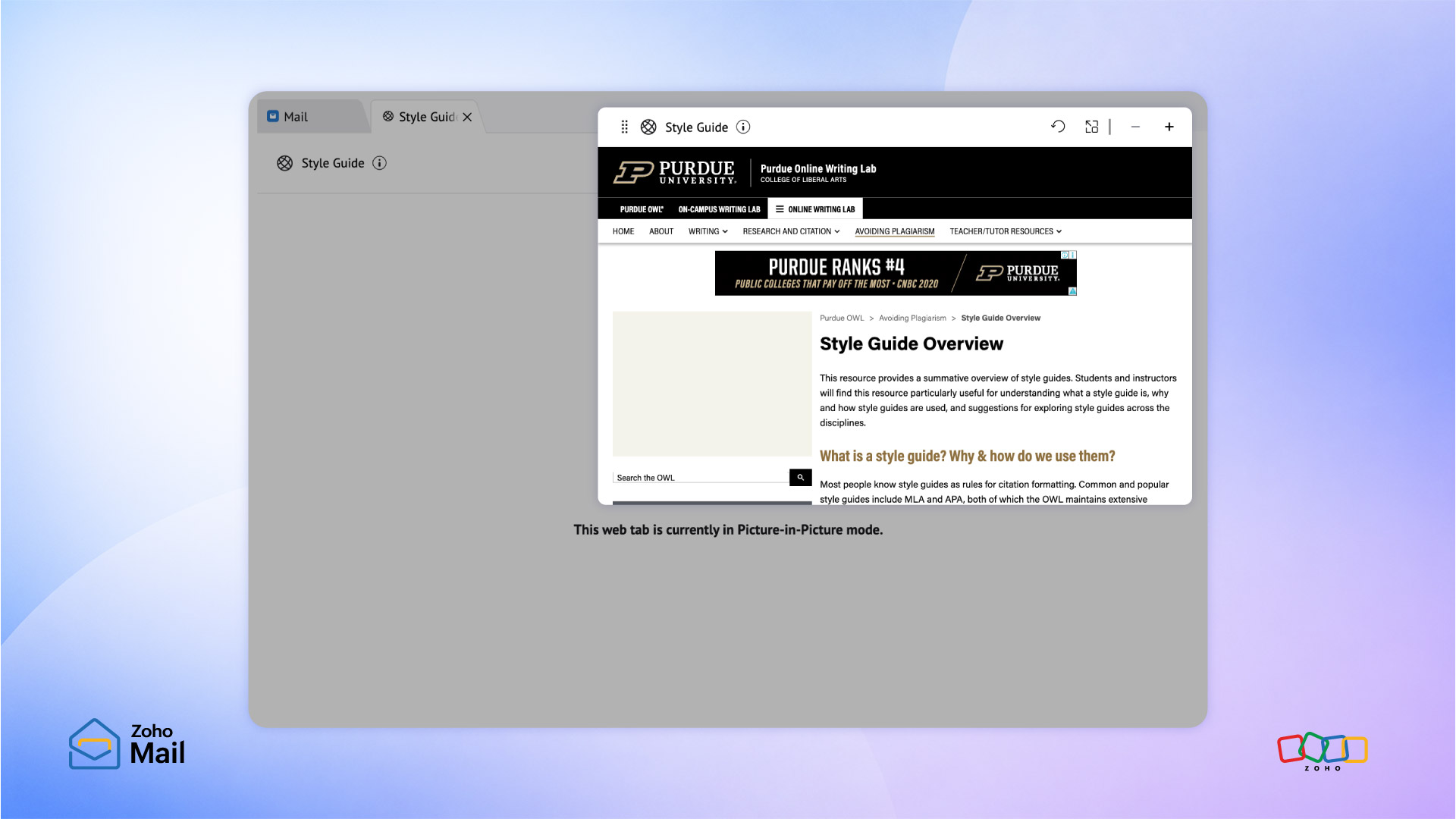
For more information about web tabs, refer to this documentation.
Personal and organizational web tabs
Zoho Mail gives you two distinct ways to build your setup: Personal Web Tabs and Organizational Web Tabs.
Personal Web Tabs: Created by you, for you
Think of Personal Web Tabs as your own private shortcut bar. These are the specific, niche websites or tools you use constantly throughout the day, customized completely to your unique working style.
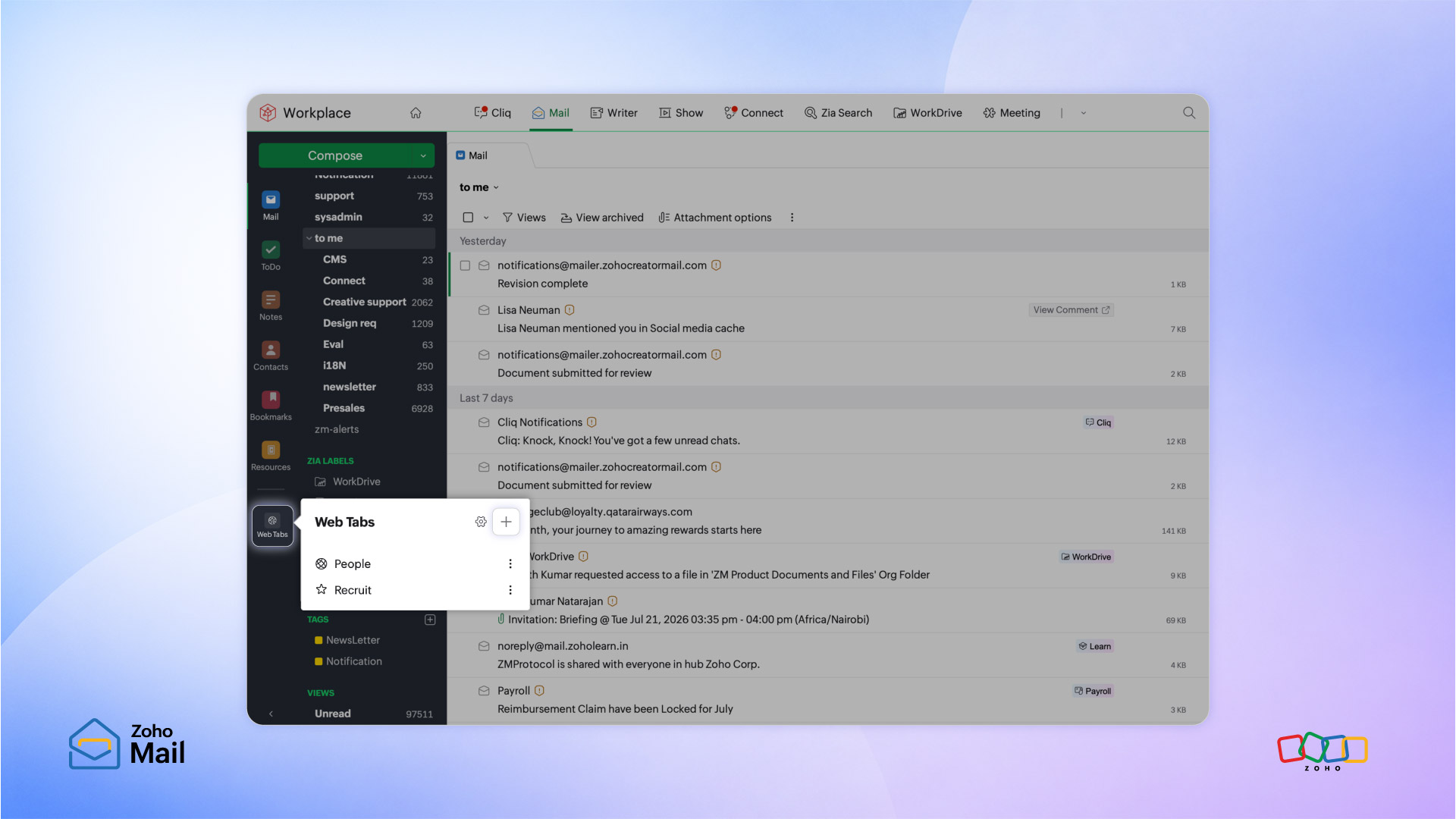
Here’s how you can use them:
- The daily calculator: Pin a unit converter, foreign currency tracker, or quick financial calculator next to your inbox so you can handle math on the fly.
- Your go-to reference pages: Embed industry standard documentation portals, technical code repositories, or specific design inspiration blogs.
- Personal growth and news: Keep your favorite tech newsletter archive, professional training dashboard, or daily reading list right inside your mail layout.
Organizational Web Tabs: Created by admins, shared by teams
If you’re an administrator, you know how painful it is to get everyone on the same page. Organizational Web Tabs allow IT admins and team leads to create standard, company-wide tabs that appear automatically on their team’s Zoho Mail sidebar.
Even better, admins can choose to push these tabs out to everyone or limit visibility to specific roles or departments. Here’s how organizations can use them:
- For the whole company: Deploy the central Employee Resource Portal, the HR handbook wiki, or the IT help desk ticketing system so no employee ever says, “Where do I find that link again?”
- For specific roles: Push the shared CRM lead dashboard exclusively to the Sales team’s sidebar, or target the live server uptime monitor solely to the DevOps queue.
- For critical analytics: Embed a central, cross-organizational reporting sheet right into the management team’s sidebar so key figures are always a single click away.
Group Web Tabs: Align your team
We’ve already looked at how you can customize your own inbox with personal web tabs, and how admins can set up company-wide portals with organizational web tabs. But what about the day-to-day projects you share with your specific team?
Enter Group Web Tabs.
Group Web Tabs are designed specifically for the cross-functional teams, departments, and project squads within your organization. If you’re part of a shared Zoho Mail group—like sales-team, marketing-squad, or design-critique—group moderators can pin dedicated web pages that appear automatically to group members when they access those Streams groups.
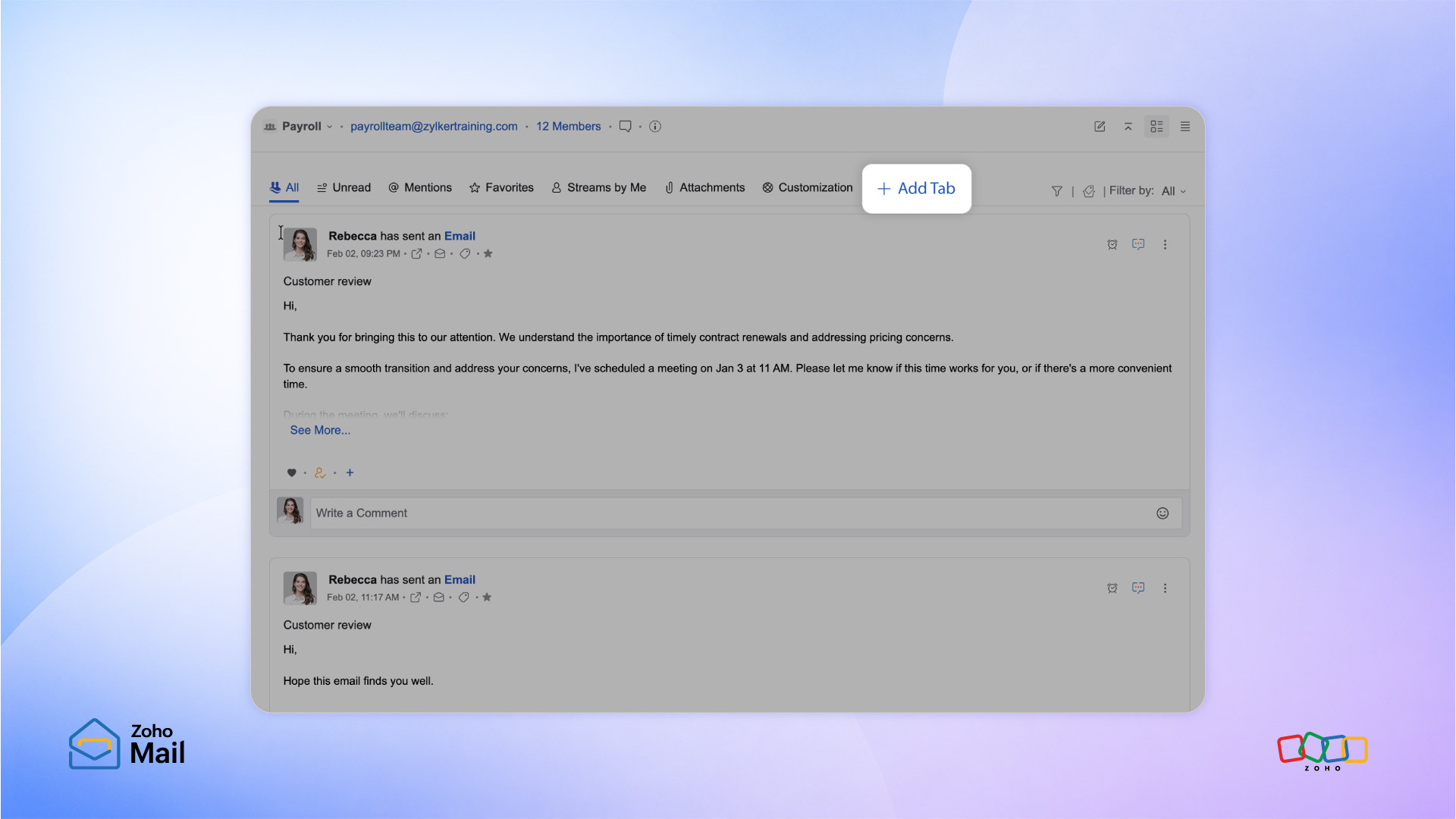
Here’s how you can use Web Tabs to bring your conversations and your group assets together under one roof.
- For project squads: Pin a shared Kanban board or a live sprint tracker (like Zoho Projects). As your group coordinates via group emails, members can immediately hop over to the tab to check task ownership or update progress.
- For marketing and launch teams: Embed a shared content calendar spreadsheet or a live social media campaign dashboard. The whole group can track copyedits and asset drops side-by-side with incoming media requests.
- For Support and IT groups: Pin the team’s shared Troubleshooting Wiki or a live network monitoring graph. When a high-priority ticket hits the group inbox, anyone on duty can look up the resolution process in a split second.
Tips for making the most out of web tabs
Building an efficient workspace is all about intention. To get the most out of web tabs and design a setup that genuinely boosts your focus, try these best practices:
- Stick to the essentials: Resist the urge to pin every website you know. Instead, focus entirely on the core tools you actually open multiple times a day.
- Organize around workflows: Choose web apps that naturally pair with your conversations. If an app frequently requires you to copy information from an email, that’s a perfect candidate for a Web Tab.
- Use clear, consistent names: A messy sidebar is just as distracting as a messy browser. Give your tabs brief, easily recognizable names so you can switch between them in a split second.
- Audit your workspace regularly: Your daily tasks change, and your workspace should too. Every month or two, review your tabs. Swap out the portals you haven’t clicked lately for newer tools that better support your current projects.
Frequently asked questions
1. What are Web Tabs in Zoho Mail?
Web Tabs let you open frequently used websites directly within Zoho Mail, so you can access essential web applications without constantly switching browser tabs.
2. Why should I use Web Tabs?
They keep commonly used websites within easy reach, reduce context switching, and make your email workspace more productive.
3. What kinds of websites can I add?
You can add the websites that support your daily work, such as project management tools, CRM systems, documentation portals, internal company resources, analytics dashboards, and more.
4. Can I use multiple Web Tabs?
Yes. You can create multiple Web Tabs to organize the different websites you use throughout your workday.
5. Who benefits most from Web Tabs?
Anyone who regularly switches between email and web applications, including sales teams, customer support, HR, marketing, finance, IT, and business users.
Wrapping up: A smarter way to work from your inbox
Email is where conversations begin, but meaningful work often depends on the information and tools that surround those conversations.
Web Tabs bring those tools closer to your inbox, making it easier to stay focused, reduce unnecessary switching, and work more efficiently throughout the day.
Whether you’re responding to customers, collaborating with colleagues, reviewing documents, or managing projects, Web Tabs help turn Zoho Mail into a workspace that’s built around the way you work.
Try Web Tabs today and discover how keeping your favorite websites within your inbox can help you spend more time getting work done.

Comments