Zoho Mail Admin Console: A complete overview

You just got added as an admin for your company’s Zoho Mail account. Someone from IT sends you a link, you log in, and there it is, a full console with everything you need to run email for your entire organization. Domains, users, groups, security, reports, all in one place.
That’s a good thing. It means you’re not hunting across ten different tools to get your team set up on email. But if this is your first time in here, you may be wondering where to start and what each section actually does.
That’s what this blog series is for. We’re starting with this post as an overview, a simple walkthrough of what the Admin Console offers and how it’s organized. In the blog posts that follow, we’ll go deeper into each part, including domains, users, security, and more, so you get a clear picture of how to make the most of it.
For now, let’s start with the basics: What the Admin Console is, who gets access to it, and how you land on it.
The Admin Console is the control center for your organization’s Zoho Mail account. It’s where all of the important decisions and setup happen—your domain configuration, adding and managing users, setting up security policies, keeping spam in check, and tracking how your organization is using Zoho Mail.
Access to this console is role-based. Your Super Admin, usually the person who first set up the account, has full access. Then there are Admins and Custom Admins, who can be given access to specific sections based on what they need to manage. If you’ve just been given one of these roles, this series will help you get familiar with what’s in front of you.
How to access the Admin Console
Getting into the Admin Console is straightforward, and there are two ways to do it depending on where you’re starting from.
If you’re starting fresh, you can go directly to the Admin Console by visiting mailadmin.zoho.com and logging in with your admin credentials.
If you’re already logged into your Zoho Mail inbox, simply click on your profile picture in the top-right corner of your inbox, and you’ll find an option to switch over to the Admin Console from there. It opens up in the same session, so there’s no extra login step.
Once you’re in, you’ll land on the Admin Dashboard. It’s the perfect starting point, offering a quick snapshot of everything else you’ll find in the console.
1. The Admin Dashboard
Think of the Admin Dashboard as the pulse check for your entire organization’s email setup; everything important is right there in one view.
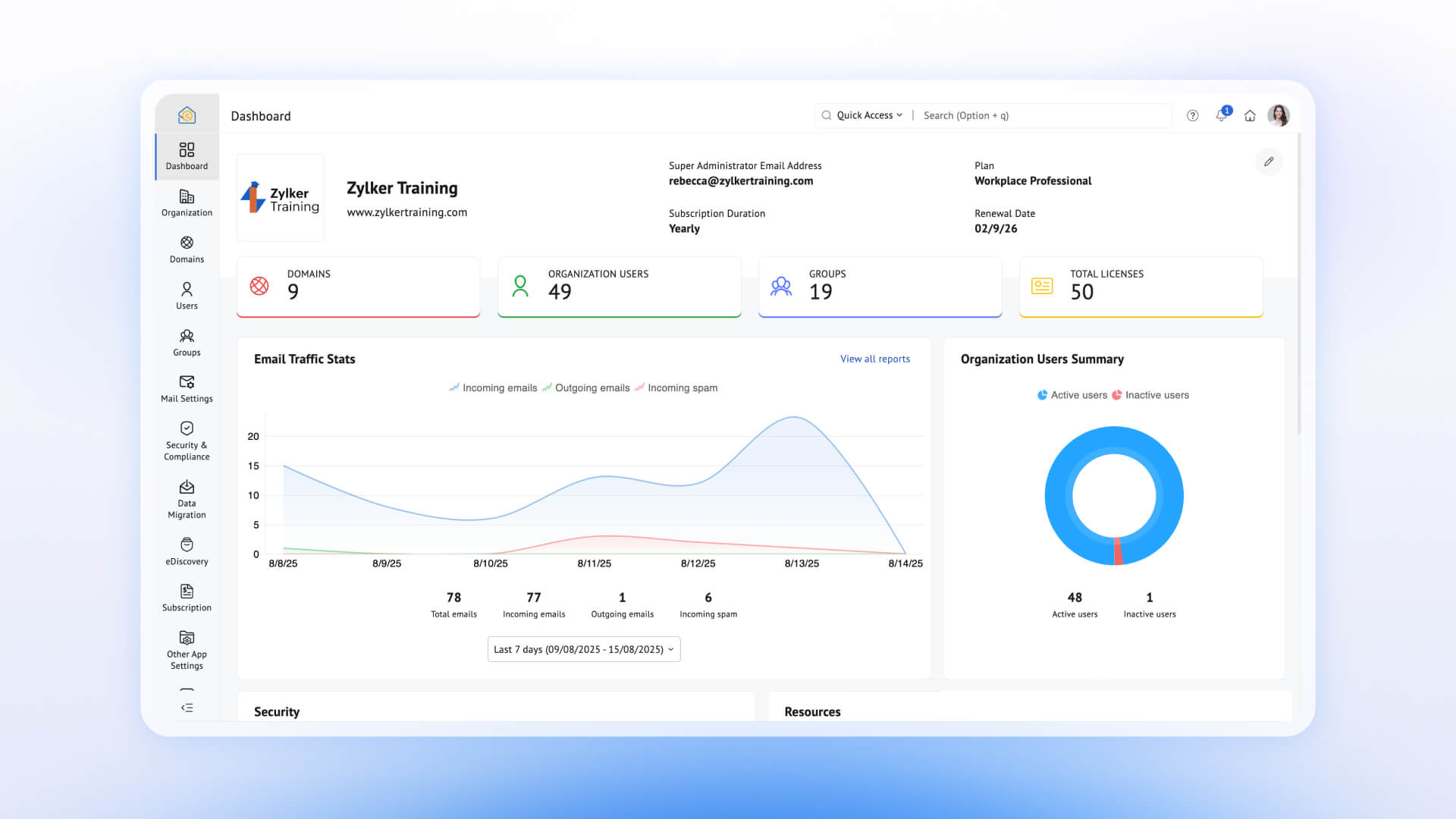
Infographic-style snapshot: You’ll see email traffic stats, a summary of your users, storage reports, and the current security status of your organization, all without having to dig into separate sections.
Key account details: You can check your Super Admin’s contact information, your subscription plan, whether you’re on a monthly or yearly payment cycle, and when your renewal is due.
License overview: A quick look at how many domains, users, and groups are currently configured under your account.
If you want a quick answer to “How is our Zoho Mail setup doing right now?”, this is where you’d look first.
2. Domain setup and management
Once you’re past the dashboard, the next stop is your domain, because that’s where your organization’s email identity begins.
Domain setup: You can buy a new domain, add ones you already own, set up domain aliases, and keep track of hosting status.
Authentication records: Domain records like MX, SPF, DKIM, and BIMI are set up here. These records keep your emails authenticated and out of spam folders.
Catch-all address: This saves misaddressed emails instead of letting them bounce and disappear.
Renewal, transfer, and disclaimer: You can renew your domain manually, set it to auto-renew, transfer it to a different registrar if needed, and set up a disclaimer that’s added automatically to every email your organization sends.
With your domain in place, the next thing to sort out is who actually gets to use it.
3. User management
This is where you bring your team onto Zoho Mail, and most of what you’ll do here revolves around these tasks.
Adding users: You can add users one at a time or, if you’ve got a large team, import them all in bulk instead of doing it manually.
Email aliases: Each user can have their own aliases, so someone can receive mail on more than one address without needing a separate account for it.
Signatures: You can set these up on behalf of users, so every email going out carries the proper branding without relying on each person to add it on their own.
Vacation responder: This is useful for when someone’s away and you need auto-replies going out on their behalf.
Mailbox delegation: This lets one user grant another access to their mailbox. It’s handy for managers who need an assistant to handle their inbox, or for cases where someone needs temporary access to a colleague’s mail.
Together, this is your control panel for everything user-related, without having to ask each employee to set things up on their end.
4. Group management
Not every email needs to go to one person. Sometimes an entire team needs to see it, and that’s what groups are for.
Shared inboxes: You can create custom groups, like a shared inbox for support@ or sales@, so multiple people can access and respond from the same address. It works well for teams that need shared visibility instead of forwarding emails around individually.
Moderation: You can set up someone to approve messages before they reach the group; this is useful if you want a bit of control over what gets sent out to a wider list.
Shared inboxes handle the visibility and moderation handles the control. Between the two, most team-wide email needs are covered.
5. Migration
Switching email providers is usually the part admins dread the most; they worry about losing data, breaking folder structures, or dealing with weeks of cleanup afterward. Zoho Mail’s migration tools are built to take that worry off your plate.
What moves over: Emails, contacts, calendars, files, and other data from your previous provider all come along in the migration.
What stays intact: Folder structures and read statuses are replicated exactly as they were, so your team doesn’t land in Zoho Mail to a messy, disorganized inbox.
Routing options: Split, Dual, or Split+Dual delivery let you choose how Zoho Mail fits into your existing setup during the transition, whichever works best depending on how gradual or immediate you want the shift to be.
6. Spam control
Think of this as a smart bouncer standing at your inbox’s door. Here’s how it works.
Authentication checks and quarantine: SPF, DKIM, DMARC, and DNSBL confirm the sender is who they claim to be, and anything that fails is rejected or sent to quarantine until you decide whether it should actually reach the inbox.
Pattern detection: Suspicious display names and spam-like phrases are flagged and moved straight to the spam folder before they even reach you.
Allow and block lists: You can set trusted or unwanted senders yourself for specific addresses, domains, or IPs, so genuine emails aren’t caught by mistake while known bad actors stay out.
Custom rules: These let you go further, defining exactly what to look for and what should happen next.
Spam reports: These give you visibility into what’s being caught, so you know your filters are actually doing their job.
7. Security and compliance
This is section is more involved, and rightly so, because it covers everything that keeps your organization’s data safe.
Threat and login protection: Threat protection guards against malicious emails and attachments, password policies let you enforce stronger login requirements, and suspicious login alerts and smart alerts flag unusual activity on an account.
Centralized access management: SAML-based single sign-on centralizes login management, while mobile device management (MDM) secures company data on employee devices.
Compliance and retention: Data retention settings let you control how long mail is kept, and eDiscovery lets you search, review, and export retained emails when your organization needs to respond to a legal or compliance request. Data subject requests are handled from here too.
SIEM integration: This feeds your email data into a broader security monitoring system your organization may already use.
If it has anything to do with keeping your organization’s email secure and compliant, it lives here.
*eDiscovery is available on the Zoho Workplace Professional and Mail Premium plans. Compare plans on our pricing page.
8. Organization email management
This is where your Zoho Mail setup stops feeling generic and starts feeling like your company’s own. This section brings together the details that make it feel that way.
Branding: A custom login URL and your logo on the sign-in page are usually the first things admins set up here, and this branding carries through to the Admin Console as well.
Organization profile: Your organization’s name, logo, contact details, and time zone shape your email identity and keep it consistent across every account under your domain.
Partner details: If your account is managed through a partner, their details are available here, so you always know who to reach out to and what access they have.
Templates and announcements: Welcome messages and standardized signatures for new employees keep things on-brand from day one, and company-wide announcements let you send out policy changes, updates, or events directly to everyone’s inbox.
9. Administrator privileges
Not every admin needs the same level of access, and this section is where you decide exactly who gets to touch what.
Email policy: This lets you control what’s sent and received across your organization, so you can curb inappropriate use before it turns into a real problem.
Roles and privileges: These let you assign different access levels to different admins. Maybe someone only needs to handle user accounts, while someone else needs full control over security settings. This is where you’ll make those decisions, keeping your setup organized without handing out unnecessary access.
Lookup toolkit: This is useful for quick technical checks like port checks, analyzing email headers, or looking up domain details, all without having to leave the console or rely on a separate tool.
Integrations and extensions: Because most teams don’t run on Zoho Mail alone, these let you connect other apps you use, set up quick shortcuts like slash commands, and manage all of these connected settings from one place instead of juggling multiple dashboards.
10. Admin reports
Reports exist so you actually know what’s happening across your organization instead of guessing.
Reports dashboard: This gives you key stats in graphs and summaries. You can rearrange it to highlight what matters most to you, rather than sticking to a fixed layout that may not suit how you work.
Report types: From here, you’ve got a genuinely wide spread to pick from: mailbox usage, compliance, suspicious logins, and several others depending on what you’re tracking. Each report is viewable, searchable, and exportable whenever you need it. This makes it easy to check something yourself quickly, or to pull data to share with someone else in your organization.
Favorites: The reports you often check can be saved here, so you’re not repeatedly digging through menus to find the same report every time.
Report configuration: If the defaults don’t quite fit what you need, this lets you choose exactly which reports to include, decide how often they get sent out, and pick who receives them, so the right people always have the right insights on hand.
Closing thoughts
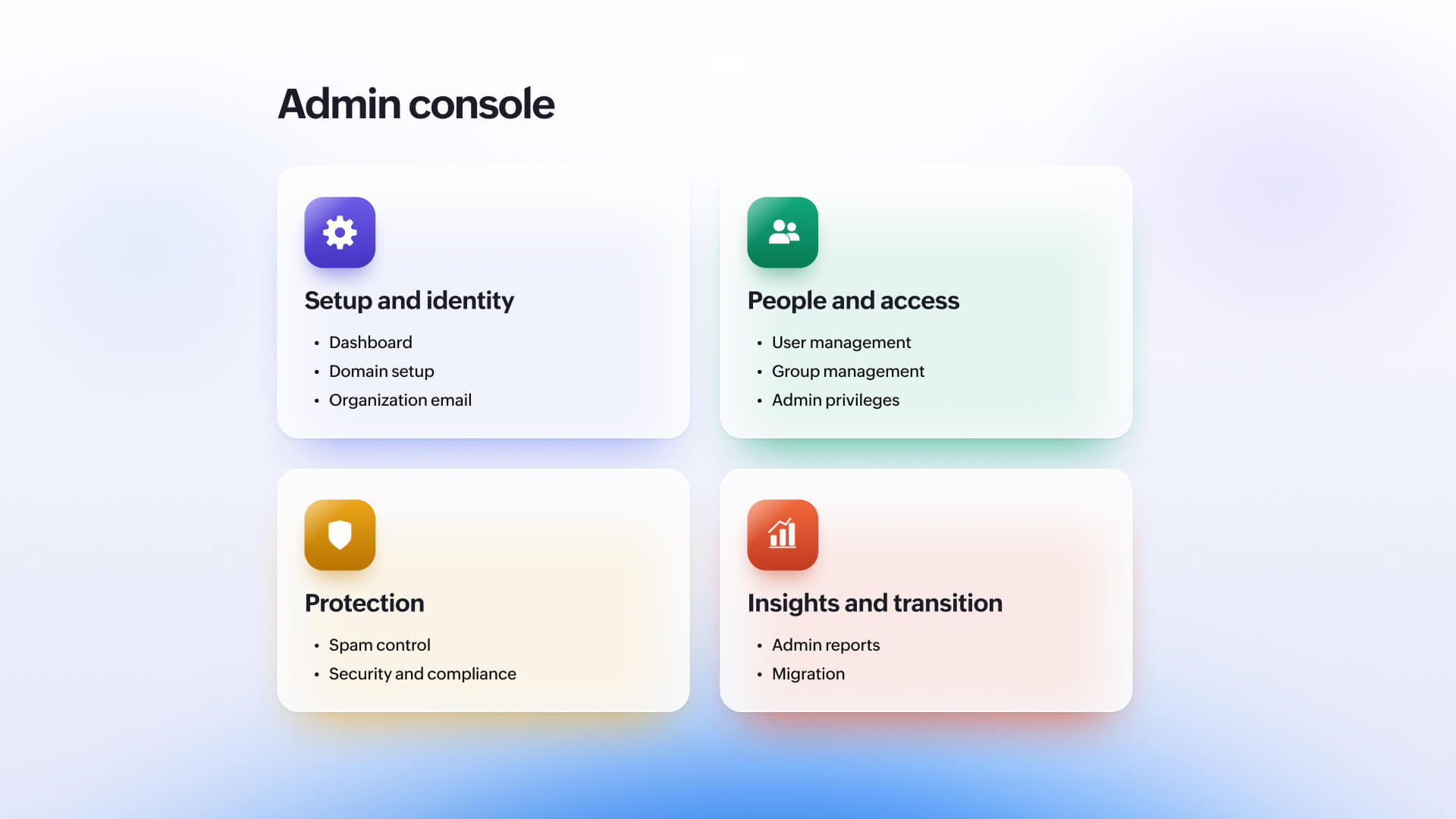
That’s the Zoho Mail Admin Console in a nutshell—dashboard, domains, users, groups, spam control, security, organization settings, reports, admin privileges, and migration—all sitting in one place instead of scattered across different tools.
If you’d rather manage things on the move, there’s also a dedicated Zoho Mail Admin app for iOS and Android, so you’re not tied to your desktop every time something needs your attention.
This blog post was meant to give you the full picture before we focus on each individual part. Up next in this series, we start with domains, where we’ll cover everything from setting one up to keeping it secure and properly authenticated.
FAQ
1. Who can access the Zoho Mail Admin Console?
Access is role-based, so not everyone in your organization gets the same view. The Super Admin, usually the one to first set up the account, has full access to every section. Admins and Custom Admins are added on top of that, each limited to the specific sections they’ve been assigned, whether that’s just user management, security or a handful of areas.
2. What’s the difference between a Super Admin and an Admin?
The Super Admin sits at the top of the access hierarchy. They originally set up the Zoho Mail account, and can see and change everything in the console. Admins are added later and only get access to the sections they’re responsible for, so a person handling user onboarding might not have any visibility into security settings, and vice versa.
3. How do I add users in bulk?
Bulk import lives in the User Management section of the Admin Console, right alongside the option to add users one at a time. It’s built for situations where you’re onboarding a large team in one go, so you’re not creating dozens of individual accounts by hand. Once users are added, you can still go in and set up aliases, signatures, or delegation for each of them individually.
4. Can I migrate my existing email data to Zoho Mail?
Yes, and it covers more than just your inbox. Emails, contacts, calendars, and files from your previous provider are all brought over, with folder structures and read statuses kept exactly as they were. You also get to choose how the switch happens, Split, Dual, or Split+Dual delivery, depending on whether you want a gradual transition or an immediate one.
5. Is there a Zoho Mail Admin app for mobile?
Yes, Zoho Mail has a dedicated Admin app for both iOS and Android. It’s meant for admins who need to check on or manage their organization’s email setup without being at a desktop, useful for handling something urgent, like a security alert or a user issue, while you’re away from your computer.

Comments