Integration with Zoho Bigin
Zoho Analytics seamlessly integrates with Zoho Bigin to transform the data into insightful reports and dashboards, enabling you to track key metrics, identify trends, and make data-driven decisions.
General
Setup
- How do I integrate Zoho Analytics with Zoho Bigin?
- How long should I wait for my Zoho Bigin data to appear in Zoho Analytics initially?
- What should I do when the data synchronization fails?
- How frequently can I synchronize my data?
- Can I edit the synchronization settings?
- How do I create custom reports over my Zoho Bigin data?
- Can I set up the Zoho Bigin integration in existing workspaces in Zoho Analytics?
- Is it possible to create multiple Zoho Bigin integration setups in Zoho Analytics?
- How do I remove this setup?
Reporting Features
- What are the report types supported by Zoho Analytics?
- Can I modify the pre-built reports created on integrating with Zoho Bigin?
- How do I create reports using fields/columns across different Zoho Bigin modules?
- What are formulas in reports?
- Is it possible to create custom formulas in Zoho Analytics?
- Can I modify the tables imported from Zoho Bigin?
- Can I add new columns to the tables imported from Zoho Bigin?
- Can I import new tables into the Zoho Bigin workspace?
- Can I combine data from other sources with the data from Zoho Bigin, and create reports and dashboards?
- What are Query Tables?
Sharing & Collaboration
- How do I share reports, dashboards, and tables in Zoho Analytics?
- Why are my colleagues unable to access the reports I create?
- Can other users create reports using the tables in the Zoho Bigin workspace?
- Is it possible to share the same report with multiple users such that they each see different data?
- Can I export a report or a dashboard?
- How do I print the reports and dashboards created in Zoho Analytics?
- Can I email reports and dashboards at scheduled times?
- Can I embed reports?
Help & Support
- How do I get technical support on Zoho Analytics?
- Can I have get a personalized demo of this integration?
General
1. What is Zoho Analytics?
Zoho Analytics is an on-premises reporting and business intelligence application that helps you analyze your IT data and create insightful reports & dashboards for informed decision-making. It offers the following important capabilities:
- Import data from local files, web feeds, local and cloud databases, and cloud storage/drive.
- Displays data in an easy-to-view excel format.
- Build custom reports and dashboards easily, with the drag-and-drop report builder.
- Supports powerful visualizations in the form of charts, pivot tables, summary views, tabular views, and dashboards.
- Generate reports and KPIs in seconds with Zia, Zoho Analytics' intelligent analytics assistant powered by Machine Learning and Artificial Intelligence.
- Create custom formulas using the built in formula engine that contains a wide range of mathematical, statistical and logical functions.
- Share reports and dashboards with your colleagues easily, through a wide range of collaboration features.
- Export and publish reports and dashboards in various formats, and configure permissions and filters for the views.
- Supports out-of-the-box integrations with a wide number of applications, to give you pre-built reports and dashboards on your application's data within minutes.
2. What are the highlights of this integration?
Zoho Analytics seamlessly integrates with Zoho Bigin and provides advanced reporting and visualization to help you analyze data, identify trends, and make informed decisions. The data from the following modules will be synchronized on setting up this integration.
- Companies
- Associated Products
- Calls
- Contacts
- Deals
- Events
- Participants
- Products
- Tasks
- Users
Setup
1. How do I integrate Zoho Analytics with Zoho Bigin?
2. How long should I wait for my Zoho Bigin data to initially appear in Zoho Analytics?
After setting up the integration, you might have to wait some time for the initial fetch to complete. Depending on the amount of data in your application, the reports and dashboards might take up to 5 minutes to display all the metrics. If you access the workspace before the initial fetch, it will not display any data.
3. What should I do when the data synchronization fails?
The import or synchronization process of your Zoho Bigin data can sometimes fail, due to a variety of reasons. To resolve this, click the Data Sources option from the side panel and click the Re-Authenticate link.
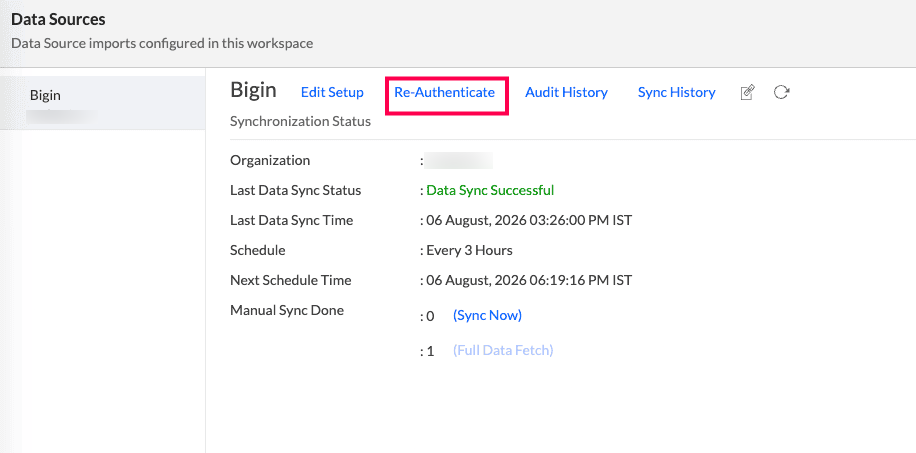
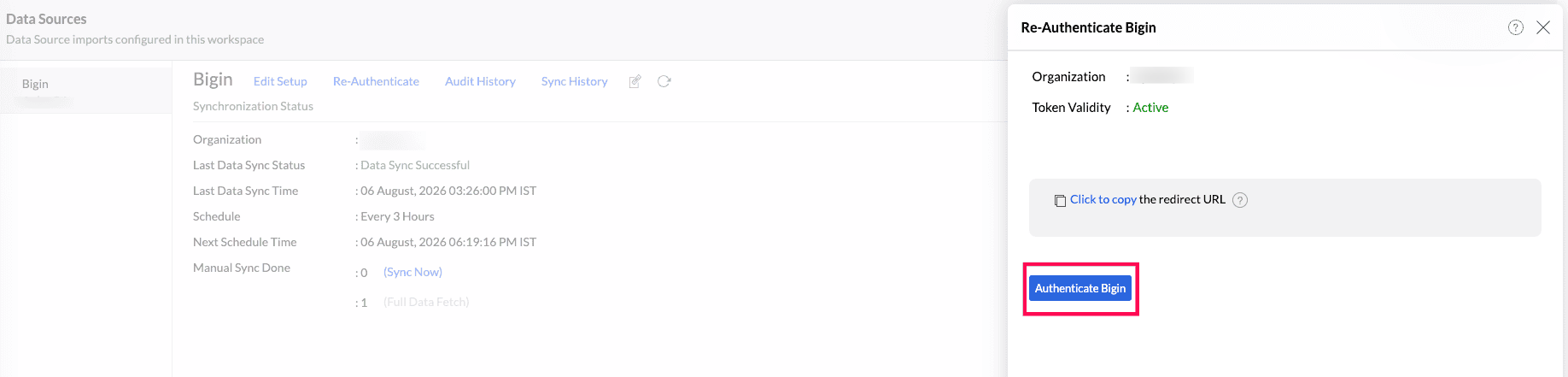
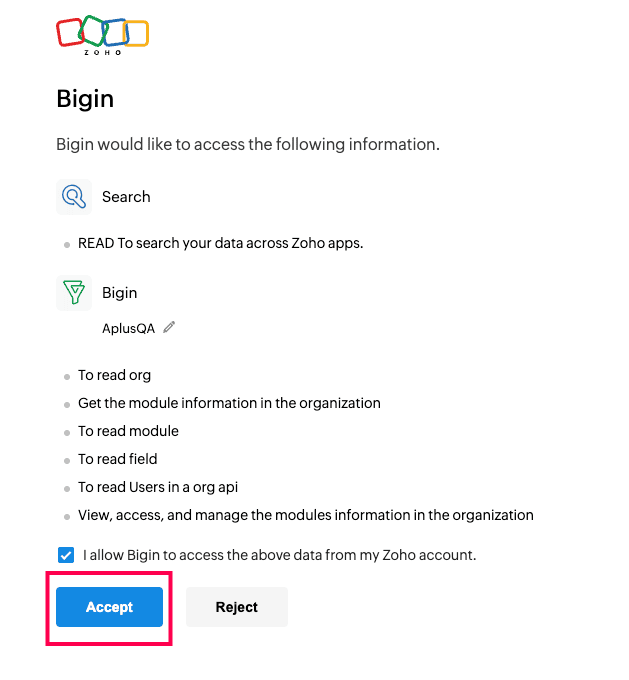
In the popup that appears, click Authenticate Zoho Bigin. Click Accept in the popup that appears.
4. How frequently can I synchronize my data?
You will be able to synchronize your data in the intervals mentioned below.
- 3 hours
- 6 hours
- 12 hours
5. Can I edit the synchronization settings?
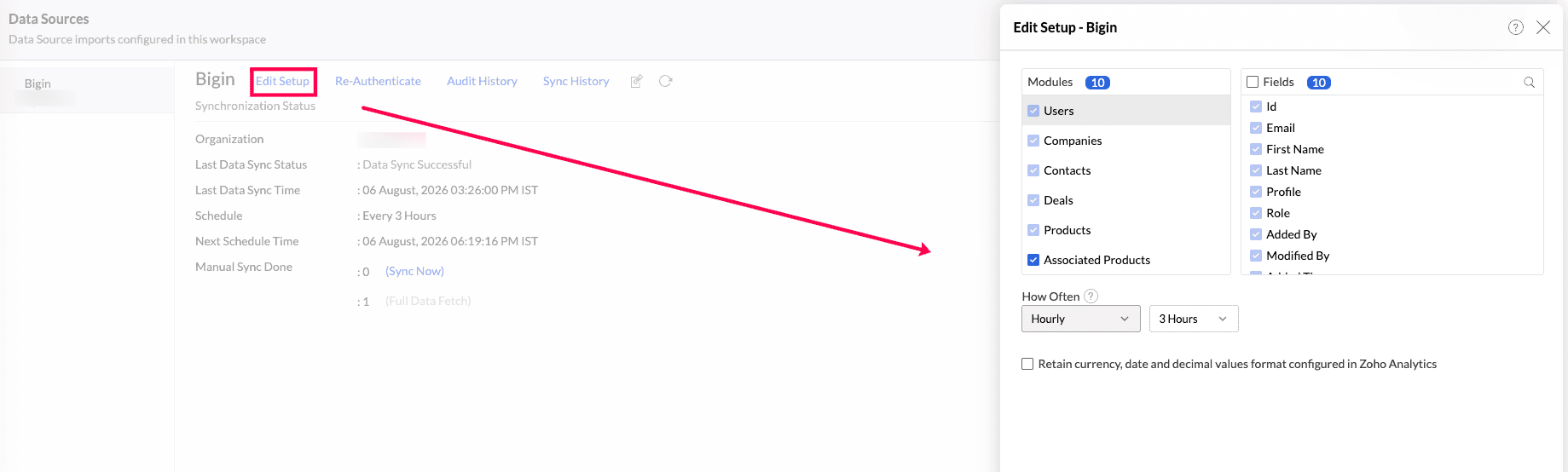
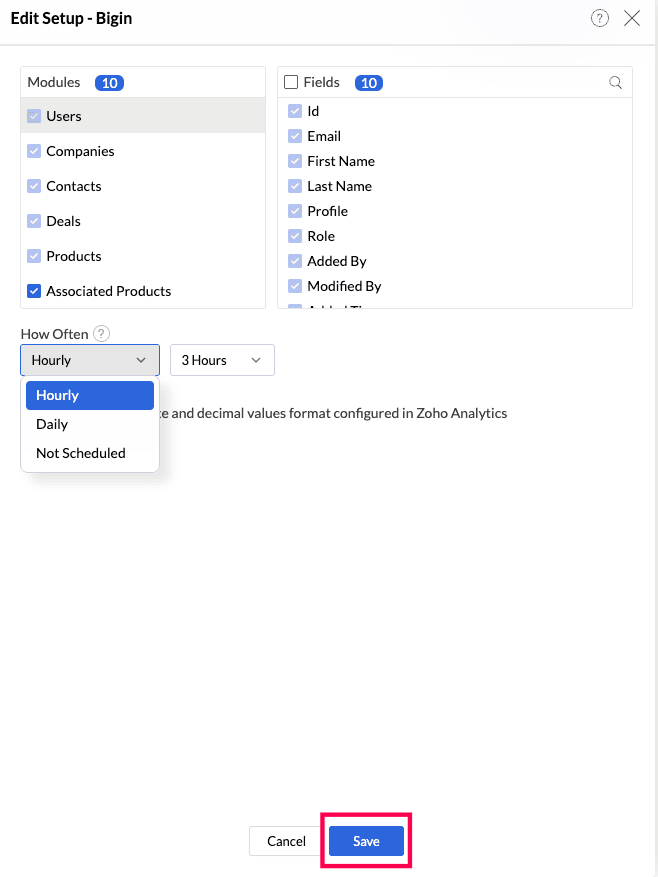
To edit the connection and synchronization settings, select Data Sources -> Zoho Bigin from the side panel.
The synchronization summary is displayed with the following data:
- Last data sync status: Status of the most recent synchronization from Zoho Bigin.
- Last data sync time: Time at which the most recent synchronization was completed.
- Schedule: The frequency of data synchronization between Zoho Analytics and Zoho Bigin.
- Next Schedule time: Time at which the next data synchronization is scheduled to happen.
To edit the setup, click the Edit Setup link, modify the settings as needed, and click Save.
6. How do I create custom reports over my Zoho Bigin data?
You can easily create custom reports in the form of charts, pivot tables, summary and tabular views in Zoho Analytics. Click the corresponding links to learn more about creating reports. These reports can also be organized together to form intuitive dashboards. Refer this documentation to learn more about creating dashboards.
7. Can I set up the Zoho Bigin integration in existing workspaces in Zoho Analytics?
Yes. Follow the steps below to do this.
Open the required workspace, click the Create button from the side panel, and select the New Table / Import Data option.
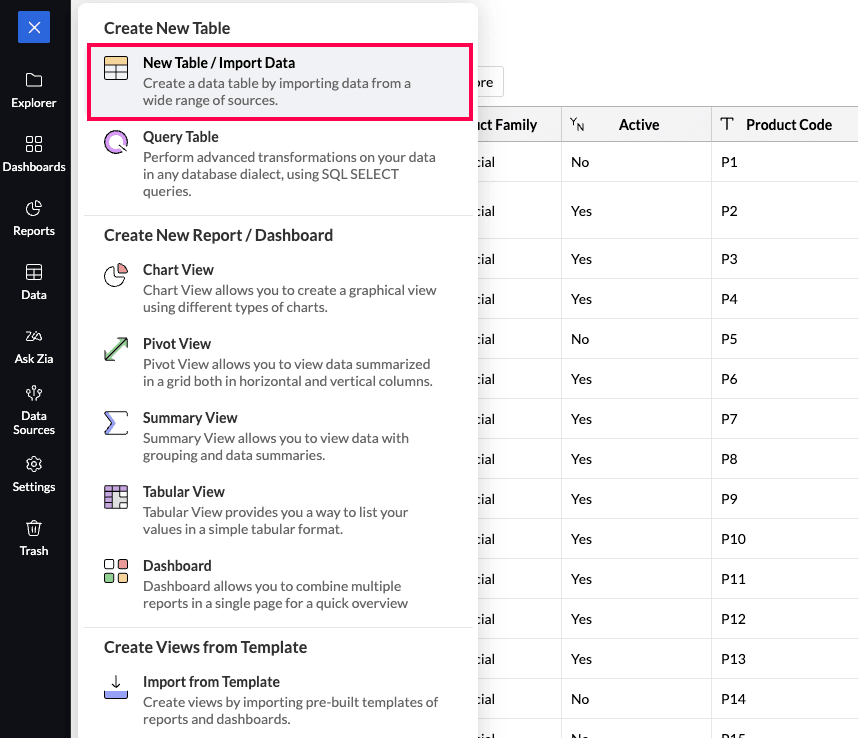
- Select the required Zoho Bigin tile in the Import Your Data screen that appears, and follow the setup procedure.
8. Is it possible to create multiple Zoho Bigin integration setups in Zoho Analytics?
Yes. Follow the steps below to do this.
- Open the required workspace, click the Create button from the side panel, and select the New Table / Import Data option.
- Select the required Zoho Bigin tile in the Import Your Data screen that appears, and enter the details of the required Zoho Bigin account according to the usual setup procedure.
9. How do I remove this setup?
Open the corresponding workspace, and click the Data Sources option from the side panel.
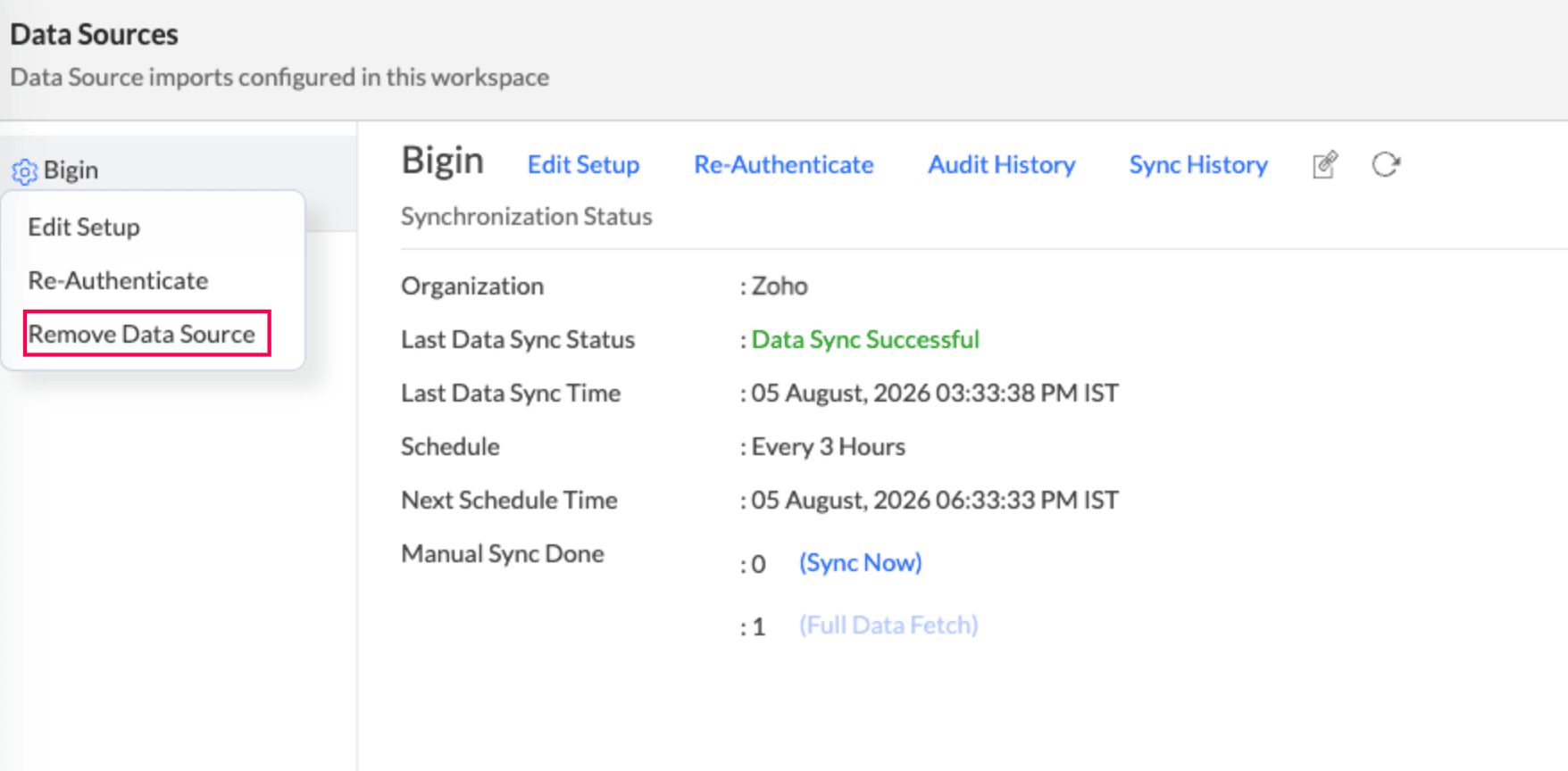
- Click the Settings icon that appears on mouse over the data source's name, and select Remove Data.
Reporting Features
1. What are the report types supported by Zoho Analytics?
Zoho Analytics supports a wide variety of reports, in the form of charts, pivot tables, summary views and tabular views. To know more about the various types of reports, click here. To know more about dashboards and KPI widgets, click here.
2. Can I modify the pre-built reports created on integrating with Zoho Bigin?
Yes. If you are the administrator or a workspace administrator of the workspace in which the integration is set up, click the Edit Design button in a report's toolbar and make the required changes. If you are a user to whom a report is shared, save a copy of the report by clicking Save > Save As, and modify the copied version as needed.
3. How do I create reports using fields/columns across different Zoho Bigin modules?
Columns from different Zoho Bigin modules are joined by default. Therefore, reports can be created over this data by simply dragging and dropping the respective columns in the report builder. Click here to learn more about creating reports.
4. What are formulas in reports?
Formulas are calculations that can be defined using the powerful formula engine in Zoho Analytics, to create required reports. Refer this documentation to know more. There are also several default formulas created based on the Zoho Bigin modules. To view the default formulas, open the required table, click Add and select the Edit Formulas option.
5. Is it possible to create custom formulas in Zoho Analytics?
Yes. Refer this documentation to learn more.
6. Can I modify the tables imported from Zoho Bigin?
The data from Zoho Bigin is synchronized with Zoho Analytics automatically, and stored in the form of various tables. Therefore, it is not possible to add data or modify the existing data present in these tables.
7. Can I add new columns to the tables imported from Zoho Bigin?
No. However, you can add Formula Columns and Aggregate Formulas to these tables, to help create custom reports. Refer this documentation to know more.
8. Can I import new tables into the Zoho Bigin workspace?
To do this, open the Zoho Bigin workspace, click Create from the side panel and select the New Table / Import Data option. You can integrate with other applications, or choose to import data stored in local files, web URLs, local databases, cloud databases and cloud drives. Click the corresponding links to know more.
9. Can I combine data from other sources with the data from Zoho Bigin, and create reports and dashboards?
Yes. To do this, import or add a new table to the Zoho Bigin workspace and define a lookup relationship between the added data and the existing data in the workspace. To define a lookup relationship between two tables, it is essential that the tables have at least one column in common between them. Follow the below steps to establish a lookup relationship.
- Open the corresponding table, right click the column header and select the Change to Lookup Column option.
- In the dialog that opens, select the column from the second table to look up.
- Click OK.
Click here to learn more about lookup columns.
10. What are Query Tables?
Using query tables, Zoho Analytics allows you to import the required data required by writing standard SQL queries. This feature also allows you to combine data from different tables, and create reports from the combined data. Refer this documentation to know more.
Sharing & Collaboration
1. How do I share reports, dashboards, and tables in Zoho Analytics?
You can share the out-of-the-box reports, dashboards and tables, and the ones you create, with other users easily. Refer this documentation to know more.
2. Why are my colleagues unable to access the reports I create?
The Zoho Bigin workspace can be accessed only by the administrator who set up the integration. To allow other users to access the out-of-the-box reports and dashboards, you can share the reports and dashboards as needed. Refer this documentation to know more.
3. Can other users create reports using the tables in the Zoho Bigin workspace?
Yes. To do this, share the required table with the users with the required permissions and filters.
4. Is it possible to share the same report to multiple users such that they each see different data?
Yes, you can do this by creating Variables. This allows you to share the report to several users, with associated filter criteria so that each user can access only the data specific to them. To learn more, refer this documentation.
5. Can I export a report or a dashboard?
Yes, you can export the report or dashboard in various formats such as CSV, EXCEL, PDF, HTML and image. To learn more, refer this documentation.
6. How do I print the reports and dashboards created in Zoho Analytics?
To do this, export the report or dashboard in the required format and print the exported file. To learn more about exporting a view in Zoho Analytics, refer this documentation.
Note: To export a shared report or dashboard, the Export permission has to be enabled.
7. Can I email reports and dashboards at scheduled times?
Yes, you can easily set up email schedules. Refer this documentation to learn more.
8. Can I embed reports?
Yes. You can easily embed reports and dashboards into websites, applications or blogs. Refer this documentation to know more.
Help & Support
1. How do I get technical support on Zoho Analytics?
Technical support is free for all users, even during the trial period. You can contact technical support through:
- Email: onprem-support@zohoanalytics.com
- Phone:
- United States: +1 408 454 4202
- India: +91-44-46447058 Extn: 6222
2. Can I have get a personalized demo of this integration?
Yes, please register for a demo using the form on this page.