Advanced Analytics for GoCardless
The Zoho Analytics connector for GoCardless simplifies the integration of your payments and direct debit data, delivering rich insights into collection performance, payment success rates, customer mandates, and cash flow. By consolidating metrics such as successful payments, failed and retried collections, payouts, refunds, and chargebacks into interactive dashboards and reports, finance and operations teams can monitor the health and reliability of their payment program in real time.
- Setting up the Integration
- Handling Data Synchronization Failure
- Managing Data Sources
- Data Modeling & Preparation
- Data Blending
- How can you visualize and analyze GoCardless data?
- Sharing & Collaboration
- Help & Support
Setting up the Integration
A user with administrator privileges (Account Admin and Organization Admin) can configure the integration.
Prerequisites
Before setting up the connector in Zoho Analytics, you need to create and copy the Access Token from your GoCardless account:
- Sign in to your GoCardless account.
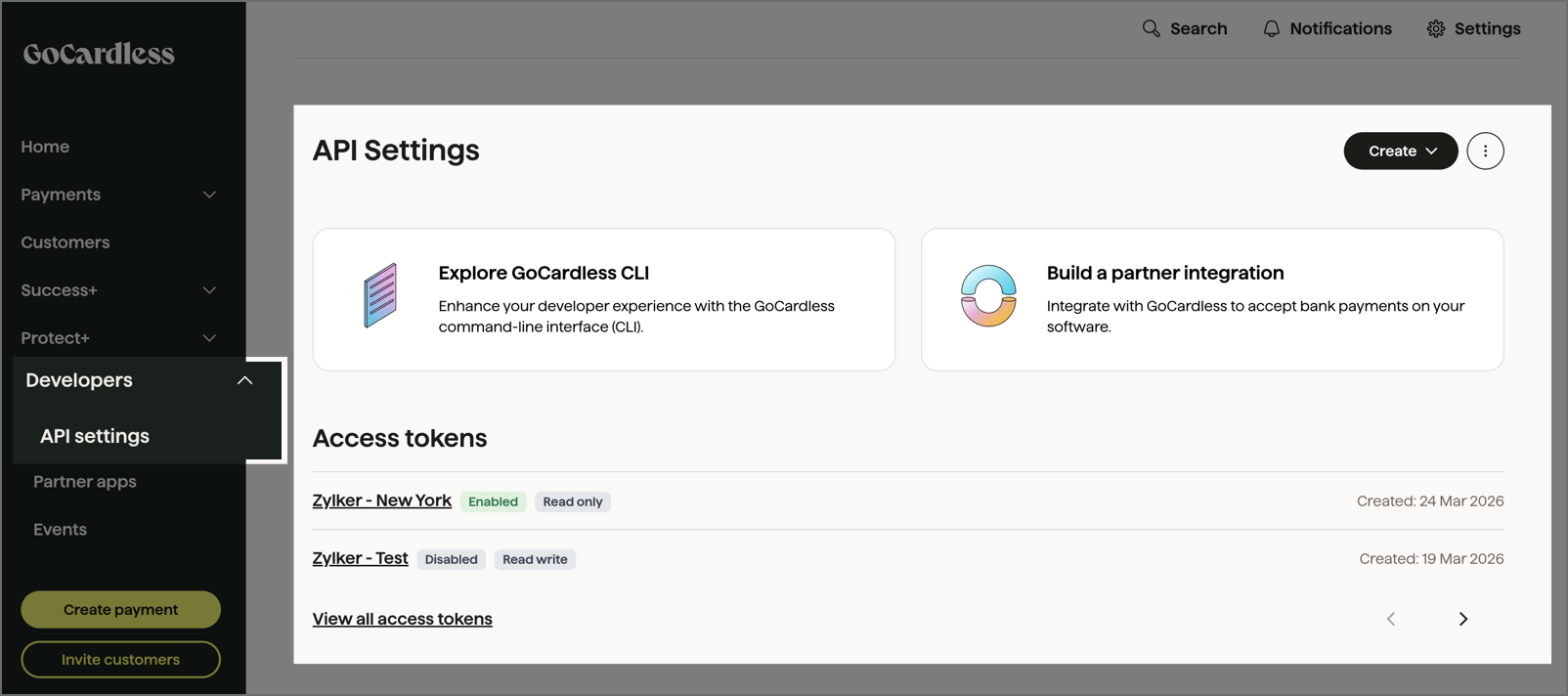
- Navigate to Developers > API Settings from the left navigation pane.
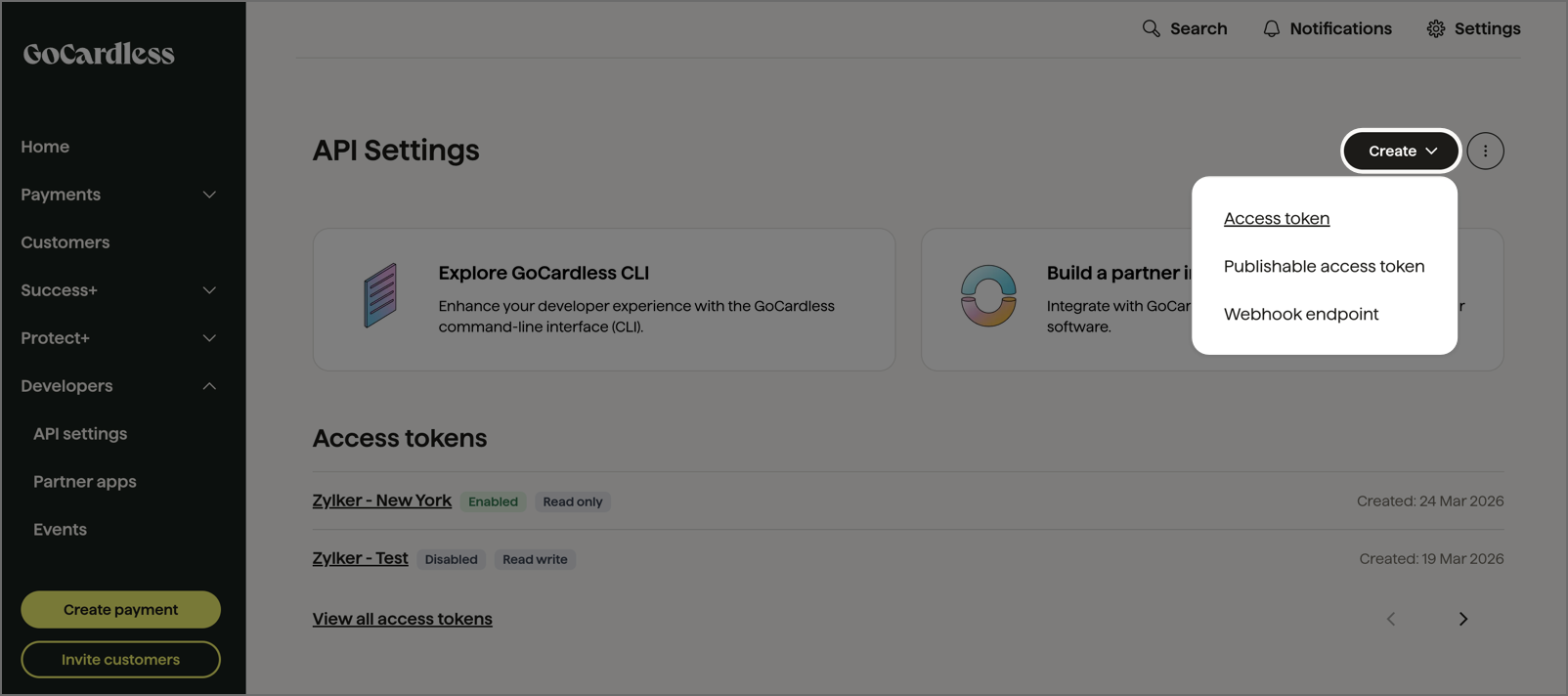
- In the API Settings page, click on Create > Access Token.
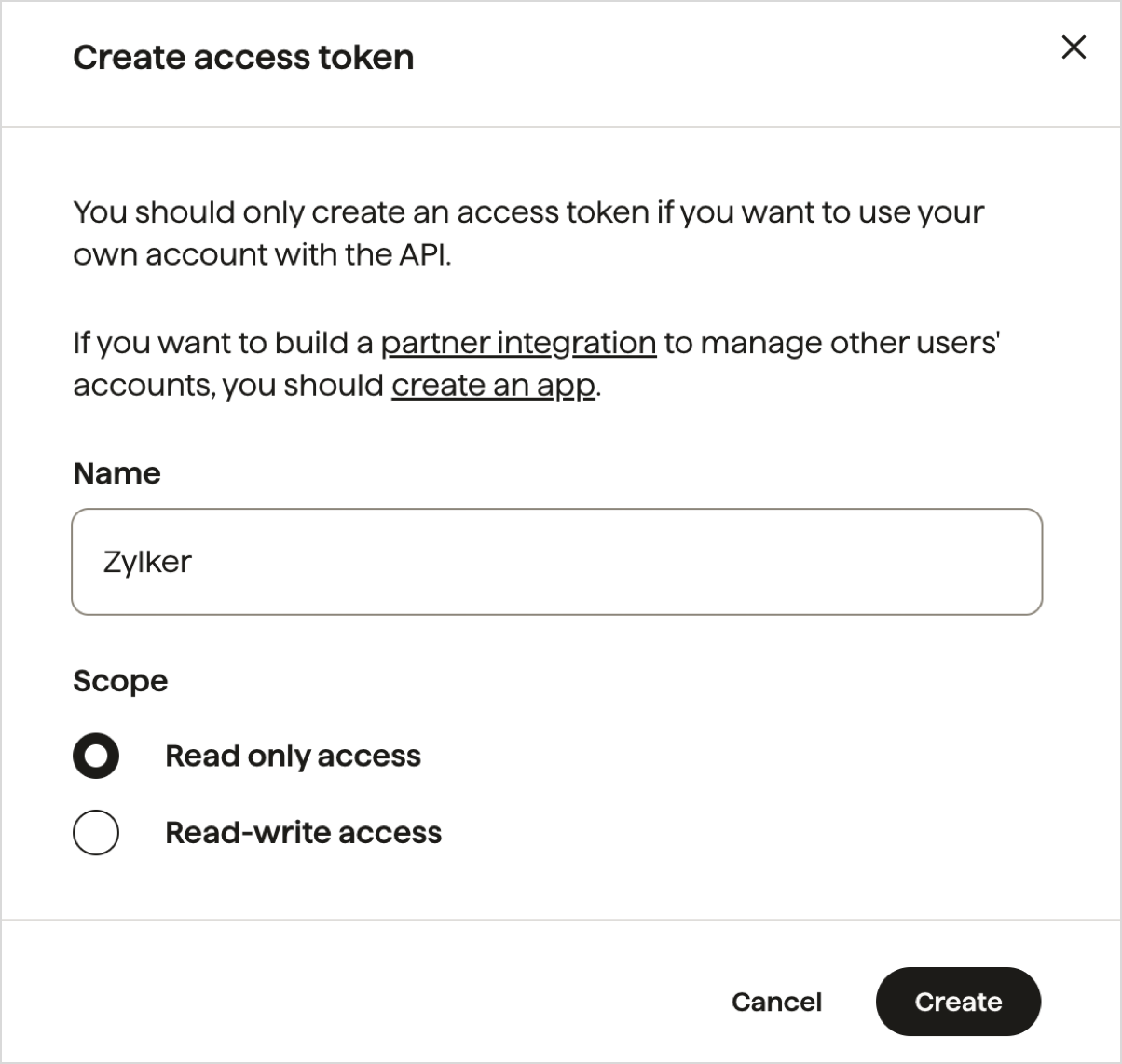
- In the Create access token dialog, enter a Name for the token and select the required Scope and click Create.
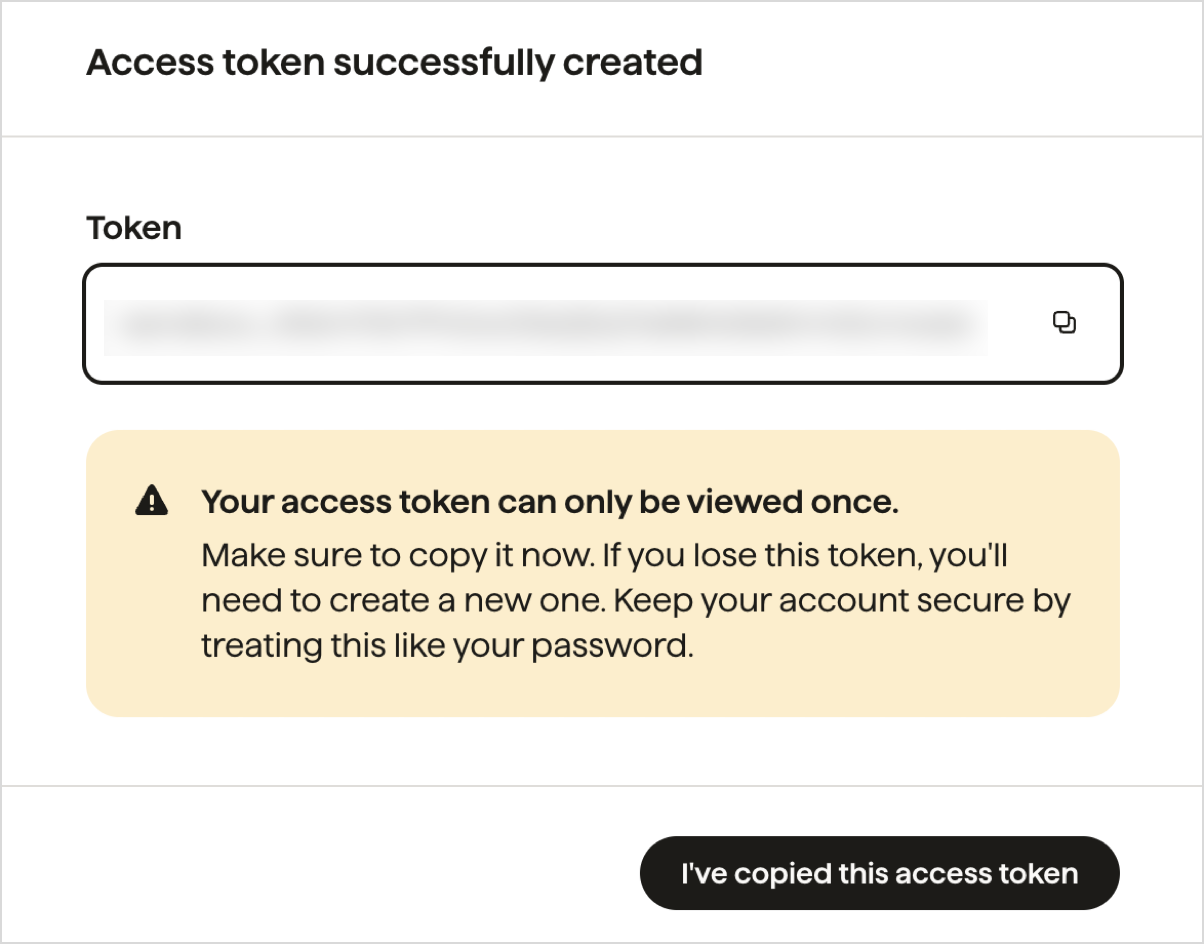
- After the token is created, copy and save the Access Token immediately. For security reasons, the token is displayed only once and cannot be viewed again later. If the token is lost, you must generate a new Access Token.
Import your GoCardless data into Zoho Analytics
Follow the below steps to import your GoCardless data into Zoho Analytics seamlessly:
- On the Zoho Analytics home page, click Import Your Data.
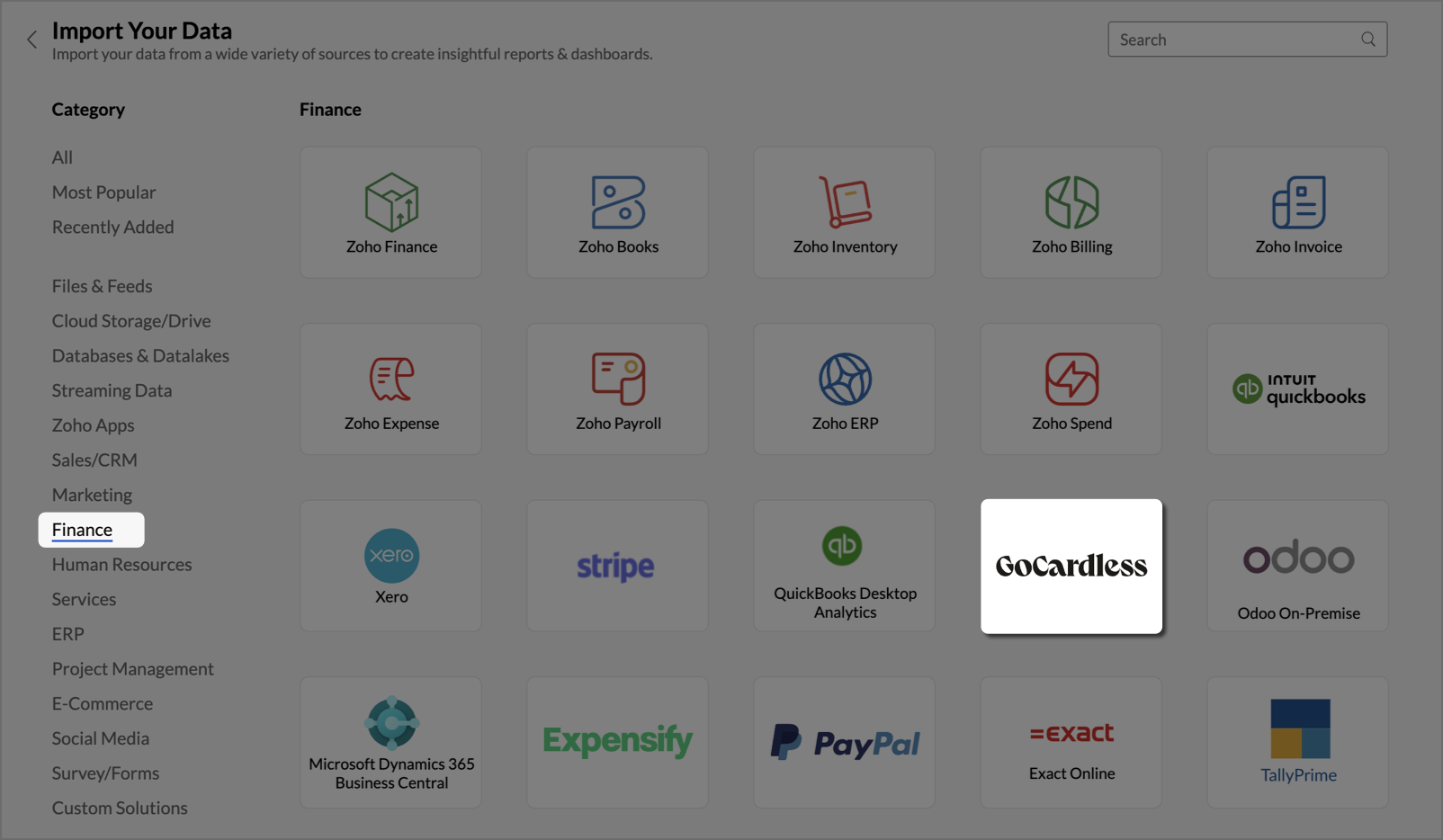
- Navigate to the Finance tab and select GoCardless from the available data sources.
- In the Step 1: Import From GoCardless dialog, enter the Workspace Name and Workspace Description (optional).
- Enter the AccessToken you copied from your GoCardless account.
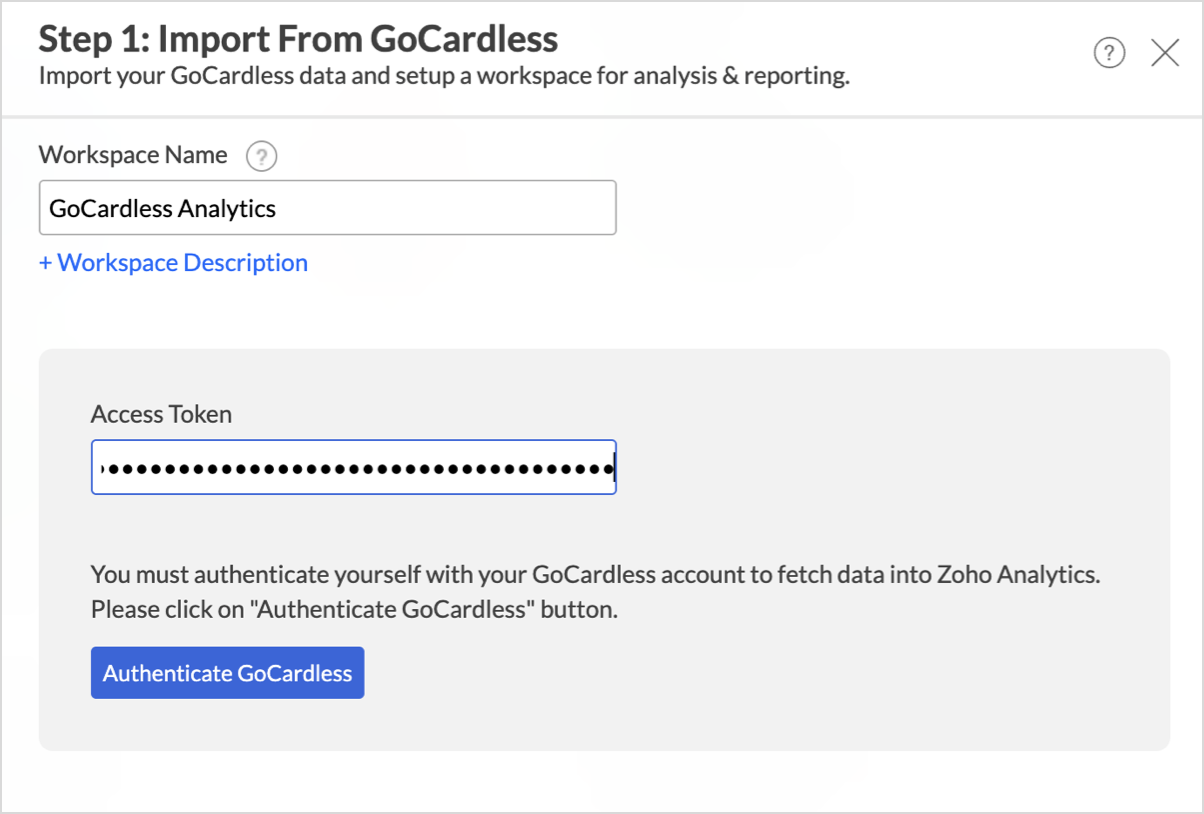
- Click Authenticate GoCardless to validate.
- In the Step 2: Import From GoCardless dialog, select the Modules and Fields you want to analyze.
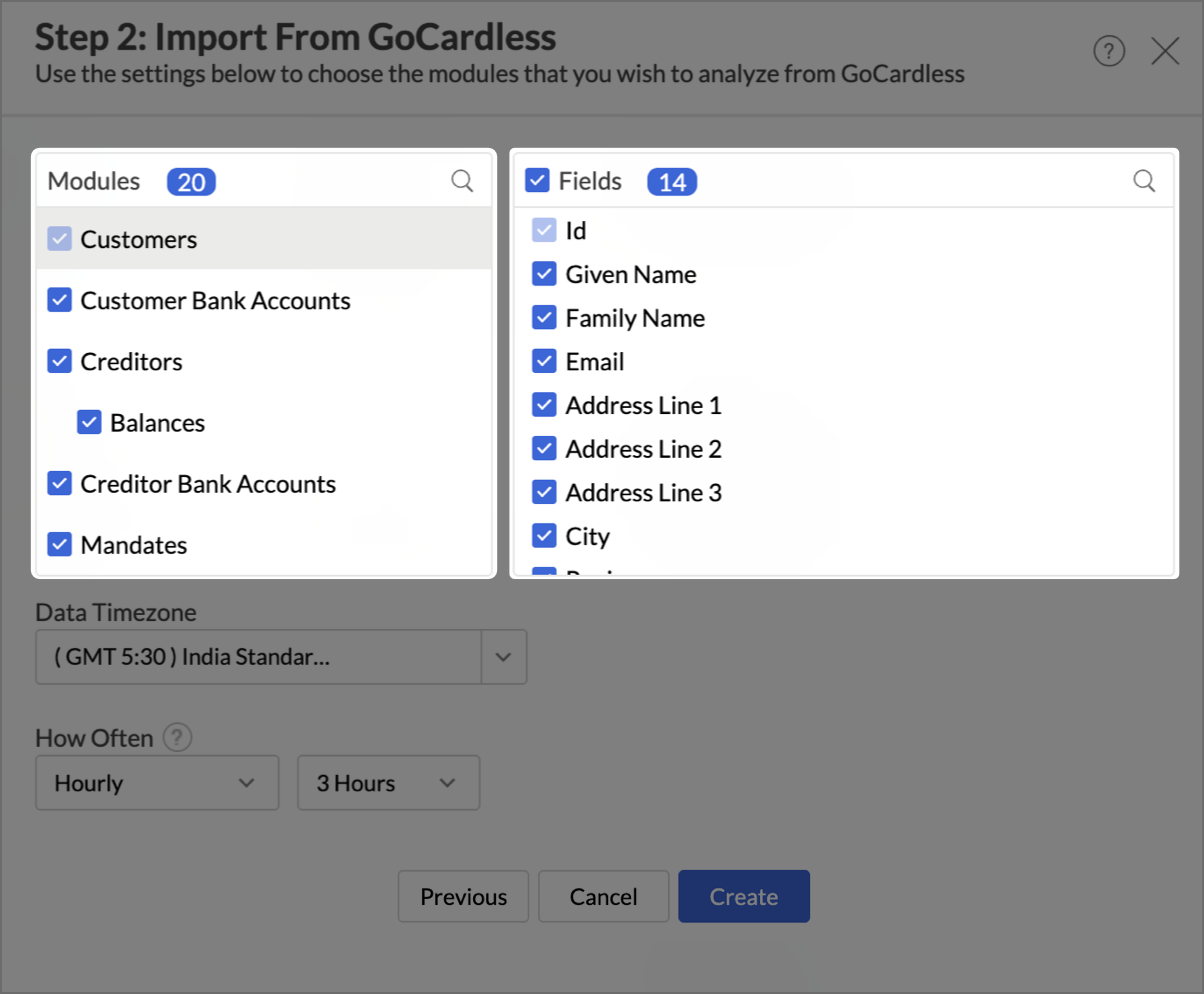
- Select the Data Timezone in which the date and time values should be interpreted.
- From the How Often section, choose the interval in which the data should be synced. Refer to the Data Sync Frequency section to learn more.
- Click Create. Import will be initiated.
Note:
- The initial fetch might take a few minutes depending on the volume of the data to be imported. An email and an in-app notification will be sent once the initial fetch is complete.
- The setup process can sometimes fail for a variety of reasons. In this case, we request you to access the Data Sources tab and click the Retry link to import again. If the issue persists, write to us at support@zohoanalytics.com.
Modules & Fields
The below table lists the modules and fields that will be synced to Zoho Analytics.
| Module | Fields |
| Customers | Id, Given Name, Family Name, Email, Address Line 1, Address Line 2, Address Line 3, City, Region, Postal Code, Country Code, Language, Created At, Salesforce ID |
| Customer Bank Accounts | Id, Account Holder Name, Account Number Ending, Account Type, Bank Name, Country Code, Currency, Enabled, Created At, Customer ID |
| Creditors | Id, Name, Created At, Address Line 1, Address Line 2, Address Line 3, City, Region, Postal Code, Country Code, Logo URL, Creditor Type, Verification Status, Can Create Refunds, FX Payout Currency, Mandate Imports Enabled, Custom Payment Pages Enabled, Merchant Responsible For Notifications, Bank Reference Prefix |
| Balances | Balance Type, Amount, Currency, Last Updated At, Creditor ID |
| Creditor Bank Accounts | Id, Created At, Account Holder Name, Account Number Ending, Account Type, Country Code, Currency, Bank Name, Enabled, Verification Status, Creditor ID |
| Mandates | Id, Created At, Reference, Status, Scheme, Next Possible Charge Date, Mandate Type, Contract, Customer ID, Creditor ID, Customer Bank Account ID |
| Subscriptions | Id, Name, Created At, Currency, Amount, Interval Unit, Status, Mandate ID, Day of Month, Month, Start Date, End Date, Payment Reference, Retry If Possible, Earliest Charge Date After Resume, Parent Plan Paused |
| Subscription Upcoming Payments | Id, Upcoming Payment Charge Date, Upcoming Payment Amount |
| Instalment Schedules | Id, Name, Currency, Status, Total Amount, Mandate ID, Customer ID |
| Payments | Id, Amount, Amount Refunded, Charge Date, Order Dispatch Date, Created At, Currency, Description, Reference, Retry If Possible, Status, FX Currency, FX Amount, Exchange Rate, Estimated Exchange Rate, Mandate ID, Creditor ID |
| Refunds | Id, Amount, Currency, Created At, Reference, Status, FX Currency, FX Amount, Exchange Rate, Estimated Exchange Rate, Reason, Payment ID |
| Payouts | Id, Amount, Deducted Fees, Currency, Created At, Arrival Date, Reference, Status, Payout Type, Tax Currency, FX Currency, FX Amount, Exchange Rate, Creditor ID, Creditor Bank Account ID |
| Payout Items | Payout ID, Amount, Type, Payment ID |
| Payment Accounts | Id, Account Holder Name, Account Number Ending, Bank Name, Currency, Account Balance, Creditor ID |
| Payment Account Transactions | Id, Amount, Currency, Description, Reference, Direction, Value Date, Balance After Transaction, Counterparty Name, Payment Bank Account ID, Payout ID |
| Billing Requests | Id, Created At, Status, Payment Request Description, Payment Request Currency, Payment Request Amount, Payment Request Scheme, Customer ID, Customer Billing Detail ID, Customer Bank Account ID |
| Events | Id, Created At, Action, Resource Type, Cause, Details Description, Origin, Reason Code, Scheme, Payment ID, Mandate ID, Payout ID, Refund ID, Subscription ID, Creditor ID, Customer ID, Customer Bank Account ID, Resource Metadata |
| Blocks | Id, Block Type, Reason Type, Resource Reference, Active, Created At, Updated At |
| Currency Exchange Rates | Rate, Source Currency, Target Currency, Time |
| Tax Rates | Id, Jurisdiction, Type, Percentage, Start Date, End Date |
Data Sync Frequency
Zoho Analytics offers flexible sync schedules to ensure that your data is always up-to-date for effective analysis. These schedules allow you to automate the process of updating your data, ensuring that your analyses are based on the latest information.
- 1 Hour (Enterprise plan)
- 3 Hours (Standard plan and above)
- 6 Hours (Standard plan and above)
- 12 Hours (Standard plan and above)
- Daily (Basic plan and above)
Handling Data Synchronization Failure
Data synchronization can fail if,
- Authentication to the GoCardless account has expired or was revoked.
- The data type of a field is changed in the GoCardless application.
- The Modules and Fields selected for analysis are deleted in the source application.
- The user who configured the integration no longer has permission to access the modules.
In any of the above mentioned cases, the data sync will be paused. You will be notified via email and in-app notification with the exact reason for failure along with the solution.
To resolve the sync failure, delete or restructure the views, or restore the specific modules and fields from the source application. Refer to Data Sync failure and solutions article for more details.
Once you have made the changes, click the Sync now option to resume the data sync. If the issue persists, mail us at support@zohoanalytics.com.
Managing Data Sources
The Data Sources tab provides essential information to monitor and manage the integration setup. It also allows you to edit the settings as needed. Users with administrator privileges will be able to view and modify the connection settings.

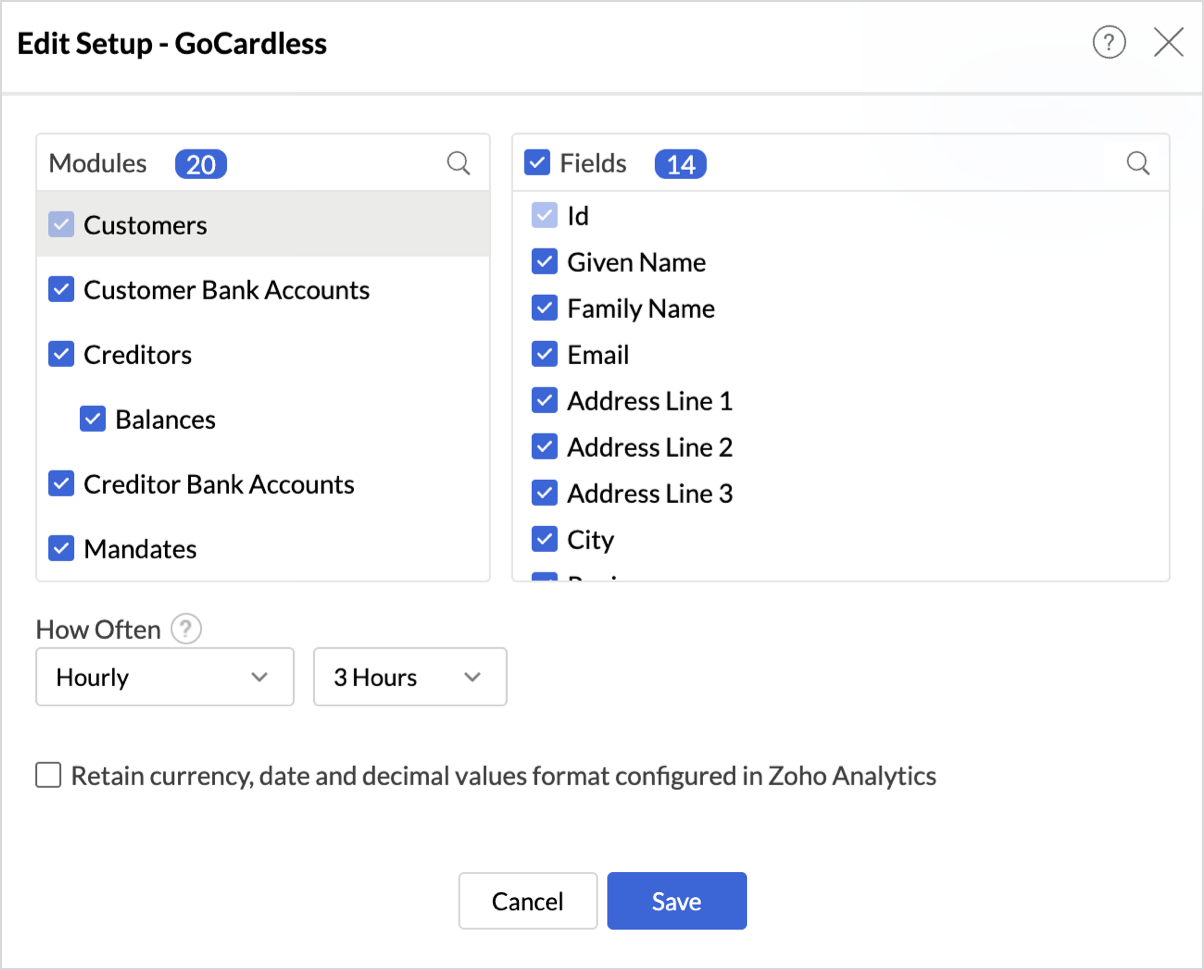
- Edit Setup: The Edit Setup tab allows you to add or delete modules or fields, change the schedule interval, and modify other settings specific to the business application.
To modify the settings,
Click Data Sources > Edit Setup.- The Edit Setup - GoCardless dialog will open.
- Modify the settings as needed and click Save.
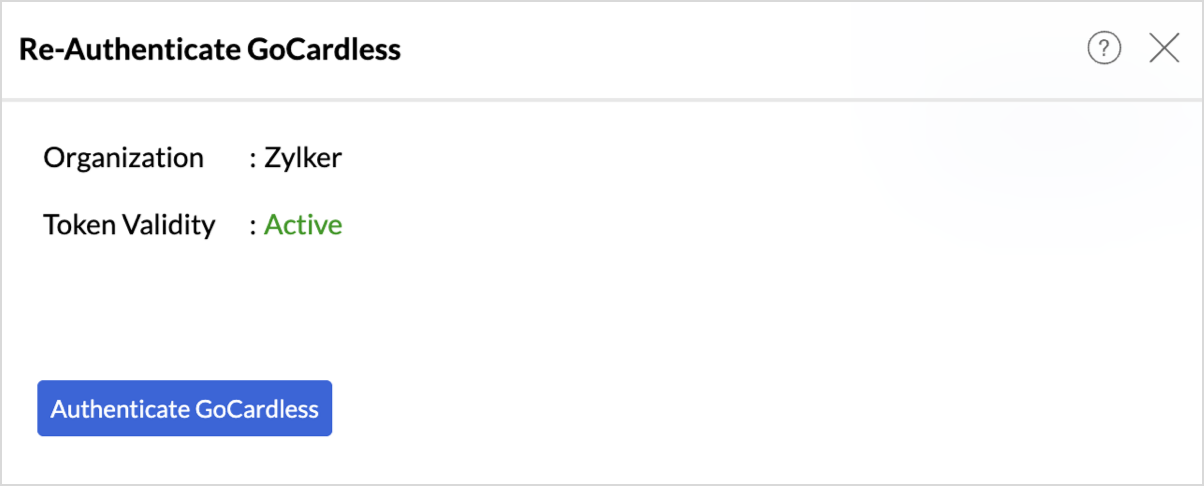
- Re-Authenticate: Re-authentication will be helpful when the API key or credentials are changed. In this case, the data sync will be paused, and the administrator who configured the connector must re-authenticate to resume the data sync.
To re-authenticate,- Click Data Sources > Re-Authenticate.
- The Re-Authenticate GoCardless dialog will open. Enter the credentials and click Authenticate GoCardless.
- Audit History: Use Audit History to review user actions and system events recorded for the GoCardless data source. Learn more.
- Sync History: Use Sync History to review data sync activity for the last 45 days, including sync time, status, and failure details. Learn more.
- Data Source URL: Use the Data Source URL to open the Data Sources tab and view sync status, last sync time, and next scheduled sync. Learn more.
- Remove Data Source: Use Remove Data Source to stop sync and delete the GoCardless tables, reports, and dashboards associated with the integration. Learn more.
Transferring GoCardless Connector to Another Admin
If the user who configured the GoCardless connector leaves the organization or hands over administration responsibilities, ownership of the connector can be transferred to another administrator. This ensures uninterrupted data sync and continued access to the workspace.
For detailed steps on transferring connector ownership, refer here.
Data Modeling & Preparation
Zoho Analytics lets you prepare and model your GoCardless data for analysis. Join tables using lookup columns or query tables, create formulas, and clean or transform data as needed. For more context on data modeling and preparation, see Data Modeling & Preparation.
Formulas
Zoho Analytics provides a set of pre-built formulas along with the connector. To access these formulas, open your GoCardless Advanced Analytics workspace, click Data from the side panel, and click Unified Metrics. This lists all the prebuilt formulas and other formulas available across the workspace.
You can also create your own custom formulas in Zoho Analytics. To know how to create your own formulas, refer to Formulas (Calculations).
Data Blending
Data Blending combines data from GoCardless with data from other data sources to create correlation reports and dashboards. When you import multiple data sources into the same workspace, Zoho Analytics identifies the relationships between them and blends the data using lookup columns and query tables.
For the complete steps on blending data across sources, see Data Blending.
How can you visualize and analyze GoCardless data?
Zoho Analytics allows you to create a wide range of visualizations to analyze GoCardless data and gain actionable insights into your email program. You can build reports and dashboards to track delivery and bounce rates, monitor open and click engagement, analyze spam reports and unsubscribes, evaluate sender reputation, and measure overall email performance across campaigns and recipients.
- Zoho Analytics offers a wide range of visualization types to conduct your analysis. Refer to the Creating Reports section to learn more. The chart type primer lists all the viz types available in Zoho Analytics.
- With Predictive analytics, forecast future trends, detect anomalies, and segment data using Cluster analysis.
- Find the What, Why, and How behind any outcome with Zia Insights.
Sharing & Collaboration
- Use fine-grained permission control over your shared data and reports, while collaborating with your colleagues & friends.
- Efficiently collaborate with your users by setting up real-time commenting on a shared view.
- Publish reports for wider consumption. Embed reports/dashboards within your websites, web applications, and blogs.
- Export, email, and print reports in a variety of formats.
- Use Zoho Analytics mobile apps (optimized for both iOS and Android platforms) and access data, reports, and dashboards on the go.
Help & Support
We offer 24x5 technical support (Monday to Friday). In case if you need our assistance, kindly do mail us your questions to support@zohoanalytics.com.
You can also reach out to us on our toll-free numbers.
United States: +1 (888) 900 9646
United Kingdom: +44 (20) 35647890
Australia: +61-2-80662898
India: +91 44 6965 6060