SMTP server configuration: Settings and step-by-step guide
- Published : June 22, 2026
- Last Updated : June 23, 2026
- 446 Views
- 6 Min Read

Every email you send—whether it’s transactional or promotional—relies on the correct SMTP server configuration. If your SMTP settings are incorrect, emails may fail to send, land in spam folders, or might not reach recipients at all.
In this article, we’ll break down what SMTP server configuration means, the settings you need, and how to configure an SMTP server step by step. You’ll also learn how to configure SMTP for transactional emails using Zoho ZeptoMail.
What does SMTP configuration mean?
Simple Mail Transfer Protocol (SMTP) is the standard protocol used to send emails across the internet. Without a proper SMTP setup, your app has no reliable way to send emails.
SMTP configuration is the process of setting up the configurations required to send emails through an SMTP server. When you configure an SMTP server, you must specify:
- Which SMTP server to use.
- Which port to connect through.
- How to authenticate.
- How to secure the connection.
- How to verify your domain.
The components of SMTP configuration
SMTP server address
This is the domain name or IP address of the mail server responsible for sending outgoing emails on your behalf.
Always use the hostname (domain name) instead of a raw IP address. It’s more stable during server IP changes and meets the security requirements of SSL/TLS certificates.
- ZeptoMail: smtp.zeptomail.com
- Zoho Mail: smtp.zoho.com
- Custom domain: smtp.yourcompany.com
Port
The port is a specific communication channel that your application uses to connect to the SMTP server. Different ports have different purposes and use different security protocols.
Port 587 with STARTTLS is recommended port for most applications.
| Port | Use Case |
| 25 | Server-to-server email relay (not for apps). |
| 465 | SMTP over SSL—encrypted from the start. |
| 587 | SMTP with STARTTLS—the recommended choice for applications. |
Credentials
SMTP credentials are used to verify your identity. They include a username and password (or API key) to prove that your application has permission to use the SMTP server. Without authentication, anyone could use the server to send email, which would quickly lead to spam complains and blacklisting.
Encryption
Encryption protects your email data as it travels between your application and the SMTP server. Two common encryption methods are:
- STARTTLS (Port 587): It starts with a plain text (“hello”) but upgrades to encryption quickly before sending sensitive data such as passwords or email content.
- SSL/TLS (Port 465): It’s encrypted from the very first second. If the encryption handshake fails, no connection happens at all.
Domain authentication
Domain authentication is a method used to confirm that an email sender is authorized to send messages representing a specific domain. This tells receiving mail servers that your emails are legitimate and not spam or forged.
It has three parts:
- SPF: Lists which servers are allowed to send email from your domain.
- DKIM: Adds a digital signature to each email so recipients can verify it wasn’t changed or tampered during transit.
- DMARC: Tells receiving servers what to do if SPF or DKIM checks fail (quarantine, reject, or do nothing).
If you don’t have these records in your DNS, your emails are more likely to be flagged as spam—or rejected completely.
How to configure SMTP server—step by step
1. Set the SMTP host and credentials
Log into your email provider (Zoho Mail, ZeptoMail, or Google Workspace) and go to your SMTP settings and note these details:
- Server address: The hostname of your SMTP provider (e.g., smtp.zeptomail.com).
- Username: Your account username or API key.
- Password: Your account password or API token.
2. Choose the right port (25, 465, 587, 2525)
Port selection comes down to your usage and what your network allows.
Port 587: It’s the standard for SMTP submission and works with STARTTLS encryption. Almost all SMTP providers support it, and most network firewalls allow it.
Port 465: Use this if your application only supports SSL/TLS and doesn’t handle STARTTLS.
Port 2525: Some corporate networks and ISPs block port 587. Port 2525 is a non-standard alternative that gets around those restrictions.
Port 25: Avoid it for email application. It’s designed for server-to-server relay, and most ISPs block it for outbound traffic to prevent spam.
3. Configure encryption (STARTTLS vs. SSL/TLS)
Choose your encryption method to match the port you selected.
STARTTLS (port 587): Your app connects without encryption, then sends a STARTTLS command to upgrade to an encrypted connection before any email data is sent. This method is more flexible and widely supported.
SSL/TLS (port 465): The encrypted connection is established immediately. There’s no unencrypted phase at all.
4. Enable SMTP authentication
Most SMTP providers require SMTP authentication to ensure that only authorized users can send emails. Your application needs to provide credentials before the server will accept any outgoing mail. Without it, your connection will be refused.
Enable SMTP authentication in your application settings and enter the SMTP username and password.
5. Configure SPF, DKIM, and DMARC
Add these three DNS records at your domain registrar to prove your emails are legitimate.
SPF record:Sender Policy Framework (SPF) lists the mail servers authorized to send email on behalf of your domain. SPF:
- Confirms sender authenticity.
- Improves email deliverability.
DKIM:DomainKeys Identified Mail (DKIM) adds a digital signature to outgoing emails. DKIM:
- Verifies message integrity.
- Confirms sender authenticity.
DMARC:Domain-based Message Authentication, Reporting, and Conformance (DMARC) tells receiving servers how to handle authentication failures. DMARC:
- Protects your domain.
- Reduces phishing risks.
6. Test and verify the configuration
Before going live, send a test email to multiple providers (such as Gmail, Outlook, and Yahoo) to check your SMTP setup.
Check for:
- Successful SMTP connection.
- Authentication success.
- Email delivery.
- Inbox placement.
- Bounce handling.
SMTP configuration best practices and troubleshooting
Best practices
Use SPF, DKIM, and DMARC: Improve your domain’s reputation and ensure high deliverability by adding SPF records to authorize servers, DKIM to cryptographically sign emails, and DMARC to specify how email receivers should handle unauthenticated messages.
Always use encrypted connections: Use port 587 with STARTTLS or port 465 with SSL/TLS. Never send credentials or email content over an unencrypted connection because it could lead to data breaches, unauthorized access, or privacy violations.
Store credentials in environment variables: Hardcoding SMTP passwords in application code is a security risk. Use your platform to secure passwords secrets management.
Add IP restrictions when possible: If your SMTP provider supports it, whitelist only the IP addresses your application sends from. ZeptoMail offers an IP restriction setting in your account for exactly this purpose.
Keep your bounce rate low: Remove invalid addresses from your list promptly. A high bounce rate signals to ISPs that you’re not maintaining your list, which leads to lower deliverability.
Common issues and fixes
Authentication failed
- Double-check username and password and try to copy-paste rather than typing.
- Confirm whether authentication is enabled in your application settings.
Connection refused/timeout
- Open the correct port in your firewall.
- Verify the SMTP host address.
- Check that your ISP isn’t blocking the port.
Emails going to spam
- Verify that SPF, DKIM, and DMARC records are correctly configured.
- Review your email content for spam trigger words.
TLS/SSL handshake errors
- Ensure that you’re using TLS v1.2 or later.
- Confirm that your SSL certificate is valid and not expired.
- Check that your application’s TLS settings match the server’s requirements.
Configure SMTP for transactional email with ZeptoMail
Transactional emails need to arrive fast, reliably, and in the inbox. Using a dedicated transactional email service such as Zoho ZeptoMail gives you better deliverability, stable infrastructure, and detailed email logs.
ZeptoMail’s SMTP services are specifically designed for transactional emails. It supports both Email API and SMTP integration, making it easy to connect with applications, websites, and businesses regardless of their technical setup.
To configure SMTP in ZeptoMail, go to the SMTP/API tab and copy-paste the following details in the SMTP configuration of your application.
- Server name: smtp.zeptomail.com
- Port number, authentication: 465 (SSL), 587 (TLS)
- Username: emailapikey
- Password: Your account’s API token (copy it from the dashboard in your ZeptoMail account.)
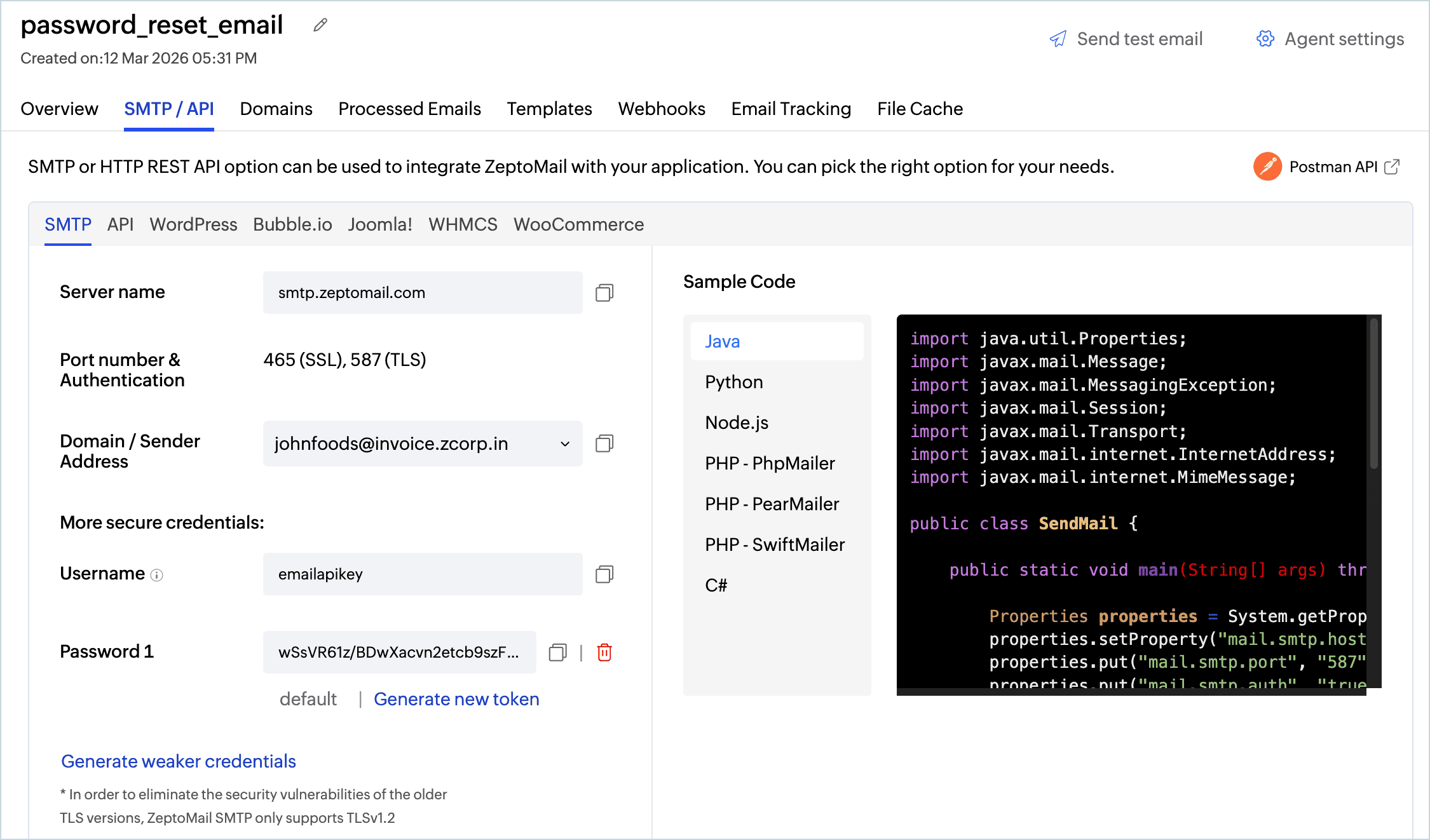
Once you’ve completed the SMTP setup in ZeptoMail, send a test email to check your email deliverability. This step also verifies that the email was successfully delivered to the recipient’s inbox, passing all authentication checks.
FAQ
1. What are the basic SMTP server configuration settings?
The basic SMTP server configuration settings include the SMTP host address, port number, username, password, and encryption method (SSL/TLS or STARTTLS). You should also configure domain authentication records such as SPF, DKIM, and DMARC for better deliverability.
2. Which port should be used when configuring an SMTP server?
Port 587 is the recommended port because it supports STARTTLS encryption and is widely supported by email providers. Port 465 is commonly used for SSL/TLS connections, while port 25 is mainly used for server-to-server communication.
3. How do you configure SMTP authentication?
Enable SMTP authentication in your application or email client and enter the SMTP username and password provided by your email service provider. Select the correct authentication method and encryption settings to establish a secure connection.
4. When does error 535 throw during SMTP authentication?
SMTP error 535 usually occurs when the server rejects the login credentials during authentication. This can happen because of an incorrect username or password, disabled SMTP access, invalid authentication settings, or account security restrictions.
5. How do you test SMTP authentication?
You can test SMTP authentication by sending a test email from your application or email client using the configured SMTP settings. Verify that the server accepts the credentials, establishes a connection successfully, and delivers the email without authentication errors.