How to send emails from WordPress: Methods, issues, and fixes
- Published : April 1, 2026
- Last Updated : April 2, 2026
- 397 Views
- 8 Min Read

WordPress is one of the most widely used platforms for blogs, business websites, and eCommerce stores. If you run a WordPress site, then you already know how important email is to your day-to-day work. From password resets and new order notifications to contact form messages and user registrations, your site depends on these transactional emails for almost everything. And most importantly, those emails actually need to reach the inbox.
However, there’s one detail many site owners don’t realize at first. WordPress’s default email system doesn’t always deliver emails consistently. This is one of the biggest issues when trying to send email from WordPress.
Let’s say a customer fills out your contact form. A user signs up for your newsletter or someone places an order on your WooCommerce store. And none of them got confirmation emails from your side, or it landed in their spam folders. That’s a serious issue for customer trust and your site’s reputation, and it happens more often than you’d expect.
This usually comes down to how WordPress sends email. By default it relies on PHP’s built in wp_mail() function, and that’s where things can go wrong. Most hosting servers either block or restrict this function to prevent spam abuse. People often send emails, but they usually end up in the spam folder or vanish completely. As a result, WordPress mail delivery often fails, making it difficult to send emails.
How does WordPress send emails?
WordPress uses PHP’s built-in function called the wp_mail() to handle WordPress mail for nearly all outgoing emails. This includes:
- Password reset emails.
- New user registration confirmations.
- Comment notifications.
- Contact form submissions.
- WooCommerce order confirmations.
The wp_mail() function is built on top of PHP’s native mail() function. When you trigger any email in WordPress, it hands the job off to wp_mail(), which then asks the server to send it using PHP mail.
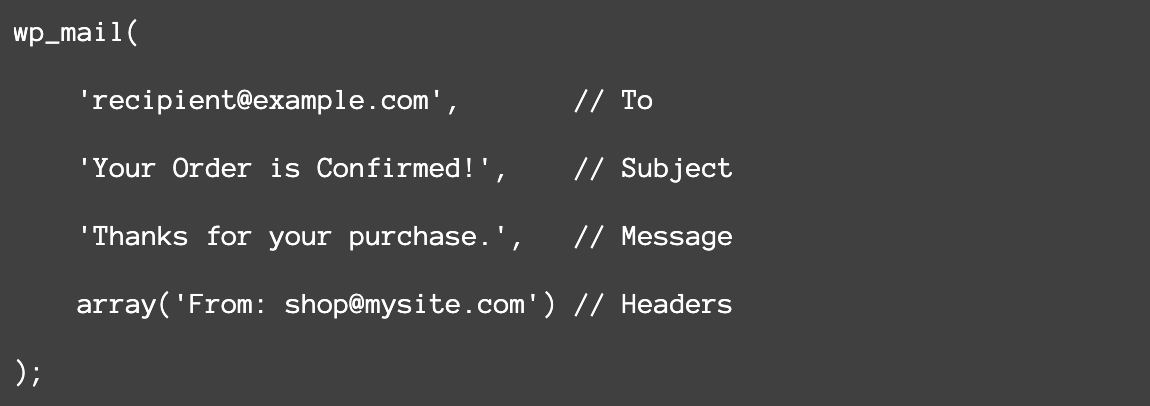
The email is handed off to the server’s PHP mail setup, but most hosting providers either cripple or block it entirely. And if the email is sent, it arrives without any authentication, which makes spam filters suspicious. Particularly in Gmail, Outlook, and Yahoo Mail, these unauthenticated emails get flagged as spam or blocked completely. This is why most people move to SMTP or an SMTP plugin instead.
Common WordPress email issues
Even after setup, you may still face problems with WordPress mail delivery. Here are the most common issues.
Emails going to the spam folder
This usually means your emails aren’t authenticated. Make sure your domain has SPF, DKIM, and DMARC records properly set up. ZeptoMail guides you through this when you verify your domain.
Emails not being sent at all
This is often a server configuration issue or a wrong SMTP setting. Double-check your host, port, username, and password. Also check that your hosting provider hasn’t blocked outbound SMTP connections.
Emails sent but not arriving
Could be a spam filter on the recipient’s side, or a deliverability issue with your sender domain. Check your email logs for bounces.
WooCommerce emails not working
WooCommerce has its own email settings. Go to WooCommerce > Settings > Emails and ensure that each email type is enabled. Then check your SMTP configuration to ensure it’s catching WooCommerce’s wp_mail()calls too.
Contact Form 7/Gravity Forms emails not arriving
These plugins often have their own From address settings that may conflict with your SMTP setup. Make sure the From address in your form plugin matches a verified sender address in your email service.
Duplicate emails
This can happen if multiple SMTP plugins or configurations are active at the same time. Check for conflicting plugins and deactivate any you’re not using.
What is WordPress SMTP?
Simple Mail Transfer Protocol (SMTP) is the standard way email servers talk to each other. WordPress relies on PHP mail, which doesn’t have a proper authentication process. This is why your emails often fail to deliver or end up in spam.
With WordPress SMTP, you can route your emails through a trusted and authenticated email server such as Gmail, Zoho, SendGrid, or a dedicated SMTP provider. This is the most reliable way to fix WordPress send email issues. SMTP helps in:
- Authentication: SMTP verifies your identity with a username and password, so email providers know your messages are legitimate.
- Better deliverability: Authenticated emails are much more likely to land in the inbox, not in spam folders.
- Reliability: Unlike PHP mail, SMTP connections are tracked and you’ll get proper error messages if something goes wrong.
- Stronger reputation: Using services such as Zoho ZeptoMail helps build trust, so your emails get delivered consistently.
Send emails using WordPress plugins
Plugins are one of the easiest ways to set up WordPress send email functionality using SMTP. There’s no need for manual configuration and even beginners can set it up within just a few clicks.
Using the ZeptoMail WordPress plugin
The ZeptoMail WordPress plugin makes it really easy to configure how to send email from WordPress using ZeptoMail’s reliable email infrastructure.
Requirements:
- A ZeptoMail account (you can sign up at zeptomail.zoho.com).
- A self-hosted WordPress site.
- PHP 5.6 or later.
1. Install the ZeptoMail plugin
- Log into your WordPress admin dashboard.
- In the left menu, go to Plugins > Add New.
- Type ZeptoMail in the search bar and install the plugin.
- Once installed, click Activate.
2. Get your Send Mail token from ZeptoMail
Before you configure the plugin, you need a Send Mail token. This is your authentication key; it tells ZeptoMail’s servers that the requests are coming from your website.
- Log into your Zoho ZeptoMail account.
- Go to the relevant Agent or create an Agent inside ZeptoMail. This acts as the sending identity for your WordPress site.
- In the Agent settings, go to the SMTP/API section. Copy your existing Send Mail token, or click Generate New Token.
3. Configure the ZeptoMail plugin in WordPress
Now head back to your WordPress dashboard.
- Click ZeptoMail in the left sidebar, then go to Account Configuration.
- Choose your Hosted Region. This is where your Zoho account data is stored.
- Select the Email Format: HTML or Plain Text.
- Enter your From Name and verified sender address.
- Paste in your Send Mail Token. You can add up to three From addresses and Send Mail tokens. One can be set as the default.
- Choose how many email logs you want to keep.
- Click Save and Test Configuration.
If everything’s entered correctly, the plugin will validate the configuration and confirm it’s working. If you see an error, double-check your token and From address.
4. Send a test email
Once configured, always send a test email to confirm that everything works.
- Go to ZeptoMail > Test Mail in your WordPress dashboard.
- Fill in the From address, To address, Subject, and Content fields and click Send Mail.
- Check the inbox of the recipient email. If the email arrives, you're all set!
Other WordPress email sending plugins
These plugins help improve WordPress mail delivery and fix common issues.
WP Mail SMTP: This plugin supports Gmail, Outlook, SendGrid, Mailgun, and other email services. It has a free version that covers most use cases and a Pro version with email logs and priority support.
FluentSMTP: A newer plugin that includes features like email logs, multiple connection support, and a clean dashboard.
Easy WP SMTP: Simple for beginners who just need basic SMTP setup without all of the extras.
Post SMTP: Previously known as Postman SMTP, this plugin offers delivery diagnostics, email logging, and fallback options. It’s particularly useful if you want to troubleshoot exactly what’s happening with your emails.
How to send emails without a plugin
This method gives you full control over how to send email from WordPress, but be careful while using credentials. You can configure SMTP directly in your WordPress theme or a custom plugin using a small snippet of PHP code.
Here’s how to set it up manually using the phpmailer_init hook:
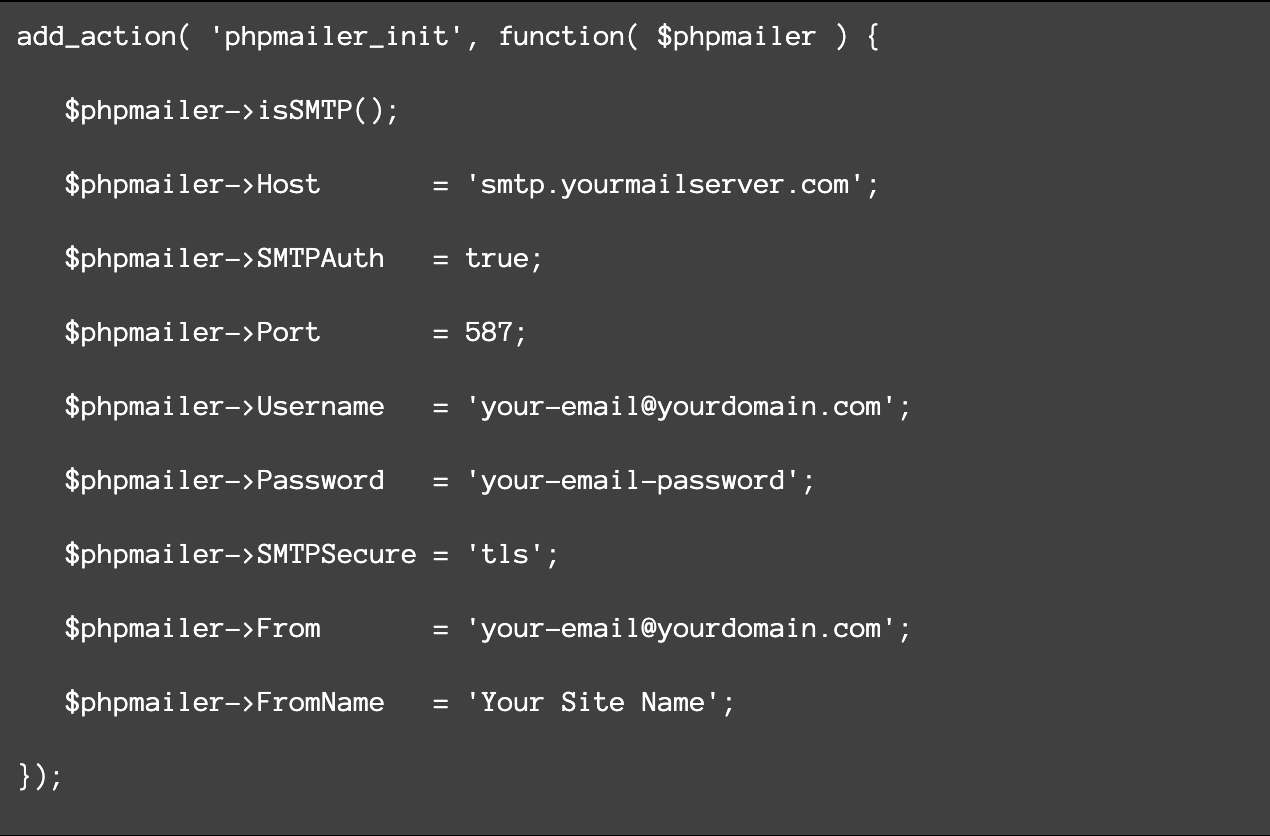
Add this code to your theme’s functions.php file or to a site-specific plugin. Replace the placeholder values with your actual SMTP login credentials.
Note: Don’t store credentials directly in this file, use wp-config.php for better security.
How to test WordPress email sending
Before going live, always test your setup to ensure that your WordPress send email configuration is working correctly. Here are a few ways to do that.
Use the ZeptoMail plugin’s Test Mail feature
As mentioned above, go to ZeptoMail > Test Mail and send a test email. It’s the quickest and most reliable method if you’re using the plugin.
Use a dedicated testing plugin
The Check and Log Email plugin (or similar) lets you send a test email and view a full log of email activity from your WordPress dashboard. It’s useful for verifying your setup without having to trigger real site actions.
Trigger a real action
The most realistic test is just doing what your users do. Try submitting your contact form, resetting your password, or placing a test order in WooCommerce. Check whether the email arrives and check your spam folder, too.
Use Mail Tester
Mail Tester gives you a temporary email address. Send a test email to that address and get a detailed report on your email’s deliverability, spam score, and authentication status.
What to do if WordPress doesn’t send your emails
If your site fails to send email from WordPress, follow these steps.
1. Install an SMTP plugin
This is the single most effective fix. Install the ZeptoMail plugin or WP Mail SMTP and connect it to a reliable email service. This immediately bypasses the broken PHP mail() issue.
2. Verify your Sender domain
Log into your email service (like ZeptoMail) and verify your sender domain. This means adding DNS records such as SPF and DKIM to your domain registrar.
3. Check your From address
Make sure the From address you’re using in WordPress matches a verified sender address in your email service. A mismatch here is a frequent reason for email failures.
4. Check hosting restrictions
Some shared hosting providers block outgoing SMTP on port 25. Try using port 587 (TLS) or port 465 (SSL) instead. Contact your hosting provider if you’re unsure what’s allowed.
5. Review your email logs
The ZeptoMail plugin has a built-in Email Logs section. Check it for error codes and failed delivery reasons. This will tell you exactly what’s going wrong and point you toward the fix.
6. Test again
After making any change, always send a test email to confirm the fix worked.
Wrapping up
Getting WordPress to send emails reliably doesn’t have to be complicated. While the default WordPress mail system isn’t built for high deliverability, switching to SMTP makes a huge difference. Set it up once, test it properly, and you won’t have to worry about WordPress email issues again.
FAQ
Why is WordPress not sending emails by default?
WordPress relies on PHP's mail()function, which often leads to delivery issues. Most hosting environments aren’t set up this way, so emails either don’t send at all or get flagged as spam. Installing an SMTP plugin resolves this issue by sending emails via a mail server that’s securely authenticated.
Why is wp_mail() not working?
It usually fails because your hosting provider blocks or limits PHP mail, or your server isn’t configured properly. It can also fail silently, making it harder to detect issues.
What’s the best way to send emails from WordPress?
The best way to send email from WordPress is by using SMTP with a trusted email provider such as ZeptoMail or SendGrid.
Is it possible to send WordPress email without a plugin?
Yes, you can use the phpmailer_init hook in your functions.php file to configure SMTP settings directly. However, this approach is more technical and comes with risks if not done carefully. A plugin is recommended for most users.
How do you stop WordPress emails from going to spam?
To improve WordPress mail deliverability, set up SPF, DKIM, and DMARC records and use a verified email service such as Zoho ZeptoMail instead of relying on your web server. Also make sure your From email matches a verified sender domain.
How do you test if WordPress is sending emails correctly?
Use the Test Mail feature in the ZeptoMail plugin, or install a plugin like Check and Log Email. You can also use the free tool at mail-tester.com for a full deliverability report.