Update Connections
Summary
This guide explains how to update existing connections in Zoho Sigma. It covers modifying connection details, refreshing credentials, and ensuring your extension uses the updated connection information.
When to Update Connections
- Credentials expire or need renewal
- Service credentials are compromised
- API keys need rotation
- Permission scopes need to be modified
- Service configuration changes
- Account migration
Step-by-Step Guide
Step 1: Access Connections in Sigma
- Navigate to Zoho Sigma
- Click Connections in the left navigation
- Find your connection under "My Connections"
Step 2: Open Connection for Editing
- Option A: Hover over the connection and click the Edit icon that appears
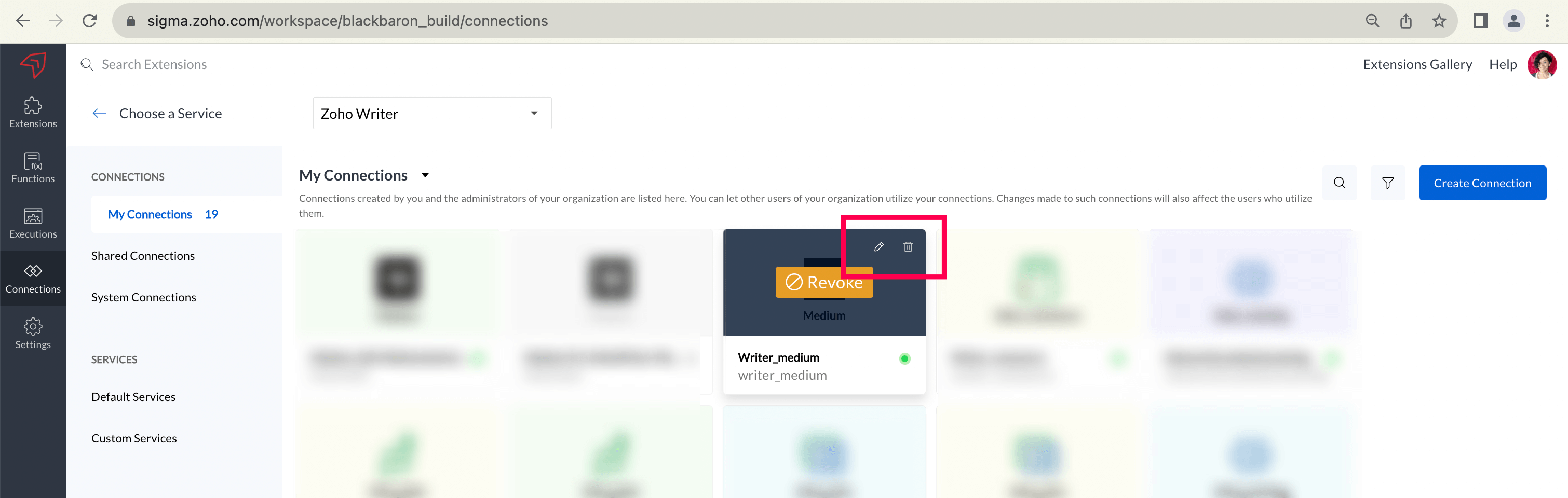
- Option B: Click the connection name → Click More Icon (three dots) → Select Edit
Step 3: Make Changes
| Field | Can Update? | Notes |
|---|---|---|
| Connection Name | Yes | Display name only |
| Connection Link Name | No | Read-only after creation |
| Scopes | Yes | Add or remove permissions |
| Credentials | Yes | Re-authenticate to update |
| Service-specific settings | Yes | Depends on service |
Step 4: Update Credentials (If Needed)
- For OAuth: Click "Reconnect" → Follow service login flow → Grant updated permissions
- For Basic Auth: Update username/password → Verify credentials
- For API Key: Update API key value → Ensure service recognizes the new key
Step 5: Save Changes
Click Update. Zoho validates the changes and saves the updated configuration. Re-authenticate if prompted.
Update plugin-manifest.json
Note: The Connection Link Name cannot change, so the plugin-manifest reference remains valid. However, if scopes or service details change significantly, get the updated connection JSON from Sigma and replace the entry in
connectors.{
"connectors": [
// Replace OLD connection JSON with the new one copied from Sigma
{
"name": "salesforce_connection",
"type": "OAuth",
"authorizationUrl": "https://...",
"scopes": ["api", "refresh_token", "contacts"] // Updated scopes
}
]
}Troubleshooting
Problem: Connection still fails after update
Solution: Verify the connection shows as "Active" in Sigma. Test with a simple API call in your extension and check the browser console for error details.
Problem: Scopes change not taking effect
Solution: After updating scopes, re-authenticate the connection (click "Reconnect") so the new scope permissions are granted by the service.