How to use Read receipts in Zoho Workplace
We have access to multiple communication platforms, and therefore multiple ways to connect with others effortlessly. But regardless of what we send, who we send it to, or how we send it, one important question always remains: Has the recipient seen and acknowledged our message?
Until we receive a reply—or at least a confirmation that our message has been viewed—we're often left waiting. Our work gets stuck, and we're left unsure of what to do next.
One solution to this is to enable Read receipts—subtle but explicit indicators that your recipient has received and acknowledged your message.
Table of Contents
What are read receipts?
Read receipts are indicators that inform you that your recipient has opened and viewed the message or file you've sent them. They confirm not only that the message reached the recipient's device, but also that they actually saw it. You'll often notice them in messaging applications, emails, and social media, sometimes shown as check marks, timestamps, or a simple "Seen" indicator.
They can be useful when you want to make sure important information has been received. However, not everyone likes the idea of others knowing exactly when they've read a message, which is why most platforms let you turn read receipts on or off, depending on your preferences.
Why use read receipts?
Read receipts make your everyday communications more straightforward. Here's how they can help you:
- Improved clarity: They confirm if your message has been delivered and seen, reducing uncertainty.
- Faster decision-making: They help you determine when you should follow up or wait for a reply from your recipient.
- Better coordination: They're useful for time-sensitive conversations, such as planning important events or resolving issues.
- Transparency: They keep conversations open and honest and reduce guesswork.
Types of receipts
Messaging receipts can be categorized into two main types: delivery receipts and read receipts. The main difference between these receipts is what each one confirms about the status of your message.
| Categorization | Deliveryreceipts | Read receipts |
Meaning | Delivery receipts inform senders that their messages have successfully reached their recipients' devices or servers. | Read receipts inform senders that their recipients have opened and viewed their messages. |
| Purpose | Assure the sender that no system error or network issue have prevented the message from reaching the recipient. | Offer peace of mind and transparency by notifying the sender that the recipient has engaged with their message, which enables them to plan their next step. |
| How they work | Delivery receipts are automatically generated by recipients' servers or applications. | Read receipts should be enabled by both the senders and recipients in their server or device settings. |
| Confirmation | Delivery receipts only confirmed that sent messages have reached their recipients; they offer no indication they've reached the correct recipients, or any other details. | Read receipts confirm that the correct recipient has opened the message. |
| Example | When you send a message on an instant messaging platform, the message status will be displayed as "Delivered" on the screen. | Once the recipient has viewed your message, the message status will be marked as "Read" along with a timestamp. |
Read receipts in Zoho Workplace
Zoho Workplace consists of a suite of applications that are designed to enhance collaboration, boost productivity, and—most importantly—improve communication. Most applications in Zoho Workplace offer various indicators or read-receipt features that help you understand whether a recipient has opened your message. read-receipts-in-workplace
Zoho Mail
What better space is there to manage all your email communications than Zoho Mail? Zoho Mail is an all-in-one collaboration and email communication platform. Read receipts in Zoho Mail are usually sent as email replies. Once your recipient consents to sending read receipts, as requested by the sender, a system-generated email will be sent to the sender automatically, along with the timestamp of the action.
Read receipts in Zoho Mail can be enabled for both ends (sender and recipient), but must be enabled from the sender's end in order to request read receipts from recipients. Likewise, recipients must have the read receipts settings enabled to send read receipts.
Steps to request read receipts (while sending emails)
You can enable read receipts in two ways in Zoho Mail:
- In the Settings menu, which enables read receipts for all outgoing emails by default). To do so, follow these steps:
- Log into your Zoho Workplace account.
- Navigate to Zoho Mail from the header.
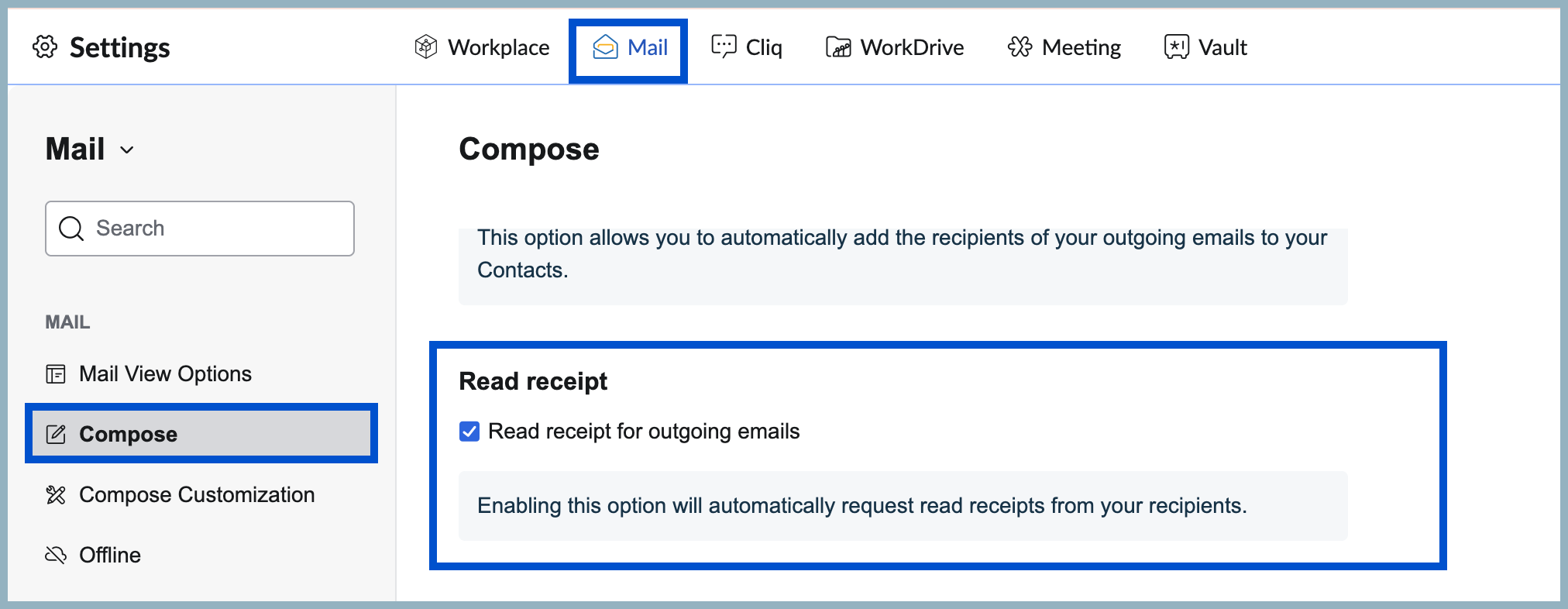
- Go to Settings > Compose > Read receipt.
- Click on the checkbox labeled Read receipt for outgoing emails.
- In the Compose page, which enables read receipts for that particular email message. To do so, follow these steps:
- Log into your Zoho Workplace account.
- Navigate to Zoho Mail from the header.
- Click on Compose and draft your email content.
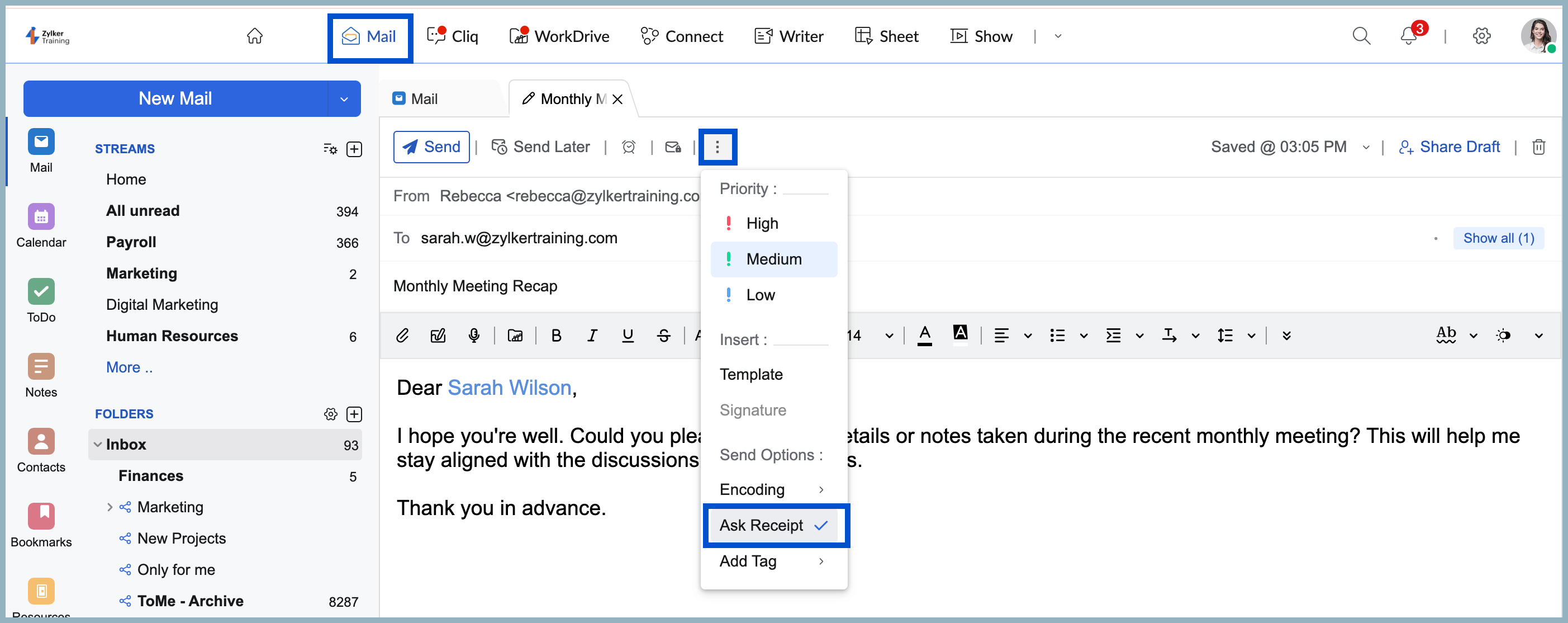
- Click on MoreOptions in the header.
- From the list of options, click on AskReceipt.
How to send read receipts as a recipient
By tweaking your Zoho Mail settings, you can auto-accept, deny, or otherwise customize how you send read receipts to other users when you receive an email.
To configure read receipts settings for emails you receive, follow these steps:
- Log into your Zoho Workplace account.
- Navigate to Zoho Mail from the header.
- Go to Settings > Mail View Options > Read receipts.
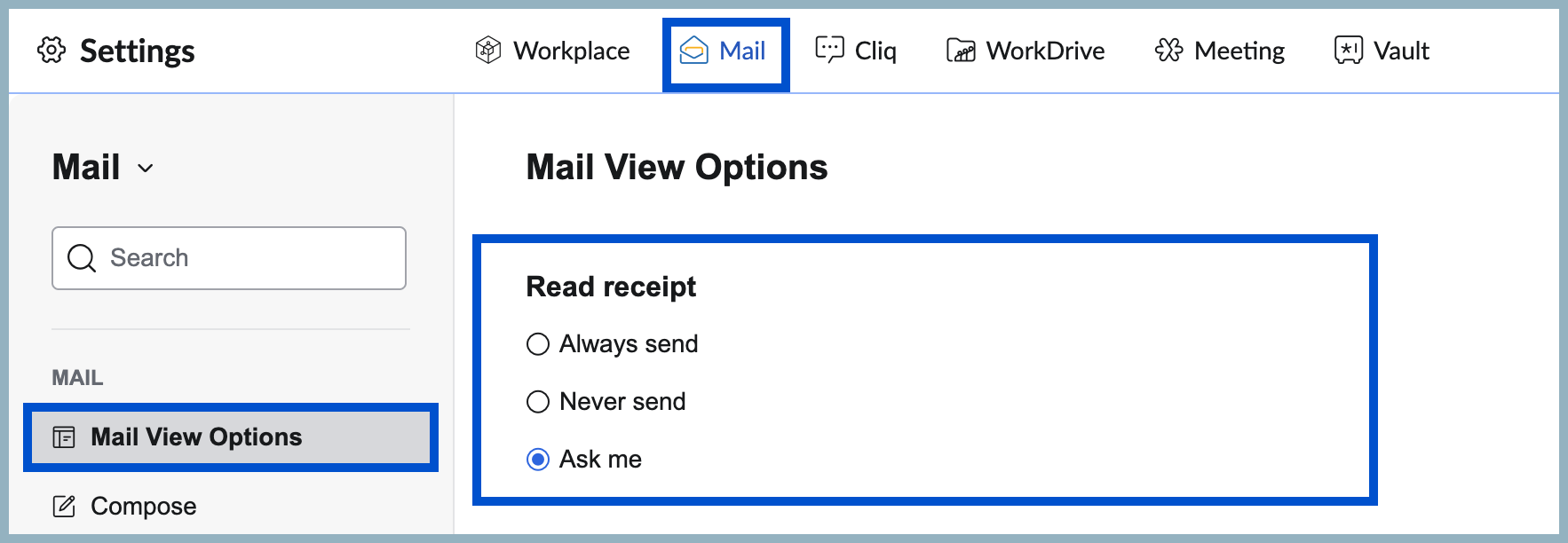
- Choose from these three options:
- Select Always Send to send read receipts to senders automatically.
- Select Never Send to never send read receipts to senders.
- Select Ask me to be asked for confirmation before sending read receipts to senders.
Once you set your read-receipt preferences, your email settings will handle all future read-receipt requests automatically. Only email messages that ask for receipts will follow the rules you've configured in your settings.
Zoho Calendar
You can manage all your events in one convenient place using Zoho Calendar. That includes organizing your schedule, setting reminders, and staying on top of important dates. Whether it's meetings, personal plans, or recurring tasks, keep everything well-structured in Zoho Calendar.
While Zoho Calendar does not offer traditional read receipts, it provides a similar feature through RSVP responses, which let you know whether recipients have acknowledged your event invitations.
How to track invitees' responses in Zoho Calendar
Once you add invitees' details in the "Invite Participants" field in Zoho Calendar, an event invite will be sent via email as well as via a Zoho Calendar notification. The event will also be added to their calendars, which enables you to track how your invitees have engaged with your invitation.
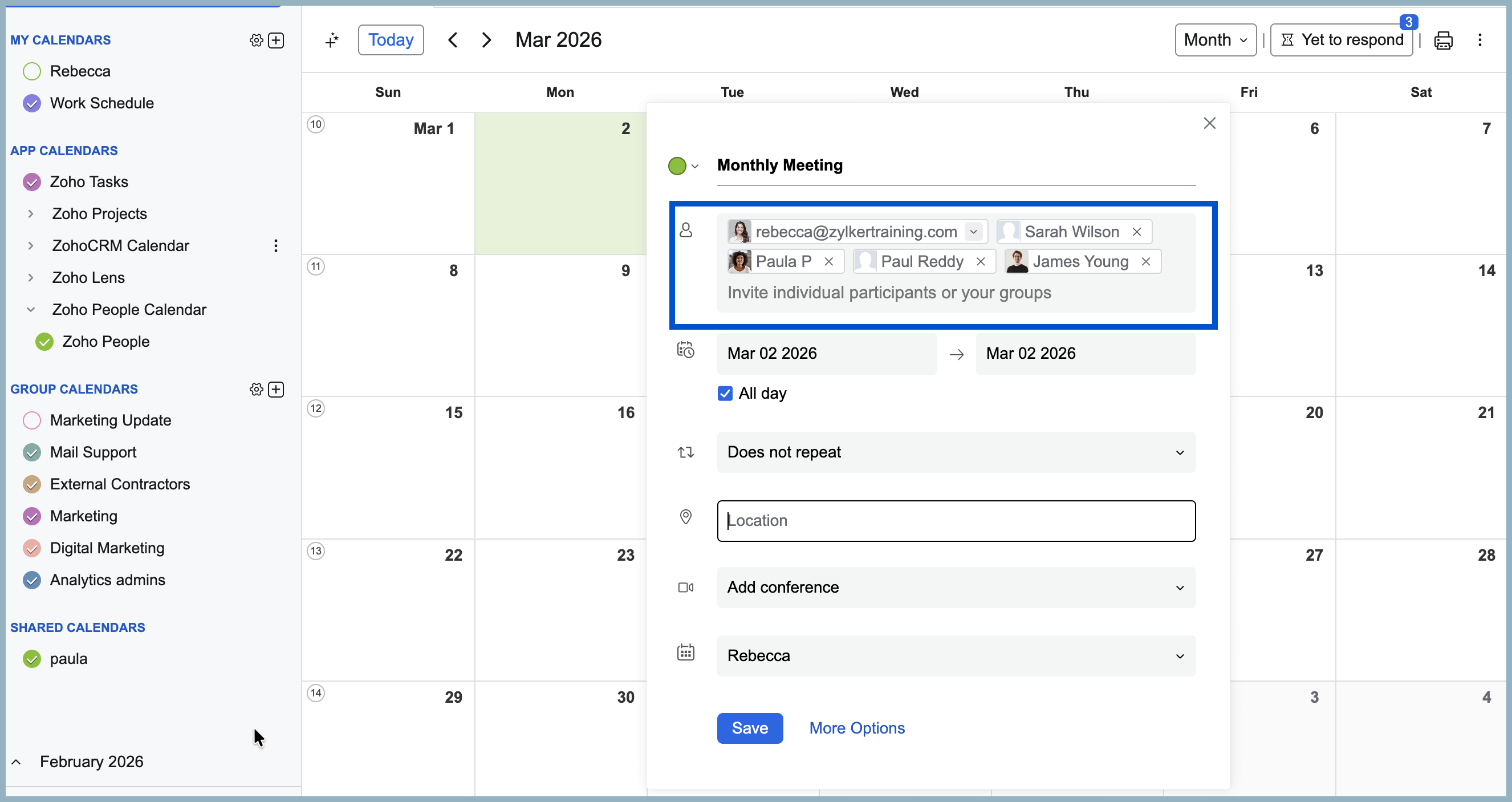
Responding to invites
When you receive an event invite in Zoho Calendar—either via email or notification—you can respond by choosing to Accept (Yes), Maybe (Not sure), or Decline (No). Once you choose your response, your status is updated automatically, and the sender is notified.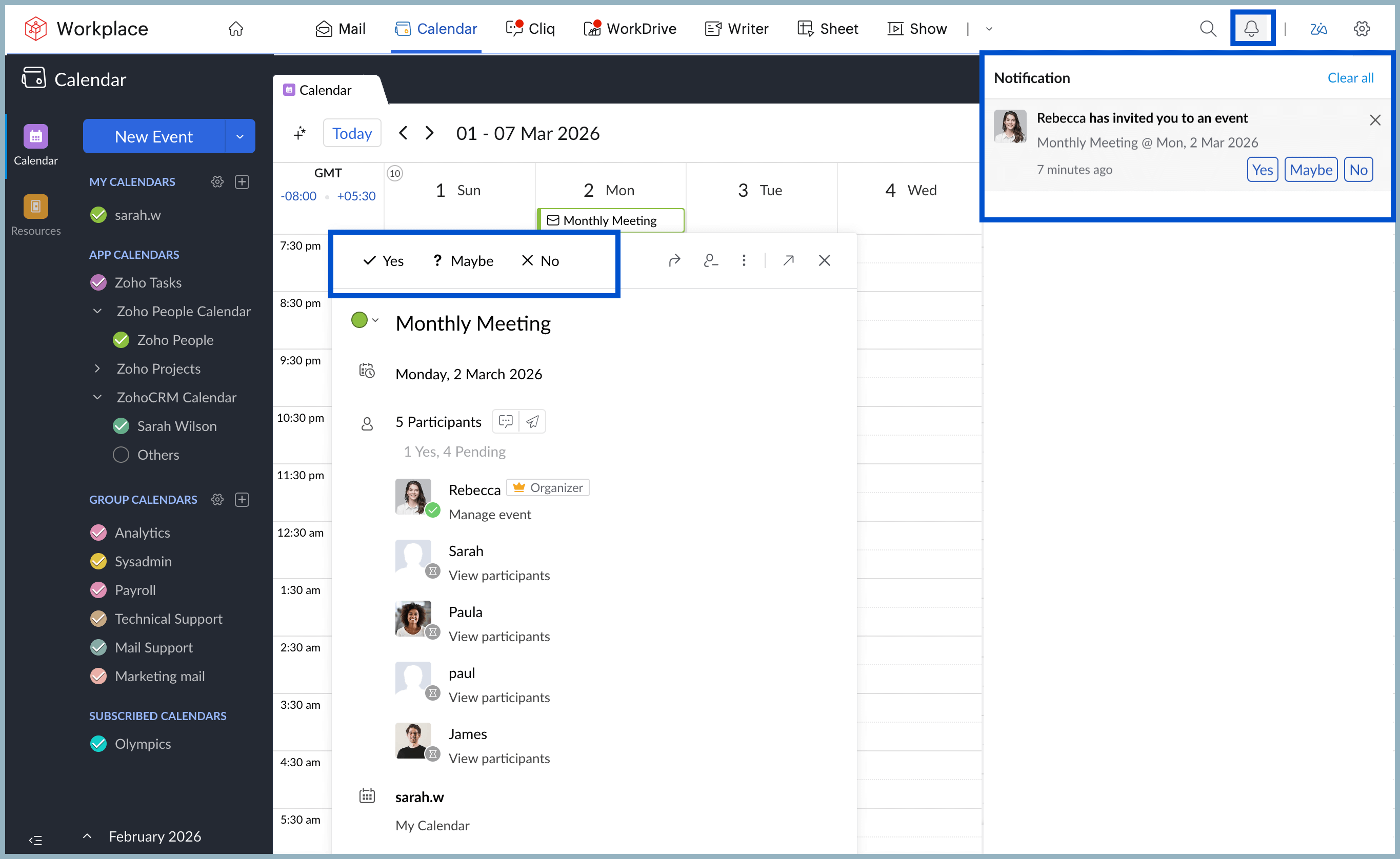
Zoho Cliq
Maintain and manage all your professional communications in one platform with Zoho Cliq—your go-to professional instant communication platform. Zoho Cliq enables you to make voice calls, video chats, share media files, and much more. Just like most messaging platforms, you can enable read receipts to let other users know if you've read their messages.
Read receipts only work if both the sender and the recipient have turned them on; if either one has not, they won't function; the message status will simply be displayed as "Sent", with a single tick icon.
How to turn on read receipts in Zoho Cliq
- Log into your Zoho Workplace account.
- Navigate to Zoho Cliq from the header.
- Click on the Workplace settings icon at the top-right corner.
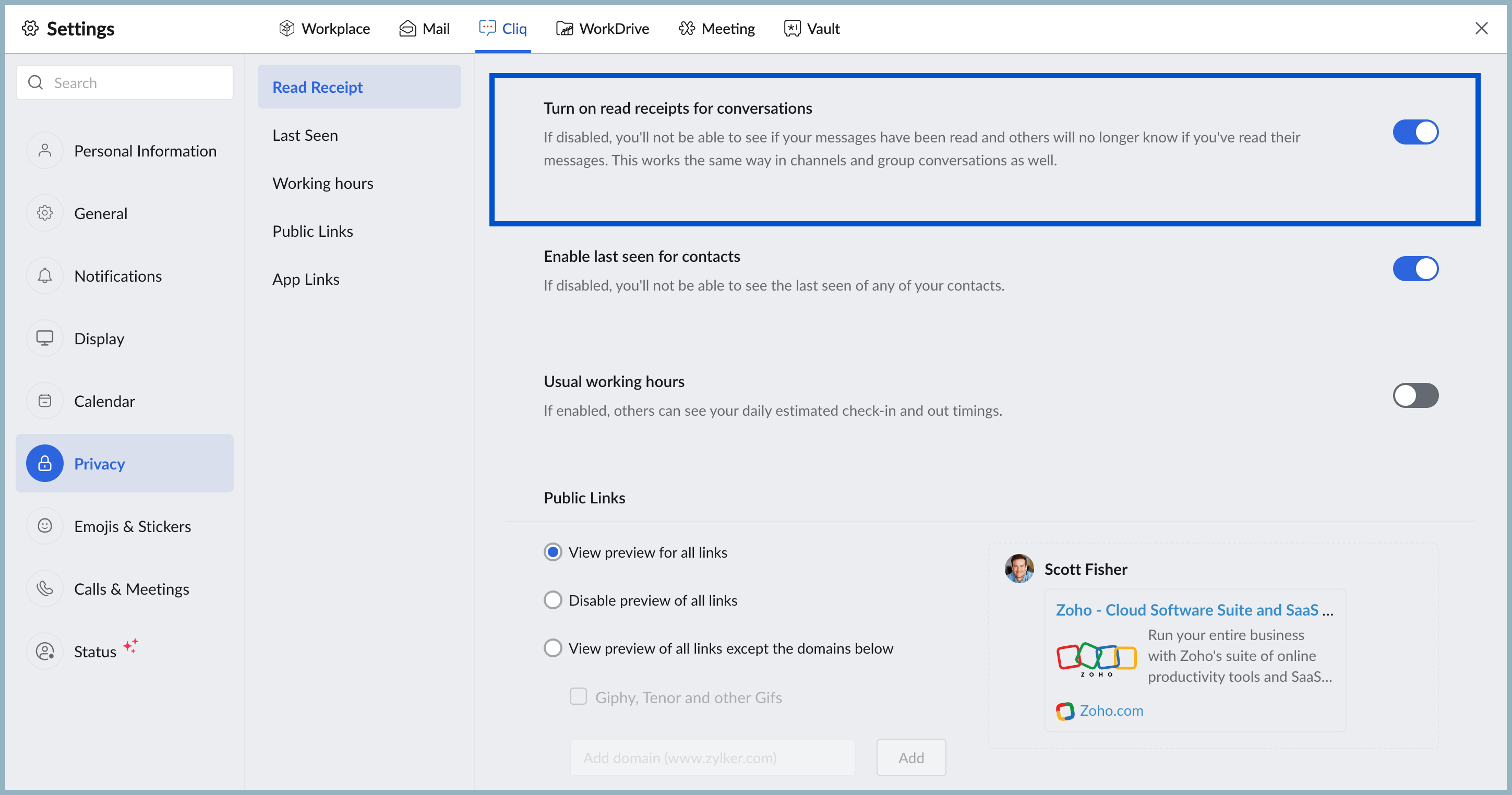
- Navigate to Privacy > Read Receipts > Turn on read receipts for conversations.
- Turn on the toggle button to enable read receipts.
If the read receipts option is disabled, you won't be able to see if your recipients have read your messages, and they'll no longer know if you've read theirs. This works the same way in channels and group conversations as well.
Manage read receipts from the Admin Panel
Admins can manage read receipt settings across their organizations directly from the Admin Panel. To do this, follow these steps:
- Log into your Zoho Workplace account.
- Navigate to Zoho Cliq from the header.
- Click on Settings > Admin Panel.
- Go to Users & Profiles > Organization > Configurations > Conversations > Read Receipts.
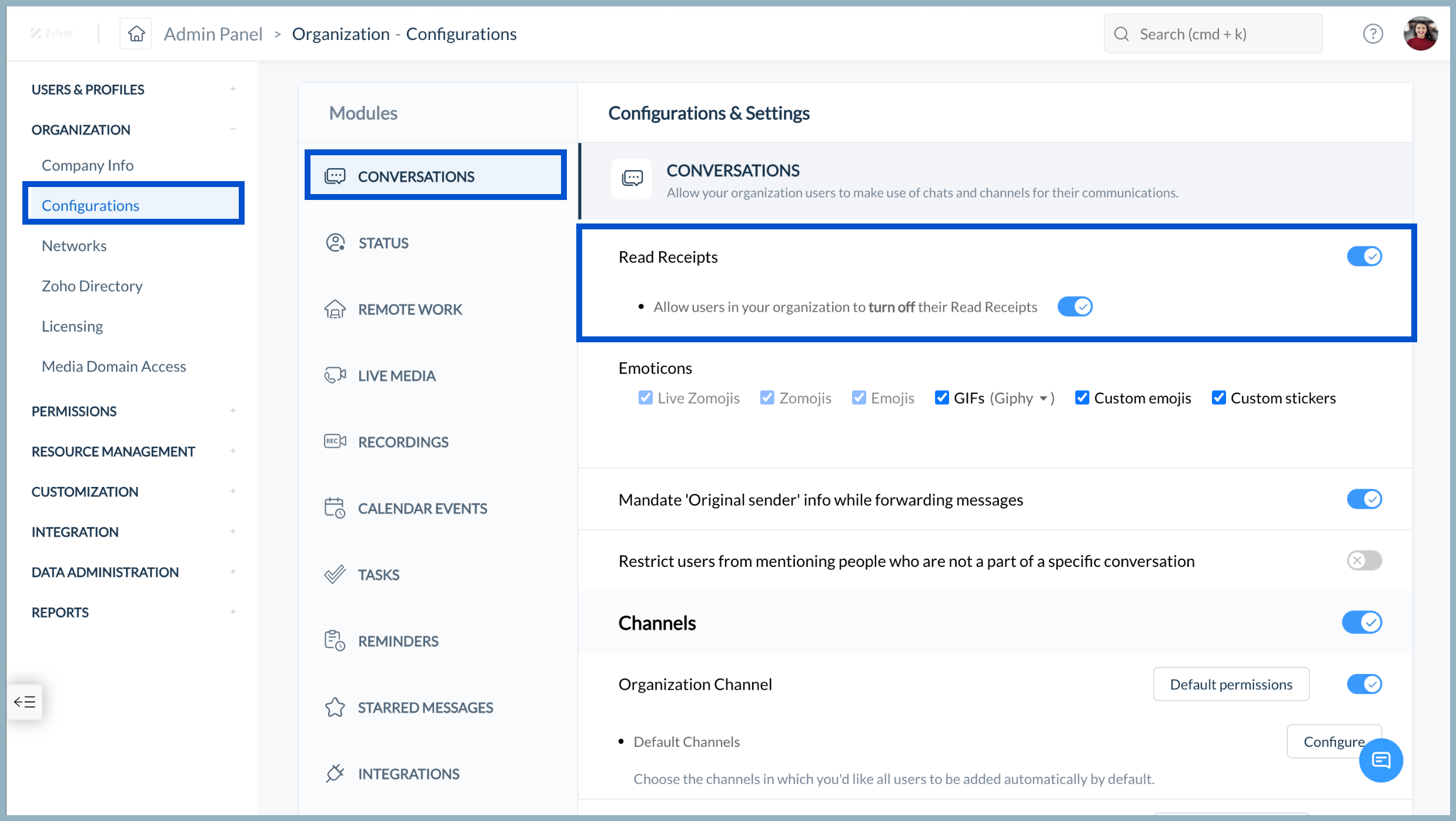
- Enable/disable the toggle button.
- You can also enable the toggle button labeled "Allow users in your organization to turn off their read receipts" to allow users to manage their own read-receipt settings.
Zoho WorkDrive
Collaborate and store all your files securely in one place with Zoho WorkDrive. Store documents, share them with team members or external collaborators, and work on files together.
Although WorkDrive doesn't offer a read receipt feature for file views, it does provide you with other ways to view who has engaged with content you've shared. Through its Activity Logs, Access Stats, and Versions, you can see who has accessed, viewed, downloaded, or edited a file—and when.
How to track file activity in Zoho WorkDrive
To track file activity in Zoho WorkDrive you must have necessary access permissions (Admin, Organizer, or Editor).
- Log into your Zoho Workplace account.
- Navigate to Zoho WorkDrive from the header.
- Open the file/folder for which you would like to view activities.
- Click the More actions icon (...) next to the Download button in the top action bar.
- Select Properties from the dropdown.
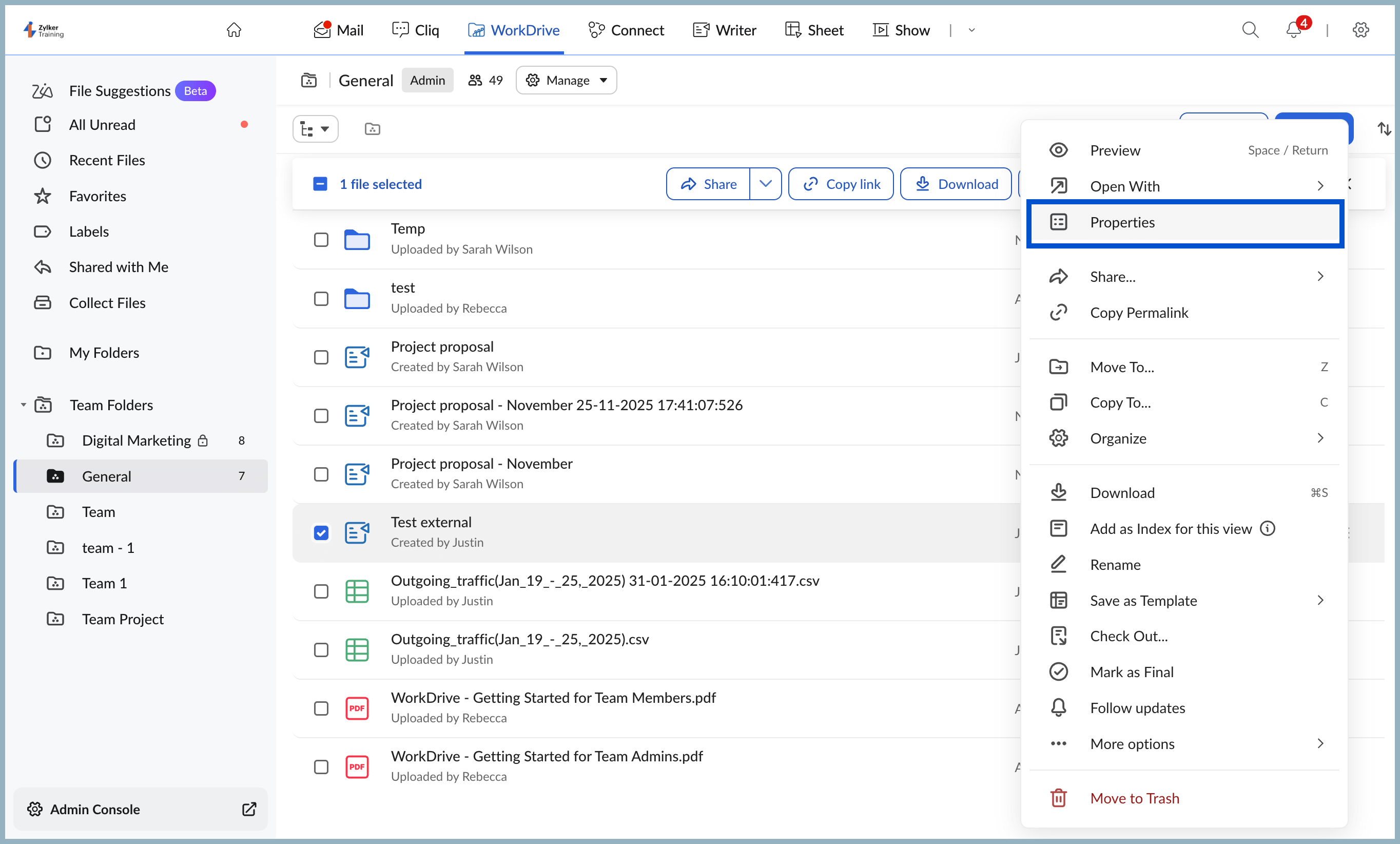
- The GeneralInfo tab will be displayed by default. This tab details which user(s) modified a given file and when.
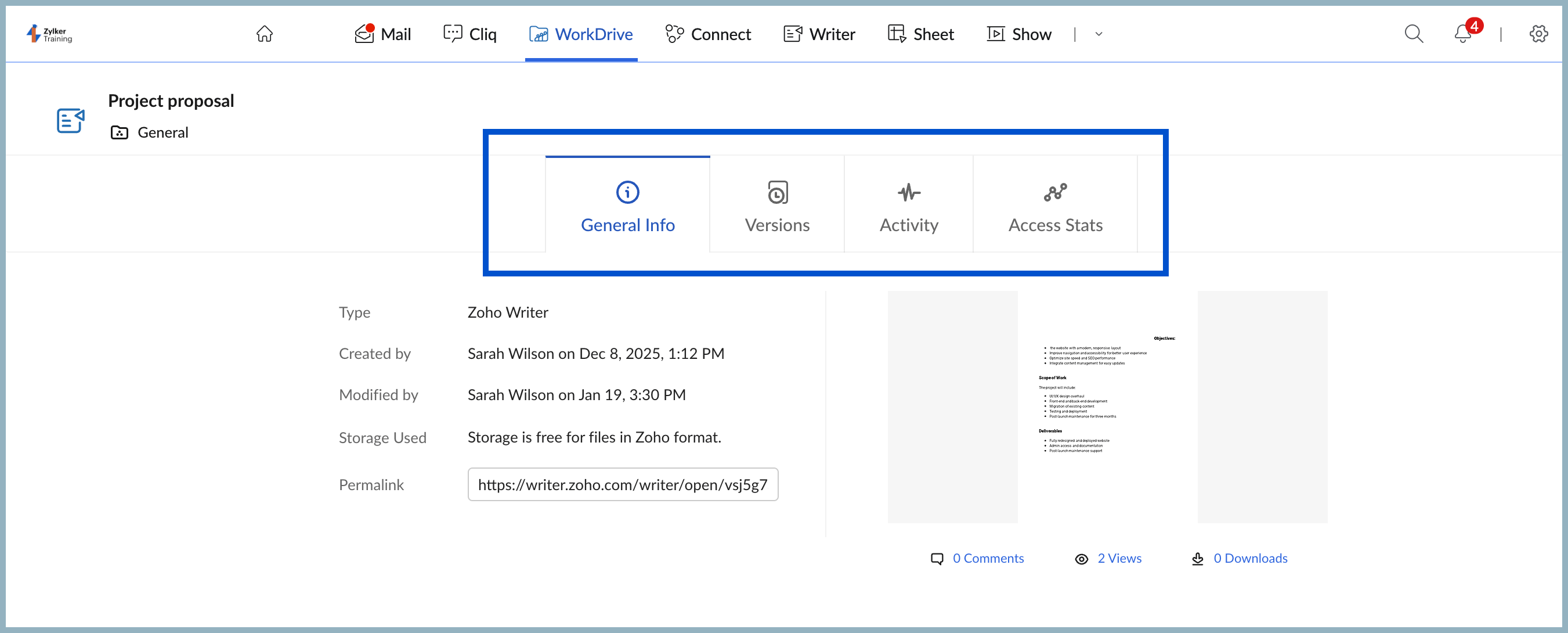
- View a list of different file versions you and your collaborators have created by clicking on the Versions tab.
- In the Activity tab, you can view details such as who has accessed, modified, downloaded, or shared a given file, along with timestamps for each action.
- Access the Stats tab to check who has accessed your file (both team members and external users) and what actions they've performed (including the number of views and downloads).
Zoho Show
Zoho Show enables you to create and present professional presentations quickly and easily, especially with the pre-built template gallery.
Zoho Show doesn't exactly offer read receipts, but it does offer a similar feature that enables you to determine if other collaborators have engaged in your content. You can use the Version History option to view changes or modifications made to your content.
Versions are essentially instances of a presentation saved after every edit. Every version contains details such as the time it was created, the user who created it, and the description.
To view version histories in Zoho Show:
- Log into your Zoho Workplace account.
- Navigate to Zoho Show from the header.
- Open the deck for which you'd like to view the version history.
- In the top-left corner, click the File option.
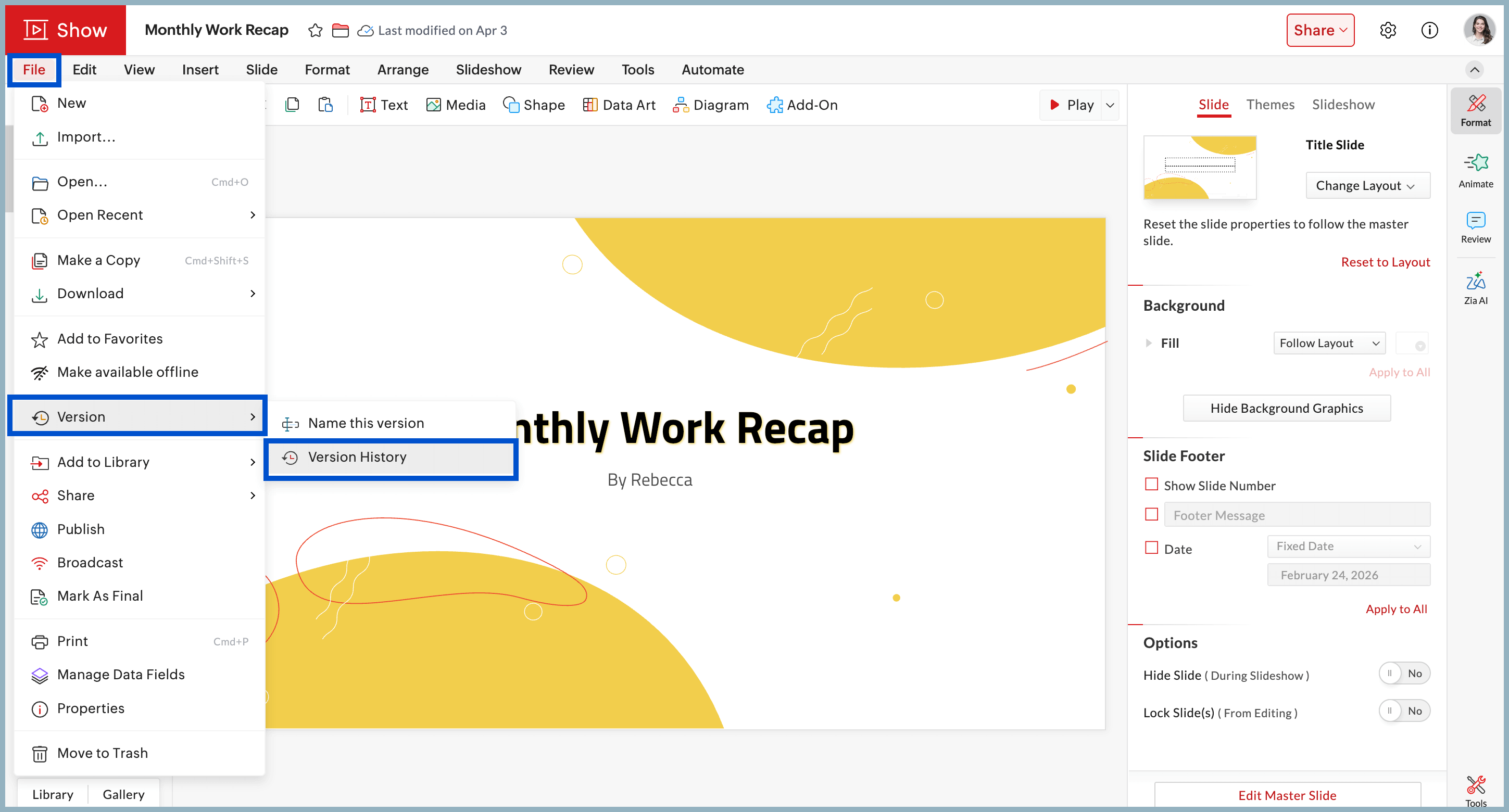
- Under the File dropdown, choose Version and select Version History.
You can also view the status and track viewing activity of your Zoho Show deck if you've shared it with others via a WorkDrive link. With the appropriate access permissions, you can view who has viewed, modified, or downloaded the file—just like with WorkDrive.
Zoho Sheet
Zoho Sheet is a cloud-based spreadsheet platform that lets you create, edit, and collaborate on spreadsheets quickly, with ready-to-use templates that enable you to generate professional spreadsheets quickly—without much manual effort.
Zoho Sheet makes it easier to track real time collaboration by highlighting cells that other collaborators are working on—helping you stay in loop with all the changes. You can track user engagement in Zoho Sheet using version history, similar to Zoho Show.
To view version histories in Zoho Sheet:
- Log into your Zoho Workplace account.
- Navigate to ZohoSheet from the header.
- Open the sheet for which you'd like to view the version history.
- In the top-left corner, click the File option.
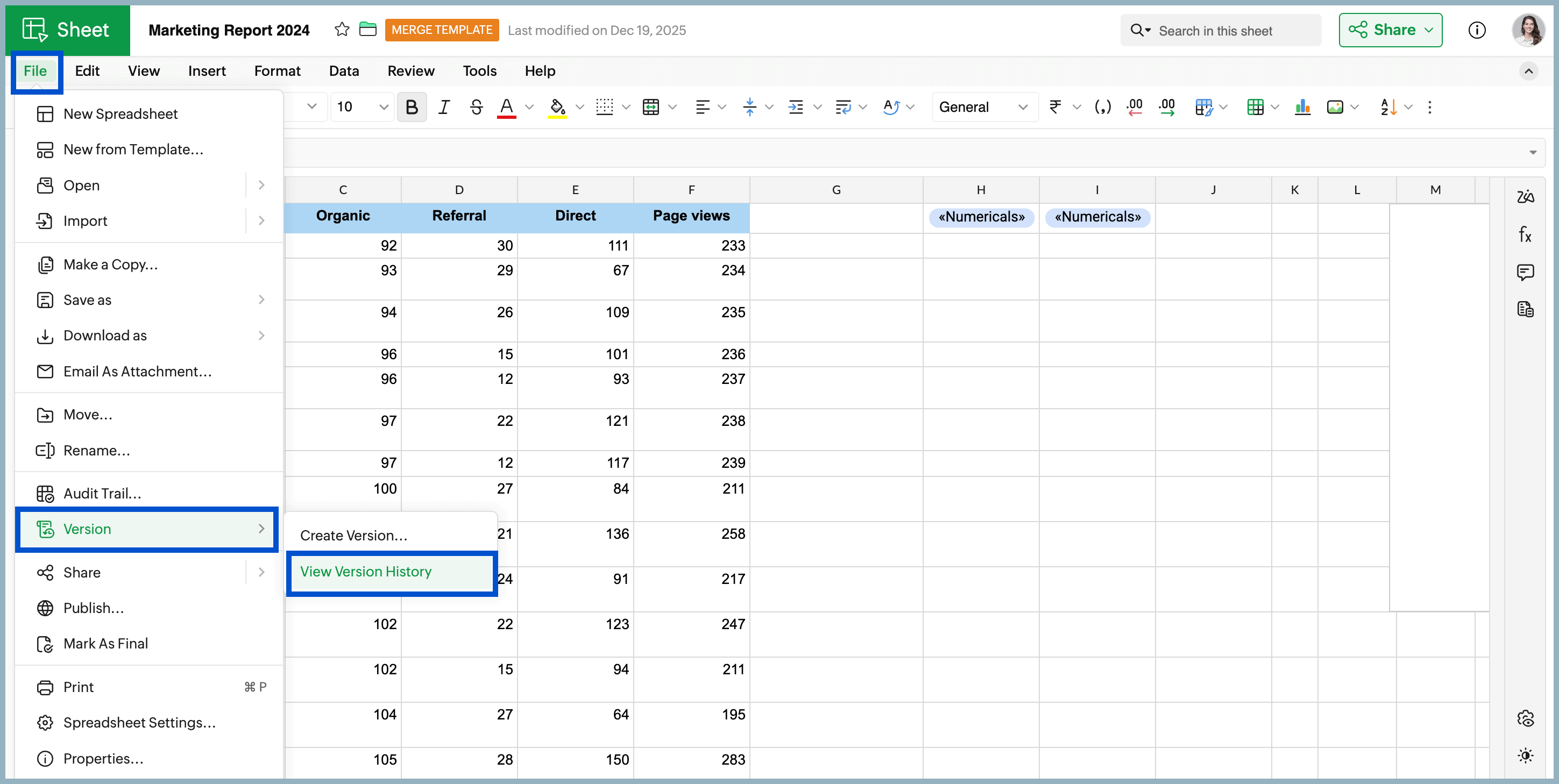
- Under the File dropdown, choose Version and select View Version History.
Apart from viewing version history, you can also see which users are currently active and viewing your sheet using the Group Chat icon, which displays the list of active and inactive users.
Zoho Writer
Draft and edit all your important documents—online and offline—using Zoho Writer. With Zia AI capabilities, you can enhance, modify, and generate better content with additional writing support. Additionally, you can import your documents from other applications and continue working in Writer effortlessly.
With Zoho Writer, collaboration is more straightforward and transparent. With just a click, you can determine who all has viewed your document, see who's currently viewing it, and track what changes you and your collaborators have made.
To track current viewers
You can view the live status of documents you own and have shared, as well as documents shared with you, provided you have read/write or read/comment access.
- Log into your Zoho Workplace account.
- Navigate to Zoho Writer from the header.
- Open the document whose status you'd like to view.
- Click on the dropdown next to the SHARE button in the top-right corner.
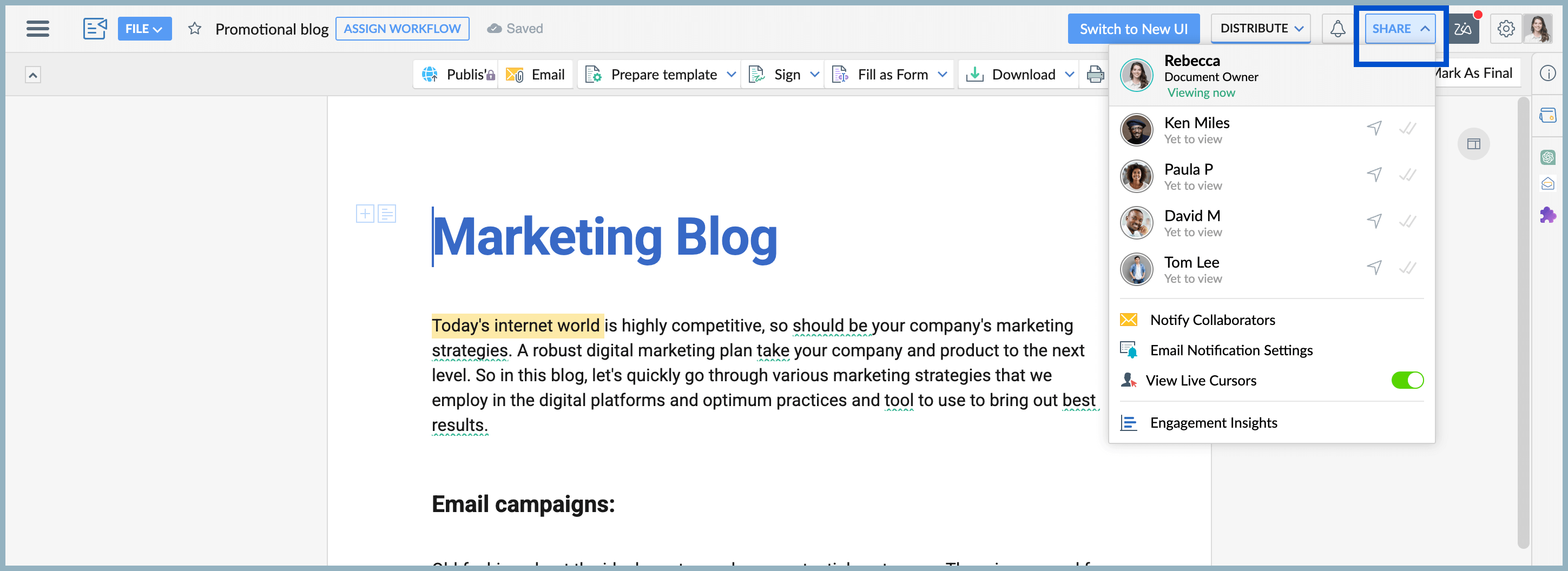
- All collaborators and their viewing statuses will be displayed next to a double tick icon and the edit status icon.
- You can view the document viewing status indicated as Viewing right now, Last viewed or Yet to view.
- You also view if the document has just been delivered (double-tick icon) or has actually been read by the user (blue double-tick icon).
If you've added your document to an organization folder or a group folder in WorkDrive, anyone with access to the folder will be able to access your document and will be marked as "Yet to view".
You can track real-time collaboration in the document; each collaborator's name and the section they are working on will be highlighted.
Wrapping up
With both delivery receipts and read receipts, you can eliminate uncertainty and keep communication and collaboration smooth and efficient. While delivery receipts confirm that your message has successfully reached your recipient's device, read receipts go a step further by indicating that the message has actually been opened and viewed. Across Zoho Workplace apps, read receipts and their equivalent activity indicators ensure you always know how others are engaging with your emails, chats, files, and documents.
Top Articles