How to manage your inbox using AI agents with Zoho Mail MCP
Managing emails can be a time-consuming task. Imagine you’re starting a day with the inbox flooded with hundreds of emails, each requiring your action and a customized reply. You need to spend a huge amount of time starring, sorting, and flagging messages.
Rule-based management in emails, such as filters, allows you to create “if-then” logic that can flag, forward, or delete emails. However, these rules fail during unpredictable situations.
For example, if a customer sends you an email saying, “Hi, I’m just following up on the issue we discussed last week. We’re still waiting for it to be resolved.” In the mailbox, a rule-based filter has been created that has the condition to pick emails containing words like “complaint”, “urgent”, and “outage” and move them to a folder named “High Priority”. In this case, the email doesn’t match the rule, so the filter fails to move the email.
When AI entered the picture, AI assistants could handle such new conditions. Instead of comparing the exact words, they analyze the context. But they had a critical gap, too. These AI tools could read and report, but they couldn’t act.
This is where Zoho Mail MCP steps in. Zoho Mail MCP acts as a bridge between AI's contextual analysis and the actual resources. It solves this problem by connecting AI tools to the resources where the actual work happens.
Table of Contents
What is Zoho Mail MCP?
MCP stands for Model Context Protocol. It’s a universal connector that allows AI assistants such as Claude, ChatGPT, and Gemini to connect to external systems, databases, APIs, and web sources. Imagine it as giving AI tools a pair of hands. Zoho Mail MCP provides the tools, Integrated Development Environments (IDEs), and other AI applications a secure and structured way to access your Zoho Mail account—not just to read the information, but also to act in your inbox. It’s managed through a centralized Zoho MCP platform that handles security via OAuth 2.0 authentication, eliminating the need to store your passwords inside AI tools.
The capabilities of Zoho Mail MCP
Custom integrations are connections exclusively built using code. Before MCP was introduced, these integrations were used to connect AI applications with the APIs. When the APIs changed, it resulted in repetitive changes to custom code. Zoho Mail MCP exposes Zoho Mail APIs as tools and allows AI assistants to identify and use the appropriate ones.
Zoho Mail MCP provides tools for both administrators and end users to perform their everyday email-related activities. To perform administrative tasks, ensure that your account has the necessary admin privileges.
Refer to the Zoho Mail MCP tools page for details about the actions and the corresponding tools.
Key considerations of Zoho Mail MCP
Communication across multiple apps: Today, your work often spans across multiple apps. Your workflow may involve Mail, Calendar, Desk tickets, and project management tools. You may have them opened in different tabs and then had to manually switch between them to add or update information, which can slow down productivity. Zoho Mail MCP allows AI tools to interact with these applications in sequence and get the work done faster.
Works across different AI tools: Zoho Mail MCP isn’t tied to any particular AI tool or assistant. Any tool that’s MCP-compatible is eligible to access your Zoho Mail account.
The email app doesn’t need to be open: One of the biggest shifts MCP offers is that the email app no longer needs to be open for you to manage your mailbox. AI tools and assistants offer support to complete the actions on your behalf on any device by understanding the intent behind the workflow.
Security: When we talk about Zoho Mail MCP, we say that AI acts on your behalf. This may sound risky. But AI tools don’t have complete access to your mailbox. They’re restricted to the permissions provided in your account. And every action AI takes is driven by what you’ve asked them to do. AI tools don’t decide what to edit or delete independently.
How does Zoho Mail MCP work?
Zoho Mail MCP has four main components. When you enter an instruction to an AI assistant, the instruction passes as a request through these four layers.
Components | Purpose |
The host | The AI assistant or chat interface you use to type in your instruction. |
The client | The component is created internally to establish a connection with the server and forwards the request. |
The Zoho Mail MCP server | The bridge that exposes Zoho Mail APIs as tools securely via OAuth 2.0. |
The Zoho Mail API | The services that perform the actions in your Zoho Mail account. |
What happens when you provide an instruction via an AI assistant?
- The AI assistant interprets the user's request.
- The client establishes a connection with the server.
- The client sends a structured request to the server.
- The server shares the available tools with the client.
- The host selects the required tools and notifies the client.
- The client forwards the selected tools to the server.
- The server validates the required permissions.
- The Zoho Mail APIs perform the requested actions.
- The response is sent back to the host through the client.
How do you set up Zoho Mail MCP?
Setting up the Zoho Mail MCP is simpler than you would expect to be. You don’t need to write code, nor do you need technical knowledge.
Prerequisites:
- An active Zoho Mail account.
- Access to an AI tool (Claude, ChatGPT, Gemini) that’s MCP compatible.
- OAuth 2.0 authentication is enabled.
- Appropriate permissions for the tasks you want to execute.
The setup process
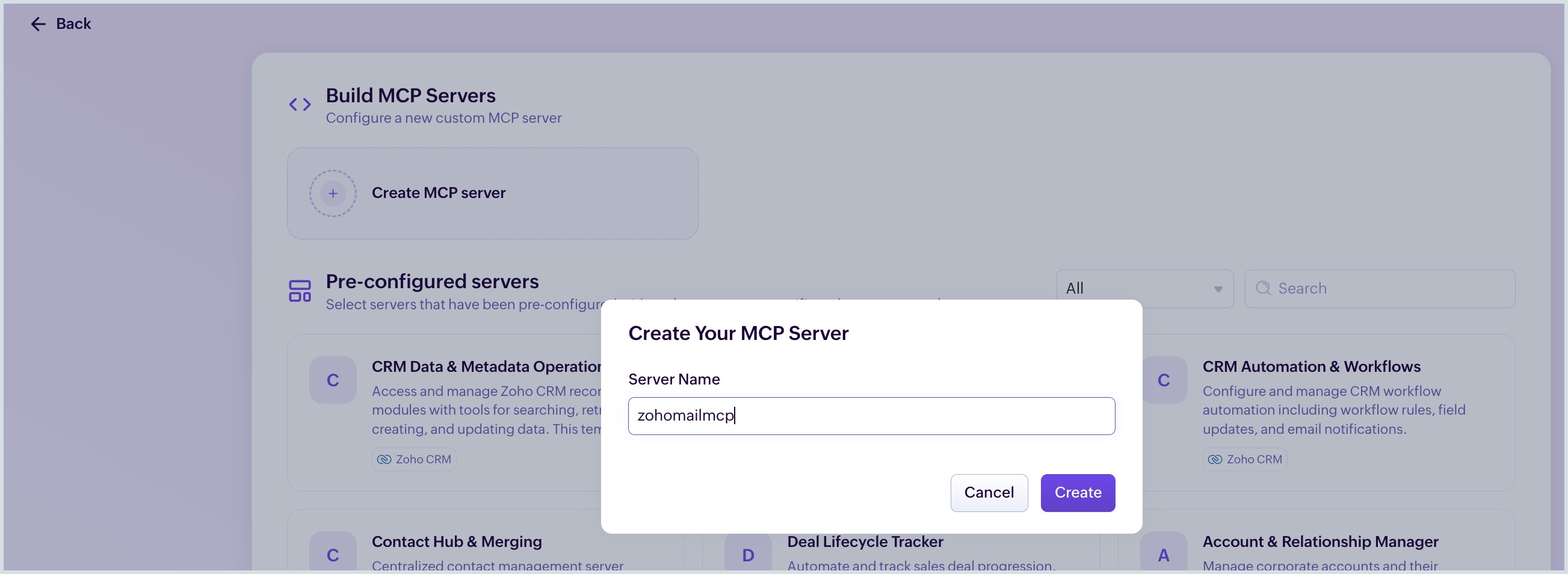
- Create an account in Zoho MCP and create a new MCP server for Zoho Mail.
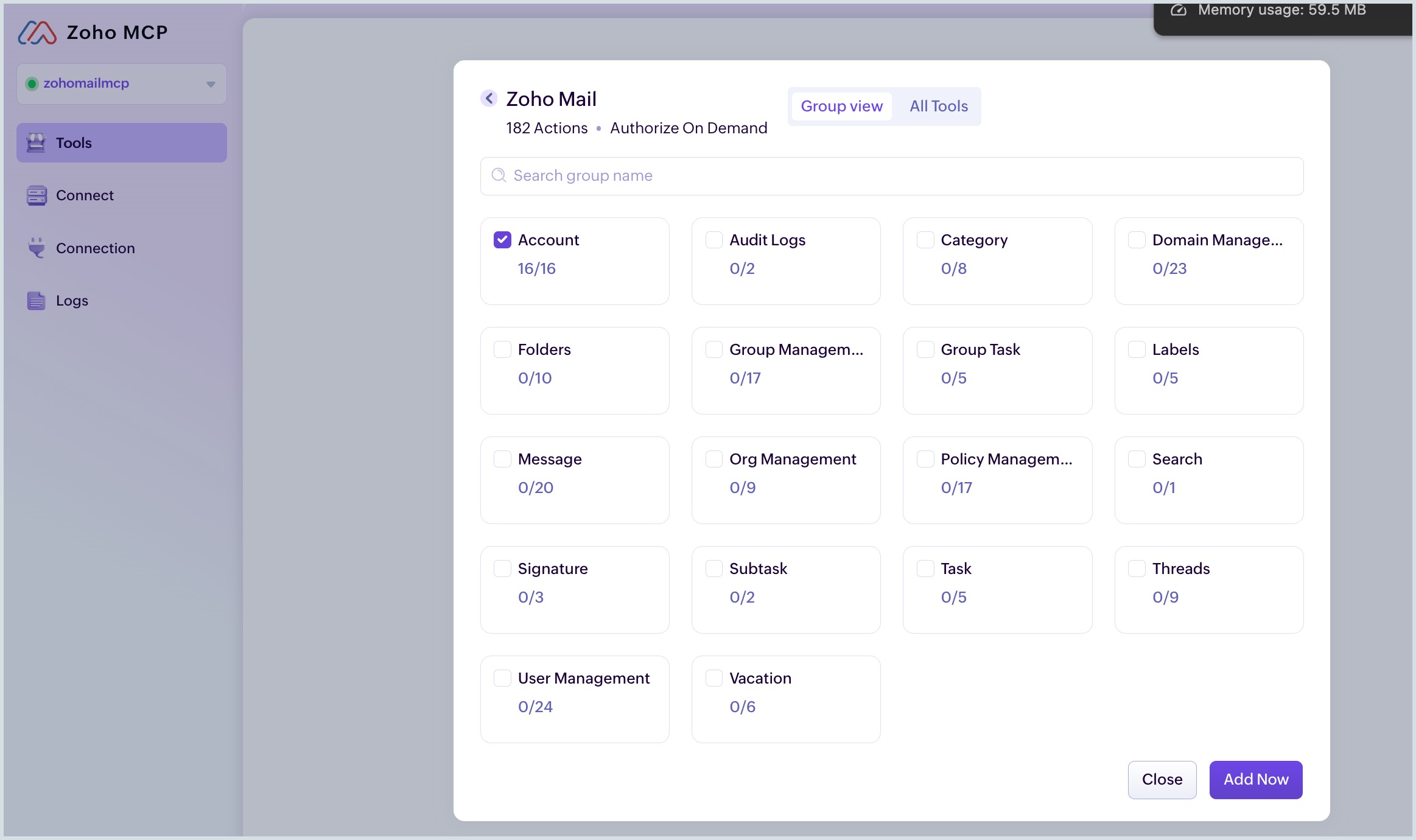
- Click Add Tools in the top-right corner and select Zoho Mail from the list of products. The actions the AI assistants need to perform are listed as Tools. The tools are displayed under Group view and All Tools view. Select the required ones and click Add Now.
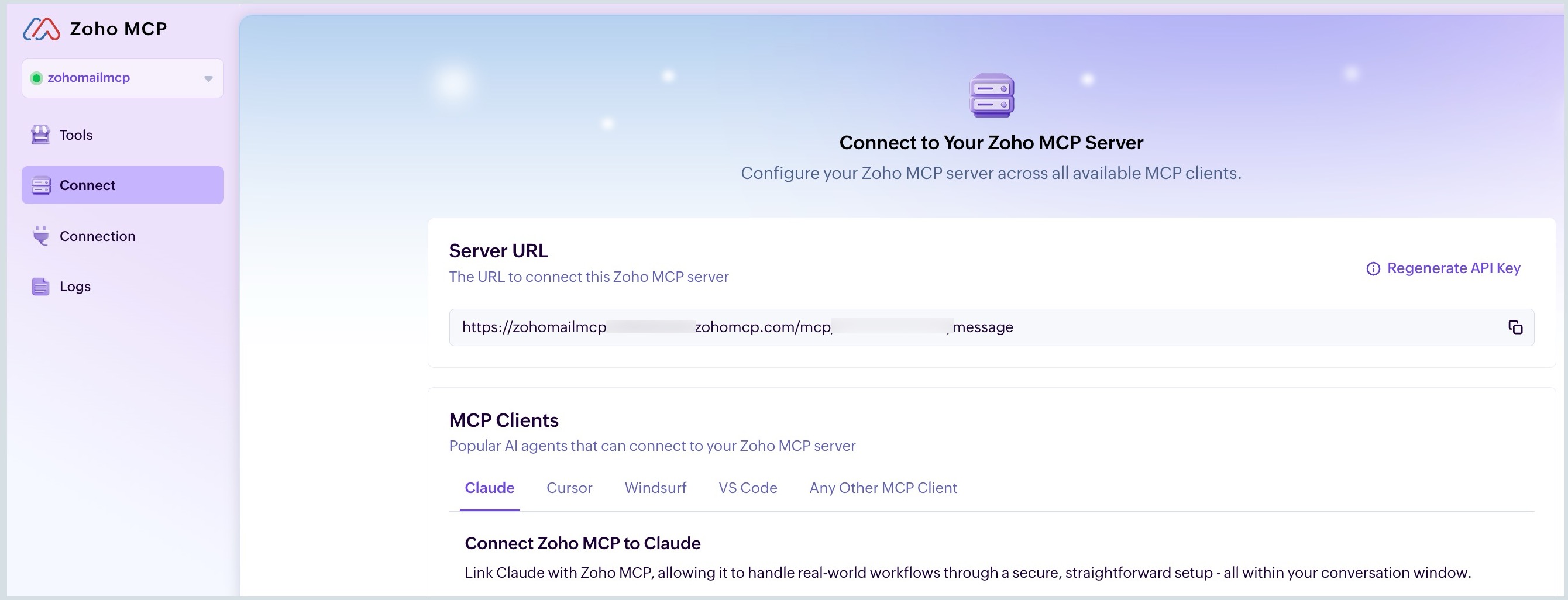
- Under the Connect tab, you can find the MCP server endpoint URL. Refer to the Zoho Mail MCP configuration document, where the connection steps are available for multiple AI tools.
- When connecting AI tools to Zoho Mail MCP, you’ll be prompted to authorize the connection using OAuth 2.0 authentication, along with the list of permission scopes. This authentication means that your credentials are never shared with the AI assistants you use.
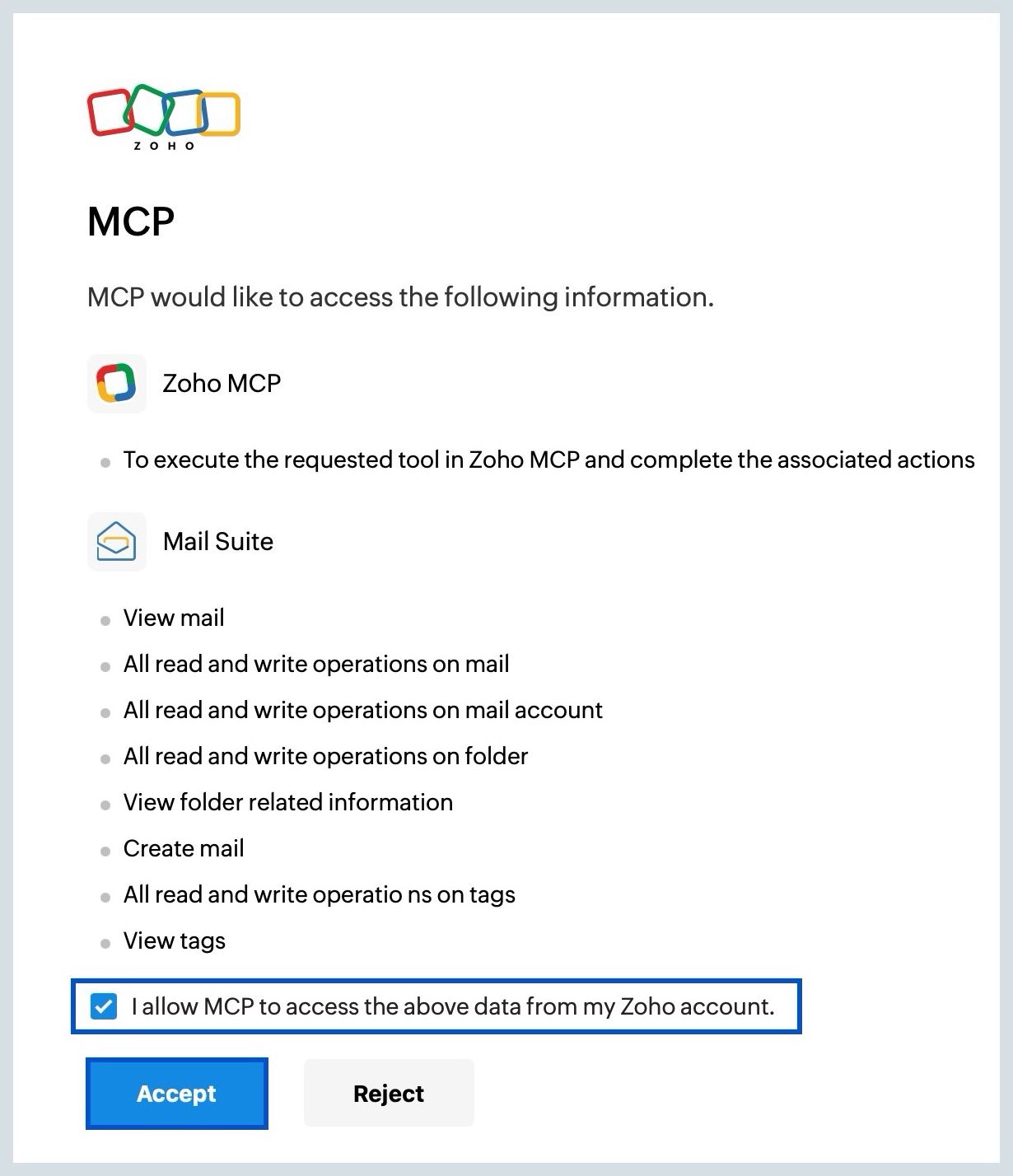
Once you authorize, you can view the Zoho MCP connection under the Connectors option in the AI tools. You can enable or disable it as and when required. When you add new tools or expand the existing scope, you’ll always need to re-authorize.
Real-world use cases: Zoho Mail MCP in action
Let’s look at some of the use cases that reveal the complete breadth of Zoho Mail MCP’s capabilities that can transform everyday email interactions into intelligent, action-driven workflows and derive productivity directly from the inbox.
Use case 1: Smart follow-up tracker
Managing a busy inbox often results in losing track of previously sent important mails. Scrolling through the Sent folder is tedious. But with Zoho Mail MCP, finding these mails is as simple as a single prompt.
Prompt:
Search the Sent folder and list all of the emails that haven’t received a reply in the past two weeks. Add a label named Follow-up to these emails and move them to Pending Replies.
Why does this matter?
What usually takes several minutes of manual effort can now be completed in seconds. MCP understands the context behind “emails with no replies” and excludes threads that have already received a reply.
Use case 2: Sales triage that spans three apps at once
Consider a sales team that receives a large volume of emails every day related to:
- Pricing inquiries.
- Demo requests.
- Partnership queries.
- Customer onboarding inquiries.
This involves manual email sorting by their category and entering details into the corresponding applications. MCP makes this easily transformative.
Prompt:
Identify the high-priority sales-related inquiry mails, create CRM leads for the prospects, and add a task in Zoho Projects. Notify the sales team via email.
Why does this matter?
A single-prompt, zero-manual entry that spans across three applications—Mail, CRM, and Projects—maintains accuracy and increases business productivity.
Use case 3: Managing spam policies without an admin console
Sometimes an important email from a known and trusted customer may end up in spam because they’ve changed their email domain, for example, from companytraining.com to company.com. The existing spam policies don’t recognize the new domain, so the emails are mistakenly moved to the spam folder.
These incidents can lead to missed approvals and process disruptions. Traditional steps to fix this issue include:
- Logging into the admin console.
- Reviewing spam settings to find the reason.
- Once found, adding the email address to the allowed list.
- Checking the spam folder and restoring the trusted emails to inbox.
Prompt:
Find trusted emails in the spam folder, add the sender's email domain to the allowed list, move the emails to the inbox, and apply the label Allowed From Spam to these emails to review later.
Why does this matter?
Instead of waiting for customers to report missing emails, administrators can regularly review the spam folder without even logging into the admin console. You don’t need to hunt for spam settings or create a manual rule. Everything can be managed in a single, detailed prompt.
Use case 4: Onboard multiple new users without repetition
Onboarding new users involves multiple steps, like creating their accounts, assigning mailbox storage, adding them to groups, and creating the required folder structure. Onboarding a single user is an easy process. But when onboarding a large group of users, the process becomes a tedious and repetitive task.
Prompt:
Create a new account for user Michael with email address michael@companytraining.com and assign the User role to him. Set the storage limit as 30GB and add him to the Research and Testing groups.
Why does this matter?
With Zoho Mail MCP, the onboarding process can be scaled for any number of users. It enables administrators to onboard multiple users quickly while reducing the manual effort and maintaining accuracy across all user accounts.
Use case 5: Out-of-office and delegation setup
Stepping away from work due to unplanned travel or a medical absence shouldn’t mean that your inbox is left unattended. Traditionally, setting up auto-reply and out-of-office messages for yourself or other users (as admins) require access to the mail interface. Users conduct a series of manual steps navigating across multiple settings pages.
Zoho Mail MCP makes this easier by allowing you to set up auto-replies, out-of-office information and email delegation through a single conversational prompt.
Prompt:
Send an out-of-office reply for the next 10 days. For emails sent from within the organization, state that I’m on leave and to contact my manager John for discussions that can’t wait. For emails from outside the organization, use a professional tone and ask senders to contact my team via the team email ID. Forward internal emails to Paula at Paula@companytraining.com. Ensure that Paula is available to reply to those emails.
Why does this matter?
Your sudden absence at work can create a poorly managed inbox, which ultimately leads to delayed responses and an overloaded mailbox on your return. Zoho Mail MCP offers business continuity and allows you to have an actively managed inbox. While creating an OOO reply, you don’t even need to draft the email content yourself. AI tools draft the content, and adds them to the settings automatically.
Use case 6: Email analytics summary
Email analytics helps transform an inbox into a manageable and measurable system. You can proactively turn invisible gaps into actionable items.
For individuals managing their own mailbox, it’s common to miss important emails or delay in responding to them.
On sales teams, emails usually contain meeting requests, follow-up tasks, and action items. They may be buried within long email threads and only come to light when the sender reaches out to ask why no action has been taken.
An unusual spike in email traffic is an indication of a failure in an application or system, such as over a weekend or holiday period. For customers, email is the major source of contact, so a flood of customer complaints would be triggered into the mailbox. As an administrator, it’s important to have check on the mailbox’s health across departments regularly.
Prompt:
Individual mailbox:
Generate a weekly email analytics summary for my inbox. Provide detailed information on unread emails based on the category, such as proposal, quotation, and demo. Point out the emails awaiting my reply for the past three days. List the emails marked urgent but are still unresolved. Show the total number of emails received and my average response time. Deliver this summary as a structured report to my email address.
Sales manager:
Summarize the email activity of my team's mailboxes for the past week. Show the average response times per team member. Show me information on total client emails received versus replied emails. List any client emails or threads that remain unanswered for more than a day.
Administrator:
Generate an organization-wide report on emails. Show the total number of emails received per department, identify the top five most active mailboxes, and list the mailboxes with an unusually high unread count.
Why does this matter?
For any client-facing business, email volume and the response time are directly dependent on their performance metrics. With the analytics report, the sales manager can identify the missed actions and monitor workload distribution among the team members.
Based on the user instruction, Zoho Mail MCP structures the mailbox data, while the AI tools analyze the data, perform calculations, and generate the analytics report. This helps remove the blind spots that cost productivity.
Use case 7: Thread-level search–without exact keywords
Email threads may involve conversations about multiple topics. What starts as a conversation about delivery timelines can move into approvals, budgets, and other related topics. When you want to pick the email that discusses a timeline and the last reply made, it usually involves more scrolling back and forth. A traditional search depends on exact keywords, so it fails when you’re not aware of them.
If you remember the context, Zoho Mail MCP makes it easier to search using the natural language.
Prompt:
Find the email thread that discusses the project delivery timeline. Fetch the last message in the thread that discusses the same. Let me know whether that email is awaiting a reply.
Why does this matter?
Zoho Mail MCP pulls the specific email from the thread and provides details on the conversation and confirms if any email is open-ended. What would otherwise take several minutes of scrolling happens in a single prompt.
Conclusion
Let’s return to the morning scenario: an inbox with a huge number of emails that would normally take an hour to sort through.
The usual routine involves manual walk-throughs, sorting emails, searching threads, flagging mails, categorizing them, and adding follow-ups. An MCP-powered inbox looks much different, making it happen in seconds using simple prompts.
Zoho Mail MCP creates a relationship with your inbox so that it’s no longer just a repository, but an intent-driven AI-powered workspace.
The best way to become familiar with the Zoho Mail MCP is to use it. Follow these steps and start with the task that’s most relevant to you.
Top Articles