
Form Entries
Once you have successfully created and shared a form, the form responses are listed under All Entries. Here you can view all entries as a summary, and group them based on certain criteria. You can also edit the entries, assign entries as tasks, and export them.
Table of Contents
View Entries
Each form response you receive is added as a record under the All Entries section.
To view form responses,
- Click All Entries under your form's name.

You can also access All Entries using the link in your form-builder.

All your form entries will be listed.

Sort Entries
To sort entries in a particular column in ascending or descending order, click the drop-down button, and select Ascending or Descending. If you have assigned values to a choice based field, you can also view the values assigned.

Customize fields
You can apply different font and background colors to choice type fields (Dropdown, Radio, Multiple Choice, and Checkbox) in reports, to identify the choices distinctly as shown below.

To do so,
i.Click the drop-down in any choice type column and select Customize.

ii. In the pop-up, set font and background colors for all the choices you've listed under a field.

Note: The color customizations applied here will be reflected in the reports you create. You will be able to modify or reset the customizations in your reports.
Edit Entries
To edit a record,
- Click
 on a record and make your changes in the Edit Record pane.
 - Click Update to save your changes.
- You can also add a comment about the changes you've made to the record.
 on a record and make your changes in the Edit Record pane.
Assign Task
You can assign a record as a task to a user in your Zoho Forms Organization. You can assign one or more records to a task owner from the All Entries section. The task owner will be notified whenever they are assigned a task. You can also limit the task owner's editing permissions by clicking the link in the Note section.

To assign a task,
- Select the records for which you need to assign the task and click Assign Task.
- In the Assign Task pop-up, choose the task owner from the Reassign To dropdown.
- The task owner will be notified with an email containing a link to view the record. Click Assign and Notify.
- To prevent notifying, uncheck NotifyUser checkbox and click Assign.
Document Merge
You can create merged documents in Zoho Writer and WebMerge with the form responses you receive, using the Document Merge option.
After configuring Document Merge, select the form entries to which you would like to send a merged document. Click the Merge dropdown in the All Entries section. Choose a service (say, Zoho Writer) and click Document Merge.
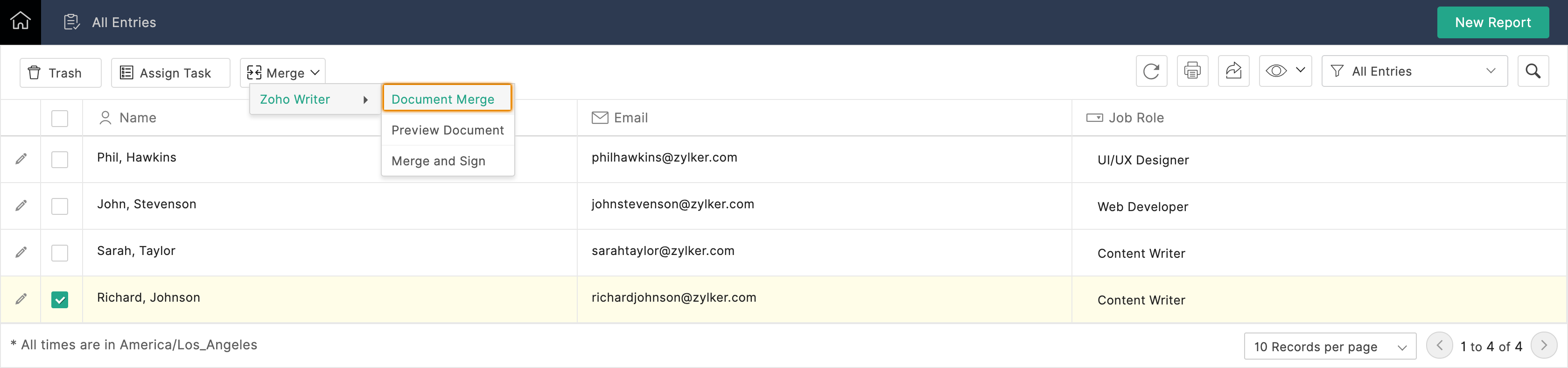
In addition, you can send records to a user in your organization to verify and sign the responses using Zoho Sign.
Default Search Filters
By default, the All Entries section lists all the form responses. To apply filters, click Filter by dropdown and choose the entries. You can filter entries based on the time they were submitted. You can also view the Partially Saved Entries.

Custom Search Filters
You can search for specific fields and view entries based on set-conditions.
To do so,
- Click the
 icon.
icon. - Choose a field to filter entries and enter your search criteria.
- Click Search button.
 icon.
icon.
You can make a new report with the filtered out entries by clicking the Save as New Report button.
Print Form Entries
You can print form entries either as a list or a summary.
To print form entries,
- In the All Entries section of your form, click the Print icon.
- Select Print as List if you wish to print the entries as a table and select Print as Summary if you wish to print individual summaries of all entries.
- Select the Include comments option if you wish the comments to be included in the printed data.
- Click Print.

Note: If your form contains encrypted fields, you can choose to mask/unmask them while printing entries by selecting the Mask encrypted fields option.
Export Form Entries
You can export the form entries as PDF or CSV format.
To export form entries,
- In the All Entries section of your form, click the Export icon.
- Select if you wish to export the selected form entries as a CSV or PDF file.
- To export the form entries as a password protected file, select the Protect with a password option.
- Click Done. The file will be downloaded in the selected format.

Note:If your form contains encrypted fields, you can choose to mask/unmask them while printing entries by selecting the Mask encrypted fields option.
If you are looking to export all your data collected using your forms from the cloud to your computer, click your profile picture in the top-right corner to access the Control Panel and click Data Export under Data Administration.
Delete Entries
You can move the form entries to Trash, restore them from the trashed entries, or permanently delete the entries.
Trash Entries
To move the form entries to Trash,
- Go to All Entries section of the form.
- Select the entries that you wish to trash from the list of entries and click Trash.

Note: The trashed entries will get permanently deleted after 5 days.
Restore Entries
To restore the trashed form entries,
- Go to All Entries section of the form.
- Select Trashed Entries option from the Filter in the top-right corner.
- Select the entries that you wish to restore from the list of Trashed Entries and click Restore.

Permanently Delete Entries
To delete the form entries permanently,
- Go to All Entries section of the form.
- Select Trashed Entries option from the Filter in the top-right corner.
- Select the entries that you wish to delete permanently from the list of Trashed Entries and click Delete.

Note:
- Saved, Pending, and Opted out entries cannot be moved to Trash. They can only be permanently deleted.
- The options to Trash, and Restore form entries are available only in our paid plans. Entries will be deleted permanently in the Free plan.