How to integrate Calendly and Salesforce
- Last Updated : March 9, 2026
- 97 Views
- 5 Min Read
When a new lead schedules an appointment through Calendly, it is an opportunity to convert that lead. If that data isn't automatically updated in Salesforce, your team will be responsible for:
- Manually creating lead or contact records.
- Any errors while manually moving data.
- Updating important details after the call
- Delays or missed follow-ups.
Having Calendly integrated with Salesforce can ensure your apps are synced, data flows seamlessly across these apps, data is consistent, and follow-ups are on time.
Do Calendly and Salesforce integrate natively?
Calendly offers native integrations with Salesforce, which enables you to connect both platforms together. This native integration helps you:
- Automatically create leads/contacts in Salesforce.
- Log event/appointment information in Salesforce.
- Schedule Calendly events for Salesforce leads.
- Ensure timely follow-ups on Calendly events.
You can do all this without having to switch every time you have to update data in the other app. Here's how you can set up the Salesforce-Calendly integration natively.
The native integration works well for straightforward syncing between these two apps. However, your requirement can extend beyond the simple two-app integration.
When native integrations might fall short
Native integrations between Salesforce and Calendly solve the very basic problem of the standard CRM-appointment syncing. It helps you reduce manual data transfer and streamlines your lead information across the platforms. But what if you want more out of it?
Let's say you want to add the lead to a mailing list as well. Or you might want to conditionally route data between these apps based on deal size or industry. Native integrations can't help you with that because they are designed for direct, structured connections between two platforms. When your requirements expand, your flexibility will be limited.
The Salesforce-Calendly native integration won't be enough for you, if:
- You want to integrate more apps in a single workflow.
- You want to add logic to your workflows.
- You want to transform data before moving to Salesforce.
- You want to trigger workflows from a different application.
- You want a single source for all your teams and organization.
That's where you will need the help of an integration platform.
How an integration platform can help
When you're scheduling appointments for your leads, managing notifications, and tracking updates, you need all your systems to be working together. An integration platform can act as the extra layer which can keep all your apps connected, offering you the ability to build customized workflows tailor-made for your needs.
Here are a few scenarios where the Calendly-Salesforce integration will need a broader automation approach.
The multi-step lead nurturing workflow
Capturing a new lead in Salesforce when an appointment is booked in Calendly is a straightforward use-case that the native integration offers. But there are many situations where you would want more out of the workflow. Once the lead is updated in Salesforce, you would want the following options to happen:
- Add the lead to a mailing list in MailChimp.
- Send an instant notification to your sales team through Slack.
- Create follow-up tasks in Zoho Projects.
Such scenarios can't be handled by native integrations. Building an extensive workflow involving five different apps will require an integration platform. Not having all these apps connected together again leaves you with a scattered app stack, leading to data inconsistencies and manual data transfer.
Route and assign leads with conditional logic
Every lead in Calendly getting captured in Salesforce offers you a single roof to manage all your leads. This is truly helpful. But with all the leads in the same bracket, you will still need classification and routing to manage these leads efficiently towards nurturing. With conditional branching, you can route your leads into different brackets based on certain factors like company size, deal value, and country.
For example, enterprise leads can be assigned to senior managers in Salesforce and they can be notified through Slack. Similarly, if you have regional heads, based on the country field, the lead can be routed to different regional heads, classifying the leads at the very beginning and offering more clarity to your team.
Centralized platform for all leads
Your marketing team might be using Calendly to book appointments for your leads. However, Calendly will not be the only app used across your organization to manage all appointments, webinars, and demos. Additionally, your leads can also come in through events, webforms, and social media; having just one platform natively connected to Salesforce won't be enough.
With the help of an integration platform you can connect a variety of apps including form builders, event management apps, social media apps, and more with Salesforce. This can ensure all your leads, including the ones you generate through Calendly, will be captured in Salesforce, offering data consistency across all platforms.
While these are just three situations where using an integration platform can be useful, every business organization is likely to hit a roadblock if they are relying only on native integrations. Integration platforms offer you flexibility and control you can use to customize workflows specifically for your needs.
Here's how you can easily set up an integration between Calendly and Salesforce using an integration platform like Zoho Flow.
How to integrate Calendly and Salesforce using Zoho Flow
Zoho Flow offers a dynamic drag-and-drop workflow builder which lets you build workflows—even complex ones—with ease. Let's take a look at how to build one of the workflows we discussed earlier: a new lead books an appointment through Calendly and the data will be captured in Calendly, Salesforce, Mailchimp, Slack, and Zoho Projects.
- Log in to your Zoho Flow account.
- Navigate to My Flows, click on + Create, and choose Create Flow from the dropdown.
- Provide a name and description (optional) for your flow and click Next.
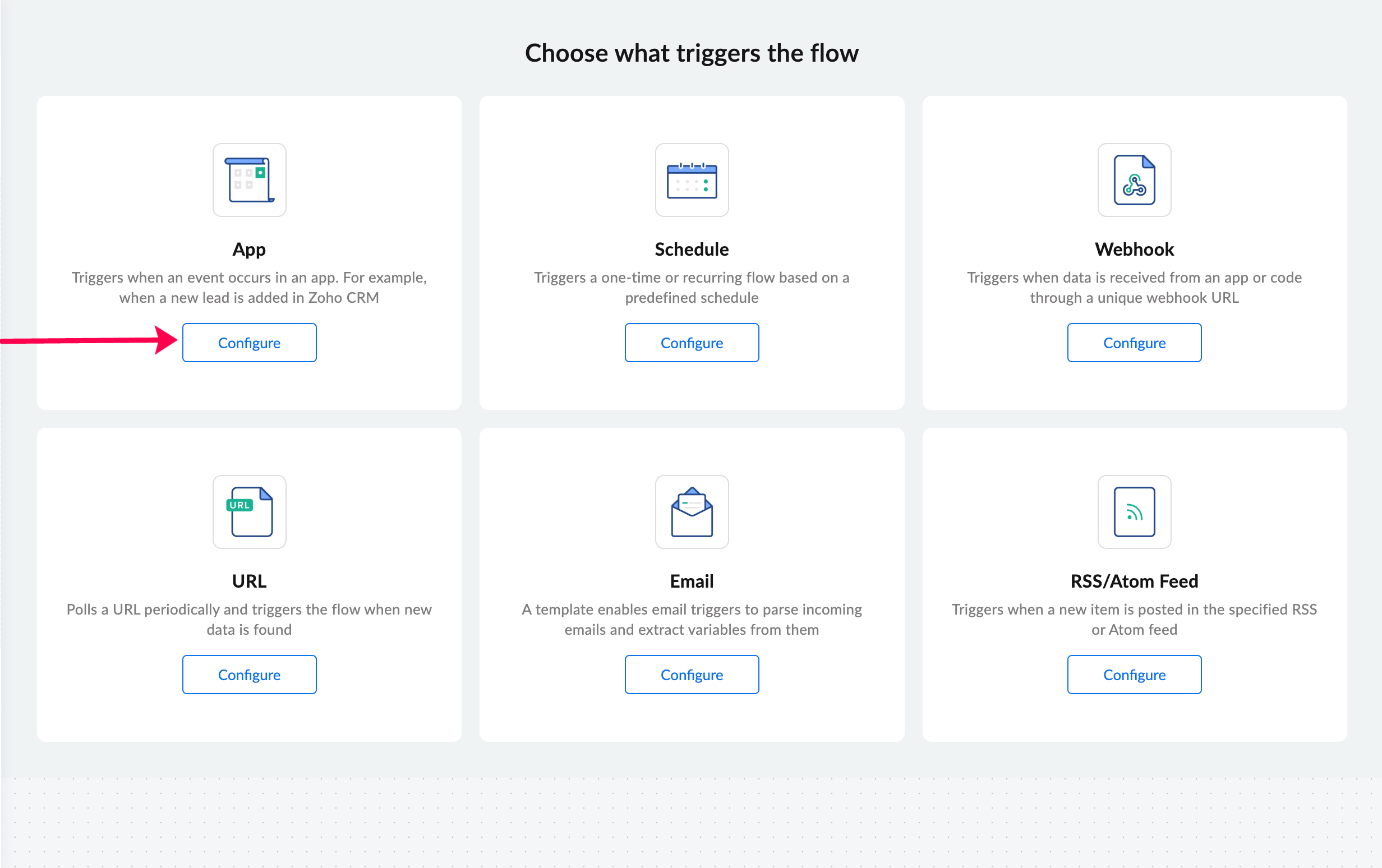
- Click Configure in the app trigger box to choose an application (Calendly) as the trigger.
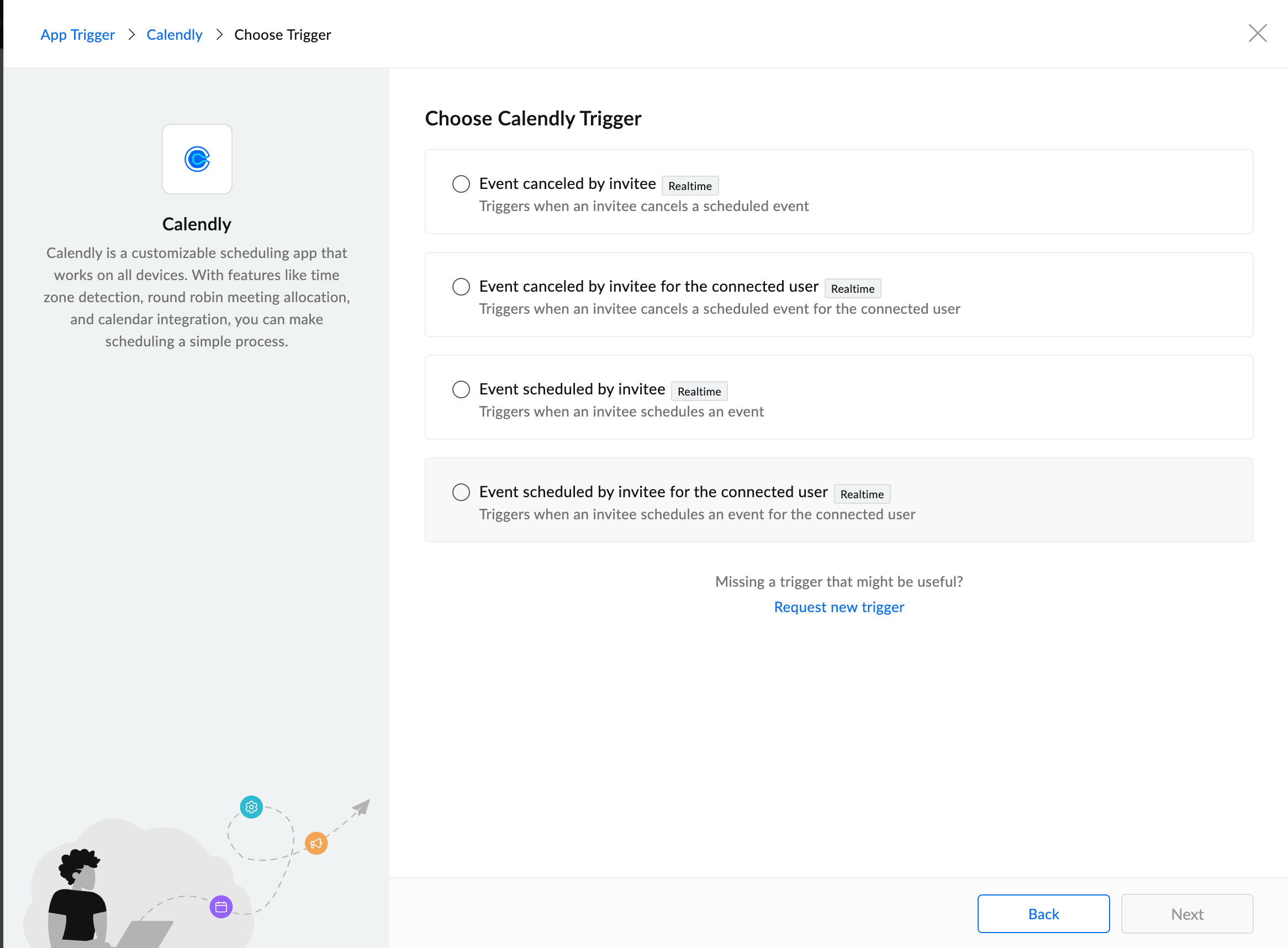
- Select your preferred app (Calendly), and choose Event scheduled by invitee as the trigger.
- If you have an existing Calendly connection in Zoho Flow, select that or click Connect to create a new connection.
- Fill in the required fields and click Authorize to build a new connection.
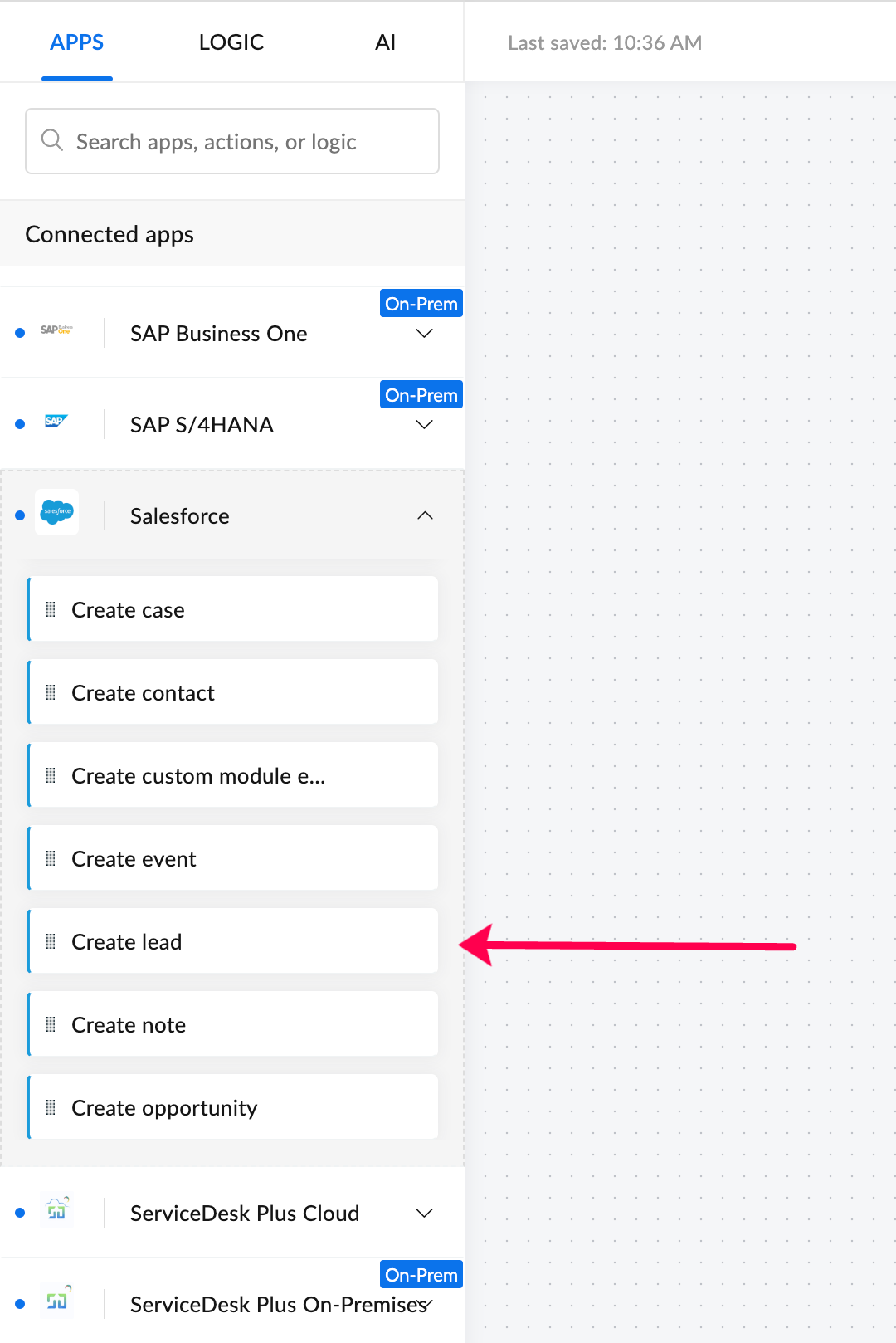
- In the builder, on the left side, under Apps, search for Salesforce.
- Drag and drop the Create lead action into the builder.
- Configure the action by creating/choosing a connection similar to Calendly.
- Set up the action by mapping the variables to the relevant fields and click Done.
- Similar to the first action drag, drop, and configure the subsequent actions. Add to or update the subscriber (Mailchimp), Notify in channel (Slack), and Create task (Zoho Projects).
- Turn the flow on at the top-right corner of the page, and your flow is ready for execution.
This is how you can build a multi-step workflow in a matter of minutes using Zoho Flow. If your workflows extend beyond simple CRM syncing, using an integration platform can help you centralize and automate your processes more effectively. Zoho Flow enables you to build anything from simple app-to-app integrations to multi-step workflows with complex logic.
The Calendly-Salesforce integration is just one example of how you can build any integration you want with ease using Zoho Flow. Sign up with Zoho Flow today and start integrating now!
 Sooraj
Content writer for Zoho Flow. Ardent fan of sports and movies.