Summary
The items that are shipped to your customers can be tracked in Zoho POS POS by integrating with Aftership. The status of the shipment will be available in real time, and customer can be notified about the same via email or SMS.
Enable the Integration
There are two ways in which Aftership can be integrated with Zoho POS.
Activate Instantly
Connect your Aftership account
Instant Activation
This option can be used if you do not have an Aftership account. You can simply click the Activate Now button to integrate with Aftership and track all the shipments. The status of the shipment will be sent via email to the customer and yourself. Payments for Aftership will be includes in Zoho POS's subscription.
To integrate with Aftership
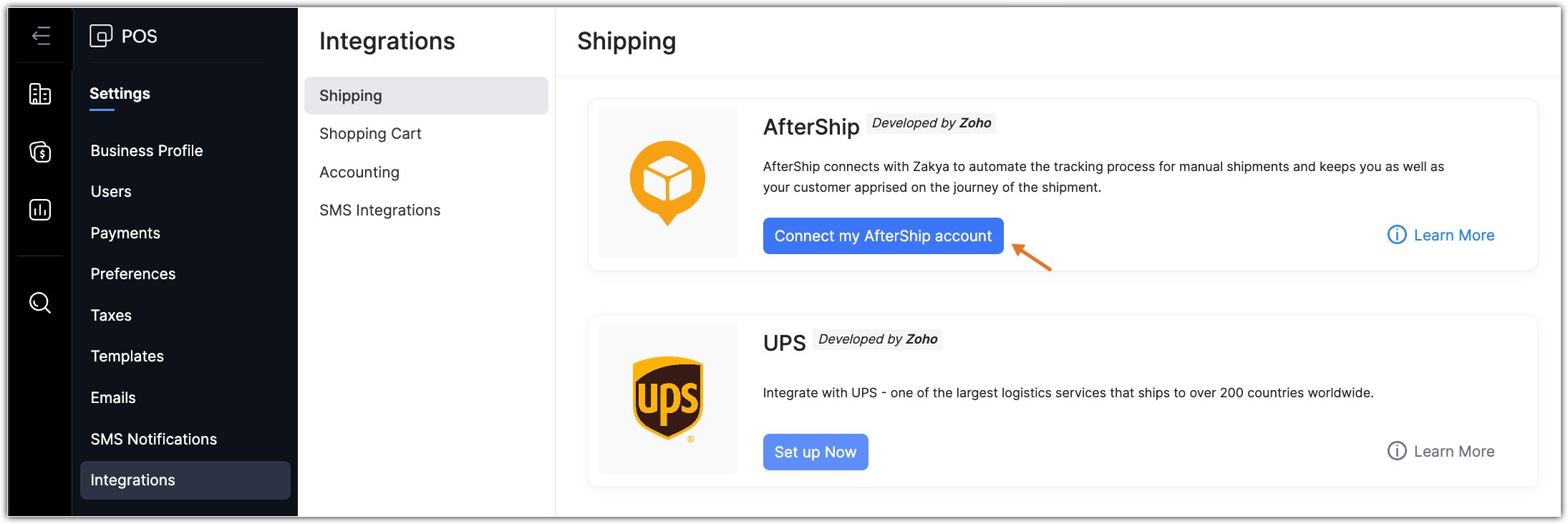
Go to Settings > Integrations > Shipping.
Click Connect my AfterShip account.
Connect your Aftership Account
If you already have an Aftership account, it can be integrated with Zoho POS with the help of the Aftership API key. The information about the shipment will be shared with Aftership and the status will be sent as a notification to you and the customer via SMS or email.
To connect your Aftership account
Go to Settings > Integrations > Shipment Tracking.
Click Connect my Aftership account.
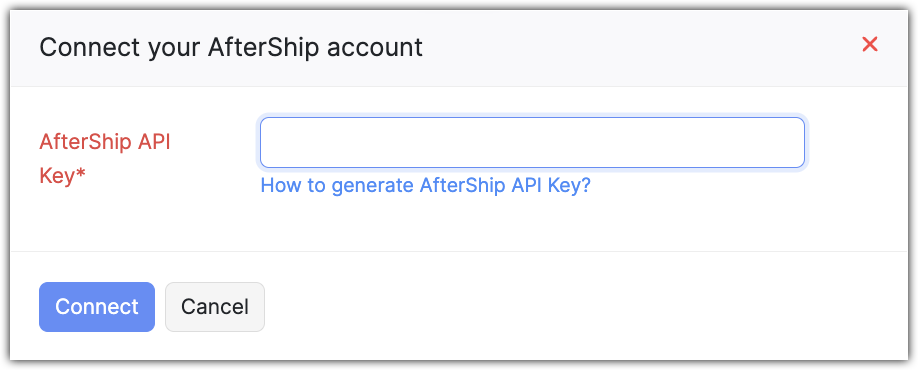
Enter the Aftership API Key and click Connect.
Tracking Shipments using Aftership
The shipments that are created manually can be tracked once the integration is enabled. The status of the shipment can be sent as an email to the customer if you have opted for the instant activation of Aftership in Zoho POS. If you have connected your own Aftership account, the status of the shipment can be sent via email or SMS.
To track shipments
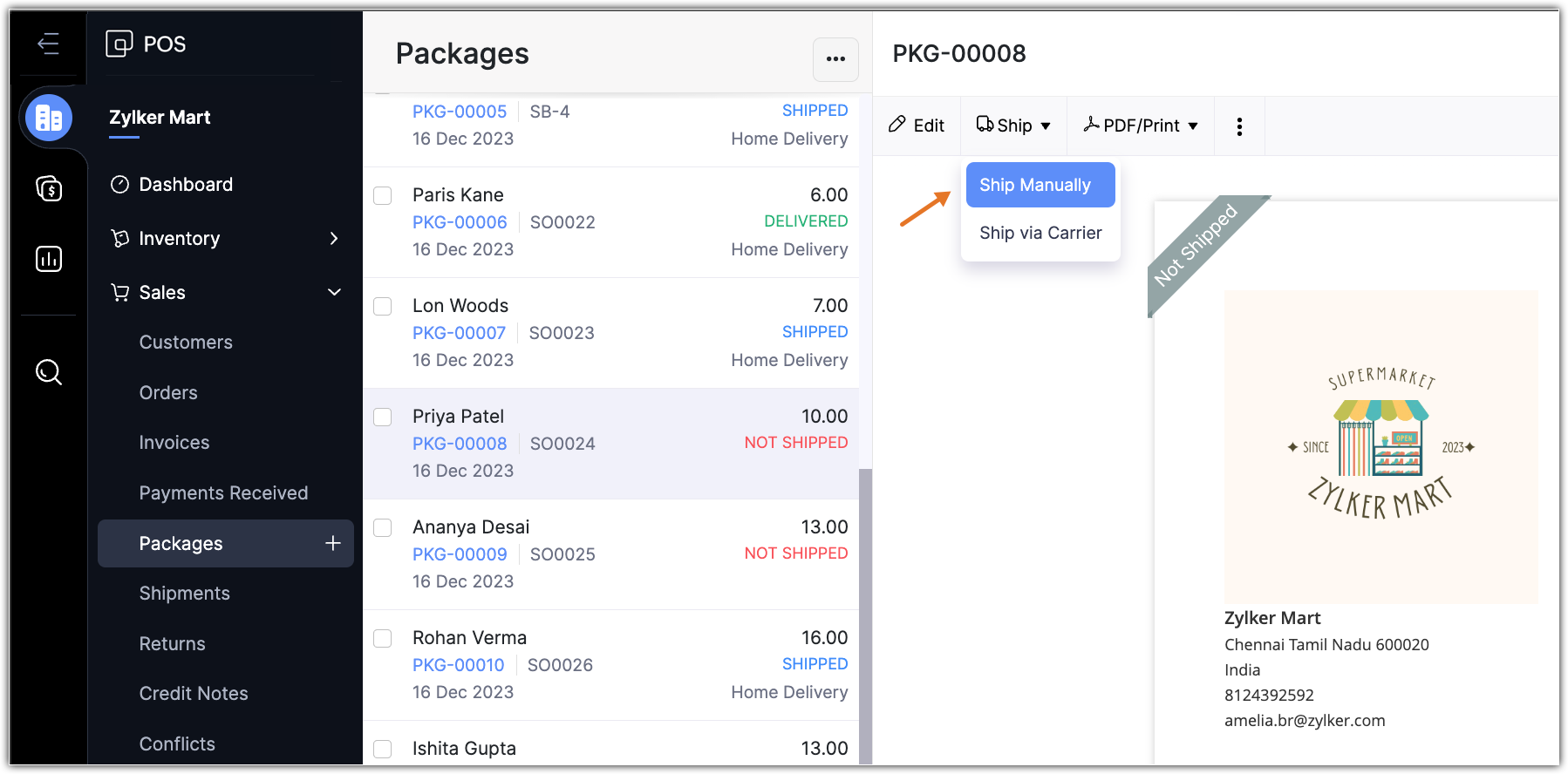
Go to the Packages module and select a package.
Click Ship > Ship Manually.
Select the Track this shipment in real-time? checkbox.
Select the Carrier from the drop-down list and enter the Tracking#.
In the Email to and SMS to fields, select the appropriate email and phone number from the drop-down list in the Send Status Notification section.
Enter the other information if required and click Save.
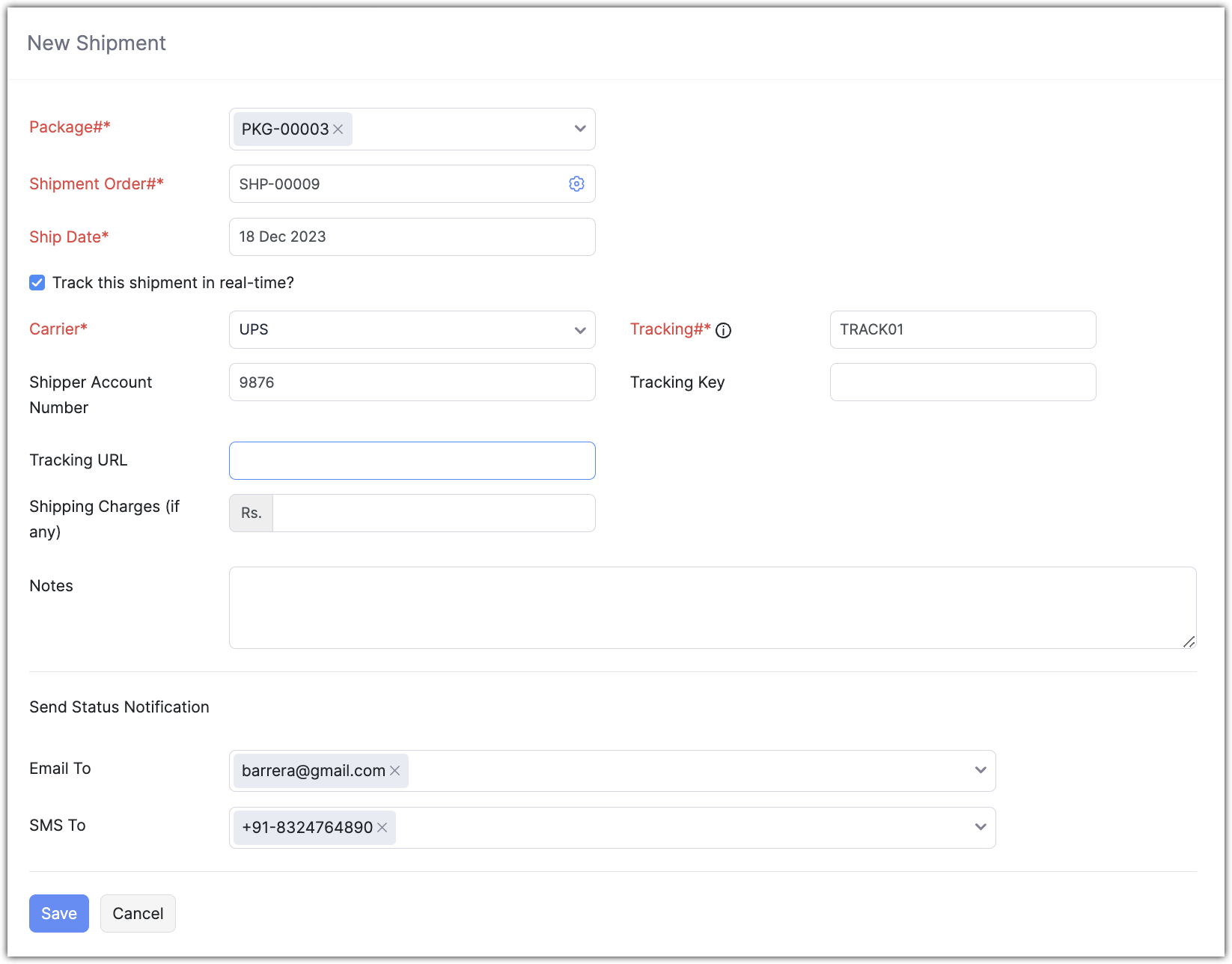
Enable tracking for shipments
The shipments that were created before the integration can also be tracked by specifying the appropriate Carrier and the Tracking#.
To enable tracking
Go to the Packages module and select a package that has already been shipped.
Click Enable real-time tracking
Select the Carrier from the drop-down list and enter the Tracking#.
In the Email to and SMS to fields select the appropriate email and phone number from the drop down list in the Send Status Notification section.
Click Save.
View Shipment Status
The detailed status of the shipment can be viewed from the package details page.
To view shipment status
Go to the Packages module and select a package that has already been shipped.
Click View Tracking Status option to view the complete status.

Deactivate the Integration
Deactivating the Aftership integration prevents you from tracking the shipments in real time. You can either feactivate or felete the integration.
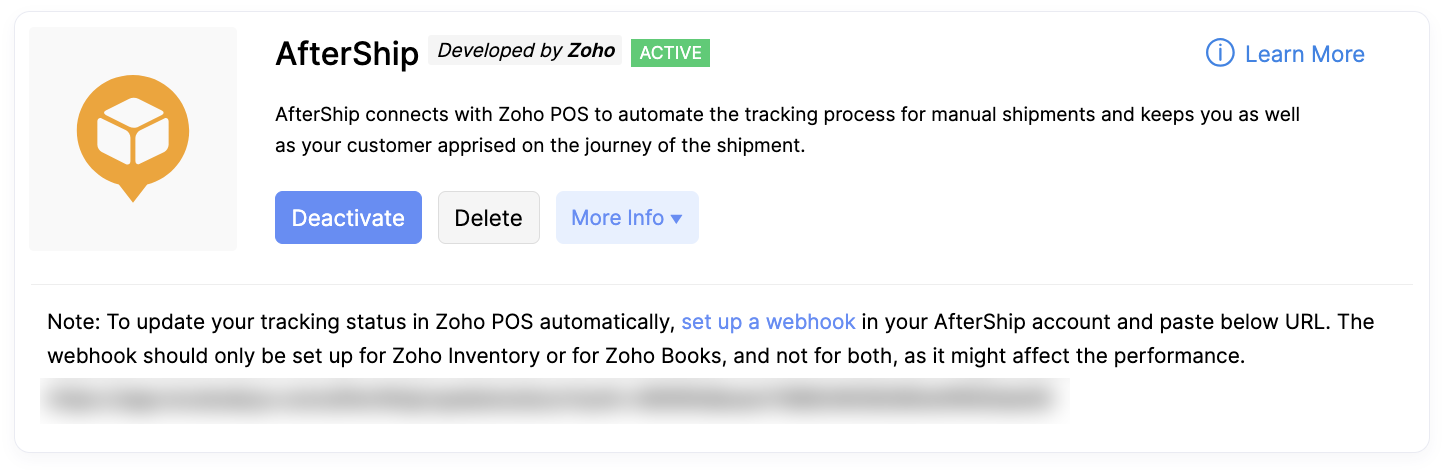
Deactivate: Deactivating this integration will retain all the tracking details for the shipments. You can activate again and start tracking shipments.
Delete: This option deletes all the tracking details that were recorded for the shipments.
To deactivate or delete the integration
Go to Settings > Integration > Shipping.
Click Deactivate or Delete.