Summary
Packages can be created for sales orders that are in the confirmed stage. You can either create a package for all the items in the sales order or only for some of the items.
To create a package
Go to Sales > Packages.
Click + New. Alternatively, you can click the + icon next to the Packages module.
Select the Customer Name and Sales Order# from the dropdown list. All the items present in the sales order will be displayed in the table.
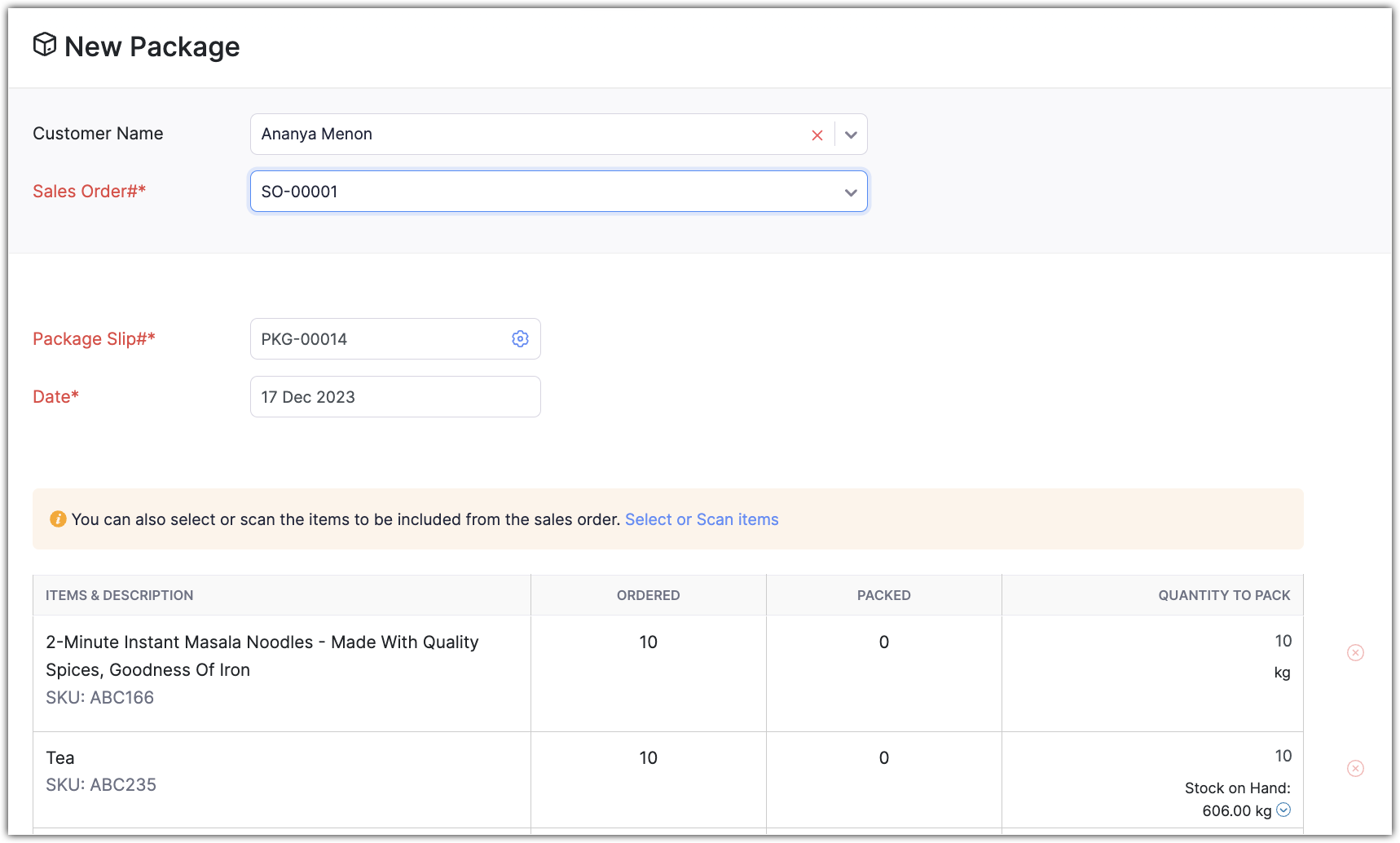
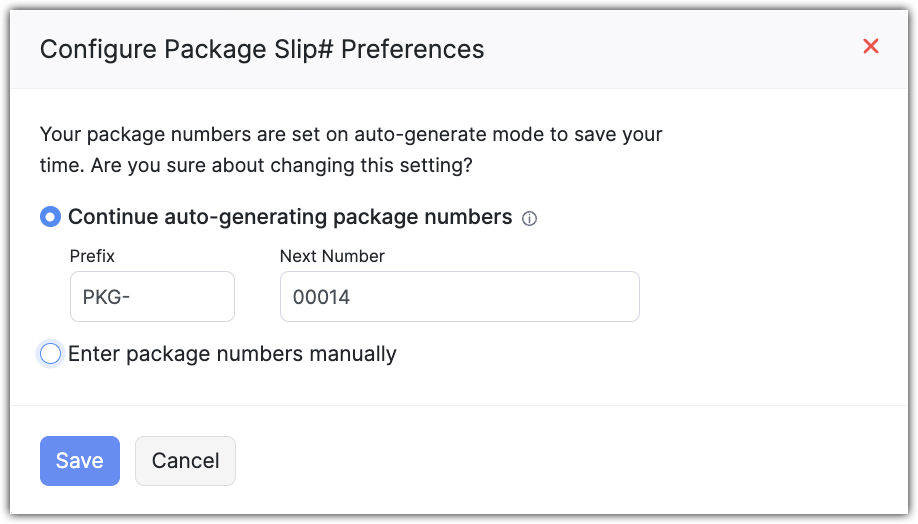
Enter a Package Slip#. To auto-generate the package slip number, do the following:
Click the Settings icon next to the Package Slip# field.
Select Continue auto-generating package numbers and enter the Prefix and Next Number.
Click Save.
Select the Date.
Opt for the Select/Scan items option if required.
Search for the item in the text box and select the appropriate item. You can also use a barcode scanner to add the items.
Modify the Quantity to Pack if required.
Click + Add Another Line to add another item.
Add Internal Notes if required. This can be viewed only by the users in Zoho POS.
Click Save.
Create a package from a sales order
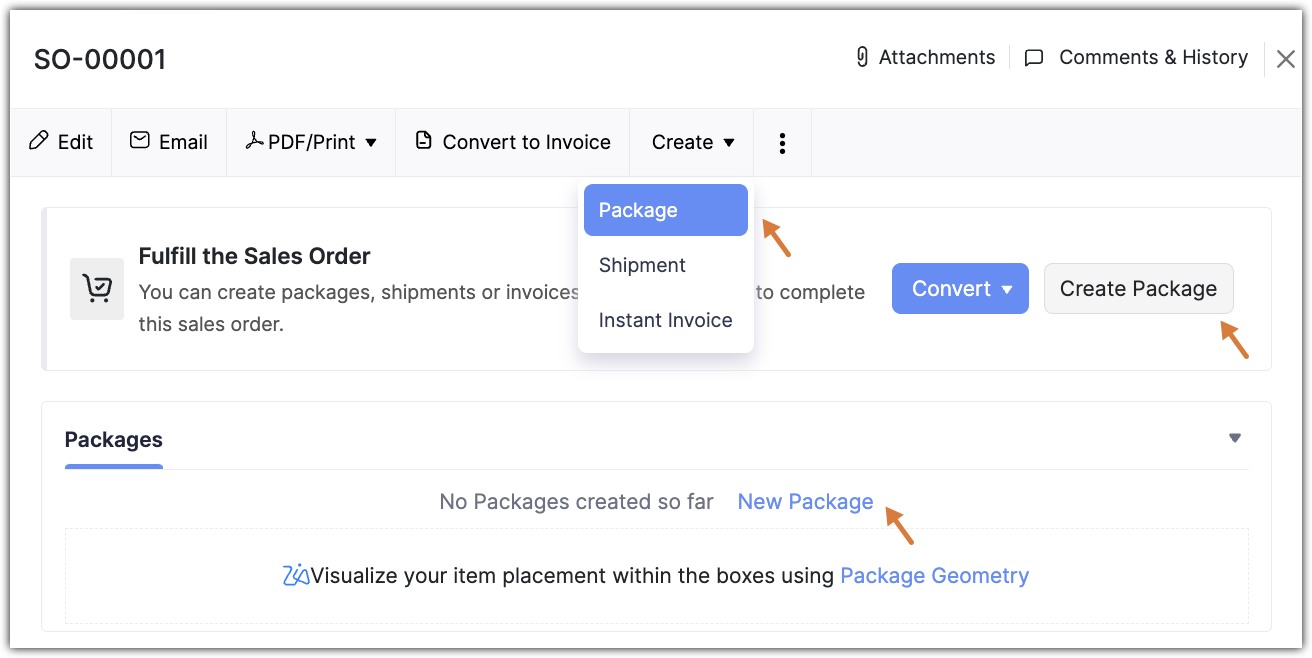
A package can be created from the Sales Order module in Zoho POS. All the items in the sales order will automatically be listed and can be modified if required.
To create a package from a sales order
Go to Sales > Orders and select an order that is yet to be packed.
Click Create > Package or click New Package from the Packages tab.
Modify the Quantity to pack if required.
Click Save.
Package status
The package status can be used to determine whether a package has been shipped or delivered to the customer. A package that's created in Zoho POS goes through four stages:
Not Shipped: A package that is ready to be shipped.
Shipped: A package that is either shipped manually or via a carrier.
Partially Packed: When only some items of the sales order are packed.
Delivered: When the package is delivered to the customer.
Views and filters
There are two ways packages can be viewed in Zoho POS:
List View: A complete list of all the packages can be viewed on a page. These packages can be filtered based on predefined list views such as All Packages, Not shipped, Shipped, and Delivered. You can also filter records based on different fields such as package date, package#, carrier, and sales order#.
Kanban View: This is a card-based view where packages are categorized based on their status. This view gives a better understanding about all the packages that you have in a quick glance. You can also filter packages based on certain fields such as carrier, package#, and shipment date.