Smart suggestions in Cliq chats
Smart suggestions in Cliq auto-detects the context behind every conversation and provides you with a set of suggestions that'll help make your conversations actionable.
Here's what Cliq can auto-detect and provide suggestions for:
Day and Date
When you enter a day or a date in the chat you can see the following suggestions pop up when you click on it.
- Add to Calendar
- Set Reminder
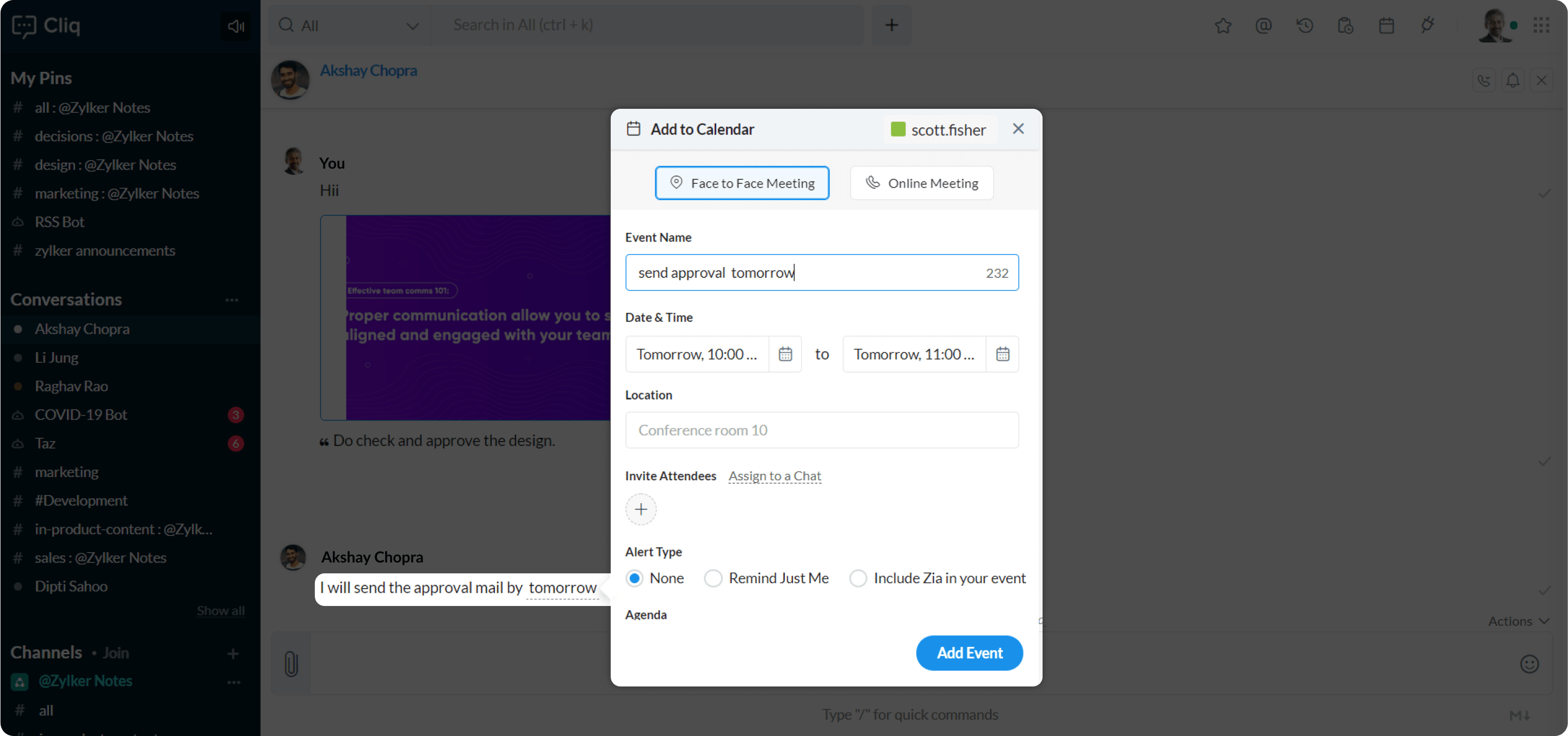
Add to Calendar
- Click on the date/day, a popup with the suggestions appears.
- Click on Add to Calendar suggestion. Add to Calendar dialog appears.
There are two types of meetings made available in the calendar.
- Face to Face Meeting
- Online Meeting
Face to Face meeting
- Enter the event name.
- Select the event duration from the Date &Time picker
- Enter the location of your meeting.
- Click on the plus icon present below the Invite Attendees.
- Click on Assign to a chat and select a chat from Pick a chat dropdown
- Select an alert type.
- Enter your agenda.
- Click on Add Event.
Online Meeting
- Enter the event name.
- Select the event duration from Date &Time picker
- Select a meeting mode.
- Click on the plus icon present below the Invite Attendees or
- Click on Assign to a chat and select a chat from Pick a chat dropdown
- Enter your agenda.
- Click on Add Event.
Set Reminder
- Click on the date/day, a popup with the suggestions appears.
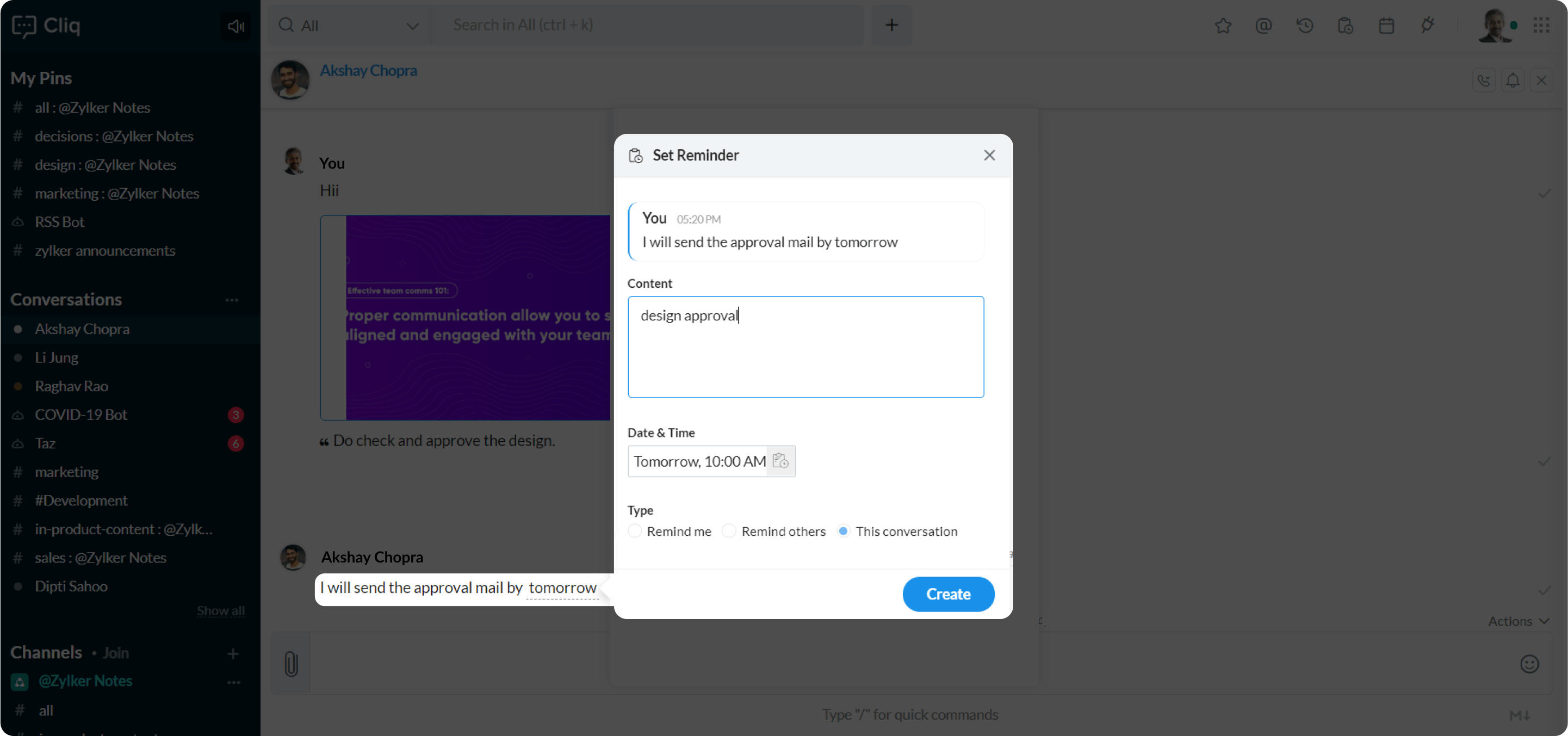
- Click on Set Reminder. the Set Reminder dialog appears.
- Enter your content in the content text field.
- Click on Date & Time to select the date and time of your choice and click Save.
- Select a reminder type.
- Remind me
- Remind others
- This conversation
- Click Create.
Note:
Cliq also auto-detects the words "today", "tomorrow" and allows you to set reminders and meetings on the calendar.
Email Id
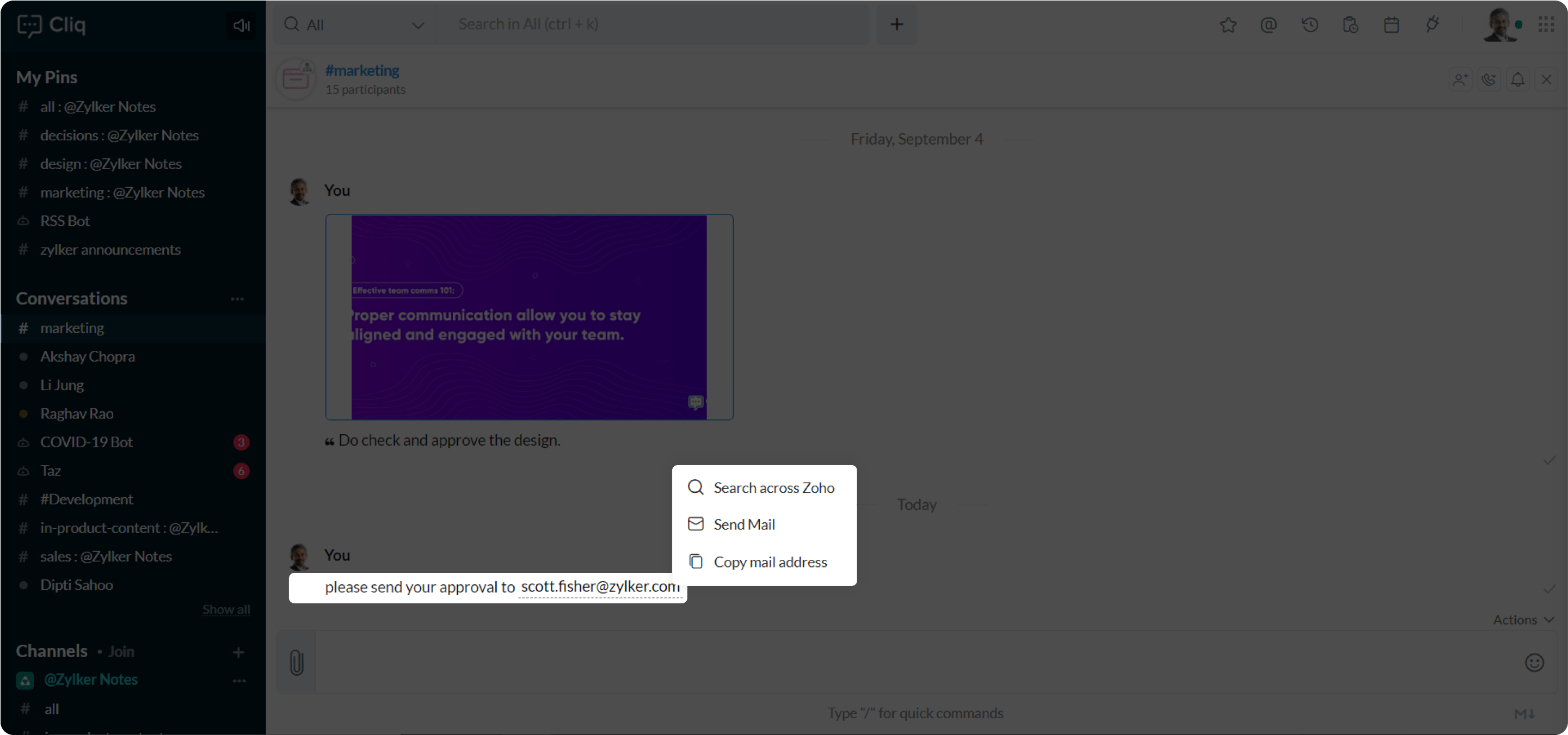
When you enter an email id in the chat the following suggestions are made available when you click on it.
- Start Chat
- Search across Zoho
- Send Mail
- Copy mail address
Start Chat
When you click on the Start Chat suggestion, the chat window of the person linked to the email id opens for you to initiate conversation.
Note: The Start Chat option appears only when email ID is shared between the users of the same organization.
Search across Zoho
When you click on the Search across Zoho suggestion, The details corresponding to the mail id is searched across all Zoho platforms/applications and the results are displayed.
Note:
Only applicable to users in the same organization.
Send Mail
When you click on the Send Mail suggestion, the mailbox instantly opens for you to send a mail-in a jiff.
Copy mail address
To copy the mail id click on Copy mail address suggestion.
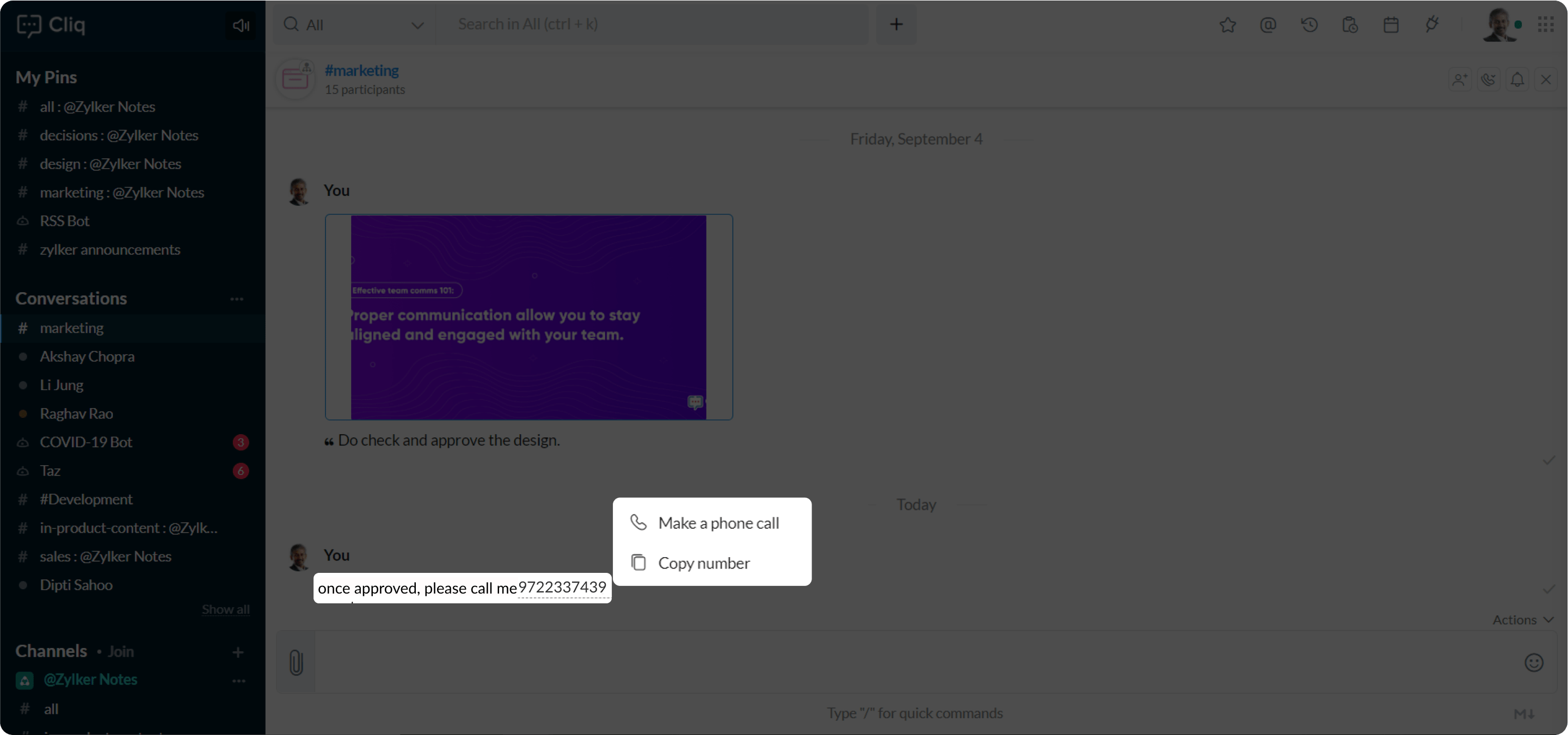
Phone Number
When you enter a phone number in the chat the following suggestions are made available:
- Make a phone call - Cliq's integration with Telephony
- Copy number
Make a phone call
When you click on the Make a phone call suggestion, the call is connected through Zoho Telephony.
You can use the Zoho telephony to create an integrated phone system and let your users complete calls with a single click from Zoho applications.
You can set up Zoho telephony through:
- Zoho CRM
- Zoho Recruit
- Zoho One
- Zoho Bigin
Enable Telephony integration in the Zoho App of your choice, set up the connection with a preferred vendor like RingCentral, Spotfone, Jive, Knowlarity , Office@Hand, and more 45+ integrations and make the call.
In case you are not connected to Zoho Telephony, when you click on Make a phone call suggestion, you can choose to connect the call using the phone, the phone details will be obtained from your synced Gmail account, or you can choose other compatible applications available on your desktop.
You can also choose to connect to the call via your phone. To do so, please make sure your mobile and your system are synced with the same email account. The selected number will be sent as a push notification to your phone..
Copy number
To copy the number click on the Copy number suggestion.