
How do I react to messages?
You can tick-off a task, show excitement, approve or give a thumbs-down, and the list goes on... The possibilities of expressing your thoughts using emojis on Cliq is endless!
Add a reaction:
- Hover over a messsage, click on the Emoji icon that appears on the right side, and pick an emoticon (Zomojis, Live Zomojis, and universal Emojis). Your reaction will appear below the message.
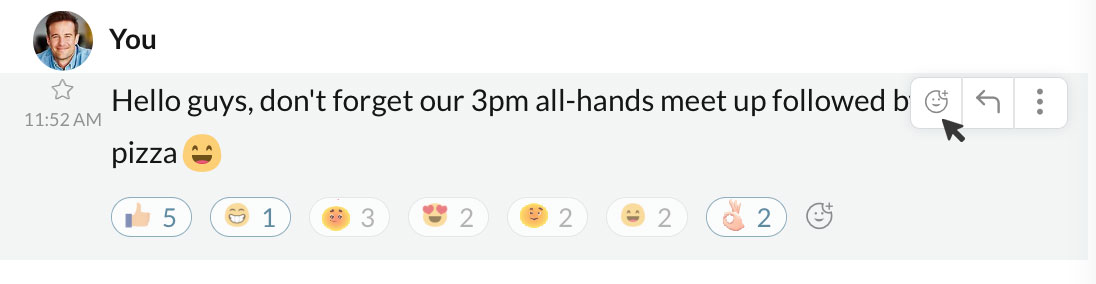
- Once an emoji is added to a message, you can also make use of the add emoji icon displayed at the end of emojis list to add more reactions to that particular message.
Remove a reaction:
- The emojis you've reacted will be outlined in blue color. Just tap on it to remove your reaction.
View reactions and its users
- In the chat window, just hovering on a reaction will list the users who reacted that emoji (minimum of 5 users).
- To view the entire list, hover over the message actions icon and select View Reactions.
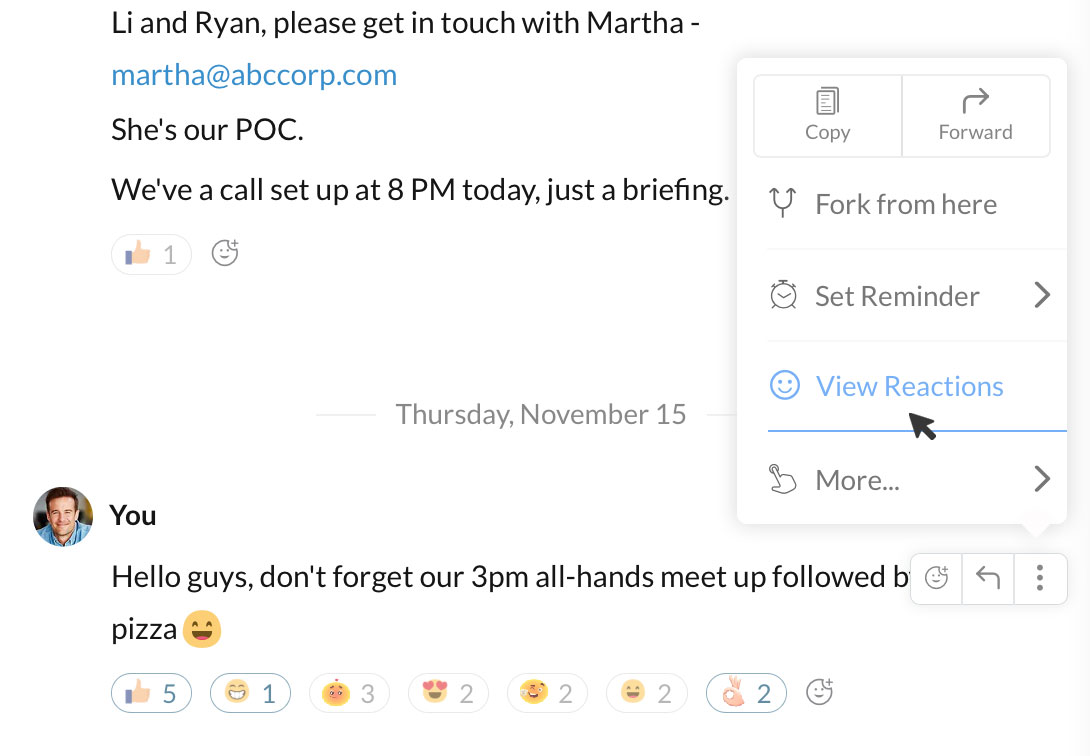
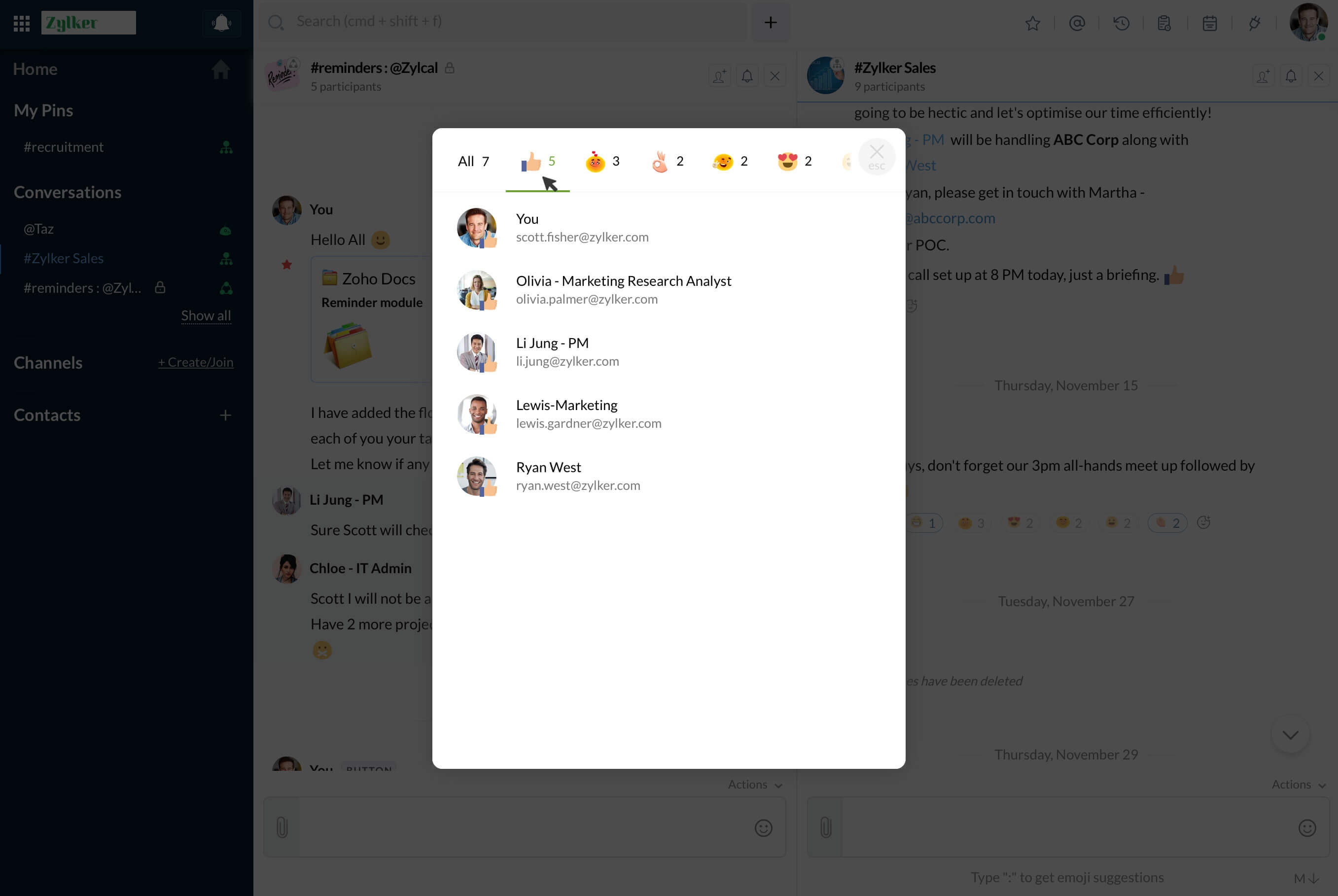
- This will open a popup listing all users and their reactions.
- You can also scroll in topbar of popup and view the list of users under each reaction.
More info on reactions:
- You can add as many reactions as you like to a single message, there is no cap to the number of reactions a message can have.
- You can't however repeat the same reaction for a message.