
Mobile Device Management
Table of Contents:
Introduction
Mobile Device Management enables you to seamlessly host, distribute, and manage Android and iOS mobile apps in Catalyst. Catalyst MDM is designed using ManageEngine Mobile Device Manager Plus, which is a cost-effective enterprise mobile device management solution. Catalyst offers a secure and reliable cloud platform and server resources that are highly scalable to accommodate your app's demands, ensuring a rich user experience.
You can easily host your mobile app from the console and manage your application's versioning in Catalyst. You can host one Android app and one iOS app for each project. MDM also allows you to send the end users invites from the console to install the mobile apps for both platforms. This enables you to keep track of the number of devices the app is installed on from the invites and view user statistics.
You can also integrate the Crashes feature into your Android and iOS mobile apps and monitor app crashes from the Catalyst console. Catalyst also helps you incorporate Push Notifications in your iOS mobile app and send push notifications directly from the console.
The mobile apps you host on MDM will be made available to the users only in the Production environment of your Catalyst project. You can host your Android or iOS app to test MDM's functionalities in the Development environment. However, the app will not be available live. You can must deploy your Catalyst project to Production and work in the Production environment, to use MDM's features in production. Refer to the Environments help page for more information.
Key Concepts
Before you learn how to host mobile applications in Catalyst, it's important to familiarize yourself with some basic concepts of Catalyst MDM.
Developing Mobile Apps in Catalyst
Catalyst provides a rich set of Android and iOS SDK tools for Android and iOS mobile app development. You can download the SDK packages from the Developer Tools section in Settings or from the menu on the right side of the console.
You can develop Android and iOS apps in Catalyst by providing the required bundle details, downloading the SDK packages, and building the apps using Catalyst's SDKs. If your mobile app uses any Catalyst components such as user authentication or functions, you must ensure that you include the relevant Catalyst SDK packages in your app's structure. For more information, refer to the Android SDK and iOS SDK documentations.
If your mobile app doesn't use any Catalyst components, you can develop it independently without including any Catalyst SDK packages, and just host it in MDM.
Hosting a Mobile App
While you develop your Android or your iOS app, you must ensure that you adhere to the guidelines issued by Google or Apple. You can refer to the official Android documentation for information on Android app development and the official Apple developer documentation for information on iOS app development.
Catalyst enables you to host your mobile app easily by uploading the APK file or IPA file of your app and providing some required information in Mobile Device Management. You can generate these files from your IDE, and upload them in the Catalyst console.
For iOS applications, you must obtain an APNs certificate from Apple. The APNs certificate permits MDM to distribute your app to the users. If you are hosting an iOS app for the first time in Catalyst, you must upload the APNs certificate when you upload the app in the Catalyst console.
The steps to generate an APNs certificate are specified in the Implementation section.
Note the following points before you host a mobile app in Catalyst:
- The app name that you provide while hosting the app in the console is only a representational name. This name will be displayed in the Android or iOS sections in Mobile Device Management, and in the email invite to a user. It does not need to be the same as the actual app name.
- You can set the app name in the strings.xml file in the source folder of your Android app. For an iOS app, you can set the app's name in your IDE.
- You can change the representational app name, the logo image of your mobile app, and the description for each app update, if you require.
- You must ensure that you do not upload an app source file that is from a different bundle while updating the app.
Application Versioning
Catalyst supports versioning your mobile apps. You can upload and host upgraded versions of the apps and view the app's version history in Mobile Device Management. However, you will not be able to roll back to a previously deployed version of the app from the Catalyst console.
The following guidelines must be followed when providing the version information for an Android or iOS mobile app before hosting it in Catalyst:
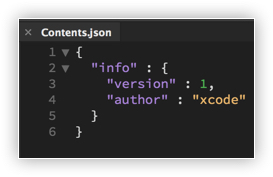
- You must provide the version information of your iOS app in the contents.json configuration file, which can be found in your iOS application's structure. Specify the version number in the version field.
- You must provide the version information of your Android app in the build.gradle file which can be found in your Android app's structure. Specify the version number in the versionName field.
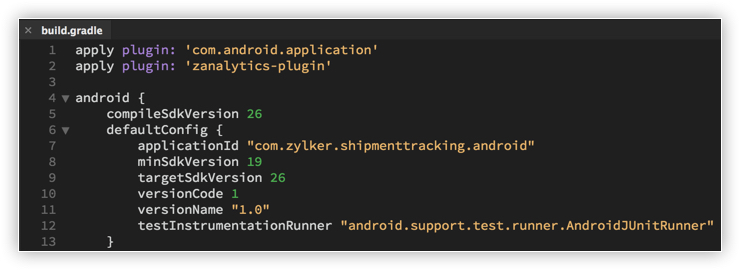
- You must specify the version number of the app in decimal format.
- For every subsequent update of your app, you can modify the version number incrementally to indicate the next version.
- You cannot reduce the version number, once the app has been hosted. This will cause compatibility issues with the SDK package.
- If you want to roll back your app to an older version, you can do it manually by deploying a previously hosted version. However, unlike with Web Client Hosting, you will not be able to roll back from the Catalyst console.
Inviting Users
As discussed earlier, you can send invites to your end users to install the app on their devices. These invites can be sent for both Android and iOS apps. Apart from sending invites from Mobile Device Management, an end-user can access your mobile app in other ways.
In general, you can invite an end user to access your mobile app in three different ways:
- Inviting from Authentication
You can send invites to users to access an Android or an iOS app from the Users section in Authentication in the Catalyst console.
However, these invites can only be sent to users of Zoho CRM or Zoho Desk who are members in your organization, i.e., the users that you have configured as members of your organization in your Zoho CRM or Desk account.
You can easily add an organization, manage organization settings, add users to your organization and more in Zoho CRM or Zoho Desk.
You can add, view, manage, and delete users of your application from Authentication. For more information, refer to the Users help page.. - Accessing from ManageEngine MDM
Since Catalyst MDM implements ManageEngine Mobile Device Manager Plus, users will be able to access your mobile app in ManageEngine MDM automatically once you host it in Catalyst. To do this, the users must first install ManageEngine MDM on their mobile devices.
Once it is installed on their mobile device, they will be able to access all the mobile apps that you have distributed to their mobile device. For more information, you can refer to the ManageEngine MDM help documentation. - Inviting from the Catalyst console
You can send invites to the users from the Invites section in Mobile Device Management in the Catalyst console. When you specify the service (Zoho CRM or Zoho Desk) while sending an invite from Catalyst, all the users of your organization in that service will be listed. You can then select the users that you want from the list and send the invite to them.
Since you can be part of multiple organizations in Zoho CRM or Desk, you must select the required organization in Catalyst to view the list of its members.
This document only covers the procedures to invite and manage users from the Invites section in Mobile Device Management in the Catalyst console.
In addition to allowing you to send user invites, the Invites section also provides information about the number of devices the mobile app has been installed on from the invites, and the number of devices on which installation is pending.
Benefits
- Easy Internal Distribution
You can use Catalyst MDM to host mobile apps that need to be used internally in your organization, and securely distribute them to the members of your organization. This helps facilitate limited usage of the mobile apps that you build. You can easily distribute and obtain reports on app usage from the Invites section. - Qualitative Analysis and Testing
If your app is built for commercial usage, you can perform qualitative analysis and testing of your mobile apps with the members of your organization as test users before launching the app commercially. Catalyst MDM is highly useful for this, as you can distribute the app internally and evaluate the overall app experience from the users' perspective. - Safe and Secure End-user Experience
Catalyst MDM offers ManageEngine MDM's data security, device protection, and app security features for your mobile apps. Security certifications are dispatched to Apple for iOS apps and to Google for Android apps from Catalyst. If the users have ManageEngine MDM installed on their devices, you can perform security activities and enforce safety regulations on their devices. - Integrated Space to Distribute Apps and Manage their Versioning
You can easily host your apps in the Mobile Device Management section in the Catalyst console in a few simple steps. You can also easily update an app and view its version history on a single page. The Invites section also displays a list of all the users that you have sent invites to, along with the acceptance status of every invitation.
Implementation
The Implementation section acts as a step-by-step procedure guide to hosting, updating, and sending invites for both Android and iOS apps from the Catalyst console.
You must ensure that you are working in the production environment in the Catalyst console to host your app live.
Enable Mobile Device Management in the Console
You must enable Mobile Device Management for your project before you access it for the first time, in the following way:
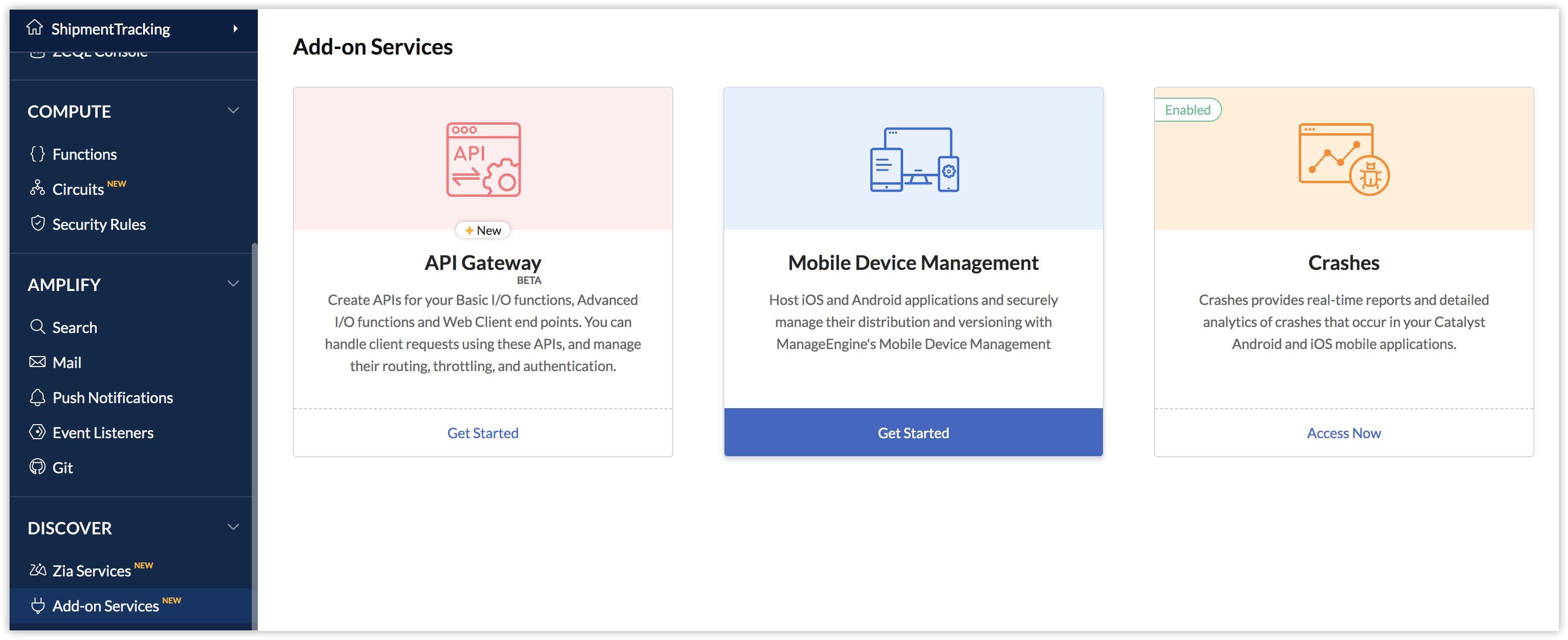
- Navigate to Add-on Services under Discover, and click Get Started on the Mobile Device Management window.
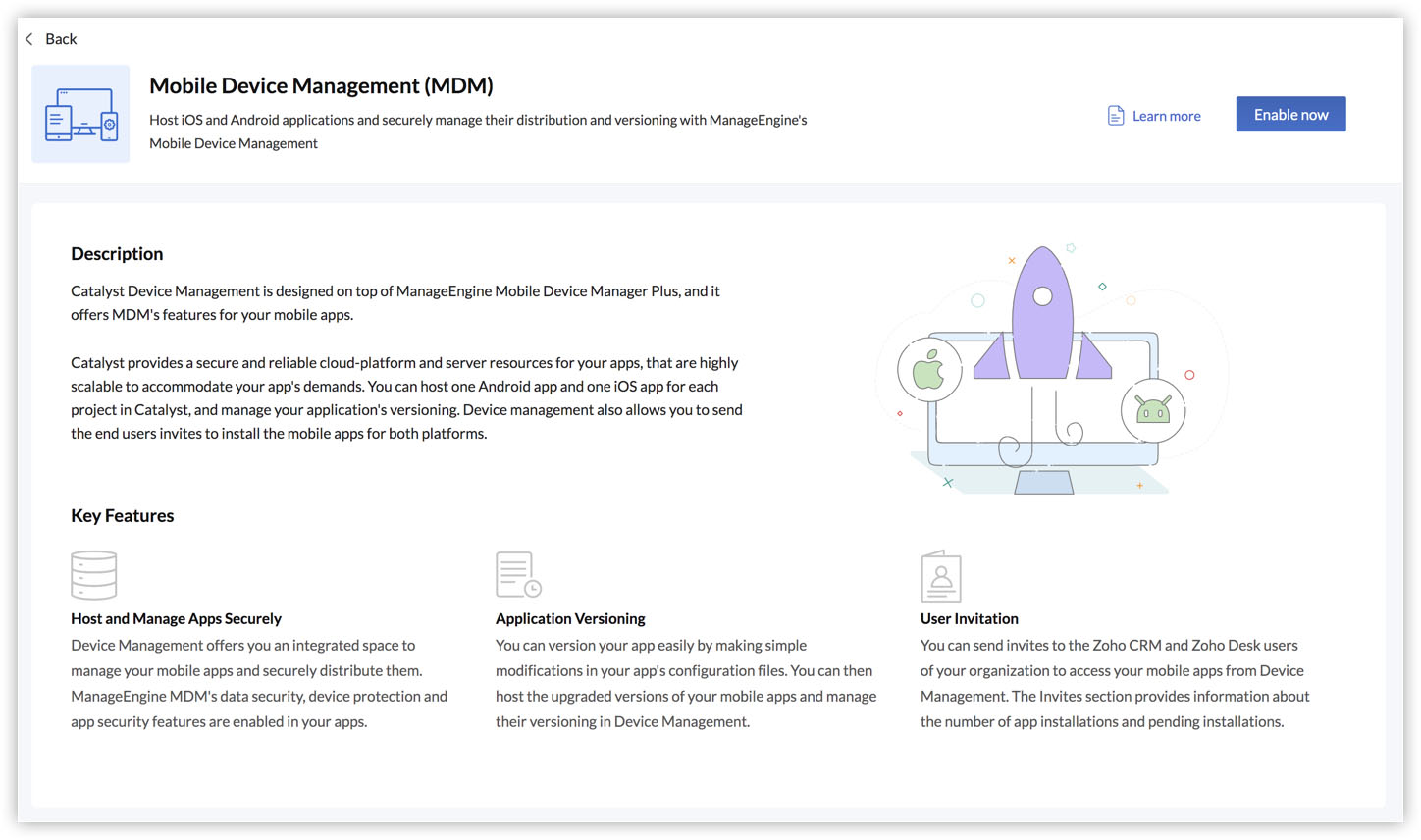
- Click Enable Now in the Mobile Device Management feature page.
- Click Proceed in the confirmation pop-up window.
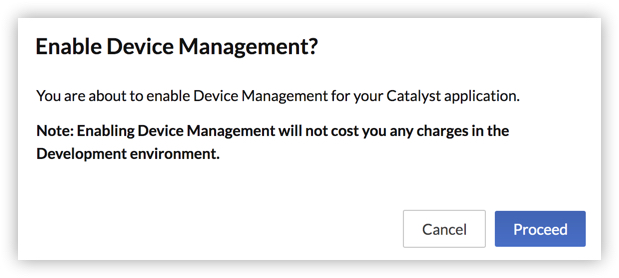
Catalyst MDM will now be enabled and you will be able to access it. You will not be able to disable MDM for your project, once you have enabled it.
Host an Android App
To host an Android app, you will need to upload the APK file of your mobile app and provide the required information.
To host an Android application in Catalyst:
- Navigate to Add-on Services under Discover, and click Access Now on the Mobile Device Management window.
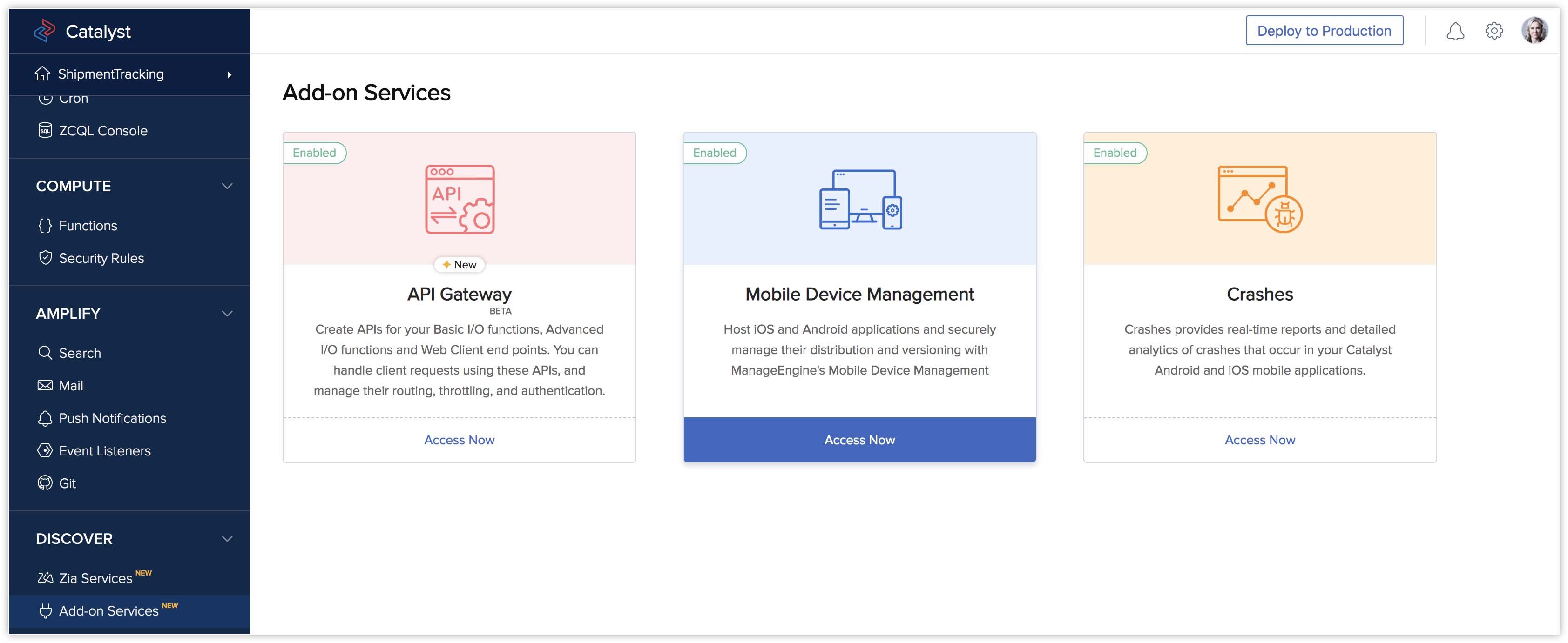
If you had just enabled MDM, you will be navigated to the Mobile Device Management page automatically right after enabling it. - If you are uploading a mobile app in your project for the first time, click Upload to upload your Android app in the Device Management page.
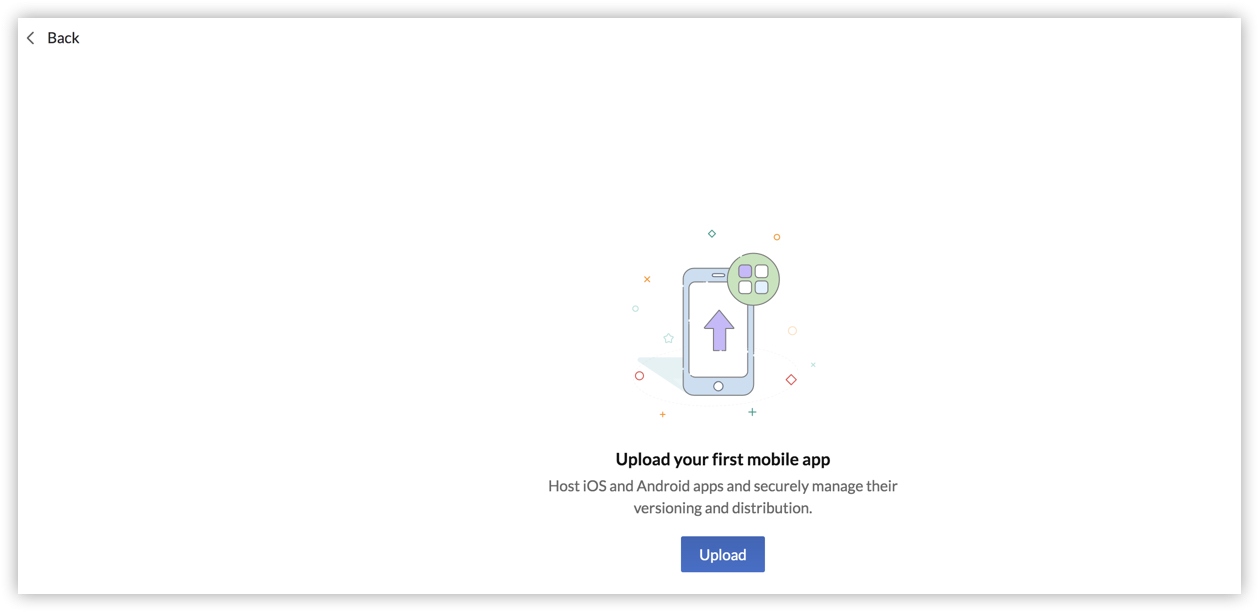
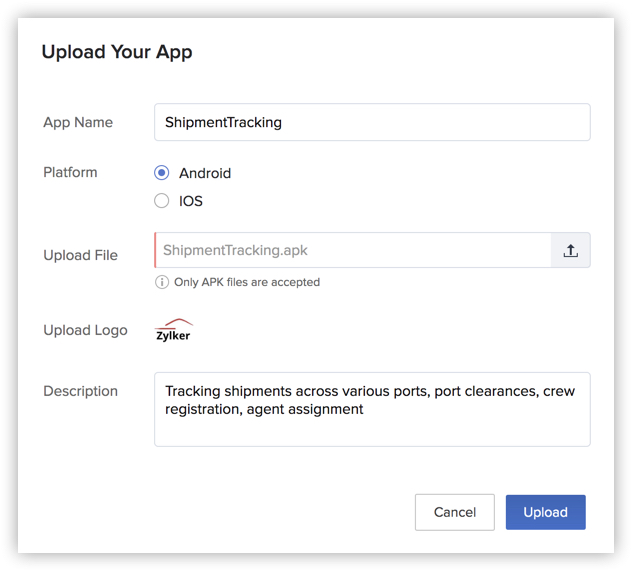
If you have previously uploaded an iOS app for your project, click Upload to upload your Android app from the Android section. - Enter the App Name in the pop-up window.
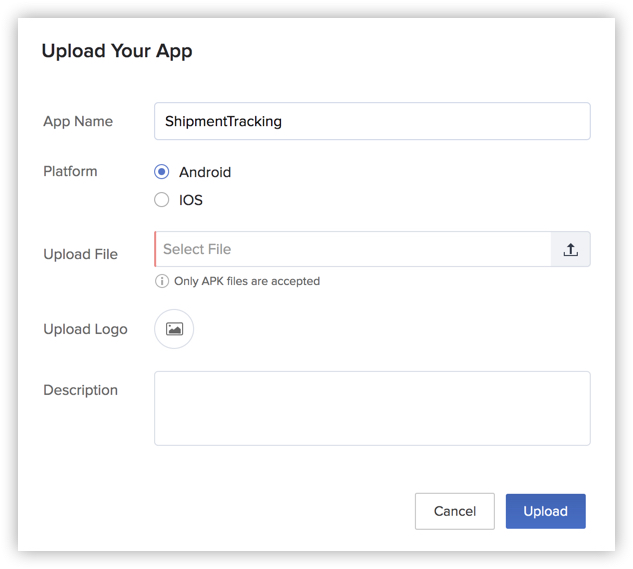
- Select Android as the platform. If you are uploading the file from the Android section, only the Android option will be available.
- Select the application's APK file from your computer.
- Select the Android app's logo image from your computer.
Note: The logo image must be in the .jpeg format. The image size must not exceed 50KB.
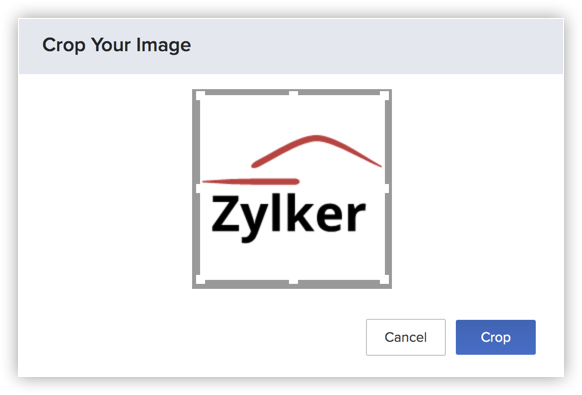
- Crop the logo image as required and click Crop in the pop-up window.
- Enter a description for the Android app.
- Click Upload.
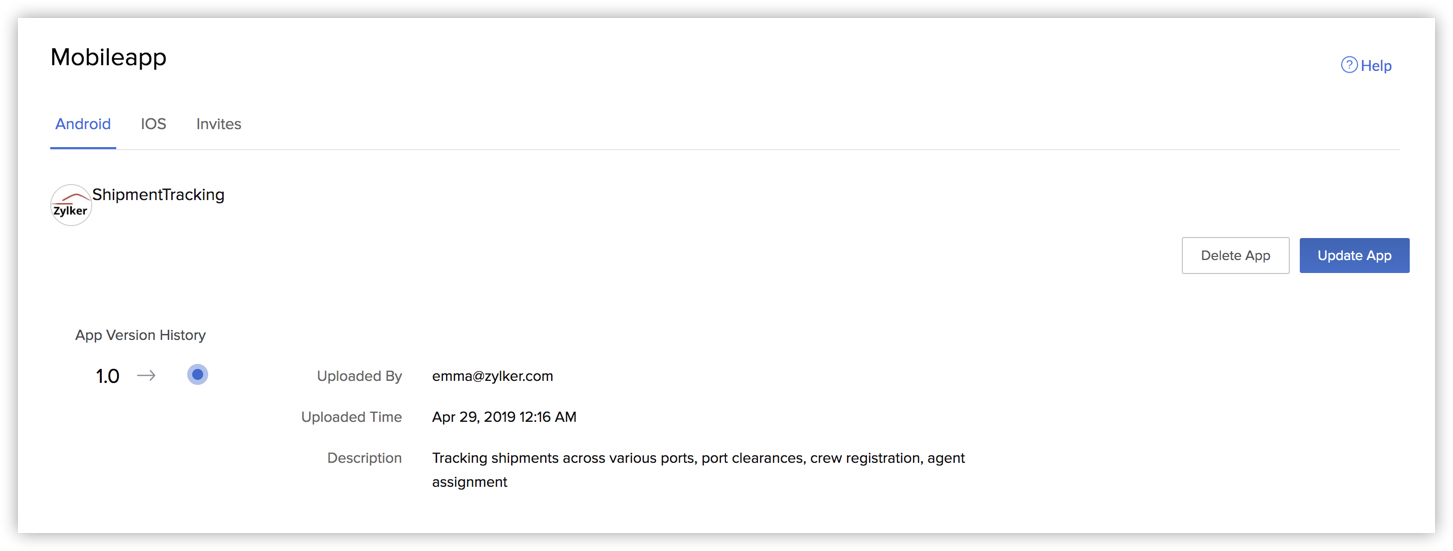
Once you have uploaded the APK file, your Android app will be hosted automatically if you are working in the Production environment.
The details of your mobile app will be displayed in the Android section of MDM. The section also displays the App Version History.
Host an iOS App
To host an iOS app, you will need to upload the IPA file of your mobile app and provide required information.
To host an iOS application in Catalyst:
- Click Upload to upload your iOS app in Mobile Device Management, if you are uploading a mobile app in your project for the first time.
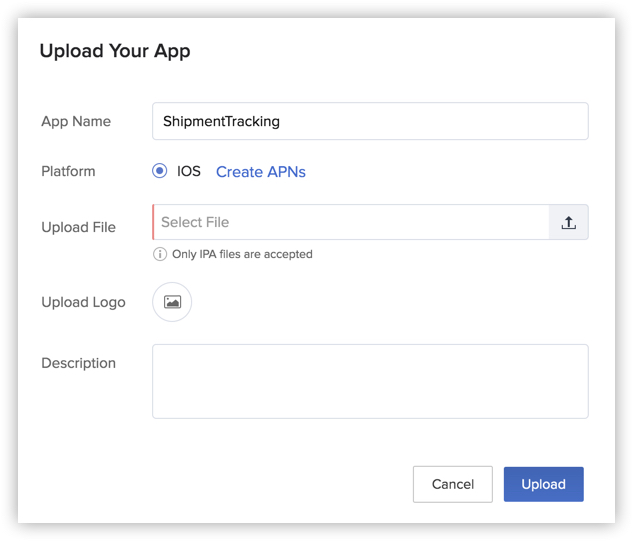
If you have previously uploaded an Android app for your project, navigate to iOS and click Upload in the iOS section to upload your iOS app. - Enter the App Name in the pop-up window.
- Select iOS as the platform. If you are uploading the file from the iOS section, only the iOS option will be available.
- When you choose iOS as the platform, a Create and Sign CSR pop-up window will automatically open. If you are uploading the file from the iOS section, you must click Create APNs.
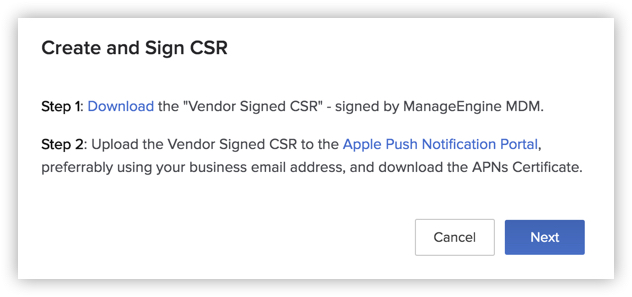
To create an APNs certificate, you need to download the Vendor Signed CSR signed by ManageEngine by clicking Download in the pop-up window. You can then upload it to the Apple Push Certificates Portal for Third Party Servers and generate the APNS certificate there.
To learn about the steps to obtain an APNs certificate from Apple, refer to the official documentation on Obtaining a Provider Certificate from Apple. Follow the steps in it and download the certificate that is generated to your system.
Note: The certificate that you download from Apple is in .cer format. You must convert it to .p12 format before uploading it to Catalyst.
You can convert a .cer certificate to a .p12 format on your Mac in the following way:- In your Mac, double-click on the downloaded certificate to install it in Keychain Access.
- Open Keychain Access and locate the installed certificate under the Certificates section.
- Expand the arrow next to the certificate to show the key and select it.
- Select File and then Export Items...
- Provide a name for the export file. Save the file in the .p12 format.
- Provide a password to protect the certificate. You will need this password while enrolling for Catalyst Push Notification services. Click OK.
- Provide your Mac password to enable the export. Click Allow.
- Once you have completed this, click Next in the Create and Sign CSR window.
- Upload the APNs certificate in the .p12 format in the pop-up window. Enter the corporate Apple ID used while creating the APNs certificate, and the email address to send notifications about APNs expiry to. Click Upload.
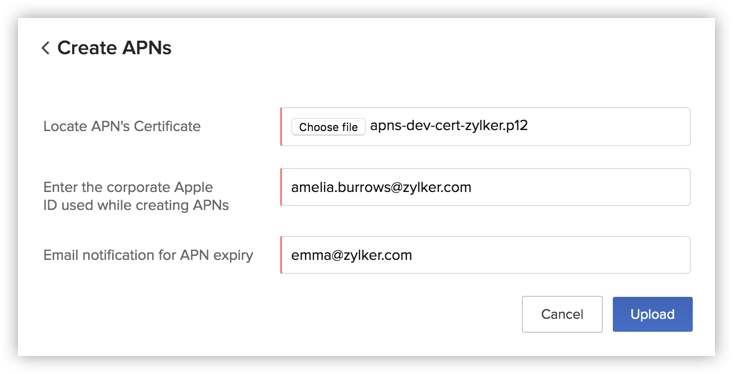
You will be redirected to the Upload Your App pop-up window. - Select the application's IPA file from your computer.
- Select the iOS app's logo image from your computer.
Note: The logo image must be in the .jpeg format. The image must not exceed 50 KB.
- Crop the logo image as required and click Crop in the pop-up window.
- Enter a description for the iOS app.
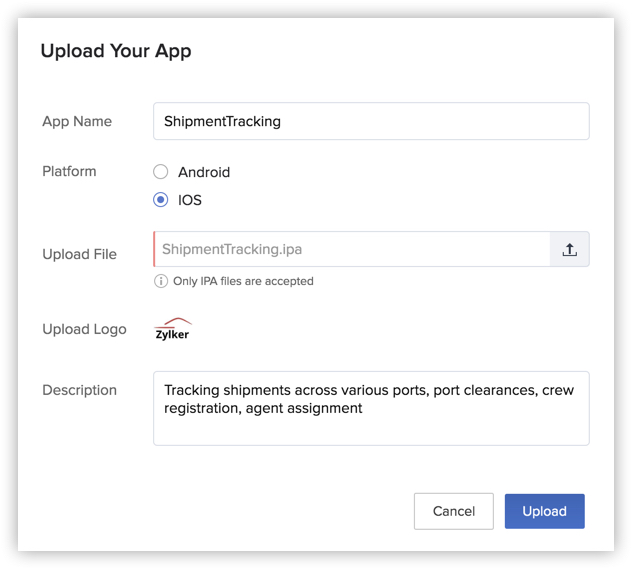
- Click Upload.
Once you have uploaded the IPA file containing the source files of your iOS app, it will be hosted live automatically if you are working in the Production environment.
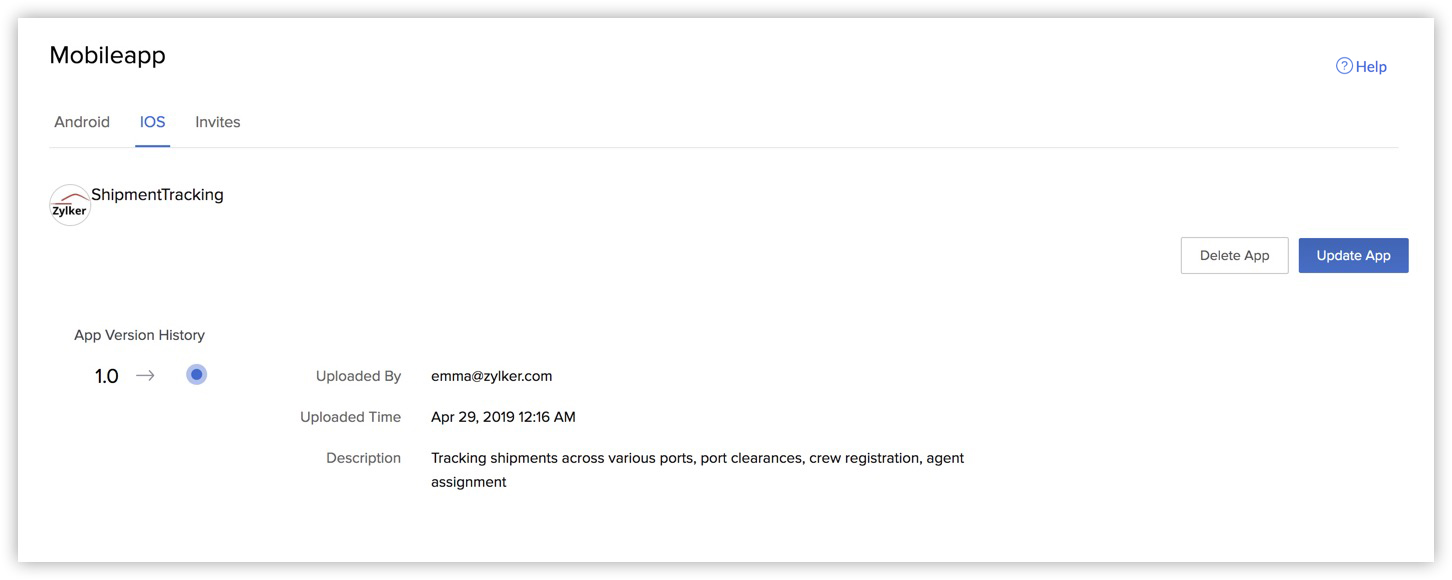
The details of your mobile app will be displayed in the iOS section of MDM. The section also displays the App Version History.
Application Versioning
The App Version History displays all the existing versions of your application with other details of the version.
To upload an updated version of an Android or an iOS app in Catalyst:
- Click Update App in the Android or iOS section in MDM.
- This will open the Upload Your App pop-up window. Follow the same procedures as in the previous sections to provide the required information and select the required platform.
- Click Upload.
The updated version of your mobile app will now be hosted live. You can view all version updates of your mobile app in the App Version History.

However, as mentioned previously, you will not be able to deploy an older version of your application from the console. Support for deploying a previously uploaded version of a mobile application from the console will be rolled out soon.
Delete an Android or iOS App from Catalyst
You can delete an Android or iOS app from Catalyst MDM. However, the app will still be available in ManageEngine MDM.
To delete an Android or iOS app from Catalyst:
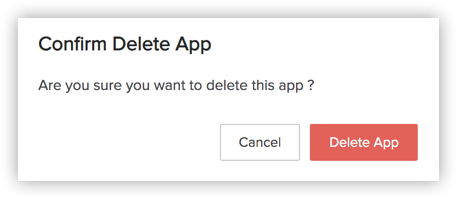
- Click the Android or iOS tab and click Delete App.
- Click Delete App again in the confirmation window.
User Invites
You can send an invite to a user in your organization for installing an Android or iOS app from the console in the following way:
- Click the Invites tab in Mobile Device Management.
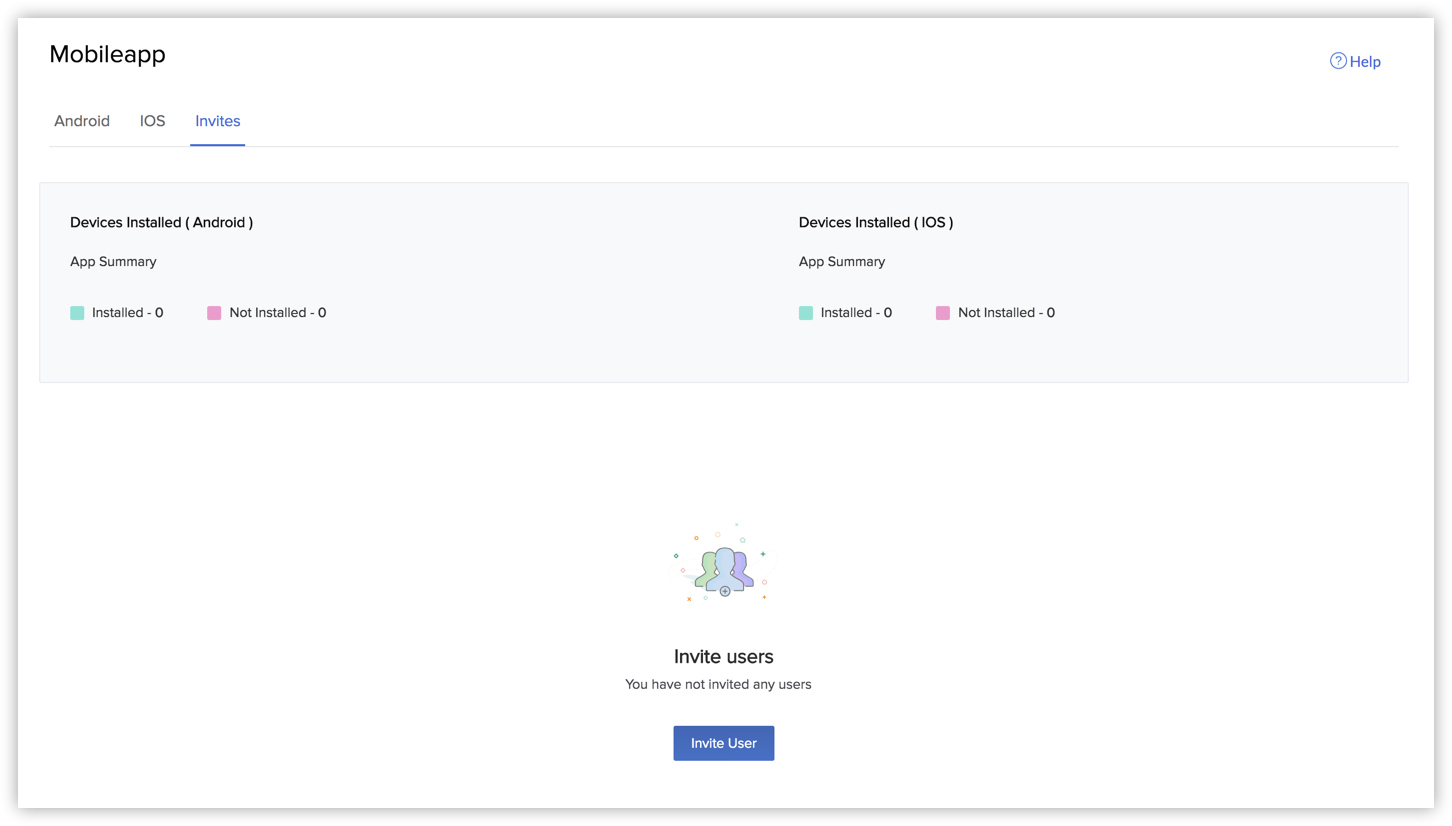
- Click Invite Users.
- Select the service as Zoho CRM or Zoho Desk in the Service row in pop-up window.
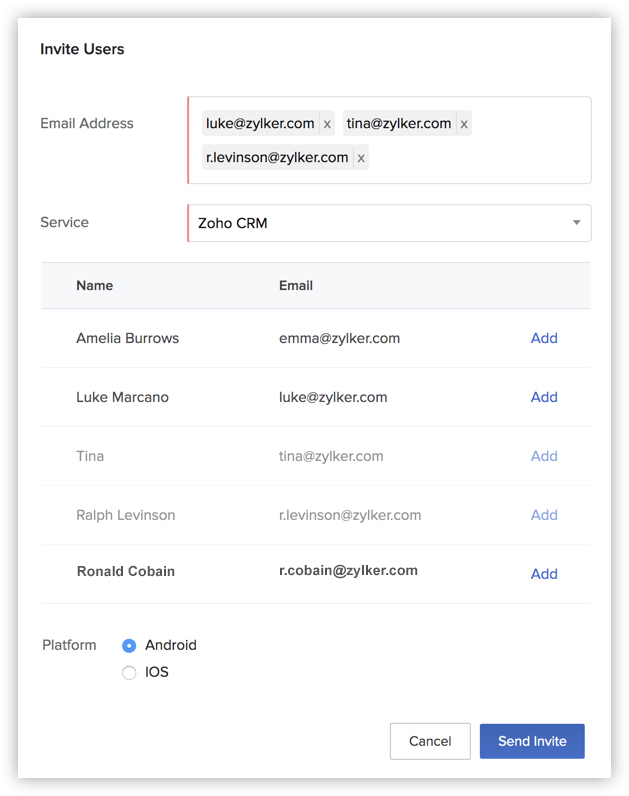
This will automatically list the members of your organization configured in that service, as discussed previously. You can add a user's email address by clicking Add for the user. The Email Address section will display the email addresses of the users that are being added. - Select the platform of the mobile app to invite the user to.
- Click Send Invite.
Once you send the invite, the user will receive an email with an access link to access the mobile app.

When the user clicks on the link, they will be redirected to a sign-up form, where they can set up a password to access the app.

When the user clicks Update, they will be redirected to the redirect URL that you specified in the application bundle.
The user will also receive an invite from ManageEngine MDM to install the mobile app. The app will download and get installed when they install the required MDM certificates in their mobile device. Refer to MDM help for more information.
The Invites section displays information about the number of devices the mobile app has been installed on from the invites, and the number of devices on which installation is pending. This information is displayed under App Summary for both Android and iOS platforms.

The users are listed in the Invites section along with their details and their invitation stage. You can search for a user by their email address using the search bar.
When a user accepts and installs the app they were invited to access, their Stage changes to Installed, and the information is reflected in the count in App Summary as well.