
Event Generate
Table of Contents:
Introduction
Catalyst enables you to generate sample payloads from various event sources supported by Catalyst Event Listeners using the CLI.
There are two types of Catalyst event listeners: the Catalyst component event listener that listens for a specific event in a Catalyst component, and custom event listeners that listen for the invocation of a custom URL. In both cases, the associated Event function is triggered upon the event occurrence, and a stream of data from the event source is passed to it. You can learn more about this from the Event Listeners help page.
The catalyst event:generate command generates sample payloads for both component and custom event listeners in the CLI. You can specify the particular source and the action that you require the payload for. You can use the generated payload to test the Event functions in your project from the local environment.
In addition to Event functions, you can also generate sample payloads and test the Integration functions in your project. The catalyst event:generate:integ command enables you to select the integration service, component source, and handler to generate the payload for.
You can then launch a Node shell from the CLI to test and debug the Event or Integration function, by passing the generated sample payload data to the function.
Generate Sample Payload for a Component Event Source
A component event listener listens for a specific event occurring in one of the Catalyst components, then triggers the associated target function and passes the component data to it. It is already created by default in a project. You can obtain sample data of the same pattern in the CLI, for the source and the action you require.
The general command to generate a sample payload of an event in the CLI is:
catalyst event:generate|generate:event [options] <source> <action>You can provide any of the sources and associated actions of a Catalyst component event, in the command shown in the table below:
| Source | Action | Optional Inputs |
| datastore | Insert Update Delete | --table <table_name_or_id> |
| cache | Put | --segment <segment_name_or_id> |
| user | SignUp Delete | NA |
| filestore | Upload | --folder <folder_name_or_id> |
| webapp | Success | NA |
| github | Success Failure | NA |
For example, to generate a sample payload for a Data Store Insert event, execute the following command:
catalyst event:generate|generate:event datastore InsertThis will generate the following JSON payload for this source and action. The payload will contain the actual details of your project, the default event bus details, and sample entity details.

You can pass this data to an event function through the functions shell, and test it as per your requirements.
You can also directly save the JSON payload into a file instead of displaying it in the CLI, by creating a file for it in the path you require like:
catalyst event:generate|generate:event user Signup>>payload.jsonOptional Inputs
In addition to the mandatory source and action pair, you can also supply optional inputs about the entity source, as shown in the table. For example, if you specify the table name or ID while generating the sample payload for a Data Store insert operation, Catalyst will check your remote project for a table with that name or ID. If the entity exists, the CLI will display the data of that table in the JSON payload.
If you do not provide any optional inputs, or if there are no entities to be found matching your inputs, the CLI will generate the JSON payload with random sample data.
For example, to generate a sample payload for a cache put event in an existing segment configured in the remote console, the following command is executed:
catalyst event:generate|generate:event cache Put --segment <segment_name_or_id>Catalyst checks for a segment of that name or ID. If it exists, it will generate the payload including that segment's data. The Segment ID that was passed is specified as the value for source_entity_id in the example shown below.

Component Event Generation Options
The catalyst event:generate command supports two options that you can use it with. However, only one of those options is applicable when you generate a sample payload of a component event source.
-e | --event-bus <event_bus_name>
The --event-bus or -e option enables you to specify the name of the event bus that must be used in the sample payload. You can use this while generating the payload of any source or action. The event_bus_details JSON will contain the name that you pass as the bus's name.
If you do not specify the event bus name, the bus name will be 'Default' in a component event's payload.
For example, to generate the payload of a cache put event and to specify the event bus name with it, execute the following command:
catalyst event:generate|generate:event cache Put --event-bus TrackerRequests This will generate the payload and include the event bus name in event_bus_details.

We will discuss the available options in the context of a custom event source in the next section.
Generate Sample Payload for a Custom Event Source
A custom event listener is used to pass data to a target function whenever its URL is invoked by the end user. Custom event listeners can contain multiple rules, which can be associated with different target functions. All rules of a custom event listener have the same URL endpoint, but each rule will contain a unique rule identifier variable that you can configure while creating it. This allows you to indicate the specific rule to invoke.
You can generate a sample payload for a custom event by executing the same command discussed earlier. However, Catalyst only accepts the following source and action for a custom event source:
| Source | Action |
| custom | Produce |
You must also use these options mandatorily while generating a sample payload for a custom event:
-e | --event-bus <event_bus_name>
The --event-bus option performs the same action as discussed in the previous section. It enables you to specify the name of the event bus that must be used in the sample payload. The event_bus_details JSON will contain the name that you pass as the bus's name.
-rid | --rule-id <rule_identifier>
The --rule-id option enables you to specify the rule identifier that must be used in the custom event payload. As mentioned earlier, a rule identifier uniquely identifies a rule in a custom event bus. The data field in the JSON will contain the rule identifier.
You can generate a sample payload for a custom event, and pass the event bus name and rule identifier by executing the following command:
catalyst event:generate|generate:event custom Produce --event-bus TrackerRequests --rule-id DomesticTracking This will generate the following JSON payload. The payload will contain the details of your project, event bus, and rule identifier details you provided, as well as other sample data.

Generate Sample Payload to Test Integration Functions
Integration functions enable you to code and use a Catalyst function as the backend of other Zoho services, and establish an integration with them. Catalyst currently supports integration with Zoho Cliq through Integration functions.
You can develop the backend of Cliq extensions that bundle bots, commands, message actions, widgets, and functions through Integration functions. The CLI enables you to generate sample payloads for various handlers in each of these tools.
The general command to generate a sample payload to test an Integration function in the CLI is:
catalyst event:generate:integ [options] <service> Because Catalyst only supports integrations with Cliq currently, you must provide the following value for as the service: ZohoCliq.
Catalyst supports the following Cliq components and handler classes that you can generate a sample payload for, in the CLI.
| Component | Handler Classes |
| bot | welcome_handler message_handler context_handler mention_handler action_handler incomingwebhook_handler participation_handler |
| command | execution_handler suggestion_handler |
| messageaction | execution_handler |
| widget | view_handler |
| function | button_handler form_handler form_change_handler form_values_handler widget_button_handler |
| installation | installation_handler installation_validator |
- Execute the following command to select the component and a handler class to generate the payload for:
catalyst event:generate:integ ZohoCliq - Select a component from the list and press Enter.
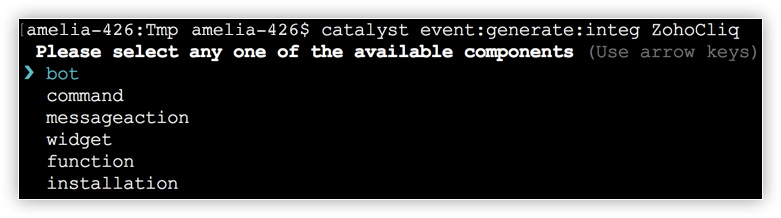
- Select a handler class from the list and press Enter.
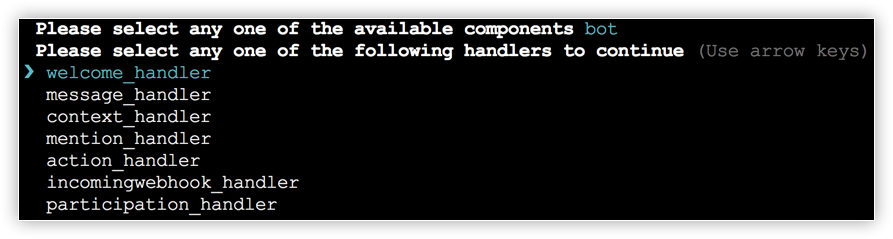
The CLI will generate a sample JSON payload for that component and handler source. Depending on the component, the payload will contain relevant data.

You can also directly save the JSON payload into a file instead of displaying it in the CLI.
Integration Functions Event Generation Options
--inputs <inputs>
You can generate a sample payload to test Integration functions by directly specifying the component and the handler you require the data for. The inputs must be specified in the following format:
catalyst event:generate:integ ZohoCliq --inputs component,handler For example, to generate a sample payload for a form_handler class for the function component, execute the following command:
catalyst event:generate:integ ZohoCliq --inputs function,form_handler This will generate the following JSON payload.

Refer to the table shown above for a list of Cliq components and handler classes supported by Catalyst.