Introducing ZeptoMail's one-click migration for Postmark and SendGrid users

If you’ve ever migrated from one transactional email service to another, you know the routine. You'll have to export data, copy templates manually, re-authenticate domains, double-check suppression lists—and hope nothing gets lost in the process.
That’s exactly why we built ZeptoMail’s new one-click migration. It's a simpler, and a faster, way to bring all of your essential transactional email data into ZeptoMail. No complex setup. No back-and-forth. No manual transfer.

As we wrap up the year, we’re excited to introduce one-click migration in ZeptoMail, now available for users moving from Postmark and SendGrid. Let’s take a quick look at how it works.
What can you migrate to ZeptoMail?
Our goal was simple. We ensure that the key components of your transactional email setup are carried over completely, so your sending environment continues smoothly without interruptions.
Here’s everything that gets migrated when you move to ZeptoMail.
Domain(s)
All added domains in Postmark or SendGrid will be migrated to ZeptoMail. Once imported, you can go to the Domains section in ZeptoMail to complete verification. You can add the required records and verify your domains either manually or using auto verification, based on your preference.
Email templates
All of your existing transactional email templates are migrated seamlessly. You don’t need to recreate layouts, content, or designs from scratch. Use the same templates in ZeptoMail and maintain consistent branding and messaging from day one.
Suppression lists
All of the email addresses added to the suppression list will be migrated to ZeptoMail. This helps maintain your email sender reputation and ensures that you don’t accidentally email recipients who should remain suppressed.
Webhooks
If you rely on webhooks to track events such as deliveries, bounces, or opens, those configured active webhooks are also migrated. This allows your existing workflows, monitoring systems, and integrations to continue functioning without additional setup.
How does the one-click migration work?
Step 1: Log into ZeptoMail and go to the Settings section
Step 2: Select Migration from the left pane and click Start.
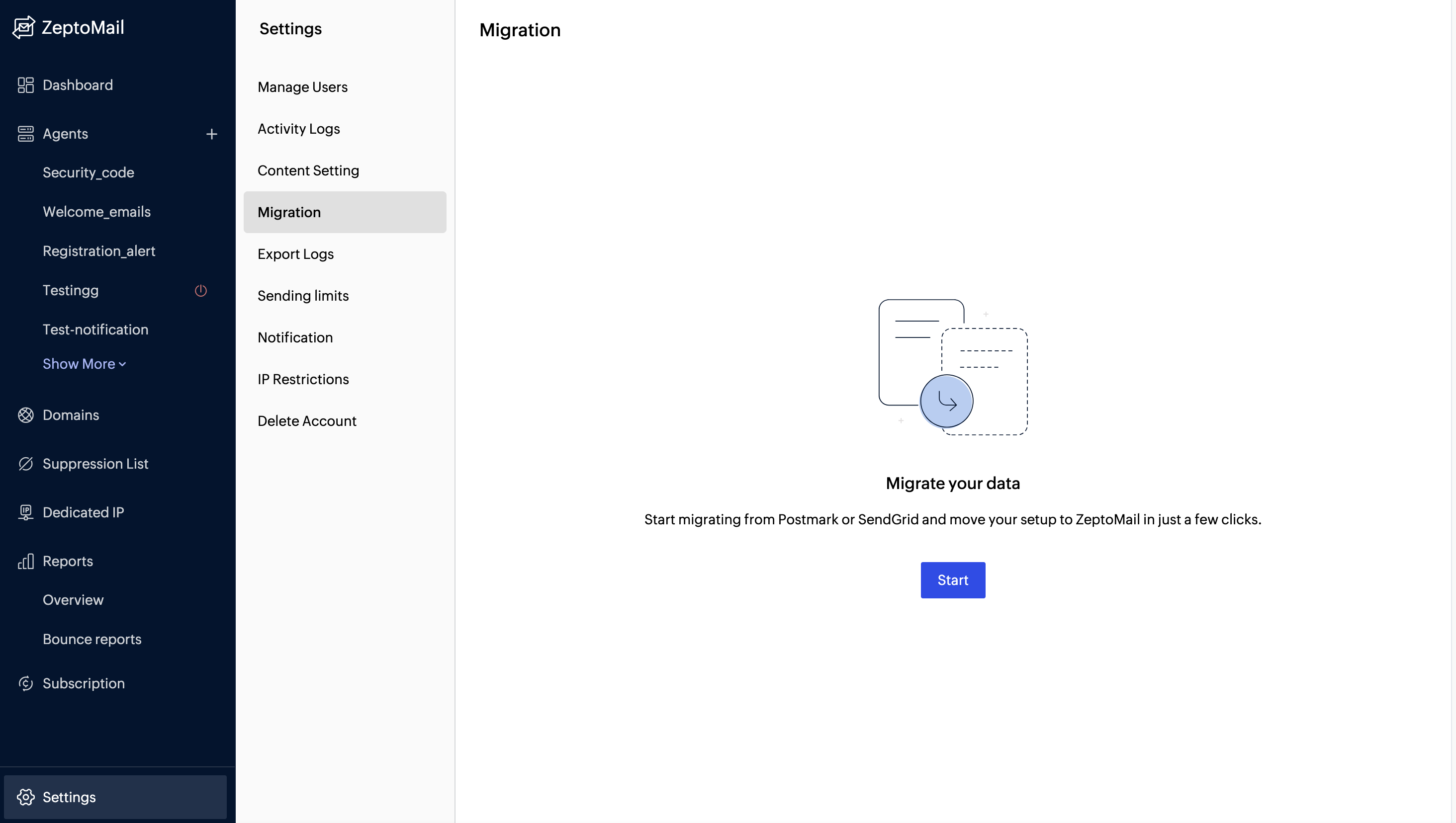
Step 3: Choose the service and click Start Now.

Step 4:Enter your API key from your Postmark or SendGrid account.

Step 5: Click Migrate.
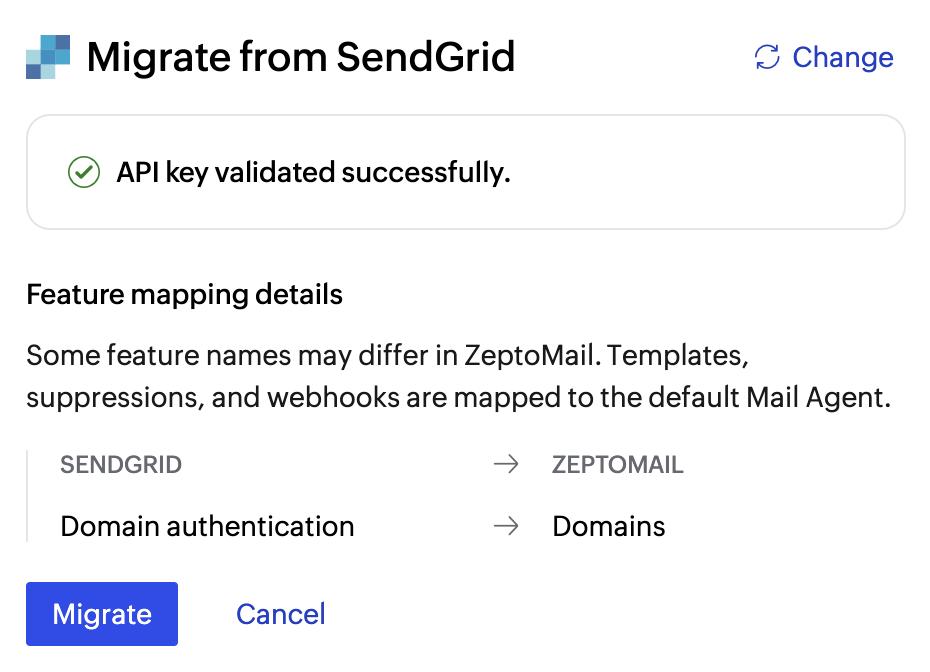
Step 6: ZeptoMail automatically pulls in all of your data (Templates, Domains, Webhooks, Suppression lists).

Step 7: Once migration is complete, the status updates to Completed.

To learn more about the migration process, refer to our detailed help guides:
- Step-by-step guide to migrate from PostMark to ZeptoMail
- Step-by-step guide to migrate from SendGrid to ZeptoMail
How do you find your API Key in Postmark?
Log into your Postmark account, and navigate to Account settings→ API tokens → Copy your account API token.
How do you find your API Key in SendGrid?
Log into your SendGrid account, and navigate to Settings → API Keys → Create a new API key or select an existing one → Copy the API key.
Understanding how your data maps to ZeptoMail
Different platforms use different terminology. So here’s a quick guide on how your Postmark or SendGrid data translates into ZeptoMail.
1. Postmark → ZeptoMail
Postmark | ZeptoMail | What happens? |
Transactional Streams | Mail Agents | Your email streams are mapped to ZeptoMail’s Mail Agents to help you organize sending for different email categories, apps, or purposes. |
Sender Signatures | Domains | Previously verified domains are transferred and can be re-verified in ZeptoMail via manual or auto-verification. |
Templates | Email Templates | All of your existing email templates are imported and ready to use. |
Webhooks | Webhooks | Your active webhook's URLs configurations move over seamlessly. |
Suppressions | Suppression Lists | All email addresses added to suppression lists will be migrated to ZeptoMail. |
2. SendGrid → ZeptoMail
SendGrid | ZeptoMail | What happens? |
Domain Authentication | Domains | Previously verified domains are transferred and can be re-verified in ZeptoMail via manual or auto-verification. |
Suppression Settings | Suppression Lists | All email addresses added to suppression lists will be migrated to ZeptoMail. |
Webhooks | Webhooks | Your active webhook's URLs configurations move over seamlessly. |
Email Templates | Email Templates | Your template library is imported automatically within a Mail Agent. |
How do you know your migration was successful?
Once the migration process begins, you’ll see a status bar that shows the progress of each data category. Each step is clearly labeled as In Progress, Completed, or Failed.
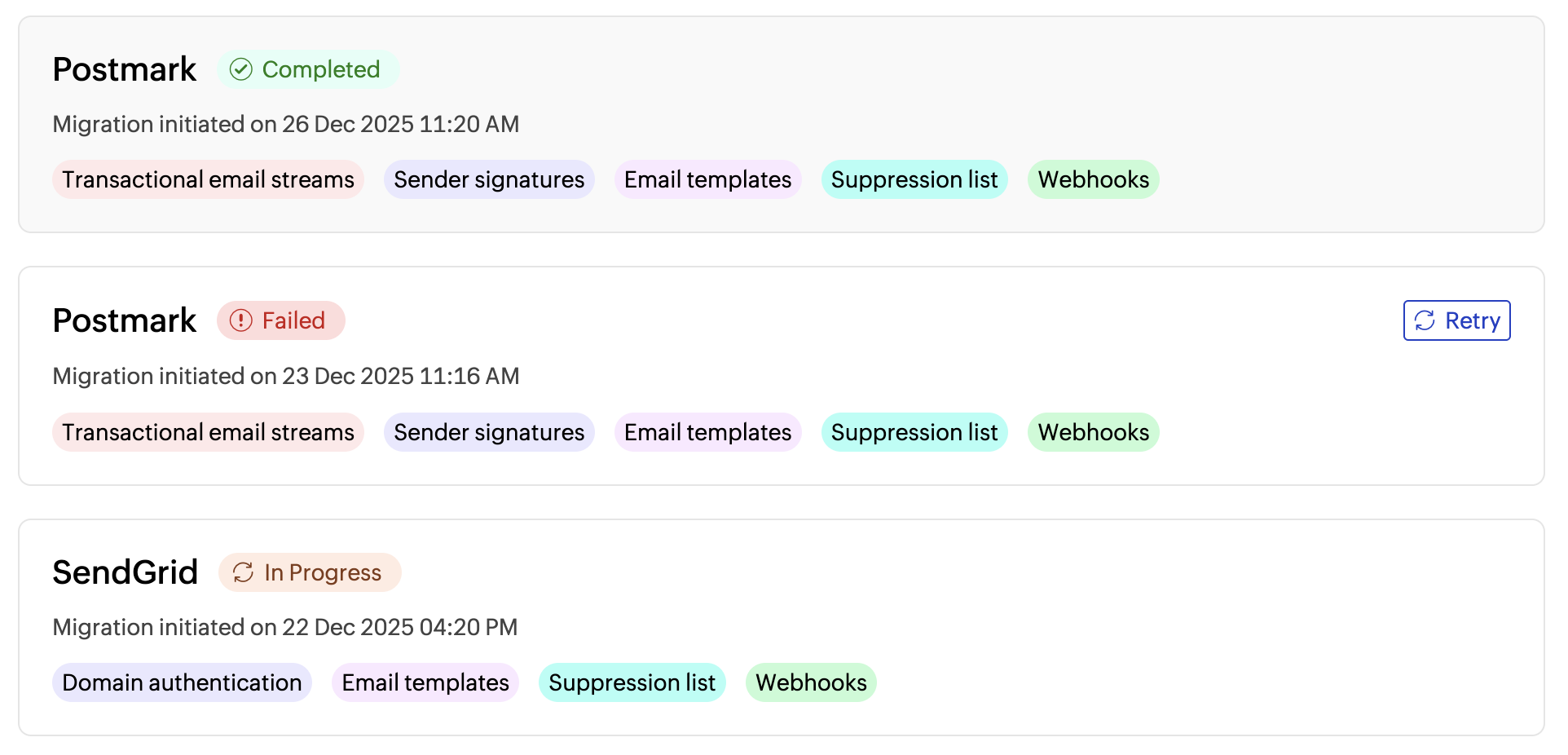
When everything is completed, the status clearly updates to “Completed” so you know exactly where things stand.
Once it is completed, you can see all your data under Mail Agents.
What if something fails to migrate?
Don’t worry! You won’t have to restart everything. You can fix the issue and simply try again by clicking the Retry button. No starting over or losing progress.
Failures can happen for reasons such as API limits, webhook ping failure, invalid domains, missing permissions, or temporary server issues. When this occurs, ZeptoMail:
Clearly marks the failed item.
Shows the possible reason for the failure along with guidance to fix it.
Provides a Retry button next to all sections.
Once the issue is resolved, you can retry the migration in just a click.
We'd love to hear from you!
ZeptoMail’s one-click migration is designed to help teams move faster, reduce manual effort, and start sending transactional emails without missing a beat. Now it's time to hear from you. Which platform should we build a migration feature for next? Comment your suggestions below.



Comments