Zoho Mail MCP: Make your inbox work for you

Maya is the head of operations at a 500-person B2B software company. She’s sharp, she’s busy, and she starts every morning the same way–with her coffee, laptop, inbox.
Not to work. To sort.
47 new emails since last night. Three from clients she needs to flag for the account team. One that looks like a support request but landed in her general inbox because the subject line says “Quick question.” An invoice from the vendor buried between two newsletters she never unsubscribed from. A project update that needs to be forwarded to two different people. And somewhere in there, an email that actually needs her brain on it. But she won’t get to it for another 25 minutes because she’s busy doing things that require zero judgment.
This isn’t a productivity problem. This is a delegation problem. Maya has never had someone to hand this to...until now.
Zoho Mail’s MCP server lets you connect an AI assistant like Claude or ChatGPT directly to your inbox, and give it real instructions. Not filters, not rules, just instructions—the exact same way you’d speak to an actual person.
“Find all emails from clients that haven’t gotten a reply in three days and move them to a Follow-Up folder.”Done.
“Sort everything that came in this morning by type and label them.”Done.
You need neither code or conditions–just prompts that execute.
What is MCP?
AI assistants like Claude, ChatGPT, and Gemini are remarkably capable, but they have a limitation worth understanding. On their own, they cannot reach into external systems and take action. They need tools, APIs, or integrations to do that. Ask Claude to summarize an email and it will do it well. Ask it to move that email to a folder in your inbox, without the right connection in place, and it simply cannot get there.
Model Context Protocol (MCP) bridges that gap. It’s an open standard created by Anthropic that gives AI assistants a secure, structured way to connect to external applications and execute real actions inside them—creating records, moving emails, assigning tasks, and updating fields.
Without MCP, developers had to build custom integrations for every AI-app combination, which was expensive, fragile, and time-consuming. MCP provides a common standard that allows compatible AI systems and applications to communicate through a shared protocol, reducing the need for bespoke integrations.
Think of it this way: Your AI assistant is a brilliant new hire who works entirely over chat. MCP is what gives them access to your actual systems so they can stop advising and start doing.
How Zoho Mail MCP works
When you type a prompt into your AI assistant, a lot happens in the background before anything changes in your inbox. Understanding this flow matters, especially if you’re considering using it for work.
There are four layers involved. The first is the host, which is the AI assistant you’re interacting with: Claude, ChatGPT, Gemini, or any other MCP-compatible AI. The second is the MCP client, which is embedded within the host and translates your prompt into a structured request. The third is the Zoho MCP server, which receives that request, verifies your identity through OAuth 2.0 authentication, and calls the appropriate Zoho Mail API. The fourth is Zoho Mail itself, where the action actually lands.
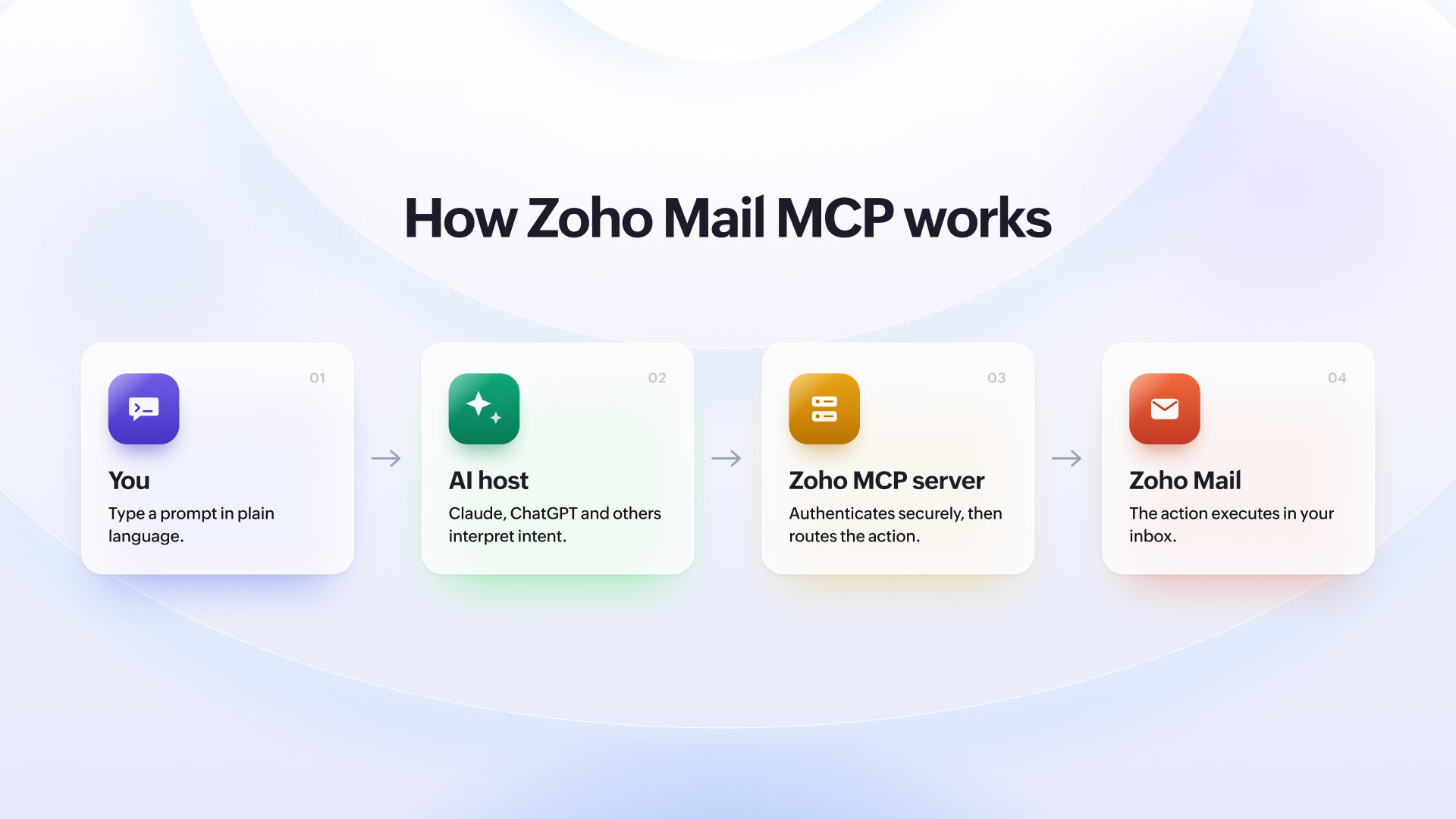
So when you tell Claude to find all unread emails from your key accounts and move them to a Priority folder, your words travel through these four layers and come back as a real change in your inbox. The AI never has direct access to your mailbox. Every action goes through the Zoho MCP server, which handles authentication and permissions before anything is executed.
Through this setup, Zoho Mail MCP lets you send and reply to emails, create and manage labels and folders, flag and sort messages, configure forwarding and signatures, and, if you’re an administrator, manage users, groups, domains, and organization-level email policies.
Use case 1: Email routing for HR and admin teams
Who is this for? For HR managers and office administrators managing high-volume shared inboxes like careers@, info@, or hello@.
The problem: A shared company inbox is one of the messiest places in any organization. Job applications, vendor inquiries, press requests, customer complaints, and random cold outreach all land in the same place, with no structure and no predictability. The person managing it spends a disproportionate amount of time just figuring out what each email is before deciding where it needs to go. Subject lines offer little help. A job applicant might write “Regarding the opening” while a vendor writes “Following up” and a journalist writes “Quick question.” Without opening each one, they all look the same.
What you can do instead:“Go through everything in the shared inbox that came in today, categorize emails as Job Applications, Vendor Inquiries, Press and Media, or General, apply the right label to each, and move them to the corresponding folder.”
The AI reads each email in full, understands what the sender is actually asking for, and routes it correctly based on context. It doesn’t need a predictable subject line or a known sender domain to get it right.
What it saves:
- Time spent opening every single email just to figure out what category it belongs to.
- Emails that get missed or delayed because the shared inbox became too overwhelming to process.
- The need to train every new team member on how to manually sort and route incoming mail.
- Misdirected emails that sit in the wrong folder until someone eventually notices.
Use case 2: Contract and compliance management for legal teams
Who is this for? Legal professionals and compliance managers who cannot afford to miss a deadline, a clause, or a regulatory flag buried in email.
The problem: Legal and compliance teams receive a steady stream of emails that look ordinary on the surface but carry significant weight underneath. It could be a contract revision sent as a casual reply, a regulatory notice buried in a forwarded thread, or a renewal deadline mentioned in passing in a three-paragraph email. The consequences of missing any of these are not minor. But the volume of email that legal teams wade through every day makes it genuinely difficult to catch everything that matters, especially when the critical detail isn’t in the subject line but three paragraphs in.
What you can do instead:“Go through this week’s emails, find any that mention contract terms, renewal dates, compliance deadlines, or regulatory requirements, flag them as Priority, and move them to a folder called Legal Review.”
The AI reads through entire email bodies, identifies language that signals legal or compliance relevance, and surfaces those emails before they get buried. It catches mentions that a keyword filter would miss entirely because the phrasing is conversational rather than formal.
What it saves:
- Missed deadlines that were mentioned in an email no one got around to reading carefully.
- Time spent manually scanning through threads looking for contract or compliance language.
- The risk of a critical clause or renewal date slipping through during a busy week.
- Emails that needed legal attention but never made it to the right person in time.
Use case 3: Morning inbox triage for founders and business owners
Who is this for? Founders and small business owners who manage sales, operations, and customer communication through a single inbox.
The problem: A founder’s inbox is unlike anyone else’s. It’s where sales inquiries land, vendor invoices arrive, hiring responses pile up, and the occasional angry customer finds their way in. There’s no dedicated ops person to sort through it, no support team to handle the tickets, no sales coordinator to flag the leads. It’s all on one person, and it all looks the same until you open it. The result is that every morning starts with a 20- to 30-minute exercise in figuring out what kind of day you’re about to have, before you’ve even had a chance to think about the actual work.
What you can do instead:“Go through everything that came in since yesterday, label sales inquiries as Sales, support requests as Support, invoices and payment-related emails as Finance, and job applications as Hiring. Give me a summary of what came in under each category.”
The AI reads every email, understands the intent behind it, applies the right label, and hands you a clean summary to start your day with. You open your inbox knowing exactly what’s in there and where everything is.
What it saves:
- The 20 to 30 minutes every morning spent figuring out what kind of day lies ahead.
- Leads and inquiries that get buried under newsletters and vendor emails.
- The mental exhaustion of context-switching between completely unrelated email types.
- The need to build and maintain separate filters for every new type of email that starts coming in.
Use case 4: Invoice and payment tracking for finance teams
Who is this for? For finance managers and accounts teams responsible for tracking vendor payments, due dates, and financial correspondence across a busy inbox.
The problem: Finance inboxes carry a particular kind of risk. An invoice that doesn’t get processed on time results in a late payment. A payment confirmation that gets buried means reconciliation takes twice as long. A vendor following up on an overdue amount that no one noticed is an avoidable situation that happens more often than it should. Finance teams are meticulous by nature, but even the most organized inbox becomes hard to manage when the volume is high and every email looks like every other email until you actually open it.
What you can do instead:“Scan all emails that came in this week, identify any that contain invoices, payment confirmations, or due date mentions, label them as Finance, and move them to the Accounts folder. Flag anything with a due date in the next five days as Urgent.”
The AI reads each email, identifies financial relevance from the content rather than the sender alone, and organizes everything into one place. Urgent items get flagged before they become overdue.
What it saves:
- Late payments caused by invoices that got buried in a busy inbox.
- Time spent manually hunting for payment confirmations during reconciliation.
- Vendor follow-ups that could have been avoided with better inbox organization.
- The stress of realizing a due date passed because the email never got the attention it needed.
Use case 5: Extracting action items for project managers
Who is this for? Project managers running multiple concurrent projects with cross-functional stakeholders.
The problem: Project managers don’t just receive emails. They receive walls of text. A single thread can contain a status update, a blocker, an approval request, and three different opinions on what should happen next, all written by different people in the same email chain.
Reading through all of that, extracting what actually needs action, and then manually creating tasks in a project management tool isn’t project management. It’s administrative work that sits on top of the actual job. Multiply that across four or five concurrent projects with different stakeholders, and a project manager can easily spend two hours a day just processing email before any real coordination happens.
What you can do instead:“Go through my inbox from today, find any emails where someone mentions a blocker, a delay, or a pending approval, create a task in Zoho Projects for each one with the relevant details from the email, and label those emails as Action Required.”
The AI reads through entire email threads, identifies the specific lines that signal something needs to happen, and converts them into tasks without you having to copy and paste a single thing. It understands that “waiting on design sign-off before we can proceed” is a blocker even if the word “blocker” never appears.
What it saves:
- Hours spent reading through long threads just to extract one or two action items.
- Tasks that never get created because they were buried inside a long email chain.
- The constant switching between inbox and project management tool to log updates.
- Blockers that go unaddressed simply because no one formally flagged them as tasks.
Is Zoho Mail MCP safe to use?
This is the question most people don’t ask out loud but absolutely should.
The AI will have access to all my emails.
This is the most common concern, and it’s worth addressing directly. When you connect Zoho Mail MCP to an AI assistant, the AI doesn’t get a blanket key to your entire mailbox. It gets access to specific actions that you’ve explicitly enabled when setting up the MCP server. You choose which tools to turn on. If you only enable labeling and folder management, that’s all the AI can do. It cannot read emails you haven’t asked it to look at, and it cannot take actions beyond what you’ve permitted.
What if the AI does something wrong?
Every action the AI takes goes through the Zoho MCP server, which authenticates the request before anything is executed. The AI cannot directly touch your inbox. It sends a structured request to the MCP server, the server validates it, and only then does the action happen. Nothing runs unchecked. Additionally, you’re always in control of the prompt. The AI acts on your instruction, not on its own judgment.
Will my email data be used to train AI models?
This depends entirely on which AI assistant you connect to Zoho Mail MCP. Zoho itself doesn’t use your email data for any purpose beyond executing the actions you’ve requested. For the AI assistant side, it’s worth reviewing the data usage policy of whichever tool you choose to connect.
What if I want to stop using it?
You can disconnect the MCP server at any time from the Zoho MCP console. Access is revoked immediately.
How to set up Zoho Mail MCP
Setting up Zoho Mail MCP takes about ten minutes and requires no coding or technical expertise. Here’s how to get started.
Step 1: Set up your MCP server
Go to mcp.zoho.com and log in with your Zoho account. Click “Create MCP Server,” give it a name, and hit Create. This is your central server that will sit between your AI assistant and your Zoho applications.
Step 2: Add Zoho Mail as a tool
Once your server is created, click “Add Tools” and select Zoho Mail from the list of available products. You’ll see a list of actions you can enable, things like reading emails, managing labels, moving messages, and configuring folders. Select the ones you need and click “Add Now.” You can always come back and add more actions later.
Step 3: Get your MCP URL
Navigate to the Connect section in your MCP server console. You’ll find a unique MCP URL that serves as the endpoint your AI assistant will use to communicate with your Zoho Mail account. Copy this URL.
Step 4: Connect your AI assistant
Zoho Mail MCP works with Claude, ChatGPT, Gemini, Cursor, Windsurf, VS Code, and Cline AI. Each has its own simple configuration process. For Claude, download the Claude desktop app, go to Settings, open Developer settings, edit the configuration file, paste the code snippet from your Zoho MCP console, save, and relaunch. You’ll be prompted to authorize the connection through a quick OAuth screen, and you’re done.
Here's the help guide to configure MCP for each AI assistant.
The future of email is already here
Email as a communication tool hasn’t fundamentally changed in decades. What’s changing is everything around it—how work gets organized, how tools talk to each other, and how much of the repetitive, low-judgment work can be handed off without building a single custom integration or writing a single line of code.
Zoho Mail MCP isn’t a feature that replaces how you use email. It’s a layer on top of it that handles the work your inbox has always generated but never been able to act on by itself. The sorting, the routing, the flagging, the cross-tool updates—all of it can now happen from a single prompt.
The professionals who will get the most out of this aren’t necessarily the most technical ones. They’re the ones who are honest about where their time actually goes every day and are willing to delegate the parts that don’t need their involvement.
Start with one prompt tomorrow morning and see what your inbox looks like by lunchtime.

Comments