Admin reports in Zoho Mail: From user accounts to team communication

In the first blog post of this series, we explored how Zoho Mail’s reporting system gives administrators a broad view of their organization’s email environment—from graphical dashboards to detailed reports that reveal activity across time. Together, these reports help answer an important question: What’s happening inside your organization’s email system?
But understanding email activity at a high level is only a small part of the big picture. Day-to-day administration often revolves around something more specific, like the users who rely on email and the mailboxes that support their communication.

As organizations scale, keeping track of user accounts and mailbox usage becomes a necessity. New users are added, teams evolve, storage usage gradually increases, and some accounts inevitably become inactive over time. At the same time, many teams rely on shared group addresses to collaborate and manage communication collectively.
Without clear visibility, managing these moving parts can quickly become tedious. Administrators may find themselves manually checking individual accounts, reviewing mailbox storage, or understanding how group communication is being used across teams.
This is where Zoho Mail’s user, mailbox, and group reports become especially useful. By bringing these insights together in structured reports, administrators can quickly understand how accounts are being used, how mailbox resources are distributed, and how shared communication channels function across the organization.
In this blog post, we’ll take a closer look at how these reports help administrators manage users and mailboxes more effectively, while gaining a clearer understanding of how email supports everyday collaboration across their organization.
Why do admins need visibility into users and their mailboxes?
For administrators, managing email isn’t only about maintaining infrastructure. It also involves making informed operational decisions—especially when it comes to user accounts, mailbox storage, and the communication structures teams rely on every day. These decisions are much easier to make when administrators have a clear understanding of how email is actually being used across the organization.
Take something as routine as reviewing user accounts. Over time, admins may accumulate accounts created for temporary roles, short-term projects, or employees who have already left the company. Without proper visibility, these accounts can quietly remain in the system long after their purpose has passed.
1. Keeping user accounts organized
- Accounts created for temporary roles or projects may remain active longer than needed.
- Accounts of former employees may continue to exist in the system.
- It becomes difficult to distinguish between actively used and unused accounts.
This makes it important for administrators to clearly identify which accounts are still in use and ensure that licenses and access are allocated efficiently.
2. Managing mailbox usage across users
Email usage can vary widely between individuals and teams.
- Some roles rely heavily on email for daily coordination and external communication such as customer interactions.
- Others use email less frequently.
- Mailbox storage grows at different rates across users.
As messages accumulate, administrators need a way to quickly identify mailboxes that are growing faster than expected and address potential storage concerns before they begin affecting users.
3. Understanding shared communication through groups
Shared email groups add another layer to how communication happens across the organization.
- Teams use group addresses for cross-team collaboration.
- Groups support organization-wide announcements.
- Many shared inboxes handle communication with customers and partners.
Understanding how these groups are used helps administrators ensure that communication structures remain effective and aligned with team needs.
Because this information is scattered across individual accounts and settings, it becomes difficult for the administrators to obtain a complete picture. They need a way to step back and view these elements collectively rather than inspecting them one-by-one individually.
Zoho Mail’s reporting capabilities make this possible by organizing user activity, mailbox usage, and group communication into organized insights. These reports help administrators quickly identify patterns, monitor usage, and make informed decisions about how users and mailboxes are managed across the organization.
In the sections ahead, we’ll explore how User Account Reports, Mailbox Reports, and Group Reports provide this visibility and support everyday administrative tasks.
User Account Reports: A closer look at user activity
At any given time, an organization’s user directory tells a quiet story about how the email system is being used. New accounts appear as teams grow, some accounts become less active over time, and others remain at the center of daily communication. For administrators, understanding this landscape is an important part of managing email effectively.
But looking at individual user profiles rarely reveals the full picture. What administrators often need instead is a way to quickly step back and see how user activity is distributed across the organization.
This is where User Account Reports are particularly helpful. Instead of focusing on one account at a time, these reports bring together user-related information in a way that makes patterns easier to spot.
To see where these reports are useful, let’s look at a few common administrative situations.
When you want to know who’s actively using their accounts
During routine reviews, administrators may want to understand how actively users are accessing their email accounts. Some users log in multiple times a day, while others may not have accessed their mailbox in weeks.
User Account Reports surface last login activity, allowing administrators to quickly see when users last accessed their accounts. This makes it easier to review account usage across the organization without having to inspect individual user profiles.
When a user reports access issues
Sometimes troubleshooting starts with a simple question: Is the account configured correctly?
User Account Reports show whether access protocols such as POP or IMAP are enabled for each user. Instead of navigating through multiple configuration settings, administrators can quickly confirm whether the required access method is available for that account.
This is especially helpful when users connect their mailbox through email clients or third-party applications.
When reviewing how users connect to team communication
In many organizations, communication doesn’t happen only between individuals—it often flows through shared groups.
User Account Reports make it easy to spot which groups a user belongs to, giving administrators a quick overview of how users are connected to shared communication channels. If someone moves to a different team or role, administrators can quickly review and adjust their group participation.
When monitoring mailbox storage at the user level
Storage usage rarely grows evenly across users. Some accounts have emails piled up quickly, while others remain relatively small.
User reports allow admins to view mailbox storage usage for each user, helping them identify accounts that may be nearing their storage threshold. Having this visibility helps them address storage concerns early rather than waiting for users to encounter issues.
Bringing user insights into one place
Each of these insights, like login activity, protocol access, group membership, and mailbox storage, offers a small glimpse into how a user account functions. When combined into a single report, they provide admins a much clearer understanding of how accounts are configured and used across the organization.
Instead of switching between multiple settings pages, admins can rely on User Account Reports to review these details in one place, making routine user management simpler and more informed.
Mailbox Reports: Tracking storage and email volume
While user reports focus on who’s using the system, mailbox reports shift the focus to how mailboxes themselves are being used and configured. For administrators, this view is particularly useful when managing storage, reviewing mailbox access methods, or understanding how users connect to their accounts.
Zoho Mail’s Mailbox Reports bring together several types of insights—including storage usage, protocol access, delegation details, and ActiveSync connections—so administrators can review mailbox behavior across the organization from a single place.
Instead of navigating through multiple user settings, these reports help administrators quickly identify patterns in how mailboxes are used.
Let’s look at a few situations where mailbox reports become especially helpful.
When mailbox storage starts filling up
One of the most common administrative challenges is managing mailbox storage. Some users receive hundreds of emails everyday, especially in roles that handle customer communication, support queries, or external correspondence.
With Storage Reports, administrators can quickly see how much mailbox space each user is consuming. This makes it easier to find users who are approaching their storage limits and address potential issues before they begin affecting email delivery or user experience.
For example, during periodic reviews of storage usage, administrators may notice that certain mailboxes consistently occupy more space than others. Having this visibility allows them to guide users on mailbox management practices proactively or evaluate storage allocation across the organization.
When checking how users access their mailboxes
Users often access their email through different methods—webmail, email clients, or mobile applications. Admins may sometimes need to understand which access protocols are being used across the organization.
Mailbox Reports include Protocol Reports that provide visibility into POP and IMAP usage. These reports show whether these protocols are enabled and how they are being used across user accounts.
This information can come in extremely handy while troubleshooting access issues or reviewing security policies related to mailbox access. For instance, if an organization wants to restrict certain protocols or confirm that specific access methods are disabled, these reports provide a quick overview of the current configuration.
When monitoring mobile email access
Many employees rely on mobile devices to stay connected to their email while working remotely or while they travel. Admins may occasionally want to review how mobile synchronization is being used across the organization.
Through ActiveSync Reports, administrators can see how mailboxes are connected to mobile devices and which applications are accessing them.
This visibility helps administrators understand how widely mobile email access is used and ensures that device connections align with organizational policies.
When reviewing mailbox delegation
On some teams, mailbox delegation is used to allow assistants or team members to manage emails on behalf of someone else—for example, when an executive’s inbox is handled by an assistant.
Delegation Reports provide visibility into these access relationships, helping administrators see which mailboxes have delegated access configured.
This can be useful during internal reviews or when administrators want to confirm that mailbox access permissions are configured appropriately.
A clearer view of mailbox behavior
Individually, storage usage, protocol access, delegation settings, and mobile connections each tell a small part of the story. When viewed together through Mailbox Reports, they provide admins with a much clearer understanding of how mailboxes operate collectively in the organization.
Rather than examining mailbox settings one account at a time, administrators can rely on these reports to review usage patterns, monitor access methods, and ensure that mailbox configurations remain aligned with organizational needs and policies.
Group Reports: Visibility into team communication
While user and mailbox reports focus on individual accounts, Group Reports shift the lens to something equally important—how teams communicate through shared email groups. In many organizations, groups act as common communication hubs for departments, projects, or external interactions such as sales, support, or HR queries.
When dozens or even hundreds of groups exist across an organization, it becomes difficult for administrators to track how these shared channels are structured and used. Group Reports help address this by providing a consolidated overview of group-related information within the admin reports dashboard.
Rather than reviewing groups individually, administrators can use these reports to quickly understand how group communication is organized across the organization.
When analyzing how groups are structured
Email groups often evolve alongside teams. New groups are created for projects, departments may introduce shared inboxes, and some groups may gradually become less relevant over time.
Group reports provide administrators a summary view of the groups configured in the organization, including details such as group names and associated information about those groups.
This overview helps administrators periodically review how group communication is structured and ensure that groups remain aligned with the organization’s current needs.
When understanding who belongs to which groups
Group membership plays a major role in how communication flows through across teams. Knowing which users belong to which group helps admins understand how information is distributed within the organization.
Through group reports, administrators can review group membership details, allowing them to see which users are associated with different groups.
This is particularly useful when teams reorganize or when employees transition between roles. Administrators can quickly review group participation and ensure that users remain connected to the communication channels relevant to their responsibilities.
When reviewing group moderators and roles
Many groups rely on moderators to manage conversations, approve messages, or oversee group activity. In environments where moderation is enabled, knowing who holds these responsibilities becomes important for maintaining smooth communication.
Group reports allow administrators to review moderator roles and group permissions, helping them confirm that each group has the appropriate oversight in place.
This visibility is especially useful when administrators want to ensure that group governance remains consistent across different teams.
A cleaner view of shared communication
Email groups often function as the backbone of team collaboration—handling everything from internal discussions to external inquiries sent to shared addresses like sales@, support@, or info@.
By bringing together details about groups, membership, and roles, Group Reports provide administrators with a structured view of how these shared communication channels operate across the organization. Instead of examining each group separately, administrators can review the overall group landscape and ensure that communication structures remain organized, relevant, and easy to manage.
Bringing these insights together
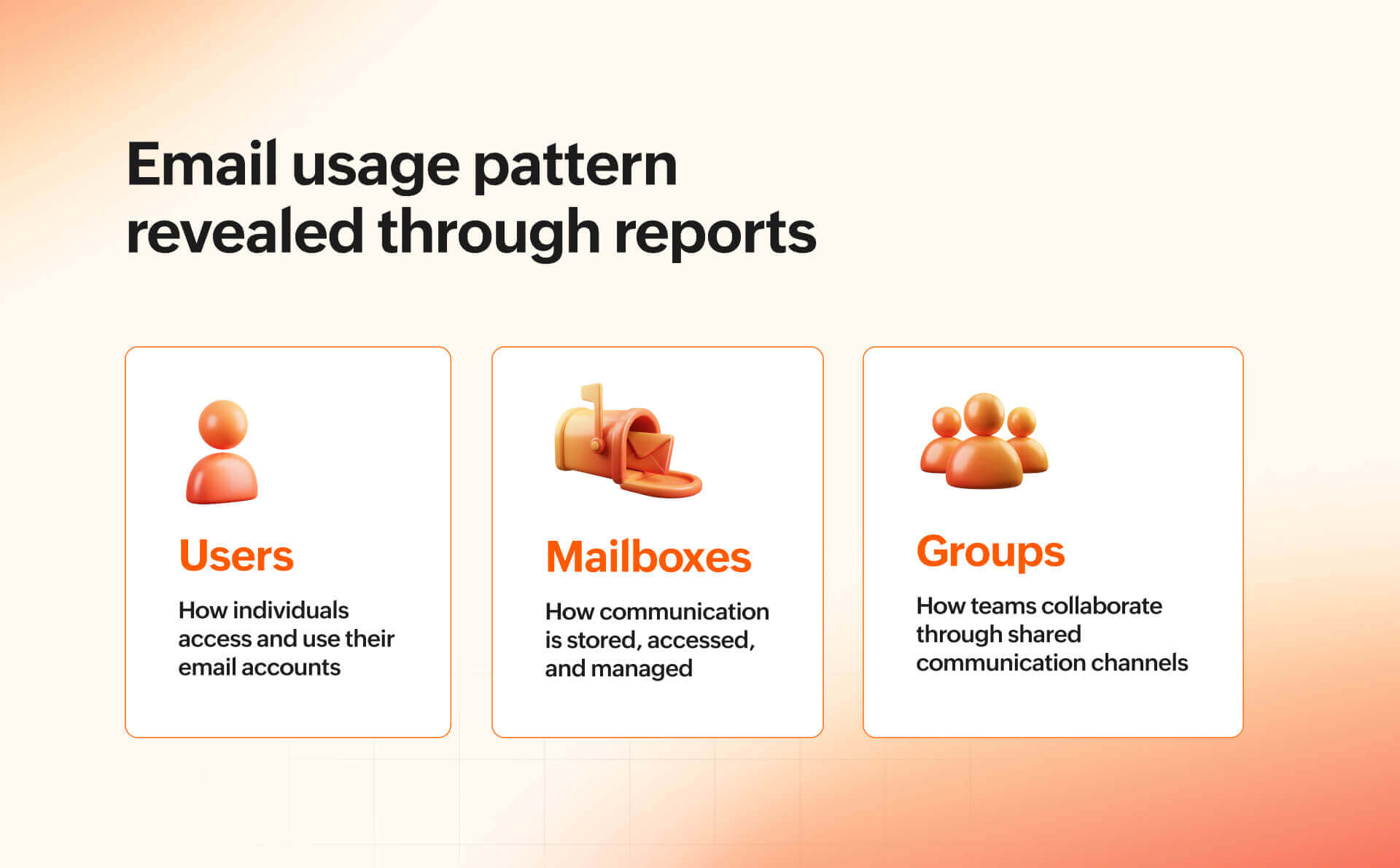
User accounts, mailboxes, and groups each represent different layers of how email functions within an organization. While User Reports highlight account activity and configuration, Mailbox Reports provide a closer look at how inboxes are accessed and managed. Group Reports, in turn, shed light on how teams communicate through shared email channels.
Viewed together, these reports offer administrators a more complete perspective. Instead of examining users, mailboxes, or groups in isolation, administrators can see how these elements interact and shape everyday communication within the organization.
In the next blog post of this series, we’ll move from user and mailbox insights to another important dimension of reporting—email activity and traffic patterns across the organization.



Comments