How sales and support teams never lose a call detail with Zoho Notebook

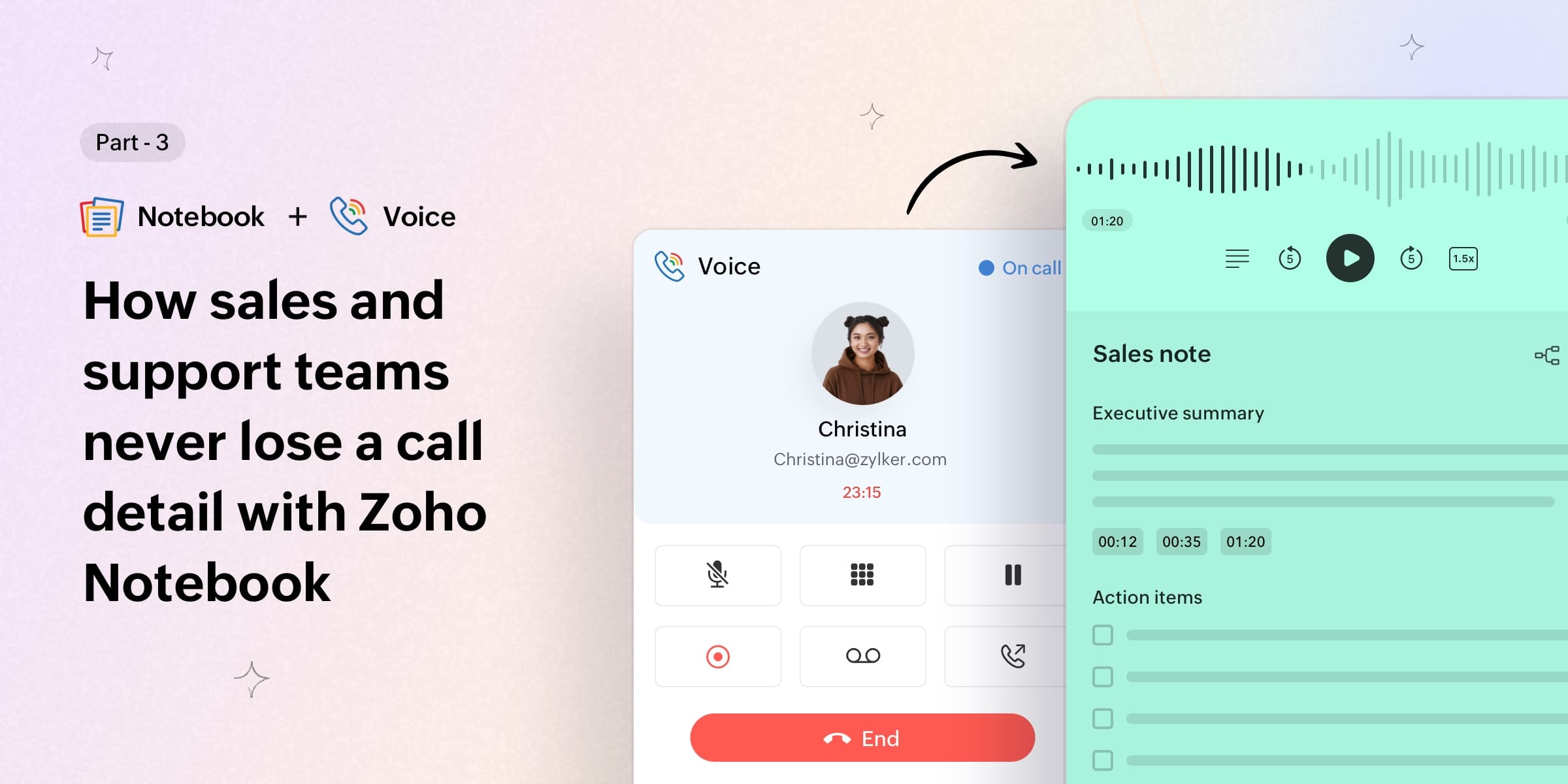
Whether they're sales calls, support calls, or presales conversations, phone calls are where a lot of real work actually happens—not in documents or in project boards, but in live conversations where someone is telling you exactly what they need, what's not working, and what it would take to move forward.
The problem is that phone calls leave nothing behind—no thread to scroll back through, no message history, and no record of what was said, unless someone is actively taking notes while also actively listening. Most people do one or the other, but not both.
So the details end up living only in memory. And memory—especially across a full day of calls—is not reliable enough to build on.
Zoho Notebook now connects with Zoho Voice so that every call you record automatically becomes a full transcript in your Notebook—structured, searchable, and there before you even start your follow-up.
Phone calls are gold mines, but most of it gets lost
Think about what actually comes out of a good sales call. The prospect tells you their current setup, what's frustrating them about it, what they've already tried, and what success would actually look like for them. That's everything you need. But after another three calls with different prospects, how much of that valuable information have you retained?
Or imagine a support call, where a customer walks you through exactly how something broke—the specific steps, the error they saw, and the workaround they tried. Details that would save the next agent twenty minutes if they could just read what this customer already explained.
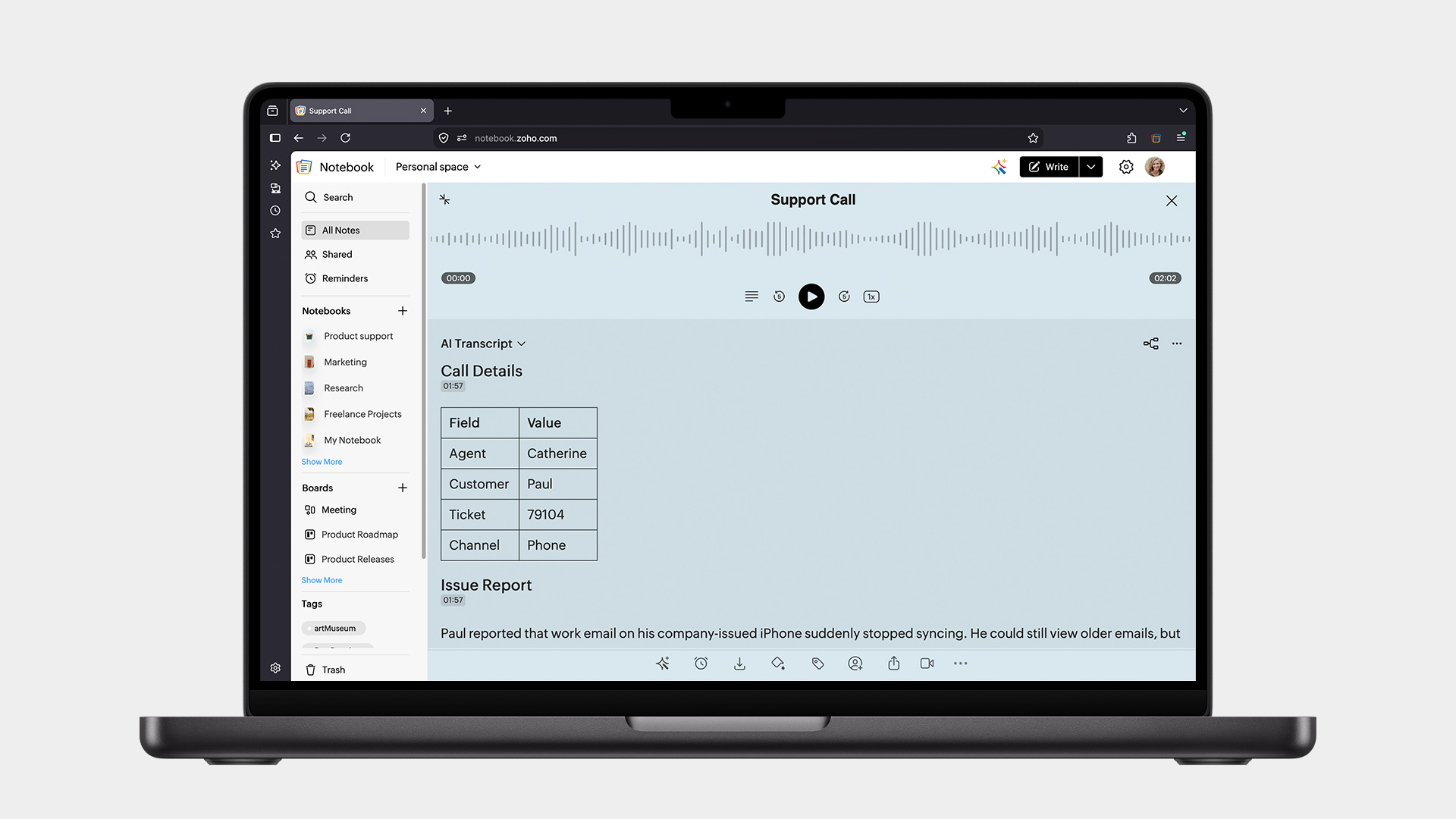
The transcript doesn't just save you time; it changes the quality of what you do next.
What lands in your Notebook?
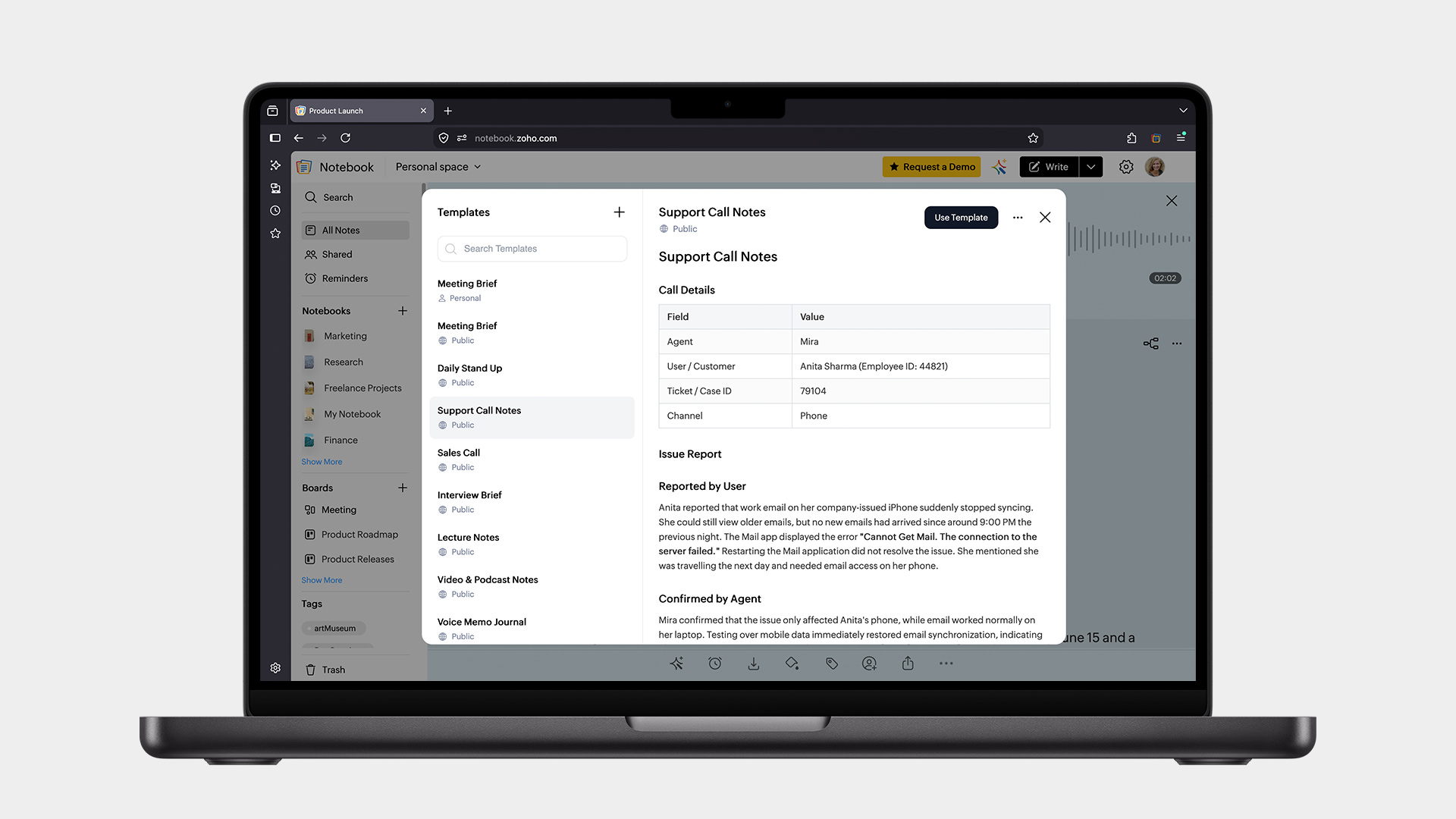
Every recorded Zoho Voice call comes into Notebook as an Audio Card in an hour, with the full recording and a complete transcript already organized using whichever template you've set as your default. Notebook has built-in templates for support calls, sales calls, and more. Customize any of them or build your own. Once it's set, every call that comes in after that is already structured the way your workflow needs it.
Need it sooner? The Sync Now option in Notebook's AI settings brings it in within minutes, which is useful when you're turning around a follow-up the same day. Know more.
And because it lives in Notebook, it's searchable. Something a client mentioned two months ago, a pattern showing up across support calls, a commitment you made on a call last week—you type it, and it comes up.
A few things worth knowing
You need to initiate the recording for it to come through automatically. Recordings started by the other party will not sync, but you can upload those manually.
Zoho Voice and Notebook need to be on the same Zoho account for the integration to connect.
Supported languages include English, Spanish, French, German, Italian, Dutch, Russian, and Hindi.
Available for Notebook for Business, Pro Plus, and Zoho One users on the web app, with broader platform support coming soon. Check out the plans.
Getting started
Open the Zoho Notebook web app. Go to Settings → Notebook AI. Turn on Auto Transcribe. Enable Zoho Voice under Integrations.
That's it; the next call you record will find its way into your Notebook on its own.
Ready to try it? Set up Zoho Voice transcription in Notebook.
This is the last post in the series. If you missed the earlier ones, we walked through how the same integration works with Zoho Cliq and Zoho Meeting. Haven't read the intro yet? Start here.
Questions or feedback? We're always happy to hear from you at support@zohonotebook.com.
Happy note-taking!

Comments