Admin reports in Zoho Mail: Ensuring security, authentication, and administrative visibility

Think about what it would mean if someone were sending emails using your domain; emails your team never wrote, going to people who'd have no reason to doubt them. Or an admin quietly changed a mail policy on a Friday afternoon and nobody noticed until something stopped working the following week. Or a user account that should have been deactivated months ago is still logging in from an IP address no one recognizes.
None of these are hypothetical. They're the kinds of things that happen in organizations where the admin side of email is managed but not really monitored.
The difference between the two is smaller than it sounds. Managing means keeping things running. Monitoring means knowing what's actually happening, and being in a position to act before something small becomes something serious.
This is the final blog post in our Admin Reports series. The earlier articles covered email usage, mailbox data, user accounts, and activity tracking—the operational side of email administration. This one goes a step further. Security Reports, Audit Logs, and DMARC Reports aren't about understanding how email is being used. They're about understanding what's going wrong, what's already happened, and whether the systems meant to protect your domain are actually doing their job.
When the questions come, you need answers
At some point, every admin gets pulled into a conversation they weren't expecting. The security team wants to know if a particular account showed any unusual login activity last month. A manager asks who changed the email retention policy and when. Legal needs to know whether a former employee's mailbox was accessed after their last working day.
These questions aren't always about a crisis. Sometimes they come from routine audits. Sometimes from a compliance review. Sometimes from someone just trying to understand what happened. But they all have one thing in common: They expect the admin to know. Or at least to have a way of finding out quickly.
That's a reasonable expectation. And it's also one that's easy to fall short of, especially when the information you need is scattered, incomplete, or simply wasn't captured in the first place. Trying to answer a detailed question about something that happened three weeks ago, with no logs to reference and no structured record of admin actions, puts you in a difficult position. Not because you weren't doing your job, but because the tools weren't set up to support that kind of accountability.
This is also where individual responsibility and team dynamics get complicated. In most organizations, more than one person has admin access. Changes get made, settings get updated, and over time it becomes genuinely unclear who did what. That ambiguity isn't anyone's fault; it's just what happens when there's no systematic record of admin activity. And when something goes wrong, that ambiguity is the first thing everyone notices.
The reports in this section exist partly to remove that ambiguity. Not to assign blame, but to make the record clear—so when questions come, the answers are already there.
Security Reports
For an admin, the scariest problems aren't the ones that are obviously broken. They're the ones that look completely normal until they aren't.
A user logging in from a new location may just be traveling. Repeated failed login attempts on an account may be a user who keeps forgetting their password. A spike in outbound emails may be a campaign the marketing team forgot to mention. Most of the time, these things are nothing. But occasionally, they're not, and the difference matters.
Security Reports in Zoho Mail are built around login activity and threat detection. They don't tell you what to think about what you're seeing. They just make sure you're seeing it.
When you're trying to understand how an account is being accessed
The Login Activity report gives you a consolidated view of user logins across your organization. For each login, you can see:
- The user's name and email address.
- The service they accessed.
- Device information.
- IP address and location.
- Whether it was a web or mobile login.
Clicking on any user opens up a more detailed history: login and logout times, browser, OS, and the login URL. If something about an account feels off, this is usually the first place to check.
When failed logins become a pattern
One failed login means nothing. But if the same account is seeing repeated failures from an unfamiliar IP address over a short period, that's a different situation. The Failed Login report logs every unsuccessful attempt with the time, device, IP address, and the reason it failed so patterns like these don't stay hidden.
When a login looks suspicious but isn't obviously wrong
Sometimes a login doesn't fail, but it doesn't quite fit, either. Zoho Mail flags logins that deviate from a user's usual behavior and collects them in the Suspicious Login report. Each entry shows the location, the login source (POP, IMAP, SMTP, or web) and the client IP address. The login source detail is useful because it tells you not just where the access came from, but how it happened.
When you need to check active sessions for a specific user
If you've just reset a password or deactivated an account, Session History lets you verify whether any sessions are still running. Enter the username and you can see all live sessions, along with the IP address and when each one started.
When you want a wider view of what's being flagged across the organization
Individual login reports show account-level activity. The Threat Activity report brings everything else together—phishing reports, virus detections, spam actions, anomalies in email behavior, bulk spam marking, and mail rejections—all in one place, categorized and time-stamped.
This is where you'd go when you want to understand whether something is isolated to one user or showing up across the organization. The report can be filtered by threat type and subcategory, so you're not scrolling through everything to find what you need.
Audit Logs
There's a particular kind of troubleshooting that every admin dreads. Something is broken, but nothing looks obviously wrong. A mail policy isn't behaving the way it should. A user's settings don't match what they were configured to be. And somewhere in the past two weeks, three different people with admin access were in that part of the console.
Without a record of what changed, you're guessing. Audit Logs take the guesswork out.
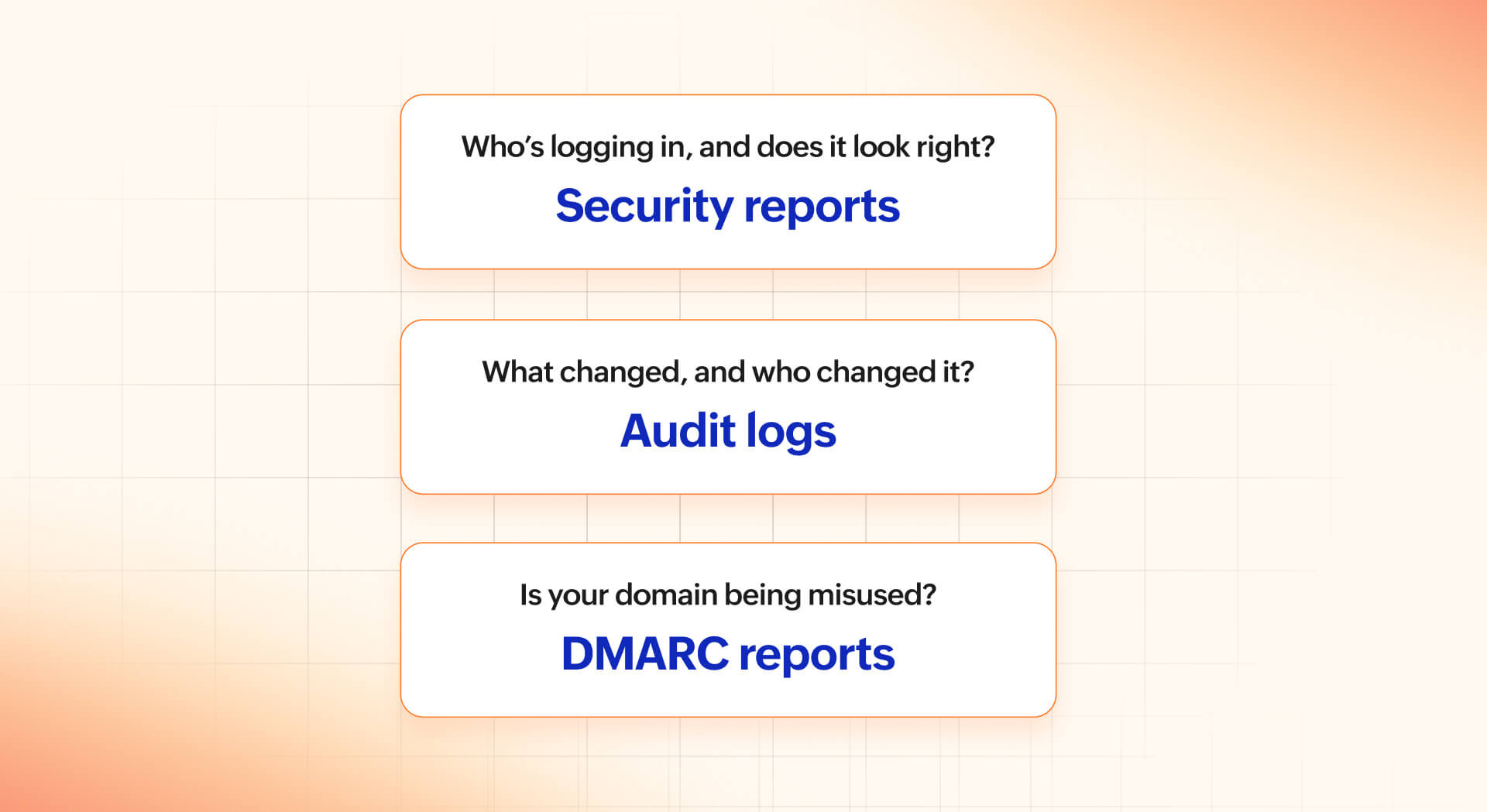
The Logs section in Zoho Mail Admin Reports is split into two parts: Mail Logs, which covers what happened on the email delivery side, and Audit Logs, which covers what happened on the admin configuration side.
When you need to confirm whether an email was actually delivered
A user says they sent something important and never got a response. The recipient says it never arrived. Before anything else, you need to know whether the email left the system.
The Delivery Logs report lets you search by sender address, recipient address, or message ID. Each record shows:
- From and recipient addresses.
- Subject line.
- Sent time and email size.
- Delivery status.
- Number of attachments.
Clicking into a record gives you more detail. If the email was delivered, the issue is on the recipient's end. If it wasn't, you have a starting point.
When emails to your domain aren't getting through
Sometimes the problem isn't outbound; it's incoming. Emails sent to your organization's domain fail before they reach the intended mailbox. The Rejection Logs report captures these, along with the reason for rejection, the sender IP, and other details that help you understand what went wrong and whether it's a one-off or a recurring issue.
When you need to trace what changed on the admin side
This is the most important use case in this section. The Admin Activity report logs every action performed in your Zoho Mail Admin Console, such as configuration changes, policy updates, and user modifications with the admin's email, a description of what was done, the timestamp, and the IP address it was done from.
To make scanning easier, each action is color-coded by type:
- Green: Add.
- Yellow: Update.
- Red: Delete.
- Blue: Download.
- Violet: Read.
The filtering is where this report earns its place. You can filter by event category (e.g., Users, Security, Email Policy) and narrow it down further by event type within that category. You can look at everything a specific admin did, or everything that was done to a specific user's account. Typing a keyword into the search bar surfaces matching event categories directly, which saves time when you remember roughly what you're looking for but not exactly where it lives.
By default, audit logs are retained for one year.
When admin changes to Calendar settings need to be reviewed
If your organization uses Zoho Mail's Calendar and something about the calendar configuration has changed unexpectedly, the Calendar Activity report keeps a log of admin actions taken there. It follows the same structure as Admin Activity—who did what, when, and from which IP address—so you have the same traceability on the calendar side as you do on the mail side.
DMARC Reports
Here's something that's easy to miss. Someone outside your organization is sending emails that appear to come from your domain. Your team never wrote them, never sent them, and has no idea they exist. But the people receiving them have no obvious reason to doubt them because the sender name looks right, and the domain looks right.
This is domain spoofing. And the reason it's so hard to catch is that it doesn't show up anywhere in your own mail system. The emails never touch your servers.
DMARC is the protocol built to address this. It works by aligning SPF and DKIM authentication and telling receiving mail servers what to do when an email claiming to be from your domain fails those checks. More importantly for admins, it sends reports back to you so you can see exactly what's passing, what's failing, and where the problems are coming from.
When you want to check if DMARC is set up correctly across your domains
The Domains report lists every domain in your organization along with the DMARC record configured for each one and whether it's been verified. If a domain is missing a DMARC record or if an existing record needs to be re-verified, it shows up here clearly. For organizations managing multiple domains, this is a useful first stop before looking at authentication data.
When you want to confirm that your emails are authenticating properly
The Success report shows, for each sending IP address, what percentage of emails are passing DMARC, DKIM, and SPF verification. Results are grouped by hostname at the top level. Clicking on a hostname breaks it down to the individual IP address, with exact counts for:
- Emails that passed DMARC verification.
- Emails that were DKIM-aligned and SPF-aligned.
- Emails that passed DKIM and SPF verification individually.
If you're using a third-party service to send emails on behalf of your domain, this report tells you whether it's configured correctly. A legitimate sending service should show consistently high pass rates. If it isn't, the issue is usually in how the service is set up for your domain.
When authentication failures are showing up and you need to understand why
The Failure report is the other side of the same picture; same structure, same breakdown by hostname and IP address, but focused on emails that failed verification instead of those that passed.
Failures from an IP address that belongs to a service you use usually point to a configuration issue. Failures from an IP address you don't recognize are worth paying closer attention to.
When forwarded emails are making your numbers look worse than they are
Email forwarding has a known side effect: Forwarded emails often fail SPF checks because the forwarding server's IP wasn't part of your original SPF record. This is expected, but it can inflate your failure numbers in a way that's misleading.
The Forwarders report separates forwarded email traffic so you can see how it's authenticating without it affecting the rest of your data. The Forwarders Failure report goes a step further and shows specifically which forwarded emails failed, so you can tell the difference between a real authentication problem and the normal behavior of forwarding.
That's a wrap on Admin Reports
Over the course of this series, we've covered a lot of ground, from understanding email usage patterns and mailbox storage, to tracking activity across users and groups, to the security and authentication reports in this final blog post.
Taken individually, each report answers a specific question. Taken together, they give admins something more valuable: a complete picture of what's happening across their email environment, without having to piece it together from multiple places or rely on memory and guesswork.
That's really what Admin Reports in Zoho Mail are built for. Not to add another layer of complexity to an already demanding role, but to make the job of staying on top of things a little less reactive and a little more informed.
If you haven't explored the reports section in your Admin Console yet, it's worth spending some time there. You might be surprised by what you find!



Comments