Debug smarter with Zoho Apptics crash analytics
- Last Updated : February 24, 2026
- 197 Views
- 5 Min Read

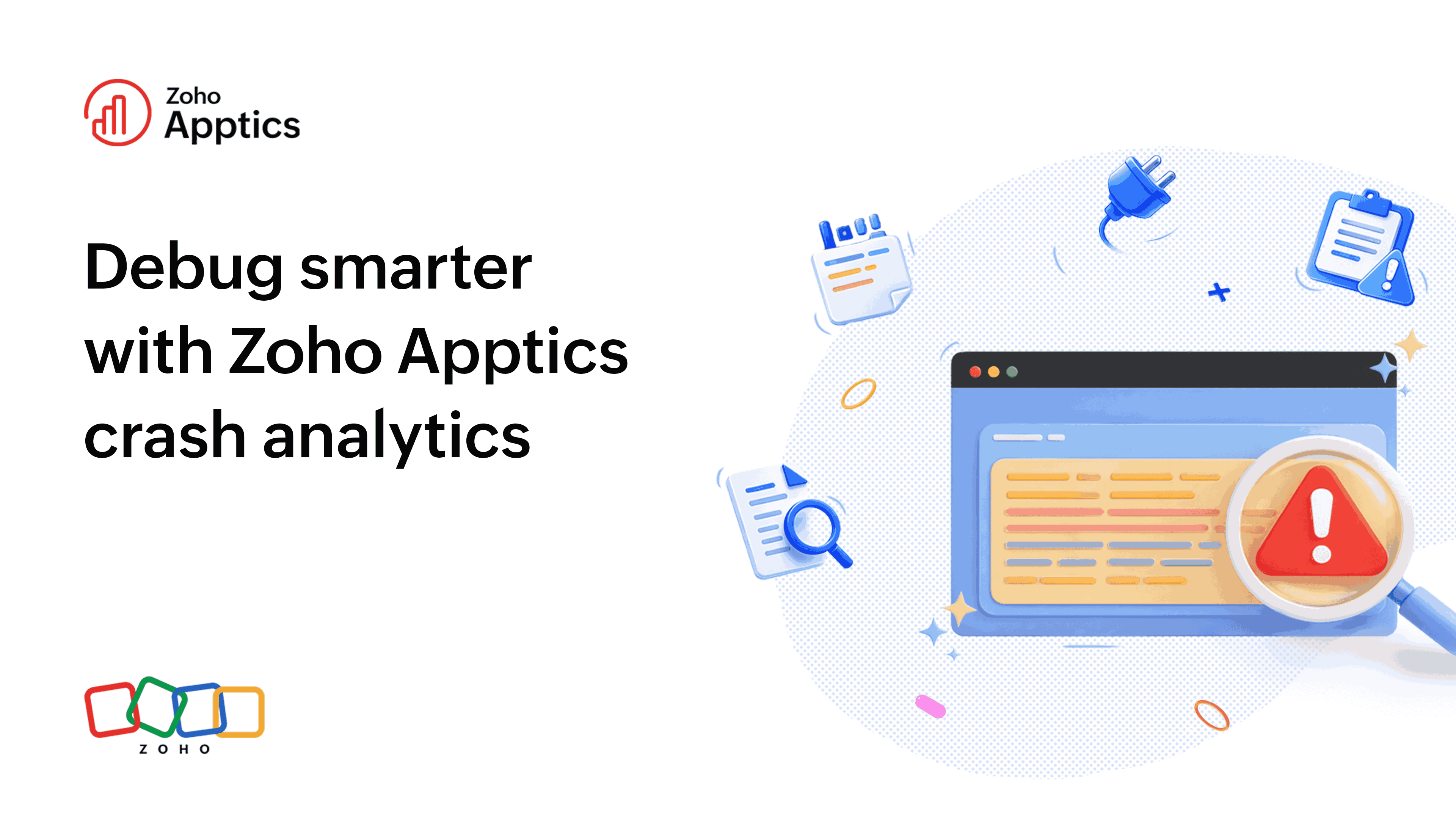
Your app's user experience is the first impression for your users. Nothing ruins that first impression faster than a crash. When your app stops working, it’s not just a small bug but a bad user experience, a frustrated user, and a chance for a bad review. Crashes hurt your app’s reputation, keep users from coming back, and even damage your brand.
Crashes provide you with good opportunities to improve your app's user experience. Each one is a message about what went wrong, where it happened, and why. Crash analytics and reports help you turn these issues into clear steps to stop the problem from hitting more users.
Crash analytics in Zoho Apptics is designed to give you these answers in one view so your team can quickly understand and solve app issues.
Understanding crash reports
A strong crash report is more than just an error message; it’s a detailed summary that tells you the full story behind the failure. Instead of just knowing your app crashed, you get answers to the most important questions:
- Where did it break? The report points to the exact line of code that failed. This is the starting point for every fix.
- Who saw the crash? You can see which devices, operating systems, and app versions had the problem. This helps you find patterns, like a bug that only appears on older Android phones or a specific iPhone model.
- What was the user doing? By seeing the events or actions the user took right before the crash, you can easily recreate the bug instead of just guessing.
- How bad is the problem? The dashboard shows you how often a crash happens and how many users it affects. This lets you focus on fixing the biggest problems first.
Crash reporting in Apptics
Once you integrate the Apptics SDK into your app, whether it’s built using Android, iOS, React Native, or Flutter, the SDK immediately starts monitoring your app for crashes. Whenever a crash occurs, Apptics automatically generates a detailed report that's sent to the Apptics server.
Each report captures vital details like the stack trace of where the crash happened, the version of the app it occurred on, the device and OS information, and even the actions performed by the user right before the issue took place. This gives you complete context to identify and reproduce the problem accurately.
All these reports are collected and organized in a single, easy-to-use dashboard. You don’t have to dig through endless log files or rely on guesswork. Everything you need to analyze and resolve crashes is clearly presented in one place.
Crash tags in Apptics help you classify and organize crashes by type (UI bugs, network failures, CPU exceptions, and more) and by framework (Native, React Native, or Flutter), making it easier to spot patterns and prioritize fixes.
With Apptics crash reporting, you not only find out when your app crashes but also understand why it happened, helping you build a smoother and more stable app experience.
Types of app failures
Not all app failures are the same. An app might freeze or close, but the technical reasons are different. Apptics separates these problems:
- Crashes: The classic "the app just closed itself." This happens when the code runs into something it can't handle and the app shuts down.
- App hangs (ANRs or application not responding): The app doesn't close, but it freezes and stops responding for several seconds. This usually happens when the main screen is busy doing too much work. Users often force-close.
- App launch errors: The app fails right when it’s trying to open. Something is missing or set up incorrectly, so it dies before it even fully starts.
- CPU exceptions: This is the app asking the phone to do something impossible, like accessing memory it shouldn't. The system stops the app to prevent bigger issues.
- Disk write errors: The app tries to save a file, photo, or data but can't (e.g., no storage space or missing permission to write).
Tracking errors through non-fatal reports
A stable app doesn’t just mean one that doesn’t crash. Sometimes, your app may work fine on the surface but still have small issues that affect the user experience. Maybe a screen loads too slowly, a button doesn’t respond, or an API call fails quietly.
These kinds of issues don’t crash your app, but they can frustrate users and drive them away. To help you catch and fix them early, Zoho Apptics provides non-fatal reports.
Non-fatal reports record exceptions or errors that happen while the app is running without causing a crash. This gives you visibility into the smaller, hidden problems that users face so you can fix them before they turn into bigger ones. Tracking non-fatals helps you deliver a smoother and more reliable app experience overall.
Tracking logs through remote loggers
When users report problems that you can’t reproduce, you need a way to see what’s happening in real time. A remote logger lets you collect logs directly from your users’ devices without asking them to send anything manually. You can view these logs live, track custom events, and monitor API responses to understand exactly what’s happening inside your app.
It’s a simple and efficient way to debug, verify fixes, and keep your app running smoothly. With Apptics' remote logger, you can spot issues faster and understand what’s going on behind the scenes without waiting for a crash to occur.
De-obfuscation and symbolication
Reading raw crash logs is often impossible because your code is obfuscated. It's intentionally scrambled for security purposes. For example, if your code is obfuscated it might look something like this
This doesn't help anyone. Instead of spending hours trying to figure it out, Apptics automatically translates this complex code into simple, readable reports.
In iOS, this is called symbolication. In Android, it's called de-obfuscation.
Your confusing code is turned back into plain function and method names that anyone on your team can understand. This makes diagnosing the problem easy, allowing your team to fix the crash fast without wasting time on guesswork.
Best practices for a stable app
Use these simple rules to keep your app reliable:
- Watch in real time: Don't wait for users to complain. Track crashes and errors as they happen with Apptics so you can fix them before they affect a large number of people.
- Fix the biggest problems first: Not all crashes are equal. Focus on the issues that affect the most users or break the most important features.
- Know what users did: Crashes usually happen under specific conditions. Look at the actions, devices, or versions that trigger the crash to prevent it from happening again.
- Fix minor errors early: Use non-fatal reports and remote logging to catch small bugs (like slow screens or unresponsive buttons) before they frustrate users enough to leave.
- Check stability with every update: Monitor how many users have a crash-free experience with each new app version. This ensures your app is getting better, not worse.
- Talk to your team: Share crash insights with developers, product managers, and marketing. Everyone needs to know how stability affects the user experience and the business.
Every crash is valuable feedback. It shows you exactly what went wrong and helps you make a better app. You can stop fixing problems after the damage is already done and start making improvements proactively.
Crashes will happen, but losing users because of them doesn't have to. With the right crash analytics, every failure is a lesson learned.