Emailing Views
You can share the views in your workspaces to other Non-Zoho users by emailing the views.
Emailing Views
- What are the views that I can Email?
- What are the file formats in which I can email my views?
- Who can configure the Email Schedules?
- How can I Email Views?
- Can I send email from a common email address?
Scheduling Emails
- How can I schedule Emailing?
- In what interval can I email Views?
- The number of Email Schedules I have in my account and the count consumed for my pricing does not match. Why?
- Can I buy more Email Schedules?
Managing Email Schedule
- How do I manage Email Schedules of a view?
- Can I view and manage all the Email Schedules of a workspace?
Emailing Views
1. What are the views that I can Email?
You can email the following view types.
- Table
- Query Table
- Chart
- Pivot View
- Summary View
- Tabular View
- Dashboard
2. What are the file formats in which I can email my views?
You can email the views in tabular format such as Table, Query Table, Pivot View, Summary View and Tabular View in the following file formats.
- CSV - Email the underlying data of a view as a Comma Separated Value (CSV) file.
- Excel - Email either a view or the underlying data of a view as an Excel file.
- PDF - Email a view as a printer friendly Portable Document Format (PDF) file.
- HTML - Email a view as a HTML file.
You can email the Chart in the following file formats.
- CSV - Email the underlying data of a chart as a Comma Separated Value (CSV) file. Excel - Email either a chart or the underlying data of a chart as an Excel file.
- PDF - Email a chart as a printer friendly Portable Document Format (PDF) file.
- HTML - Email a chart as a HTML file (can be sent as a in-line content).
- Image - Email a chart as a JPG or PNG image (can be sent as a in-line content)
You can email the Dashboard in the following formats.
- HTML - Email a dashboard as a HTML file (can be sent as a in-line content).
- Layout as in Dashboard - PDF - Email a dashboard as a printer friendly Portable Document Format (PDF) file in the layout your Dashboard is arranged.
- Each Report in a New Page - PDF - Email a dashboard as a printer friendly Portable Document Format (PDF) file with each report in a page.
3. Who can configure the Email Schedules?
Any user with administrative privilege can configure the email schedules.
4. How can I Email Views?
5. Can I send email from a common email address?
Yes, you can send email from a common email address. To do so, you need to configure this as your organization email address.
Scheduling Emails
You can email the views at a scheduled interval to keep your collaborators updated with the latest change.
1. How can I schedule Emailing?
You can schedule the emails from the Schedule Email section of the Email dialog. Refer to the Emailing views document to know how to do this.
2. In what interval can I email Views?
You can email views at one of the following intervals. Refer to the question above to know how to set up an email schedule.
- Daily
- Weekly
- Monthly
- Yearly
3. The number of Email Schedules I have in my account and the count consumed for my pricing does not match. Why?
Each Email schedule in your pricing plan allows emailing views to 25 users. However, to enable you to manage the email schedules easily, Zoho Analytics allow you to add 100 users in a single Email Schedule setup.
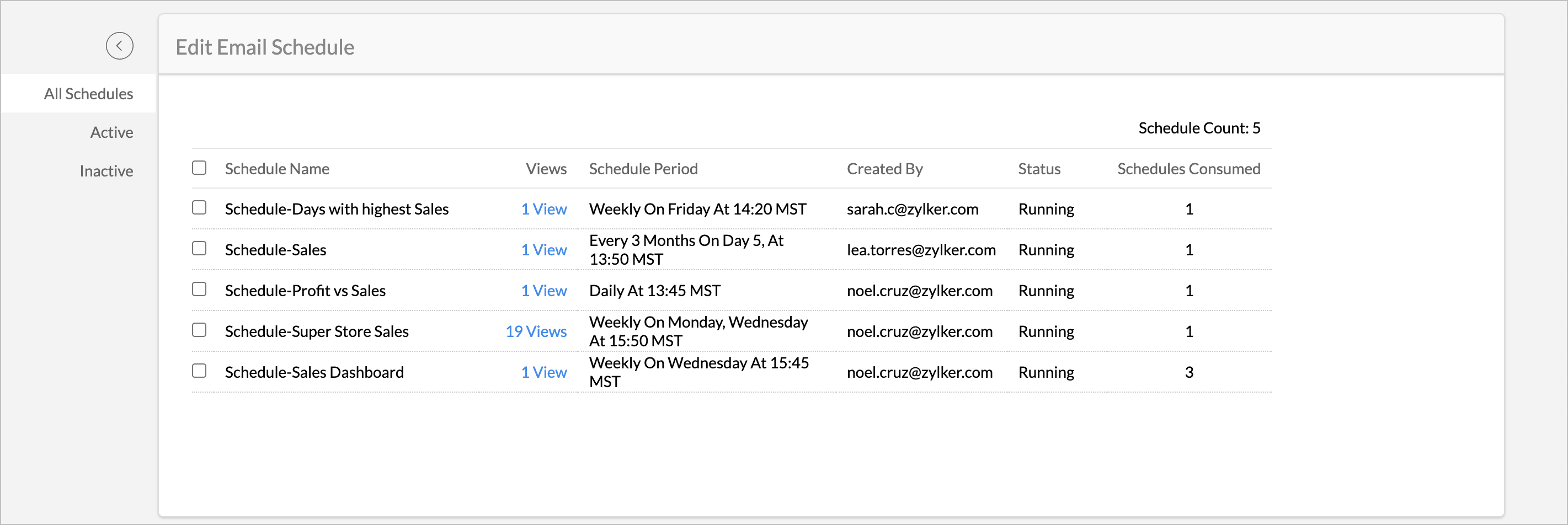
The Email schedule count for pricing will be calculated based on the number of users added in these schedules. You can view the Schedule Consumed by each Email Schedule from the Edit Email Schedule page.
4. Can I buy more Email Schedules?
Yes, you can buy more Email Schedules as an add-on. Refer to the Pricing section to know more on this.
Managing Email Schedules
1. How do I manage Email Schedules of a view?
To manage the email schedules from the Manage Email Schedules page, follow the below steps to do this.
- Open any view.
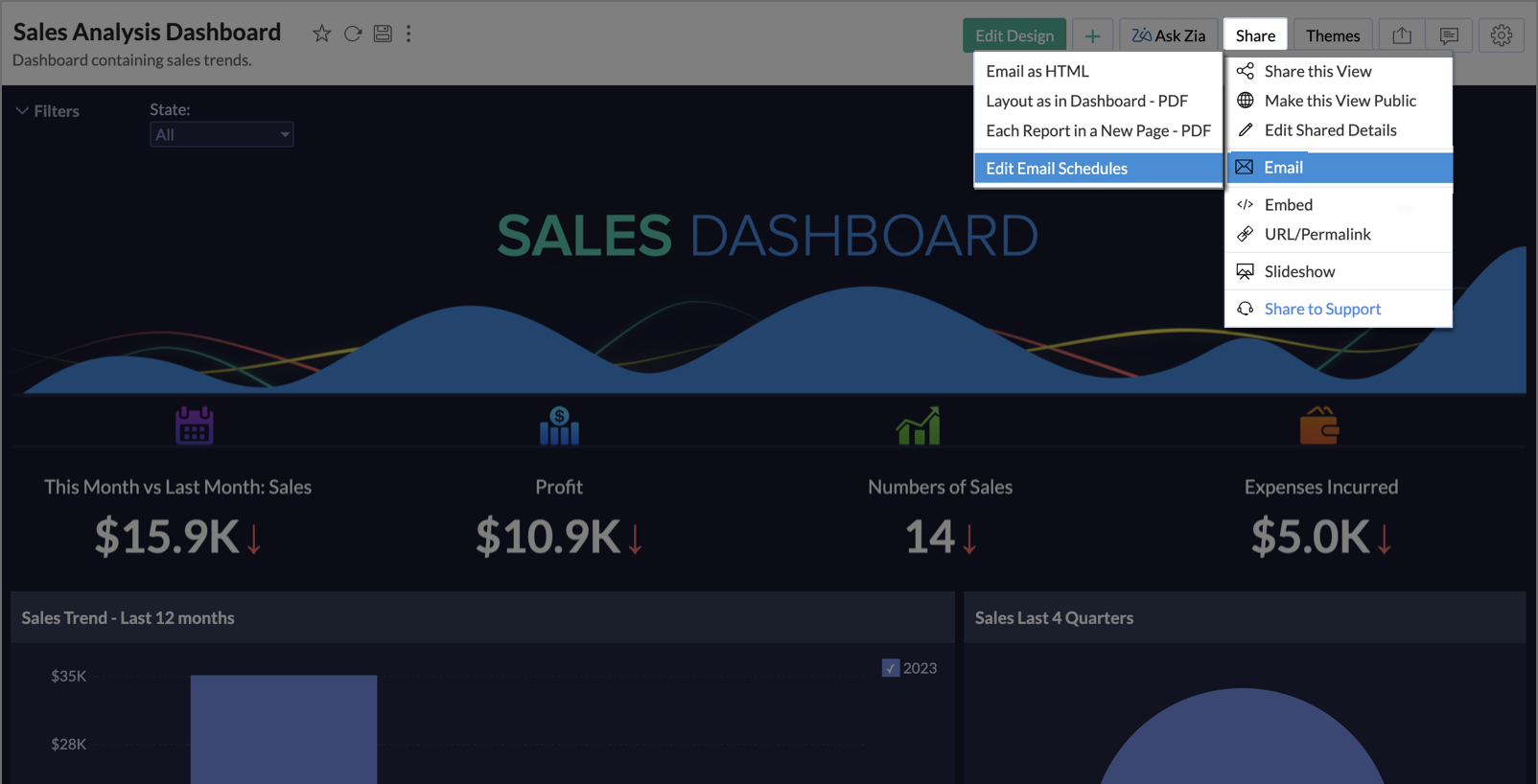
- Click Share > Email > Edit Email Schedules.
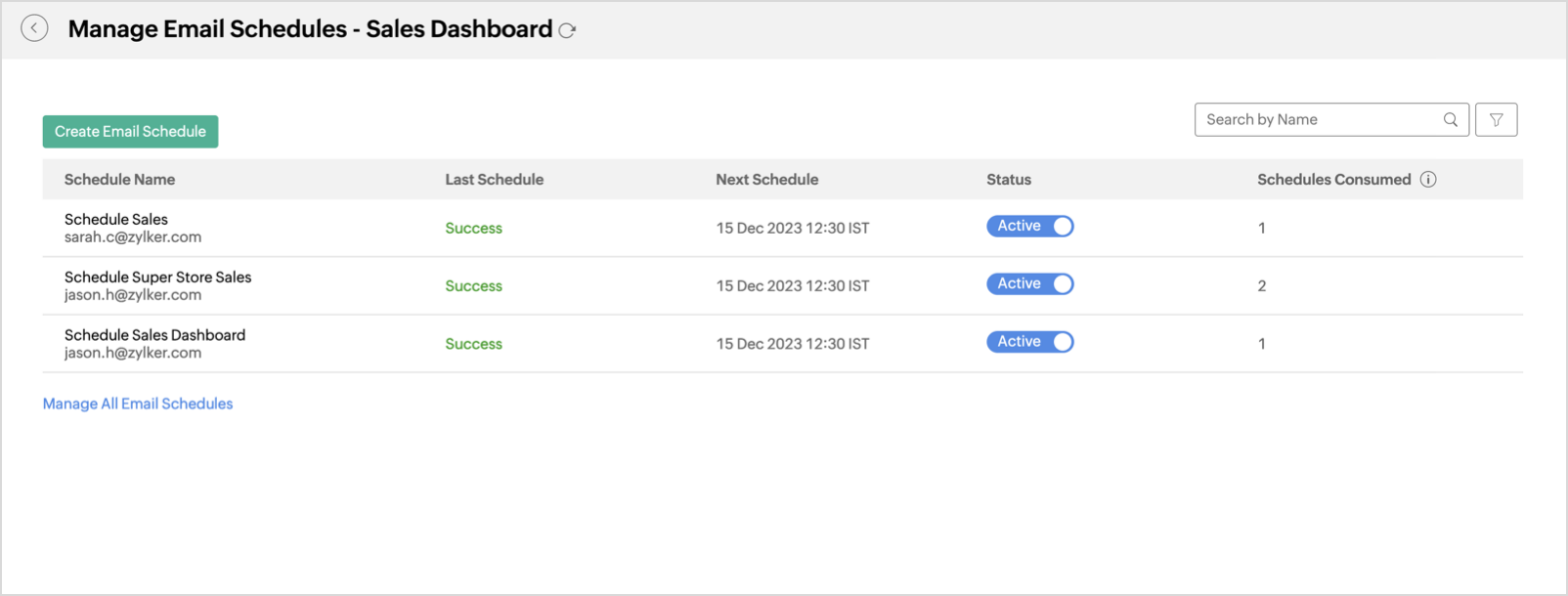
- The Manage Email Schedules dialog will open. It provides a list of all the email schedules associated with this view.
- Each schedule is accompanied by essential details, such as the last schedule status, the next scheduled time, the schedule status, and the total schedules consumed by this schedule.
- Toggle the Active button, to activate or deactivate an email schedule.
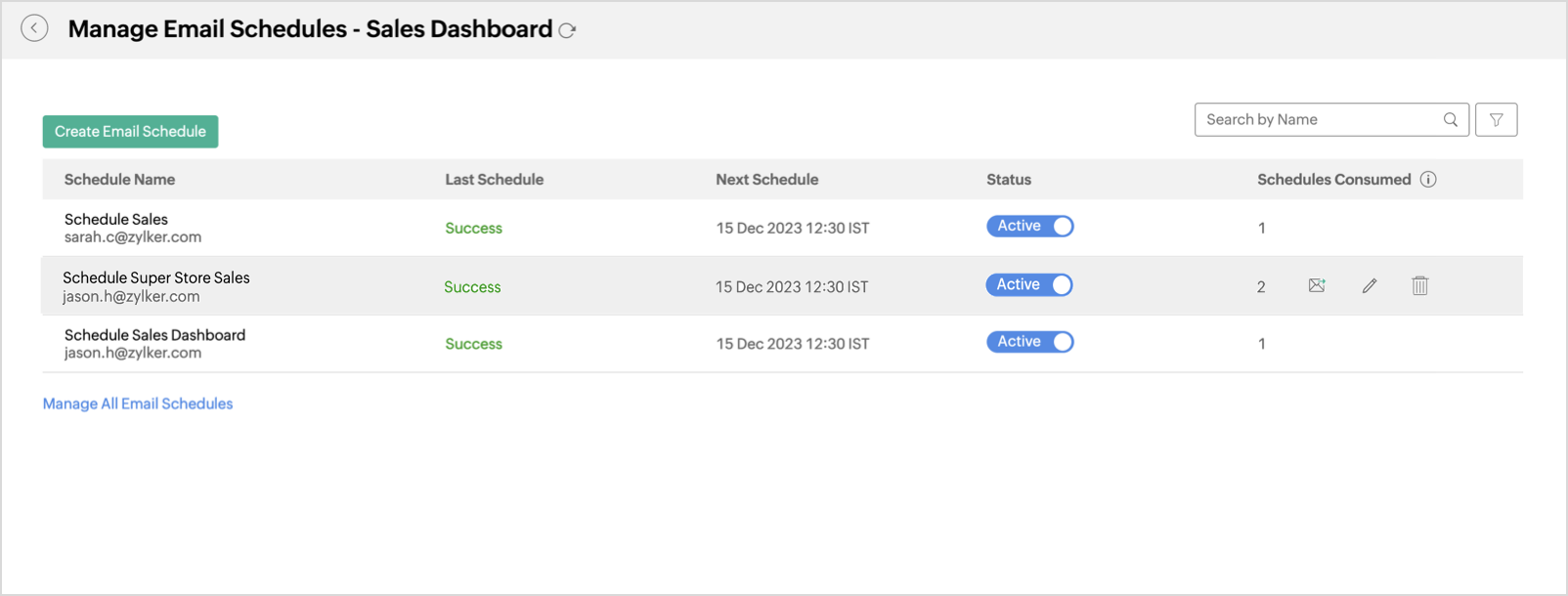
- Hover at the end of the schedule name to explore options such as Send Now, Edit and Delete.
- Send Now - Click this to send the email as specified in the email schedule instantly.
- Edit - Click this to edit the email schedule. The Email As dialog will open and you can make changes to the email schedule and save it.
- Delete - Click this to delete the email schedule.
- Click Manage All Email Schedules, to explore all the email schedules created within your workspace. Click here to learn more.
2. Can I view and manage all the Email Schedules of a workspace?
The Email Schedules section in the Workspace Settings page allows you to efficiently manage all the email schedules within your workspace. Email schedules are organized into three distinct groupings, to streamline the management process as follows:
- By Name
- By Users
- By Views
To learn more about managing email schedules at the workspace level, click here.