Chargebee
Connect your Chargebee data with Zoho Analytics to gain deeper insights into your subscription business. Import and analyze key data related to customers, subscriptions, invoices, payments, and revenue in one place. Build insightful reports and dashboards to track important subscription metrics such as recurring revenue, customer growth, churn, and subscription performance, helping you make more informed business decisions.
Pre-requisites
Zoho Analytics uses the API authentication method to verify the identity and to import the data. Follow the below steps to generate the API Key for your account.
- Login to your Chargebee account.
- Click Settings > Configure Chargebee > API Keys & Events > API keys.
- Click Add API Key, then choose the type of API key you want to create.
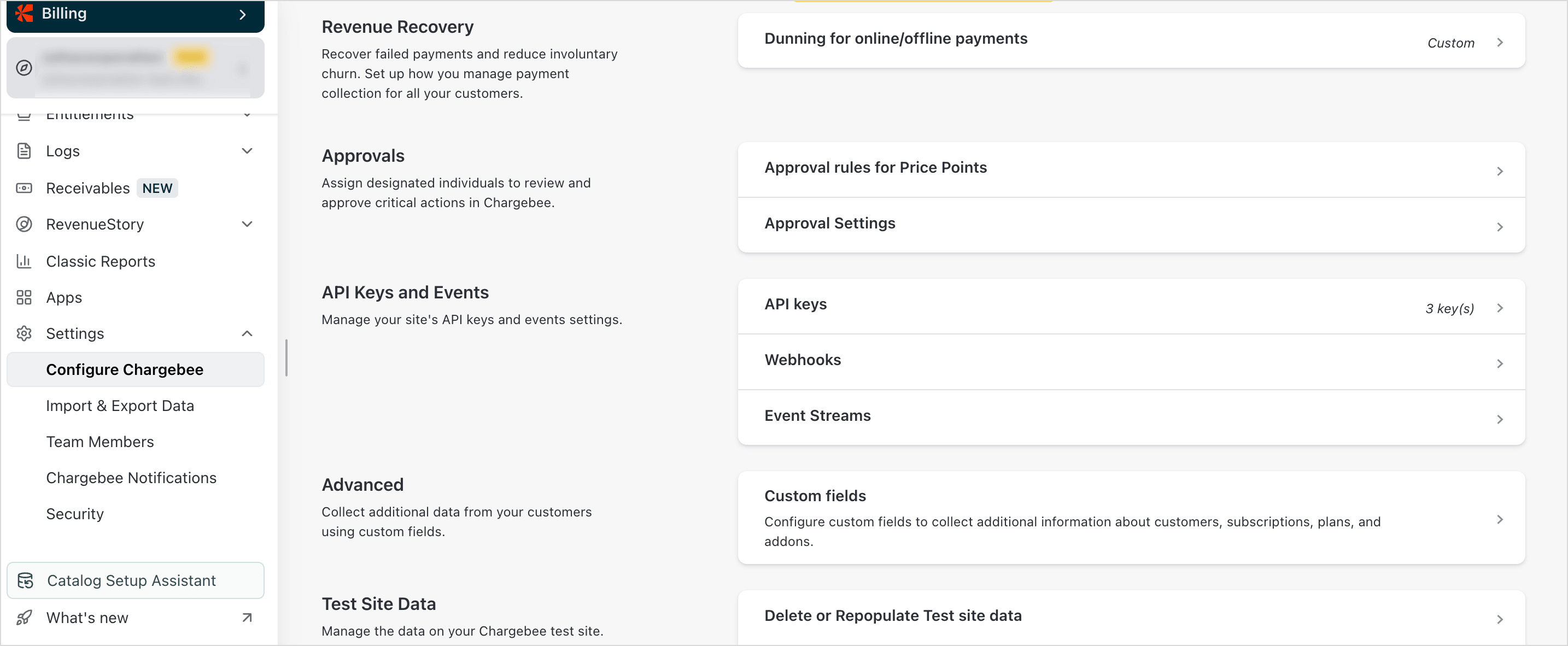
- Provide a suitable name for the API key, then click Create API Key.
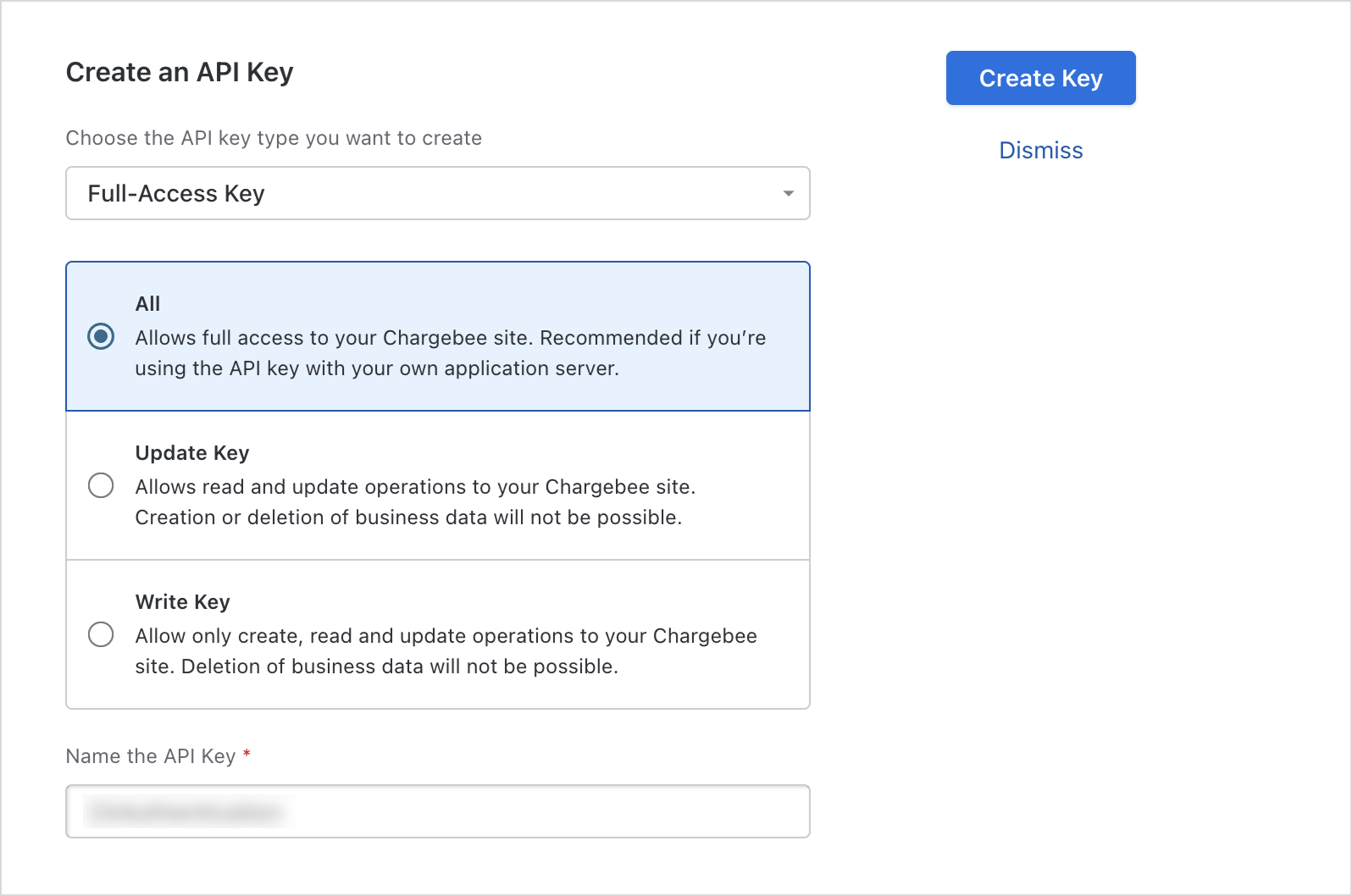
- Copy the API and use it for authentication.
How to Connect Chargebee Data With Zoho Analytics
Users with administrator privileges such as Account Admin, Org Admin can configure the connection between Chargebee and Zoho Analytics.
- Click Import your Data from the Zoho Analytics homepage.
- Click Marketing > Chargebee.
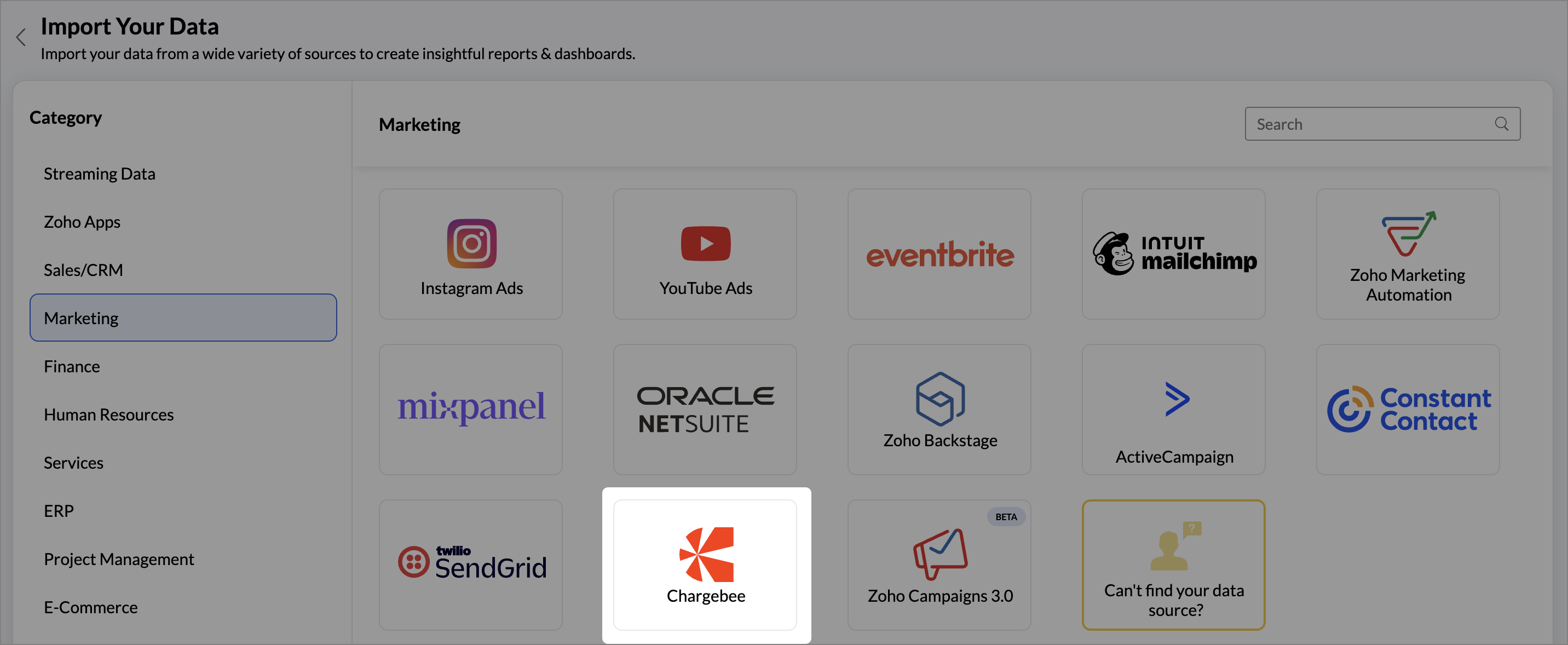
- The Chargebee Advanced Analytics setup pane will open.
- Specify a suitable Workspace Name and Workspace Description.
- Enter the Subdomain and API Key copied from your Chargebee account.
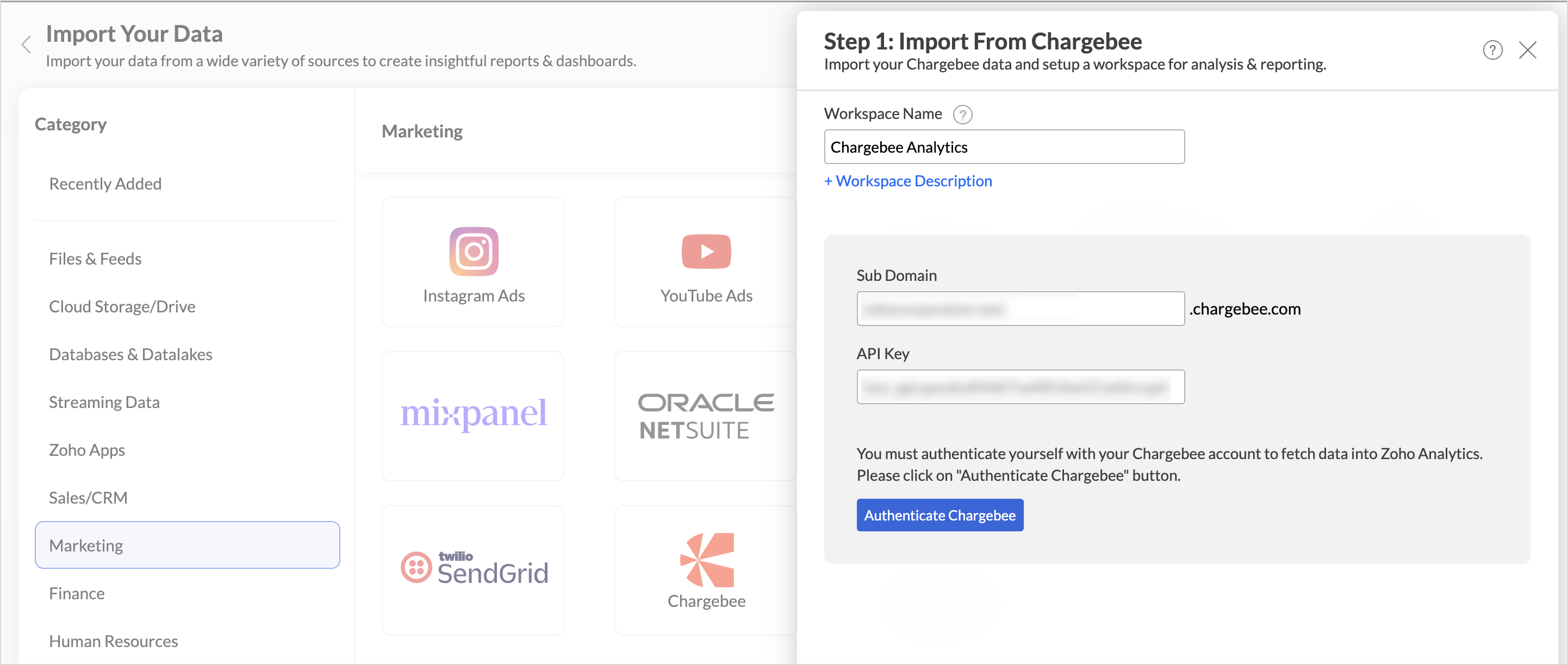
- Click Authenticate Chargebee.
- Select the Modules and Fields to imported.
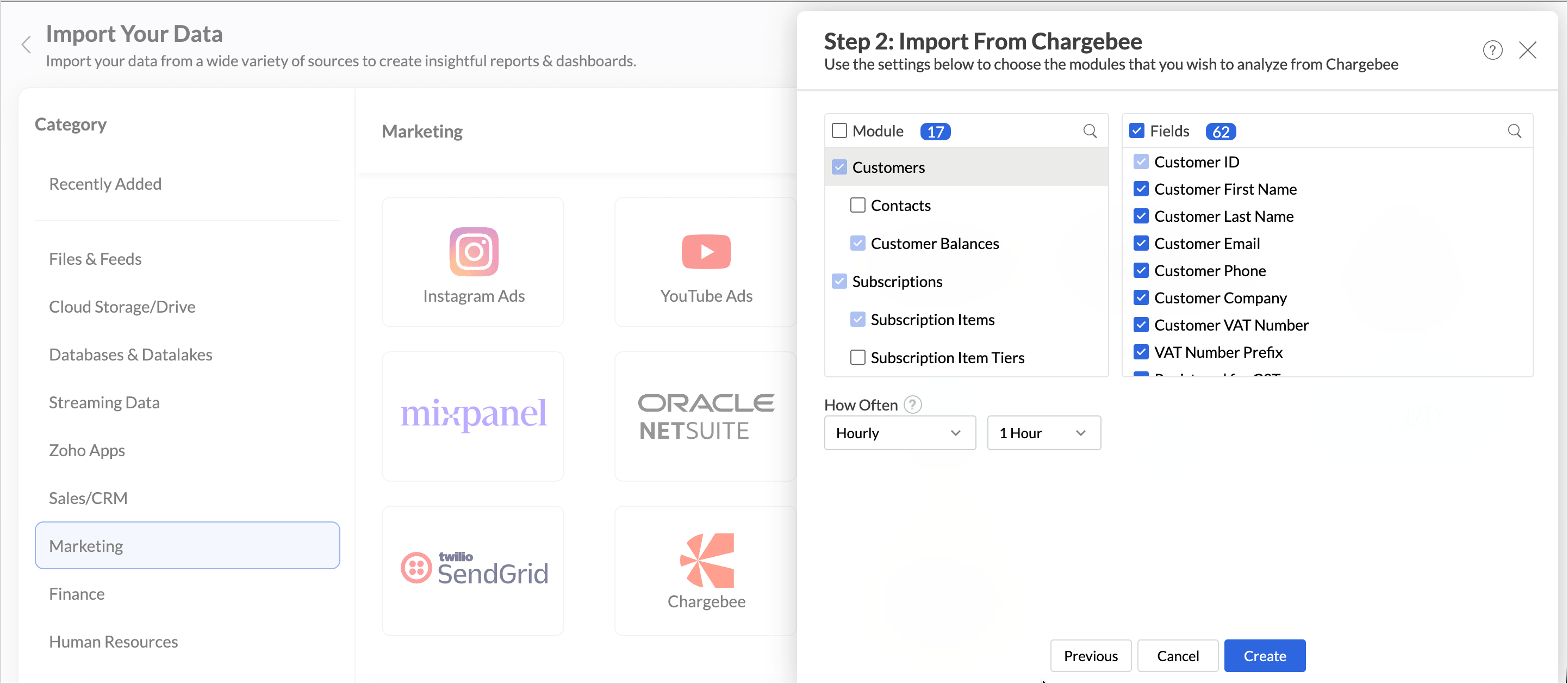
- Choose the Data Sync Interval in which the records should be updated.
- Click Create.
Note:
- The initial fetch might take a few minutes depending on the volume of the data to be imported. An email and an in-app notification will be sent once the initial fetch is complete.
- The setup process can sometimes fail for a variety of reasons. In this case, we request you to access the Data Sources tab and click the Retry link to import again. If the issue persists, write to us at support@zohoanalytics.com.
Data Sync Frequency
Zoho Analytics offers flexible sync schedules to ensure that your data is always up-to-date for effective analysis. These schedules allow you to automate the process of updating your data, ensuring that your analyses are based on the latest information.
- 1 Hour (Enterprise plan)
- 3 Hours (Standard plan and above)
- 6 Hours (Standard plan and above)
- 12 Hours (Standard plan and above)
- Daily (Basic plan and above)
Handling Data Synchronization Failure
Data synchronization can fail if,
- Authentication to the Chargebee account has expired or was revoked.
- The data type of a field is changed in the Chargebee application.
- The Modules and Fields selected for analysis are deleted in the source application.
- The user who configured the integration no longer has permission to access the modules.
In any of the above mentioned cases, the data sync will be paused. You will be notified via email and in-app notification with the exact reason for failure along with the solution.
To resolve the sync failure, delete or restructure the views, or restore the specific modules and fields from the source application. Refer to Data Sync failure and solutions article for more details.
Once you have made the changes, click the Sync now option to resume the data sync. If the issue persists, mail us at support@zohoanalytics.com.
Managing Data Sources
The Data Sources tab provides essential information to monitor and manage the integration setup. It also allows you to edit the settings as needed. Users with administrator privileges will be able to view and modify the connection settings.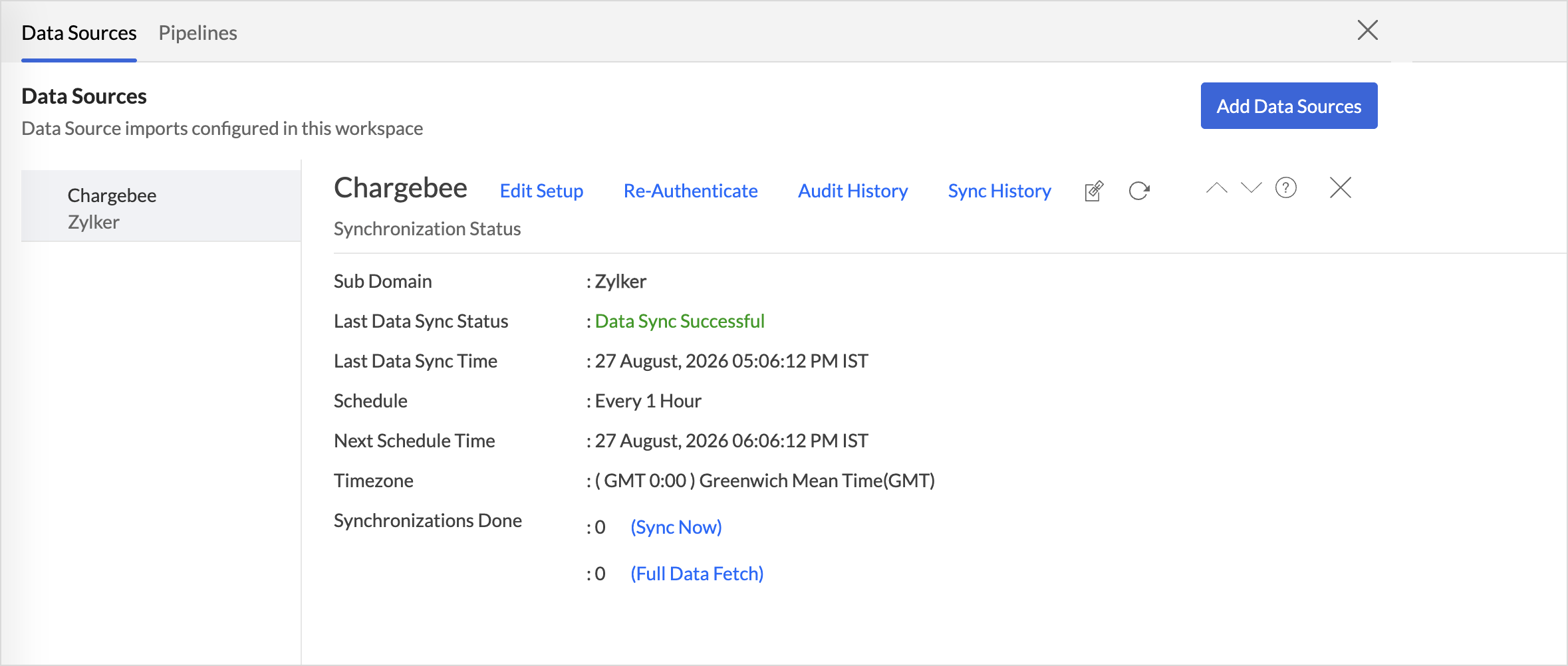
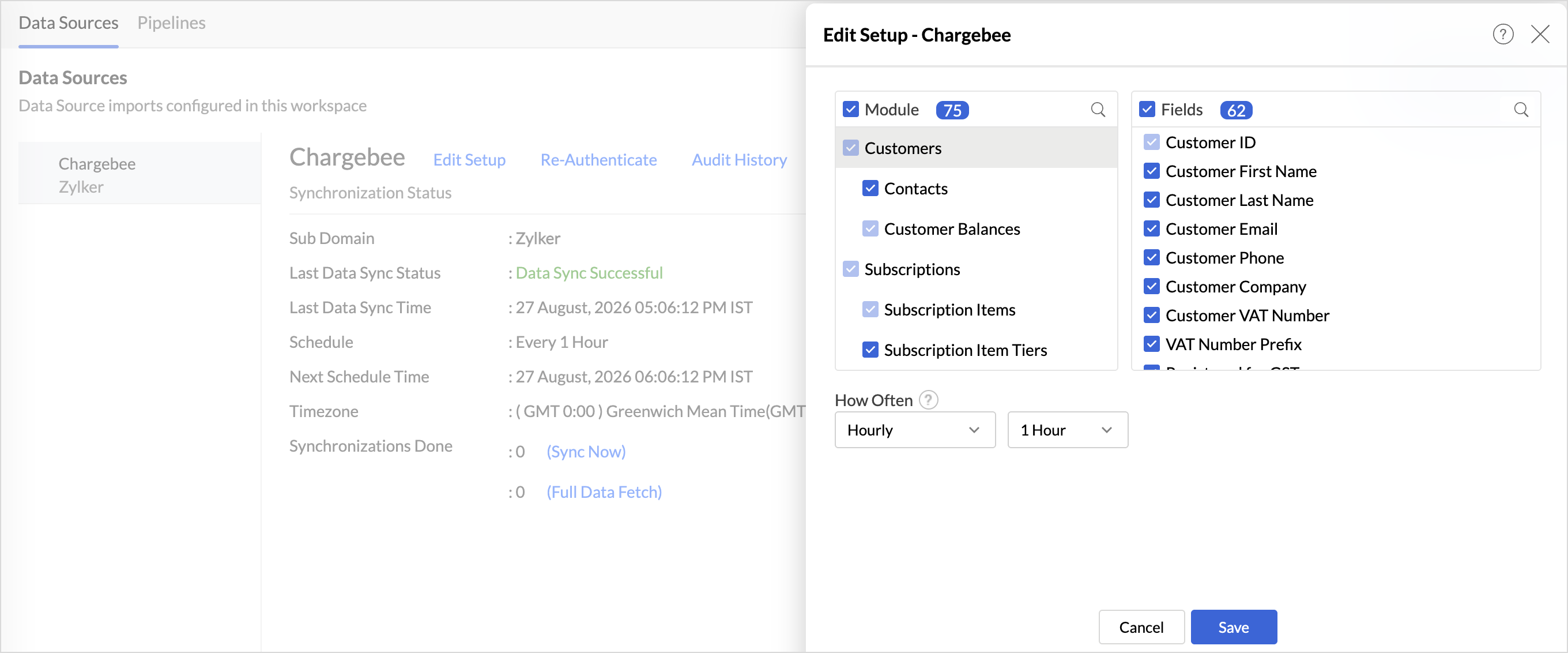
- Edit Setup: The Edit Setup tab allows you to add or delete modules or fields, change the schedule interval, and modify other settings specific to the business application.
To modify the settings,- Click Data Sources > Edit Setup.
- The Edit Setup - Chargebee dialog will open. Modify the settings as needed and click Save.
- Re-Authenticate: Renews the authorization between Zoho Analytics and the Chargebee application ensuring that data can continue to be accessed and synchronized securely.
To re-authenticate,- Click Data Sources > Re-Authenticate.
- The Re-Authenticate Chargebee dialog will open. Enter the credentials and click Authenticate Chargebee.
- Audit History: Logs all the user and system activities performed by admins for the Chargebee data source. Learn more.
- Sync History: Displays the status and details of each data synchronization, including successful and failed syncs. Learn more.
- Data Source URL: Use the Data Source URL to open the Data Sources tab and view sync status, last sync time, and next scheduled sync. Learn more.
- Remove Data Source: Use Remove Data Source to stop sync and delete the Chargebee tables, reports, and dashboards associated with the integration. Learn more.
Transferring Chargebee Connector to Another Admin
If the user who configured the Chargebee connector leaves the organization or hands over administration responsibilities, ownership of the connector can be transferred to another administrator. This ensures uninterrupted data sync and continued access to the workspace.
For detailed steps on transferring connector ownership, refer here.
Data Modeling & Preparation
Zoho Analytics lets you prepare and model your Chargebee data for analysis. Join tables using lookup columns or query tables, create formulas, and clean or transform data as needed. For more context on data modeling and preparation, see Data Modeling & Preparation.
Formulas
Zoho Analytics provides a set of pre-built formulas along with the connector. To access these formulas, open your Chargebee Advanced Analytics workspace, click Data from the side panel, and click Unified Metrics. This lists all the prebuilt formulas and other formulas available across the workspace.
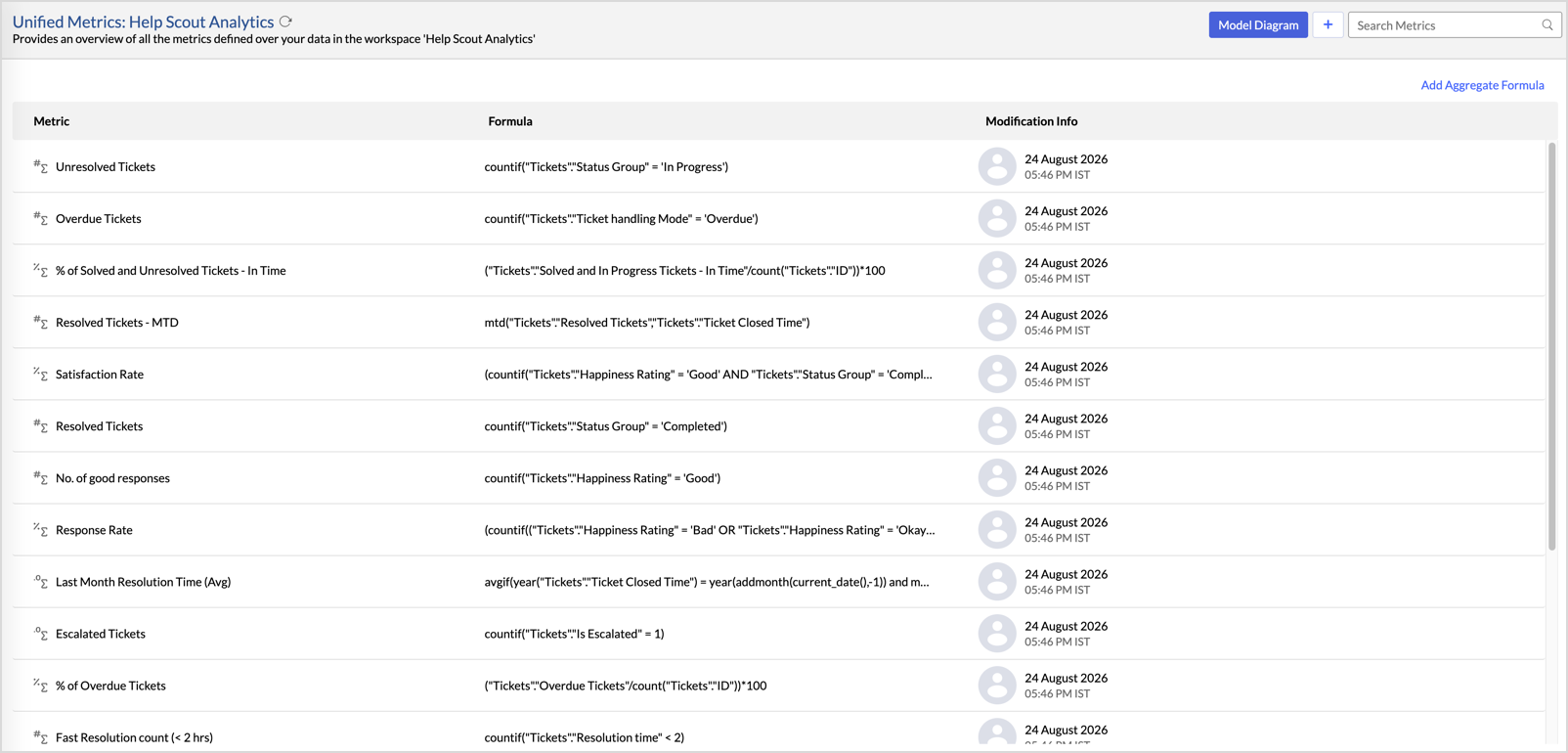
You can also create your own custom formulas in Zoho Analytics. To know how to create your own formulas, refer to Formulas (Calculations).
Data Blending
Data Blending combines data from Chargebee with data from other data sources to create correlation reports and dashboards. When you import multiple data sources into the same workspace, Zoho Analytics identifies the relationships between them and blends the data using lookup columns and query tables.
For the complete steps on blending data across sources, see Data Blending.
How can you visualize and analyze Chargebee data?
Zoho Analytics allows you to create a wide range of visualizations to analyze Chargebee data and gain actionable insights into your email program. You can build reports and dashboards to track delivery and bounce rates, monitor open and click engagement, analyze spam reports and unsubscribes, evaluate sender reputation, and measure overall email performance across campaigns and recipients.
- Zoho Analytics offers a wide range of visualization types to conduct your analysis. Refer to the Creating Reports section to learn more. The chart type primer lists all the viz types available in Zoho Analytics.
- With Predictive analytics, forecast future trends, detect anomalies, and segment data using Cluster analysis.
- Find the What, Why, and How behind any outcome with Zia Insights.
Sharing & Collaboration
- Use fine-grained permission control over your shared data and reports, while collaborating with your colleagues & friends.
- Efficiently collaborate with your users by setting up real-time commenting on a shared view.
- Publish reports for wider consumption. Embed reports/dashboards within your websites, web applications, and blogs.
- Export, email, and print reports in a variety of formats.
- Use Zoho Analytics mobile apps (optimized for both iOS and Android platforms) and access data, reports, and dashboards on the go.
Help & Support
We offer 24x5 technical support (Monday to Friday). In case if you need our assistance, kindly do mail us your questions to support@zohoanalytics.com.
You can also reach out to us on our toll-free numbers.
United States: +1 (888) 900 9646
United Kingdom: +44 (20) 35647890
Australia: +61-2-80662898
India: +91 44 6965 6060