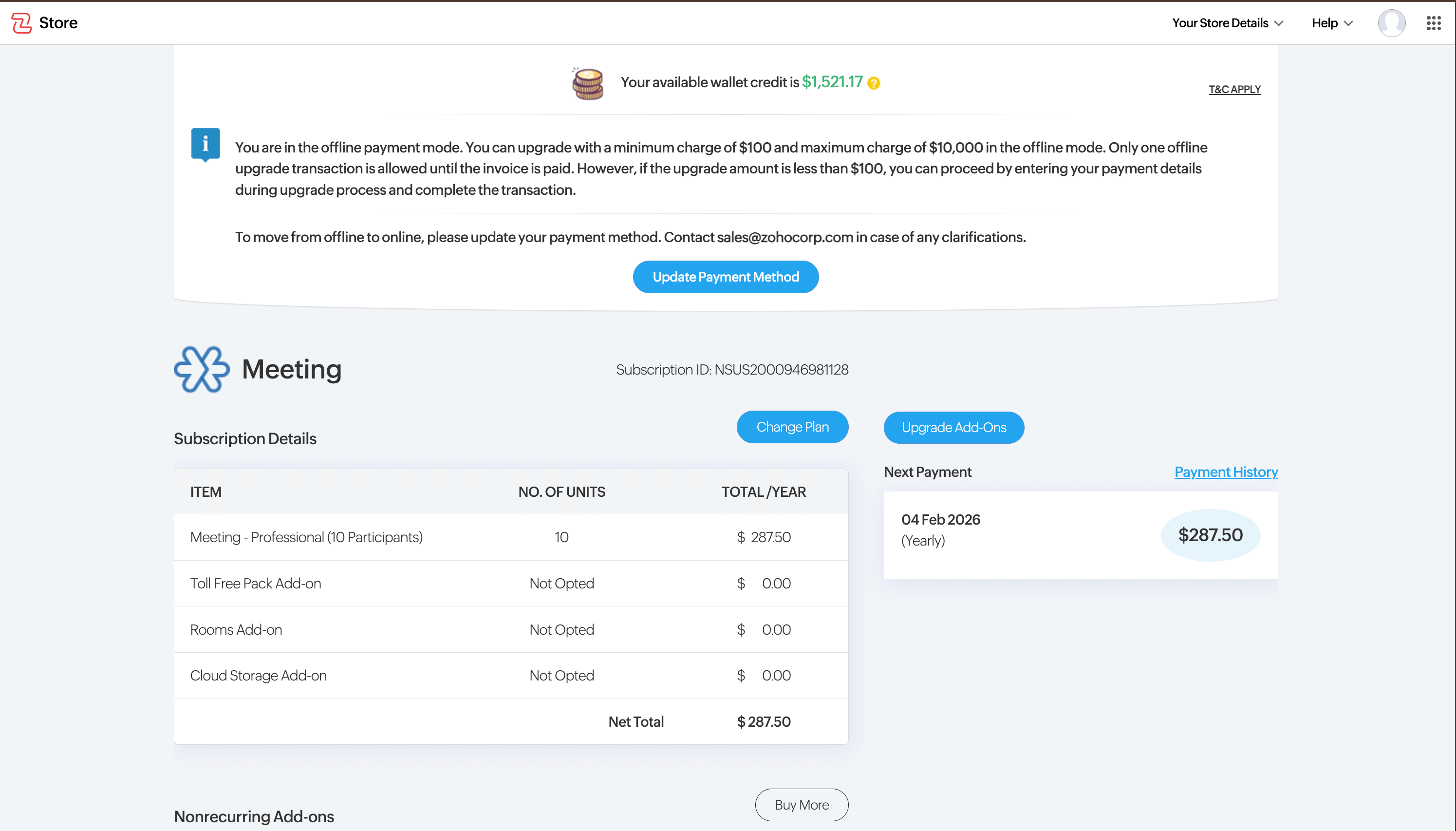
If your subscription is in offline payment mode, you can now self-manage your subscriptions without contacting support. You can change your plan or upgrade add-ons directly from your end.
When will this option appear?
When you log in to a subscription that is currently in offline mode, a banner notification will appear at the top of your screen. This banner will inform you that license upgrade can be done if there is no unpaid invoices.
How payment works:
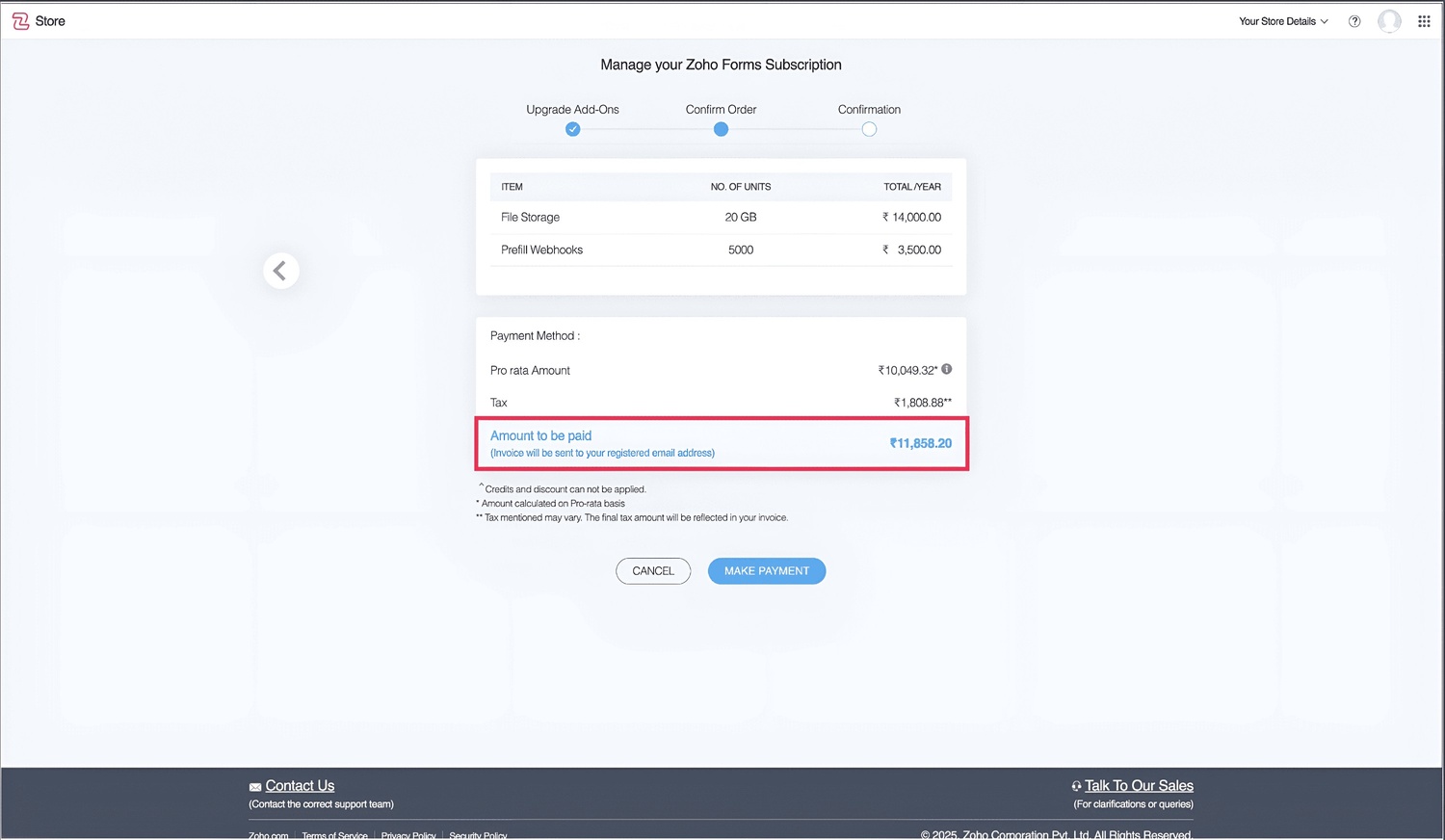
$100 and above (up to $10,000 or equivalent currency)
- An invoice will be sent to your registered email, just like the regular offline payment process. You can complete payment via wire transfer or using the payment link provided with the invoice. Once paid, you're eligible to make another upgrade.
Under $100 (or equivalent currency)
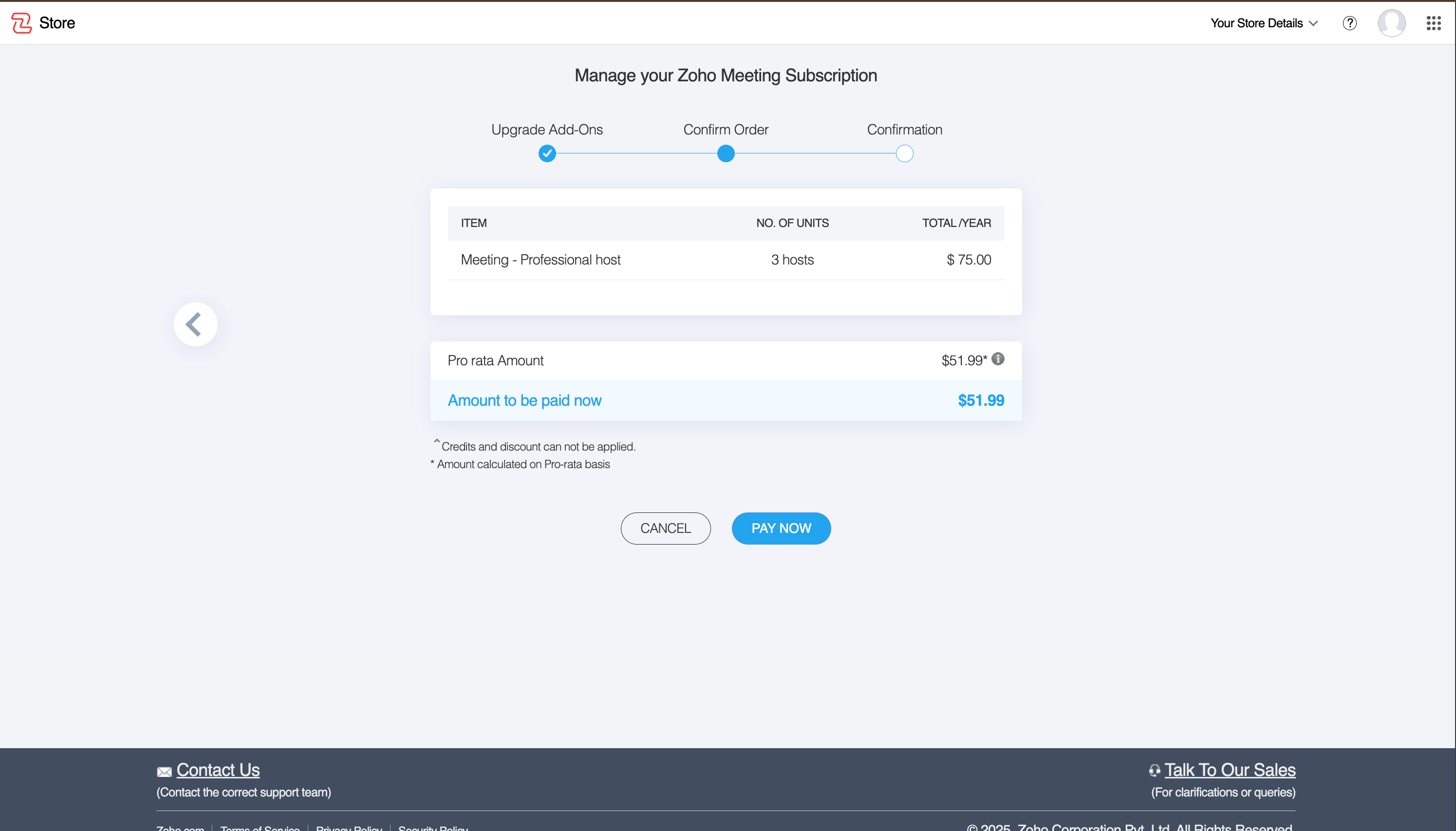
- Offline payment isn't supported for smaller amounts. You'll need to complete this payment immediately by providing card or other supported payment method details. This is only to process the current transaction — your subscription will remain in offline payment mode after the payment is completed.
Please follow the steps below to complete your payment:
Step 1: Click "Pay Now"
After upgrading the add-ons, click the Pay Now button located at the bottom of the screen.
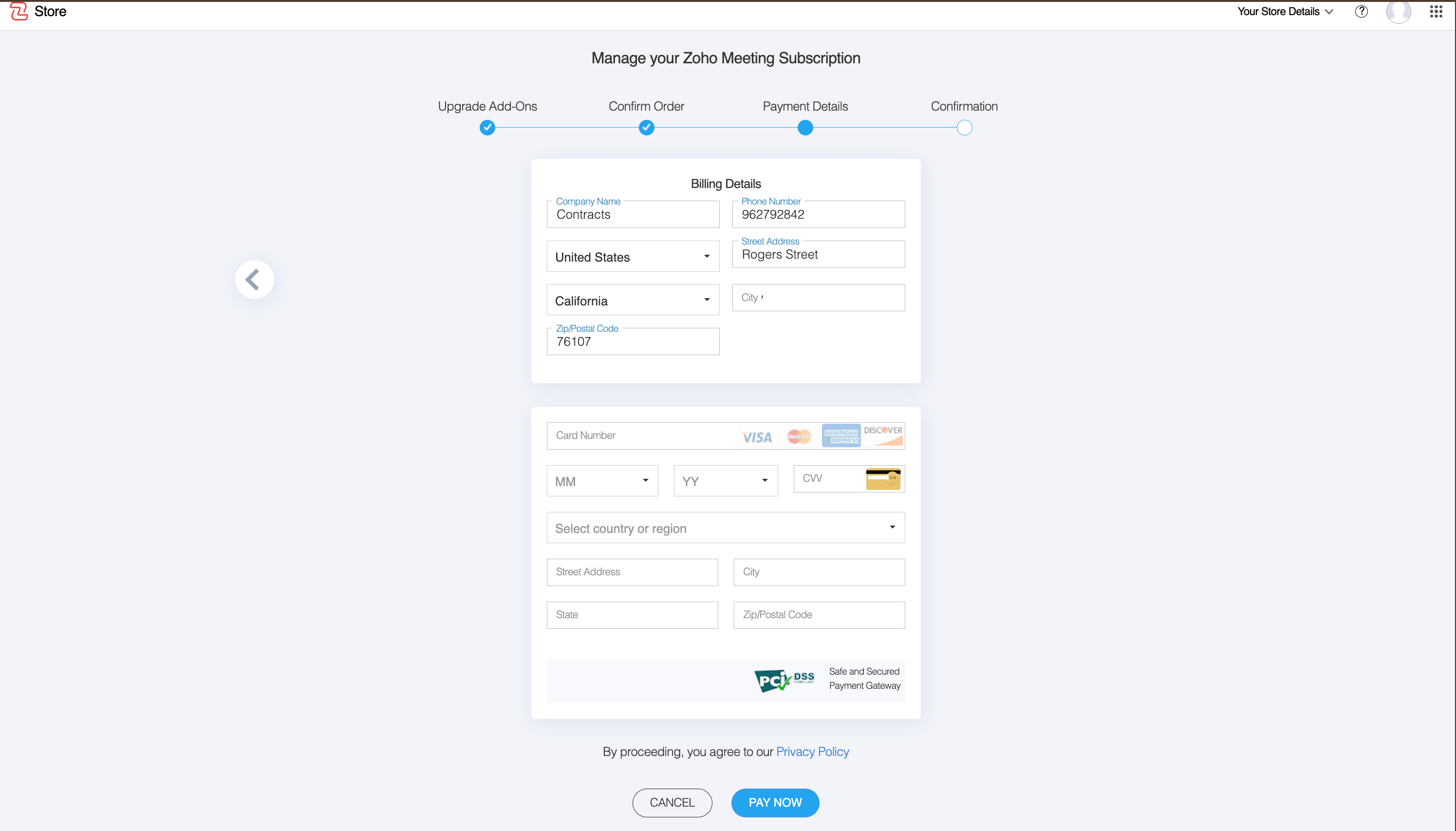
Step 2: Enter Card Details
A secure payment window will appear. Enter your card details, then click Pay Now again to proceed.
Step 3: Payment Confirmation
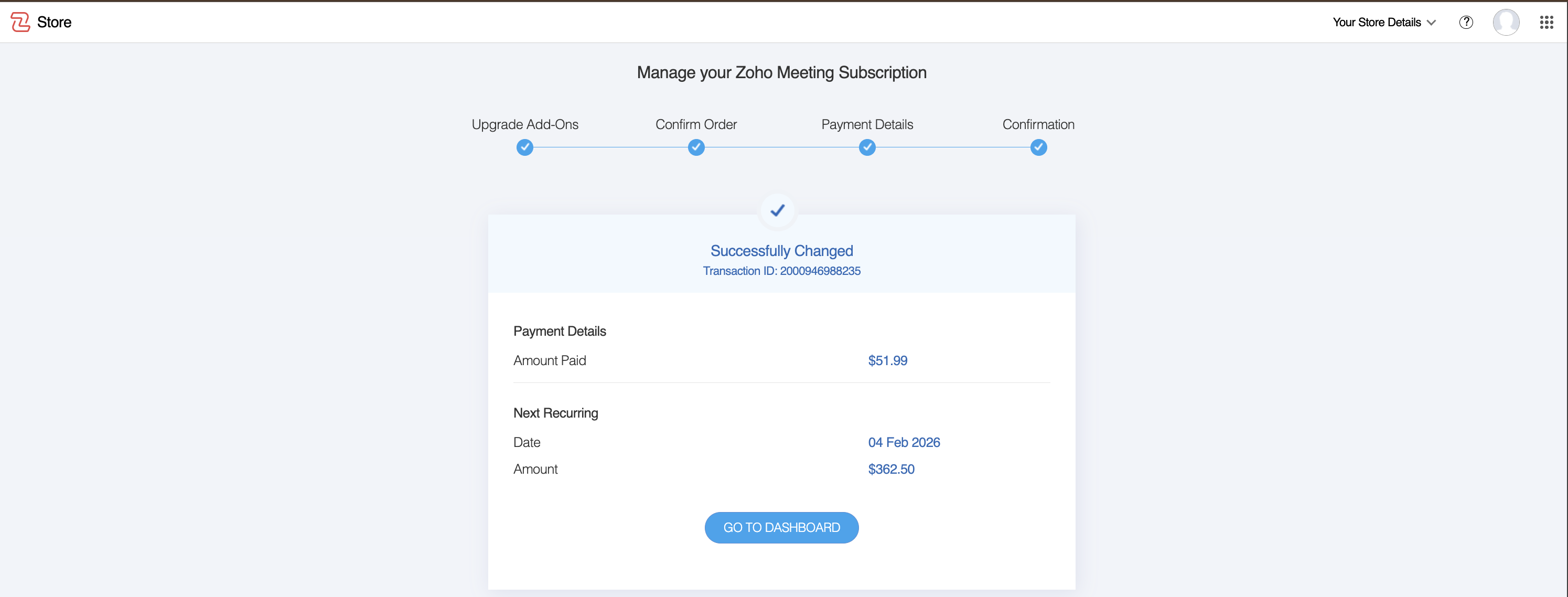
Once the payment is successfully processed, you'll receive a confirmation message indicating that the upgrade was successful.