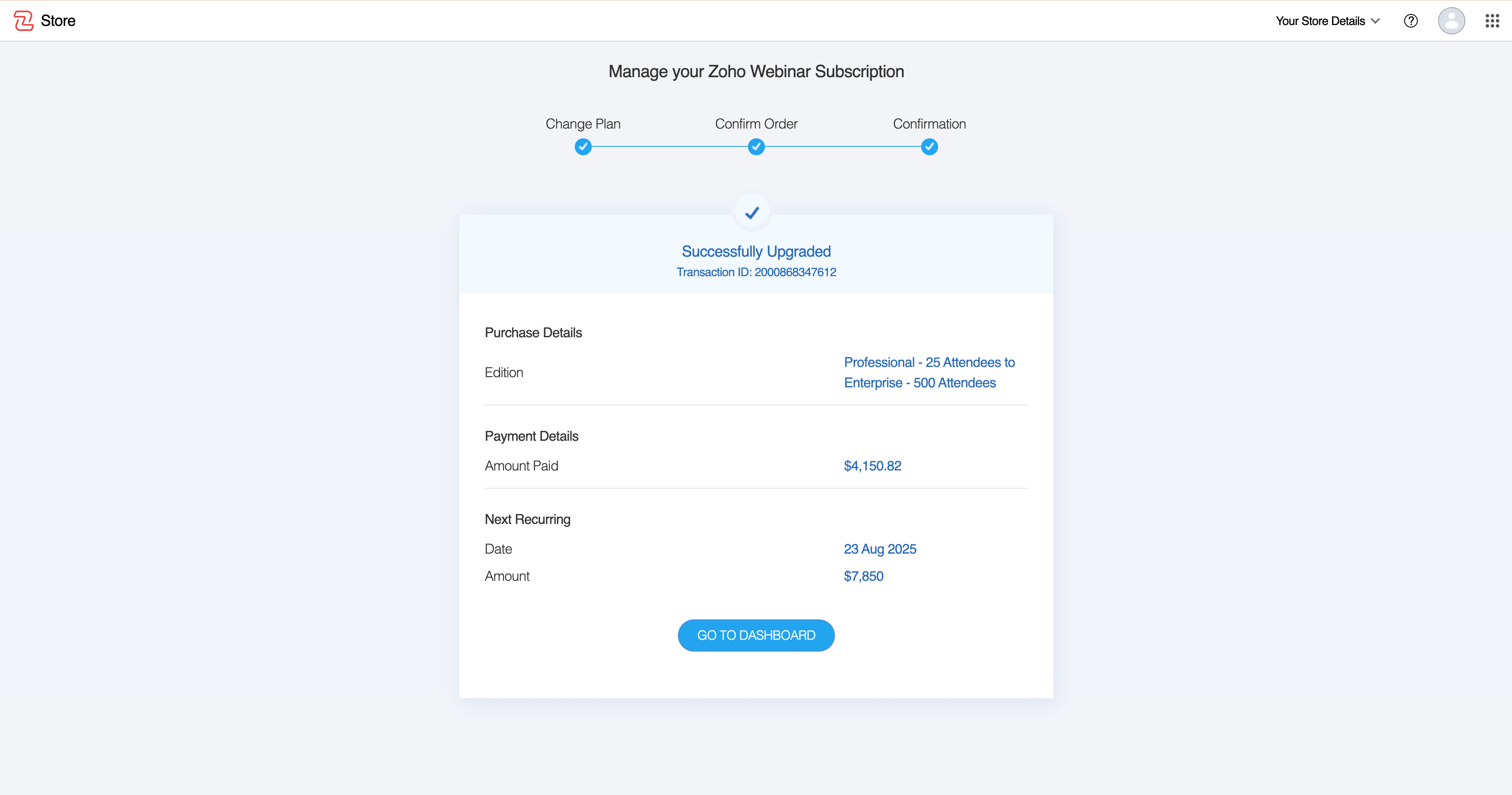
If you wish to modify your current subscription plan before the end of the billing cycle - whether upgrading to a higher-tier plan for additional features or downgrading to a lower-tier plan to reduce costs - you can do so at any time during your active subscription period. The changes will take effect immediately, and the billing adjustment will be calculated based on the remaining days in the current cycle. Follow the steps below to seamlessly update your plan.
Navigate to the Subscription page:
- Open the product page: Navigate to the product you wish to change plan for.
- Access Subscription Option: Click on your profile icon in the top-right corner of the page.
- Select Manage Subscription: Click the Upgrade/Manage Subscription located below the profile details.
Changing your Subscription Plan:
You can modify your subscription plan at any time to better align with your requirements. Follow the steps below to upgrade or downgrade your plan seamlessly.
Steps to Change Your Plan:
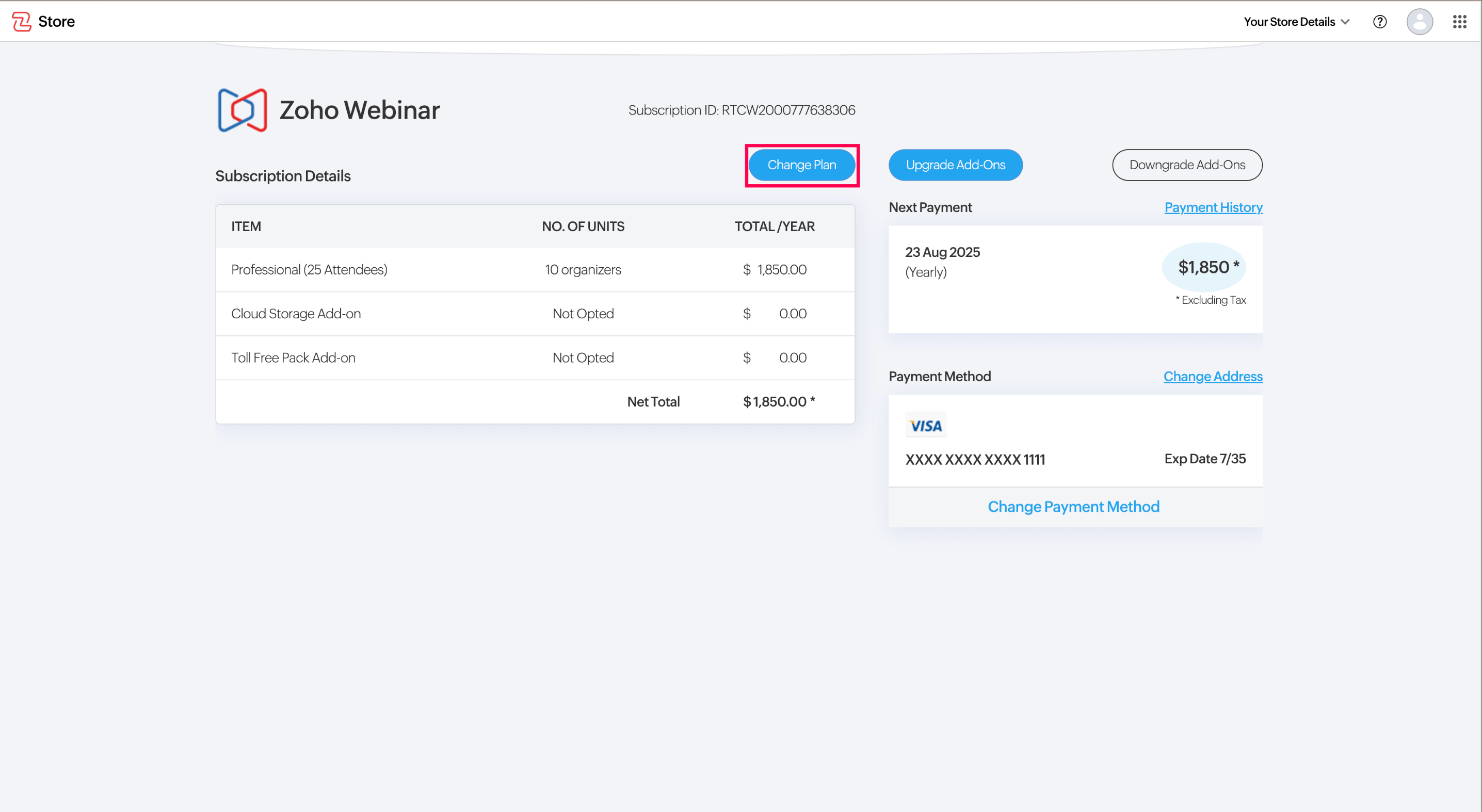
- Click "Change Plan" - Select the Change Plan button to explore available subscription editions.
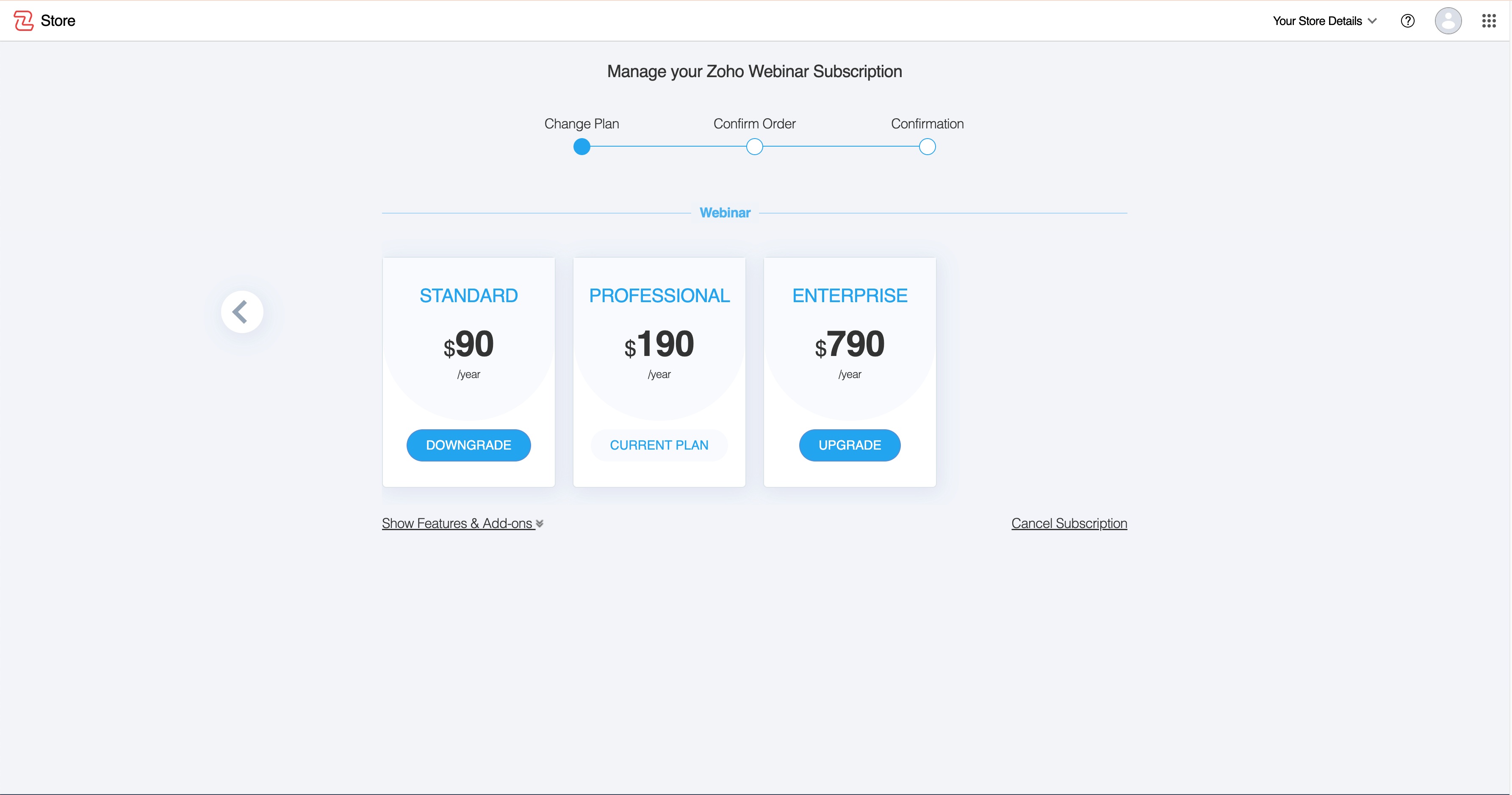
2. Select a New Plan - Choose the plan that best fits your needs. You can either upgrade or downgrade from your current plan edition.
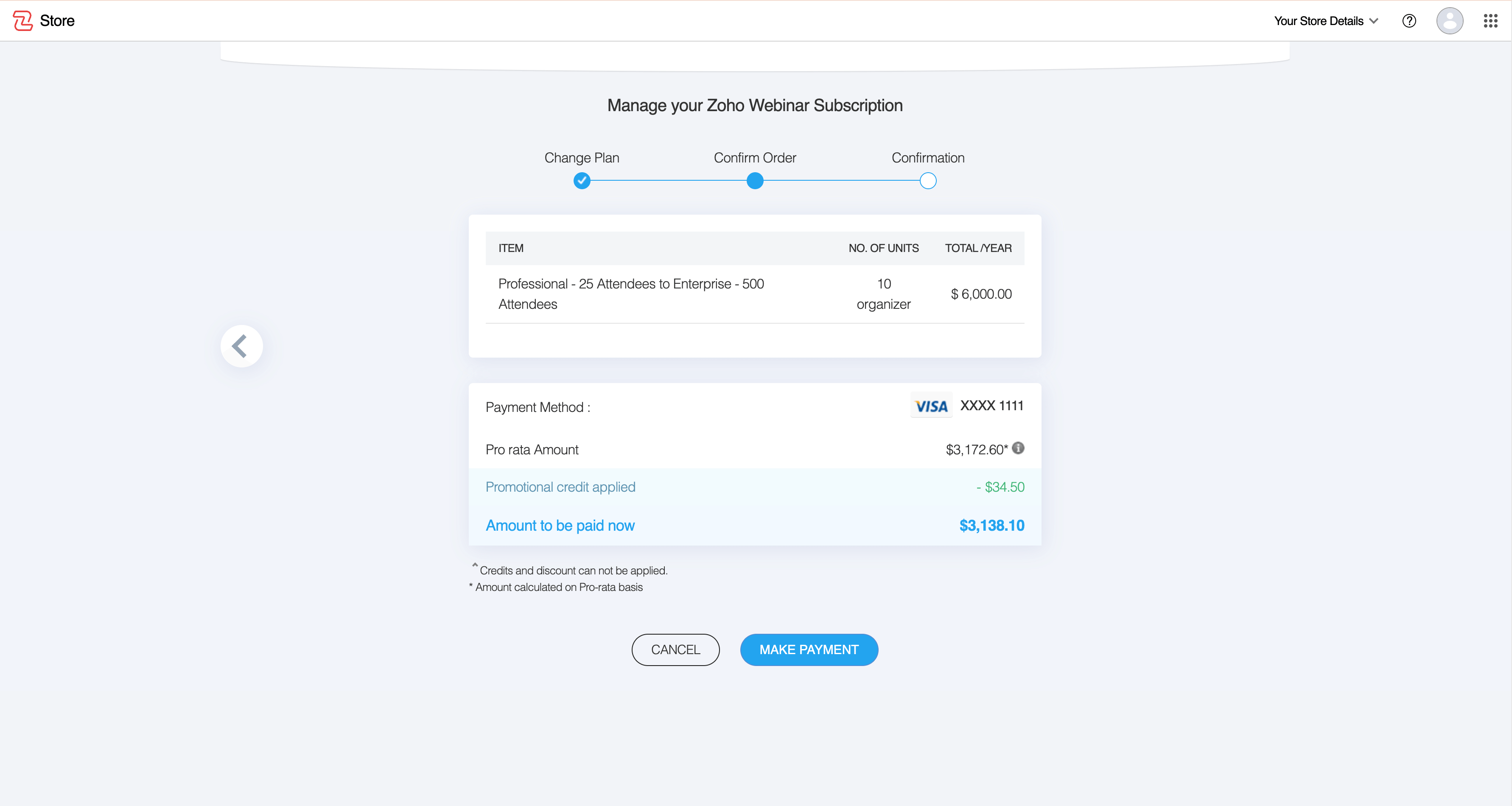
3. Review Plan Details - Ensure all details are correct before proceeding.
4. Complete Payment - Click the Make Payment button to finalize your plan change.
Pro-Rated Billing Calculation
If you change your plan during an active billing cycle, the amount to be paid is calculated using the pro-rated, ensuring you only pay for the remaining days in the cycle.
Pro-Rated Amount Calculation:
Amount to be paid = (Amount of New Plan - Amount of Current Plan) x Remaining days in the Billing cycle/ Total No.of. days in the Billing cycle
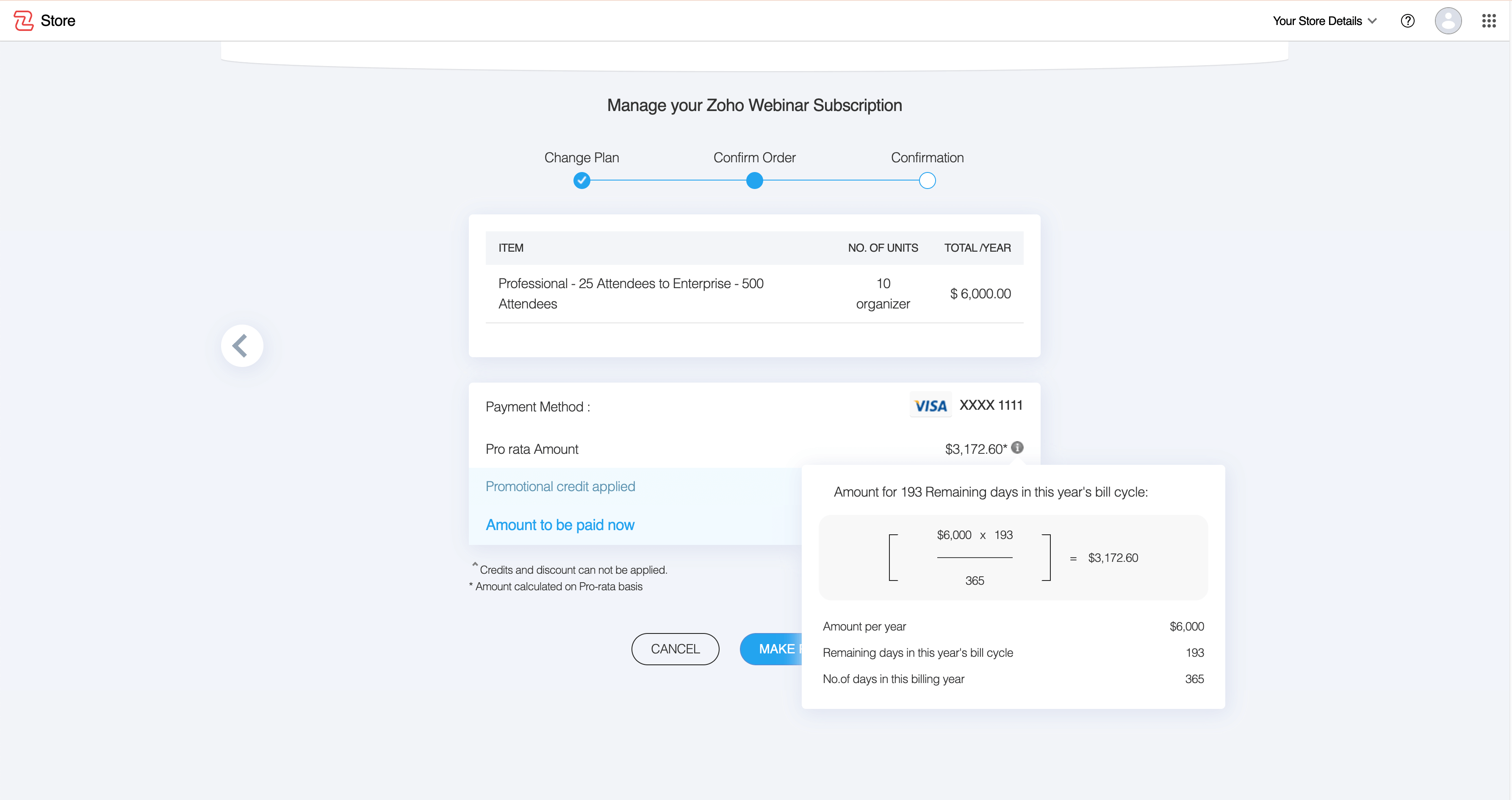
Once the payment is successfully processed, you will receive a confirmation indicating that your subscription has been updated.