Migration from Amazon WorkMail to Zoho Mail
Amazon WorkMail is a cloud-based business email, contacts, and calendar service offered by Amazon Web Services (AWS). If you are planning to move your organization’s email service from Amazon WorkMail to Zoho Mail, you can migrate your existing emails, contacts, and calendar data via One-Click migration.
Before you begin configuring the migration, ensure that your Zoho Mail organization is already set up and that the required user accounts have been created. Refer to the relevant help pages for detailed instructions on setting up your Zoho Mail organization and adding users.
Authorizing Zoho Mail to access Amazon WorkMail
To migrate from Amazon WorkMail to Zoho Mail using One-Click migration, you must authorize Zoho Mail to securely access your WorkMail organization data. This authorization is completed by creating a temporary IAM service account in Amazon Identity and Access Management (IAM) and generating access keys. These credentials allow Zoho Mail to securely retrieve users, mailboxes, contacts, and calendar data through secure access.
Note
Ensure that you have access to your organization's Amazon Root user account before proceeding.
Follow the steps below to create the required IAM user and generate access keys:
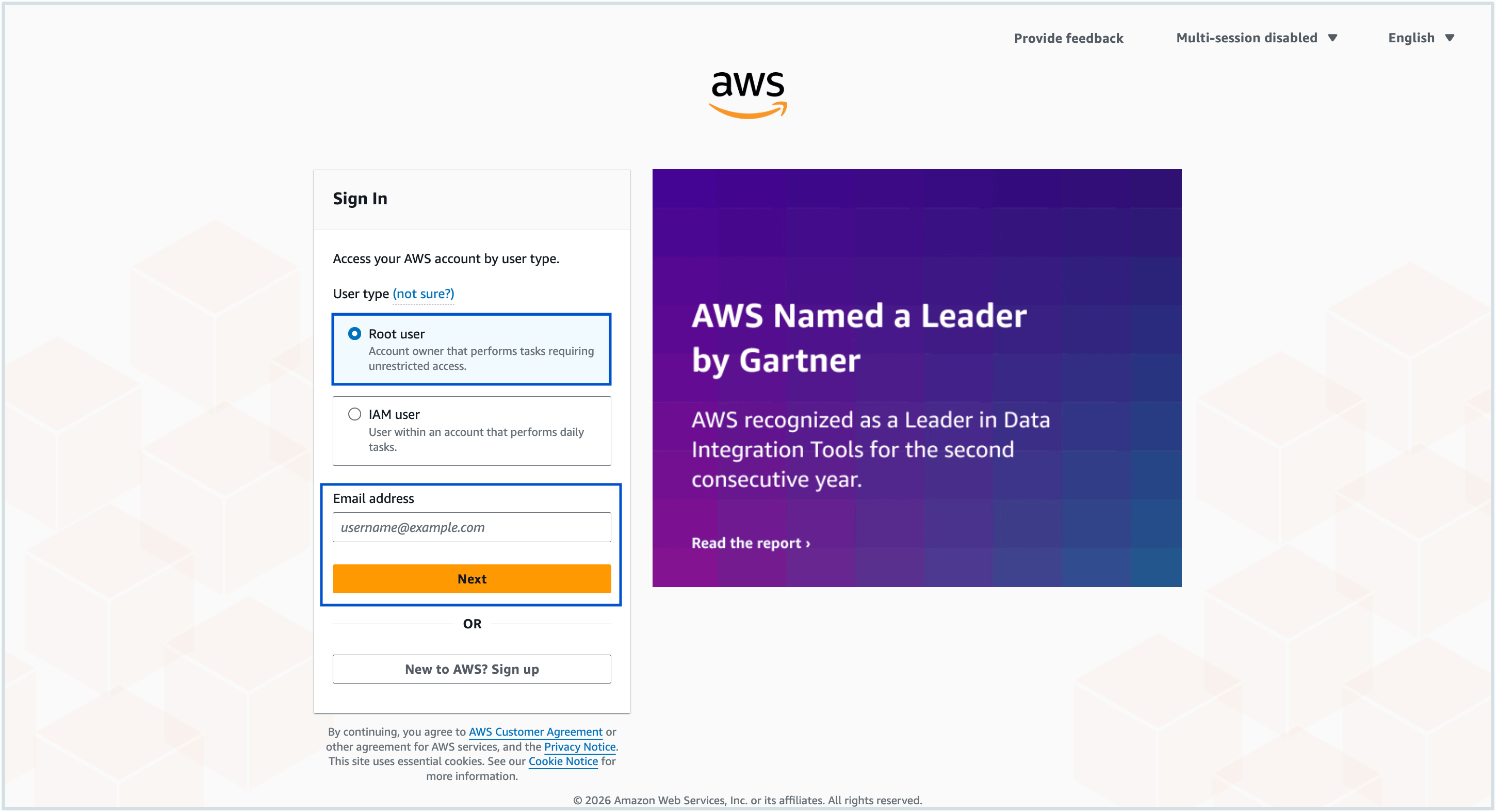
- Log in to your Amazon WorkMail Root account and navigate to the IAM (Identity and Access Management) dashboard.
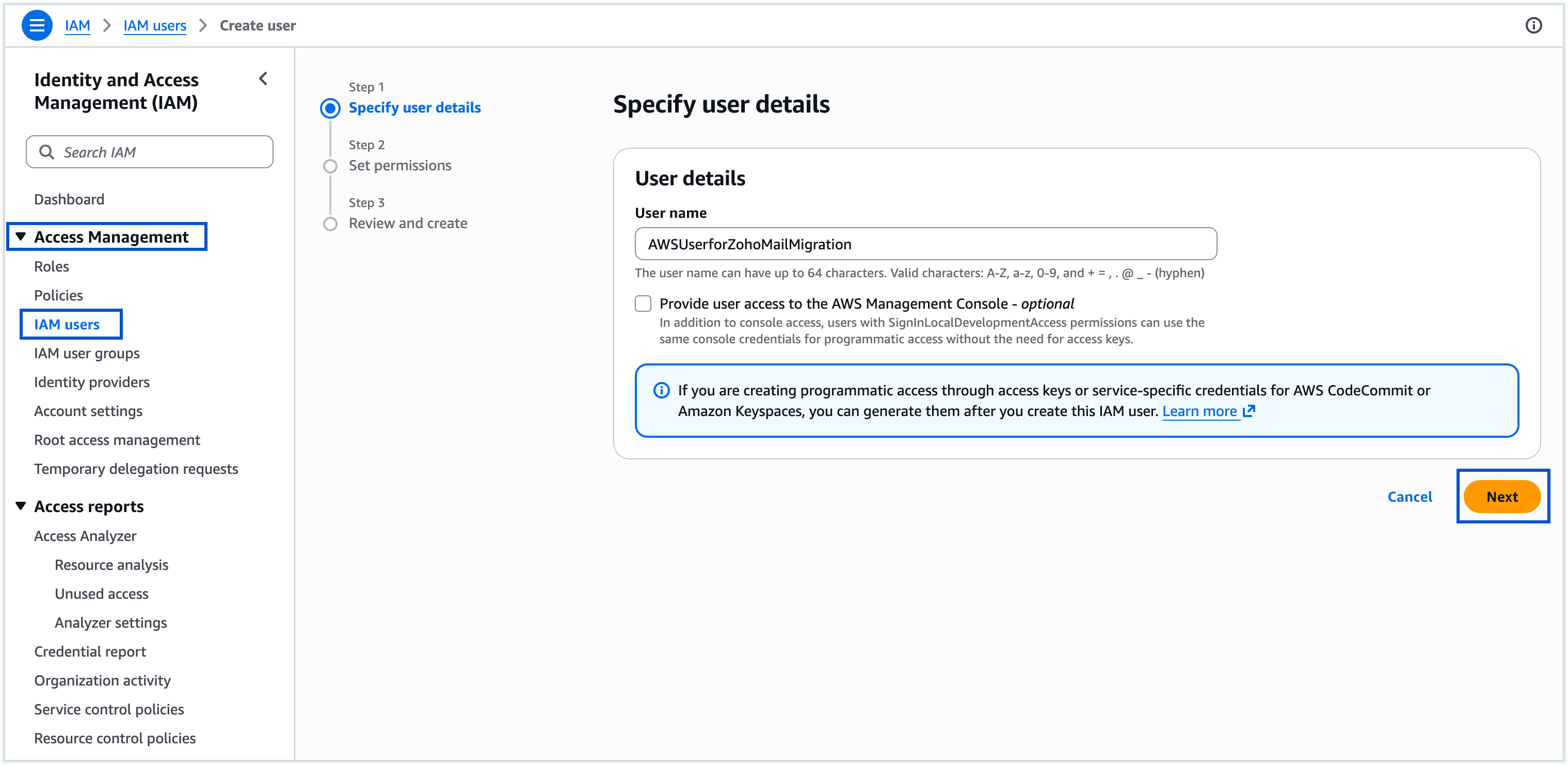
- Go to the IAMusers section under Access Management in the left pane.
- Click Create user.
- Enter a username in the Username field as per the username requirements, and click Next.
- In the Permissions options, select "Attach policies directly."
- Search for and select the "AmazonWorkMailFullAccess" option under the Permissions policies section, then complete the user creation process.
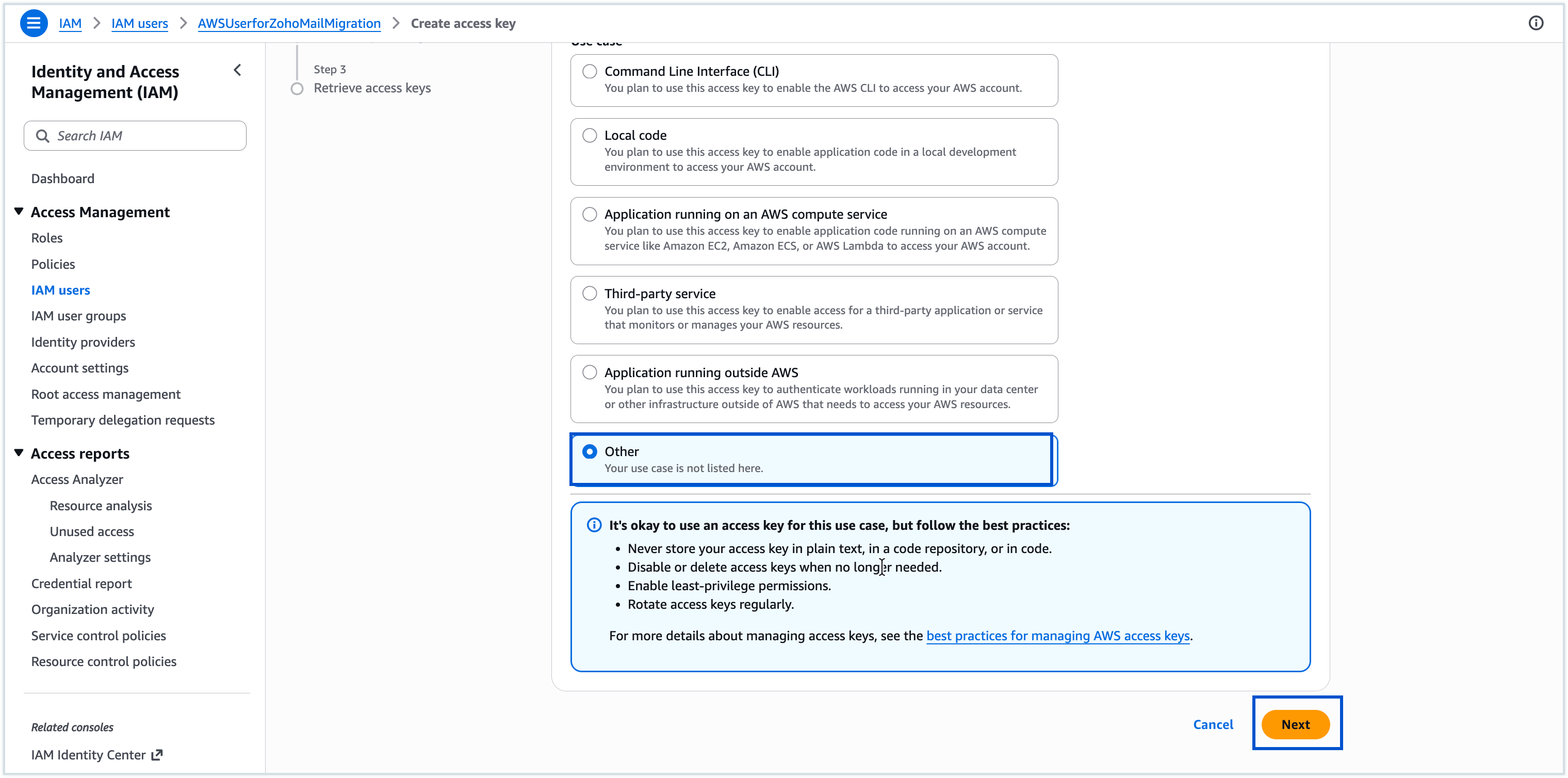
- Once created, return to the Users section and select the created user.
- In the Summary section, click Create access key.
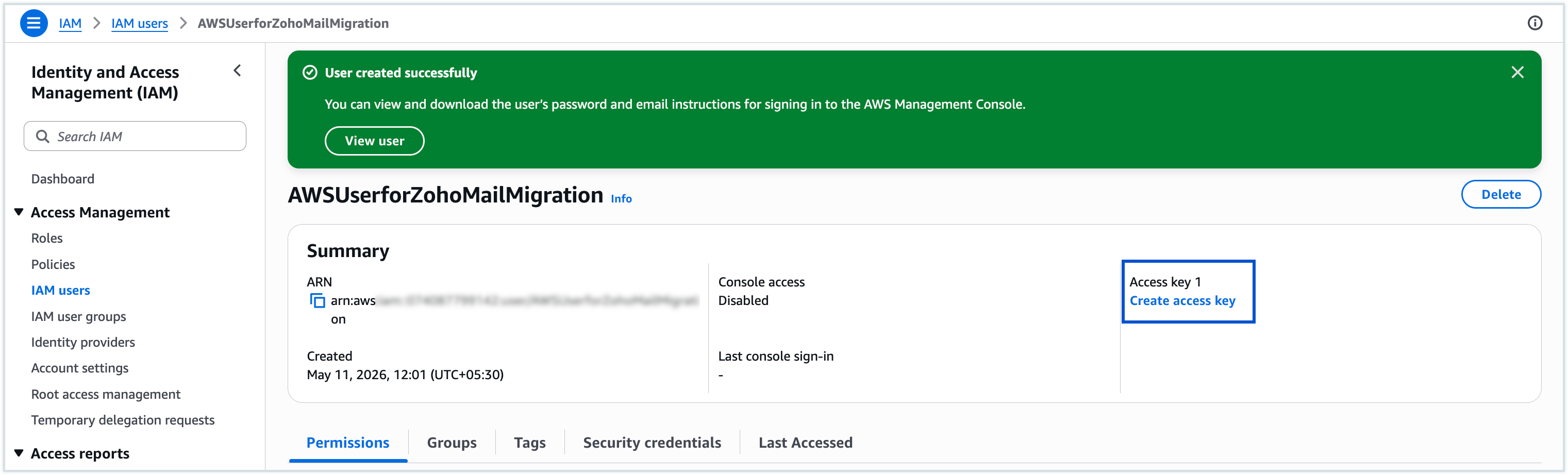
- On the selection page, choose "Other" as the use case and click Next.
- Enter a Description tag value for the access key, if needed and click Create access key.
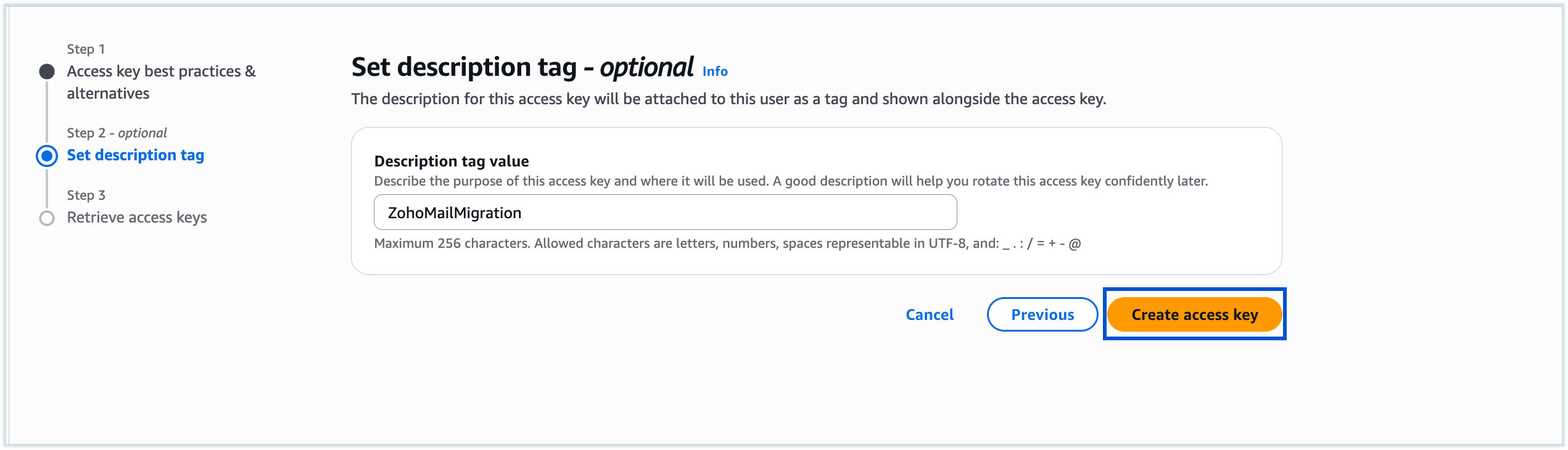
- The Access Key ID and Secret Access Key will now be generated.
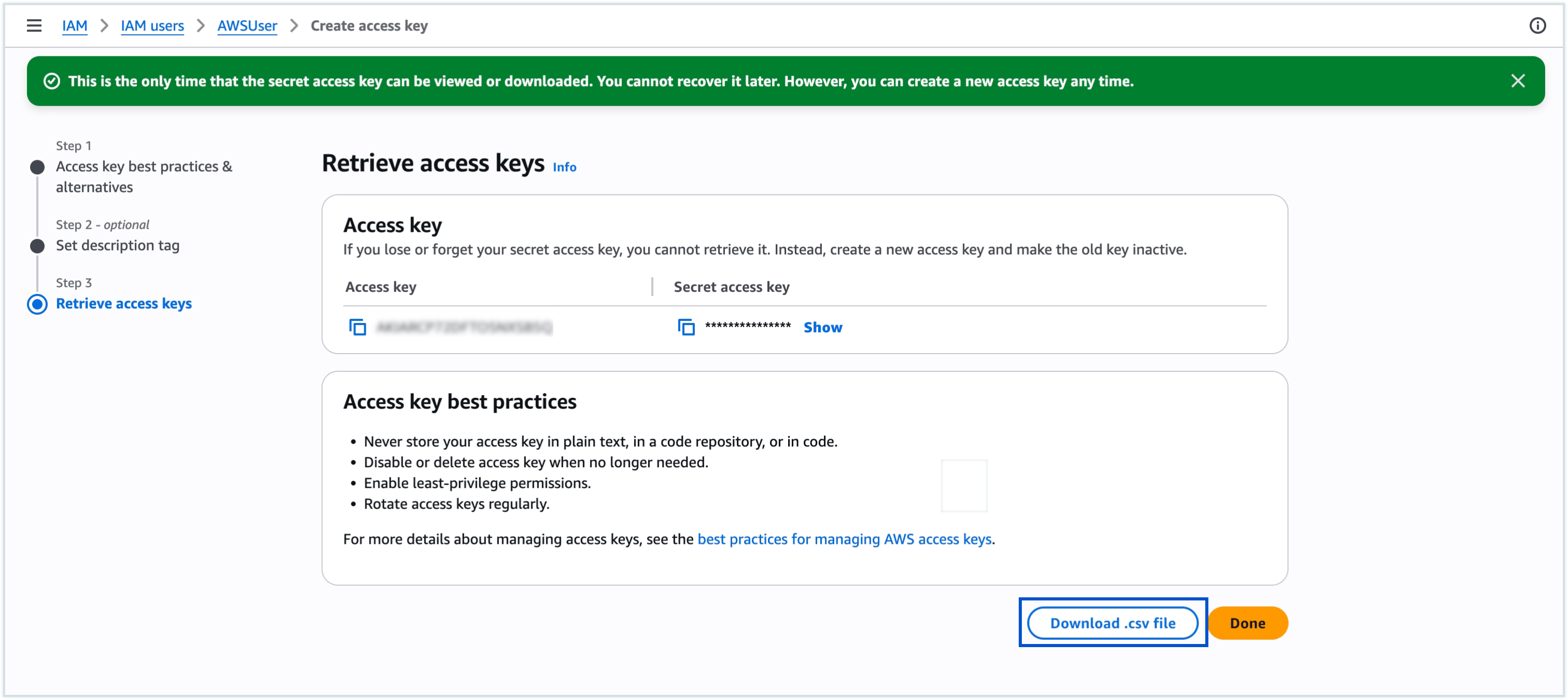
- Click the Download .csv file button. This will download a .csv file containing your Access Key ID and Secret Access Key.
- Download and store this file in a secure location. You will need these keys later to authorize the migration within the Zoho Mail Admin Console during the migration initiation phase.
- Once you have downloaded the .csv file, you can proceed to add the Amazon WorkMail Migration in Zoho Mail Console.
After the migration is initiated, you will see a role named "ZohoMigrationImpersonationRole" in the Impersonation Roles section for each organization on the WorkMail home page. This role is automatically created as part of the migration process.
Do not delete this role until the migration is complete. After the migration is successfully completed, you may delete the access key pair and the impersonation role if required.
Adding the Amazon WorkMail Migration
Migrating your organizational data from Amazon WorkMail to Zoho Mail involves 5 simple steps:
- Adding server details
- Adding server settings
- Creating migration
- Adding users for migration
- Start Migration
Prerequisites
- Super Admin access to your organization in Zoho Mail.
- The .csv file containing the access key pair (Access Key ID and Secret Access Key)
Prerequisites for Calendar Migration :
- To ensure complete migration, all the users present in the respective Amazon WorkMail account need to be created in Zoho Mail before calendar migration.
- For the Calendar data to be migrated correctly, the domain name in Zoho Mail has to be the same as the domain name in Amazon WorkMail. For example, if your domain in Amazon WorkMail is zylker.com, your domain name in Zoho Mail should be the same.
Once these requirements are met, you can proceed with adding the Amazon WorkMail migration configuration in the Zoho Mail Admin Console.
Adding server details for migration from Amazon WorkMail
Follow these steps to add server details for Amazon WorkMail migration:
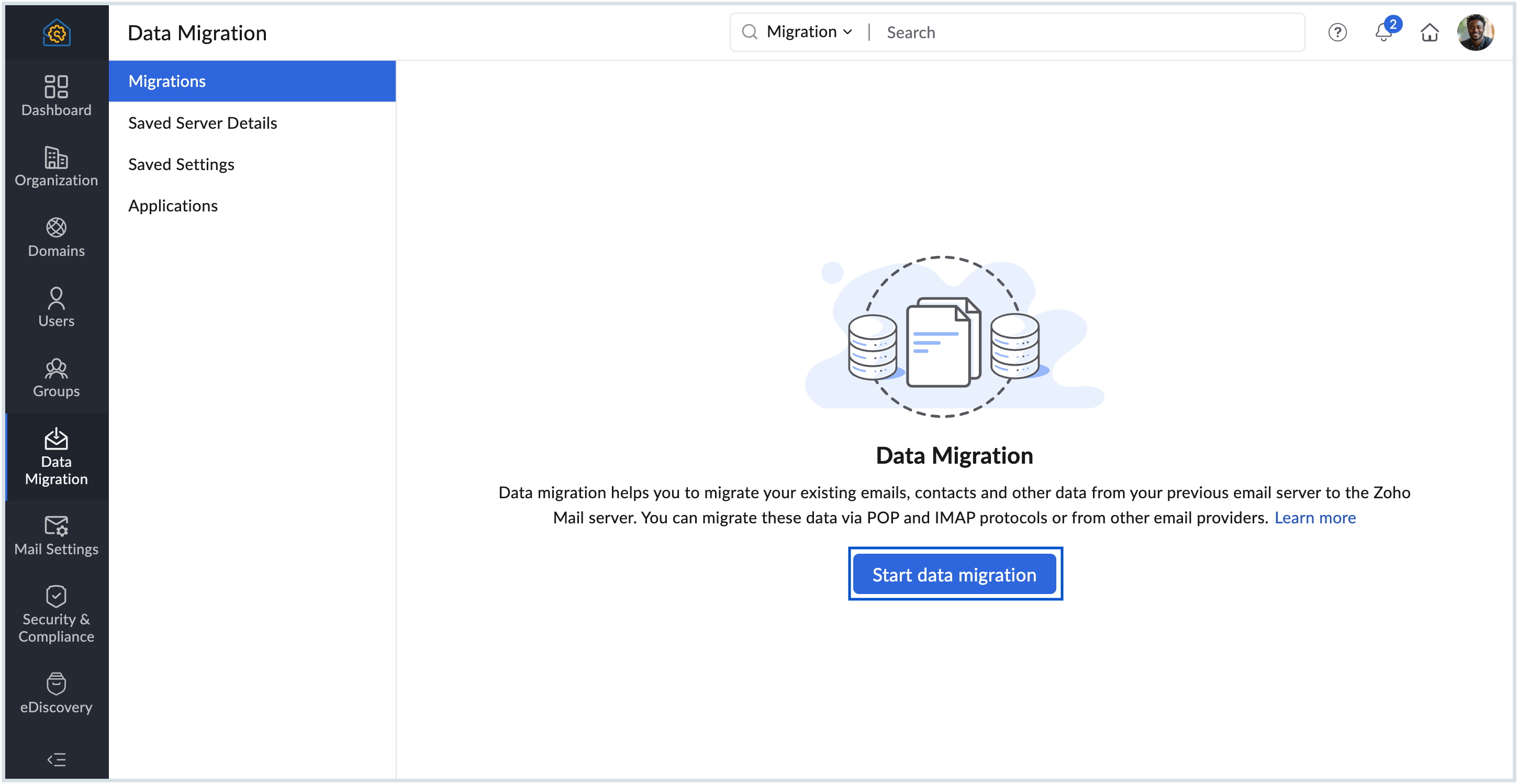
- Log in to Zoho Mail Admin Console and select Data Migration on the left menu.
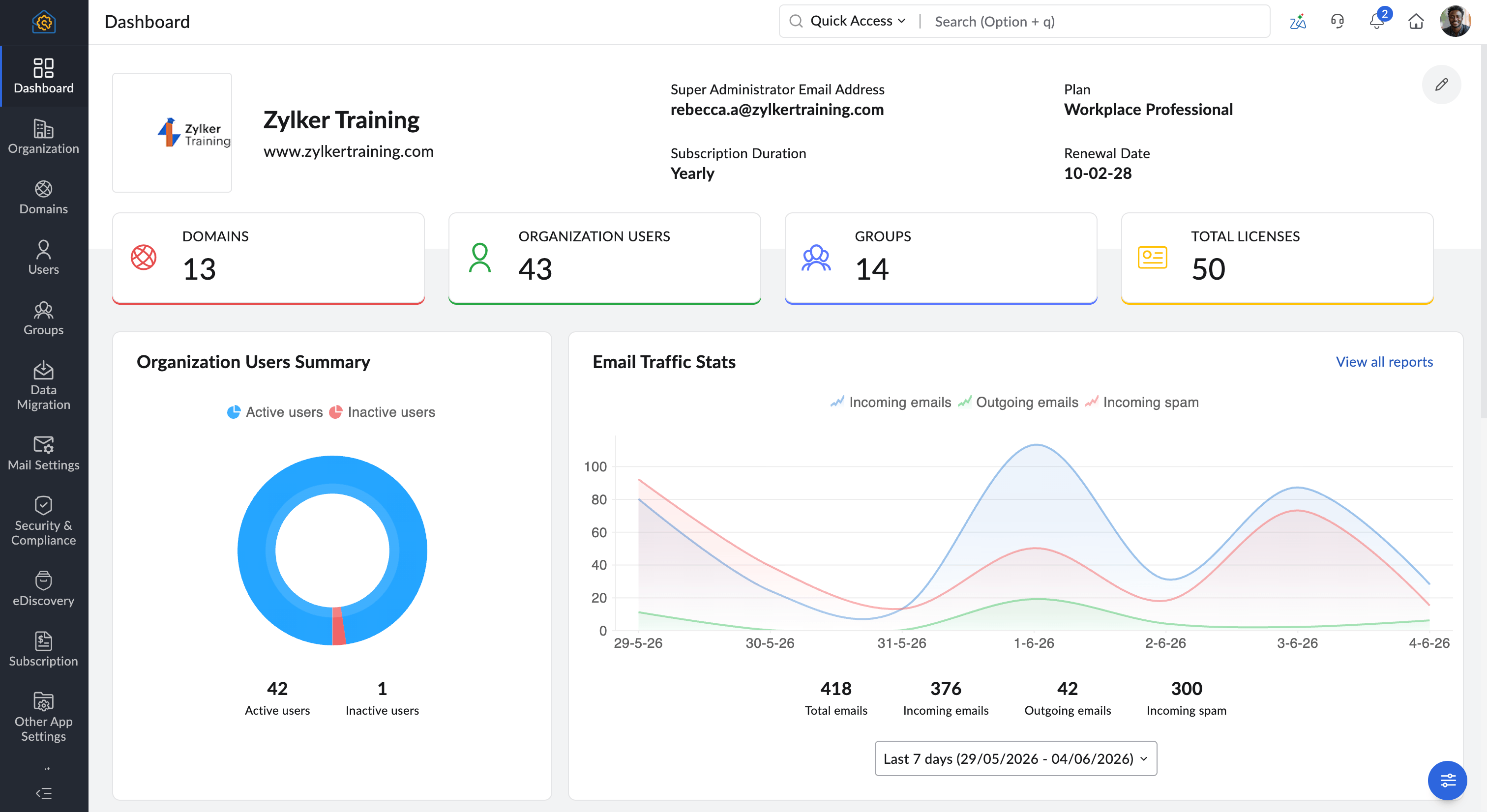
- Click Start data migration for the first migration and Click + Create for subsequent migrations.
- Enter a name for the server configuration, for your reference.
- In the Select saved server details drop-down, choose Add new server details. (Available only if you have previously configured server details. Otherwise, proceed directly to the next step).
- In the Select Protocol/Application dropdown, choose Amazon WorkMail.
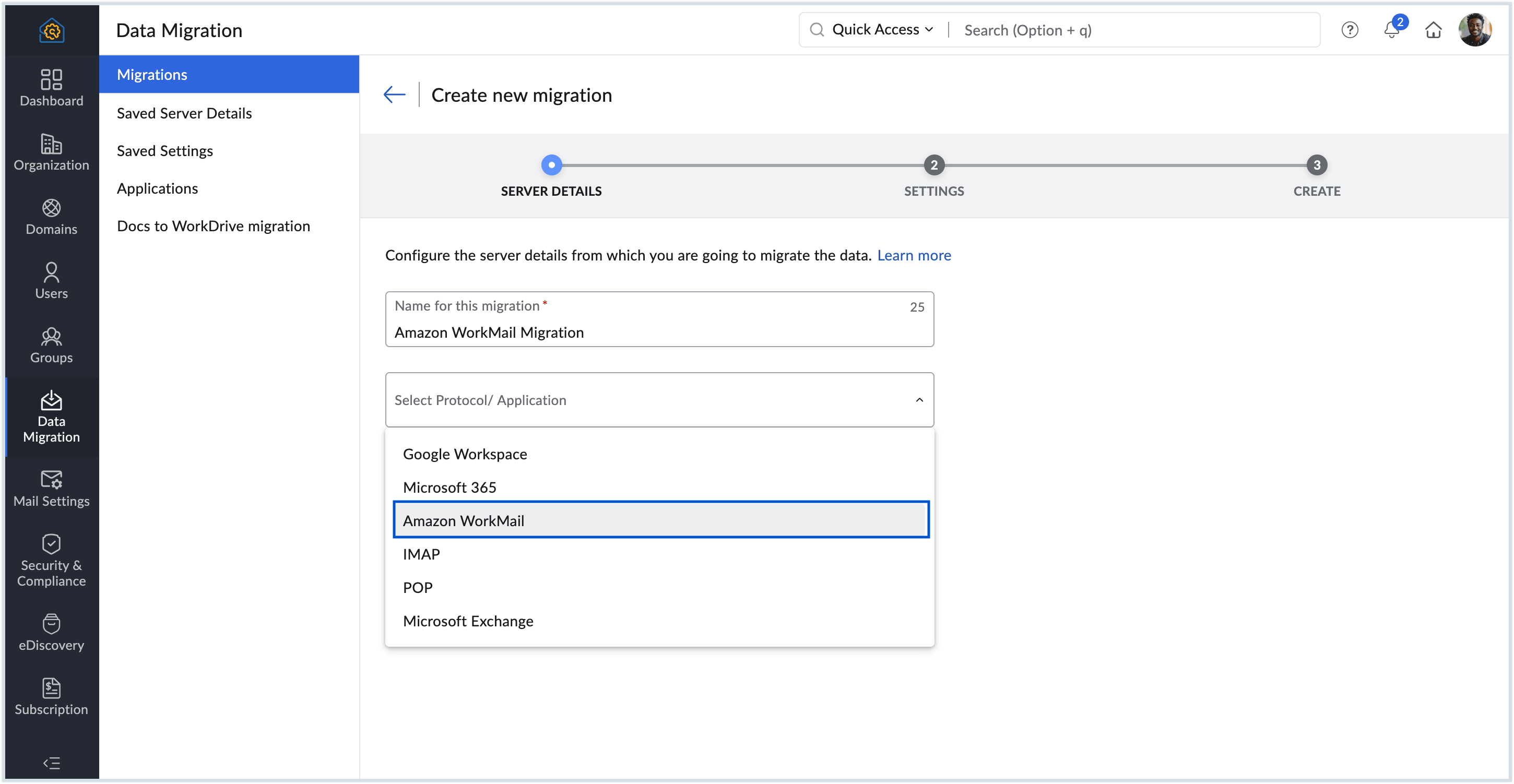
- Enter the Access Key ID and Secret Access Key in the respective fields that you downloaded in this step.
- Specify the Region where your Amazon WorkMail service is hosted (e.g., us-east-1, eu-west-1)
- Click Authenticate.
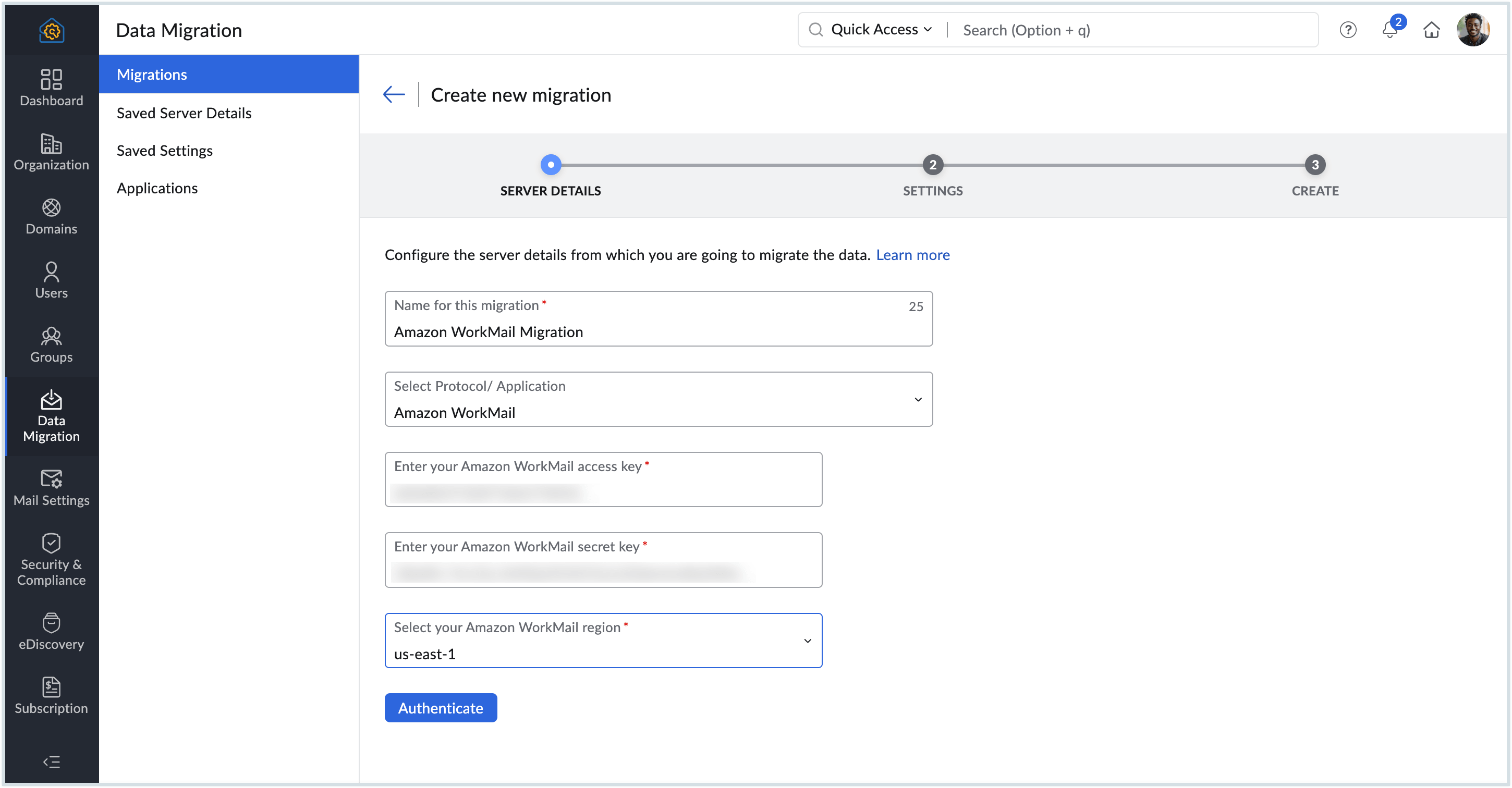
This will authenticate your Zoho account to access Amazon WorkMail, and save this server configuration. The server details you added will be saved in the Saved Server Details page, and you can use it for performing other migrations just by picking it from the dropdown.
Adding the settings for migration from Amazon WorkMail
Follow these steps to add server settings for Amazon WorkMail migration:
- In the next step, enter a name for the setting, for your reference.
- Select the checkboxes respective to the data that you'd like to migrate. You can migrate, mail, contacts and calendar data.
- When you select Contacts, all contacts from your previous account will be migrated to Zoho Mail under the relevant categories.
- Selecting the Calendar option under Data will create the respective calendars in Zoho Mail and migrate the data to each calendar. Ensure that the prerequisites are in check for Calendar migration from Amazon WorkMail.
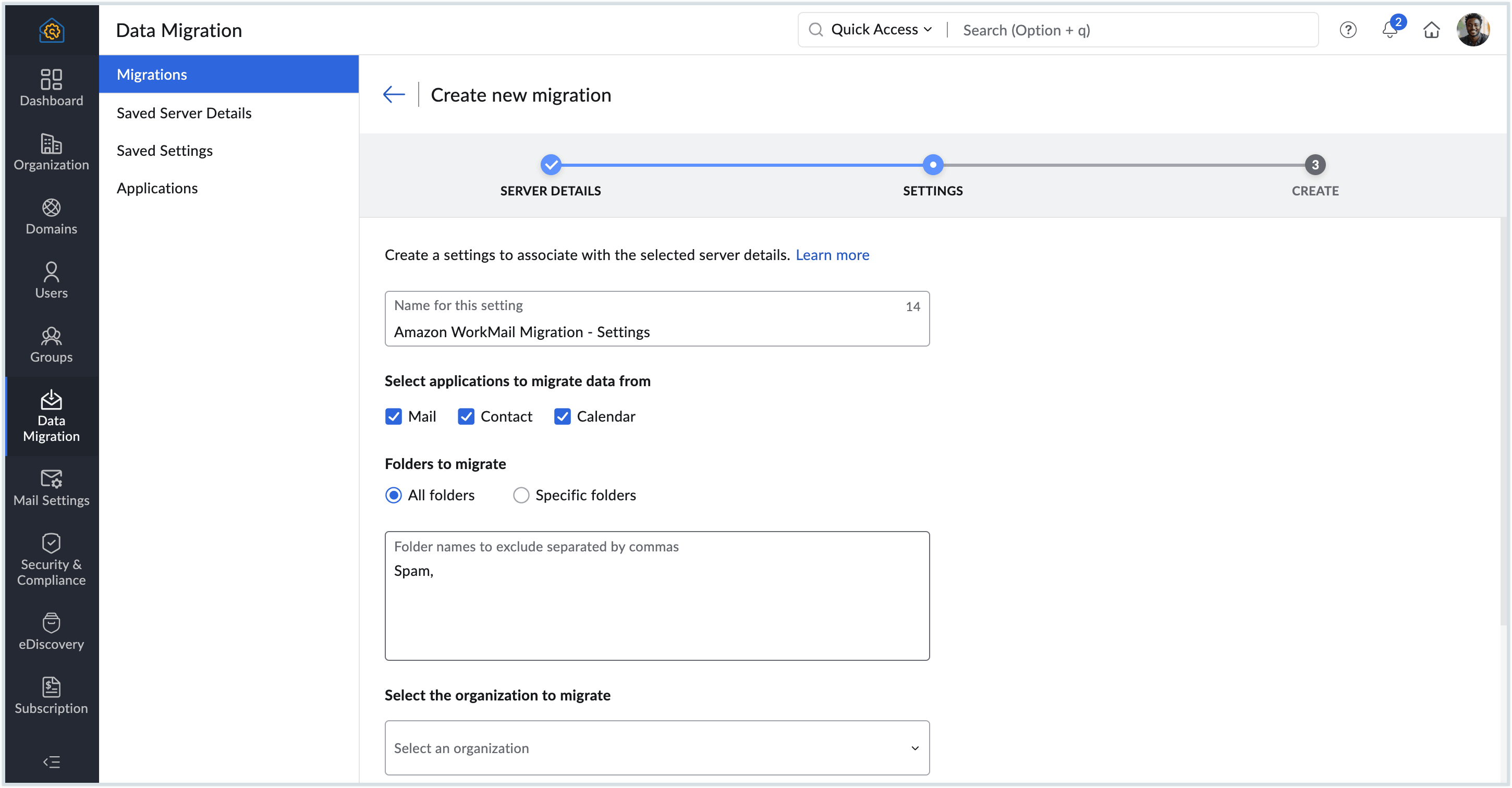
- Choose All Folders to migrate the user's entire mailbox data or Specific Folders to migrate only the folders required. Learn more.
- Select the Source organization that you want to migrate to Zoho Mail. If you need to migrate multiple organizations, you must create separate server settings for each organization.
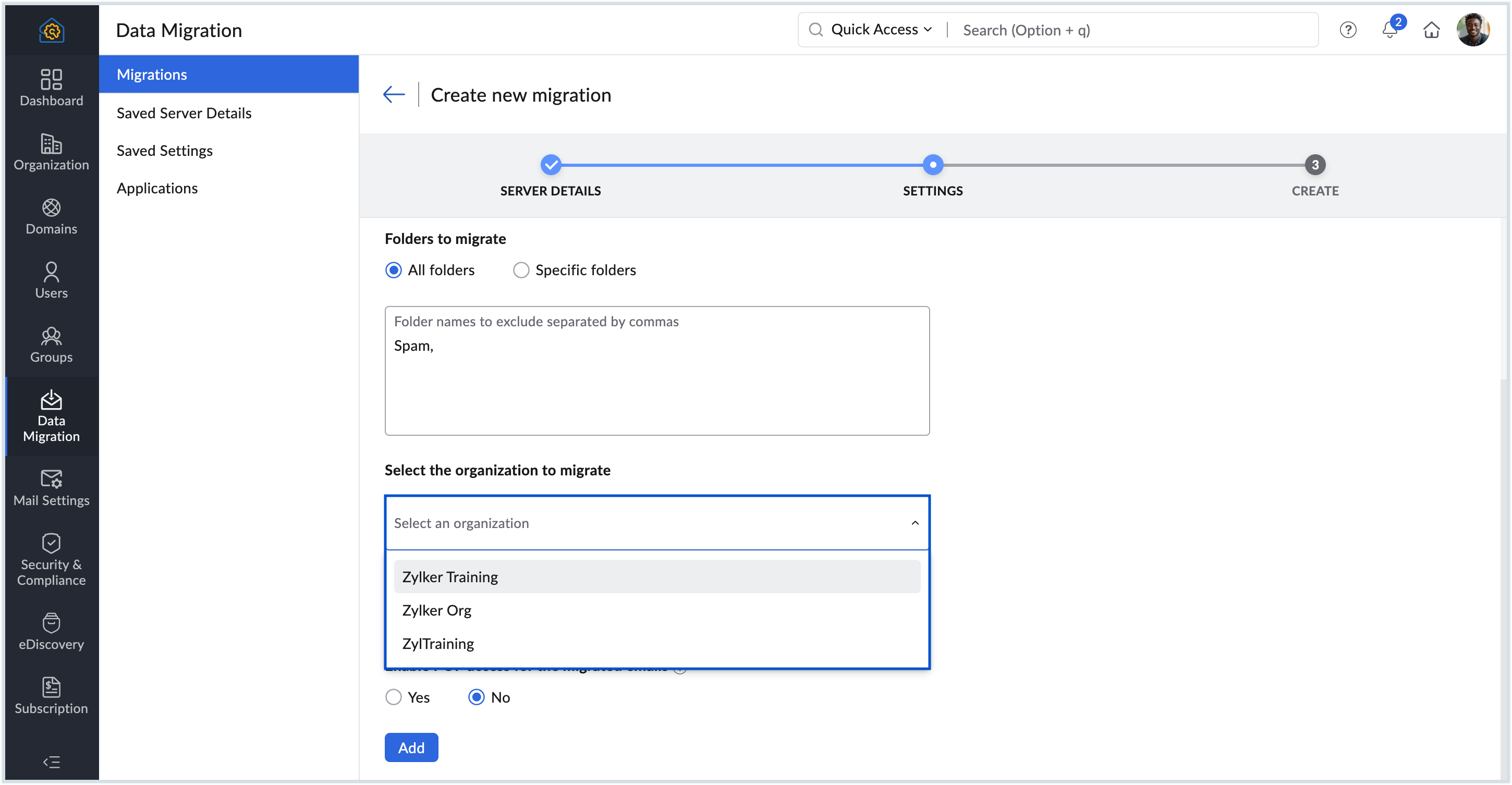
- Select either you want to migrate All emails or Emails in a specific date range. Know more.
- In Enable POP access for the migrated emails, select Yes if you want your users to view the migrated emails when the account is configured as POP in other email clients. Otherwise, select No.
- In the Do you want to suppress migration status notification emails for users? section, select Yes to suppress migration status notification emails. Users will not be notified about the success or failure of their migration. Select No to keep notifications enabled, so users receive an email about their migration status.
- Finally, click Add.
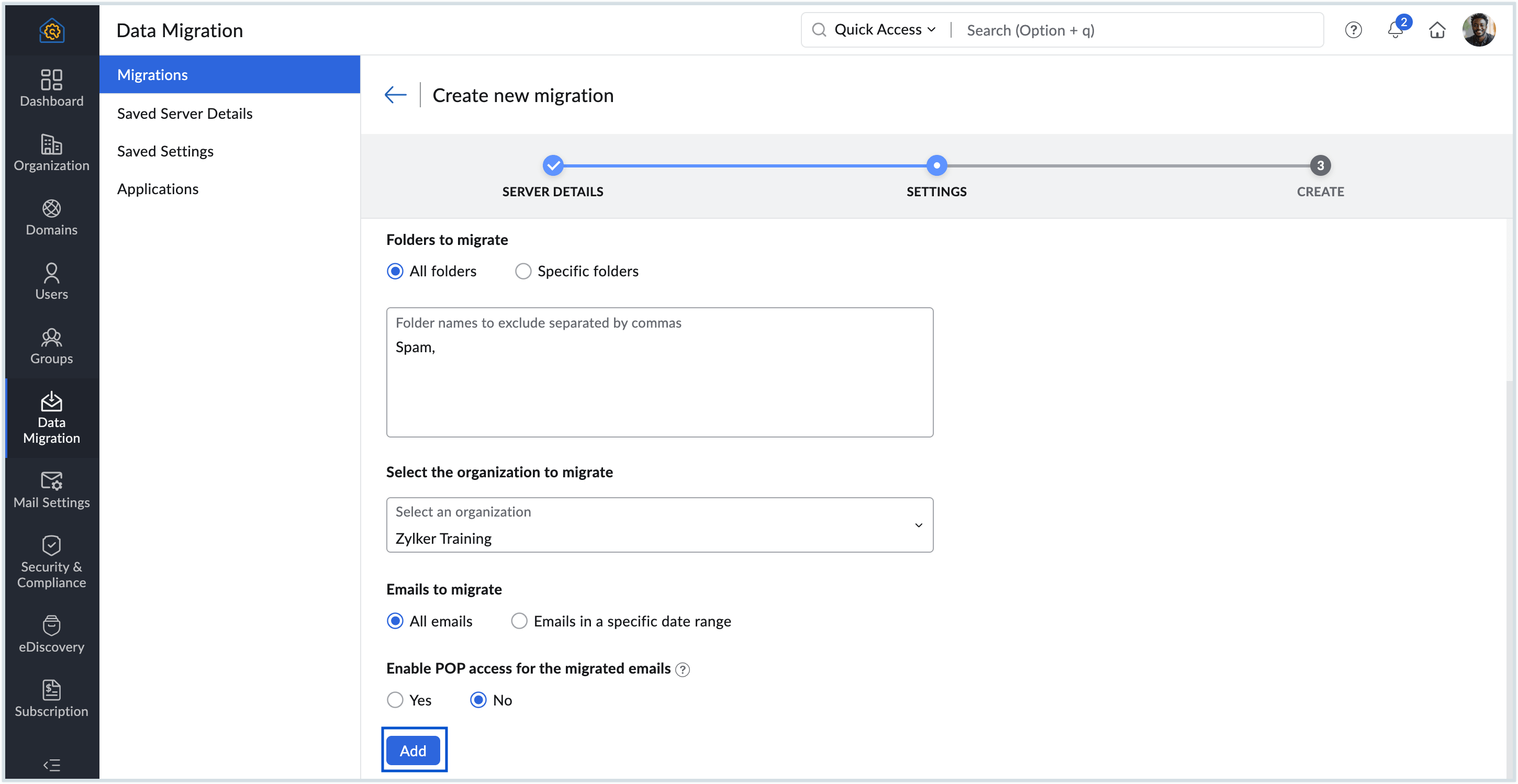
The settings you added will be saved in the Saved Settings page, and you can use it for performing other migrations just by picking it from the dropdown.
Creating a new migration
- In the next step, Enter a Maximum Connection Limit. This refers to the maximum number of users whose data can be migrated at one time. For example, if you provide 5 as the maximum connection limit when the migration is started, the migration process will be started simultaneously for 5 users. The migration process will be faster when there are parallel migrations happening between the servers.
- Select whether you would like to Pause migration when storage reaches 80% or95%, and finally, click Create.
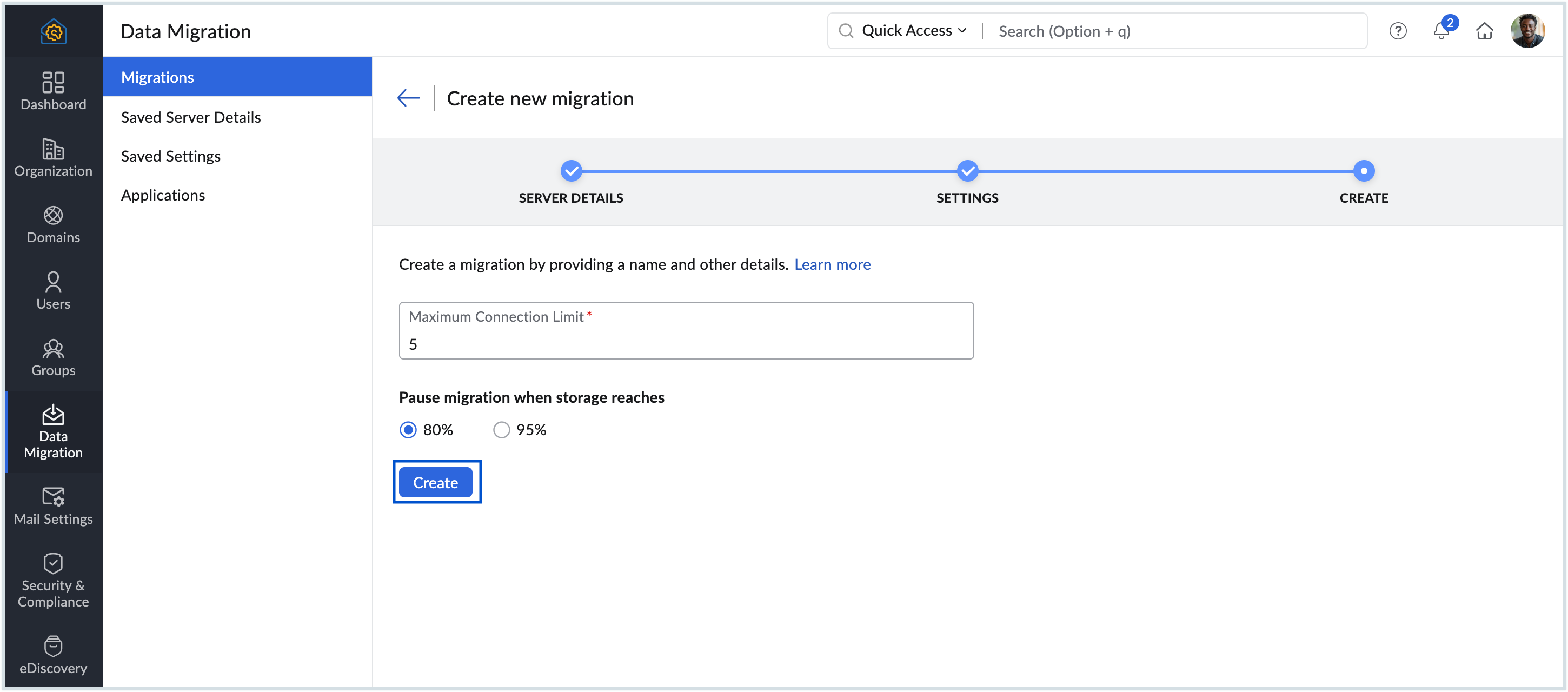
You have now successfully configured all the migration settings and created the migration. You can proceed to add users to the migration and initiate the process.
Adding user details for migration from Amazon WorkMail
Zoho Mail provides two options to add user accounts for migration. They include:
Manual User Addition
- From the Migration list, select the migration to which you want to add the source and destination user account details.
- Click Add to add the account details manually.
- Provide the source Amazon WorkMail email address of the user and the corresponding destinationZoho account email address for this user.
- Choose whether you want to prioritize the migration of this user over other users.
- Click Add.
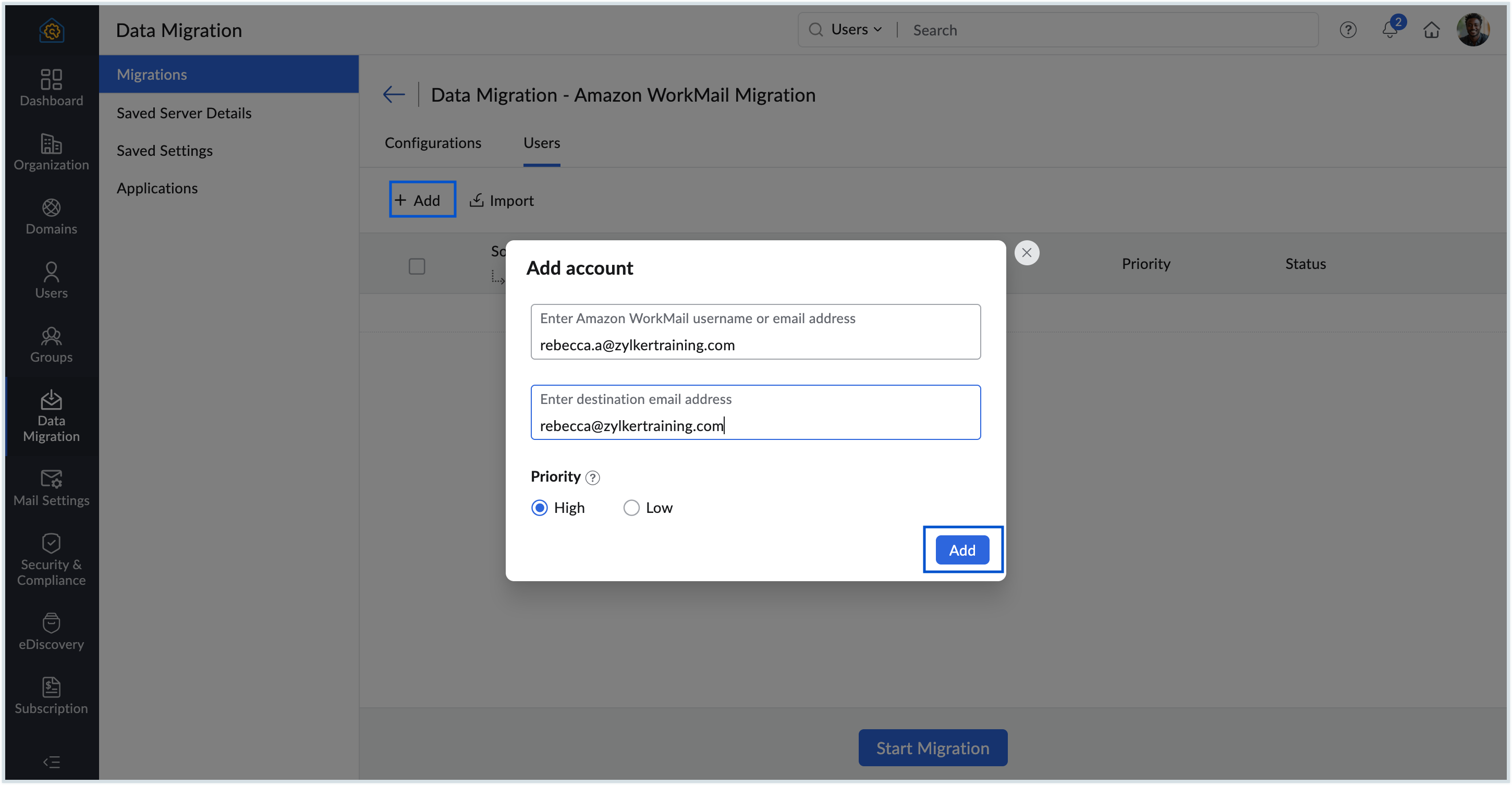
Repeat the above steps to add additional users. Once all required users have been added, you can proceed to Start Migration step.
Steps to Import users from CSV file
Zoho Mail provides the option to bulk import user accounts for migration. You can add user details to an excel sheet, save it as a .csv file and upload it. The user accounts entered in the .csv will be uploaded for migration.
- From the Migration list, select the migration to which you want to add the source and destination user account details.
- Click Import to upload the user accounts using a CSV file.
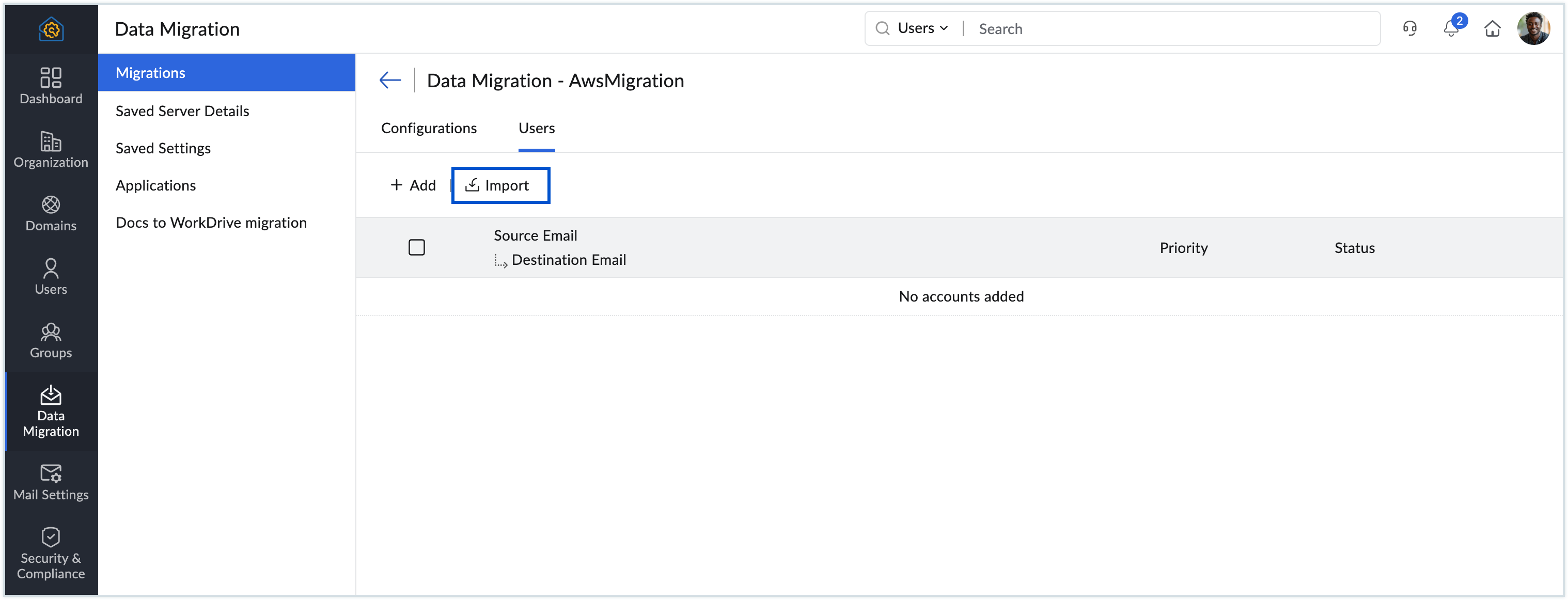
- The formatfor entering the User Details in the CSV file can be found in the sample file attached in the popup.
- Prepare your CSV file with the necessary source and destination email addresses.
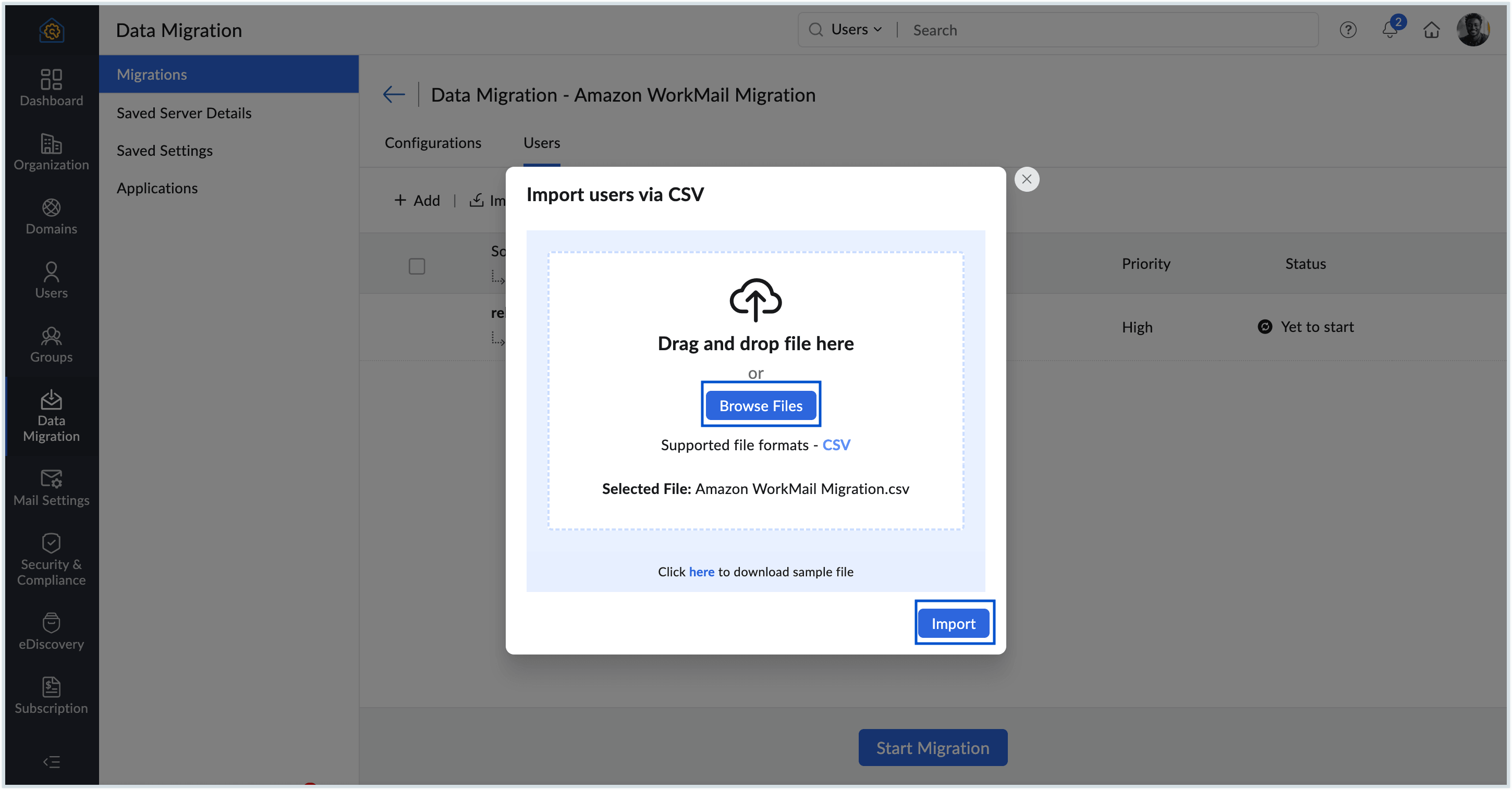
- Click Browse Files and select the prepared CSV file to upload it.
- Once uploaded, a preview of all users in the CSV file will be displayed, along with their import status.
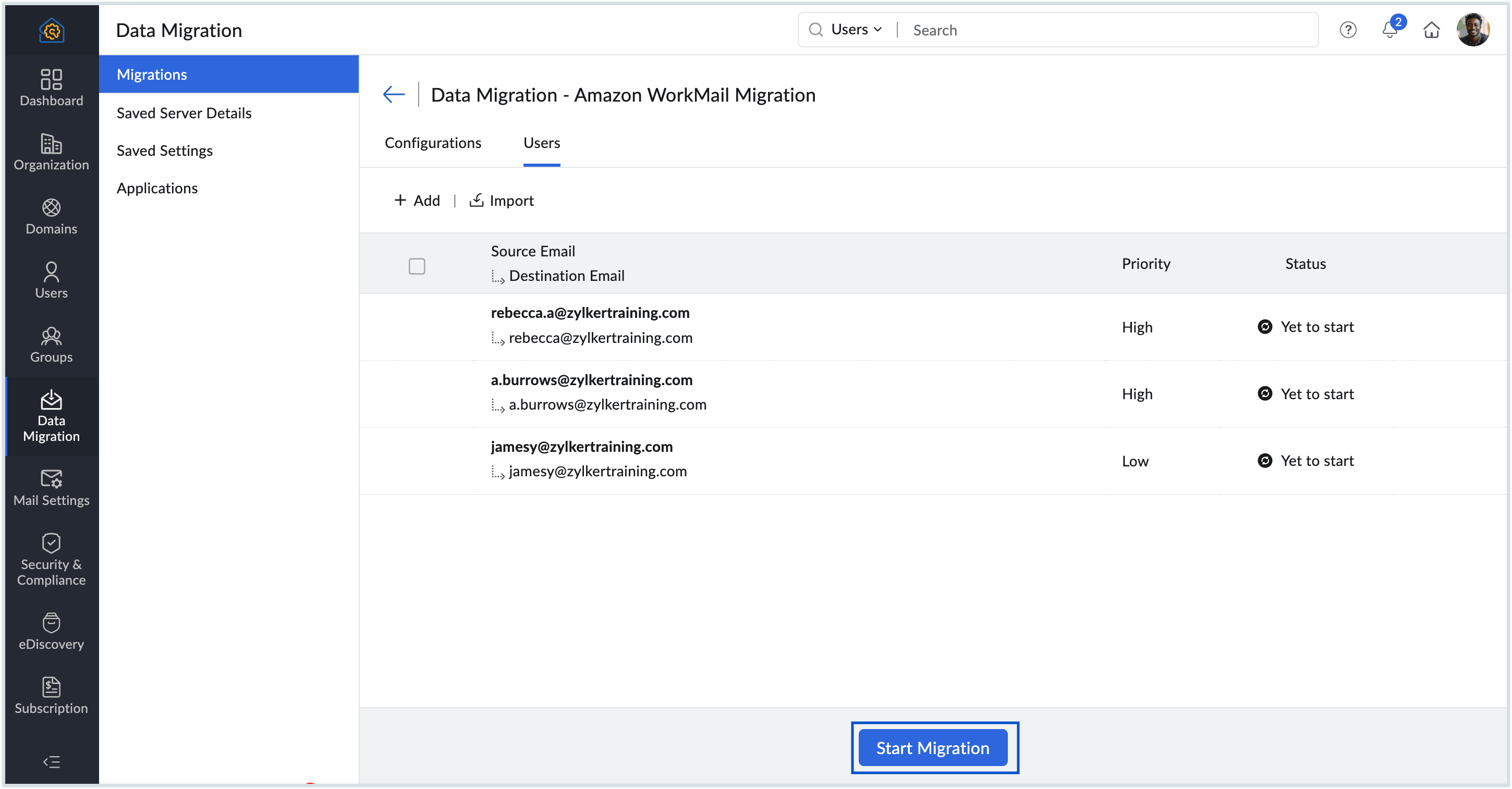
Carefully review the user list in the preview section. If required, you can edit the user details directly in the preview section before proceeding. After verifying the users, you can proceed to the Start Migration step.
Note
The source account and the destination account details should mandatorily be entered in the CSV file.
Starting the migration process
Once you have added the user accounts for the migration, you can start the migration. Ensure that the source passwords are not changed after adding the users for migration. The password should be the same until the entire migration process is completed.
- Click the Start Migration button after adding the users. If you have navigated out of the page where you added the users, select the migration that you want to start from this page, and click Start Migration.
- You can view the progress and statistics regarding the migration on the same page.
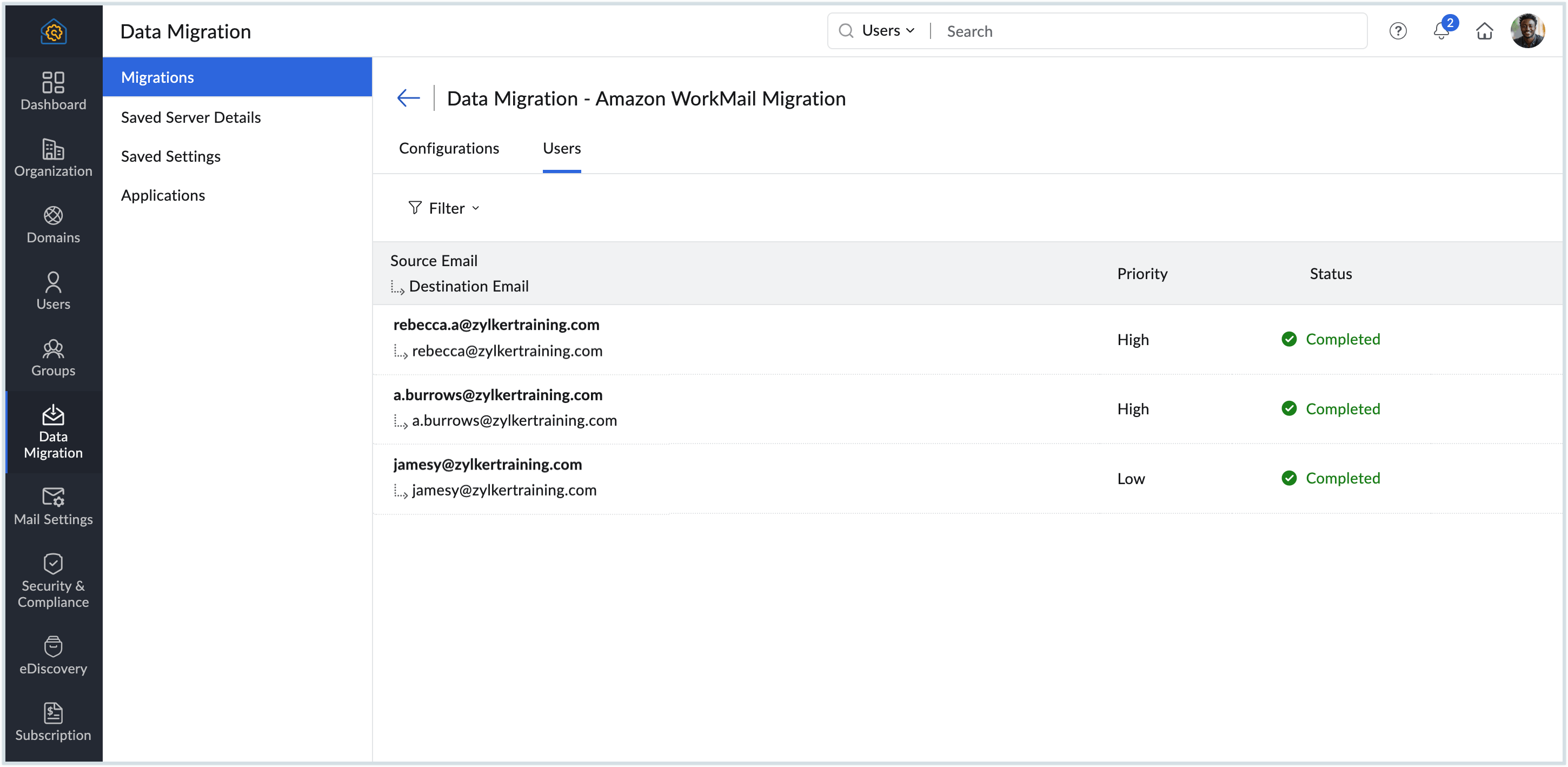
- Detailed statistics regarding each user's migration can be viewed by clicking on their email address on the migration progress page.
- For mail migration, detailed reports along with folder information will be available.
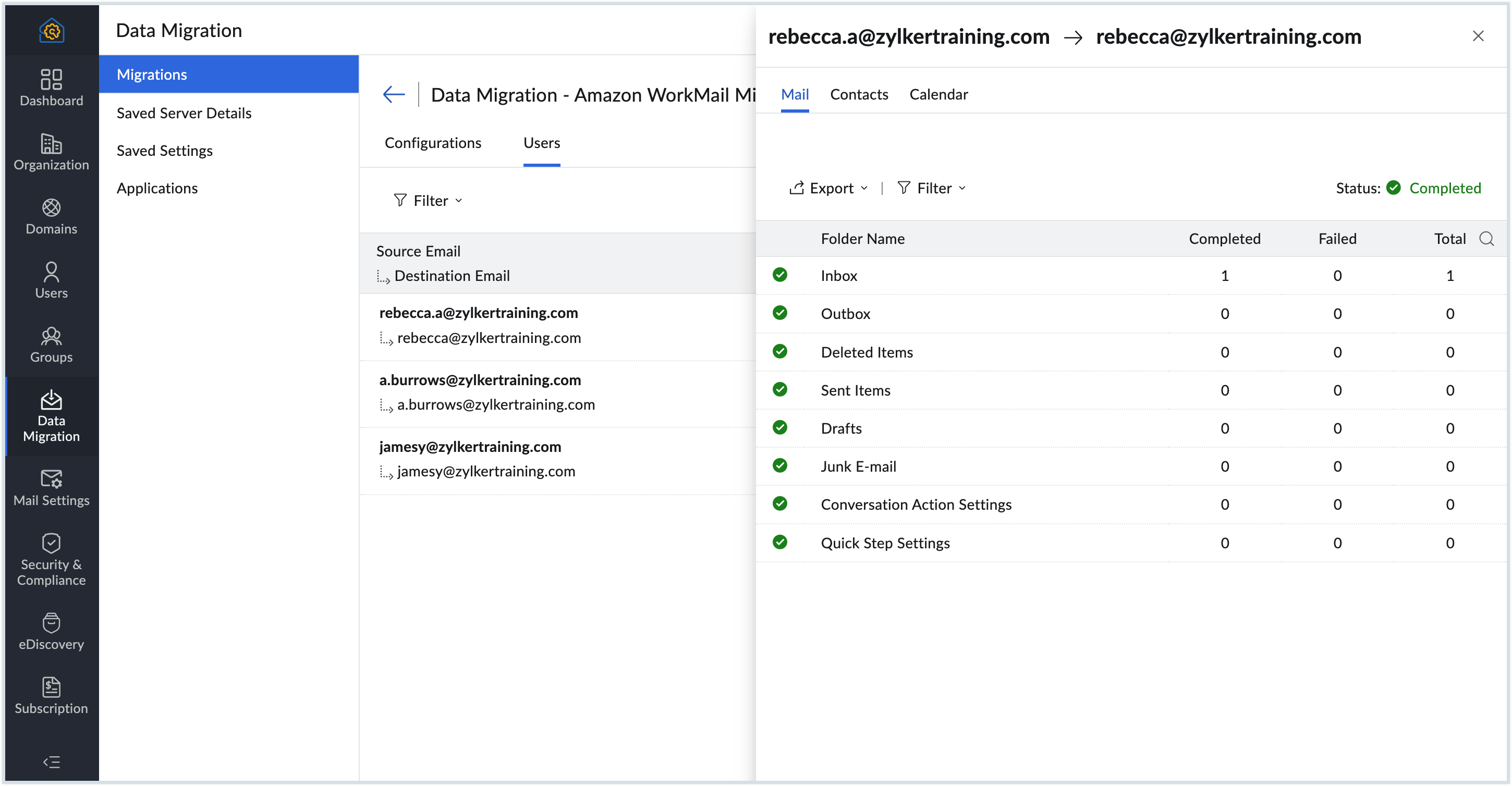
- Click Mail Failures to view the detailed information about the folder-wise migration details.
- When the status of the migration is marked as Completed, you can perform the following actions from the Users tab of the specific migration:
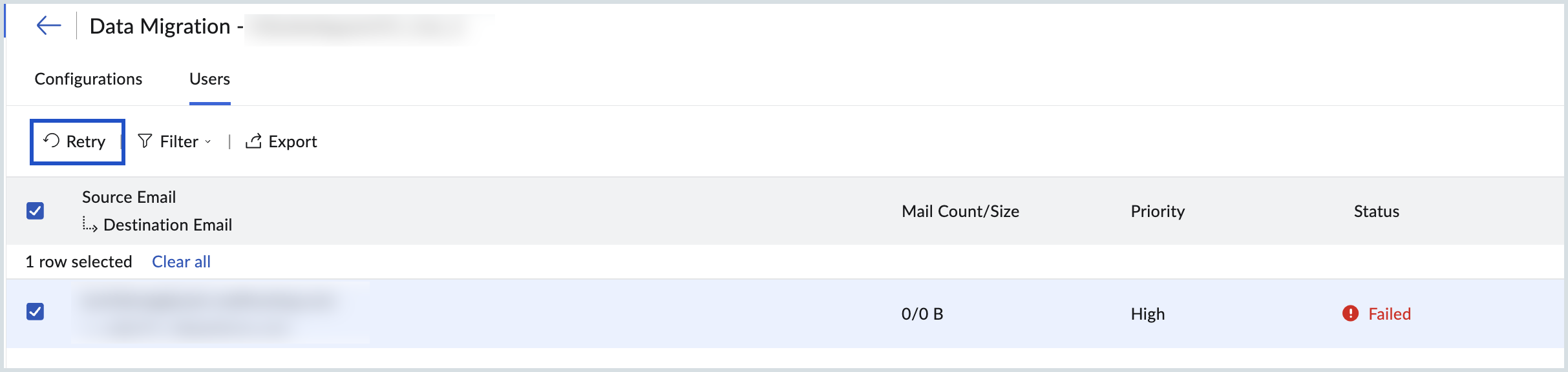
- Retry / Retry All - Select a user with a Failed status and click Retry to re-initiate migration for that user. Click Retry All to retry migration for all failed users at once.
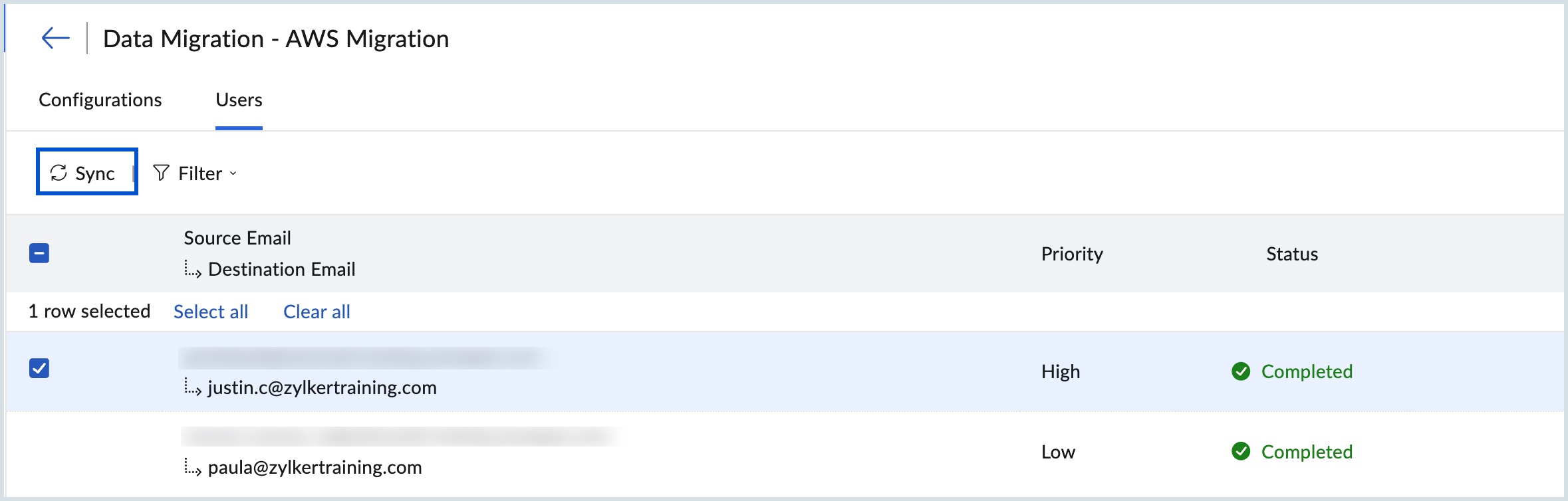
- Sync / Sync All - Select a user with a Completed status and click Sync to sync the latest migration data for that user. Click Sync All to sync data for all completed users at once.
- Retry / Retry All - Select a user with a Failed status and click Retry to re-initiate migration for that user. Click Retry All to retry migration for all failed users at once.
- Similarly, you can also view the statistics for Contacts migration by going to the Contacts tab.
- The Calendar migration details can also be viewed from the same page. Go to the Calendar tab to view the details.
For more information on reasons for migration failure, follow this help page.
Migrate specific folders
If you wish to migrate only certain folders or exclude some of them, you don't have to wait for a long time for the entire migration to complete. Select the appropriate options in the Folders to migrate section as per your requirement as given below:
- Choose All Folders to migrate the user's entire mailbox data or Specific Folders to migrate only the folders required.
- If you choose the All Folders option, you can choose to skip any folders during migration using the Exclude Folder List option.
- The skip folders option will be handy when the admin reruns migrations for the same set of users for some new emails or missed emails. Enter the names of the folders within double quotes ("Folder1"), in which case only that folder will be excluded. If you want all subfolders under a parent folder to be migrated enter the folder name followed by /* within double quotes ("Folder1/*"). For detailed information on the convention, refer here.
- If you choose the Specific Folder option, you can specify the folders that need to be included in the Include Folder List.
- In the Include Folder List, enter the names of the folders within double quotes ("Folder1"), in which case only that folder will be included. If you want all subfolders under a parent folder to be migrated enter the folder name followed by /* within double quotes ("Folder1/*"). For detailed information on the convention, refer here.
Migration based on a specific date range
Admins can narrow down the migration date range by making the required selections in the Email to migrate section.
- Select All emails to migrate the entire mailbox of the user right from the date of creation.
- Choose Emails in a specific date range to migrate data based on the selected dates.
- If you choose the specific date range option, select the From and Tilldates for which you wish to migrate the data.
Convention for mentioning folders
- In case you want to mention a specific parent folder (E.g. Reports), enter it as "Reports".
- In case there are multiple subfolders under Reports and you want to mention all the subfolders, enter it as "Reports/*".
- In case there exists a subfolder under Reports named 2016, and you want to mention this particular subfolder, enter it like this - "Reports/2016".
- If you want all the subfolders under Inbox, only the Marketing folder without the subfolders, and a specific subfolder, 2012, alone under the Sales Reports folder to be mentioned, you will have to type the Folder List like this - "Inbox/*", "Marketing", "Sales Reports/ 2012".