


How can I update the pay day for all pay runs?

Here’s how you can update the pay date for all your pay runs.
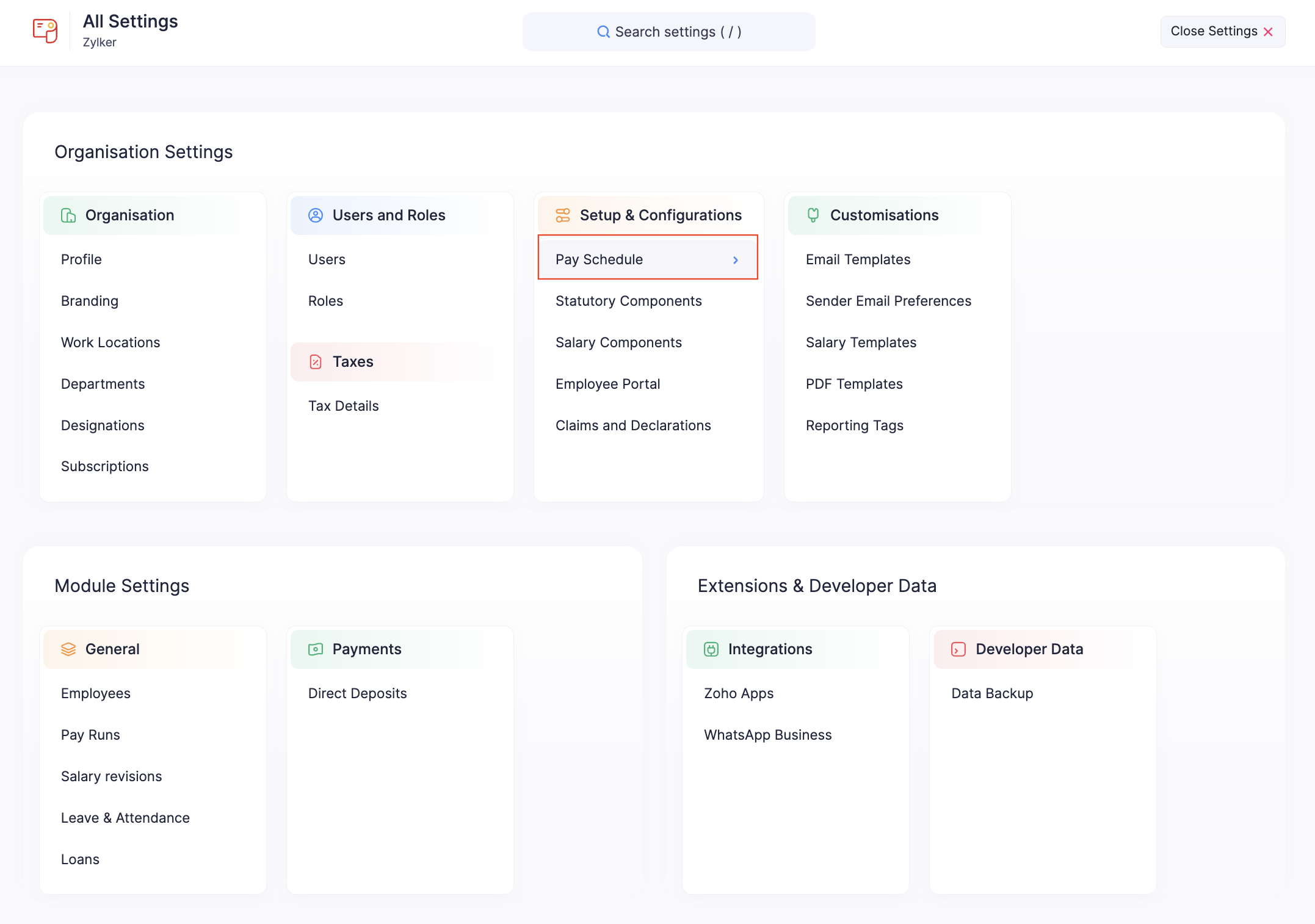
- Go to Settings and click Pay Schedule in the Setup and Configurations section.
- Click Change Pay Date.
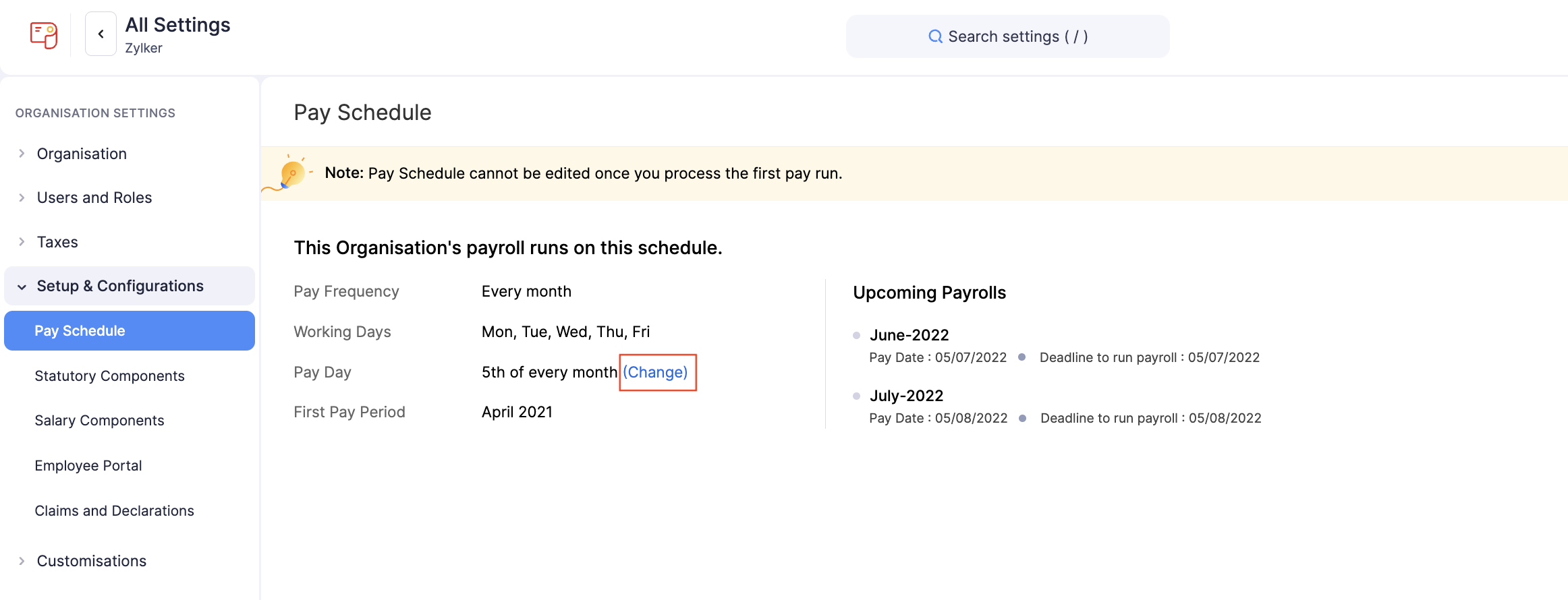
Note: You cannot change the pay day when a pay run is in draft status. Either process the pay run or delete the existing draft.
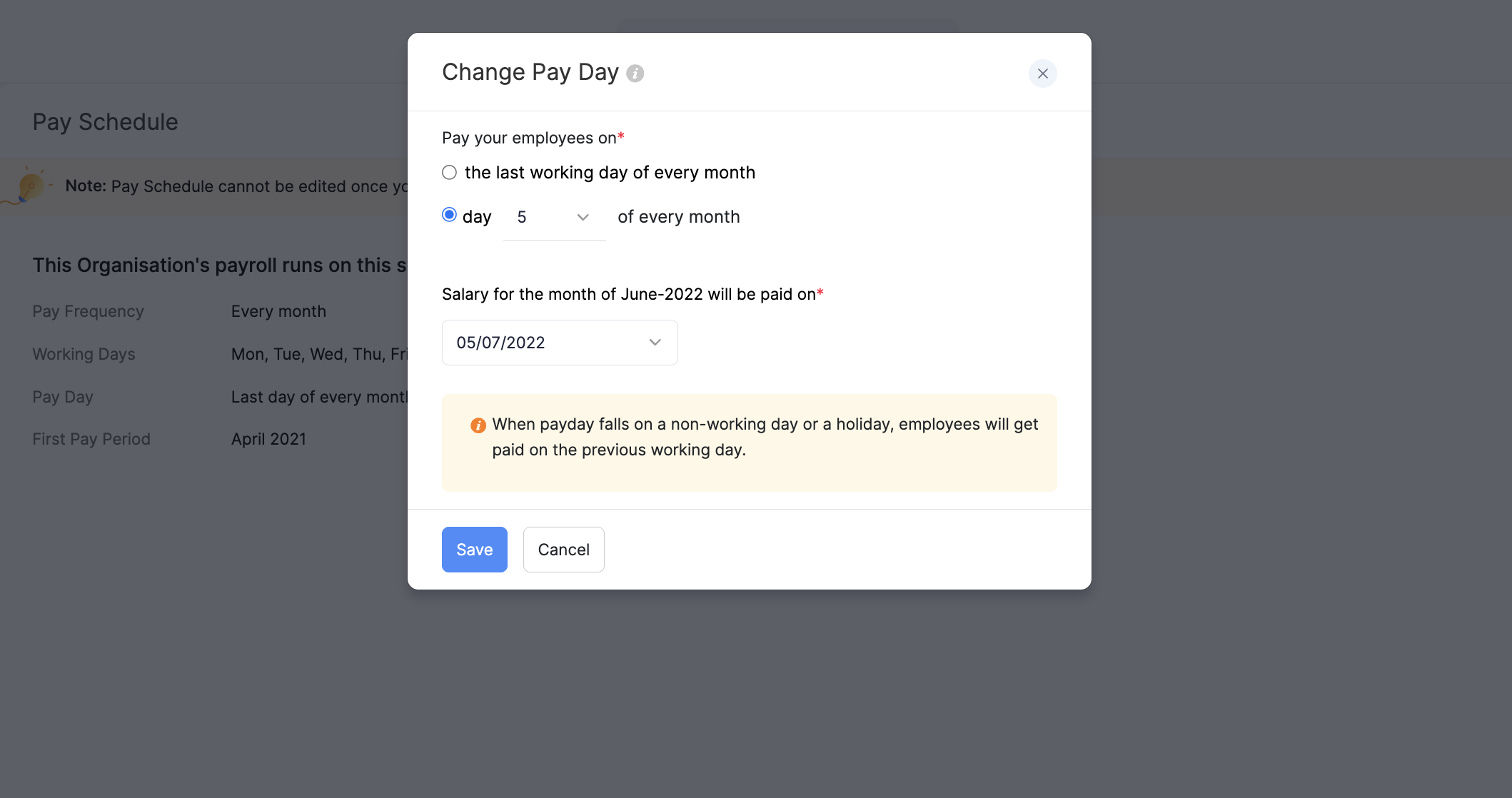
- Select whether you want to pay your employees on the last working day of every month or on a specific date.
- Click Save.
Note: According to the latest labour law regulations, salaries of IT/ITES employees must be credited within 7 days of month-end.