Zoho CRM MCP Servers
Connect your AI tools to Zoho CRM using the Model Context Protocol (MCP) to perform CRM operations using natural language.
Overview
Zoho CRM MCP servers connect your AI tools to Zoho CRM using the Model Context Protocol (MCP). They expose CRM capabilities as tools that your AI agent can invoke during a conversation.
This allows you to perform CRM operations directly from your AI tool using natural language, without navigating the CRM interface or working with APIs.
Zoho CRM provides these as pre-built MCP servers, so you don't need to build, host, or maintain any infrastructure.
How it works
- Install an MCP server in your AI tool.
- The server registers its capabilities as tools with the AI agent.
- Provide instructions in natural language.
- The agent maps your request to the appropriate tool and executes the action in Zoho CRM.
You do not need to learn API endpoints or write code. The MCP server translates your prompts into CRM operations.
Note
Zoho CRM MCP servers work with any AI tool that supports MCP, including Cursor, Claude Desktop, VS Code, and Windsurf.
Pre-built MCP Servers
Zoho CRM groups its MCP capabilities into four pre-built servers. Each server focuses on a specific area of CRM functionality and registers its own set of tools with your AI agent.
Since the servers are pre-built, you can directly install the servers in your AI tool and start prompting. You can install more than one servers to cover a broader range of tasks.
The sections below describe what each server offers, along with example prompts to get you started.
Data Insights
Provides read-only access to your organisation's CRM data. This allows you to query records, retrieve module lists, and view field schemas.
Available Actions
- Query records across standard and custom modules using COQL
- Filter, sort, group, and paginate results
- Retrieve the list of all modules in your CRM
- Access field schemas for any module
Example prompts
"Show me all the deals closing this month"
Lists deals with a closing date in the current month.
"How many leads were created last week?"
Returns the total lead count for the past 7 days.
"List the top 10 accounts by annual revenue"
Returns accounts sorted by revenue in descending order.
Data Operations
Allows you to manage CRM records across standard and custom modules including create, read, update, and delete operations.
Available Actions
- Create, read, update, and delete records
- Perform bulk operations on multiple records at once
- Retrieve and update related records associated with a parent record
- Search records using COQL queries
- Retrieve the list of all modules and field schemas
Example prompts
"Create a new lead: Patricia Boyle, Zylker Corp, patricia.boyle@zylker.com"
Creates a lead record with the specified details.
"Delete all deals that have been stuck in the 'Negotiation' stage since March"
Deletes matching deal records.
"Show all contacts related to the account 'zylker'"
Retrieves contact records for the specified account.
Module Customization
Configure your organisation's data model, including modules, fields and page layouts.
Available Actions
- Retrieve the list of all modules and view module metadata
- Create new custom modules
- Update module-level settings and properties
- Retrieve field schemas and create custom fields
- Update field properties (label, required, tooltip, etc.)
- Retrieve, update, activate, and deactivate page layouts
Example prompts
"Add a text field called 'Customer Type' to the Leads module"
Creates a new text field in the Leads module.
"List all the fields in the Contacts module"
Retrieves a list of all fields in the specified module.
"Show all layouts in the Deals module"
Provides a list of all layouts in the specified module.
Workflow & Process Automation
Configure automation rules and manage workflow tasks.
Available Actions
- Create, update, and list workflow rules
- Reorder the sequence of workflow rules
- Create, update, and list workflow task actions
- Retrieve workflow configuration details
Example prompts
"Create a task to call new leads within 1 day"
Creates a new automation task that triggers a call action for new leads after 1 day.
"List all active workflow rules in the Leads module"
Returns workflow rules currently enabled for Leads.
"Show the workflow configuration for Big Deal Alert workflow in the Deals module"
Displays the configuration details for the specified workflow.
Note
API calls executed through MCP consume API credits in the same way as standard API calls. These requests are subject to the existing API credit limits.
Setup
Set up Zoho CRM MCP servers in your AI tool to start interacting with your CRM using natural language.
Prerequisites
- A Zoho CRM account with appropriate user permissions.
- Any of the supported IDEs including Cursor, Claude, VS Code, or Windsurf.
Authentication
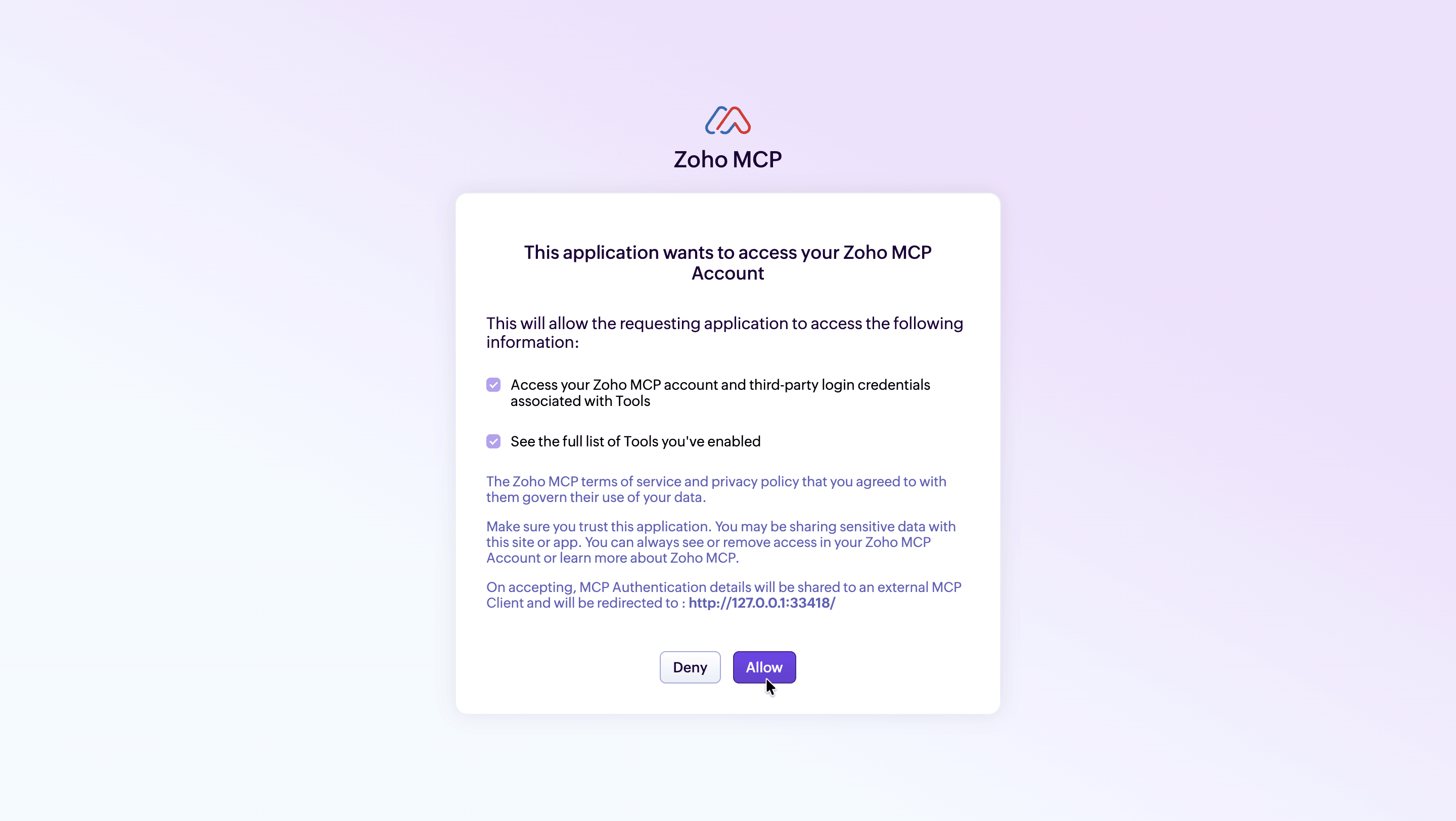
When you invoke an MCP tool for the first time, the server initiates an OAuth flow. A browser window opens and prompts you to log in to your Zoho account. Once authentication is complete, the tools become available in your AI tool.
- All actions are scoped to your Zoho CRM user permissions. You can only perform operations that your CRM role allows.
- To switch between different orgs or users, disconnect the MCP server in your AI tool, then re-authenticate/restart with the organization you want to use. The new session will be scoped to that organization.
What's Next?
Zoho CRM MCP is supported in all the MCP-compatible AI platforms. Explore the setup instructions for: