Visual Studio Code
Configure Zoho CRM MCP servers in VS Code using automatic or manual setup.
Automatic Configuration
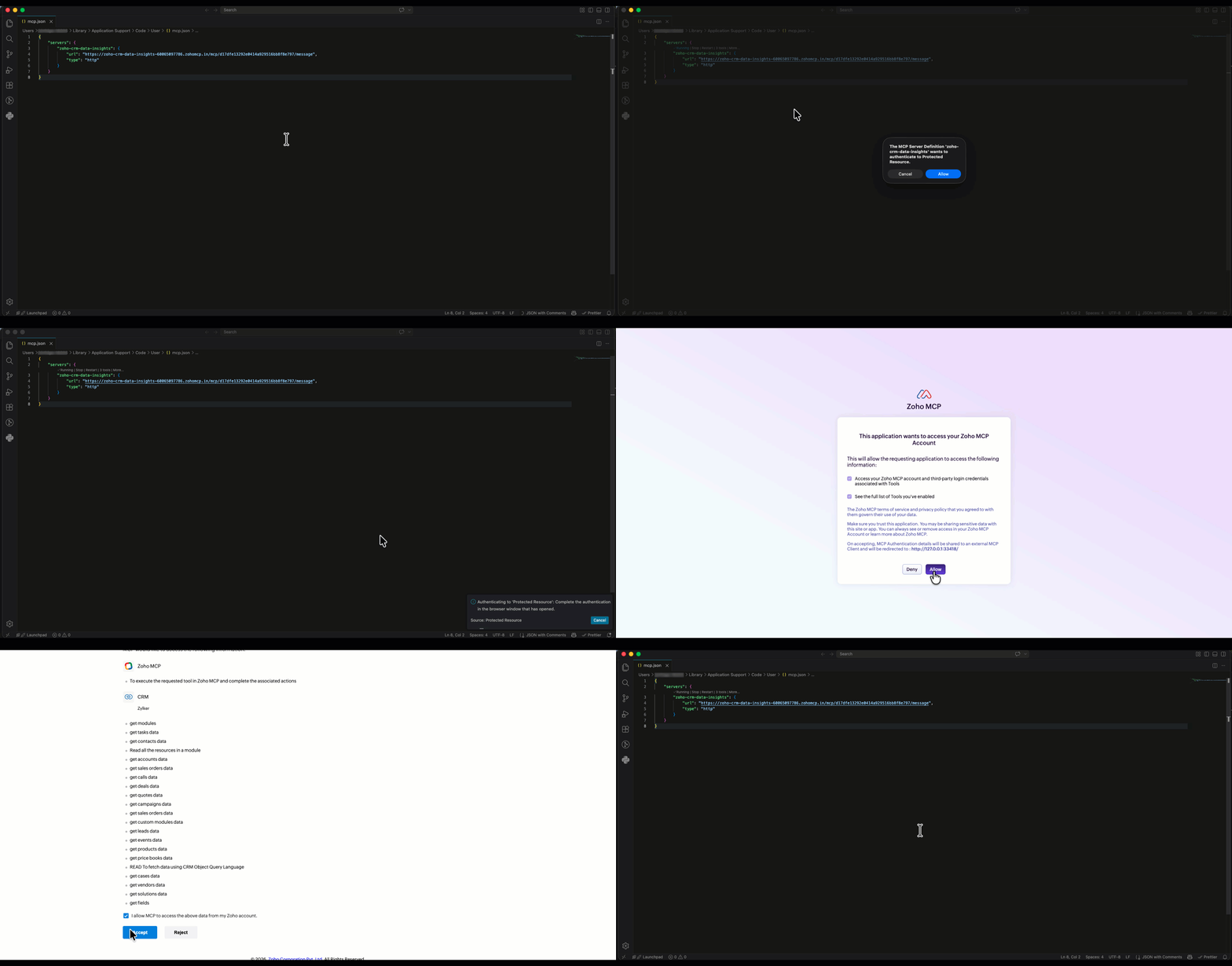
- Login to your Zoho CRM and go to Setup > Developer Hub > MCP for AI Agents.
- Select the required MCP server from the list and click VS Code as the AI tool.
- Click the Install MCP Server in VS Code button.
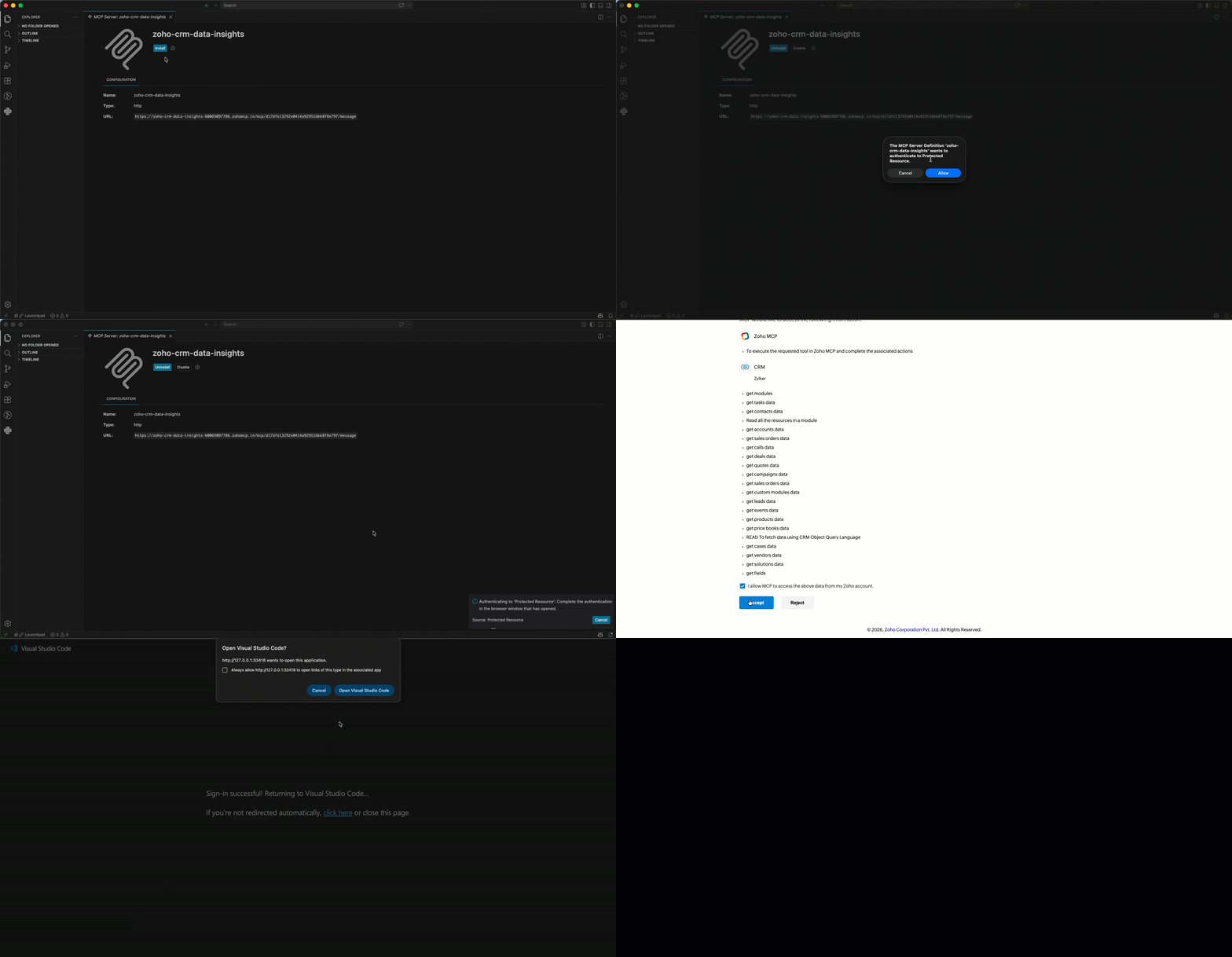
- VS Code opens with the selected server details. Click Install.
- In the pop-up that appears, click Allow to authenticate your Zoho CRM organization.
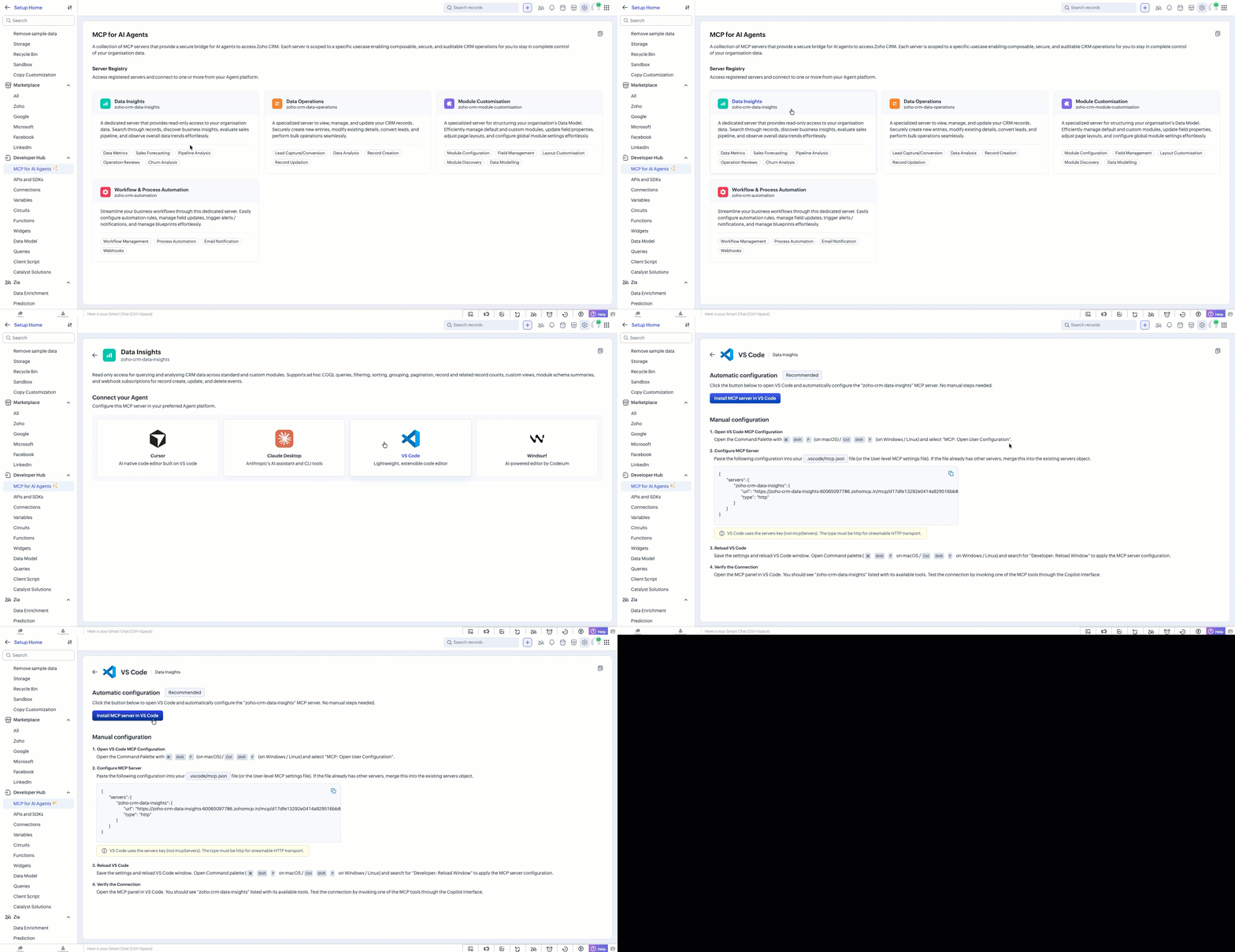
- This will prompt you to open the authentication URL in your browser (or copy and paste it) to complete authentication.
Manual Configuration
- Open the Command Palette with
⌘ Shift P(on macOS) /Ctrl Shift P(on Windows/Linux) and search for MCP: Open User Configuration.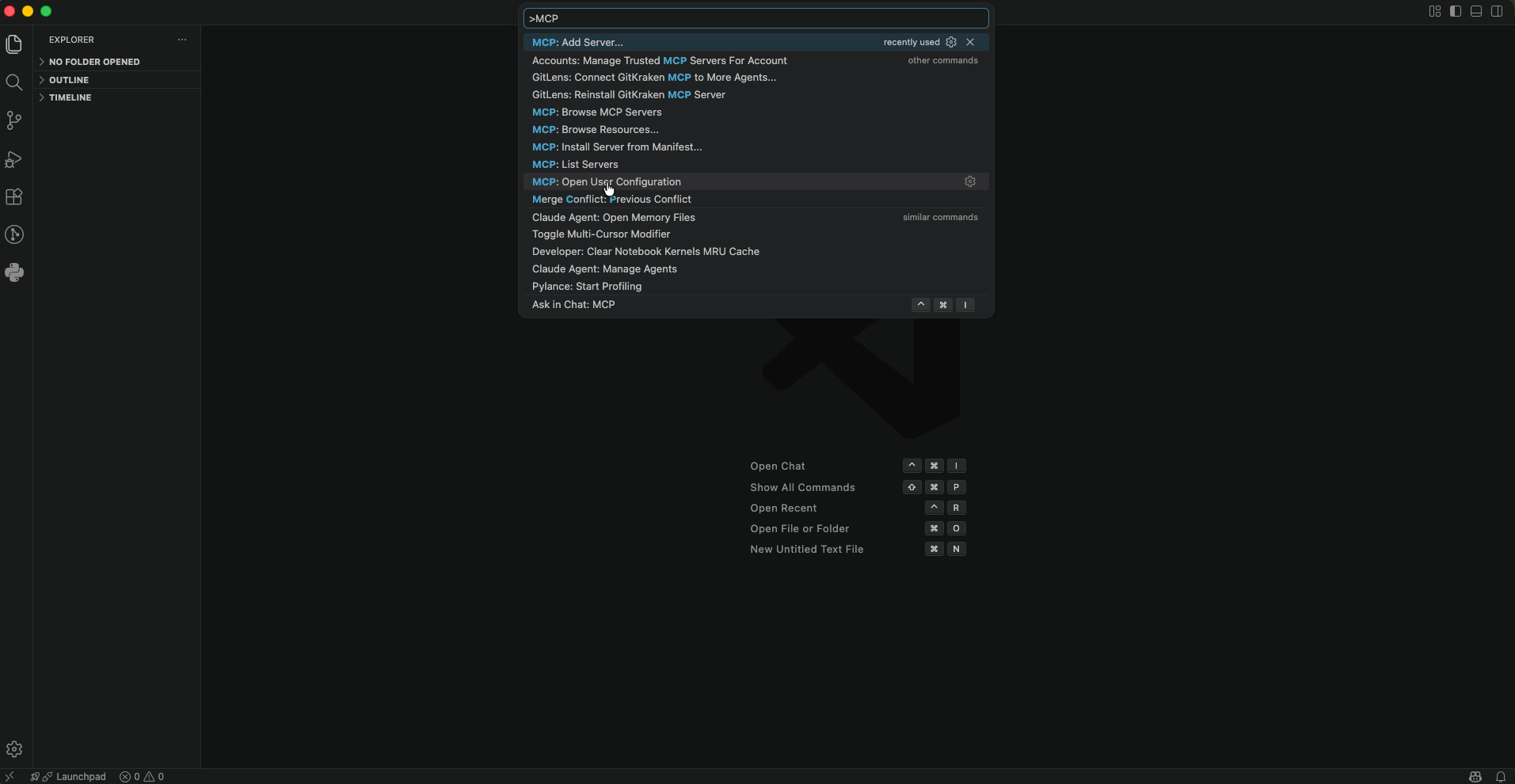
Copy and paste the following into the
.vscode/mcp.jsonfile:{
"servers": {
"zoho-crm-data-insights": {
"url": "https://zoho-crm-data-insights-60065097786.zohomcp.in/mcp/d17dfe13292e0414a929516bb8f8e797/message",
"type": "http"
}
}
}{
"servers": {
"zoho-crm-data-operations": {
"url": "https://zoho-crm-data-operations-60065097786.zohomcp.in/mcp/fe46ddbc48fec3713c8754cea8ec9ac5/message",
"type": "http"
}
}
}{
"servers": {
"zoho-crm-module-customisation": {
"url": "https://zoho-crm-module-customization-60065097786.zohomcp.in/mcp/8057776f5d548a33b892c533d4278d17/message",
"type": "http"
}
}
}{
"servers": {
"zoho-crm-automation": {
"url": "https://zoho-crm-automation-60065097786.zohomcp.in/mcp/c139be028c224f75a9077e6473a62f3b/message",
"type": "http"
}
}
}If the file already has other servers, merge this into the existing
serversobject.
Thetypemust be set tohttpfor streamable HTTP transport.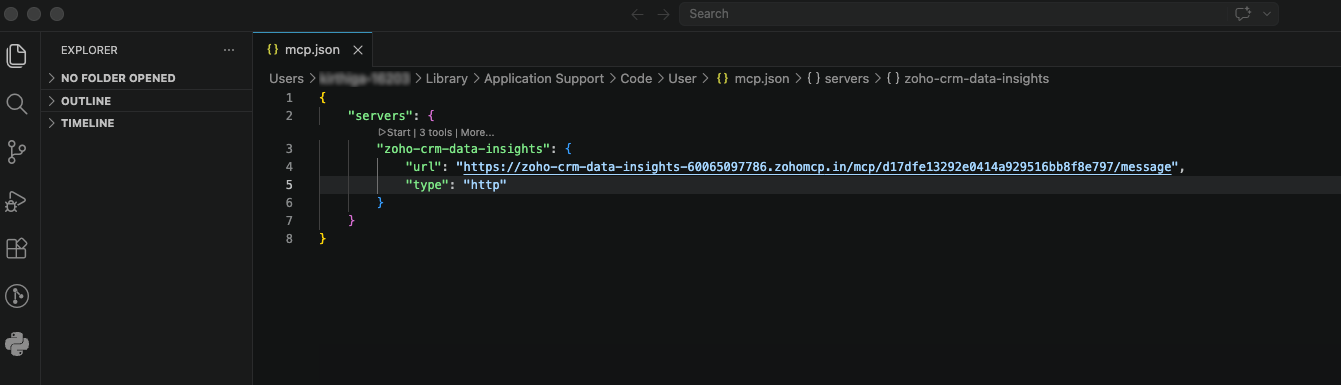
- Save the file and reload the VS Code window. To reload the window, open the command palette and run Developer: Reload Window.
Click Start Server to authenticate your CRM organization.