
Group Call on Remote Work
Group Call is a great way to talk, chat and collaborate. Group call in Remote Work includes audio and video call. You can add up to 30 people in an audio group call and can have up to 16 people on a face to face video call. You can add individual participants or can stream in a channel from the chat for a group call. Through group call you can have an informative and lively interaction by adding reactions and sharing screens to your teams to explain better. In essence, group call keeps you in sync with your team.
Audio Group Call
You can add up to 30 participants in a group audio call, in case you are streaming participants from a channel having more than 30 members, the members will be joined into the conversation on first come first serve basis.
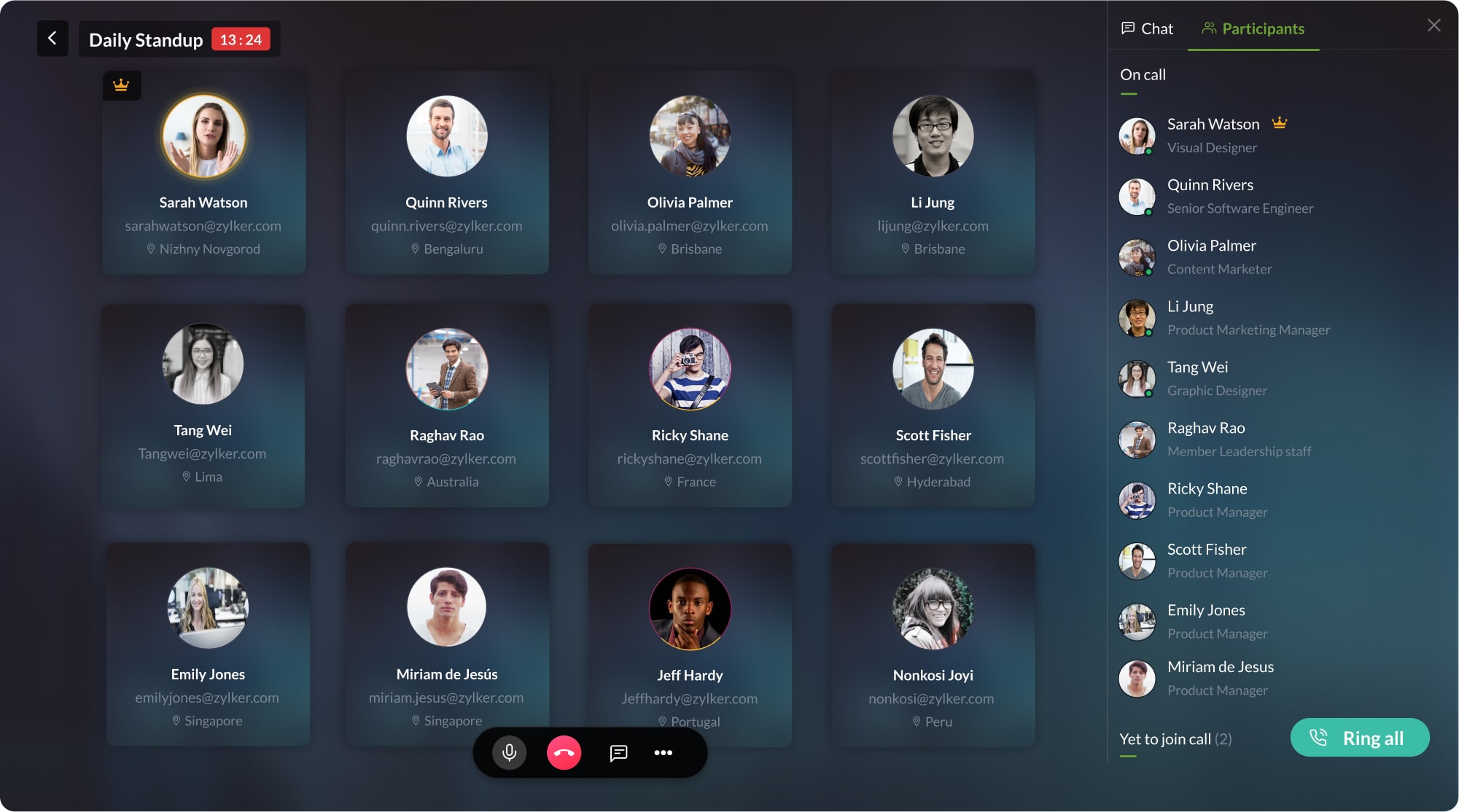
Video Group Call
You can add up to 16 participants in a face to face group video call, in case you are streaming participants from a channel having more than 16 members, the members will be joined into the conversation on first come first serve basis. There are two views available in the group video call "Film Strip view" and "Gallery view". The film strip view lets you focus on the active speaker in the call and is helpful while sharing screen and gallery view provides you with a collective idea of everyone involved in the call.

Note
During group call you can also access the group chat, all the participants in the call can simultaneously engage in conversation through the chat.
How to make a Group Call via Remote Work?
- Navigate to Remote Work.
- Click on the group call icon.
- Enter the topic of discussion in the topic field.
- Select your preferred option (stream in participants/ stream in chat)
To add participants enter the email id of the participants in the select a user tab.

To add chats select a chat from the select a chat tab

- Choose your mode of conversation.

- Select next.
- Grant permission for the browser to access your microphone.
- Select start to begin the conversation.