
Create a Table in the Data Store
Next, let's create a table in the Data Store in the CatalystDialerApp project. This table is used to store the call related data such as phone numbers, country of the caller, duration and status of the call etc.
To create a table:
- Navigate to Data Store under Develop.
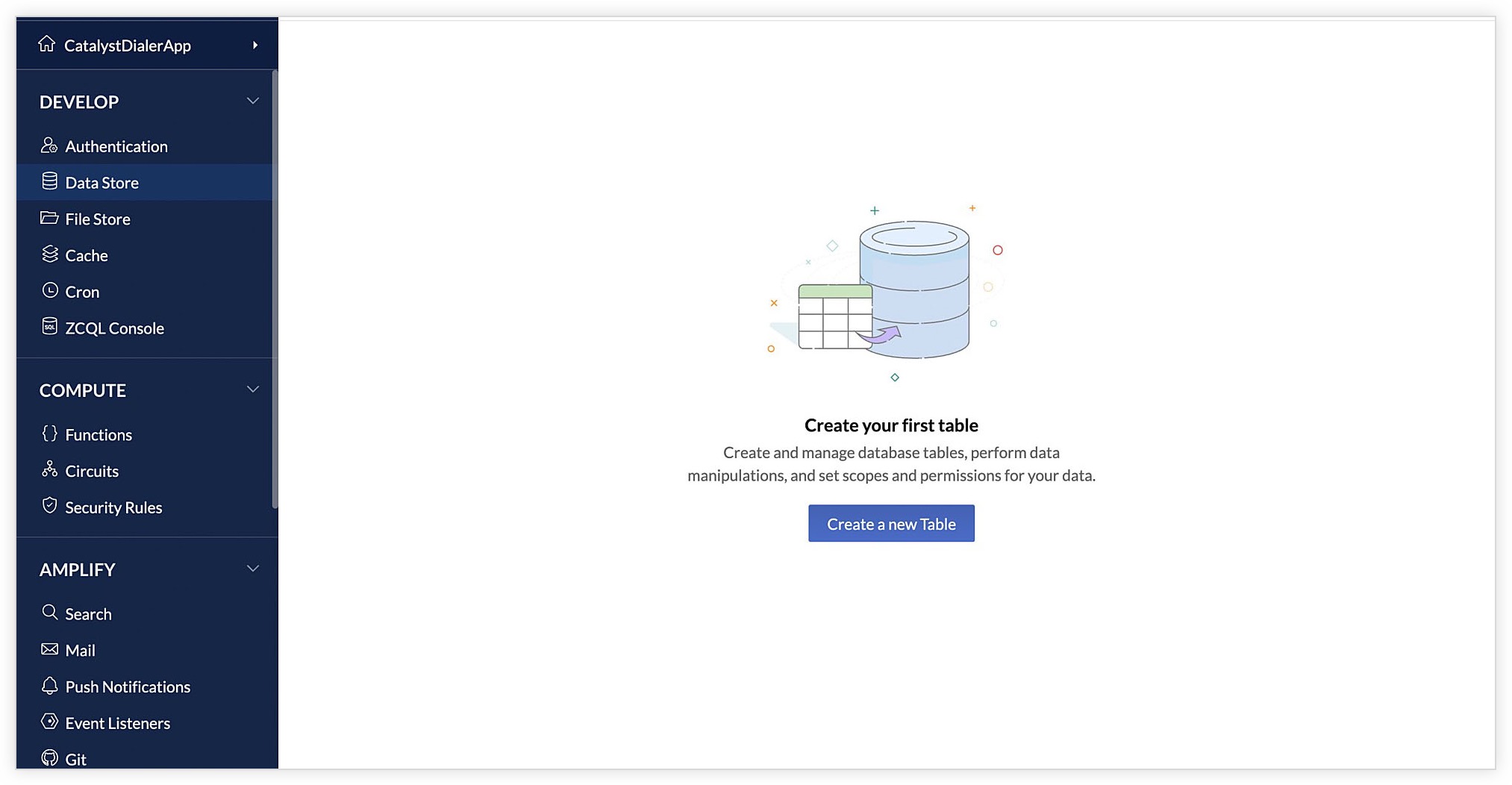
- Click Create a new Table.
- Enter the table's name as "CallLog", then click Create.
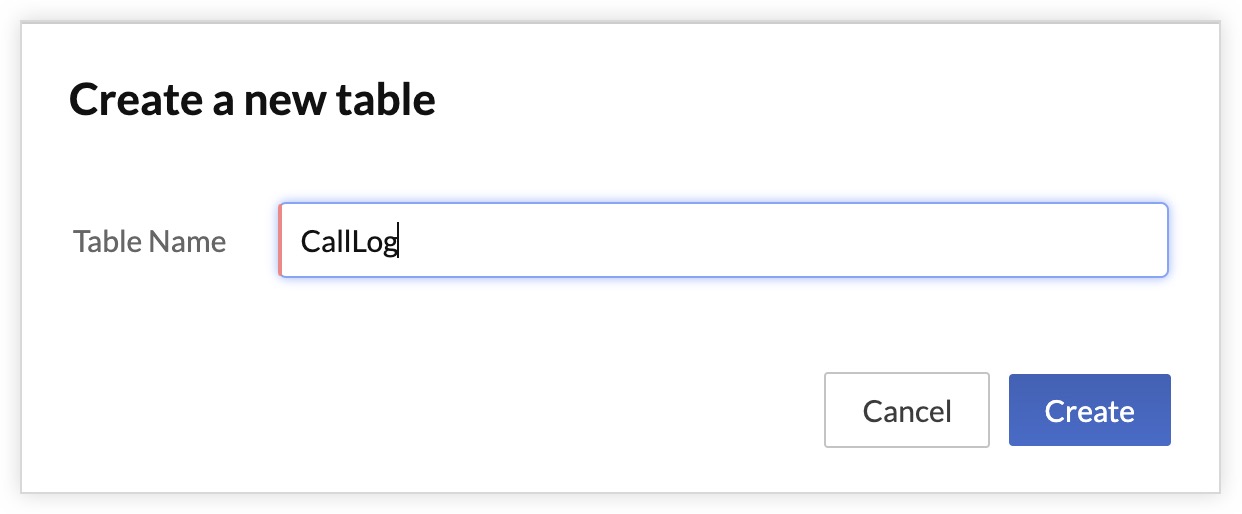
Note: Ensure that you enter the name exactly as instructed, because the application's code contains the same name.
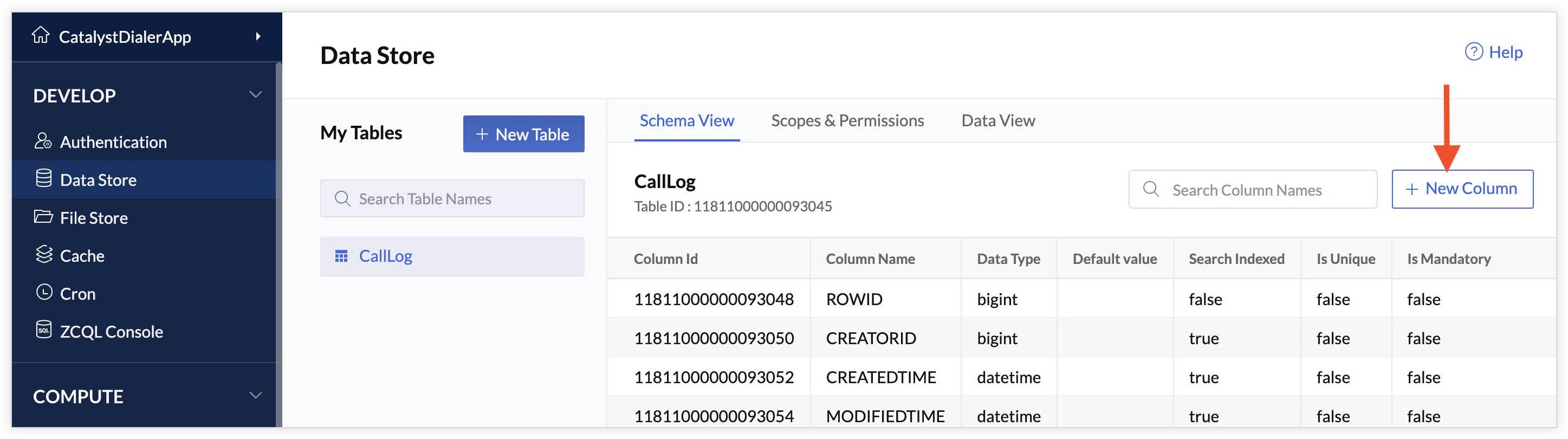
The table is now created and displayed in the Data Store page.
Create Columns
Next, let's create a column to store the details of the call.
- Click New Column in the Schema View section of the table.
- Enter the column's name as "callDuration". Select the data type as int and click the Is Mandatory toggle switch to enable it.
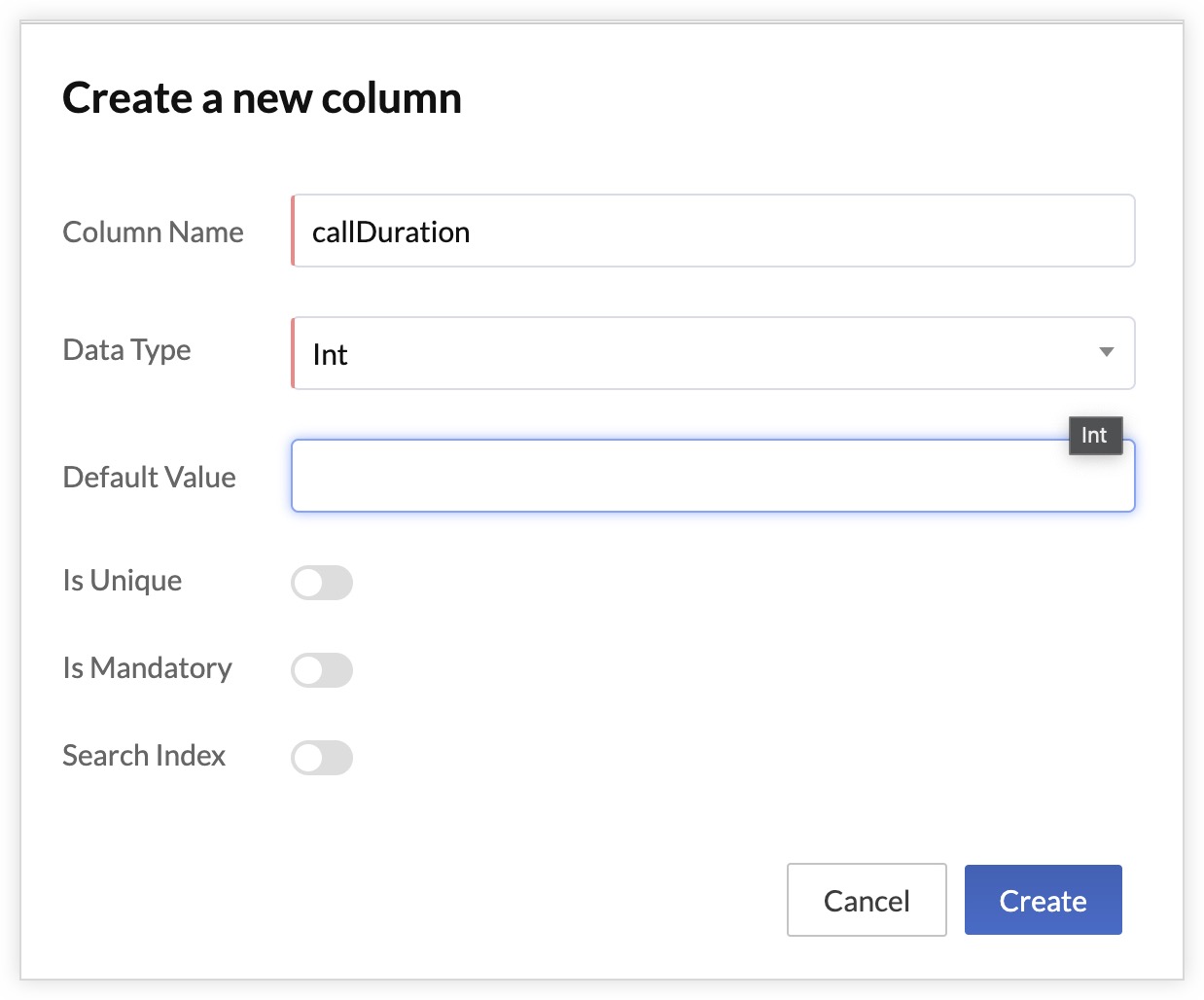
You can learn about the various data types supported by Catalyst and the other properties of a column from the Data Store help page.
Note: Ensure that you enter the name exactly as instructed, because the application's code contains the same name. - Click Create.
The column is now created and listed in the Schema View section.

You must now create five other columns in the same way. The table must contain six columns in total with the following mandatory properties :
| Column Name | Data Type | Max Length |
|---|---|---|
| callStatus | varchar | 255 |
| calledCountry | varchar | 255 |
| timeOfCall | varchar | 255 |
| fromNumber | varchar | N/A |
| toNumber | text | N/A |
You have now configured all the necessary components from the console. You will now be working on coding the application from your local system.