How Zoho Workplace makes your Zoho CRM lighter

If you use Zoho CRM daily, you already know it’s powerful. It handles pipeline management, forecasting, automation, reporting, and everything that makes a CRM essential for running a sales operation.
But most sales days don’t actually happen inside CRM alone. They happen in your inbox, in team chat conversations, in shared documents that go through multiple rounds of feedback, and in the quick deal follow-ups.
Zoho Workplace is where you spend your day in (Mail, Cliq, WorkDrive or any of the other applications).When Zoho CRM is connected to it, you can perform certain CRM actions directly from these tools without opening CRM each time. It’s not a replacement for Zoho CRM. For pipeline and lead management, reporting, automation, and forecasting, you still want to be in CRM.
However, if you’re using Zoho Workplace alongside Zoho CRM, there’s a practical shift you can make. Instead of treating CRM updates as a separate activity you fit in at the end of the day, many of those updates can happen naturally as part of your regular work in Mail, Cliq, and WorkDrive. As the sales team, here’s how you can grease the gear for those smaller, frequent tasks that punctuate the day.
View CRM details directly inside Zoho Mail
One of the most useful features is also one of the most overlooked: the CRM eWidget in Zoho Mail.
When you open an email from an existing lead or contact, their CRM record appears automatically in the sidebar. You get a snapshot of their deal stage, recent interactions, open tasks, and notes without opening a new tab or searching through CRM.
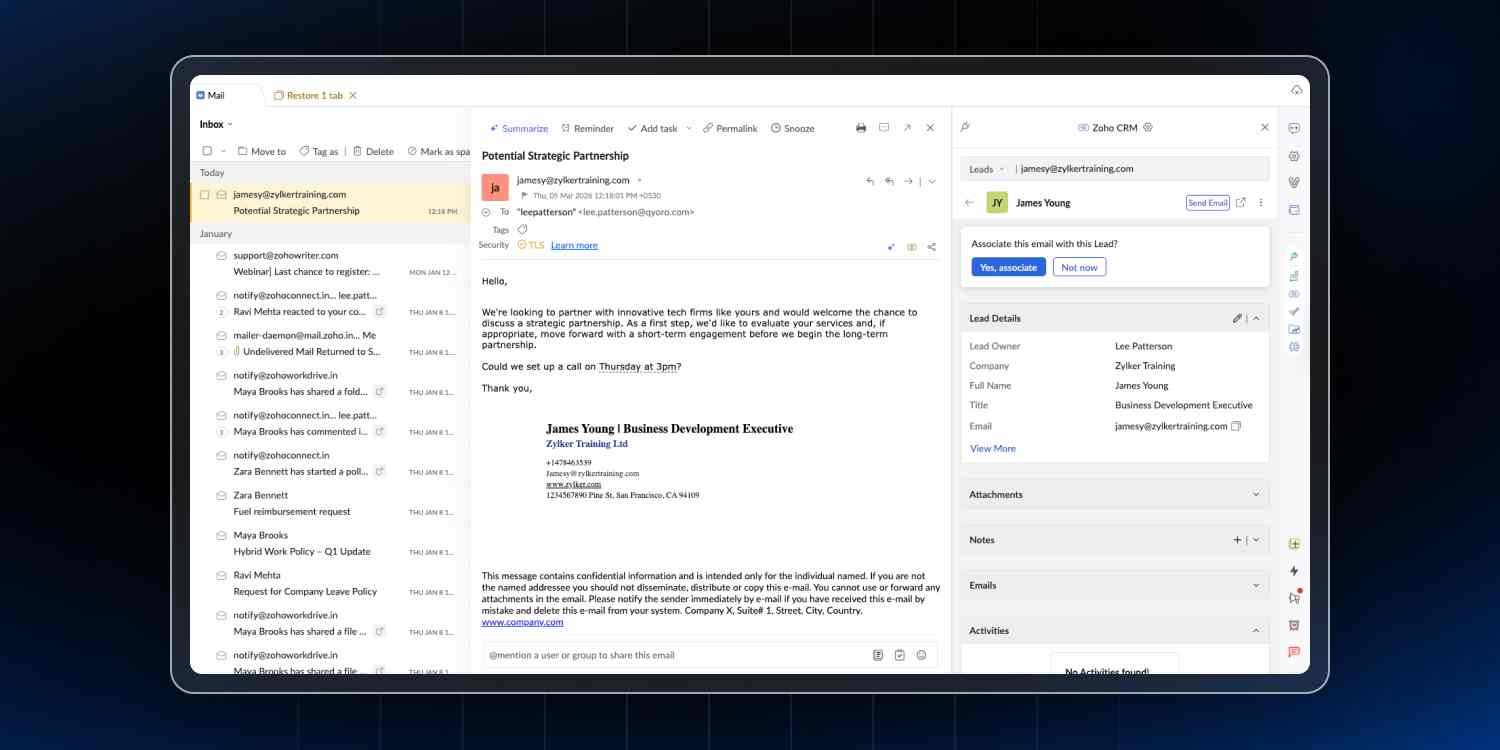
“Any update?” means something very different when a deal is in negotiation versus when it’s been quietly aging for weeks like kombucha. Without the eWidget, you’d switch tabs, look up the contact, review the record, and then come back to your inbox. With it, that entire runaround disappears. You can read the email with full context already visible and reply accordingly.
Add new leads to your CRM right from your inbox
For contacts not yet in your CRM, you can add them as a lead or contact directly from the email. Their name, email address, and company are added in automatically.
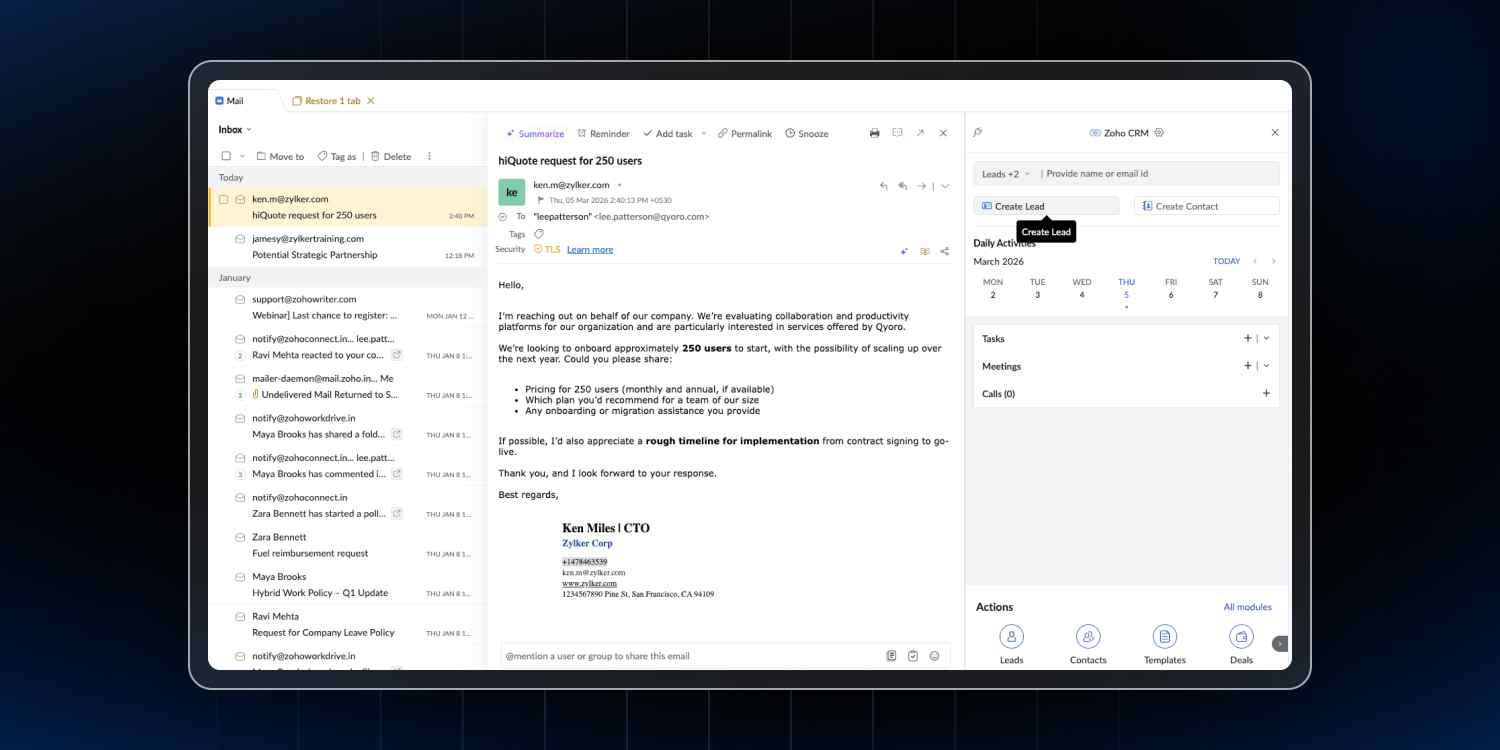
From that same sidebar, you can take actions that would normally require switching to CRM:
- Add a new lead or contact if they’re not already in your system.
- Create a deal directly from the email conversation.
- Log a note capturing important details from the exchange.
- Set a follow-up task with a reminder.
These actions happen in the same moment you’re replying to the email, which makes a significant difference in whether they actually get done.
Keep documents current across WorkDrive and CRM
In virtually every active deal, a proposal goes through several rounds of feedback and revisions. The final version lives in Zoho WorkDrive where your team collaborates on it. The CRM record, however, still has the version from round two attached because it was added early in the process and never updated.
Now you have two sources of truth, which is functionally the same as having none. This is how Final_v4_SEND_THIS_ONE.docx gets sent to a client who already received Final_v2_revised.docx last week.
When you attach a WorkDrive file to a CRM record, it links to the original document rather than creating a separate copy. Update the document in WorkDrive, and the CRM record reflects that change automatically. There’s no re-uploading, which means there’s no opportunity for version confusion.
Receive CRM updates directly in Cliq
Most sales team conversations happen in Zoho Cliq. It’s where someone asks “what’s the status on the Henderson deal?” and expects a quick reply. Zoho CRM already has that information, but accessing it usually means leaving Cliq, opening CRM, finding the record, and bringing the details back to the conversation.
When Cliq and CRM are connected through Zoho Workplace, those updates can happen in the same place where questions are asked.
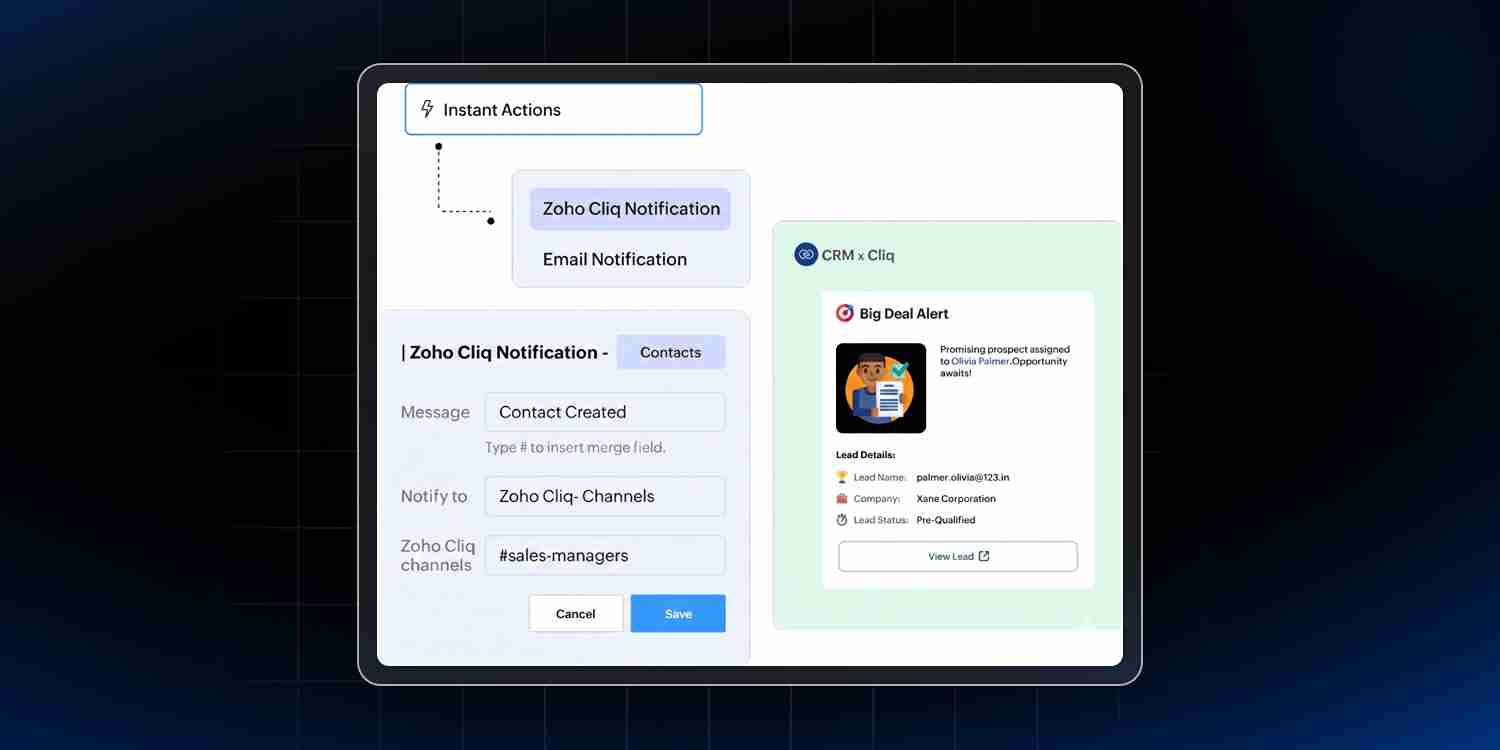
CRM can push information into Cliq automatically through workflow rules. Under Automation → Workflow Rules in CRM, you can set specific triggers that send notifications directly to a Cliq channel or direct message.
For example, when a deal over $50,000 is created, a notification can go to your sales channel immediately. This facilitates instant team discussions and helps everyone prioritize their attention appropriately.
Some workflow rules worth considering:
| When this happens in CRM | Send notification to |
| New lead assigned to a rep or team | Rep’s DM or team channel |
| Deal crosses a specific value threshold | Sales channel or manager DM |
| Deal moves to Negotiation or Closed Won | Team channel with deal summary |
| New contact added from a webform | Whoever handles initial contact |
| Follow-up task goes overdue | Assigned rep as direct message |
Beyond automated notifications, the Zoho CRM bot in Cliq brings your CRM data into everyday conversations. It pulls in records on demand and reminds you about upcoming calls, webinars, and scheduled meetings, so you don’t have to leave Cliq to answer quick CRM questions.
Sales teams can use the bot to:
- Look up people and accounts
- Pull lists from CRM modules:
Your deals
Converted leads
Available products
Annual revenue of a client
Open activities - Ask aggregate questions:
Deals created today
Number of leads created today
To start using the Zoho CRM bot in Cliq, you’ll first need to enable it from Zoho Workplace. Go to Settings → Configure Sidebar → Display → Navigation Sidebar → Allowed Apps → Bots, then drag and drop the Bots module. Once that’s done, you can click the Bots module in the sidebar, choose Zoho CRM bot, and a dedicated Cliq chatlet opens where you can start asking these questions.
Bring everything together with Trident
Trident is the desktop application for Zoho Workplace. It combines Mail, Cliq, WorkDrive, and Calendar into a single window. With the CRM eWidget inside it, the apps you use most and the CRM data you rely on every day sit side by side.
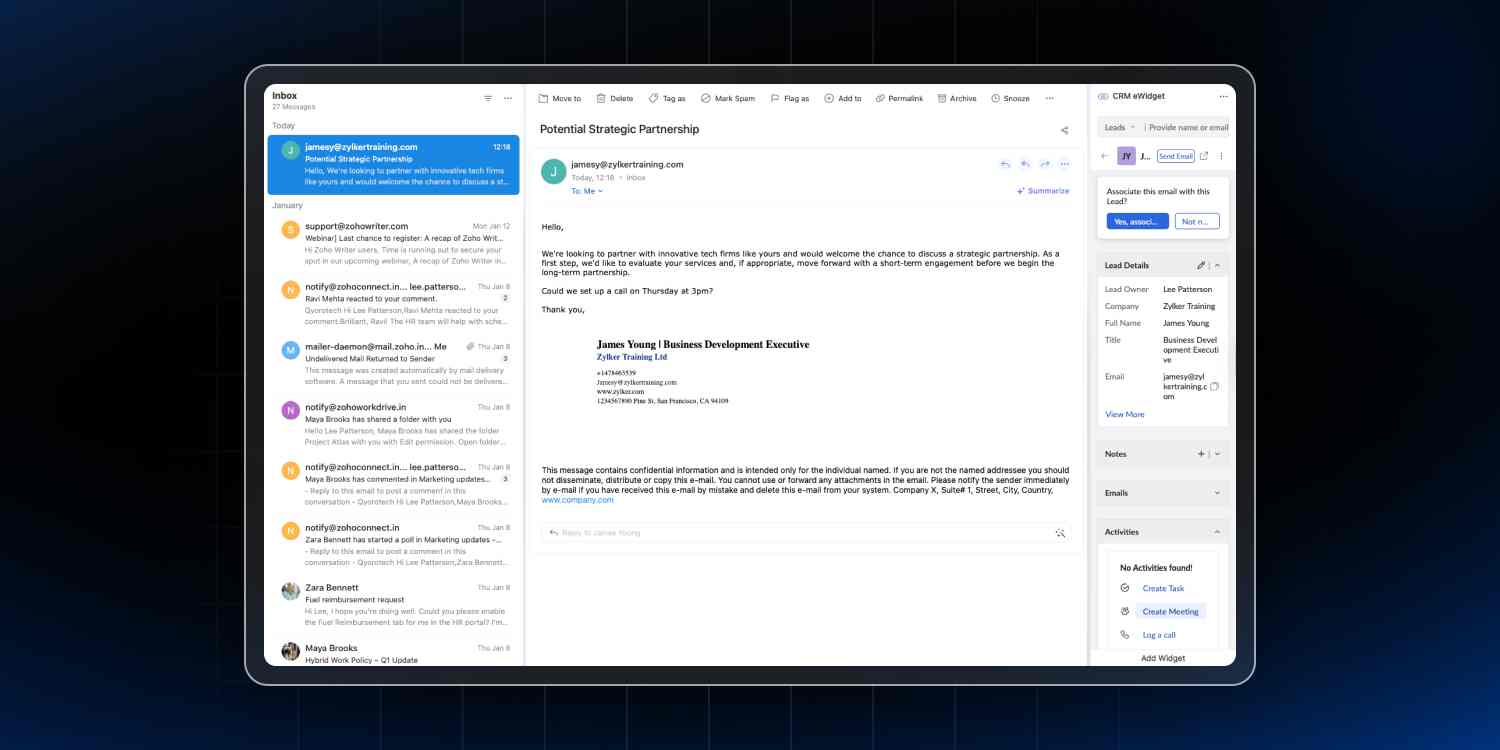
An email arrives from a lead you’ve been nurturing for a few weeks. Their CRM record is already visible in the sidebar, so you can review their history, reply to the email, log a note about the conversation, and set a follow-up reminder all from the same screen without switching contexts.
A Cliq notification appears about a new high-value deal. You can open the record, review the details, and share relevant information back to the channel before your team’s stand-up meeting starts.
Everything you’ve seen so far, like Mail with the CRM eWidget and Cliq with CRM notifications and the bot, comes together in Trident as a unified desktop experience.
Trident works on Windows, Mac, and Linux, and it’s available as part of Zoho Workplace at no additional cost.
It works both ways
Everything discussed so far has been about handling CRM tasks from Workplace tools. It runs in the other direction as well.
From any lead or contact record in Zoho CRM, you can schedule a Zoho Meeting or start one immediately with Meet Now. The meeting session is logged automatically under Activities on that record, so it becomes part of the deal’s history rather than an isolated calendar event.
You can send email via Zoho Mail directly from a CRM record, and the entire thread stays attached to that contact. This is particularly useful when someone else needs to pick up the account later and requires context quickly. They can see the full email history without asking you to forward messages or explain what’s already been discussed.
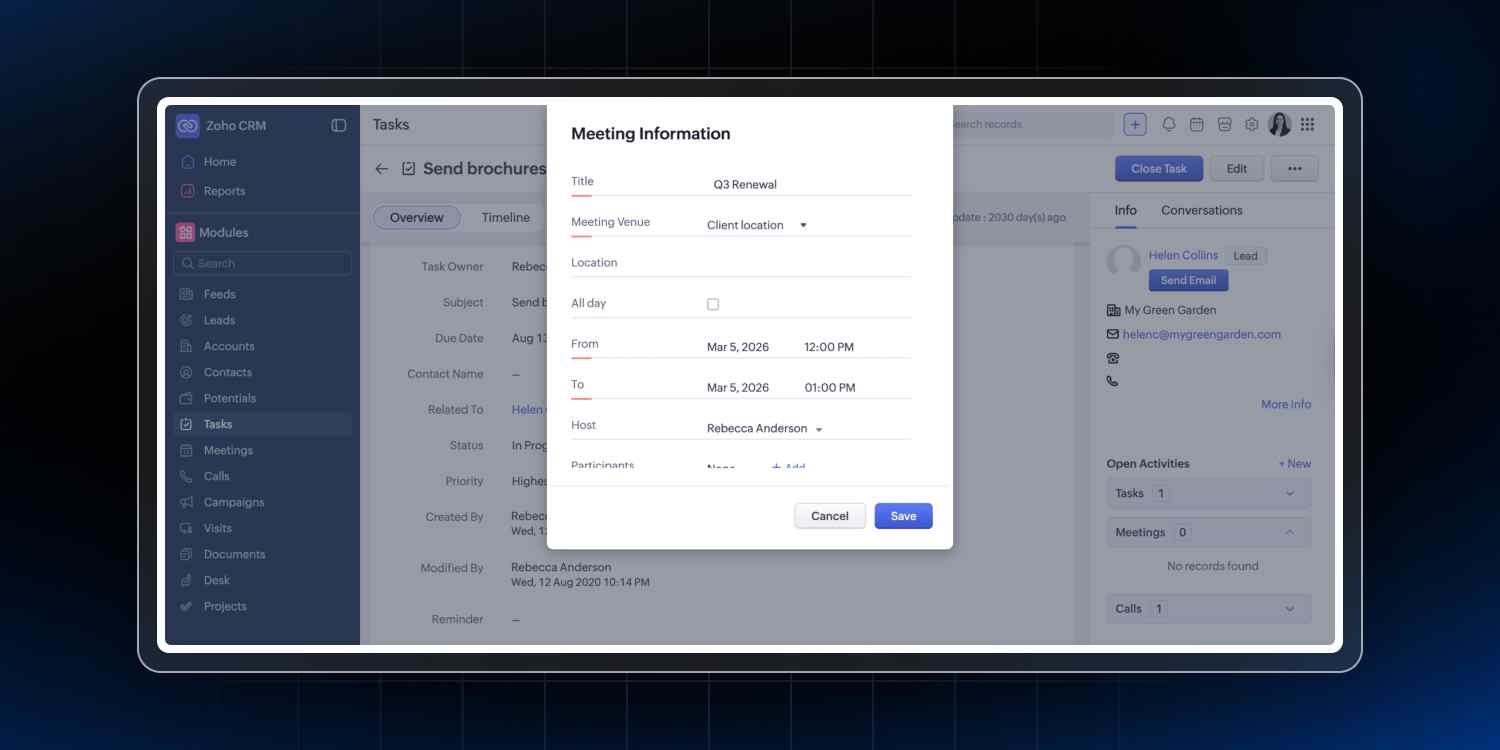
You can also share a deal or lead record into a Zoho Cliq channel with a note, giving your team exactly the information they need without taking screenshots or manually summarizing what CRM shows.
Whichever window you’re working in, the other tools remain closely connected and accessible.
How Workplace cuts the constant switching
To be clear about scope: This is a way to reduce how often you need to open CRM for routine tasks, not a way to replace CRM entirely. For the core functionalities, you still want to be in CRM.
Zoho Workplace helps with frequent, smaller actions:
- Viewing a contact or lead’s CRM details (from Mail sidebar).
- Adding new leads from incoming emails (from Mail sidebar).
- Logging notes or tasks on records (from Mail sidebar).
- Creating deals from email conversations (from Mail sidebar).
- Tracking when leads open emails or click links (Signals in CRM).
- Attaching documents that stay current (WorkDrive links).
- Sending correct file versions in emails (WorkDrive in composer).
- Getting pipeline alerts without manual checking (Cliq notifications).
- Looking up deal information mid-conversation (Cliq bot).
- Sharing CRM records with context (Cliq channels).
- Scheduling meetings from records (Zoho Meeting).
For core CRM functions, you still want to work directly in CRM:
- Pipeline management and forecasting.
- Detailed reporting and dashboard creation.
- Workflow automation.
- Complete contact and account management.
- Advanced analytics and Zia AI features.
Getting started with these integrations
Most of these features don’t need a big rollout plan. They’re either on by default or take a few minutes to set up, which means you can start seeing the impact inside your existing workflow rather than redesigning it from scratch.
| Feature | How to get started |
| Mail eWidget | On by default. Open any email from a CRM contact and look to the sidebar. |
| Signals | Navigate to CRM → Setup → Experience Center → Signals to configure which events trigger notifications. |
| WorkDrive file management | Inside any CRM record, go to the Attachments section and select files from WorkDrive instead of uploading copies. |
| Cliq workflow notifications | Set up rules under CRM → Automation → Workflow Rules, selecting Cliq as the notification method. |
| @ZohoCRM bot | Add it to Cliq channels from the Cliq Settings menu. |
| Zoho Meeting integration | Available in the Activities section on any lead or contact record in CRM. |
Over time, your pipeline stays current without a dedicated “update CRM” block on your calendar. The latest version of every document is simply the one everyone sees in CRM.
Why this matters to you
Zoho CRM already gives your sales process structure. In practice, your day is still happening across inbox threads, chat pings, shared folders, and meeting links.
With Zoho CRM plugged into Zoho Workplace, more of those updates happen in real time as you reply to emails, share documents, or chat with your team. The admin work doesn’t disappear, but a lot of it moves into the background, saving your team a few minutes on every deal instead of a block of time at the end of the day.
Comments