Say hello to Zoho MCP: where payments meet conversations

For most businesses, managing payments is still a hands-on process. Creating a payment link. Checking a transaction. Processing a refund. Looking up a customer's transaction history. Each action is in a different module and each one takes a few clicks. None of it is hard, but it adds up, and by the end of the day you've spent a surprising amount of time on this.
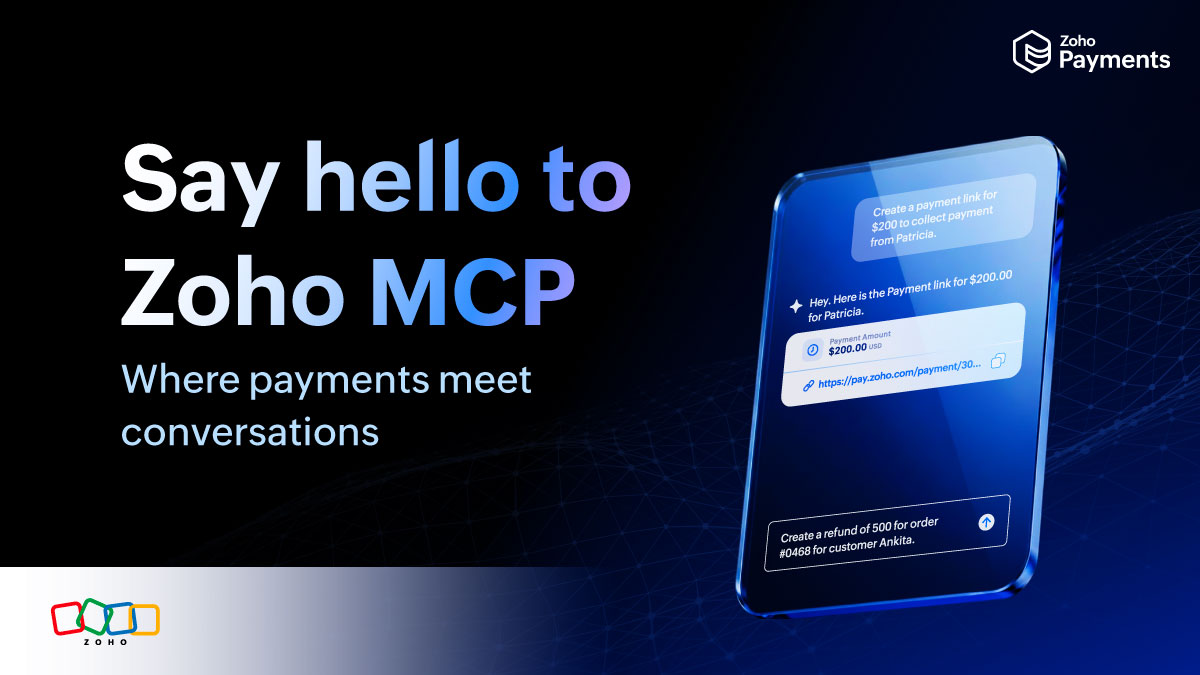
That's the gap Zoho MCP Server is built to close. It connects your MCP Client directly with Zoho Payments, so the actions you'd normally perform manually can be handled through conversation. You describe what you need, and your MCP Client takes it from there.
What is MCP?
If MCP is new to you: it stands for Model Context Protocol. It's an open standard that lets MCP Clients such as Claude, ChatGPT, Cursor, the ones you already use actually perform actions in other apps, not just answer questions. In simpler terms, it gives your MCP Client a structured way to work inside the applications you already use, instead of being limited to just answering questions or drafting text.
What you can do with it
Once your MCP Client is connected to Zoho Payments, it can act on a wide range of payment-related tasks. Here's a closer look at what you can do.
Collect payments
Your client can create payment sessions for any amount, share them with customers, and check the status of a payment once it's made. So when a customer messages you about the payment, you don't open Zoho Payments, you ask your client and you have the answer before you search for it manually.
Process refunds
Refunds can be initiated the moment a request comes in, and your MCP Client can check the status of a refund in progress or retrieve refund details whenever needed.
Manage payment links
You can ask your MCP Client to generate a new payment link, update the amount or expiry on an existing one, or cancel a link if the deal falls through. Listing recent links and checking their status work the same way, which makes link-based collections far less manual.
Handle customers records
New customer profiles can be created on request and any customer's information can be retrieved instantly. This is useful for everyday tasks like confirming contact details before sending an invoice or checking a customer's history before responding to a query.
Track and review payouts
Your MCP Client can list recent payouts, share specifics on any individual payout, and pull up the transactions tied to one. For businesses managing a high volume of payouts, this turns reviews and reconciliations into a quick conversation rather than a manual report.
In short, almost everything you'd typically do across multiple sections of Zoho Payments can now happen through a single conversational interface.
Why it makes a difference
The real benefit isn't just speed. It's how naturally it fits into the way work already happens.
Most payment tasks come up in the middle of something else. You're in a sales conversation that needs a payment link. A support reply needs you to confirm a transaction. A finance review pauses while you check on a recent payout. Each of these moments traditionally requires stepping out of the current task, opening Zoho Payments, finding the right details, and stepping back in. And by bringing payment actions into the conversation layer, you remove that friction.
How safe is this
Letting an AI tool run payment operations naturally raises the question.
Payments demand a high standard of security, and this is designed with that in mind. Every interaction between your MCP Client and Zoho Payments is authenticated and you decide what the tool can and cannot do. You stay in charge of every action, and every request is traceable. Convenience never comes at the cost of compliance.
Getting started with Zoho Payments MCP Server
Setting up the MCP Server is straightforward; you don't need to be a developer to do it. There are two steps: configuring the server inside Zoho, and connecting it to your preferred MCP Client.
Head to the Zoho MCP console, where you can either pick Zoho Payments from the preconfigured servers for a one-click setup, or build a custom server with only the tools your team needs. Zoho then generates a unique, secure MCP URL that bridges Zoho Payments and your MCP Client. The full walkthrough is in the Zoho MCP Server guide.
Connecting to your preferred MCP Client
For most teams, Claude is the easiest place to start, a natural fit for day-to-day business workflows where payment actions sit alongside sales, support, and finance conversations.
If your team works in code, Zoho MCP also supports Cursor, Windsurf, and VS Code. Pick the one that matches how your team works.
What conversations look like in practice
Once connected, working with your MCP Client feels less like operating software and more like delegating to a colleague. A quick "Create a payment link for 200 to collect from Patricia" gets the link generated. "Refund 500 for order 1234 for customer Maria" kicks off the refund. "Add a new customer Charles with email charles@example.com" creates the profile. The server supports a wider set of tools across payments, payment links, customers, payouts, and refunds. Explore the MCP Server documentation for the full list of supported tools and configurations.
A simpler way forward
AI is becoming part of how everyday work gets done, and the way merchants interact with their payment systems is changing along with it. Zoho MCP Server is built for that shift. For merchants who want to spend less time managing payments and more time growing their business, this is a simpler path forward.

Comments